
Overview
The Benefits tab records each member's funding sources and the details needed to bill for them. A benefit ties the member to a benefit type (configured for your center), a schedule, usage limits, and — when the benefit type generates claims — the claim details such as authorization numbers and ICD-10 codes.
This article covers adding a benefit, setting its schedule and limits, entering claim codes and ICD-10, and editing or deactivating a benefit.
Before You Begin
- You must be logged in with Admin or Billing permissions.
- The member must already exist.
- Your center's benefit types must be configured first — the Benefit Type dropdown lists your center's active benefit types (there is no free-text funding source).
- The Claim Codes section (including ICD-10) appears only when Billing is enabled for your center and the selected benefit type generates claims.
Steps
Step 1: Open the Benefits tab
- Select Care > Members and open the member.
- In the profile tabs, open the Services group and select Benefits.
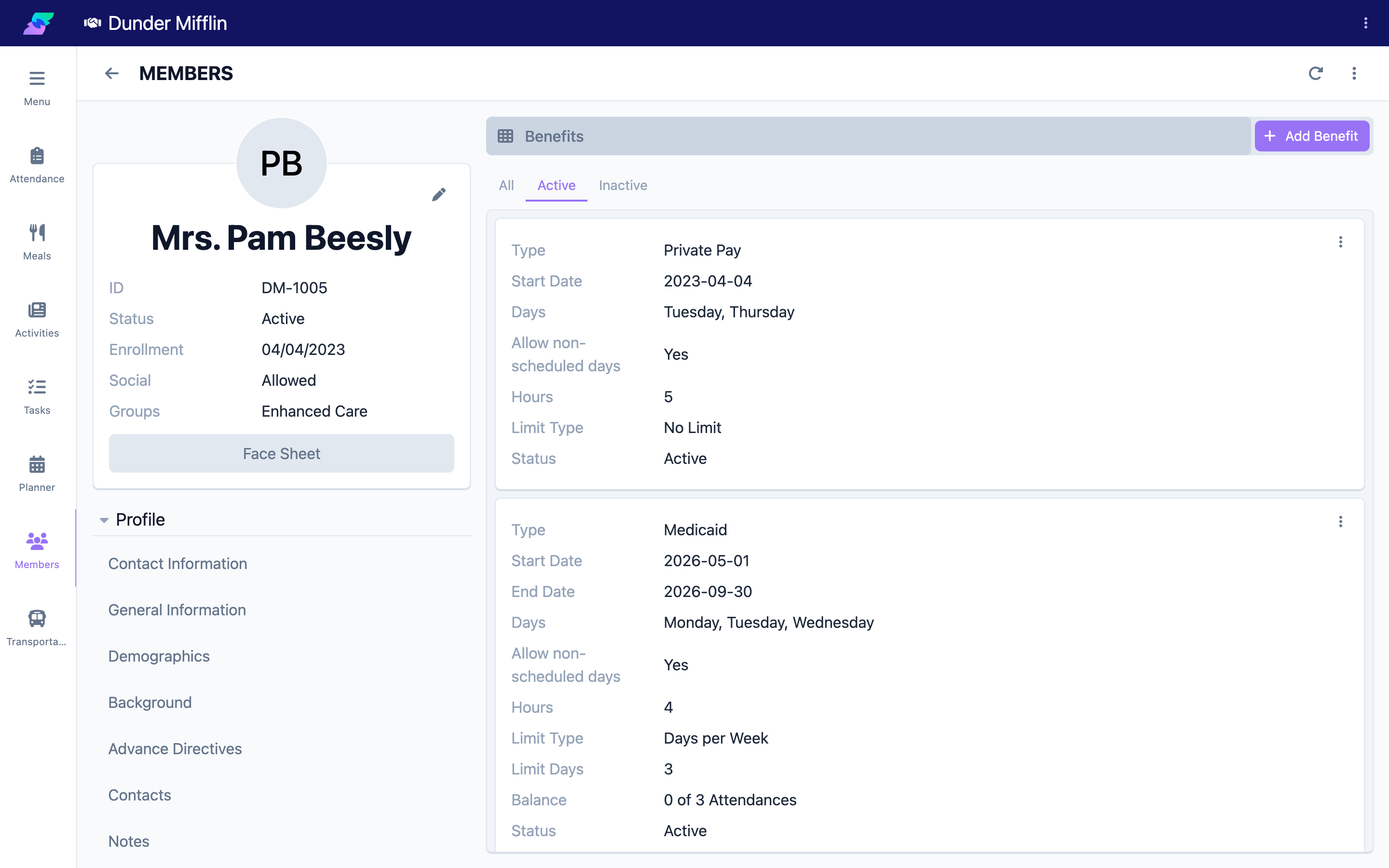
Step 2: Add a benefit and choose the Benefit Type
- Select Add Benefit.
- Choose the member (pre-filled) and select a Benefit Type from the dropdown. This list comes from your center's active benefit types.
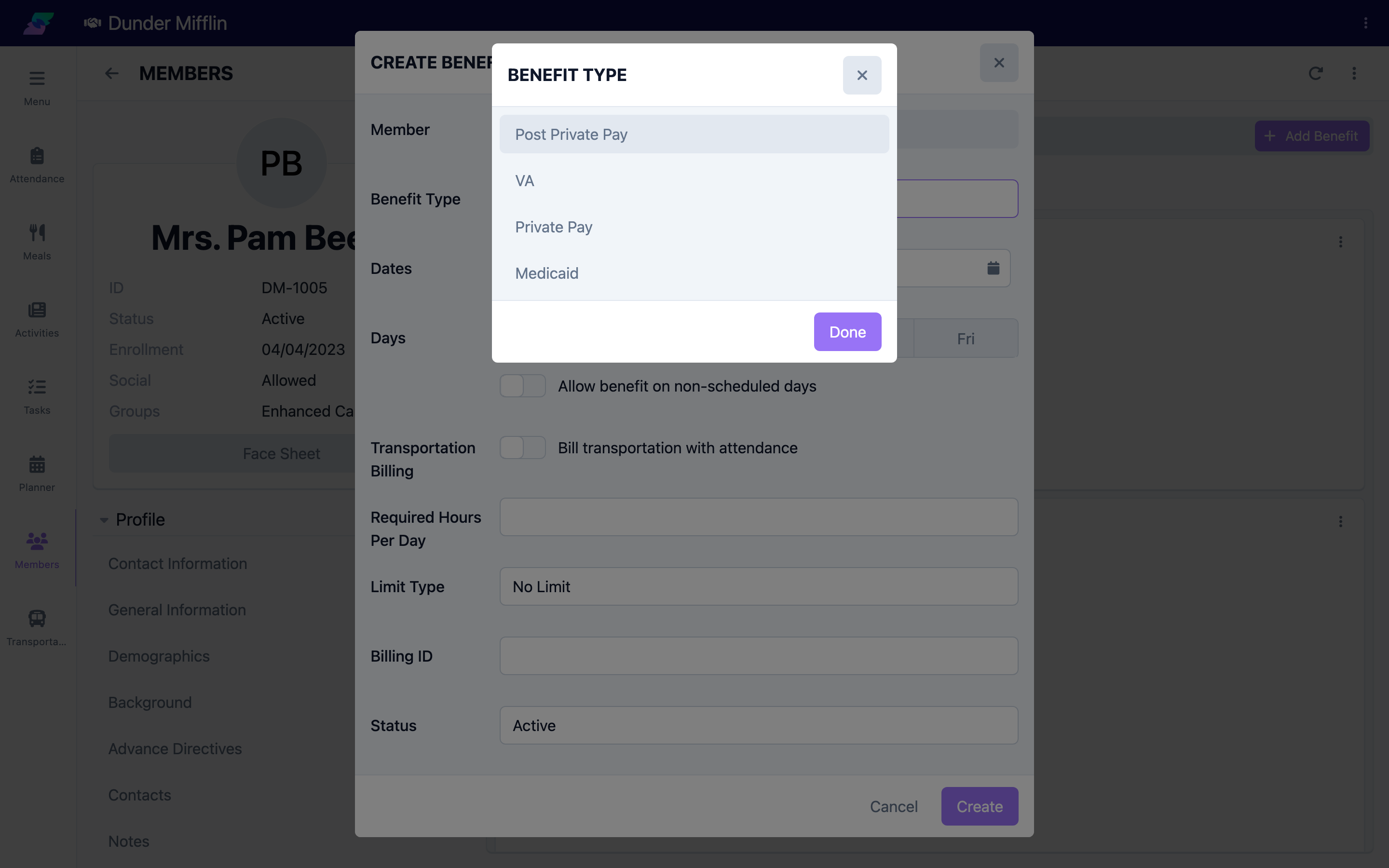
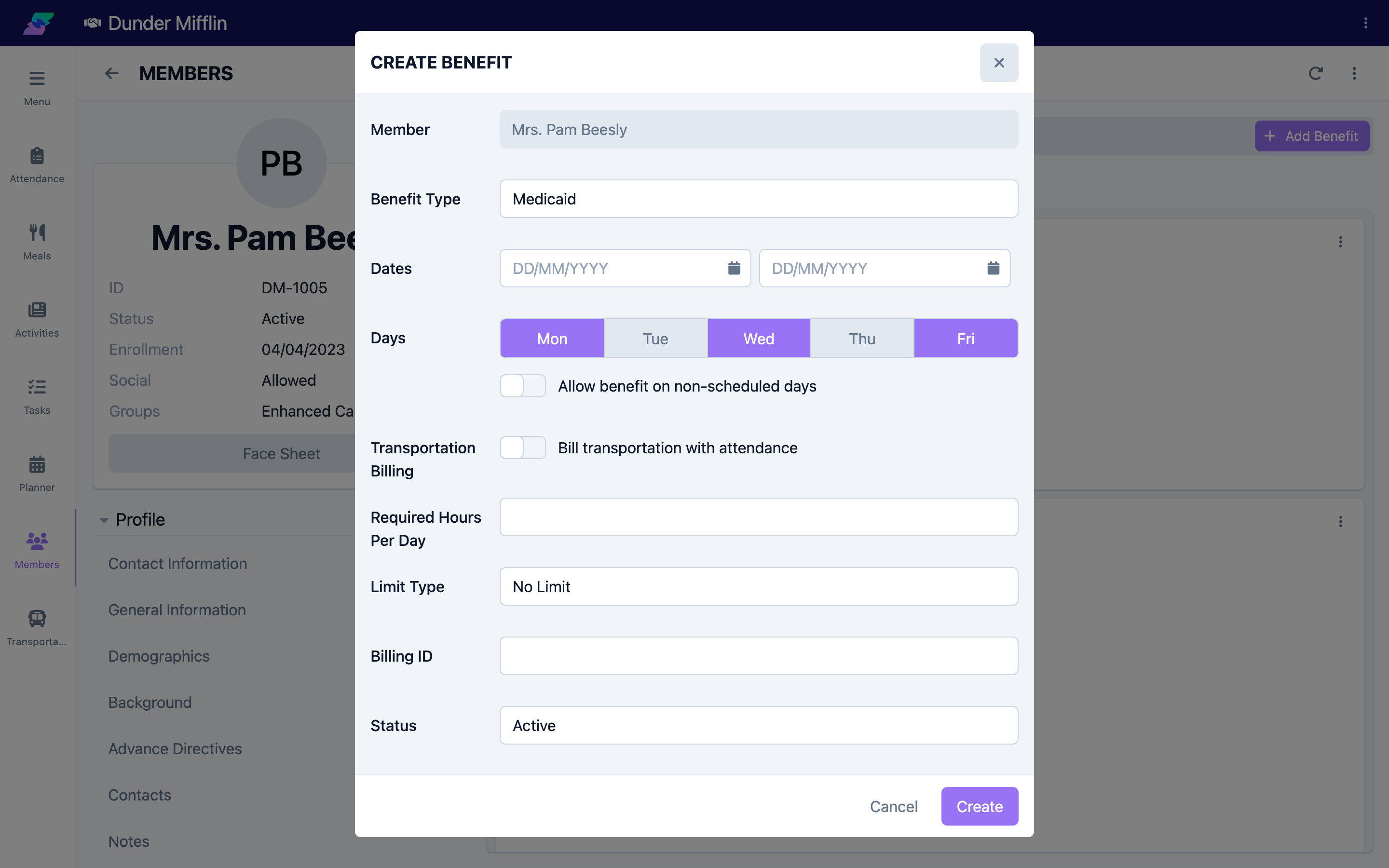
Step 3: Set the schedule
- Under Dates, set the Start Date (required) and, if the benefit ends, the End Date.
- Under Days, select the days of the week this benefit applies to.
- Turn on Allow benefit on non-scheduled days if the member may use this benefit on days they are not normally scheduled.
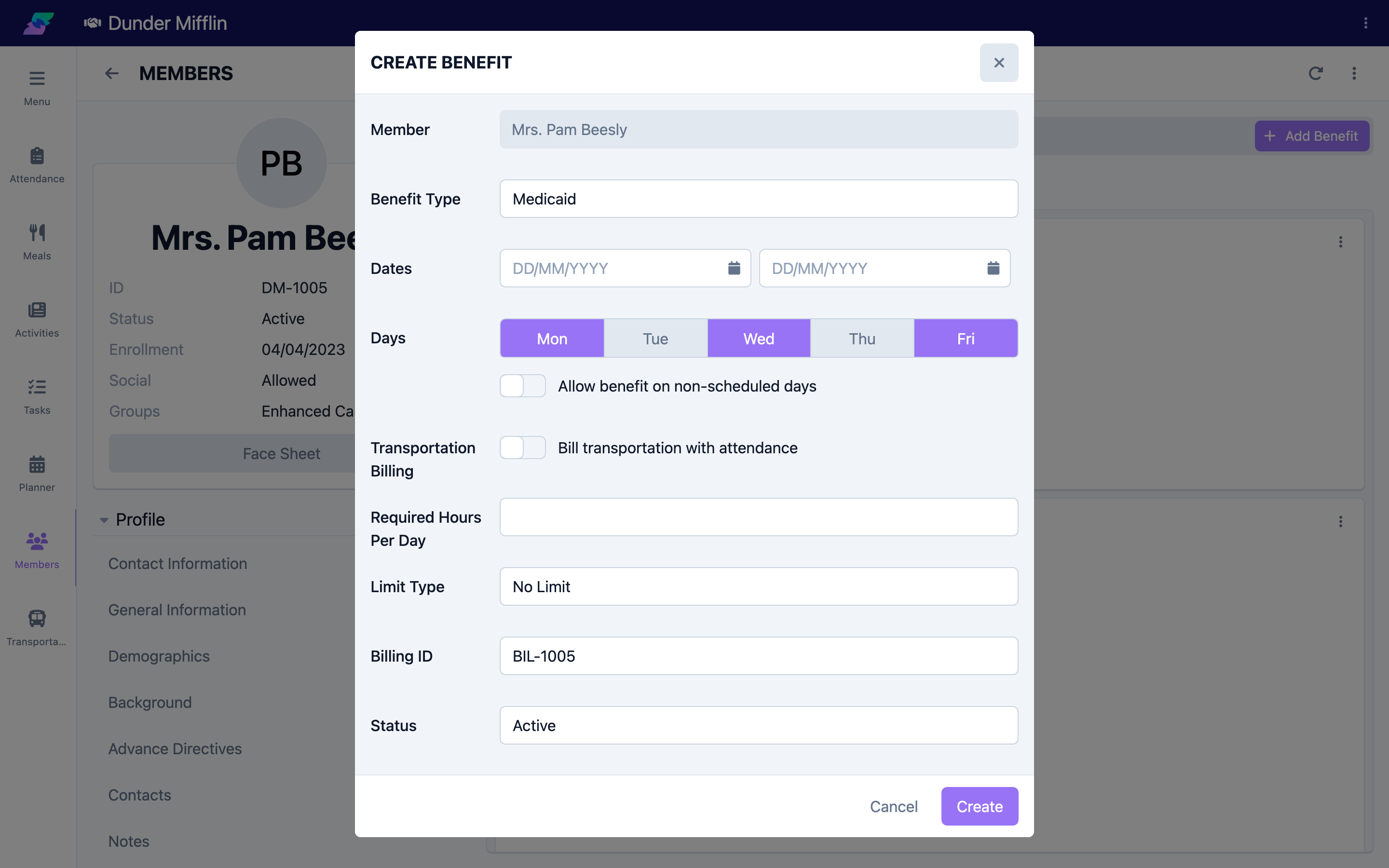
Step 4: Set hours, limits, and billing options
- Enter Required Hours per Day if the benefit requires a minimum daily attendance.
- Choose a Limit Type: No Limit, Days per Week, Days per Month, or Total Days. When you choose anything other than No Limit, enter the number in Limit Days.
- Turn on Transportation Billing to bill transportation together with attendance.
- Enter a Billing ID if this benefit uses one.
Step 5: Enter claim codes and ICD-10
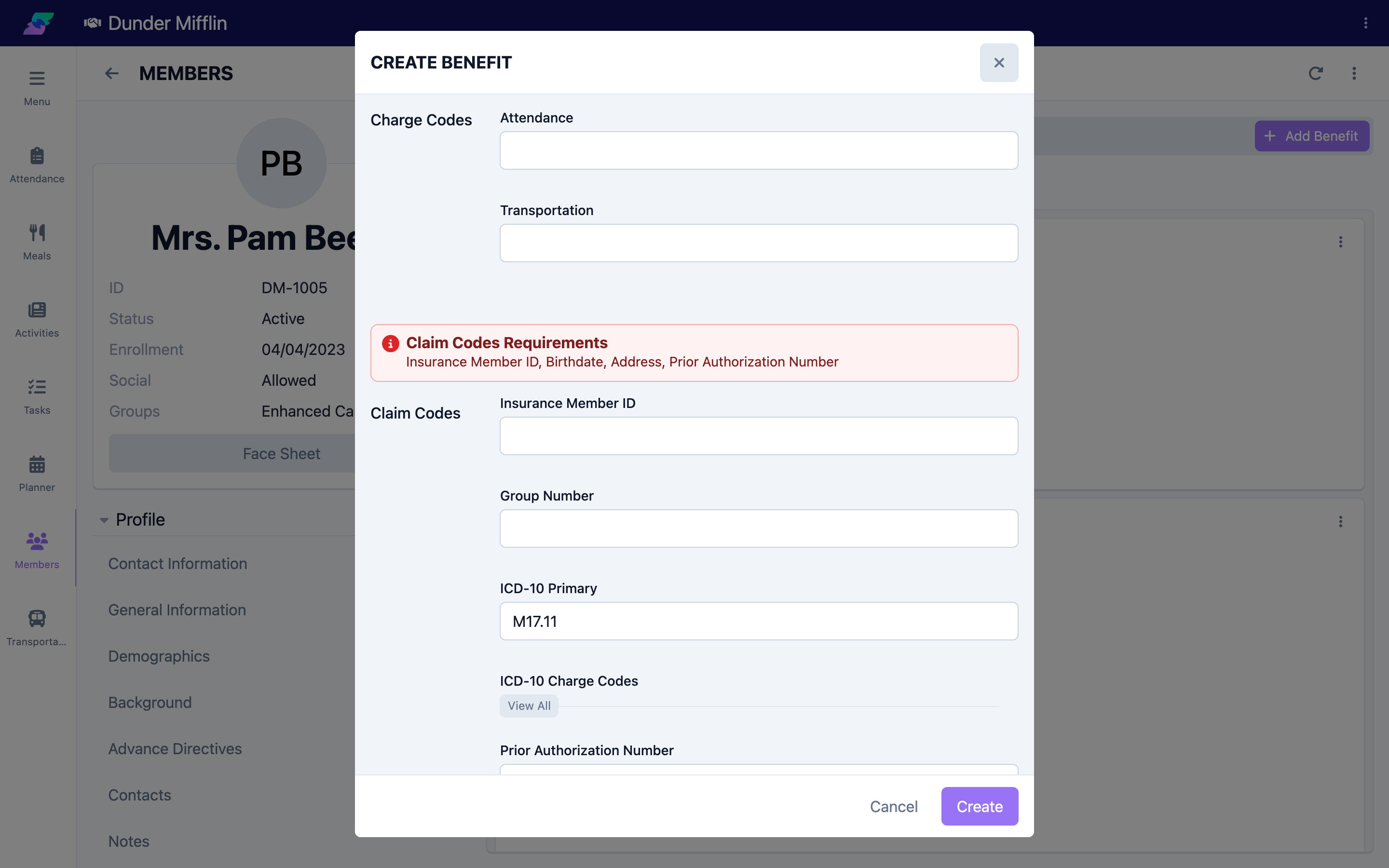
If Billing is enabled and the benefit type generates claims, a Claim Codes section appears. ICD-10 lives here, as part of the member's benefit authorization — not on the clinical Diagnoses & Conditions tab.
- Enter the Insurance Member ID and Group Number if the payer requires them.
- Enter the ICD-10 Primary code. This is the primary diagnosis code sent on claims for this benefit.
- If the benefit type has charge codes, enter per-charge-code values under ICD-10 Charge Codes to override the primary code for specific charge codes.
- Enter the Prior Authorization Number (and any per-claim-group prior authorization numbers) if required.
- If a Claim Codes Requirements warning appears, fill in the listed fields before you bill.
Step 6: Set the status and save
- Set the Status to Active, Pending, or Inactive.
- Select Save. The benefit appears on the Benefits table, where the ICD-10 Primary column shows the code you entered.
Screenshot coming soon — Saved benefit listed on the Benefits table with the ICD-10 Primary column
Step 7: Edit or deactivate a benefit
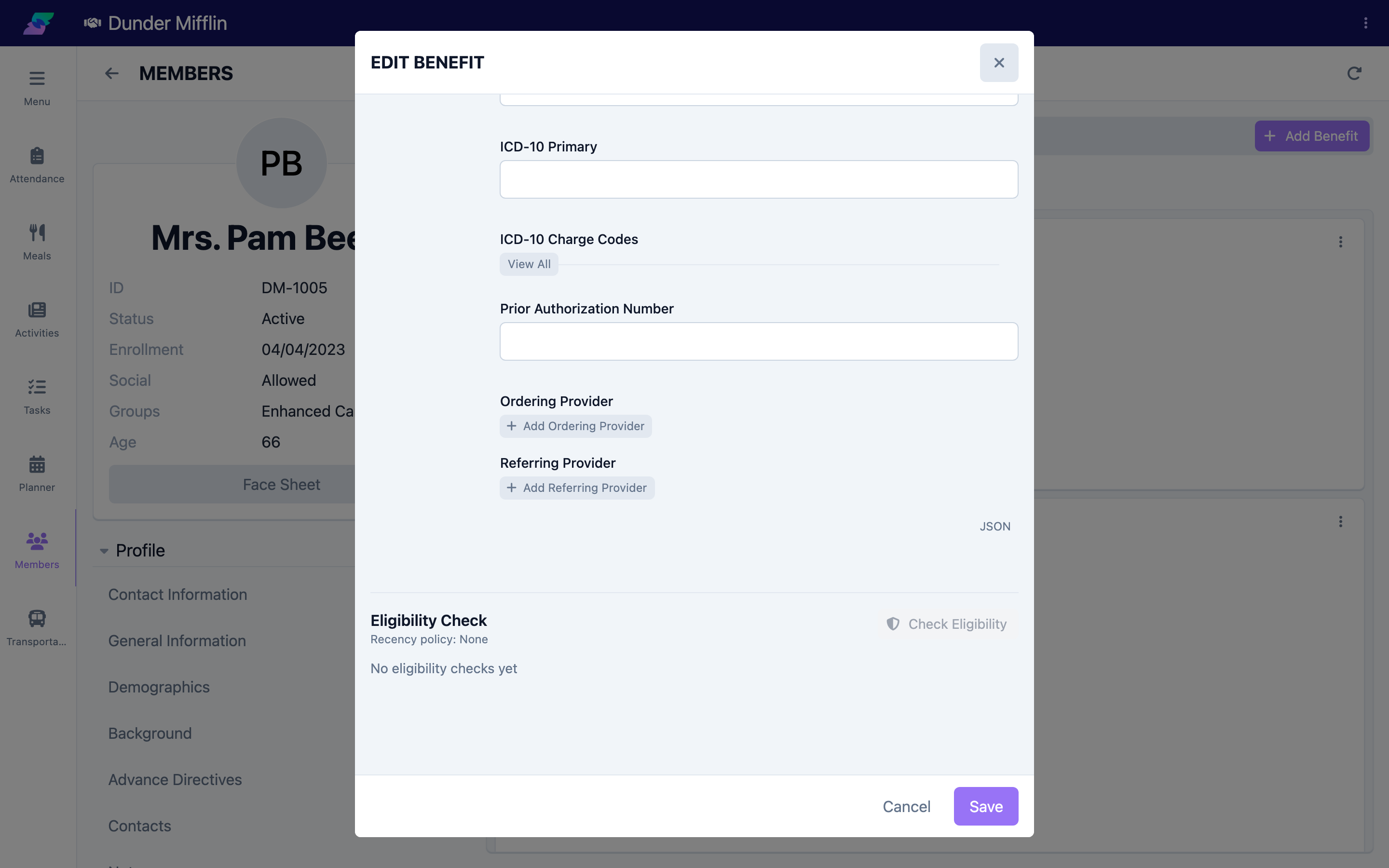
- On the Benefits table, select the benefit to reopen the form.
- Update any field, or set the Status to Inactive (or set an End Date) to stop using the benefit while keeping its history.
- For claim-generating benefits, you can run Check Eligibility from the form; the recency policy comes from the benefit type. Select Save to apply changes.
Tips
- ICD-10 is a billing field, not a diagnosis record. Enter it under the benefit's Claim Codes. The Diagnoses & Conditions tab is clinical and does not feed claims.
- Use ICD-10 Charge Codes for exceptions. Set the ICD-10 Primary once, then override only the specific charge codes that need a different code.
- Deactivate instead of deleting. Setting a benefit to Inactive (or adding an End Date) preserves billing history for audits.
- Watch for the Claim Codes Requirements warning. It lists exactly which claim fields are missing before you can bill or check eligibility.
- Add benefits during intake so billing can begin as soon as the member starts attending.
Troubleshooting
| Problem | Solution |
|---|---|
| The Benefit Type I need is not listed | Benefit types are configured at the center level. Ask your administrator to add or activate the benefit type. |
| There is no Claim Codes / ICD-10 section | Claim Codes appear only when Billing is enabled for your center and the selected benefit type generates claims. Non-claim benefit types do not show it. |
| The benefit will not save | Start Date and Benefit Type are required. Numeric fields (hours, limit days) must be numbers, and Limit Days must fit the chosen Limit Type range. |
| The ICD-10 Primary column is empty on the table | Reopen the benefit and enter a value in the ICD-10 Primary field, then save. |
| The eligibility check button is disabled | Resolve the items listed in the Claim Codes Requirements warning first. |