
Overview
Most reports in Seniorverse can be exported so you can print them, keep them on file, or analyze them in a spreadsheet. Reports offer a Print action (which you can save as PDF) and, in most cases, a CSV download (shown as a download icon on some reports). This article shows you how to use each.
Before You Begin
- You need Reports access. If you cannot open the Reports area, contact your administrator.
- The report must contain data — an empty report produces an empty export.
- For printing to PDF, allow pop-ups from Seniorverse in your browser.
Steps
Step 1: Open a Report and Find Its Actions
Open the report you want to export from the Reports list, and set your date range, view, and any filters first. The report's export actions (such as Print and CSV) appear with the report's other controls.

Step 2: Print or Save as PDF
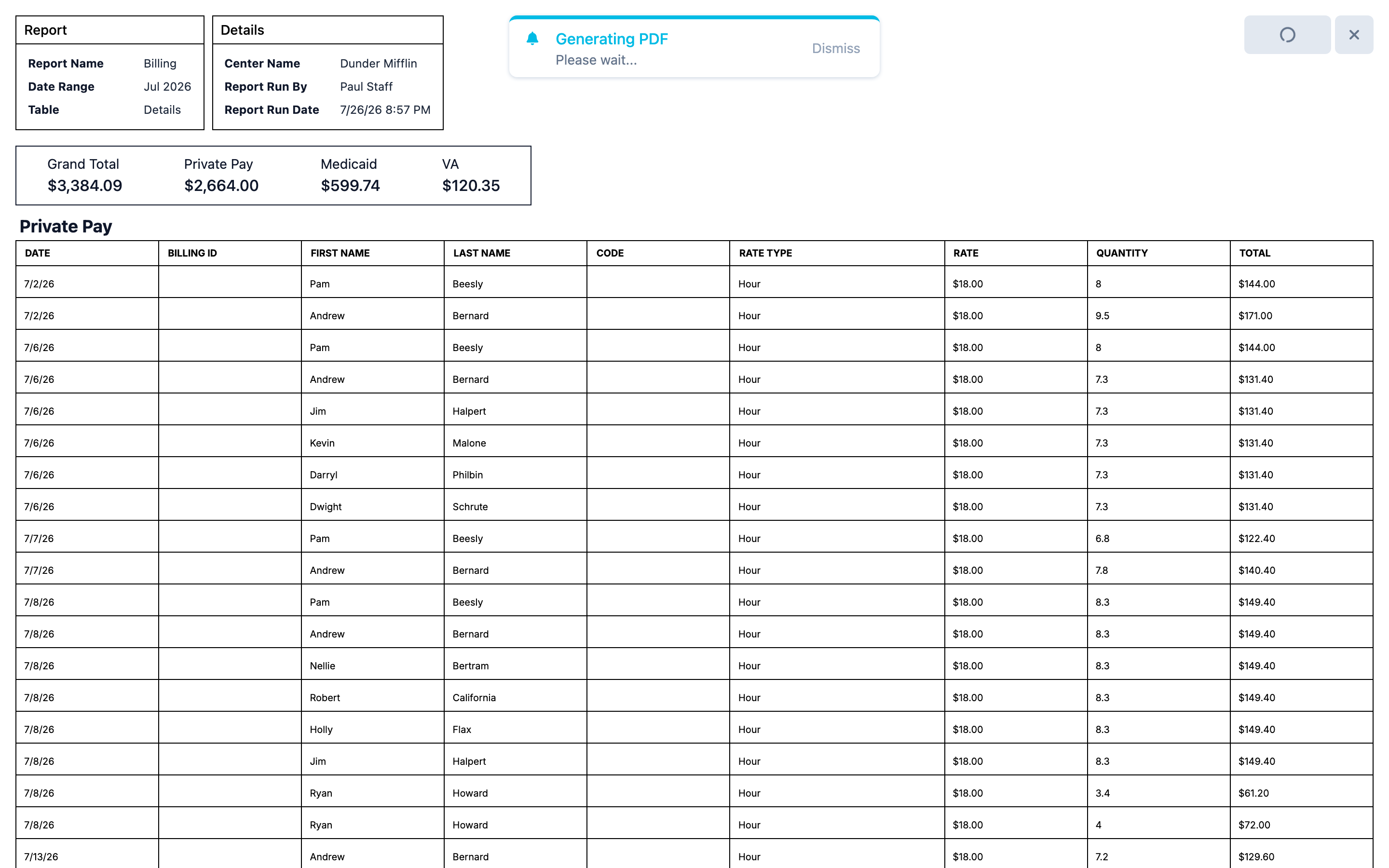
Select Print. Seniorverse builds a formatted, printable version of the report and shows a brief "Generating PDF" preview while it prepares. From there, use your browser's print dialog to print, or choose Save as PDF to create a PDF file.
Step 3: Download a CSV
Select CSV (shown as a download icon on some reports) to download the report's data. The file saves to your browser's download location, and you can open it in a spreadsheet application such as Excel or Google Sheets. The download includes the columns and records for your current view and filters.

Tips
- Choose CSV for analysis when you need to sort, calculate, or chart the data yourself.
- Choose PDF for sharing and records when you need a formatted document for people without Seniorverse access.
- Apply filters before exporting. Exports match your current view and filters, so narrow the report first to avoid pulling more than you need.
Troubleshooting
| Problem | Solution |
|---|---|
| The export action is unavailable | Make sure the report contains data. If it shows no records, there is nothing to export. |
| A CSV opens with jumbled columns | Import the file rather than opening it directly — in Excel use Data > From Text/CSV, or in Google Sheets use File > Import. |
| The print preview does not open | Allow pop-ups from Seniorverse in your browser, then try Print again. |
| A report only offers Print | Some reports (such as Member Demographics) export by printing to PDF and do not offer a CSV download. |
| I cannot find the downloaded file | Check your browser's download folder or download settings. |