
Overview
The Member report gives you your member roster and details across three views: Profiles, Benefits, and Contacts. Each is its own entry in the Reports list. Use it to review member information, export a roster, or pull benefit and contact lists. This article shows you how to open each view, filter by status, and export.
Before You Begin
- You need Reports access. If you cannot open the Reports area, contact your administrator.
- Member profiles should be complete for the most useful results.
Steps
Step 1: Open the Member Report
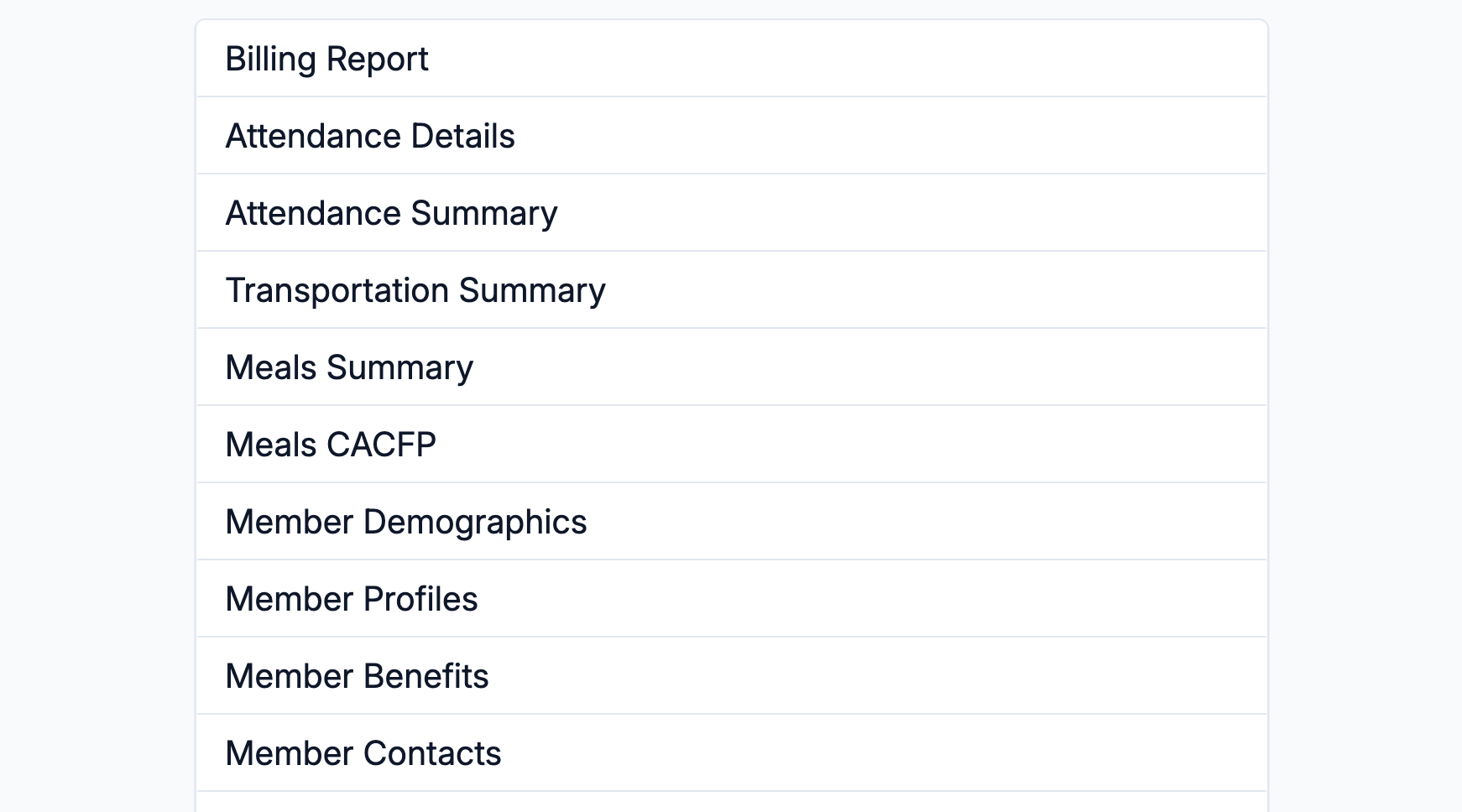
Select Reports from the main navigation, then choose Member Profiles, Member Benefits, or Member Contacts from the list.
Step 2: Choose a View
Each list entry opens its own view — there is no in-page switch, so return to the Reports list to see a different one:
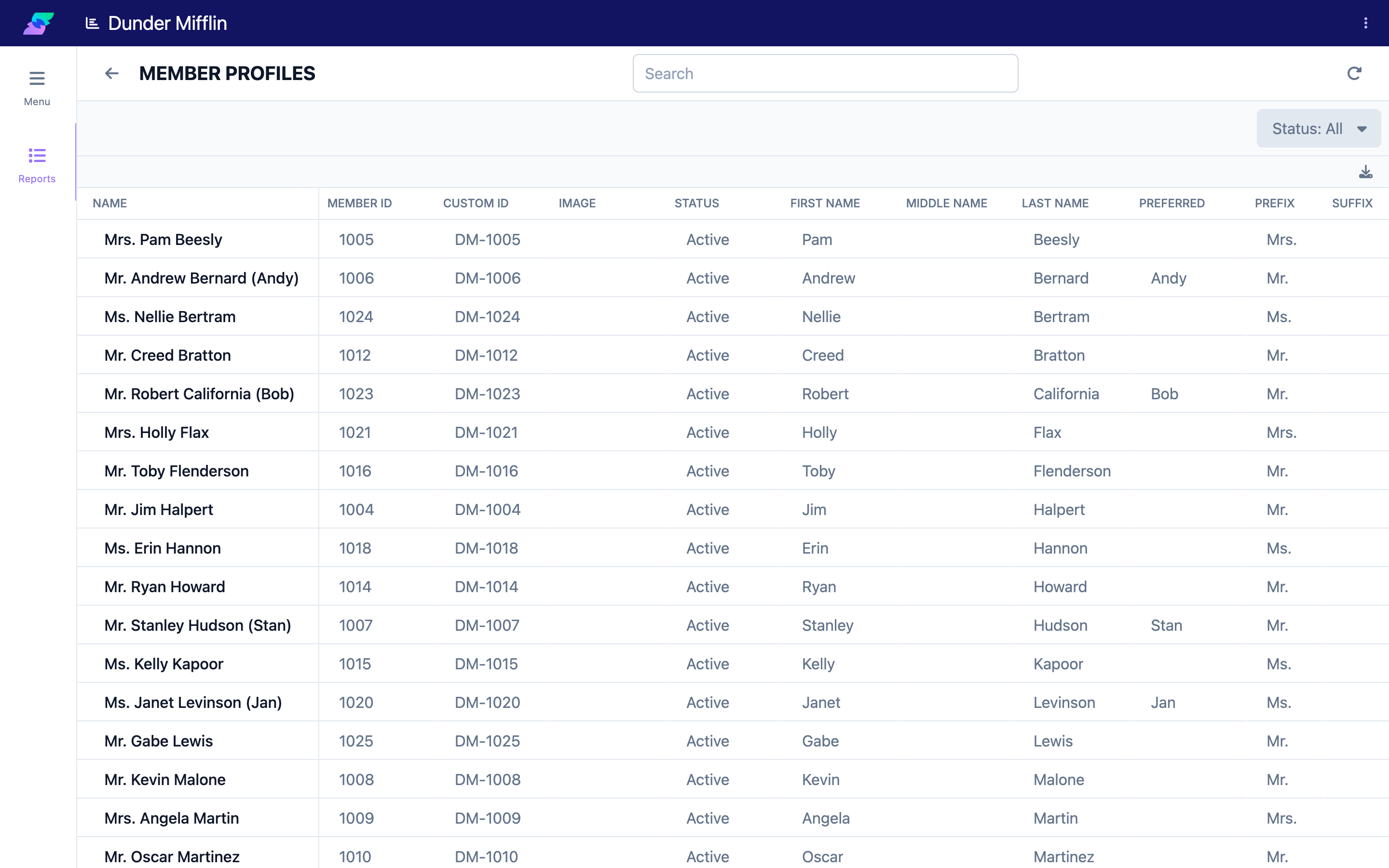
- Profiles — the member roster and profile details.
- Benefits — each member's benefit records.
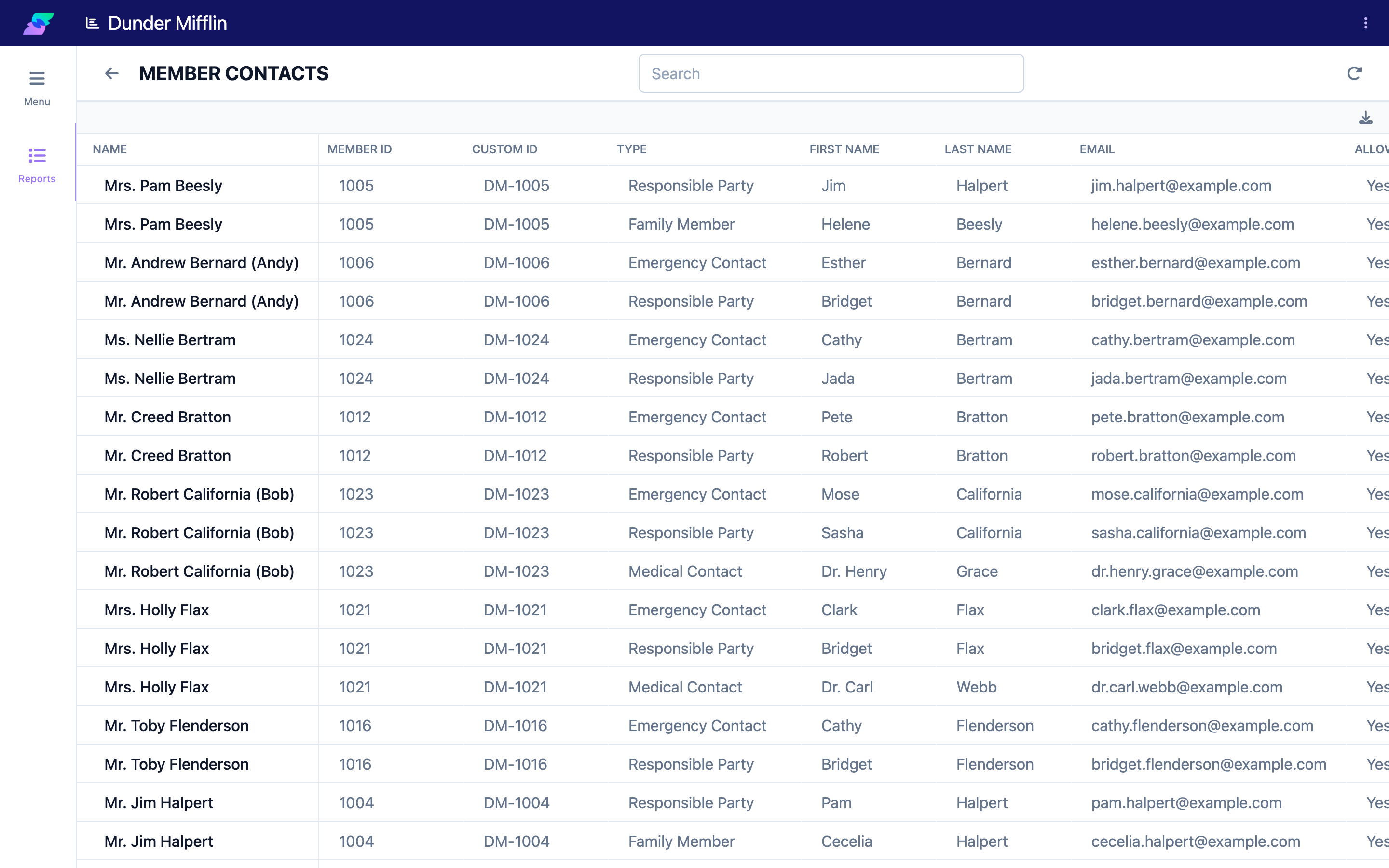
- Contacts — each member's contacts.
Step 3: Filter by Status
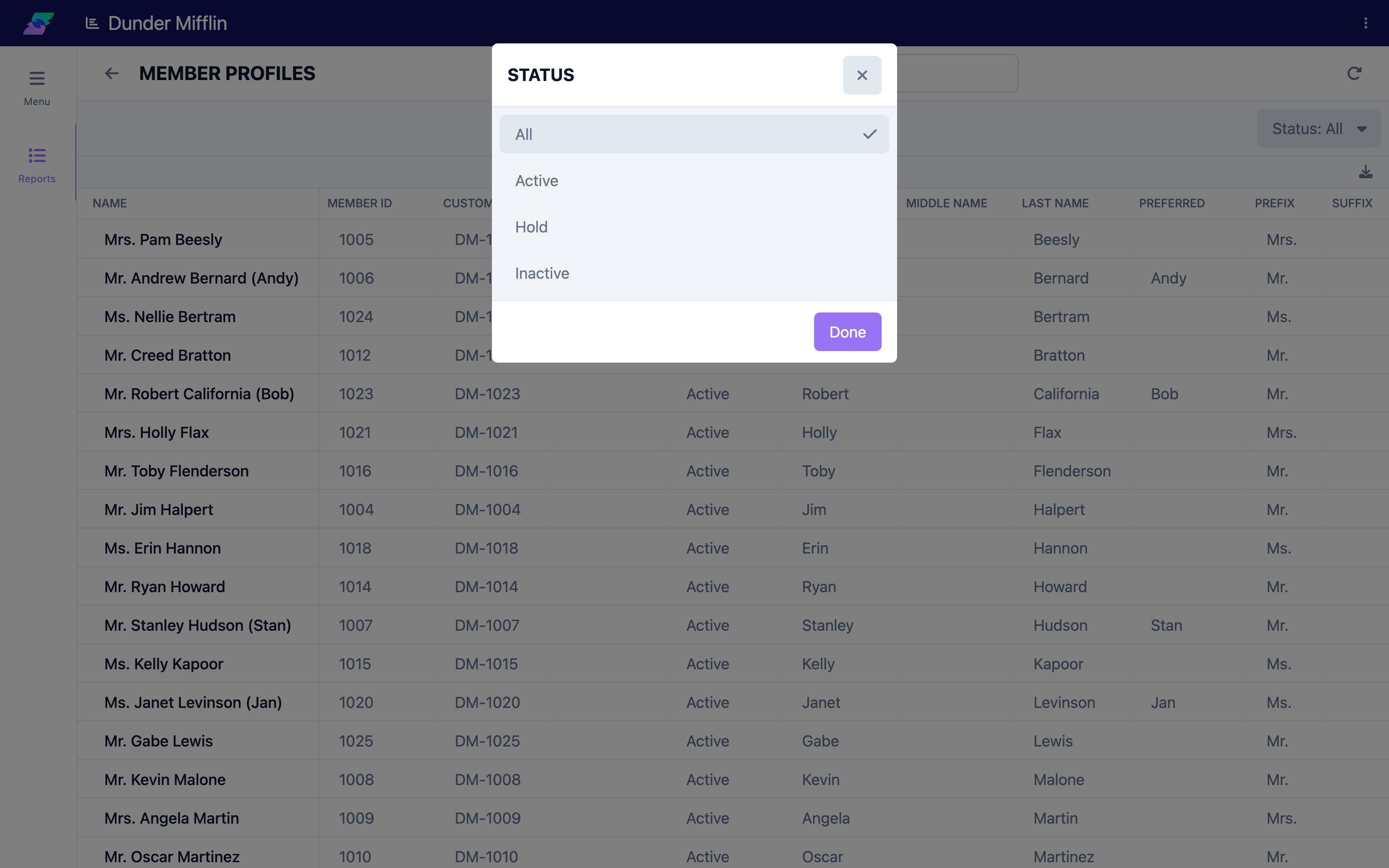
On the Profiles view, use the Status filter to focus the report on members with a particular status — All, Active, Hold, or Inactive.
Step 4: Read the Columns
Each view has its own columns:
- Profiles — Name, Member ID, Custom ID, Status, name parts, Enrollment, Termination, CACFP, email and phone fields, Address, Medicaid ID, Birthdate, Age, Gender, Race, Marital Status, Languages, and more.
- Benefits — Name, Benefit ID, Member ID, Custom ID, Benefit Type, Status, Start Date, End Date, Days, Allow Unscheduled Days, Required Hours, Limit Type, Limit Days, and Billing Rate Type.
- Contacts — Name, Member ID, Custom ID, Type, First Name, Last Name, Email, phone fields (Mobile, Home, Work) with their permissions, Employer, and Notes.
Step 5: Export the Report
Use the download icon above the table to export the current view as a CSV file for use in a spreadsheet. The export reflects the current view and filters.

Tips
- Pick the view that matches your goal. Use Profiles for a roster, Benefits for authorization details, and Contacts for a contact list.
- Filter by status for a clean roster. Focusing on active members gives a clean census figure.
- Export Contacts for mailings. The Contacts view includes the fields you need for family communications.
Troubleshooting
| Problem | Solution |
|---|---|
| No members appear | Check the status filter — it may be excluding the members you are looking for. |
| A member's details are incomplete | The report shows what is in each member's profile. Update the profile to fill in missing fields. |
| A member shows the wrong status | Open the member's profile and correct the status, then run the report again. |
| An export is empty | Make sure the report shows data on screen first. An empty report exports empty. |