
Overview
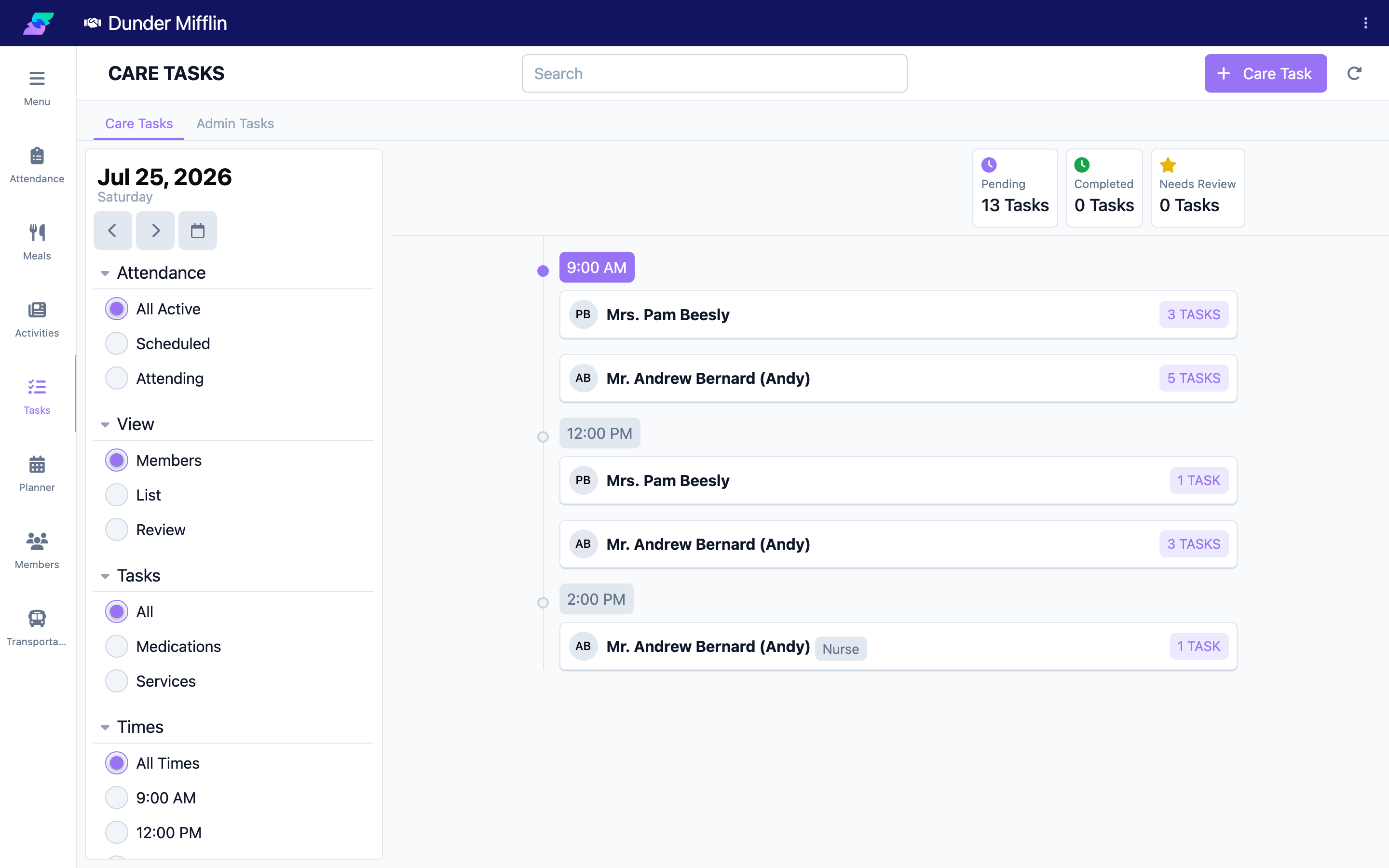
The Tasks page is where staff work through the care duties due for members. It has two tabs — Care Tasks for member care (medications and services) and Admin Tasks for scheduled administrative work. This article explains the layout of each tab, the filters, and the task cards.
Before You Begin
- You must be logged into Seniorverse with Care module access.
- Care Tasks requires the Care:Tasks:View permission and the Care Tasks feature.
- The Admin Tasks tab appears only if the Admin Tasks feature is enabled and you have the Care:AdminTasks:View permission.
Steps
Step 1: Open the Tasks page
Select Care, then Tasks. The page opens on the Care Tasks tab. If Admin Tasks is available, a second tab appears.
Step 2: Read the Care Tasks summary
The Care Tasks tab shows a date and a set of summary tiles: Pending, Completed, Needs Review (when task review is enabled), and Urgent (when any urgent tasks exist).
Step 3: Use the Care Tasks filters
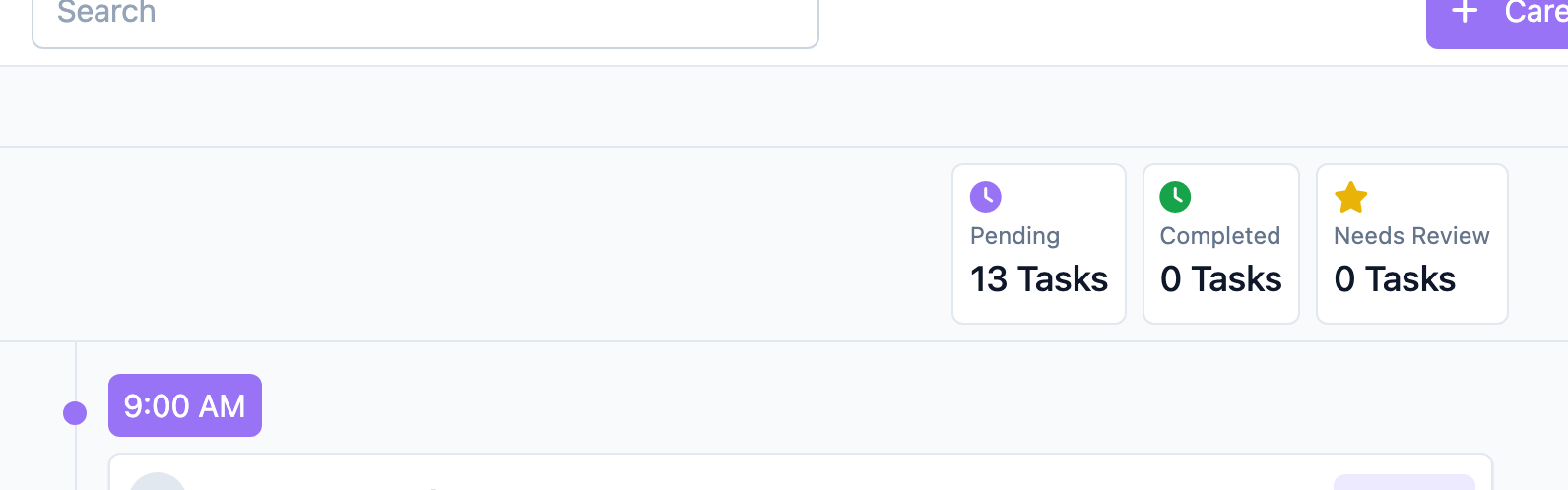
Use the filters to narrow the list:
- Attendance — All Active, or by attendance status.
- View — Members (grouped by member), List (a flat list), or Review (when task review is enabled).
- Tasks — All, Medications, or Services.
- Times — a specific scheduled time or All Times.
- Members — a single member or All Members.
- Administered By — filter by task role (All Roles or a specific role).
- Groups — member groups (when your center uses groups).
Step 4: Read a task card
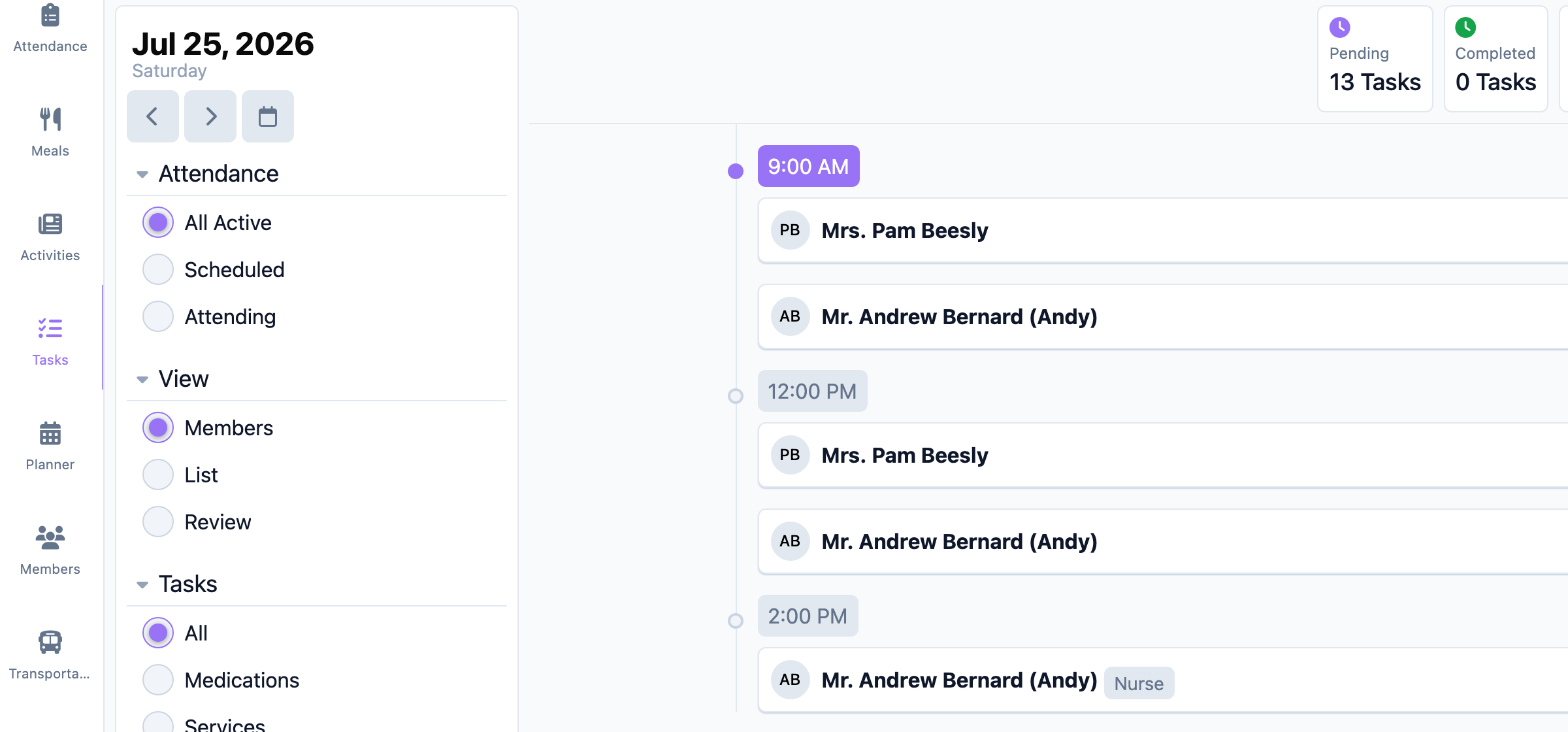
Each card shows the member, the task, its scheduled time, and any task roles as small labels. A green check marks a completed task; other statuses (such as a refused status) appear as a colored label. Select a card to open the task and record it.
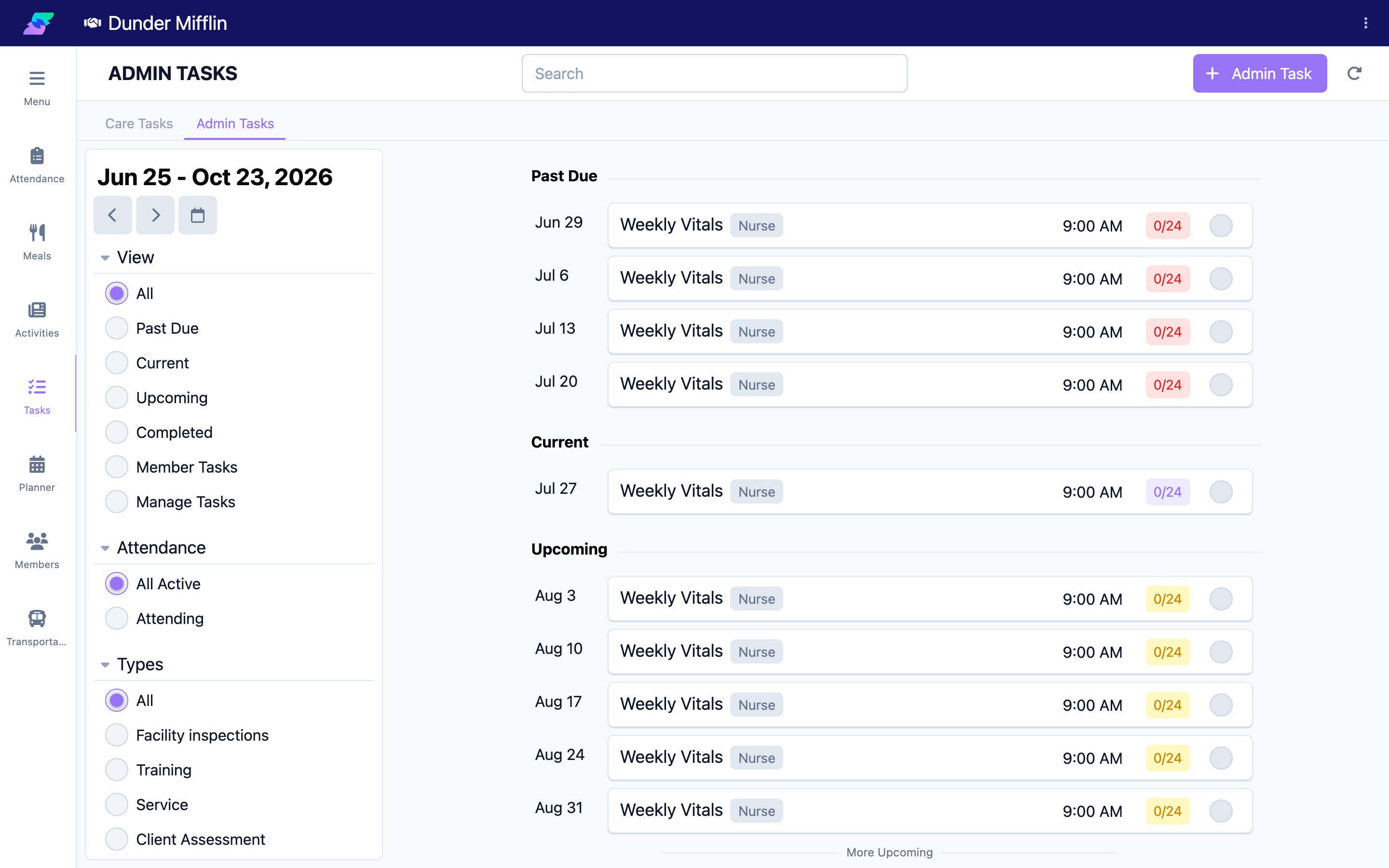
Step 5: Switch to the Admin Tasks tab
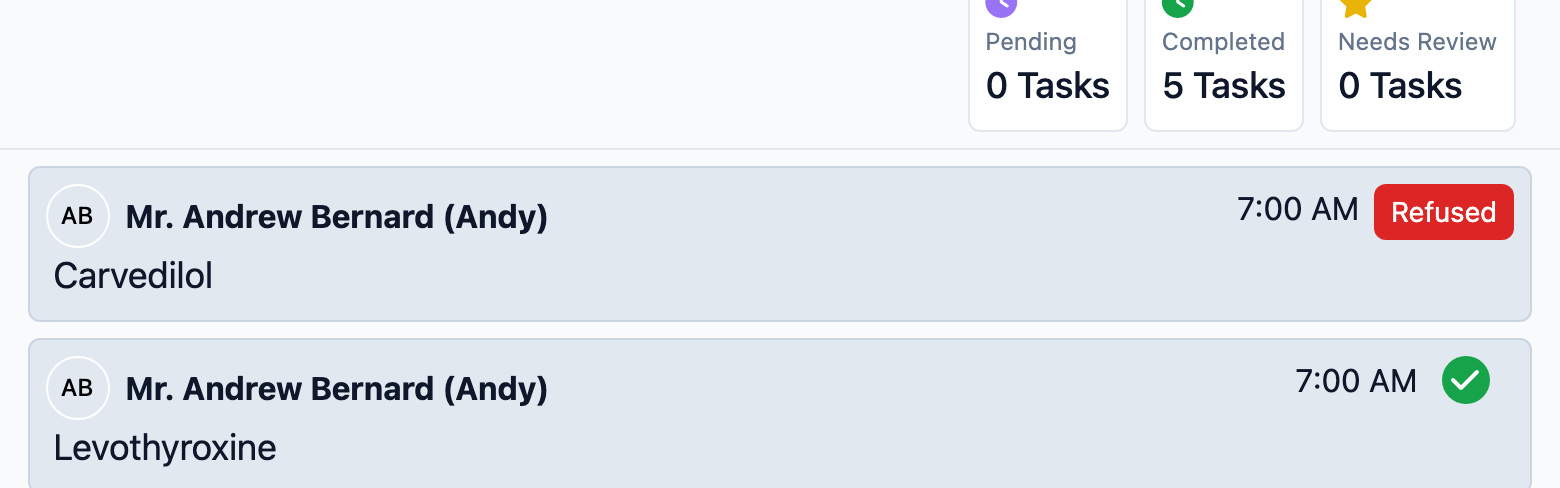
If available, select Admin Tasks. This tab covers a date range and lists scheduled administrative tasks and their per-member instances.
Tips
- Use the Tasks filter to batch similar work — for example, show only Medications.
- The Administered By filter and the task-role labels reflect which staff role a task is meant for.
- Switch View to List for a straight, time-ordered run of tasks, or Members to work one member at a time.
Troubleshooting
| Problem | Solution |
|---|---|
| The Admin Tasks tab is missing | Admin Tasks must be enabled and you need the Care:AdminTasks:View permission. |
| No tasks appear | Adjust the Attendance, Times, or Members filters, and confirm the date. The empty state also shows your assigned task roles. |
| The Review view is not offered | Task review requires the Task Review feature and the Care:Tasks:Review permission. |
| I cannot open the Tasks page | You need the Care:Tasks:View permission. Ask your administrator. |
Related Articles
- viewing-and-completing-care-tasks — Viewing and Completing Care Tasks
- managing-admin-tasks — Managing Admin Tasks
- creating-new-tasks — Creating New Tasks