
Overview
Recording a payment captures money received from a payor and ties it to one or more finalized invoices so you can later allocate it against specific invoice lines. Every payment starts as a Draft. A draft is fully editable and can be deleted, but it does not affect an invoice balance until you post it. Once posted, the amount and core details are locked, and the payment moves through allocation statuses (Unallocated, Partial, Allocated) as you apply it.
This article covers recording a standard payment or a refund, posting it, and the rules for correcting or removing a payment.
Before You Begin
- You need Billing access to the center.
- The payor must already exist. See Setting Up Payors.
- The invoice(s) you are paying must be finalized — the payment form only lists finalized invoices for the selected payor.
- For a refund, the original payment must already exist so you can reference it as the parent payment.
Steps
Step 1: Open the Payments tab and start a new payment
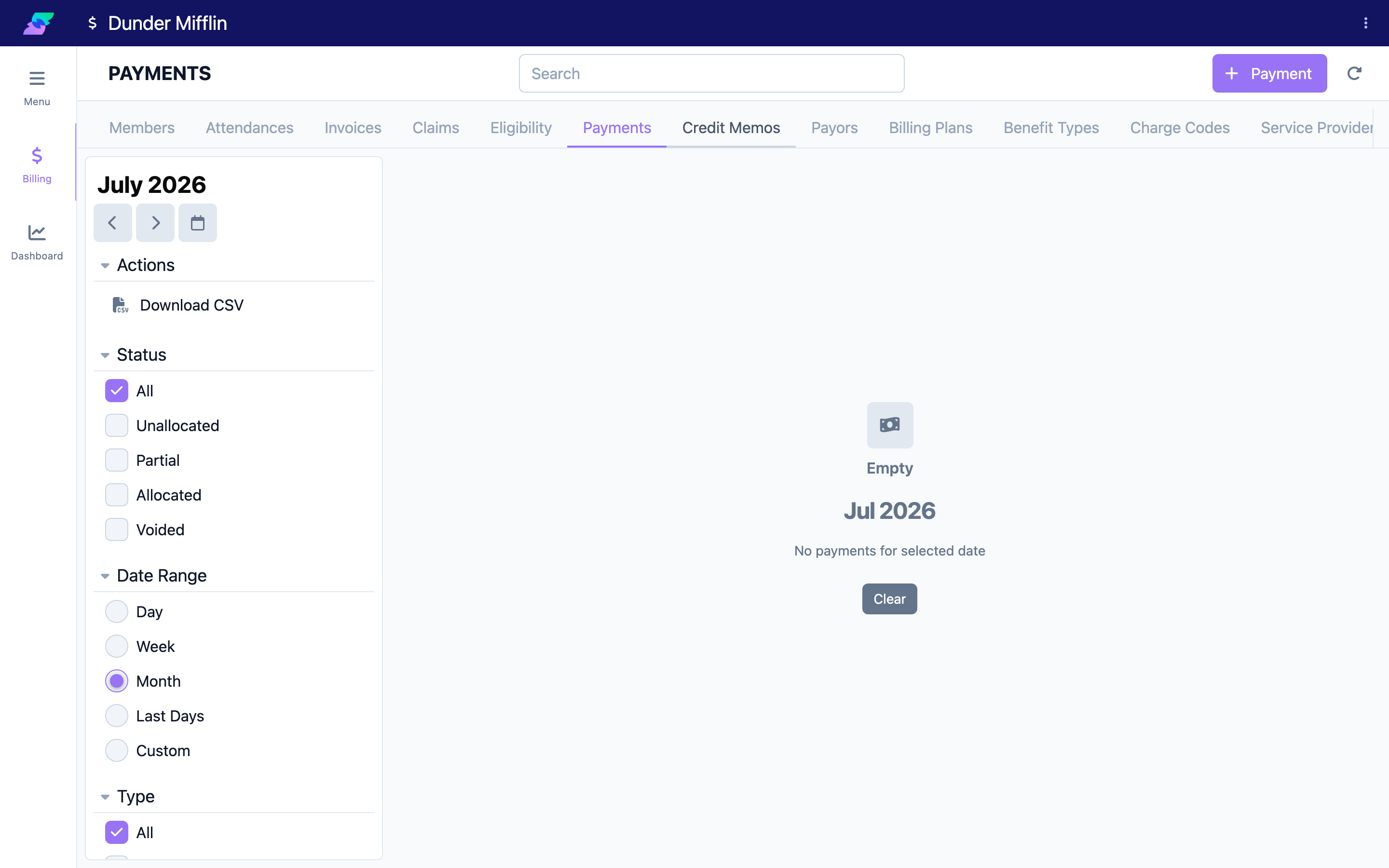
Go to the Billing module and select the Payments tab. In the top action bar, click the Payment button to open the payment form. The form opens on the Payment tab with the Status shown as Draft.
Step 2: Select the Payor and Invoices
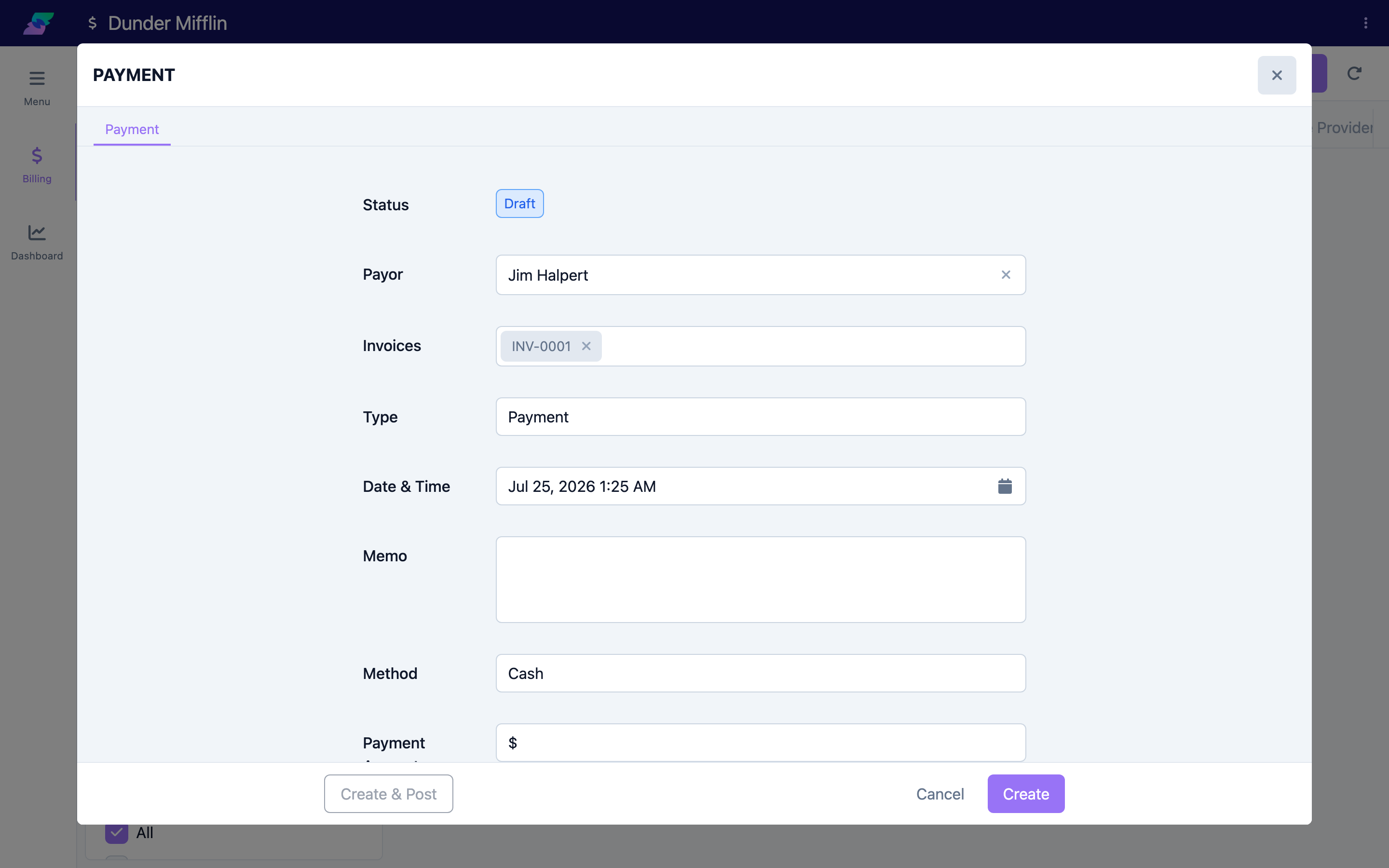
Choose the Payor from the selection field. Then open Invoices and select one or more finalized invoices for that payor. Both fields are required — you cannot save without a payor and at least one invoice.
Step 3: Choose the payment Type
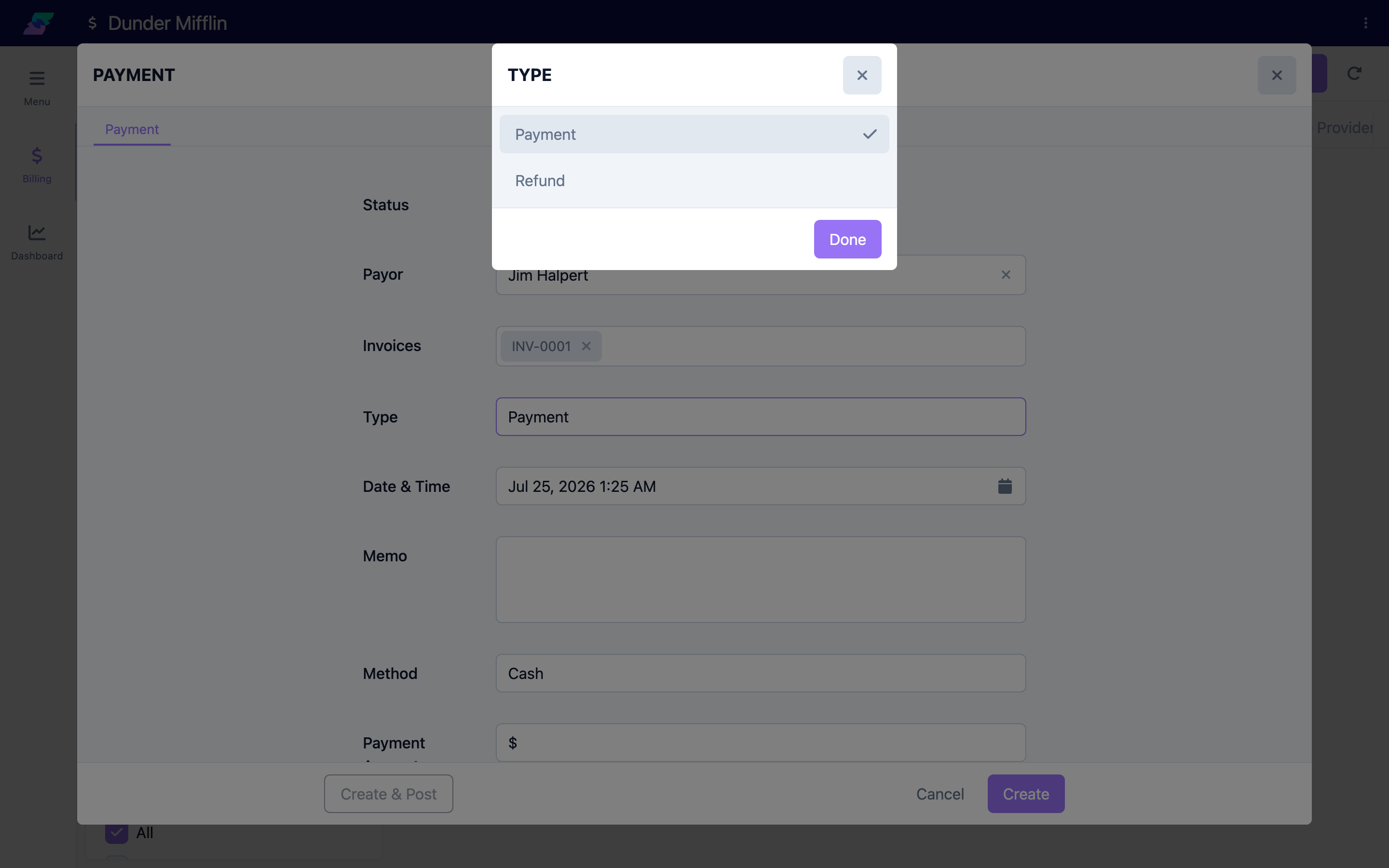
Set Type to Payment for money received. Choose Refund if you are returning funds; a Parent Payment field then appears so you can link the refund to the original payment it reverses.
Step 4: Enter the payment details
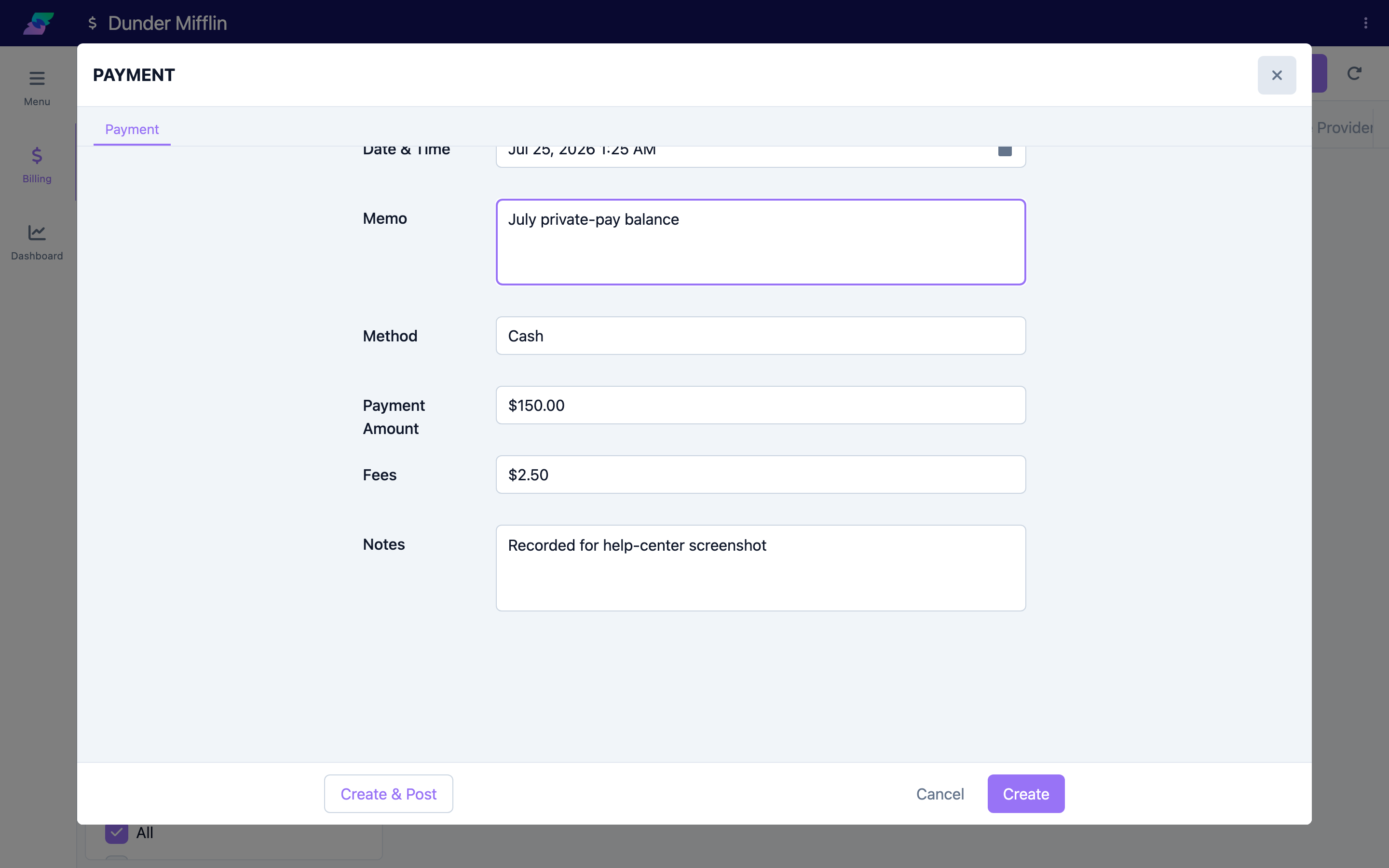
Complete the remaining fields:
- Date & Time — when the payment was received.
- Memo — a short note stored with the payment.
- Method — Cash, Check, Credit Card, or ACH. (Method defaults to Cash.)
- Payment Amount — the total amount received. This is required.
- Fees — any gateway or processing fees incurred (optional).
- Notes — internal notes.
Step 5: Post the payment
You have two ways to finish:
- Click Save to keep the payment as a Draft you can edit or delete later.
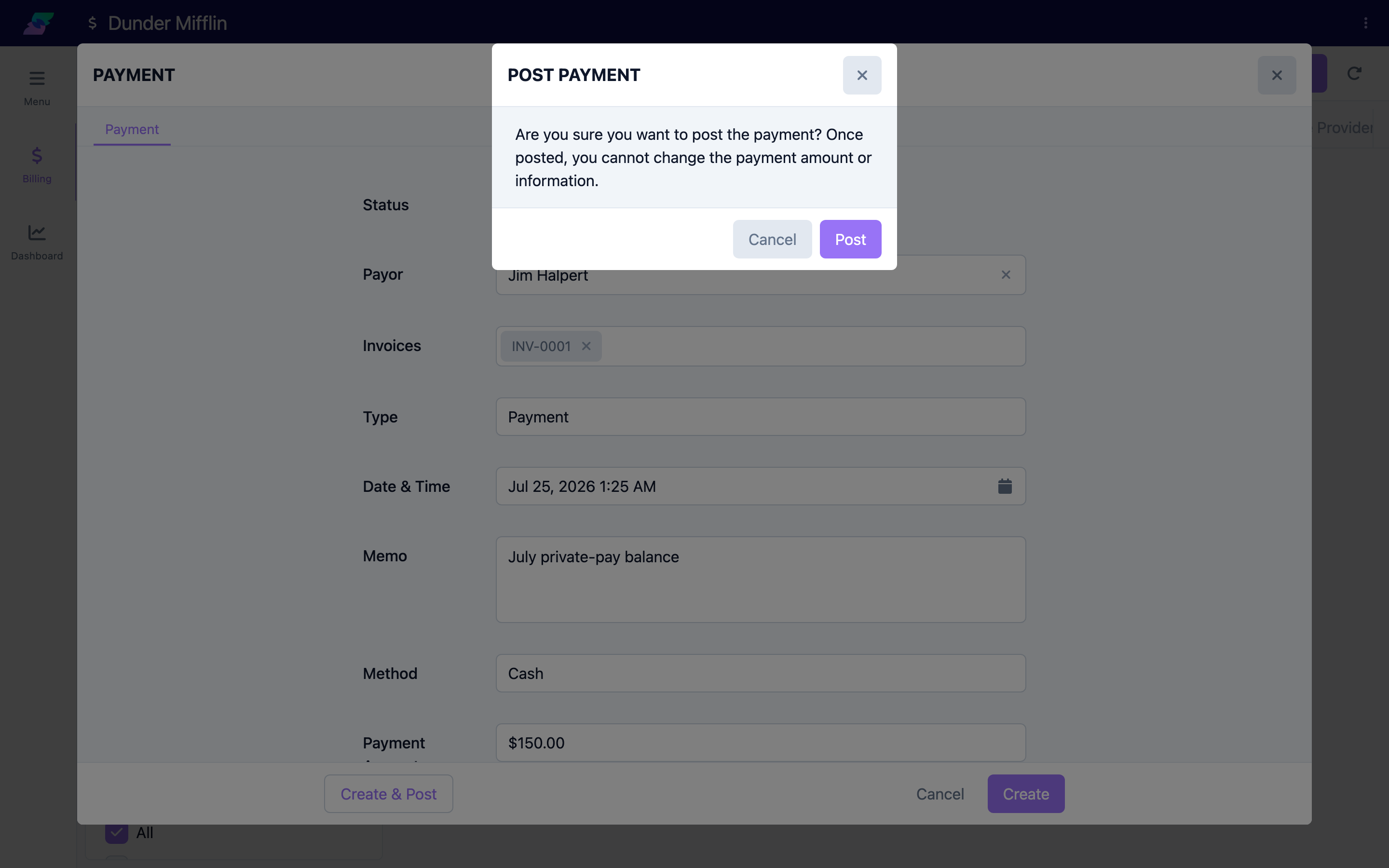
- Click Create & Post (on a new payment) or Post Payment (on a saved draft) to post it right away.
When you post, a confirmation appears: "Are you sure you want to post the payment? Once posted, you cannot change the payment amount or information." Click Post to confirm. After posting, the form moves you to the Allocations tab so you can apply the funds.
Step 6: Review the status
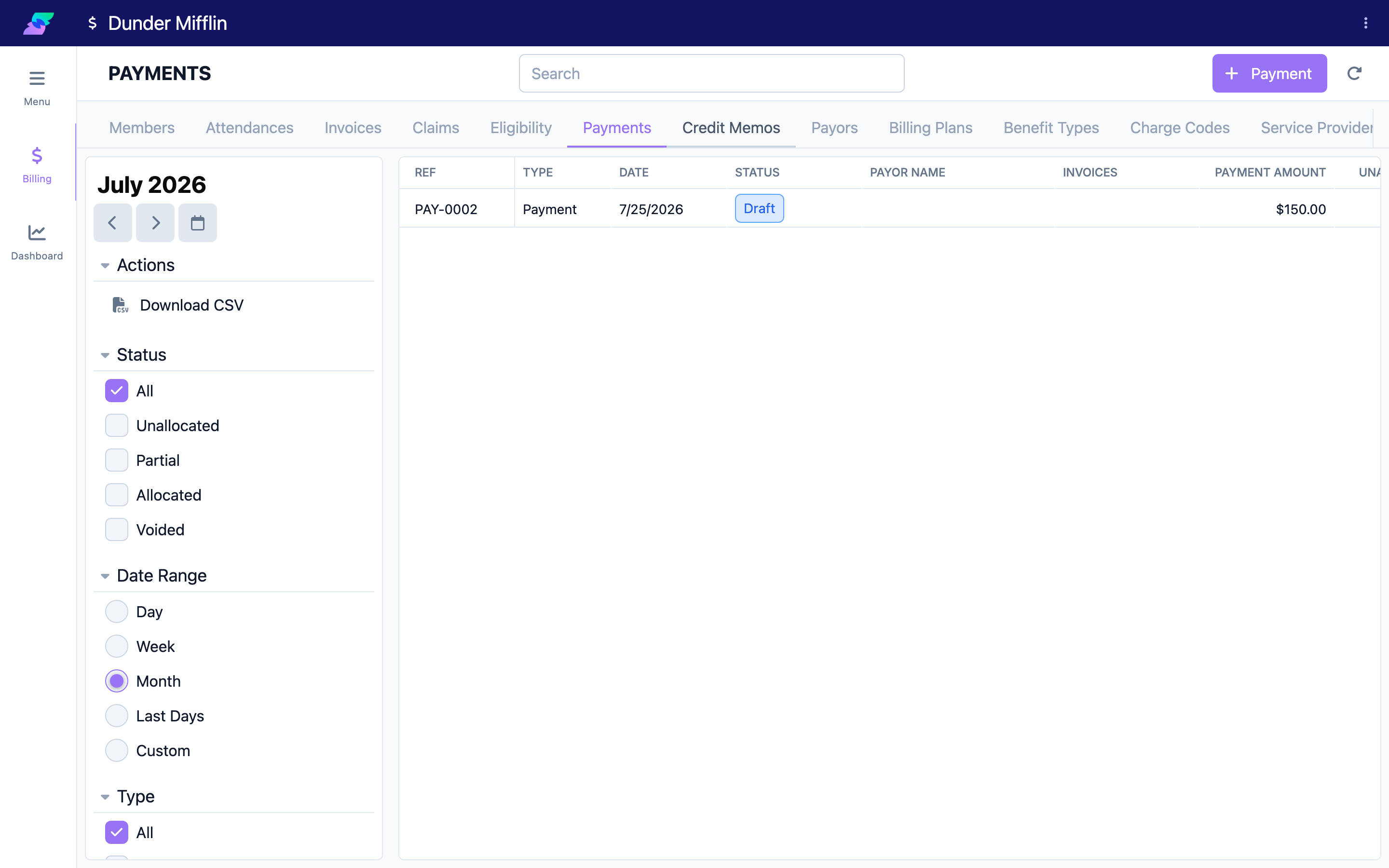
After posting, the payment shows one of these statuses based on how much has been applied:
- Unallocated — posted but nothing applied yet.
- Partial — some, but not all, of the amount is applied.
- Allocated — the full amount is applied.
- Voided — the payment was voided (this takes precedence over all other statuses).
A payment that has not been posted stays in Draft.
Tips
- A single payment can cover more than one invoice — select several invoices in Step 2, then split the money across their lines when you allocate.
- You can only delete a payment while it is a Draft (the trash icon appears only for drafts). Once posted, you must Void it instead.
- Voiding is permanent: the confirmation warns "Are you sure you want to Void this Payment? This cannot be undone."
- Incoming ERA (electronic remittance advice) files create posted payments and their allocations automatically, so you typically only record payments by hand for cash, check, card, and ACH.
Troubleshooting
| Problem | Solution |
|---|---|
| The invoice I want to pay is not in the Invoices list | The list only shows finalized invoices for the selected payor. Finalize the invoice first, or confirm you picked the correct payor. |
| I can't change the Payment Amount | The payment is already posted. Amount and core details lock on posting. Void it and record a new payment if the amount is wrong. |
| The trash (delete) icon is missing | Delete is only available for Draft payments. Posted payments must be voided. |
| A refund won't save | Set Type to Refund and select a Parent Payment; refunds must reference the original payment. |
| A yellow "cached allocated amount does not match" warning appears | This flags a data-sync mismatch between the stored and calculated allocated totals. Re-open the allocations, or contact support if it persists. |
Related Articles
- allocating-payments-to-invoices — Allocating Payments to Invoices
- managing-unallocated-payments — Managing Unallocated Payments
- setting-up-payors — Setting Up Payors
- creating-an-invoice — Creating an Invoice
- finalizing-an-invoice — Finalizing an Invoice