
Overview
Adding a member creates their core record so you can then fill in their profile. The Add Member form captures identity basics — name, ID, photo, status, and enrollment. Detailed information such as demographics, contacts, benefits, and medical records is added afterward on the member's profile tabs.
Before You Begin
- You must be logged in with permission to create members.
- Only First Name and Last Name are required to create a member.
Steps
Step 1: Open the Add Member form
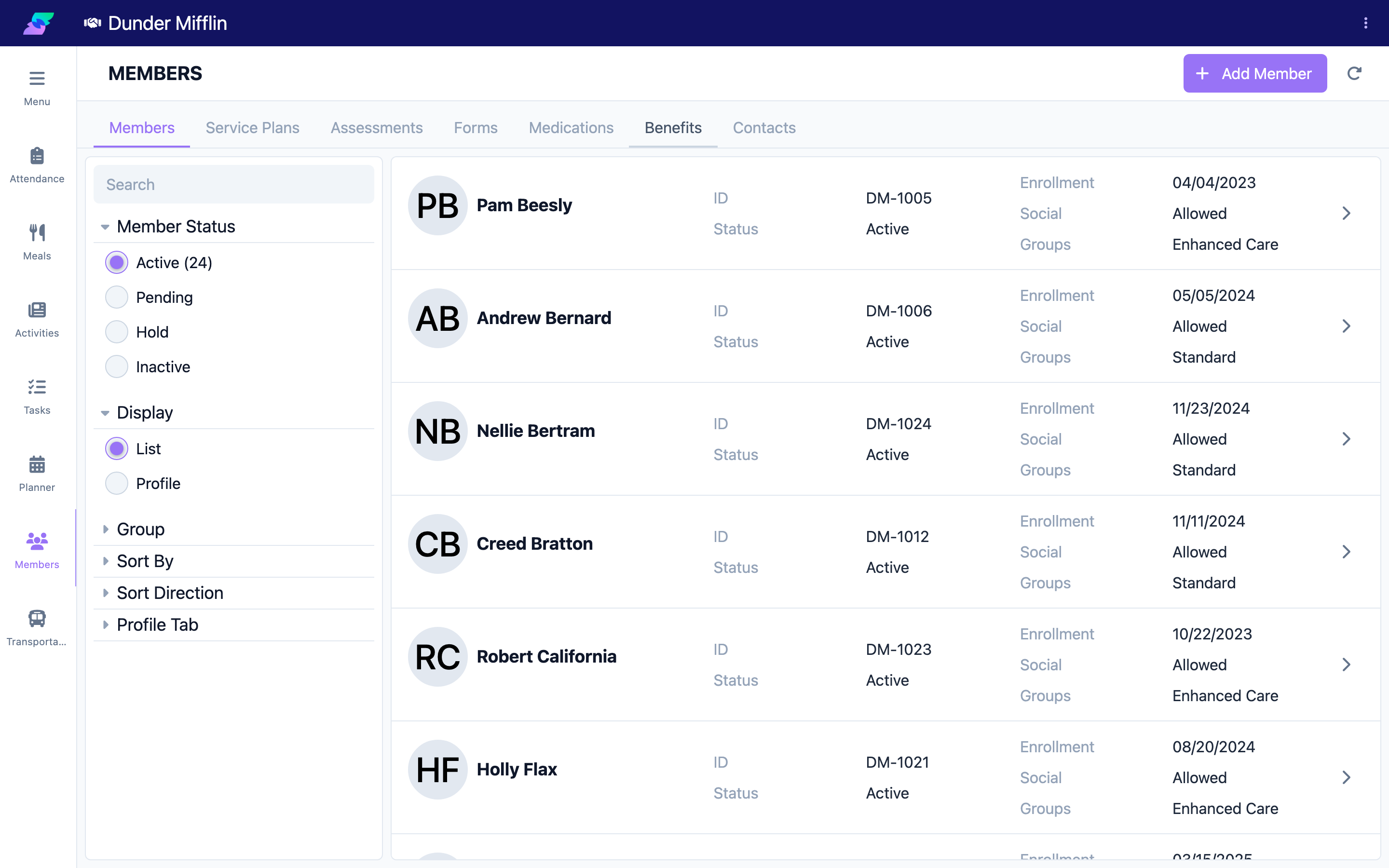
- Select Care > Members.
- Select Add Member. The form opens.
Step 2: Enter the required name
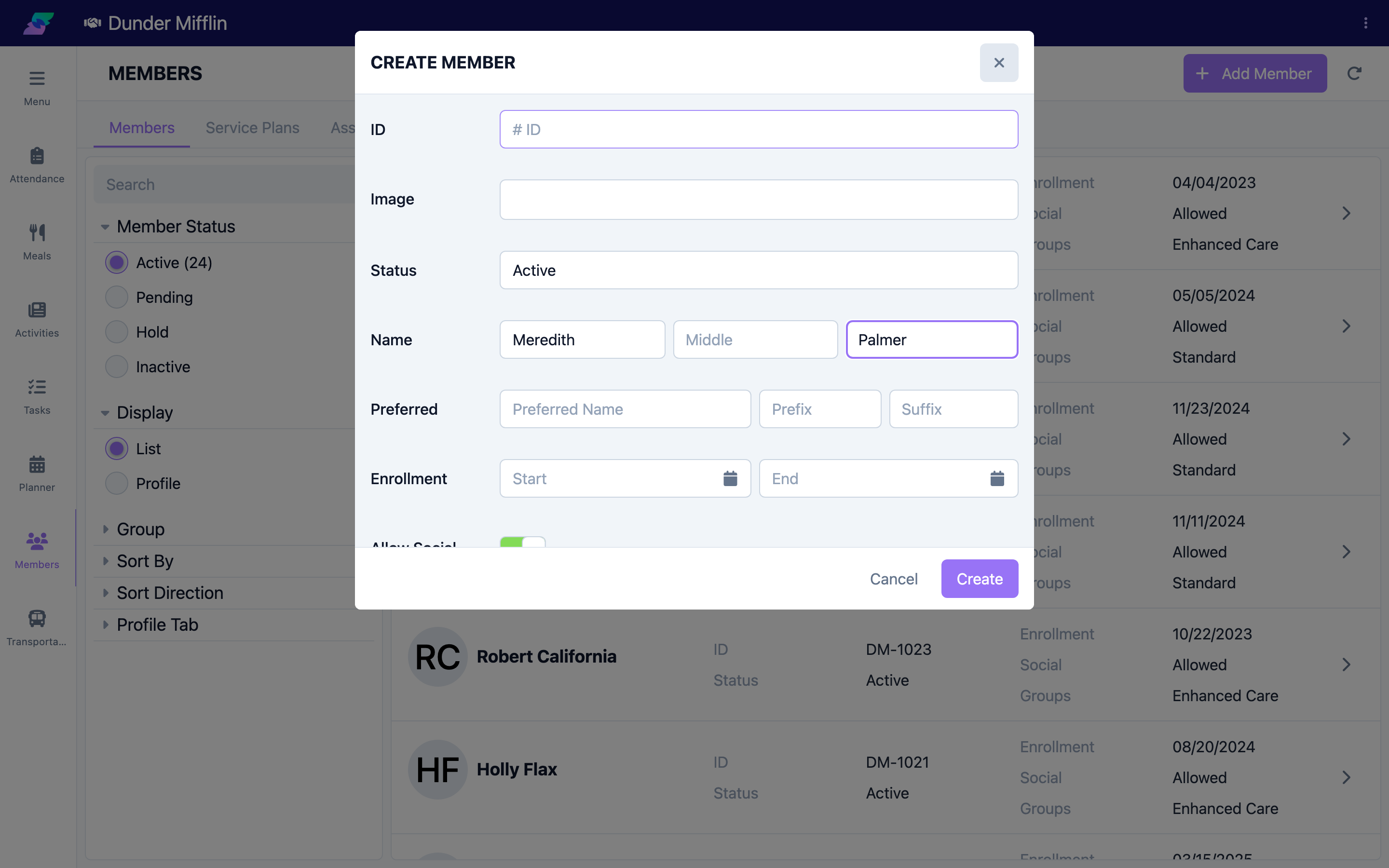
Enter the member's First Name and Last Name. Middle Name is optional. These name fields are the only required information.
Step 3: Add optional details
Fill in any of the following as needed:
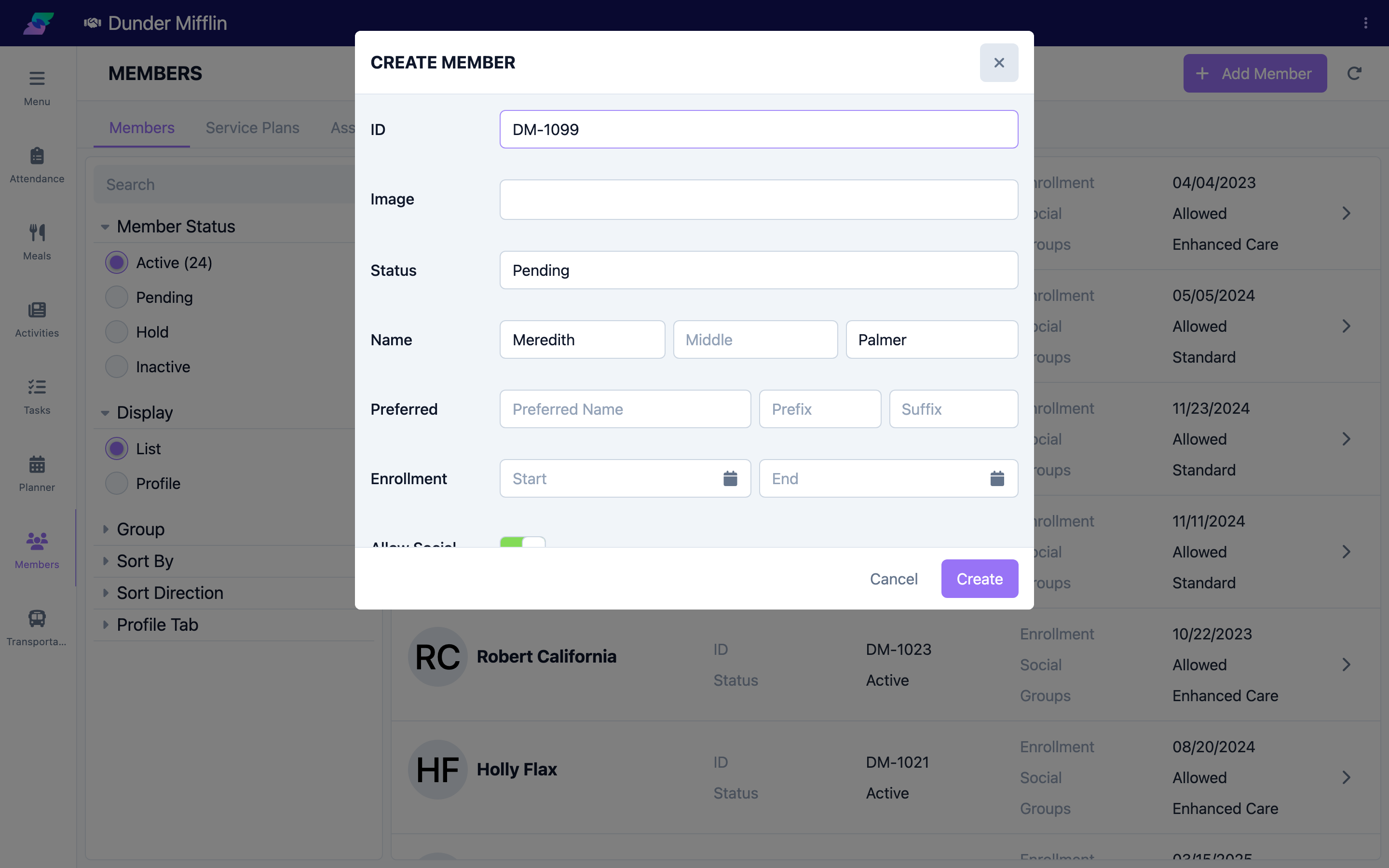
- ID — your center's identifier for the member.
- Image — a profile photo.
- Status — Active (the default), Pending, Hold, or Inactive.
- Preferred — Preferred Name, Prefix, and Suffix.
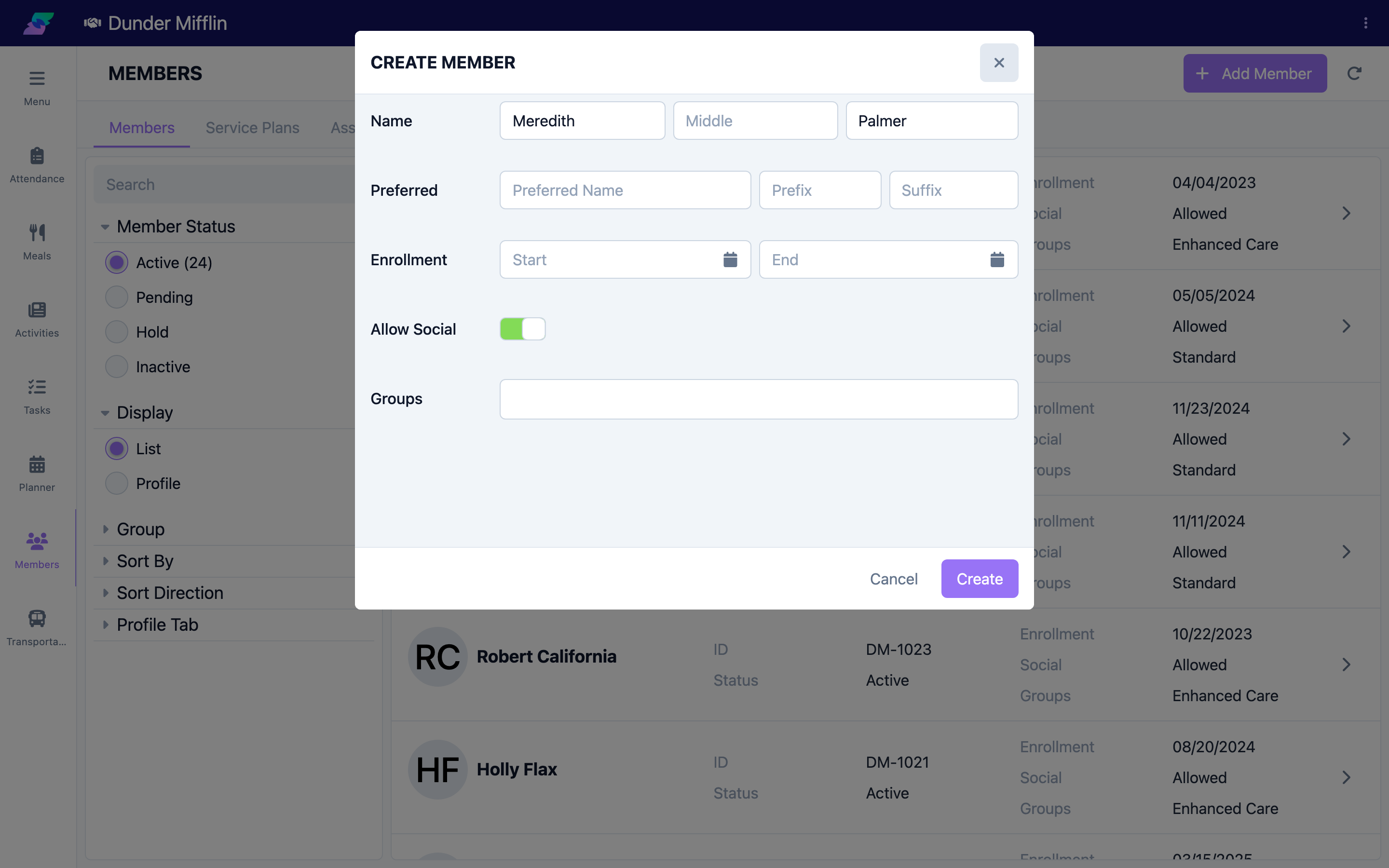
- Enrollment — enrollment Start and End dates (and Start of Care, if your center uses it).
- Allow Social — whether the member's Social Security number may be shown.
- Groups — assign the member to one or more groups (if your center uses groups).
Step 4: Save the new member
Select Create. Seniorverse creates the record and opens the member's profile.
Step 5: Add more information on the profile tabs
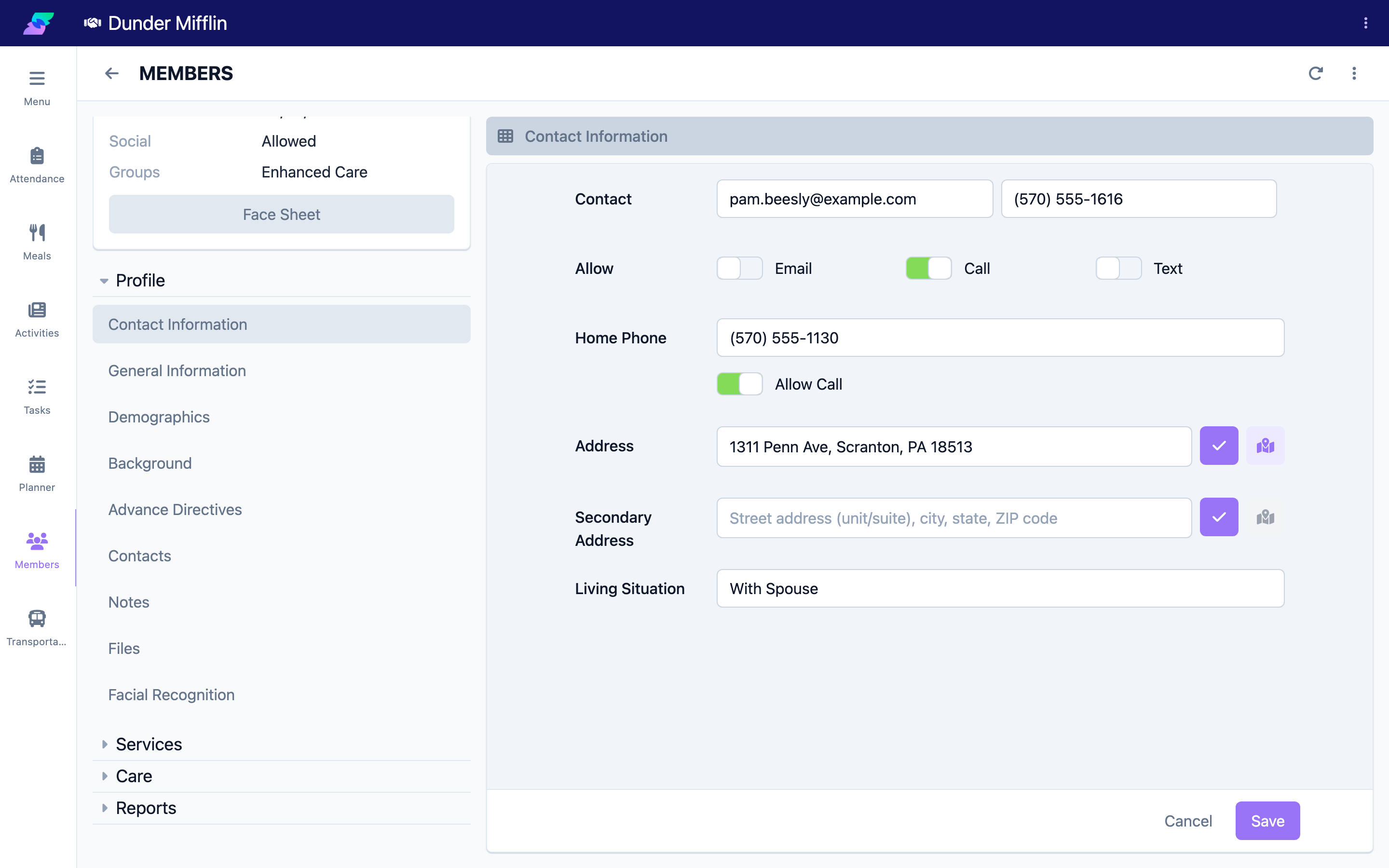
From the profile, use the tabs to add demographics, contacts, benefits, health insurance, transportation, files, and care information.
Tips
- Start minimal. You only need first and last name; everything else can be added later.
- Status defaults to Active. Change it to Pending or Hold if the member is not yet fully enrolled.
- Date of birth and gender are not on this form. Add them later on the Demographics tab.
- Double-check name spelling — names drive search, reports, and communications.
Troubleshooting
| Problem | Solution |
|---|---|
| The Create button is disabled | First Name and Last Name are required. Fill both, and clear any field showing an error. |
| I cannot find the Add Member button | You may lack permission to create members, or you may not be on the Members page. |
| The new member is not in the list | If you set the status to Pending, Hold, or Inactive, switch to that Member Status filter, or search by name. |