
Overview
The Transportation Summary report shows your center's transportation activity for a date range. It draws from the transport arrival and departure details recorded on the Attendance page. You can view it three ways — Trip Summary, Member Summary, and Attendance Details — and export the results. This article shows you how.
Before You Begin
- You need Reports access. If you cannot open the Reports area, contact your administrator.
- Transport arrival and departure details should be recorded on the Attendance page for accurate results.
Steps
Step 1: Open the Transportation Report
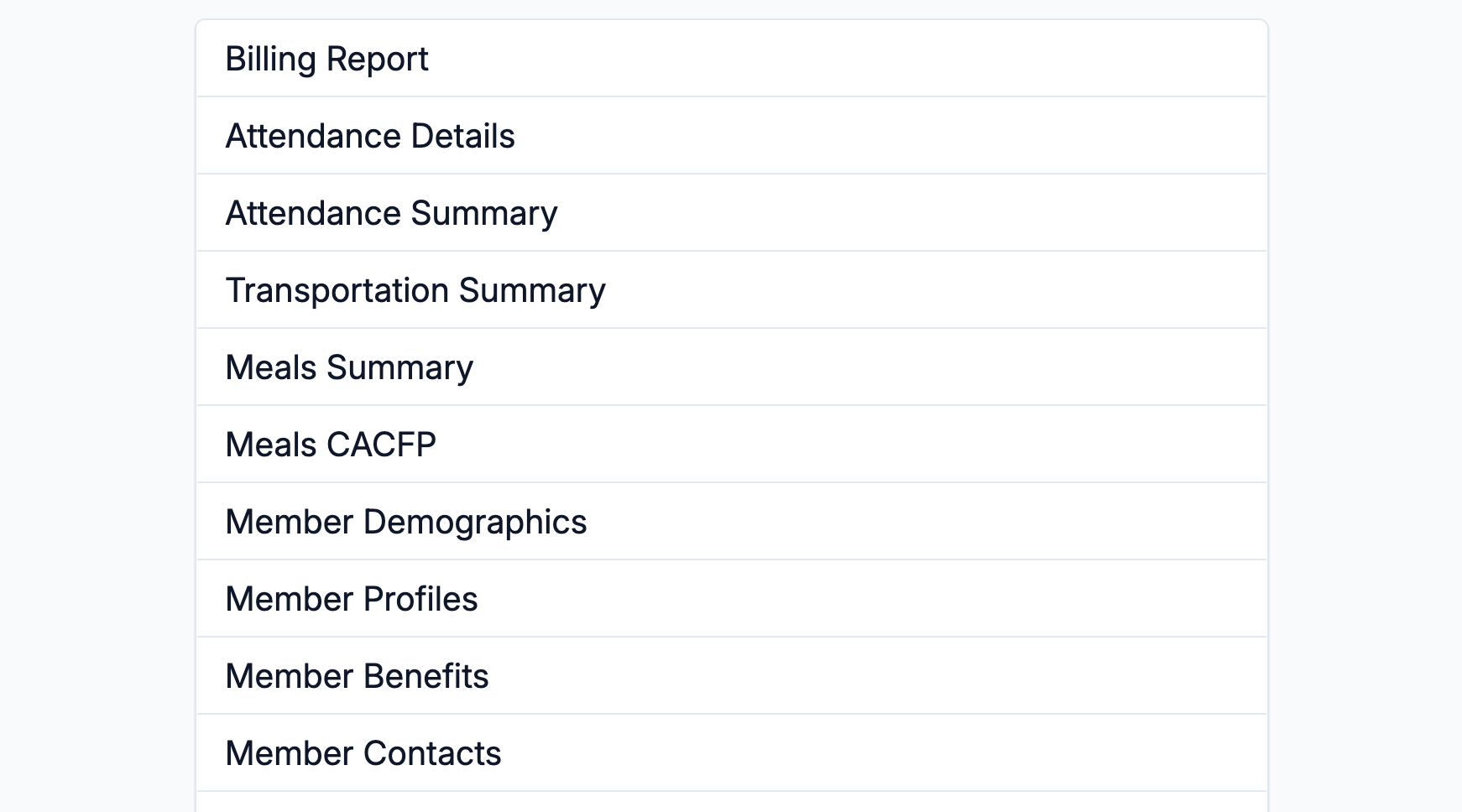
Select Reports from the main navigation, then choose Transportation Summary from the list.
Step 2: Set the Date Range
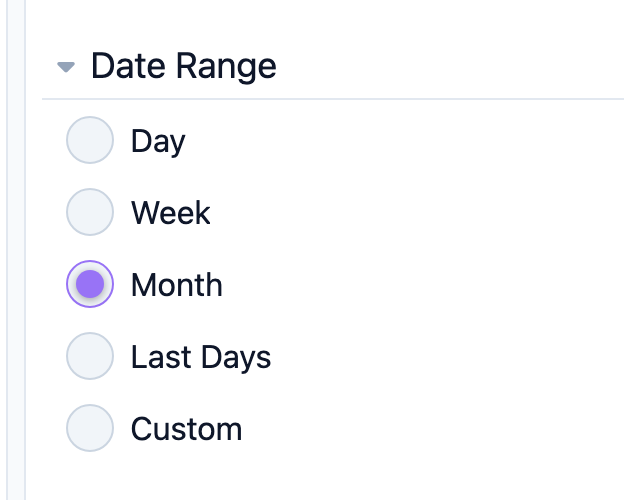
Choose the time period for the report — for example a Month or a Custom range. The report refreshes for the selected period.
Step 3: Choose a View
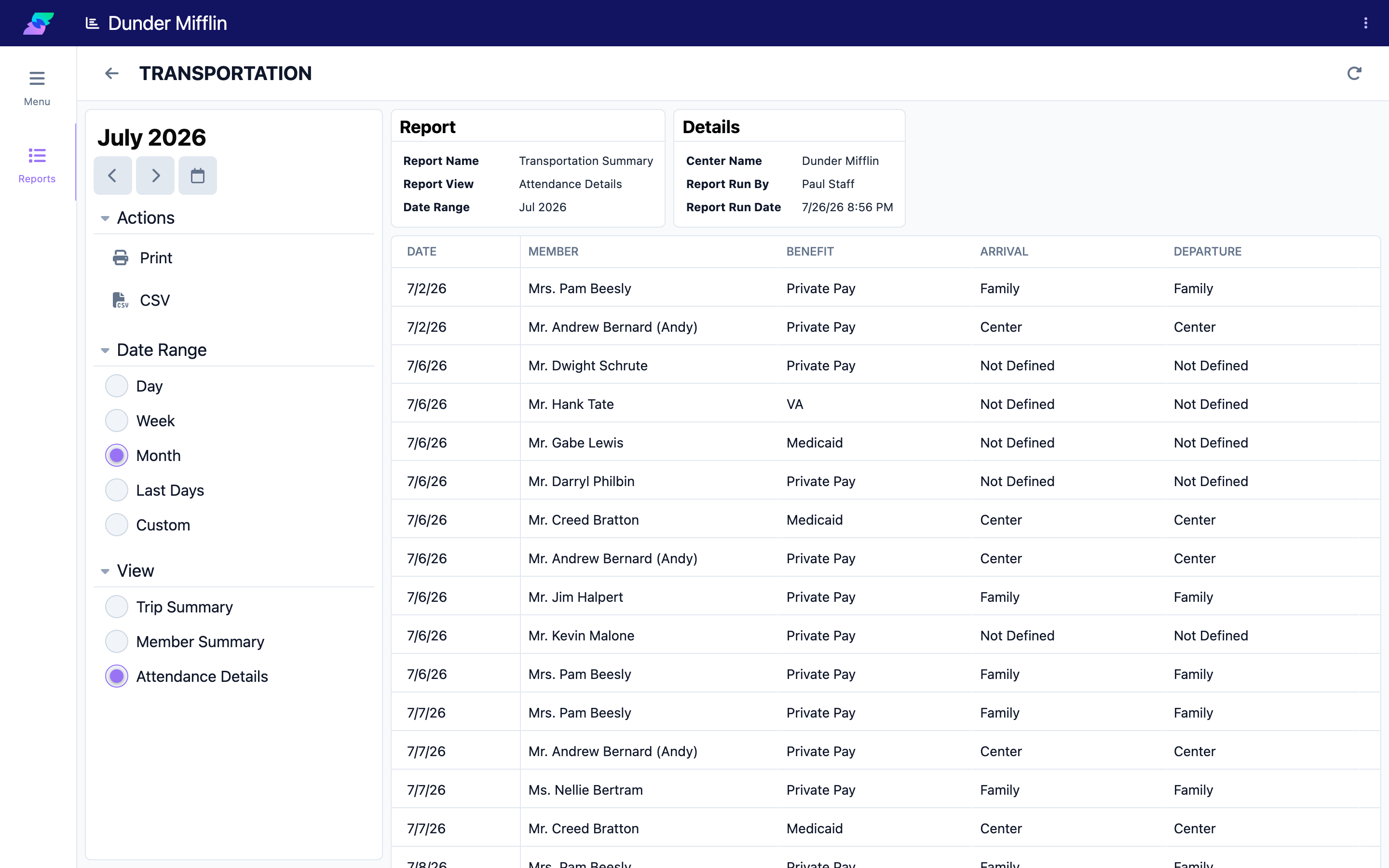
Switch between the three views depending on what you need:
- Trip Summary — trips summarized for the period, split by direction (arrivals and departures).
- Member Summary — transportation summarized by member, split by direction.
- Attendance Details — a single detailed table of the underlying records.
Step 4: Export the Report
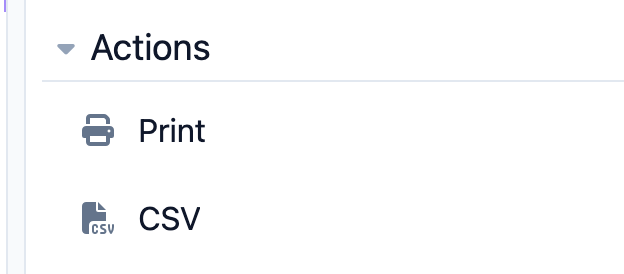
Use the report's actions to print the report (save as PDF from the print dialog) or download it as a CSV file for use in a spreadsheet or for building driver manifests.
Tips
- Record both arrival and departure. Complete transport details on the Attendance page give the most accurate report.
- Use Member Summary for planning. Seeing transportation by member helps you plan routes and schedules.
- Export to CSV for manifests. Download the report, then trim it to the columns your drivers need.
Troubleshooting
| Problem | Solution |
|---|---|
| The report shows no data | Transportation details are recorded on the Attendance page. If those fields are empty, no data appears here. |
| Trips are missing for some members | Make sure staff record both transport arrival and departure. Incomplete records may not appear in every view. |
| An export is empty | Make sure the report shows data on screen first. An empty report exports empty. |
| I do not see Transportation Summary in the list | The report may be turned off for your center. Ask your administrator to enable it. |