
Overview
The Planner uses a status workflow so events can be reviewed before they are confirmed. Events are Pending, Review, Approved, or Rejected. You can change status quickly from List view or from the event form, and use comments to communicate about an event.
Before You Begin
- You must be logged into Seniorverse with Care module access.
- You need the Care:Planner permission (or Care:FullAccess).
Understanding the Statuses
| Status | Meaning |
|---|---|
| Pending | Created and awaiting review. |
| Review | Flagged for a closer look before a decision. |
| Approved | Confirmed on the schedule. |
| Rejected | Declined; kept for the record. |
Steps
Step 1: Open List view
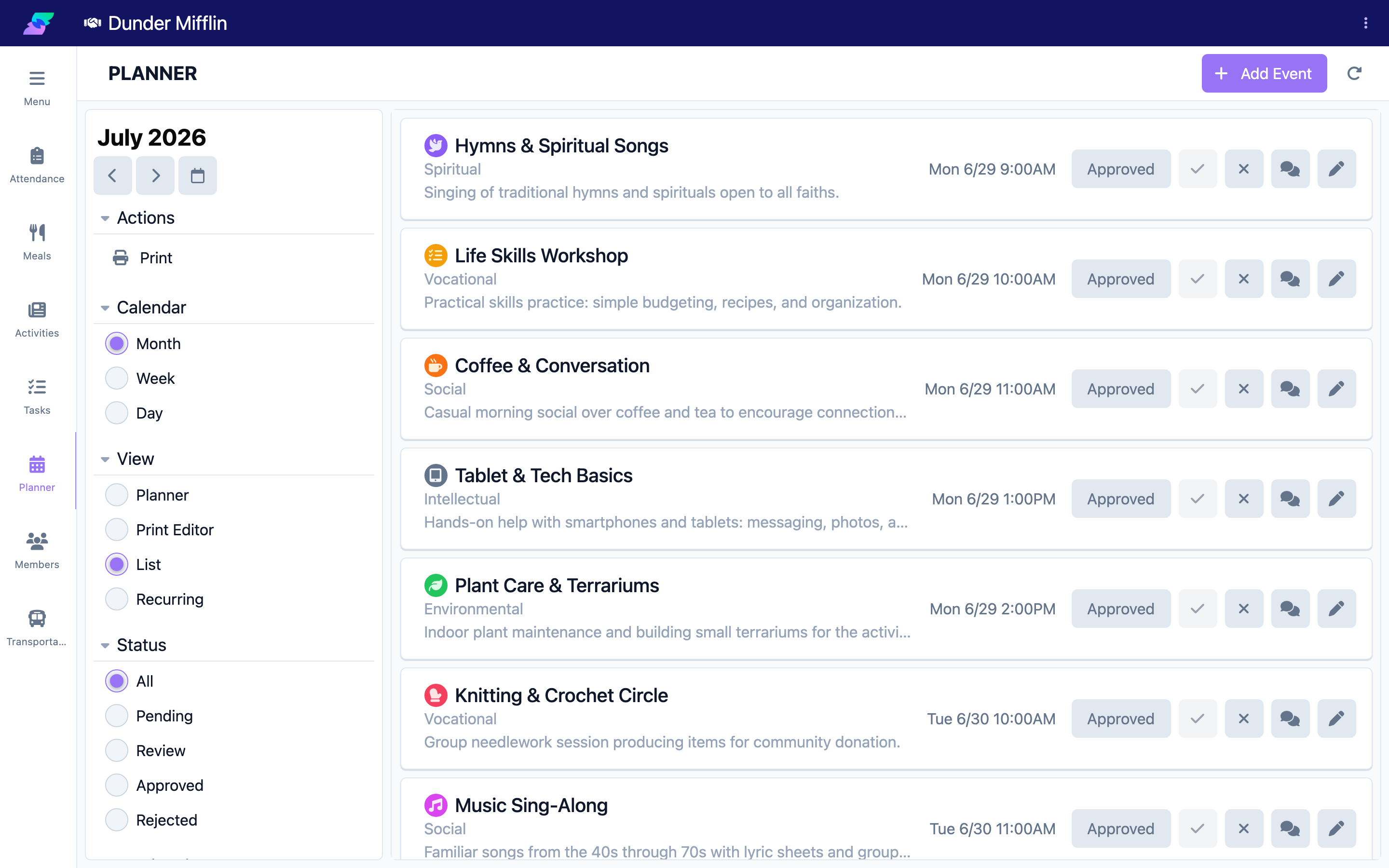
On the Planner page, set the View selector to List to see events with quick actions.
Step 2: Filter to Pending
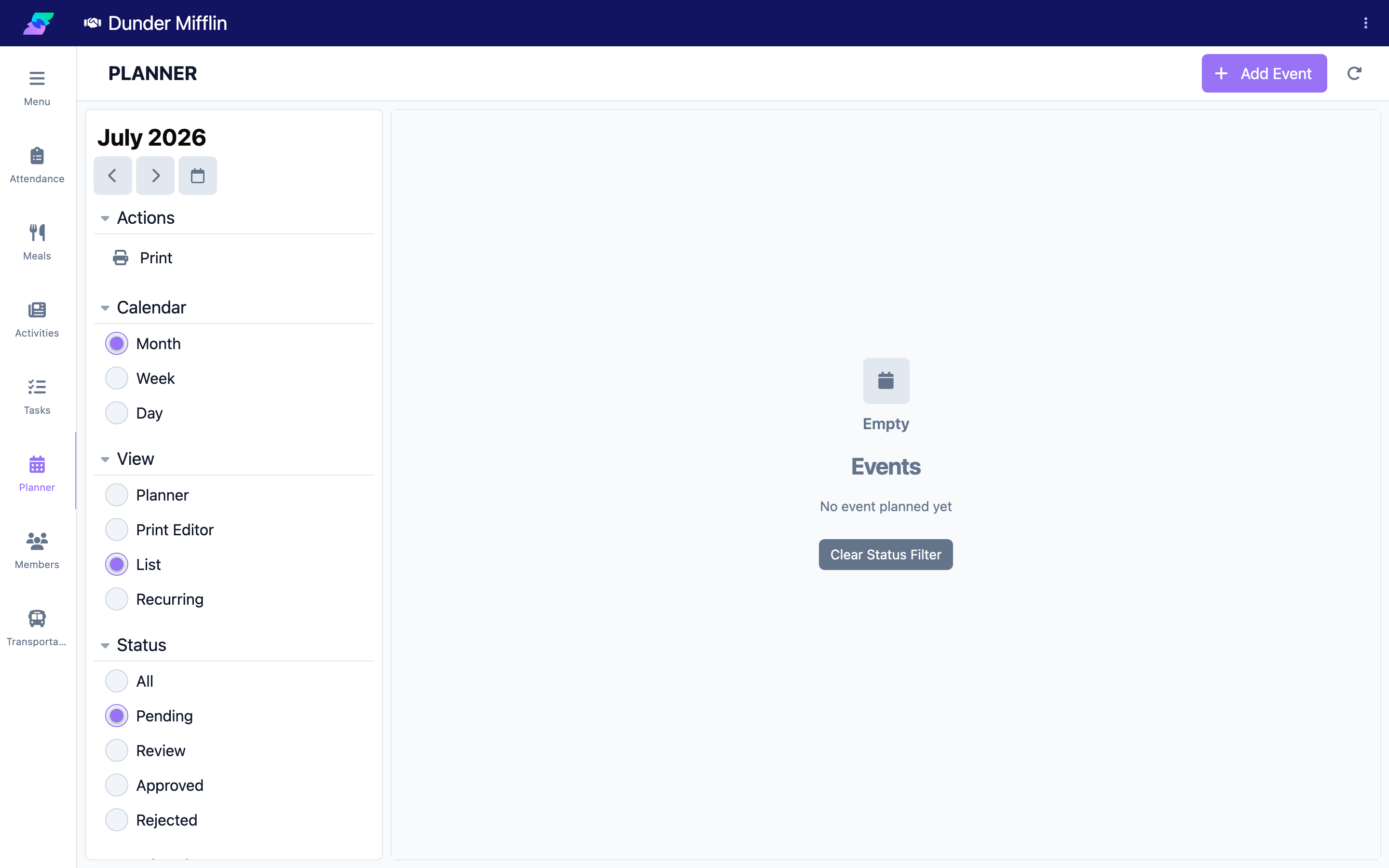
Set the Status filter to Pending to focus on events that need a decision.
Step 3: Approve or reject from the list
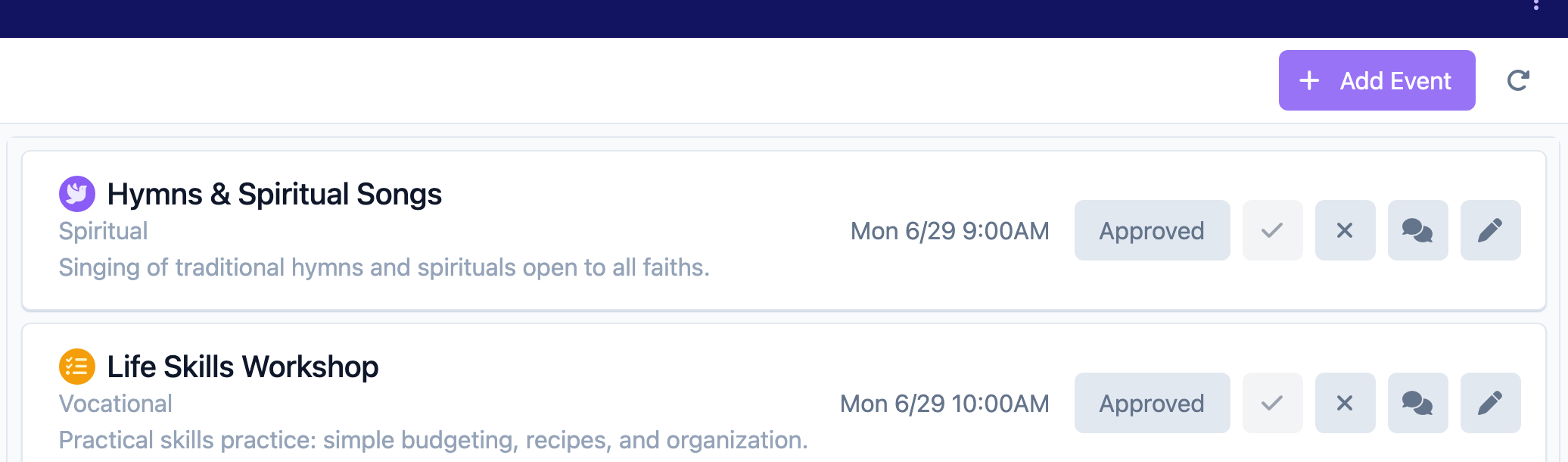
On an event card, select the Approve button (check icon) or the Reject button. The status changes immediately.
Step 4: Change status from the event form
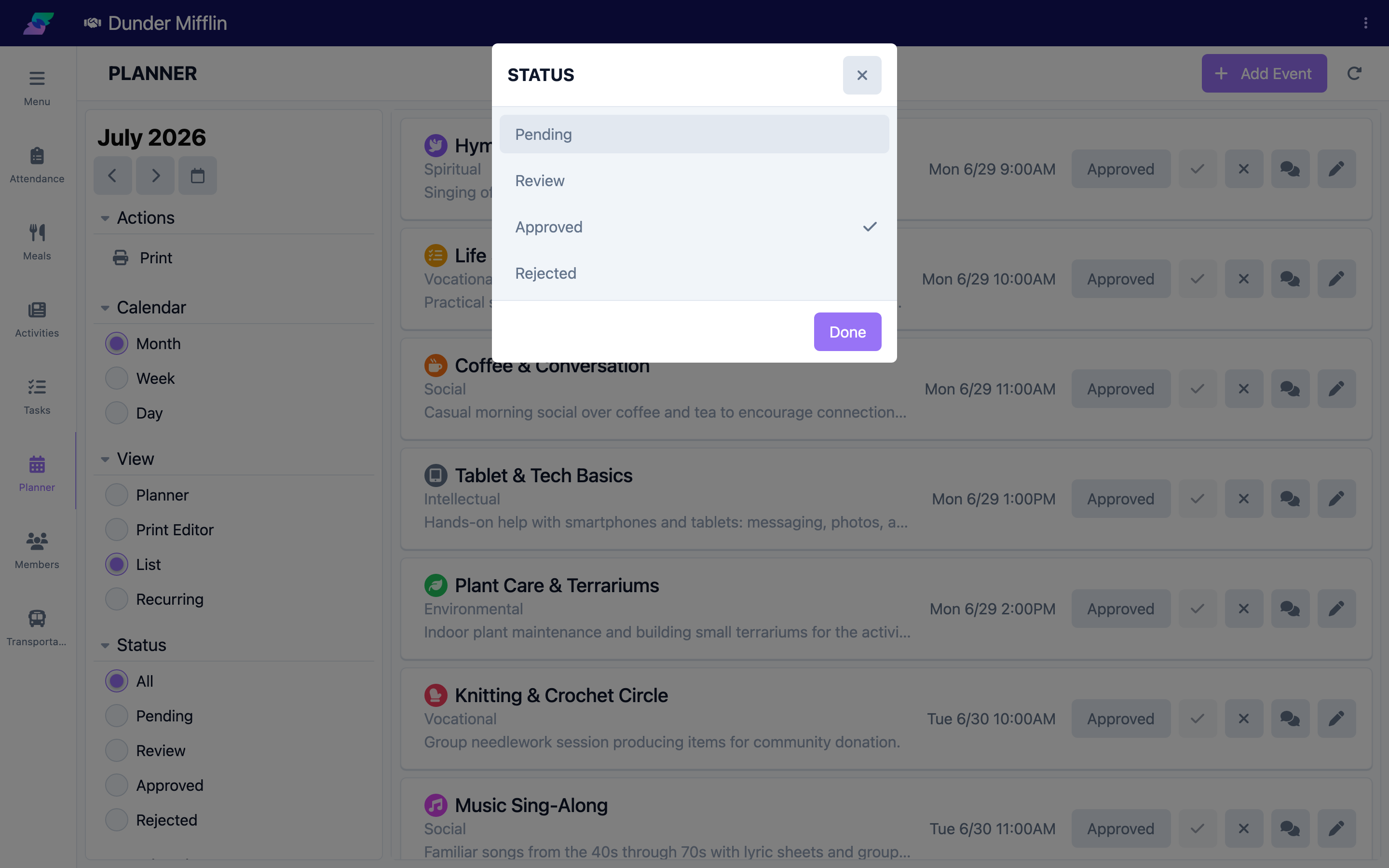
You can also open an event and set its Status field to Pending, Review, Approved, or Rejected, then save. Use the status button on a List card to pick any status from a menu.
Step 5: Use comments
Open an event and select the Comments action to discuss it. Add a comment and send it. When issues are handled, select Resolve to mark the comments resolved; use View Resolved and Unresolve to revisit them. The comments indicator on the card shows the unresolved count.
Screenshot coming soon — Event comments panel
Tips
- Use List view for quick approvals across many events.
- Set an event to Review when you need more information before approving.
- Check comments before approving — the indicator shows how many are unresolved.
Troubleshooting
| Problem | Solution |
|---|---|
| Approve/Reject buttons are missing | They appear in List view. Switch the View selector to List, or change the status from the event form. |
| I cannot change status | You need the Care:Planner permission. Ask your administrator. |
| No pending events show | Set the Status filter to All or Pending. |
| The comments count shows but I see none | The count is unresolved comments. Open the event's comments panel; select View Resolved to see resolved ones. |
Related Articles
- understanding-the-planner — Understanding the Planner
- creating-and-editing-events — Creating and Editing Events
- printing-and-exporting-schedules — Printing and Exporting Schedules