
Overview
Your user profile holds your name and sign-in details. This article shows you how to open your Account Settings and update your name, email address, password, and username. To change your display language, see the separate article Changing Your Language.
Note: Account Settings is available for personal accounts. If your account is a managed account (created and controlled by your administrator), Account Settings is not available to you — contact your administrator to make changes.
Before You Begin
- You must be signed in to Seniorverse.
- Your account must be a personal (non-managed) account to edit these settings.
Steps
Step 1: Open Account Settings
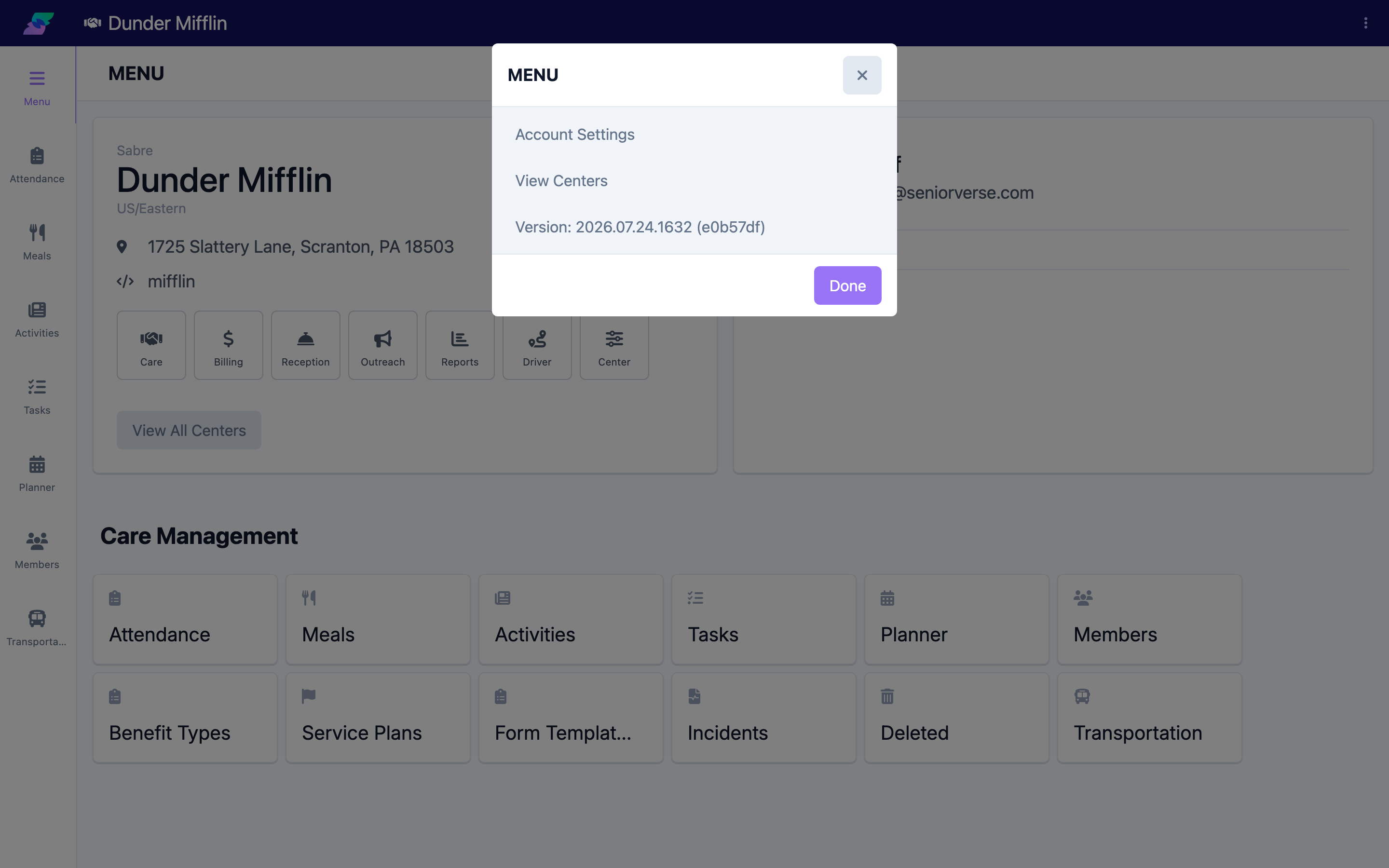
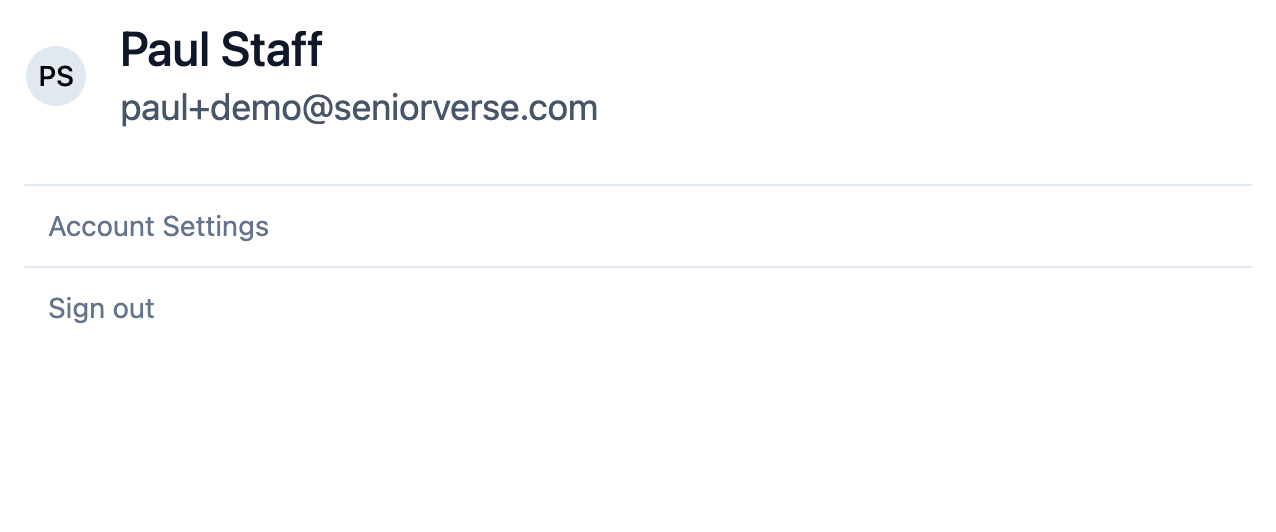
At the top-right of the screen, select the Menu button (the vertical three-dots, or ellipsis, icon) and choose Account Settings. You can also open it from the center Menu page: in your profile card, select Account Settings.
Step 2: Find the settings tabs
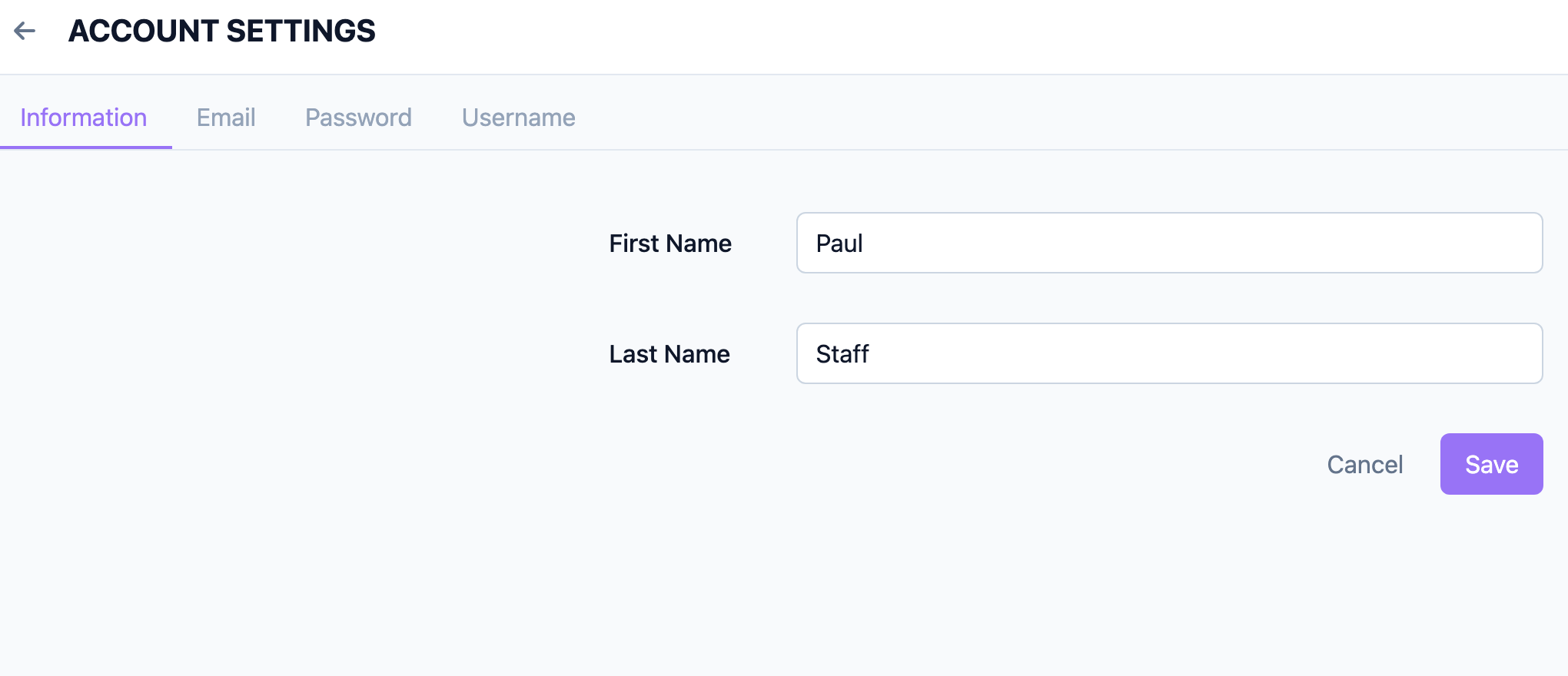
The Account Settings page has four tabs. Select the tab for what you want to change:
- Information — your first and last name
- Email — your email address
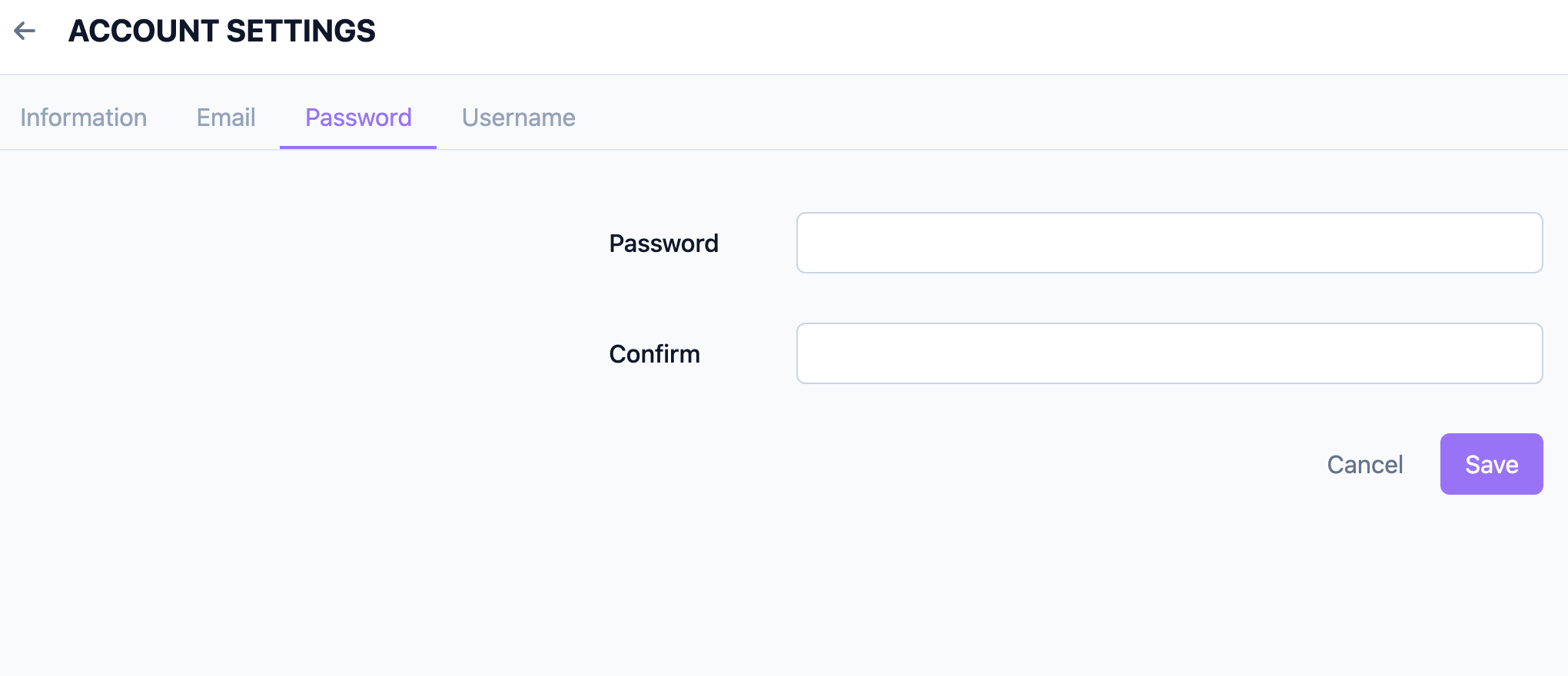
- Password — your password
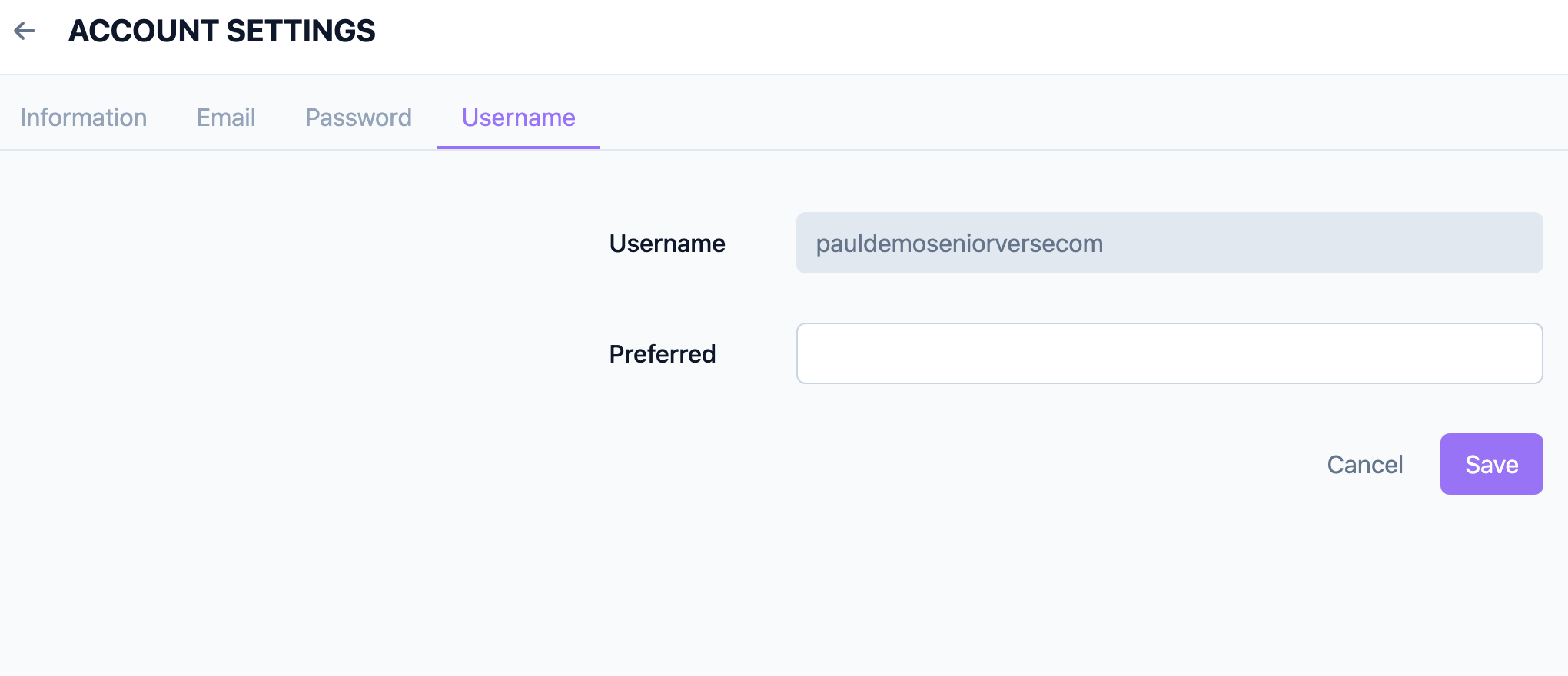
- Username — your username and a preferred name
Step 3: Update your name
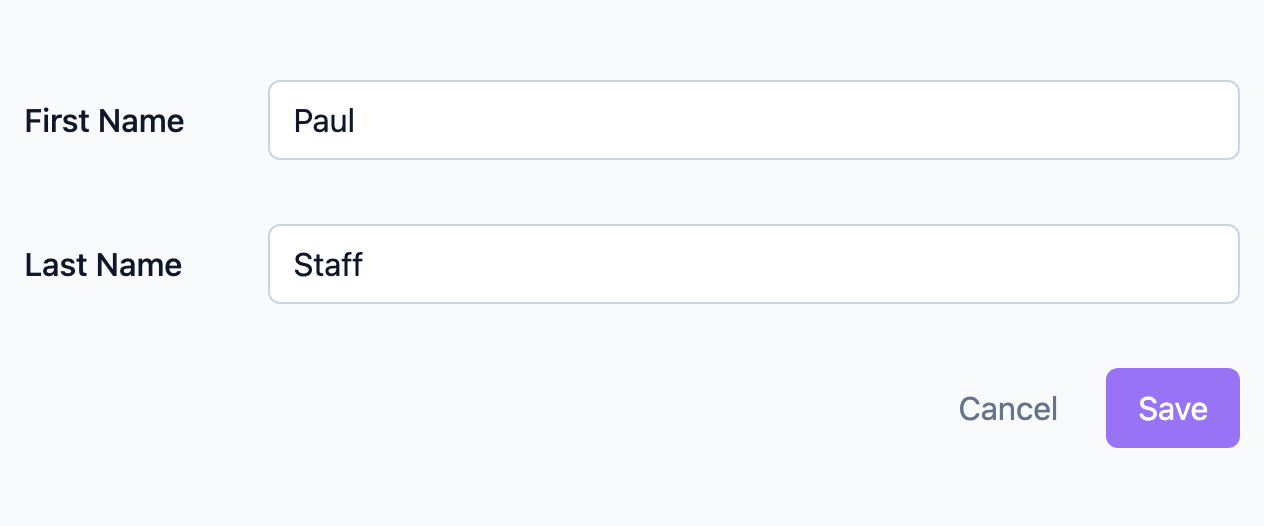
On the Information tab, edit the First Name and Last Name fields, then select Save. A confirmation appears when your changes are saved.
Step 4: Change your email address
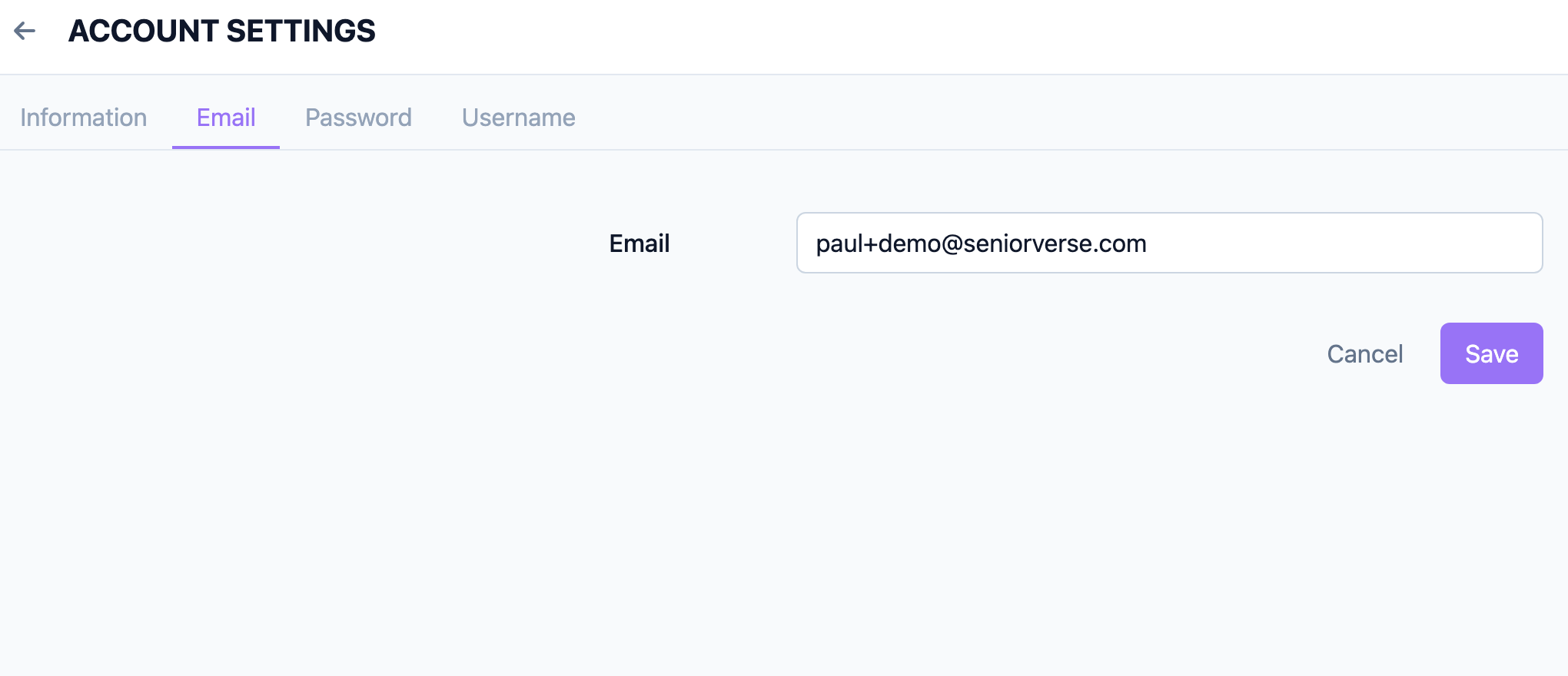
On the Email tab, enter your new email address in a valid format, then select Save and confirm. This email is used for sign-in codes and password resets, so keep it current.
Step 5: Change your password
On the Password tab, enter a new password, then select Save. Use a strong password that meets your organization's requirements. (Remember, you can also sign in without a password using an emailed sign-in code — see Logging into Seniorverse.)
Step 6: View your username and set a preferred name
On the Username tab, your Username is shown for reference (it is set by your administrator and cannot be changed here). If you want a different name to appear in certain areas, enter it in the Preferred field and select Save.
Step 7: Sign out
To sign out, open the center Menu page and, in your profile card, select Sign out, then confirm. Always sign out when using a shared or public computer.
Tips
- Keep your email current. Your email receives sign-in codes and password-reset messages, so an out-of-date address can lock you out.
- You do not have to use a password. Seniorverse can sign you in with an emailed code instead.
- Sign out on shared devices. Protect member data by signing out when you finish on any shared computer.
- Managed accounts differ. If you cannot open Account Settings, your account is managed by your administrator; ask them to make changes for you.
Troubleshooting
| Problem | Solution |
|---|---|
| I cannot open Account Settings | Your account may be a managed account. Managed accounts cannot edit these settings; contact your administrator. |
| My changes will not save | Make sure required fields are filled in and you have a stable connection, then try again. |
| "Email must be different" | Enter an email address that is different from your current one, and check for typos. |
| I cannot change my username | The username is set by your administrator and is read-only here. You can still set a Preferred name. |
| I want to change my language | Language is a separate setting. See Changing Your Language. |