
Overview
The Meals page is where you record meal service for one meal at a time. You pick the meal (for example, Breakfast or Lunch), then work down the list recording each member's status, how much they ate, any add-ons or fluid entries, and notes. The page always shows a single date and updates its statistics as you work.
This article explains the page layout: the filters, the meal selector, the statistics bar, and the table columns.
Before You Begin
- You must be logged into Seniorverse with Care module access.
- You need the Care:Meals permission (or Care:FullAccess) to view and record meals.
- At least one meal type must be configured for your center.
Steps
Step 1: Open the Meals page
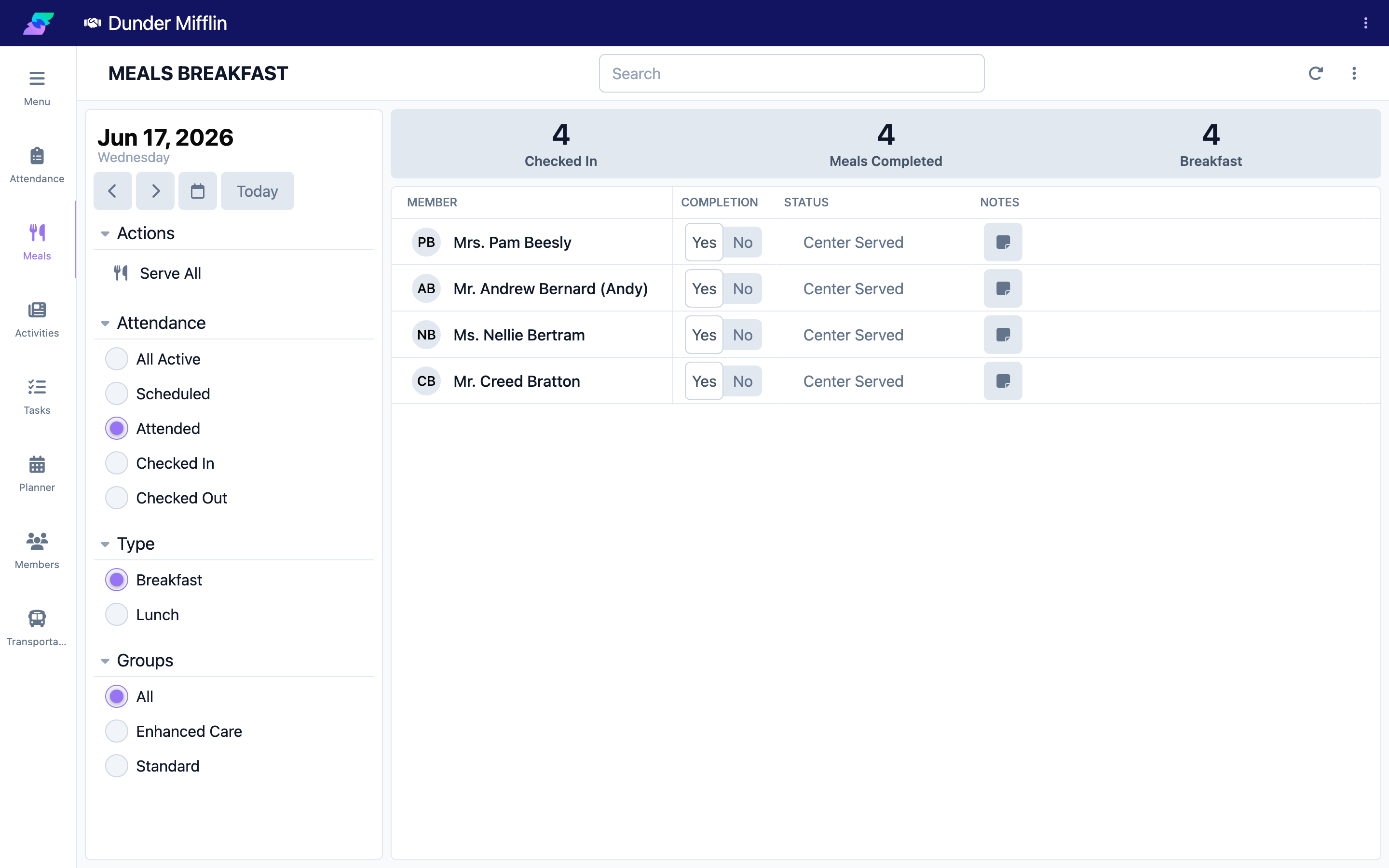
Select Care, then Meals. The page opens on today's date with the current meal type selected.
Step 2: Set the date and filters
Use the date selector to choose the day. The filters are:
- Attendance — All Active, Scheduled, Attended (shown as "Attending" on today's date), Checked In, or Checked Out.
- Type — the meal type you are recording (Breakfast, Lunch, and any others your center configured).
- Groups — limit the list to a member group (when your center uses groups).
Step 3: Read the statistics bar
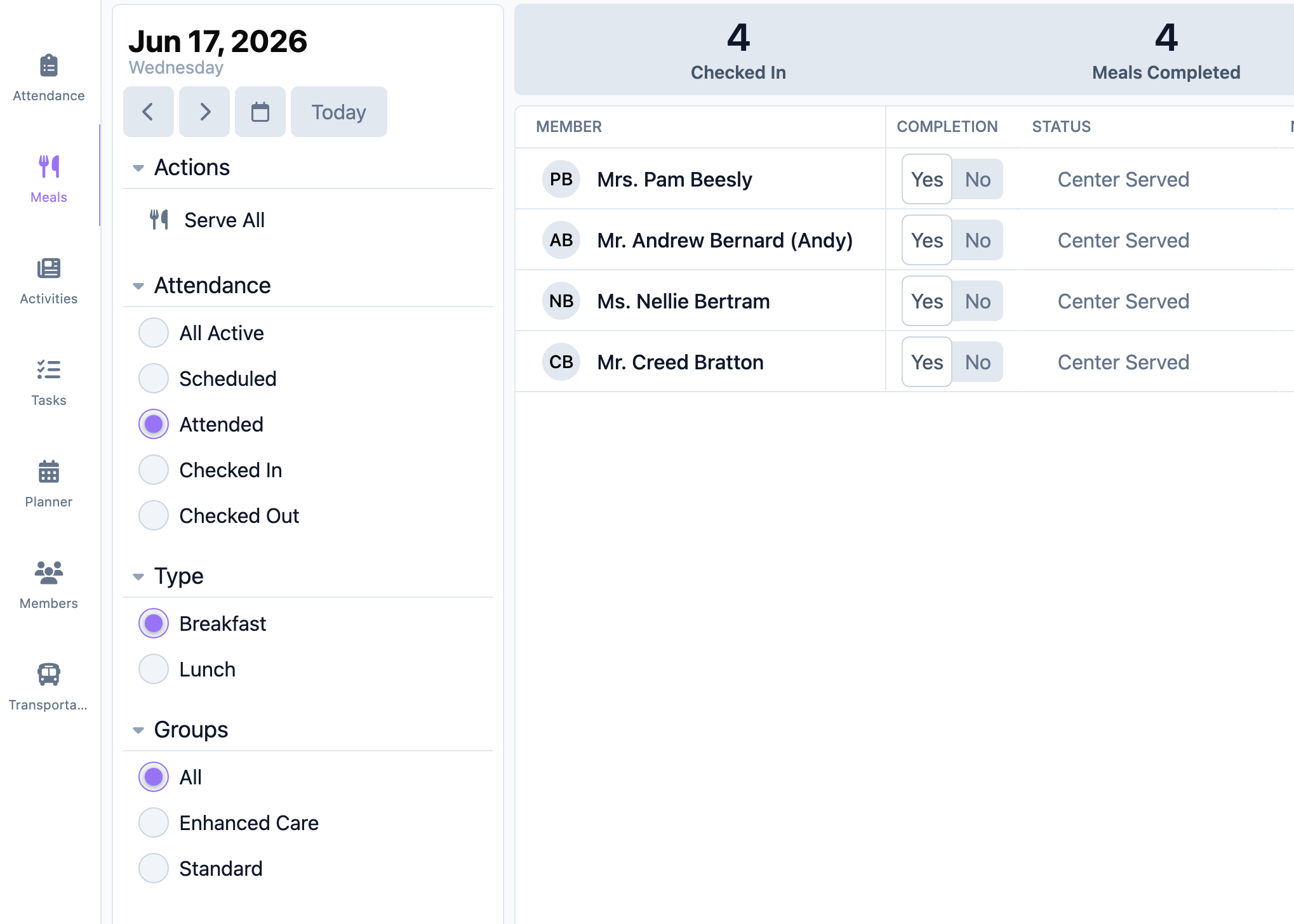
The statistics bar summarizes service for the selected meal:
| Statistic | What it means |
|---|---|
| Checked In | Members currently checked in and available for the meal. |
| Meals Completed | Members whose meal has been recorded (a completion percentage set). |
| Additional counts | Depending on configuration, counts for served meals and specific add-on options may also appear. |
Step 4: Read the table columns
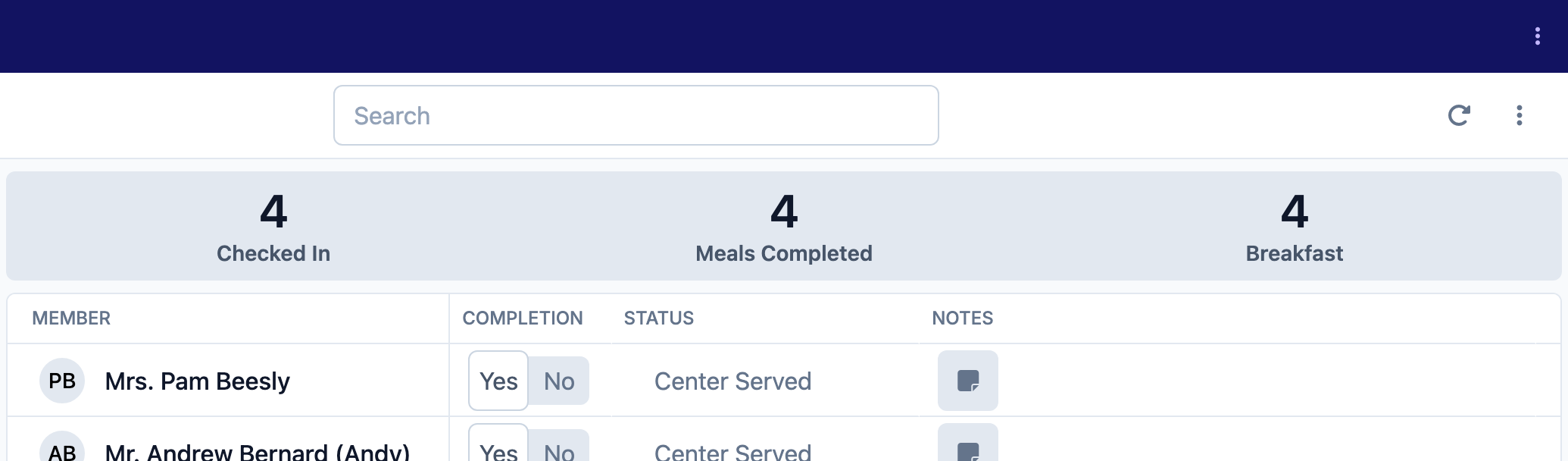
Each member has one row. Columns depend on the meal type and your center's settings:
| Column | What it shows |
|---|---|
| Member | Name and photo. Select the name to open the member's record. |
| Completion | How much the member ate — buttons for 100, 75, 50, 25, 0. (In the simplified view this is Yes / No instead.) |
| Status | The meal status, chosen from your center's configured statuses. |
| Add-on columns | One column per add-on option on the meal type; toggle it on for a member. |
| Entry columns | One column per entry field on the meal type (for example, fluids), with a value box and its unit. |
| Notes | A note button for comments about the member's meal. |
Tips
- Switch the Type selector as the day moves from one meal to the next.
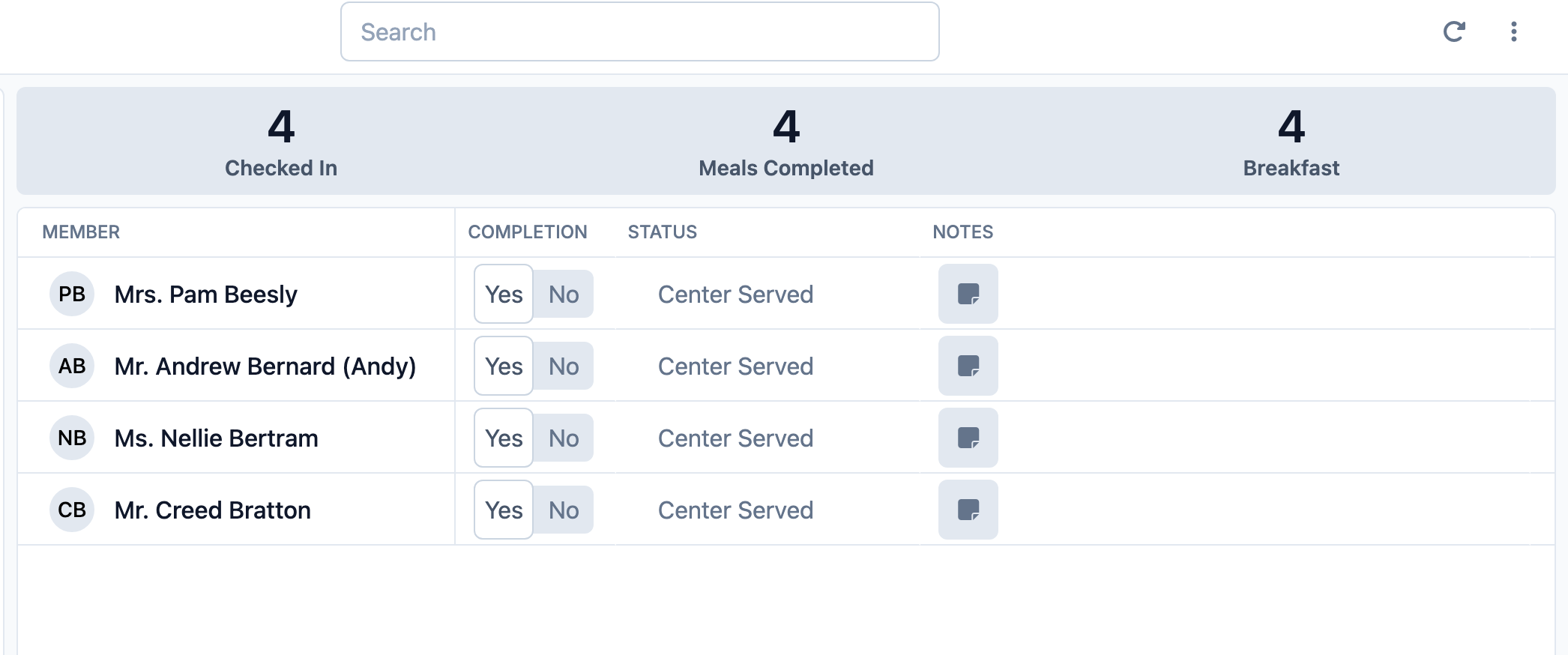
- Setting a completion percentage automatically marks the meal as served, so you do not have to set the status separately.
- If the page says meal types need to be configured, use Edit Meal Types from the page menu to add one.
Troubleshooting
| Problem | Solution |
|---|---|
| A member is missing from the list | Check the date, meal Type, and the Attendance filter. If the member is not checked in, switch the filter to All Active or Scheduled. |
| The page says meal types need to be configured | Open the page menu and choose Edit Meal Types to create one (requires the right permission). |
| The add-on or entry columns look different than expected | Add-ons and entries are set per meal type. Different meal types show different columns. |
| I cannot record anything | You may lack the Care:Meals permission. Ask your administrator. |
Related Articles
- recording-meal-service — Recording Meal Service
- recording-meal-completion — Recording Meal Completion
- adding-meal-notes-and-dietary-info — Adding Meal Notes and Dietary Info
- configuring-meal-types-and-options — Configuring Meal Types and Options