
Overview
Meal notes capture observations about a member's meal — appetite changes, preferences, or a reason they ate little. On the Meals page you add a free-text note per member, per meal, and you can capture dietary items with the meal type's add-ons and fluid intake with its entry fields.
Standing dietary restrictions (allergies, prescribed diet, conditions) live in the member's record, not on the meal. Use meal notes for day-to-day observations and refer to the member's record for their restrictions.
Before You Begin
- You must be logged into Seniorverse with Care module access.
- You need the Care:Meals permission (or Care:FullAccess).
Steps
Step 1: Open the Meals page and select the meal
Select Care, then Meals. Confirm the date and choose the meal in the Type selector.
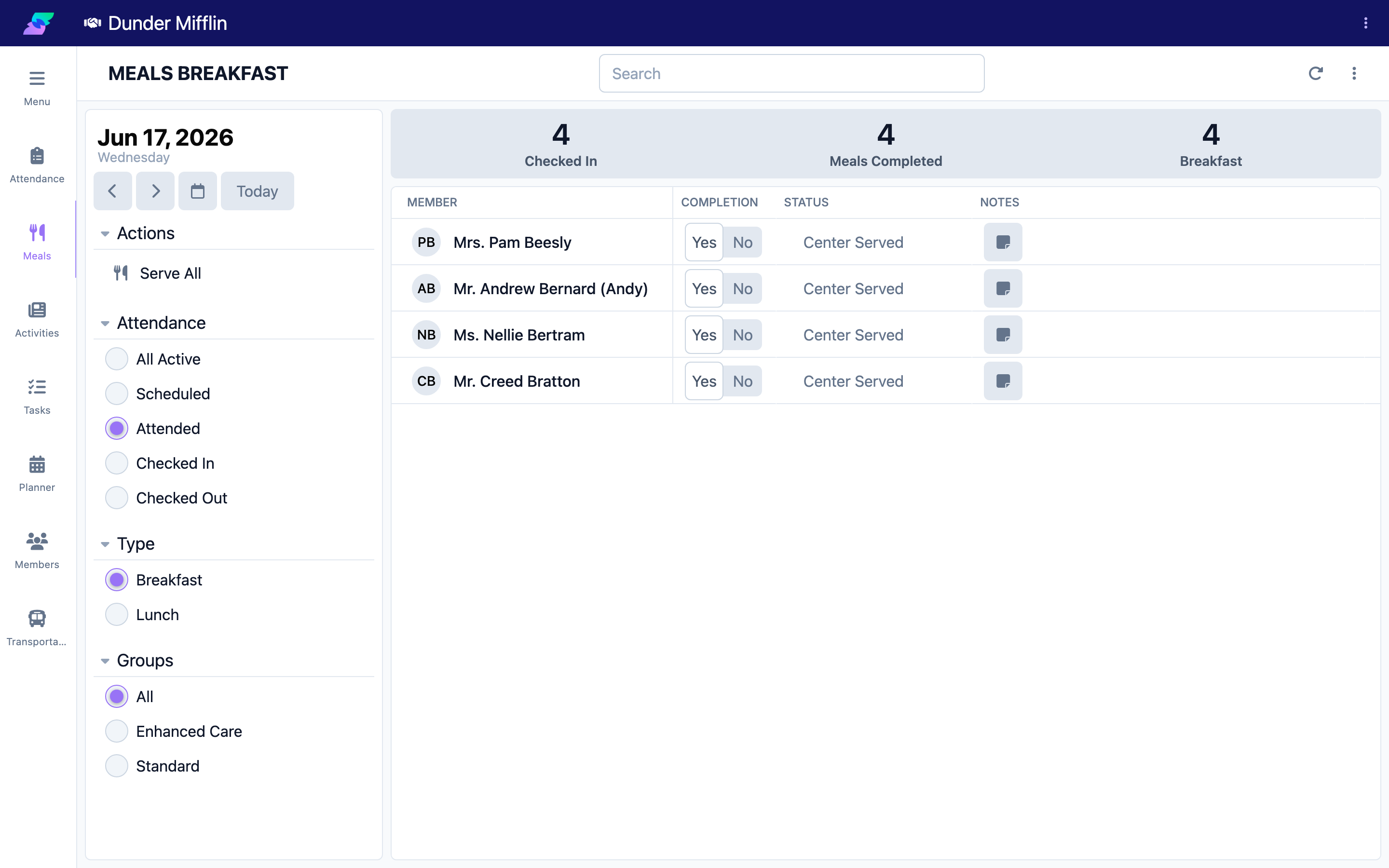
Step 2: Find the member
Use the search box or filters to locate the member.
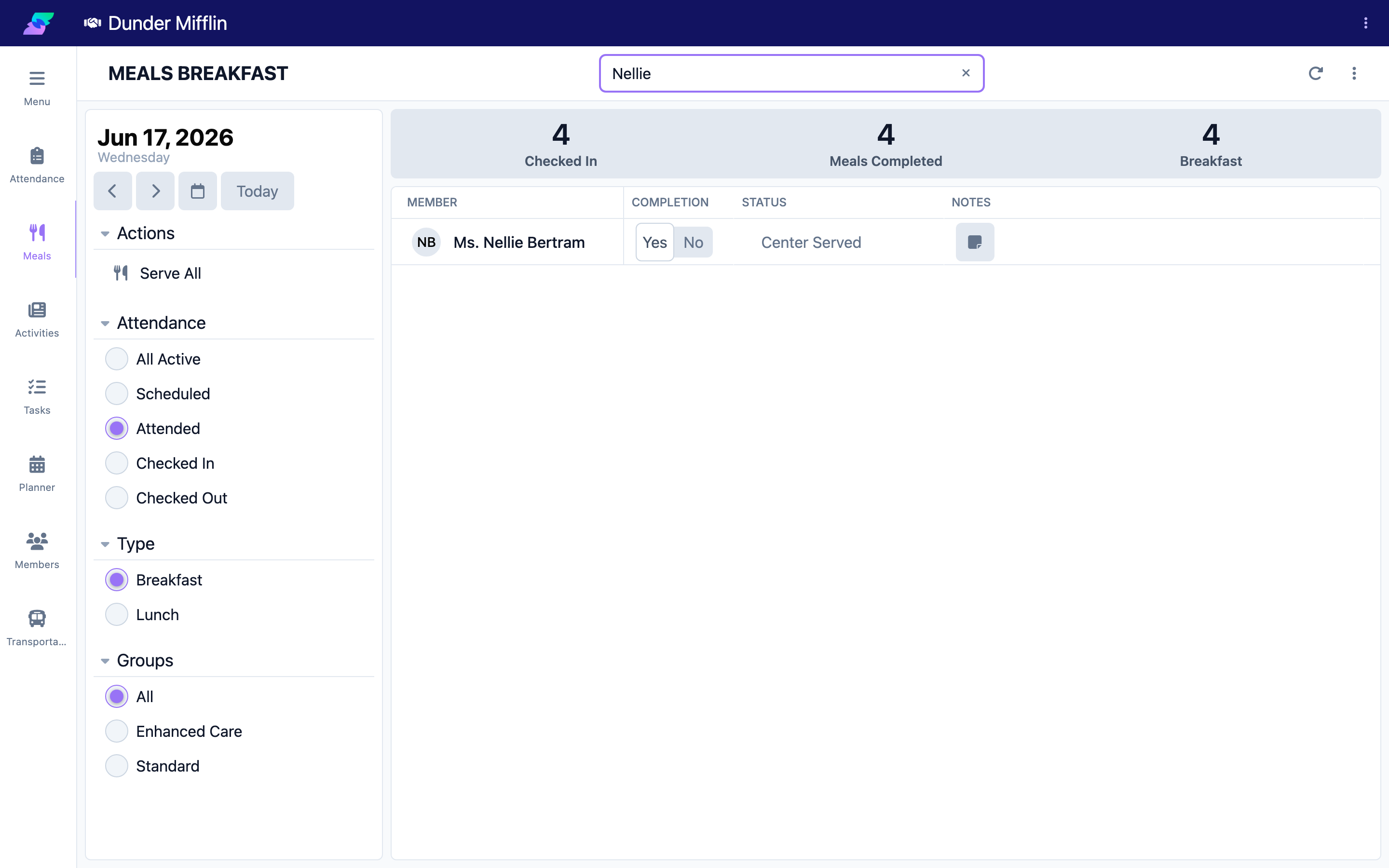
Step 3: Open the note
In the Notes column, select the note button (the sticky-note icon). The note window opens.
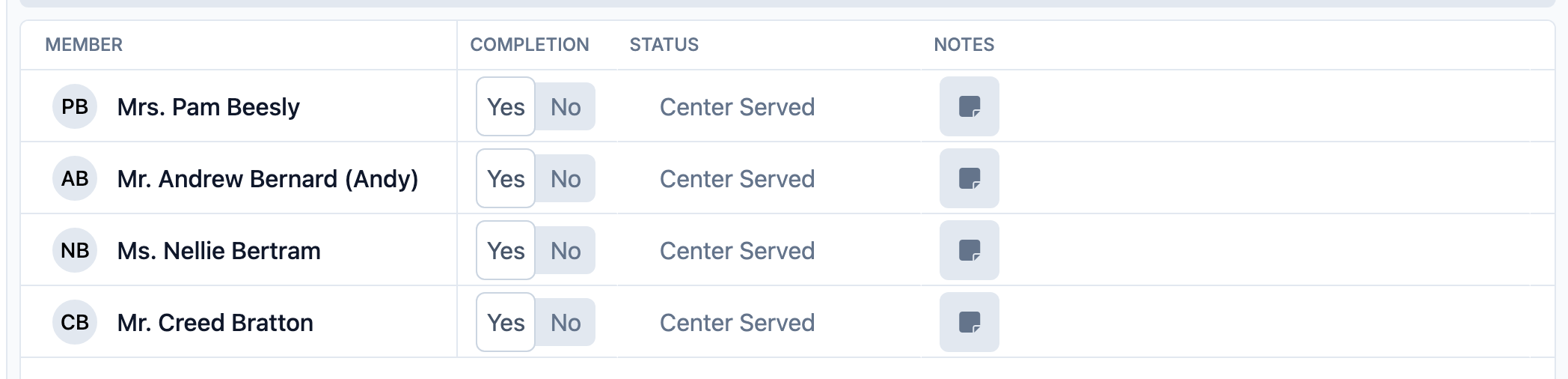
Step 4: Write and save the note
Type your observation (for example, "Ate slowly, preferred the soup") and save. The note text then shows on the member's row.
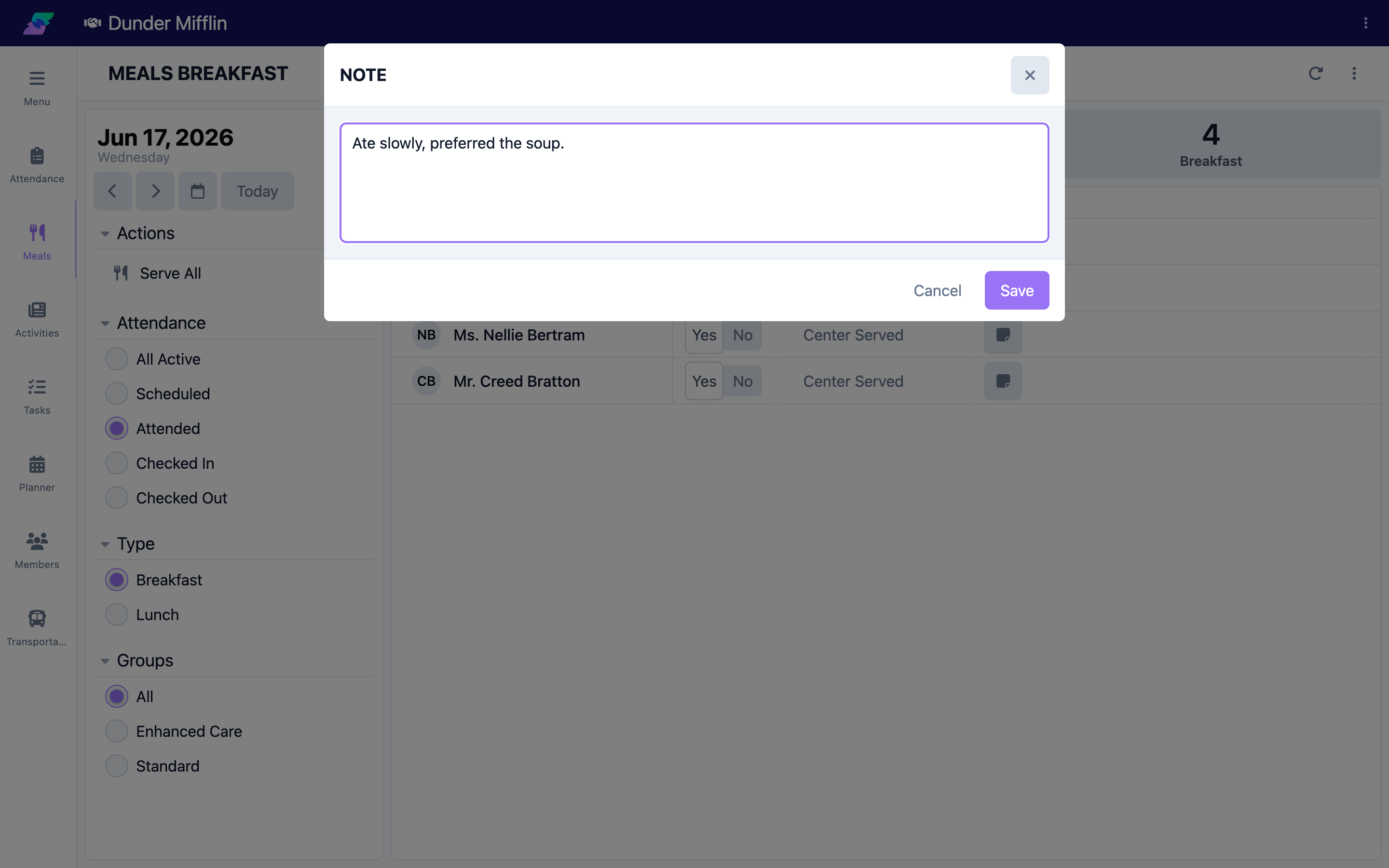
Step 5: Record dietary items with add-ons and entries
Use the meal type's add-on columns to mark items served (such as an extra portion or a substitute), and its entry fields to record fluid intake with the unit shown. These are configured per meal type.
Screenshot coming soon — Add-on toggles and entry fields for dietary items and fluids
Tips
- Keep notes specific and observational; they are visible to other staff recording meals.
- For allergies or a prescribed diet, open the member's record — those belong there, not on the meal note.
- Add-ons and fluid entry fields are defined per meal type; ask an administrator to adjust them.
Troubleshooting
| Problem | Solution |
|---|---|
| The note button does nothing | You may lack the Care:Meals permission, or the member has no meal record yet. Record a status or completion first, then add the note. |
| Previous notes are not showing | Notes are specific to the date and meal type. Confirm both are correct. |
| I do not see add-on or entry columns | They are set per meal type. Confirm the meal selected, or ask an administrator to configure them. |
| A member's allergies are not shown here | Dietary restrictions live in the member's record. Open the member to view them. |
Related Articles
- understanding-the-meals-page — Understanding the Meals Page
- recording-meal-service — Recording Meal Service
- recording-meal-completion — Recording Meal Completion
- configuring-meal-types-and-options — Configuring Meal Types and Options