
Overview
The Invoices tab in the Billing module lists every invoice and billing-plan preview for the selected date range. From there you can filter, open an invoice to see its full detail across several tabs, and edit invoices that are still Drafts. Which actions are available depends on the invoice's status — for example, an invoice can only be voided after all its payments and credits are cleared.
Before You Begin
- You need access to the Billing module.
- Editing is limited to Draft invoices; finalizing locks an invoice.
Steps
Step 1: Open the Invoices list and filter
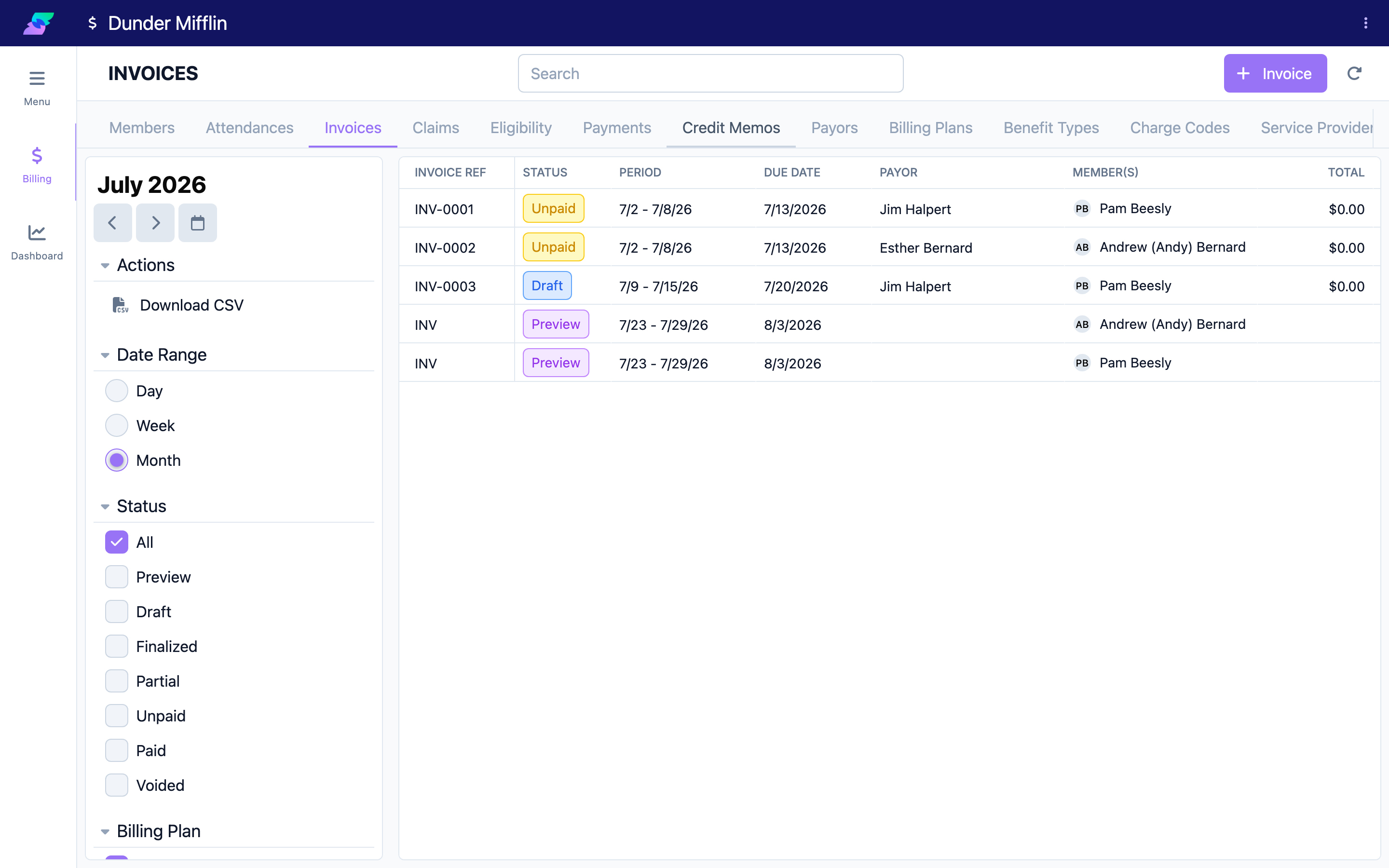
Go to Billing → Invoices. The list shows columns for Invoice Ref, Status, Period, Due Date, Payor, Member(s), Total, and Outstanding. Use the filters to narrow it down:
- Status — All, Preview, Draft, Finalized, Partial, Unpaid, Paid, or Voided.
- Billing Plan — invoices from a specific plan.
- Benefit Type — invoices for a specific benefit type.
- Members — invoices for specific members.
Step 2: Understand the statuses
Seniorverse computes an invoice's status from its data:
- Draft — not yet finalized; editable.
- Finalized — finalized with a zero total.
- Unpaid — finalized, nothing paid yet.
- Partial — finalized, partially paid.
- Paid — finalized and fully paid.
- Voided — voided.
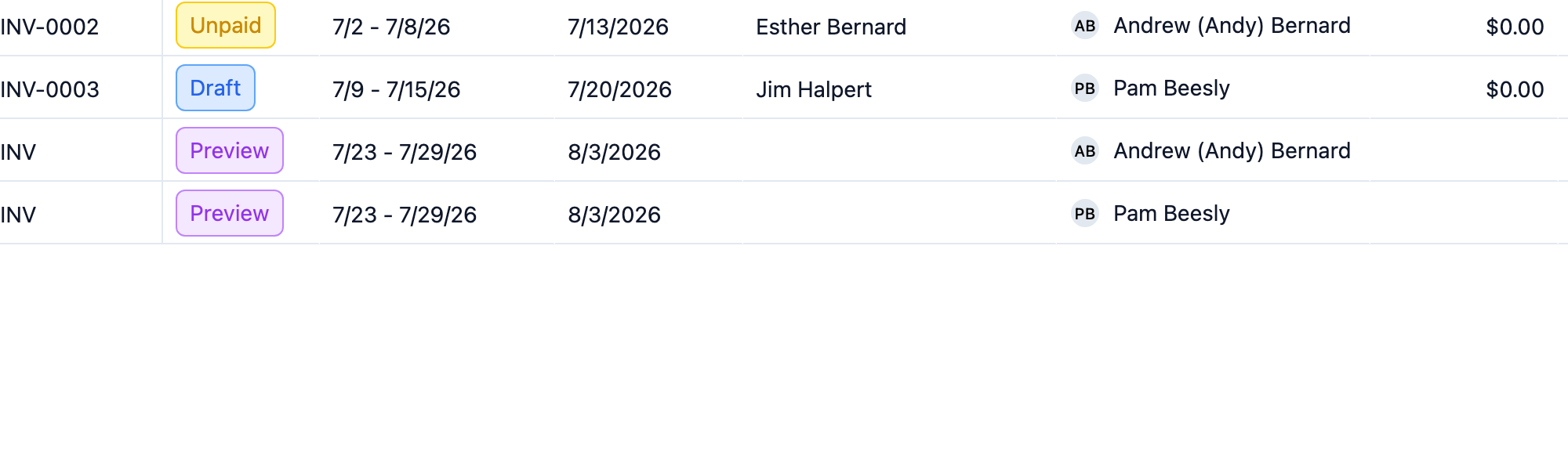
Two extra values appear in specific places: Preview is a purple pill for billing-plan preview rows (a proposed invoice, not a stored one), and Payment Failed is a stored status set when a payment attempt fails. On a claims invoice, the detail header shows claim progress (for example, "Claims: 2/5") instead of the plain status.
Step 3: Open an invoice and browse its tabs
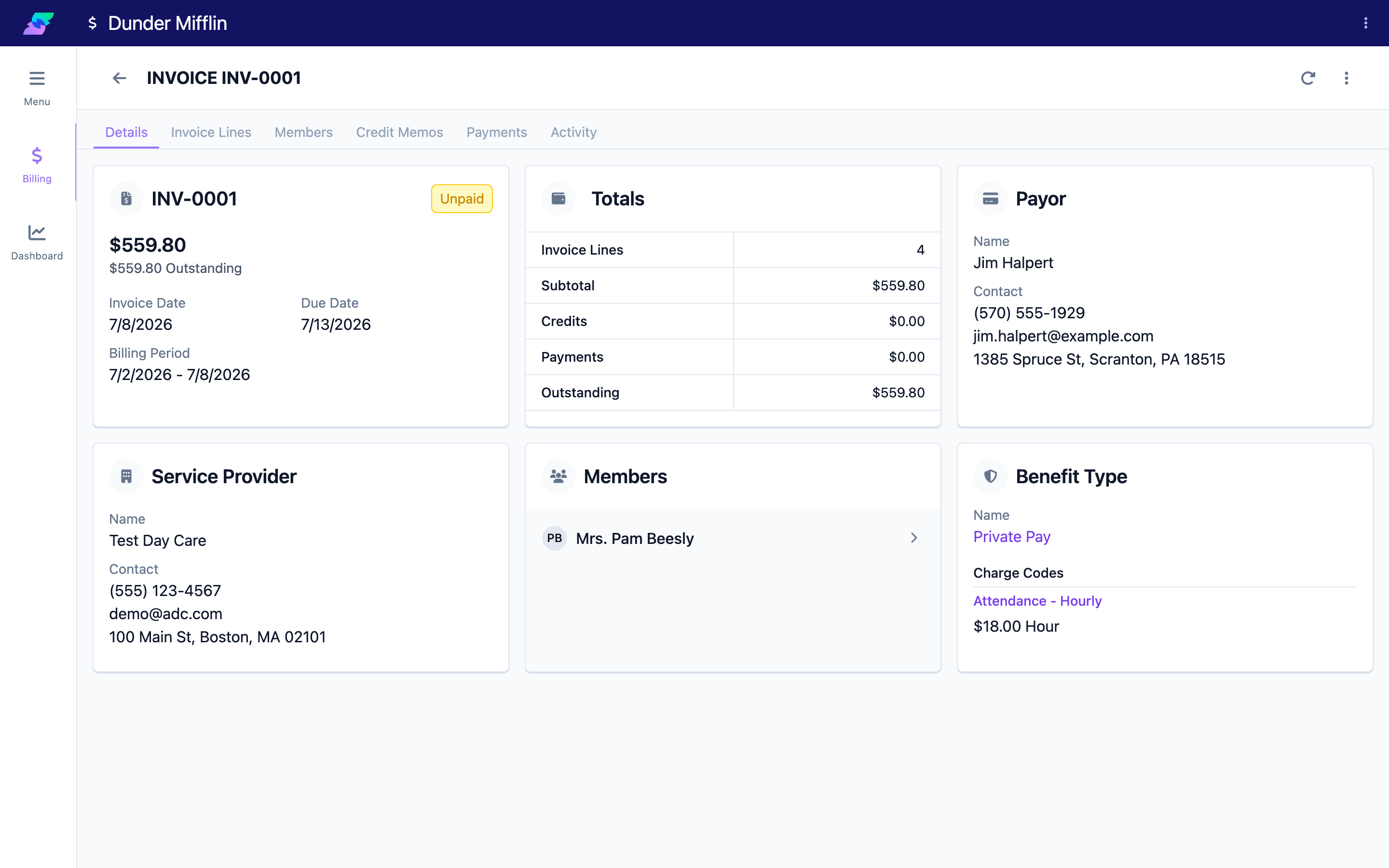
Click an invoice row to open its detail. The tabs are:
- Details — payor, service provider, dates, and totals.
- Invoice Lines — the individual charges.
- Members — per-member attendance and transportation totals.
- Credit Memos — credits applied to the invoice.
- Payments — payments recorded against the invoice.
- Claims and Eligibility — shown only for claims invoices.
- Activity — the full audit log of everything that happened to the invoice.
Step 4: Edit a Draft invoice
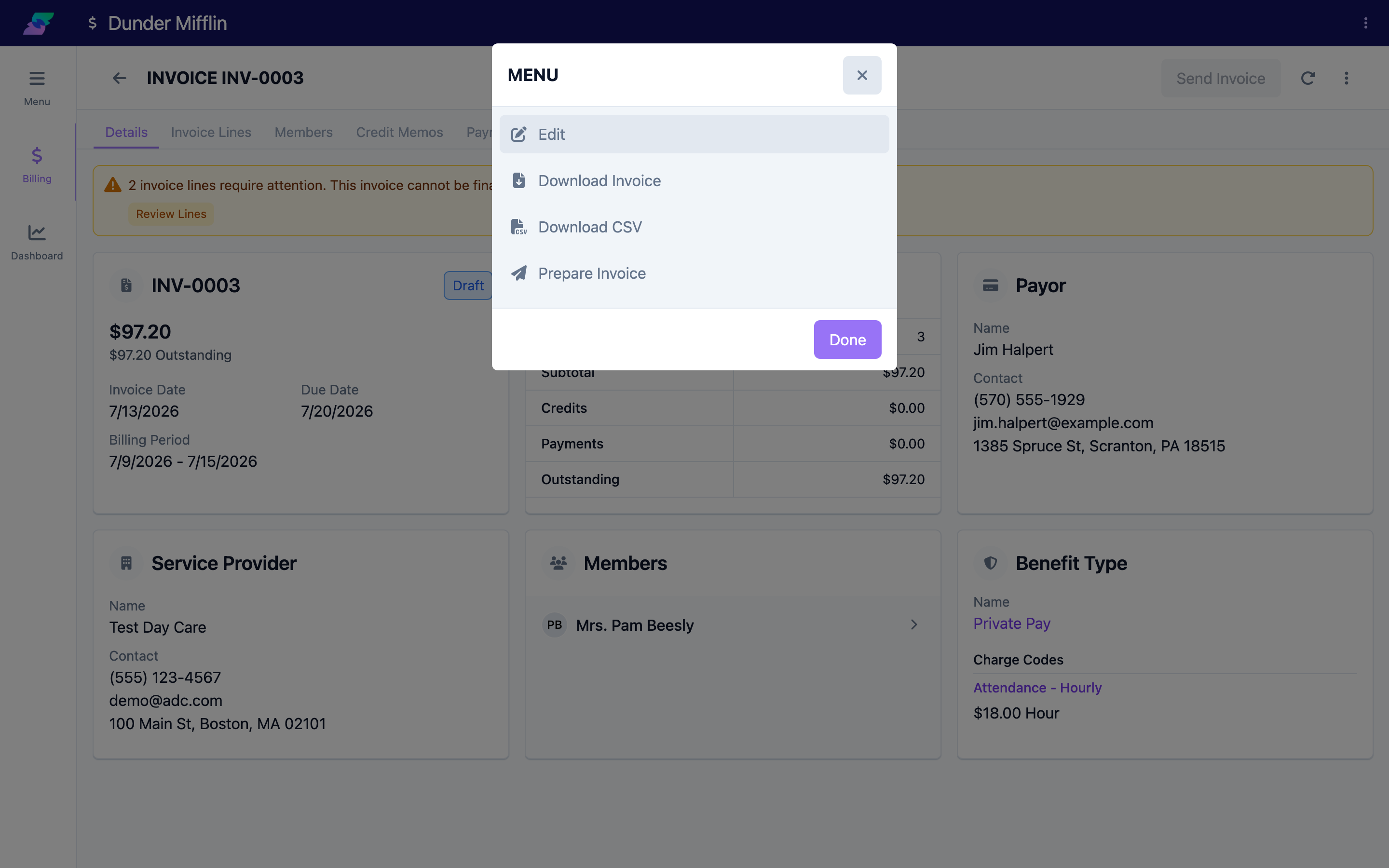
Open the actions menu and choose Edit to change invoice details. While the invoice is a Draft you can adjust its editable fields; line items are edited on the Invoice Lines tab. Structural fields (invoice type, plan, benefit type, members, grouping, timing) are locked once the invoice exists. Finalizing locks the invoice — the finalize confirmation warns it "will no longer be editable." A voided invoice cannot be edited at all.
Step 5: Know which actions apply in each state
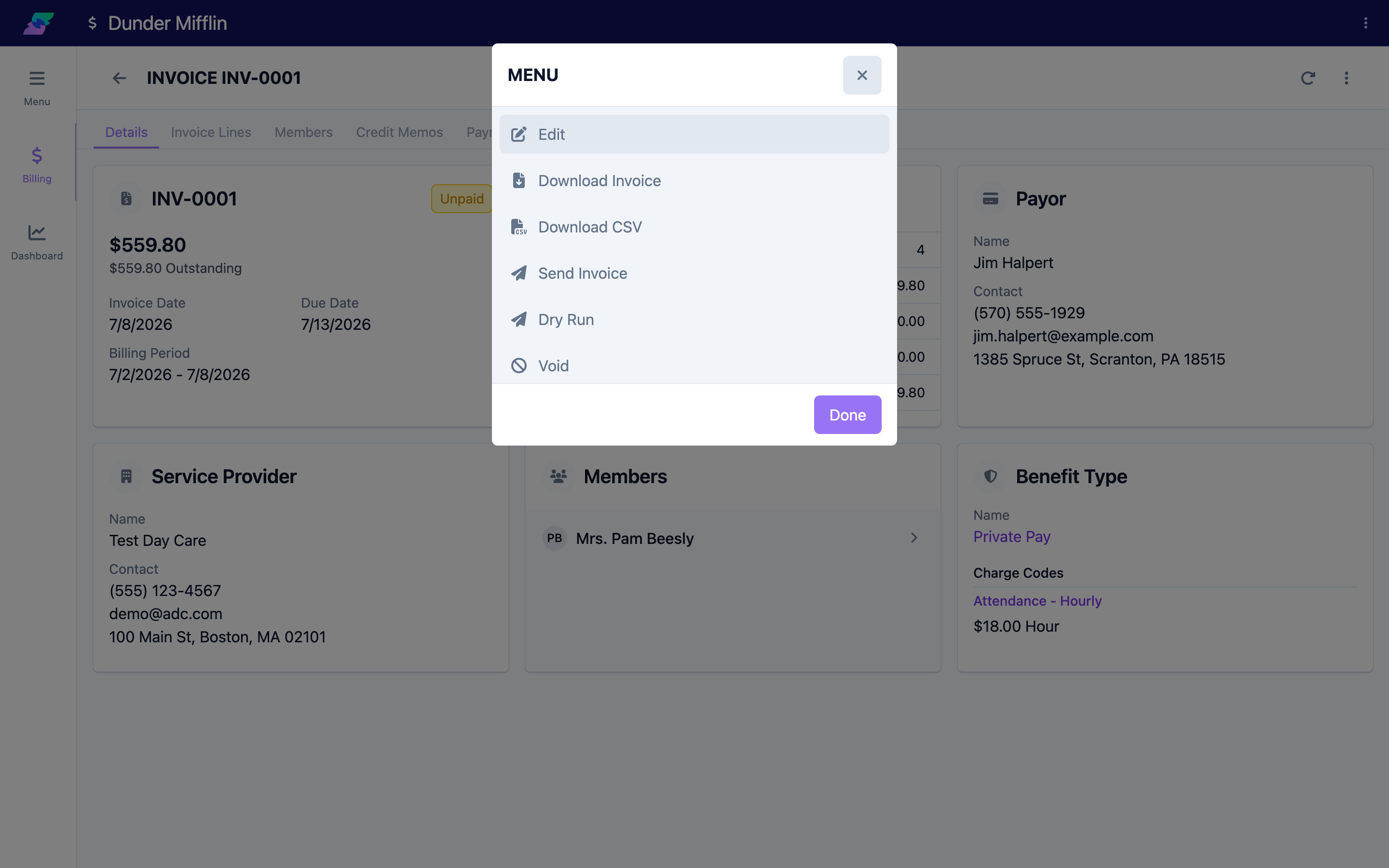
The actions menu changes with the invoice's state:
- Draft: Edit, Download Invoice, Download CSV, and the pipeline steps Prepare Invoice / Finalize Invoice.
- Finalized: Edit, Download Invoice, Download CSV, Send Invoice, Dry Run, and Void. Download Receipt appears once the invoice has payments.
- Voided: no actions — the menu is hidden.
Void is only offered when the invoice has zero allocated payments and zero allocated credits. If any remain, choosing Void shows a "Cannot Void Invoice" message telling you to void the payments and credit memos first (see "Voiding an Invoice").
Tips
- The list is scoped to a date range (day, week, or month). If an invoice is missing, widen the range.
- Use the Download CSV action in the list's Actions filter to export the filtered list.
- To delete a Draft you no longer want, use Delete in the Edit form — Drafts are deleted, not voided.
Troubleshooting
| Problem | Solution |
|---|---|
| I can't find an invoice | Check the date range and clear the filters. Preview rows only show for active billing plans. |
| The Edit option is missing | The invoice is voided. Voided invoices are read-only. |
| I can't change the benefit type or members | Those are locked after the invoice is created. Create a new invoice if they're wrong. |
| Void is greyed out or blocked | The invoice still has allocated payments or credits. Void those first. |
Related Articles
- the-invoice-lifecycle — The Invoice Lifecycle
- finalizing-an-invoice — Finalizing & Sending an Invoice
- voiding-an-invoice — Voiding an Invoice
- printing-and-downloading-invoices — Printing & Downloading Invoices