
Overview
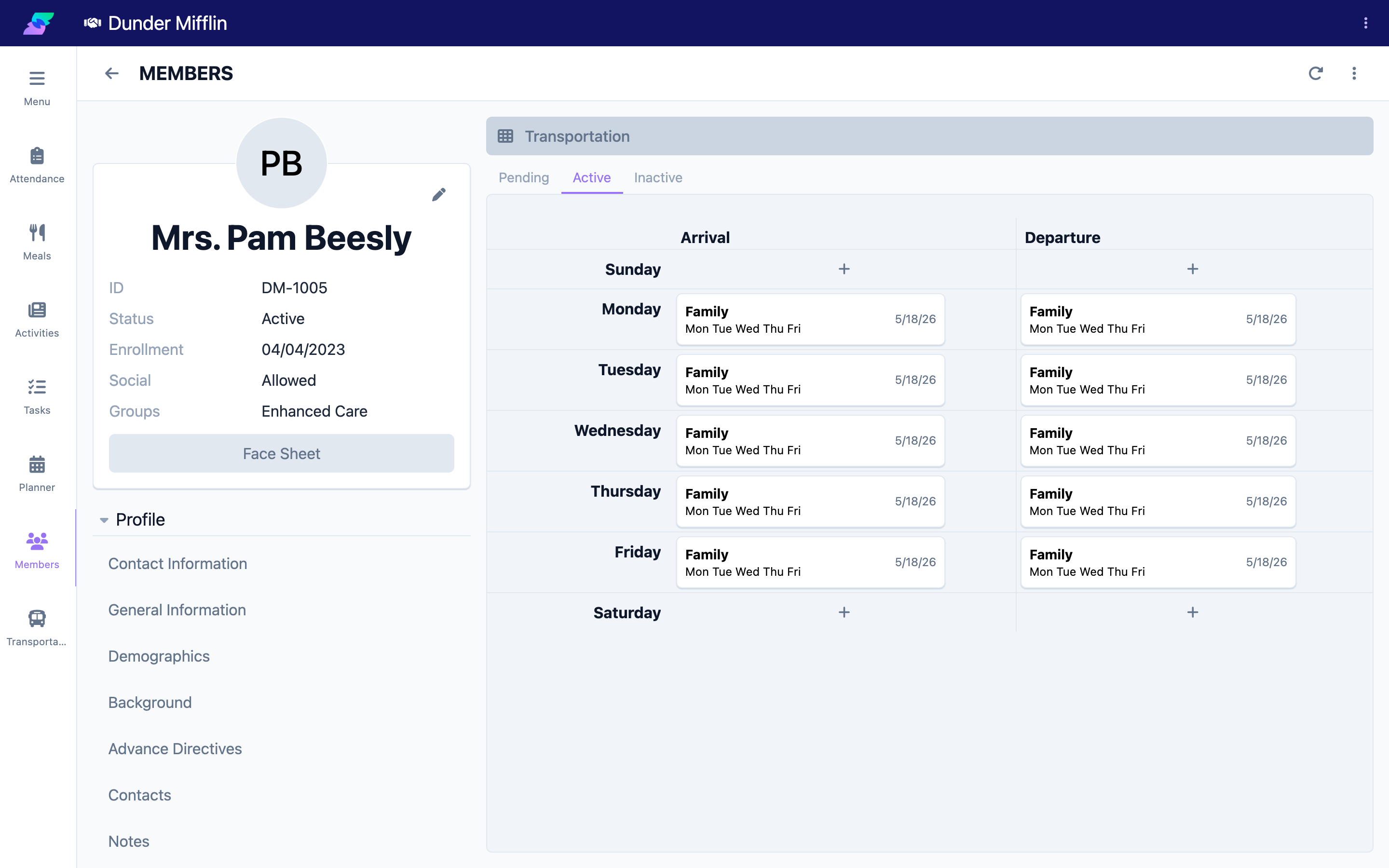
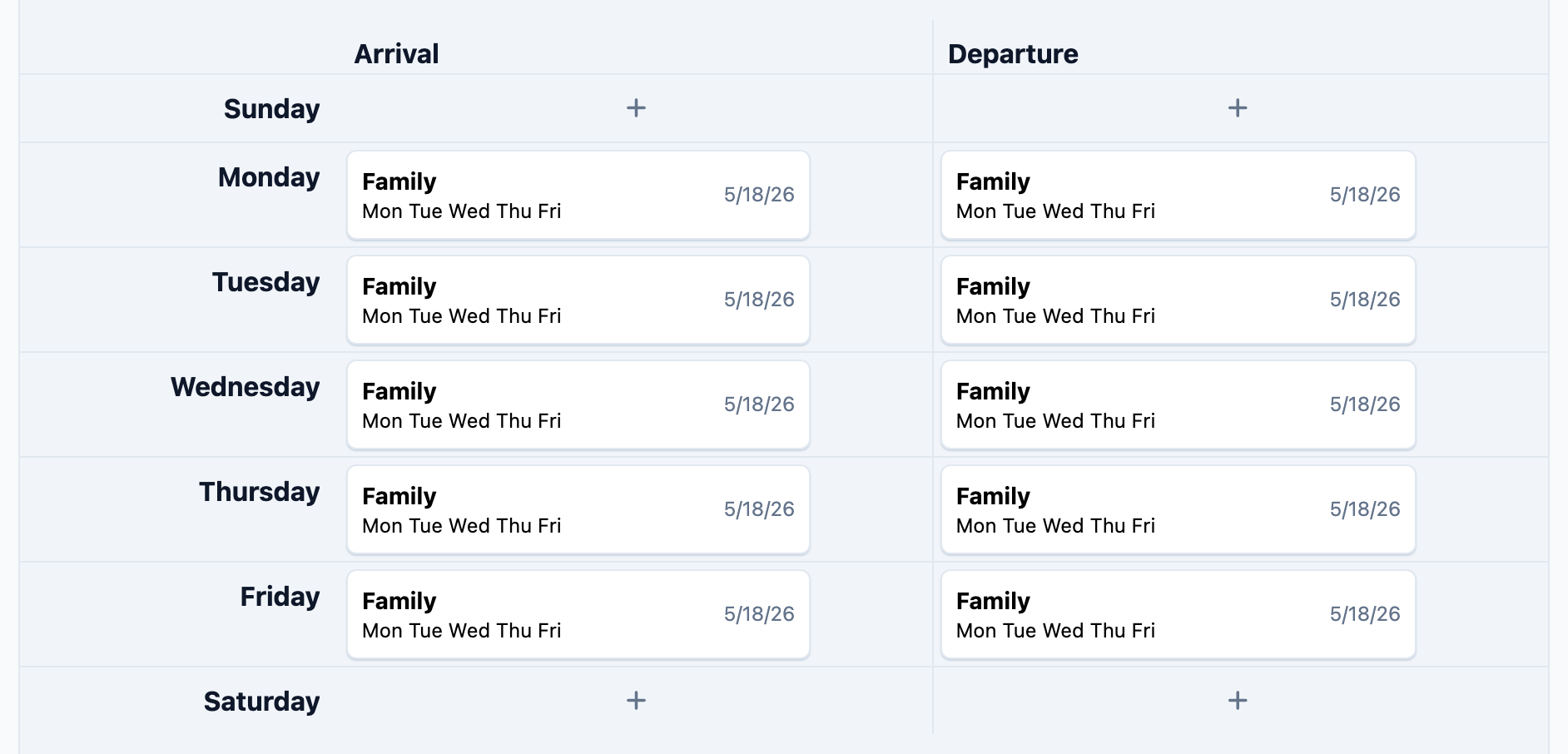
The Transportation tab records a member's transportation arrangements. Each record covers one direction — Arrival or Departure — for a chosen transportation type, on selected days, over a date range. To schedule both a pickup and a drop-off, you add two records (one Arrival and one Departure).
Before You Begin
- You must be logged in with Admin or Front Desk permissions.
- Your center's transportation types must be configured (the Type list comes from your center's settings).
Steps
Step 1: Open the Transportation tab
- Open the member and select the Services group.
- Select the Transportation tab.
Step 2: Add a transportation record and choose the type
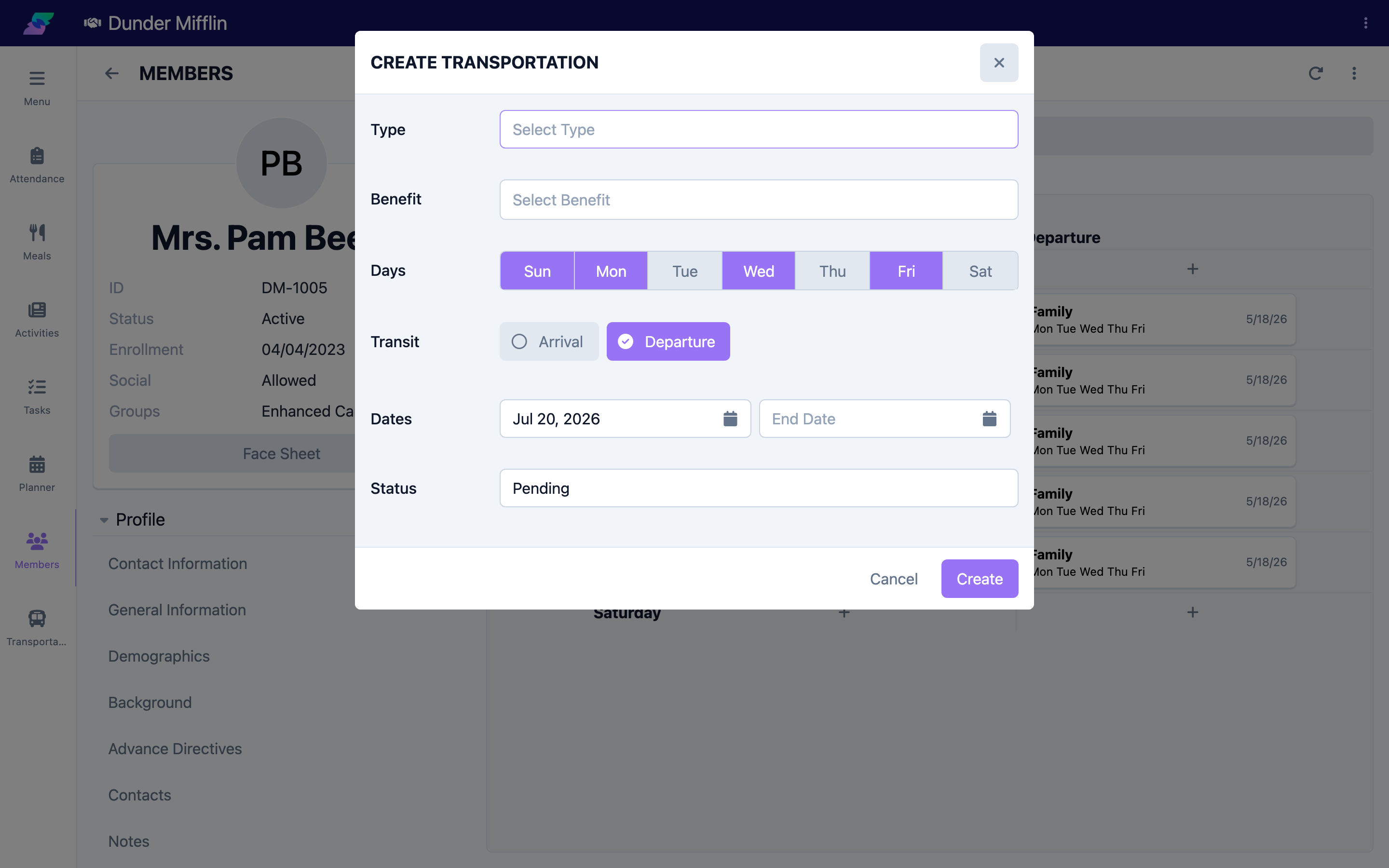
- On the Arrival or Departure column, select the + next to the day the arrangement starts. This opens the transportation form pre-set to that day and direction.
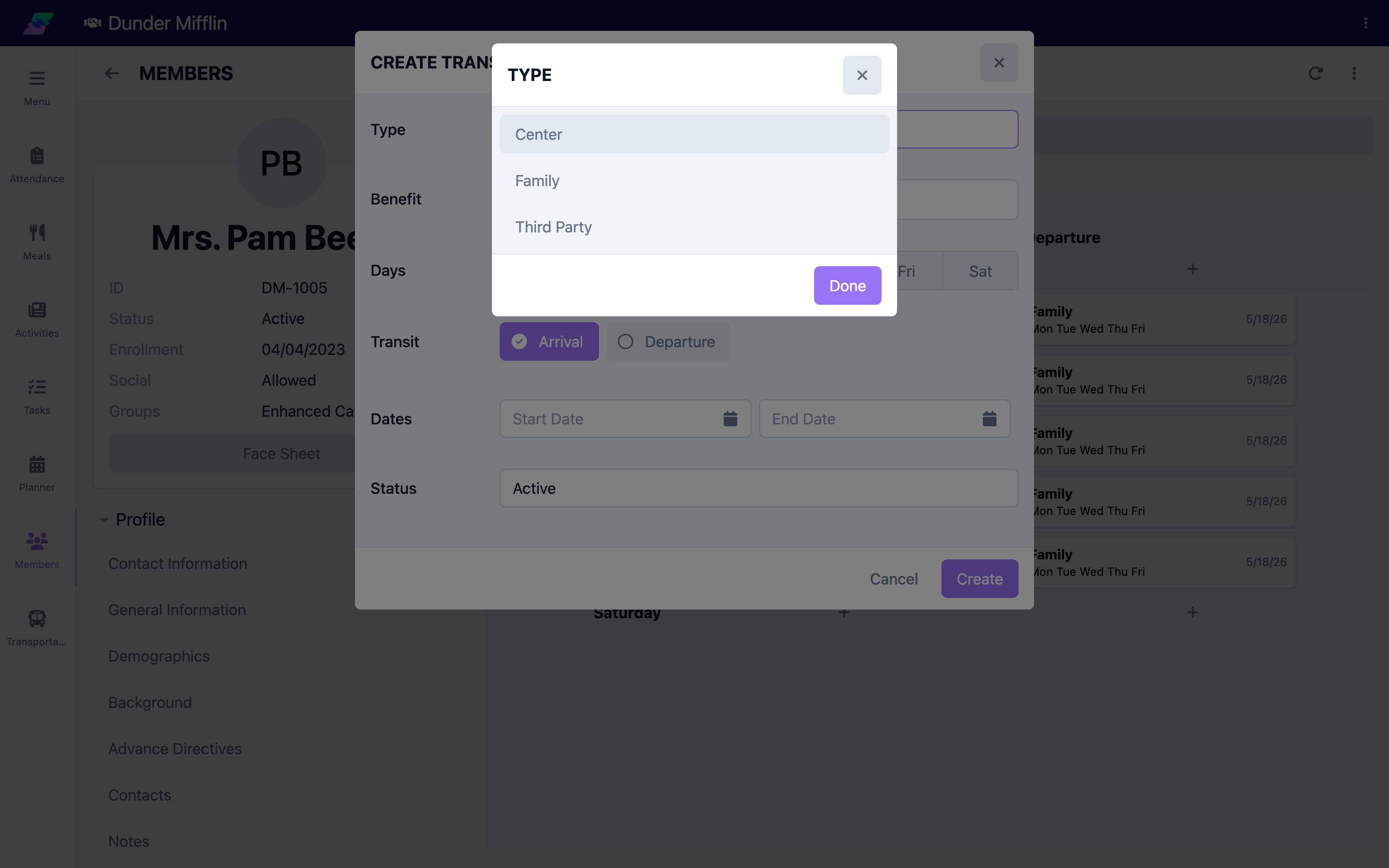
- Choose the Type from the dropdown (these come from your center's configured transportation types).
- Optionally choose a Benefit to associate the arrangement with one of the member's benefits.
Step 3: Choose the days
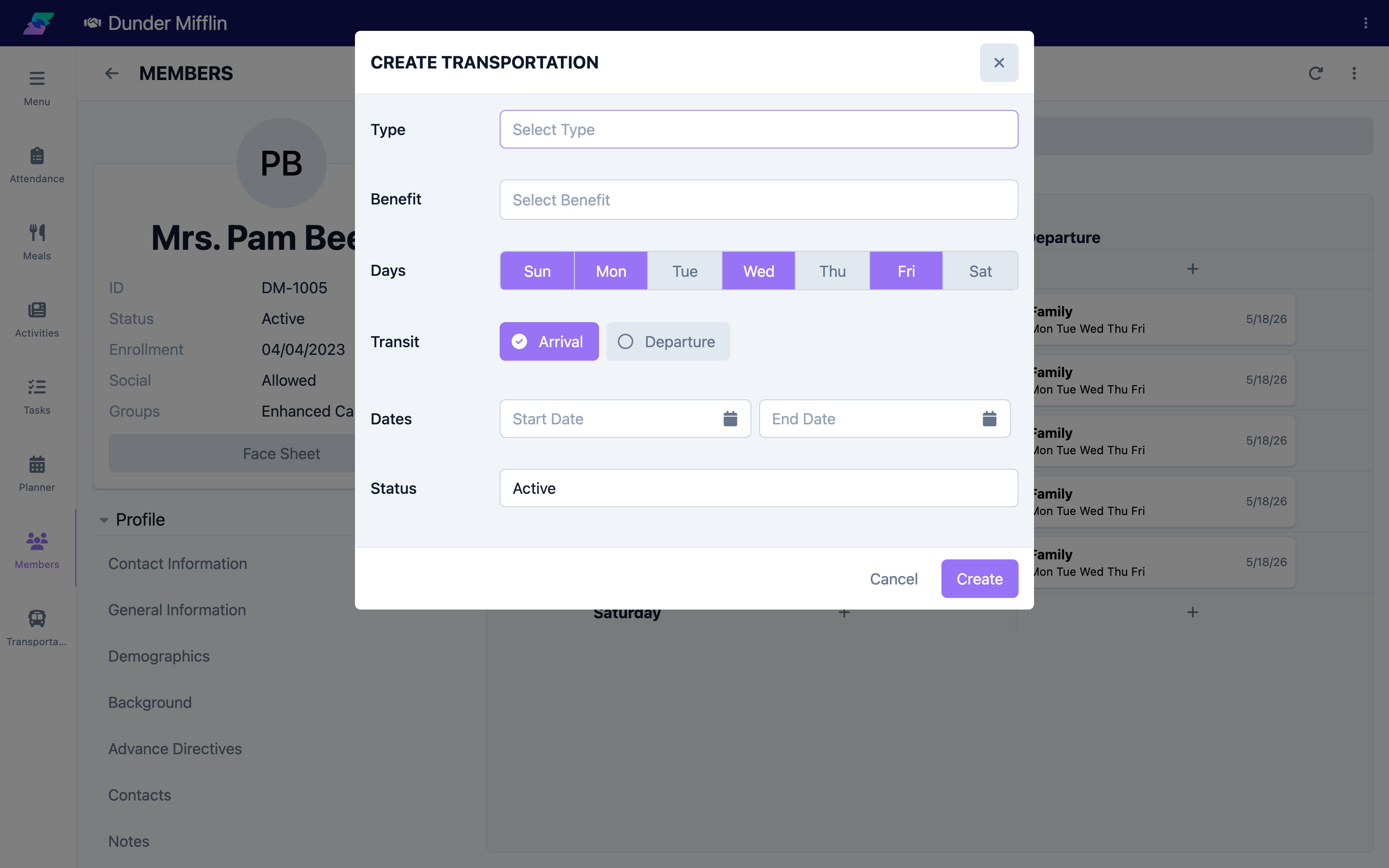
Select the Days of the week this arrangement applies to.
Step 4: Choose the direction
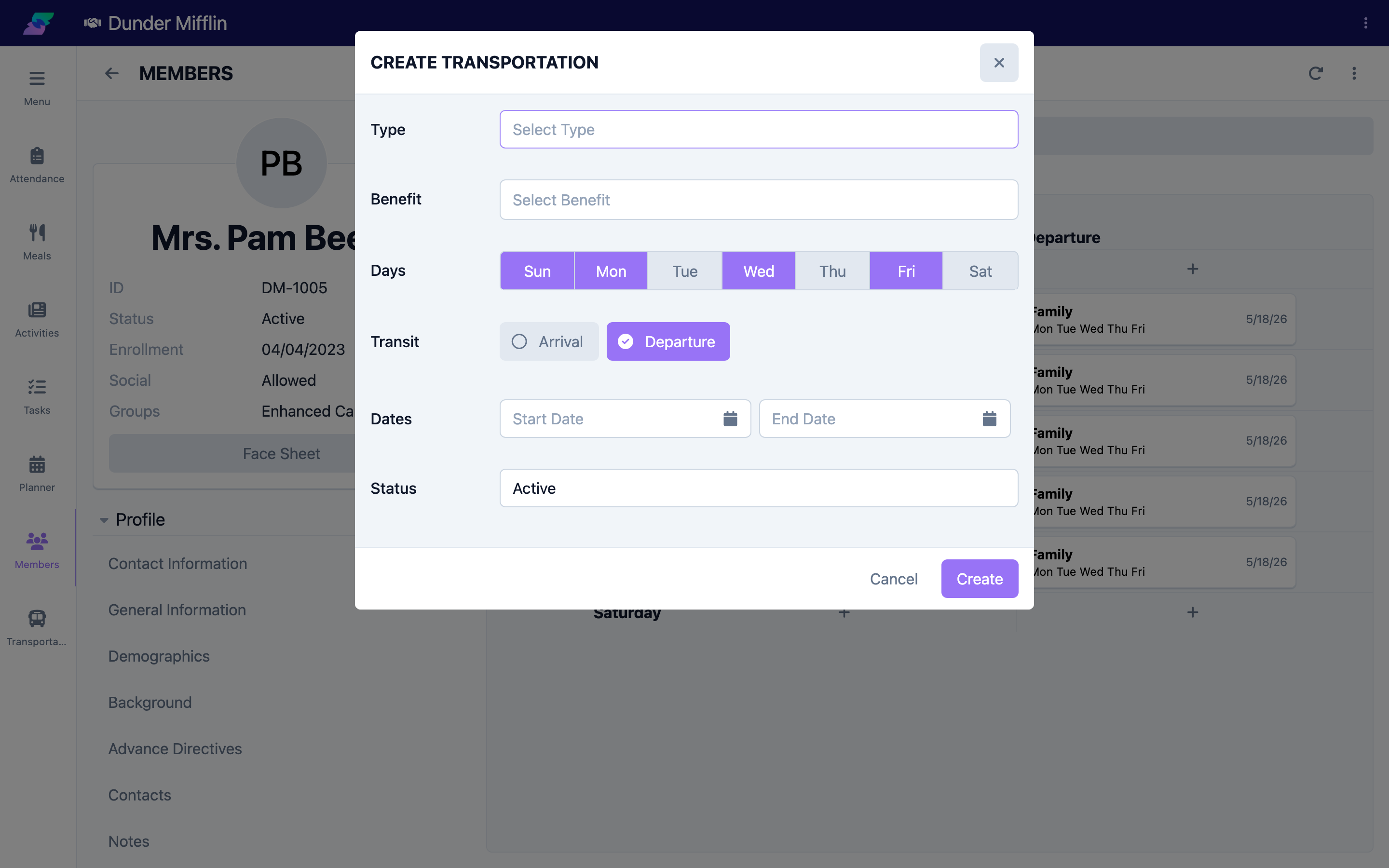
Set Transit to Arrival (pickup to the center) or Departure (drop-off from the center). Each record covers one direction.
Step 5: Set dates and status, then save
Set the Start Date (required) and, if the arrangement ends, the End Date. Set the Status to Active, Pending, or Inactive, then select Save.
Step 6: Add the other direction
Repeat the steps to add a second record for the opposite direction — for example, add a Departure record after saving an Arrival record.
Tips
- One record per direction. Create separate Arrival and Departure records so pickups and drop-offs can differ by day or date range.
- Set transportation at enrollment so the member appears on transportation lists from the start.
- Use the date range to handle temporary changes without deleting the record.
- Deactivate instead of deleting when an arrangement pauses — set the Status to Inactive.
Troubleshooting
| Problem | Solution |
|---|---|
| The Type I need is not listed | Transportation types are configured at the center level. Ask your administrator to add the type. |
| The record will not save | Type, Days, Transit, and Start Date are all required. |
| Only one direction shows | Each record is one direction — add a second record for the other direction. |
| I cannot edit transportation | Confirm you have Admin or Front Desk permissions. |