
Overview
Invoice line items are the individual charges on an invoice. Most lines are generated for you: on a Draft invoice, Seniorverse builds preview lines from the attendance and transportation records in the invoice period. You can also add lines by hand for one-off charges or member services.
Every line has a Source that says where it came from:
- Attendance — a day (or session) of attendance, priced by a charge code.
- Attendance Arrival / Attendance Departure — transportation legs derived from attendance (see "Billing Transportation").
- Member — a service line you add for a member, priced by a charge code.
- Manual — a free-form line where you set the description, quantity, and rate yourself.
Line items can only be added, edited, or deleted while the invoice is a Draft.
Before You Begin
- The invoice must be a Draft. Finalized invoices are locked.
- To use a Member line, the member needs a member benefit of the invoice's benefit type, and that benefit needs charge codes.
Steps
Step 1: Open the Invoice Lines tab
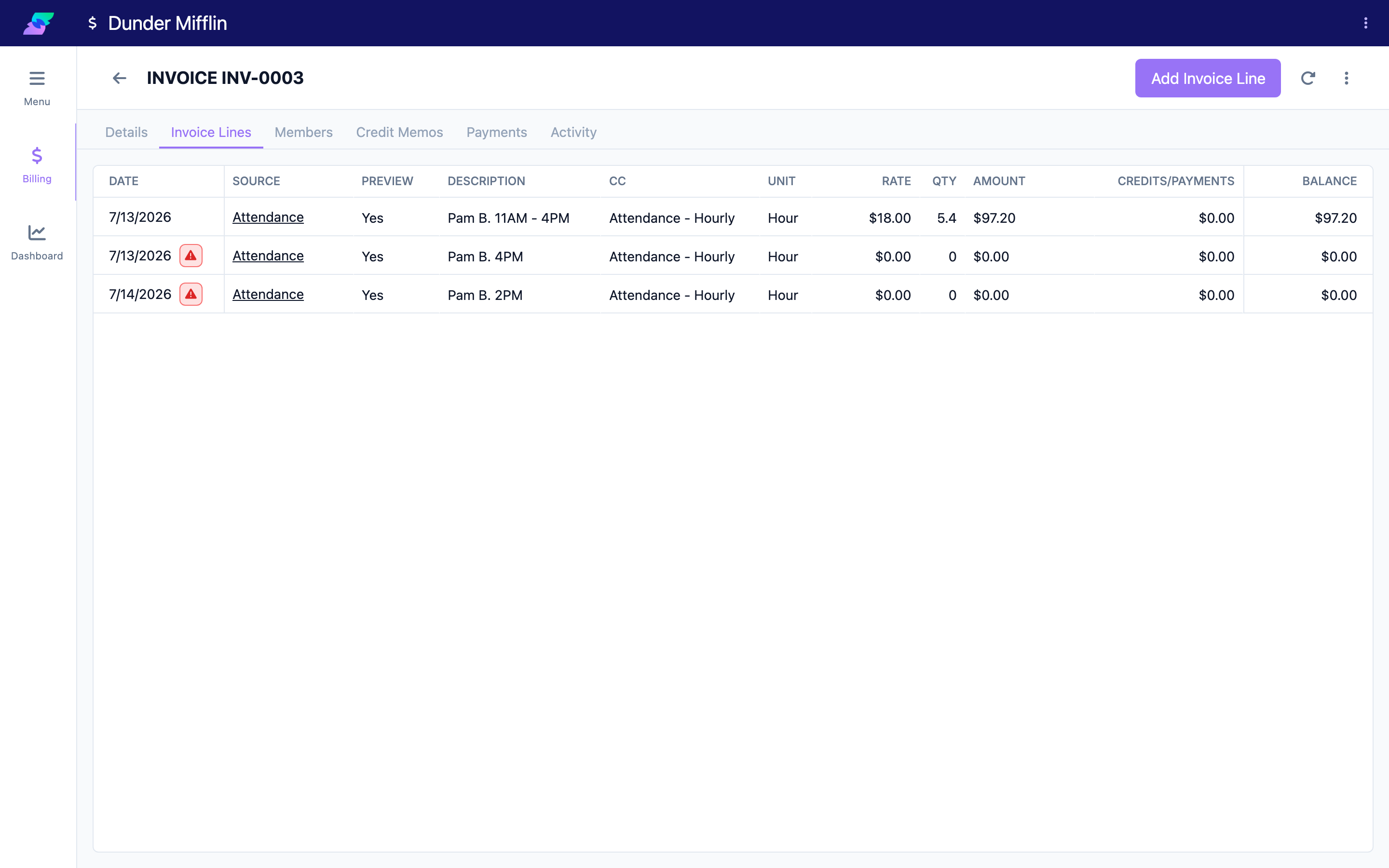
Open the invoice and select the Invoice Lines tab. Auto-generated attendance and transportation charges appear here as preview lines, showing the date, item, unit, quantity, rate, and amount.
Step 2: Add a line
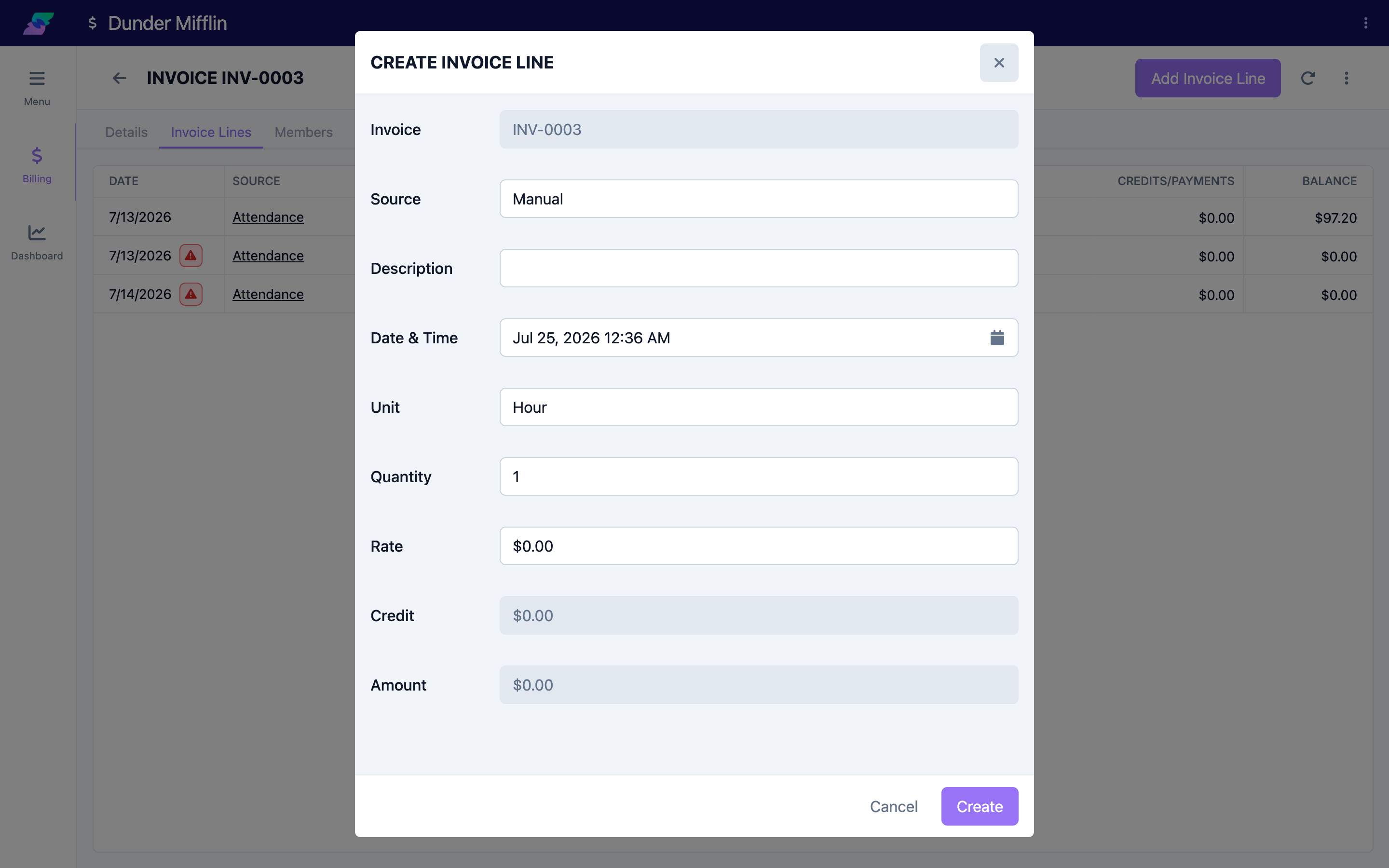
With the invoice still a Draft, click Add Invoice Line. Choose a Source — Manual or Member.
Step 3: Add a Manual line
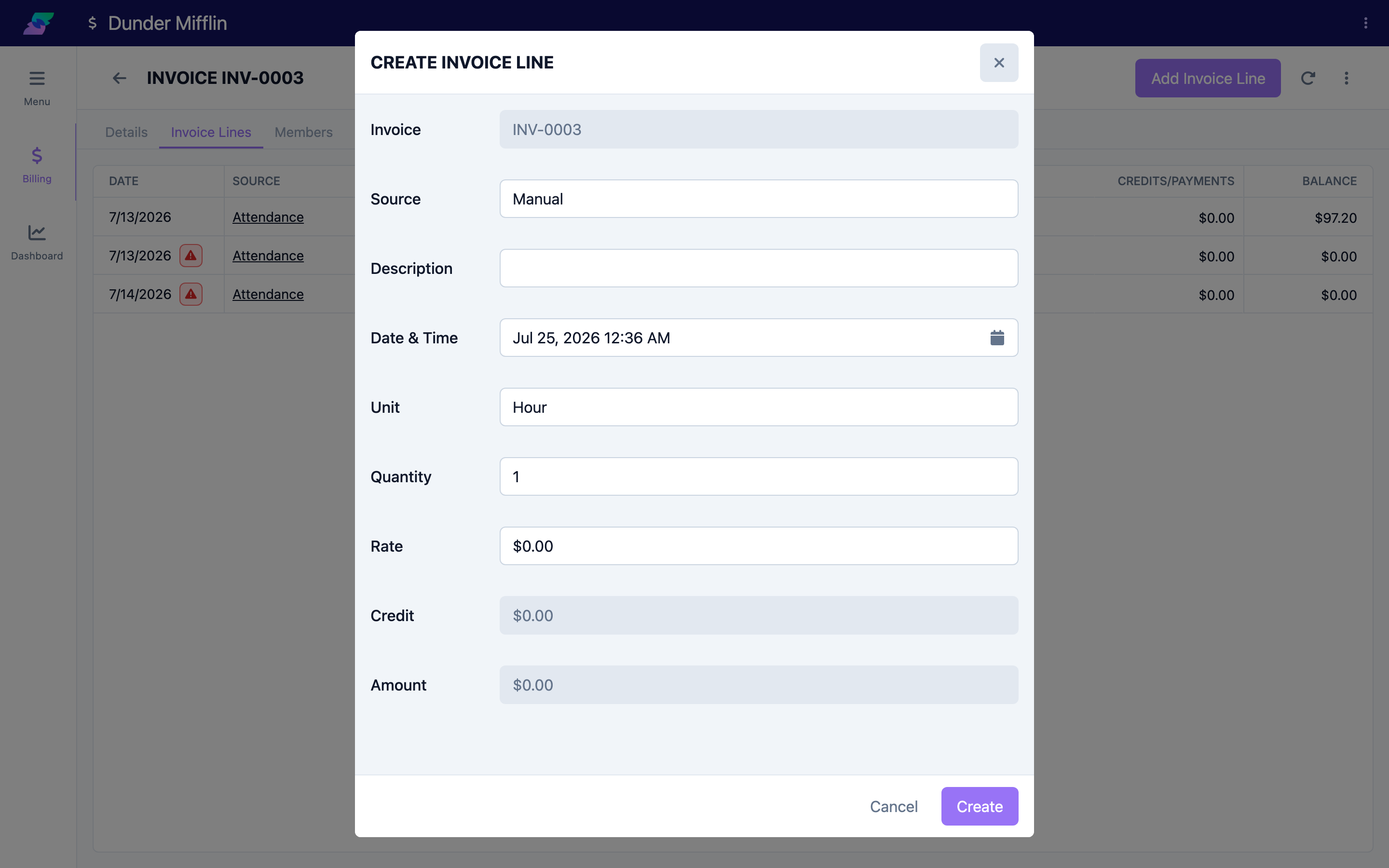
For a Manual line, enter a Description, pick a Date & Time, choose a Unit (Each, Day, Half Day, Hour, Minute, Session, or Unit), and set the Quantity and Rate. The Amount is calculated as quantity × rate.
Step 4: Add a Member (service) line
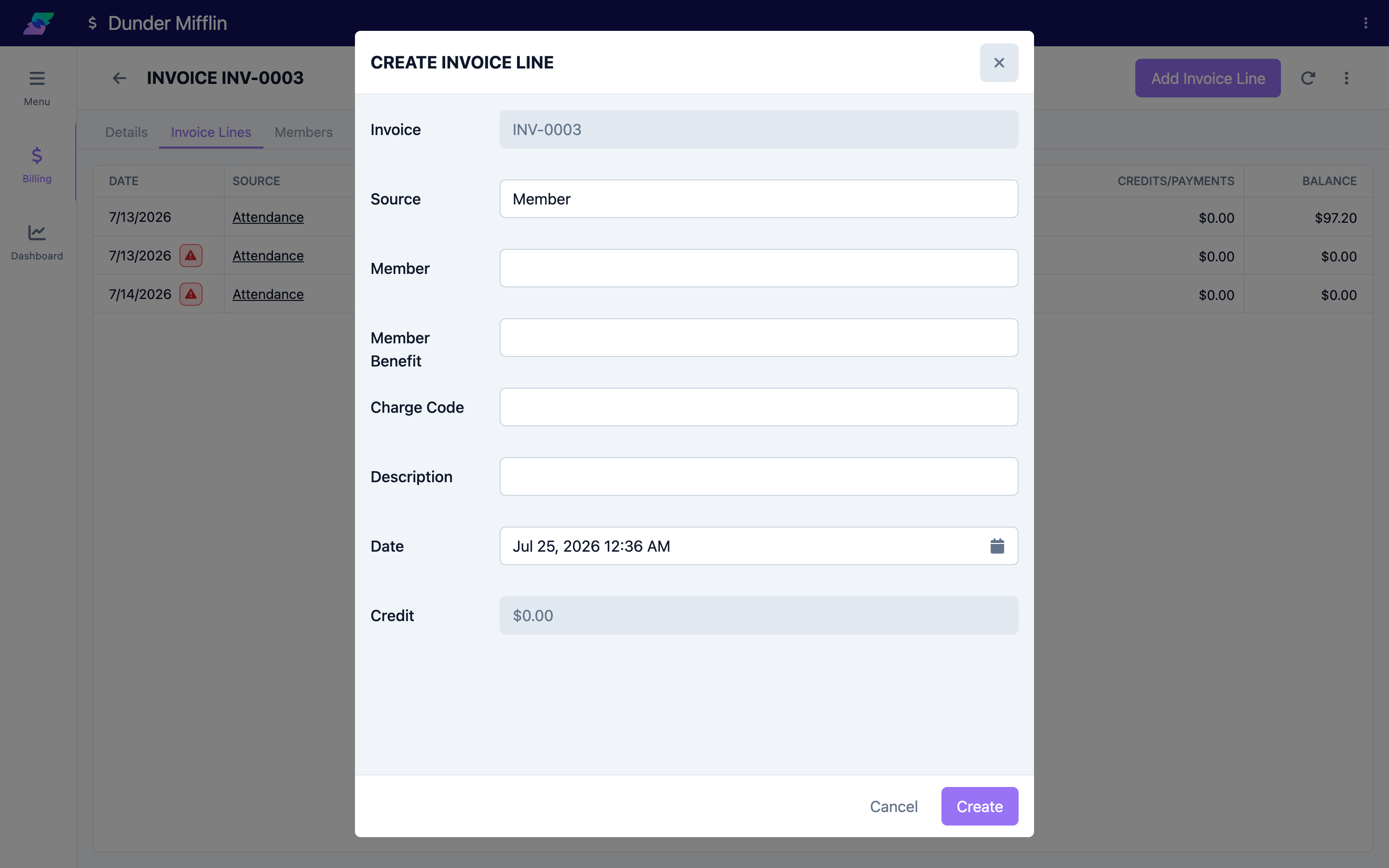
For a Member line, choose the Member, then the Member Benefit, then the Charge Code. The charge code sets the Unit, Quantity, Rate, and Amount automatically. Add a Description and a Date; for time-based charge codes (hour or minute) you'll also set a Start Time and End Time.
Step 5: Edit an existing line
Click a line to open it. What you can change depends on the source:
- Manual and Member lines are fully editable while the invoice is a Draft.
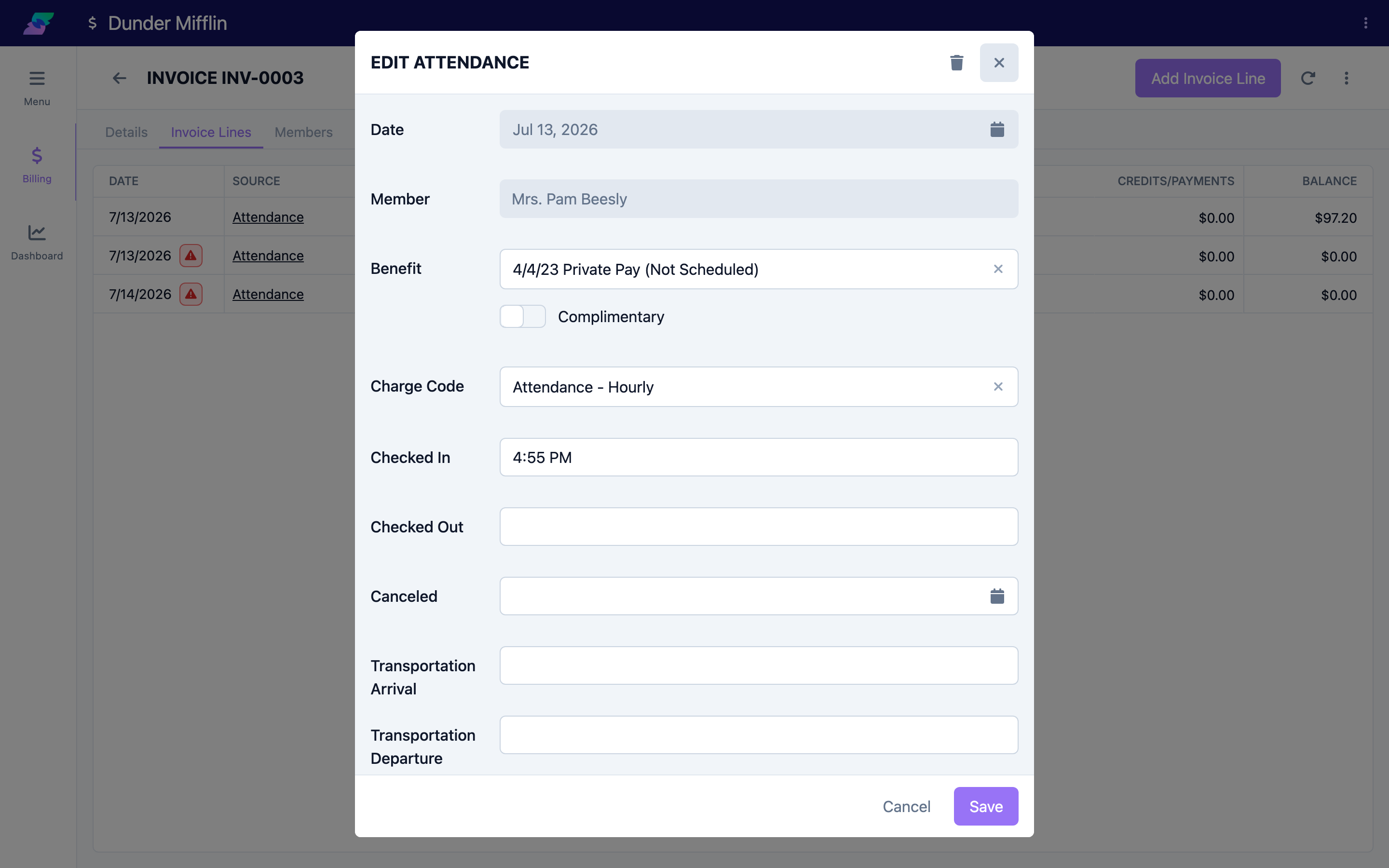
- Attendance lines open an Edit Attendance dialog (since the line is derived from the attendance record) where you can change the Member Benefit and Charge Code on a Draft; the unit, quantity, rate, and amount recalculate from the charge code. The check-in/check-out times come from the attendance record and are read-only here.
Step 6: Delete a line
While the invoice is a Draft, open a line and use Delete to remove it. Deleting is disabled once the invoice is finalized or voided.
Tips
- Preview lines become permanent invoice line records during the Prepare step of the lifecycle — you don't create them one at a time.
- A line flagged as needing attention (for example, an invalid or unsupported charge code, a missing member benefit, or an attendance overage) will block finalization. Resolve flagged lines on this tab before sending.
- On a claims invoice, a line's Member Benefit determines which claim it rides on, so keep it accurate.
- The line order follows the invoice's Invoice Line Sort By setting (for example, grouping attendance and transportation by service date).
Troubleshooting
| Problem | Solution |
|---|---|
| Add Invoice Line isn't available | The invoice is finalized or voided. Line items can only be added while the invoice is a Draft. |
| "Invoice line already exists for this attendance" | That attendance already has a line on an invoice. You can't create a second one for the same attendance. |
| A Member line has no charge codes to choose | The member's benefit type has no active charge codes for the invoice period. Check the benefit type's charge codes. |
| A line shows a $0 amount or a warning | The line needs attention (invalid/unsupported charge code, missing benefit, or overage). Open it and fix the charge code or member benefit. |
Related Articles
- the-invoice-lifecycle — The Invoice Lifecycle
- creating-an-invoice — Creating an Invoice
- billing-transportation — Billing Transportation
- finalizing-an-invoice — Finalizing & Sending an Invoice