
Overview
Facial recognition lets members check in and out at the reception kiosk by having their photo taken instead of being looked up manually. Before that can work, you enroll one or more clear photos of the member's face on their Facial Recognition tab. Each enrolled photo is indexed to your center's secure face collection so the kiosk can match it later.
This article explains how to capture and index a member's face, confirm it worked, re-enroll after a failure, remove a face, and how kiosk check-in uses enrolled faces.
Before You Begin
- The Reception feature must be enabled for your center. If it is not, the Facial Recognition tab does not appear.
- You need the Facial Recognition view permission for member profiles.
- Use a device with a working camera and good, even lighting.
- Follow your center's consent policy before enrolling a member's face (see the privacy note in Tips).
Steps
Step 1: Open the Facial Recognition tab
- Select Care > Members and open the member.
- In the profile tabs, open the Profile group and select Facial Recognition.
The tab shows a camera on one side and any already-enrolled faces on the other.
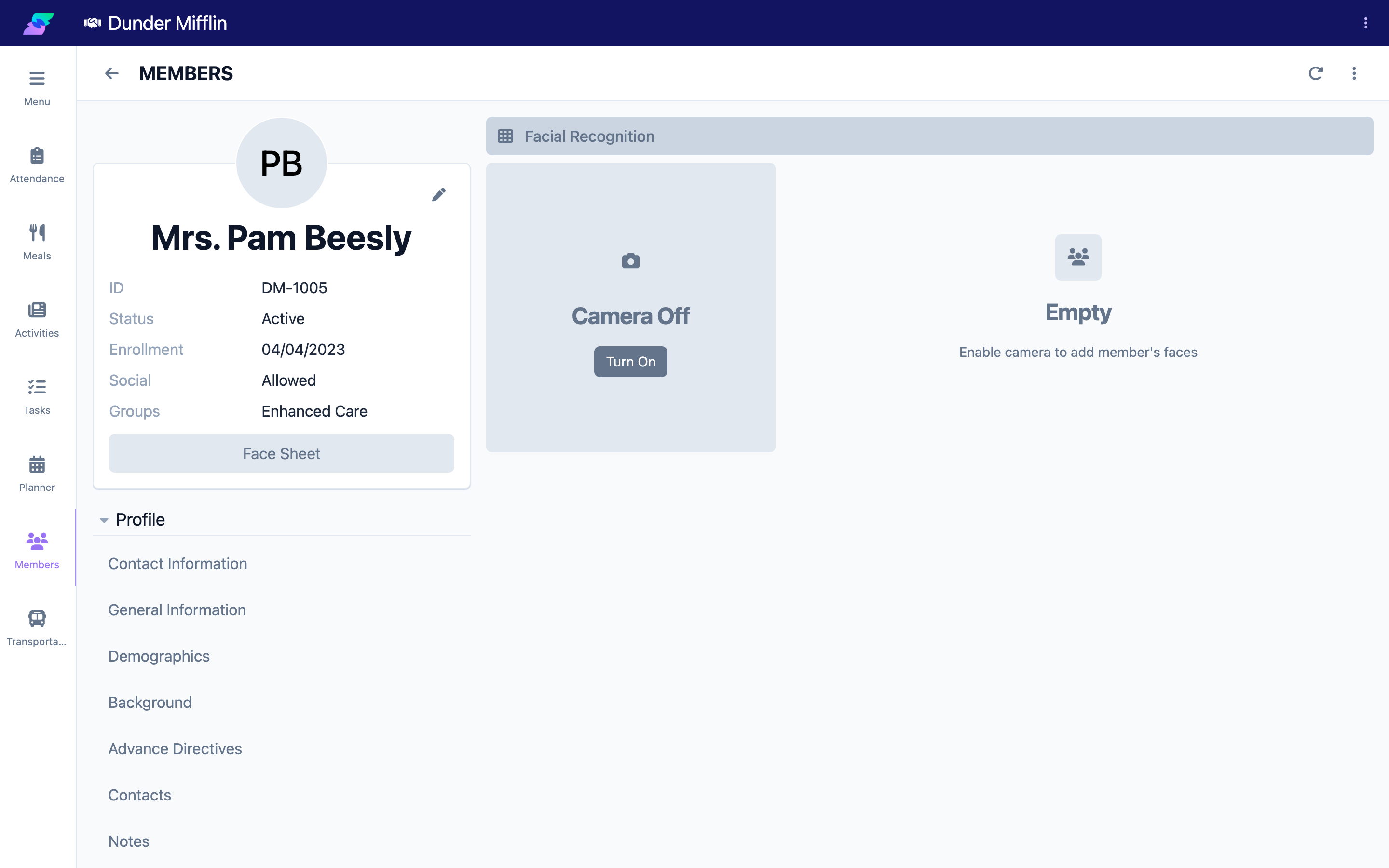
Step 2: Capture the member's face
- Allow camera access if prompted.
- Position the member so their face fills the frame, looking straight at the camera.
- Select the camera button to take the picture.
The photo uploads and a new face tile appears while it is being indexed to your center's face collection.
Screenshot coming soon — Capturing a face with the camera button
Step 3: Confirm the face indexed successfully
Each face tile shows its indexing result:
- A green check (tooltip Success) means the face was indexed and can be matched at the kiosk.
- A red button (tooltip Failed, try again?) means the face could not be indexed.
Indexing uses a high quality filter and requires exactly one clearly detectable face per image, so blurry photos, poor lighting, or more than one face in the frame will fail.
Screenshot coming soon — A face tile showing a green success check
Step 4: Re-capture failed faces or add more images
- If a face failed, select its red retry button to index it again, or delete it and take a new photo.
- Capture two or three good images from slightly different angles to improve match reliability.
Screenshot coming soon — Retrying a failed face capture
Step 5: Remove an enrolled face
- Hover over (or select) the face tile and choose the X to delete it.
- Confirm when prompted (Are you sure you want to delete?).
Deleting removes the face from your center's collection so it can no longer be matched.
Screenshot coming soon — Deleting an enrolled face with the X button
Step 6: Check the member in at the kiosk using their face
- At the reception kiosk, have the member take their photo.
- The system searches your center's face collection for a match. When it finds exactly one match, it identifies the member and checks them in (or out).
- The kiosk photo is saved on that attendance record as the check-in or check-out photo.
Screenshot coming soon — Reception kiosk matching a member by their face
Tips
- Privacy and consent. Enrolled faces are converted to biometric face data and stored in your center's secure face collection, and the source images are kept in your center's storage. Only enroll a member after obtaining consent per your center's policy and applicable law. Deleting a face removes it from the collection.
- Quality beats quantity. A few sharp, well-lit, front-facing photos match far better than many low-quality ones.
- One face per photo. Make sure no one else is in the frame — images with more than one detectable face are rejected.
- Re-enroll after big appearance changes. If a member's appearance changes significantly and matching gets less reliable, add a fresh photo.
Troubleshooting
| Problem | Solution |
|---|---|
| The Facial Recognition tab is missing | The Reception feature is not enabled for your center, or your role lacks the Facial Recognition view permission. |
| The camera does not appear | Grant the browser or app permission to use the camera, then reload the tab. |
| Every capture fails to index | Improve lighting, move closer so the face fills the frame, and make sure only one person is visible. |
| The kiosk cannot match a member | Confirm the member has at least one face tile marked Success. Add another clear photo if needed. |
| A face was enrolled by mistake | Delete the face tile with the X to remove it from the collection. |