
Overview
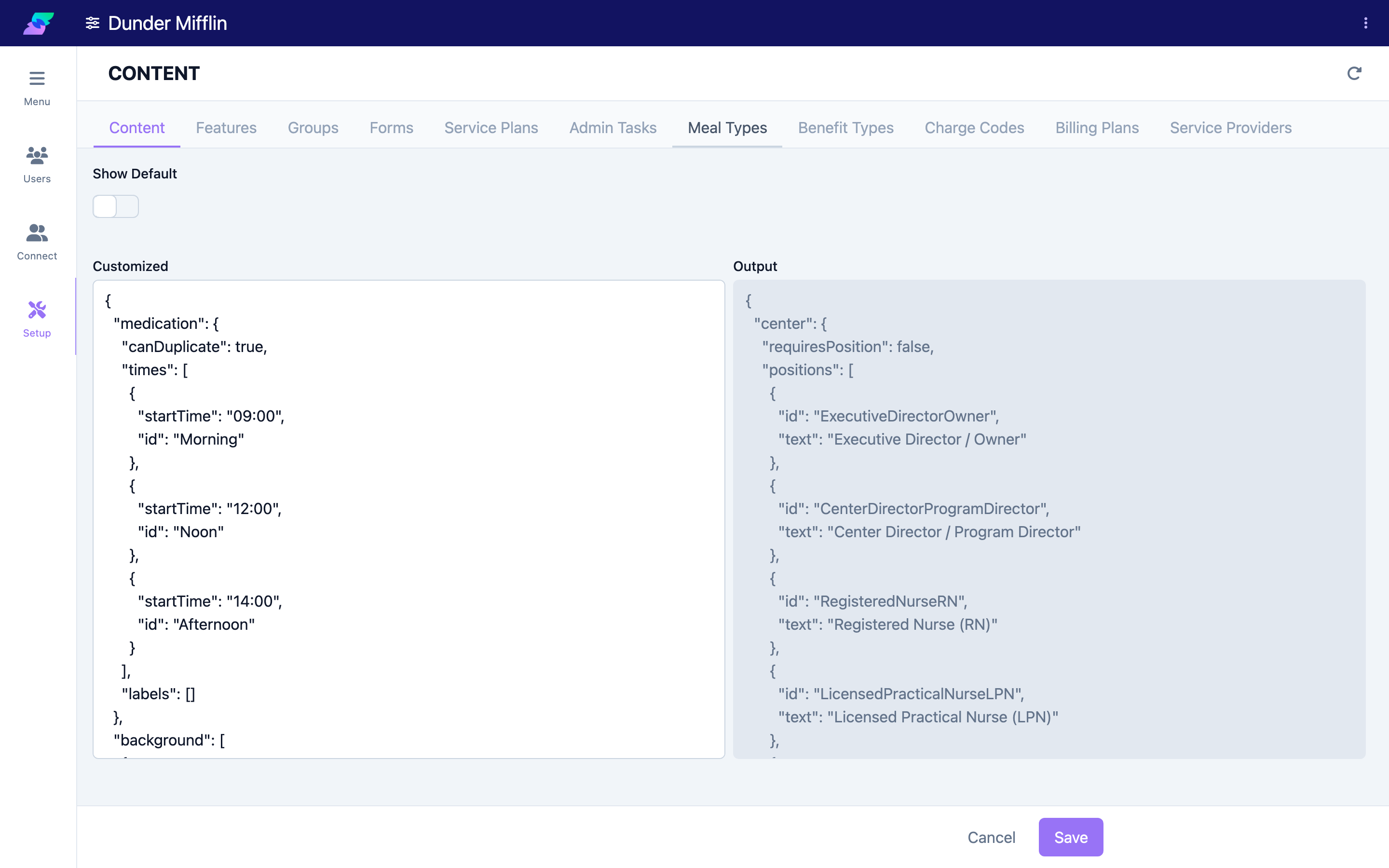
The Setup page under Center is where you configure how your center runs. It is organized into tabs, each covering one area of configuration. The tabs you see depend on your permissions; opening the Setup page requires the Center:Setup:View scope.
Setup tabs
| Tab | What you manage |
|---|---|
| Content | Dropdown options and field values used across the platform (advanced — see Configuring Content Options) |
| Features | Optional platform features for your center (see Enabling and Disabling Features) |
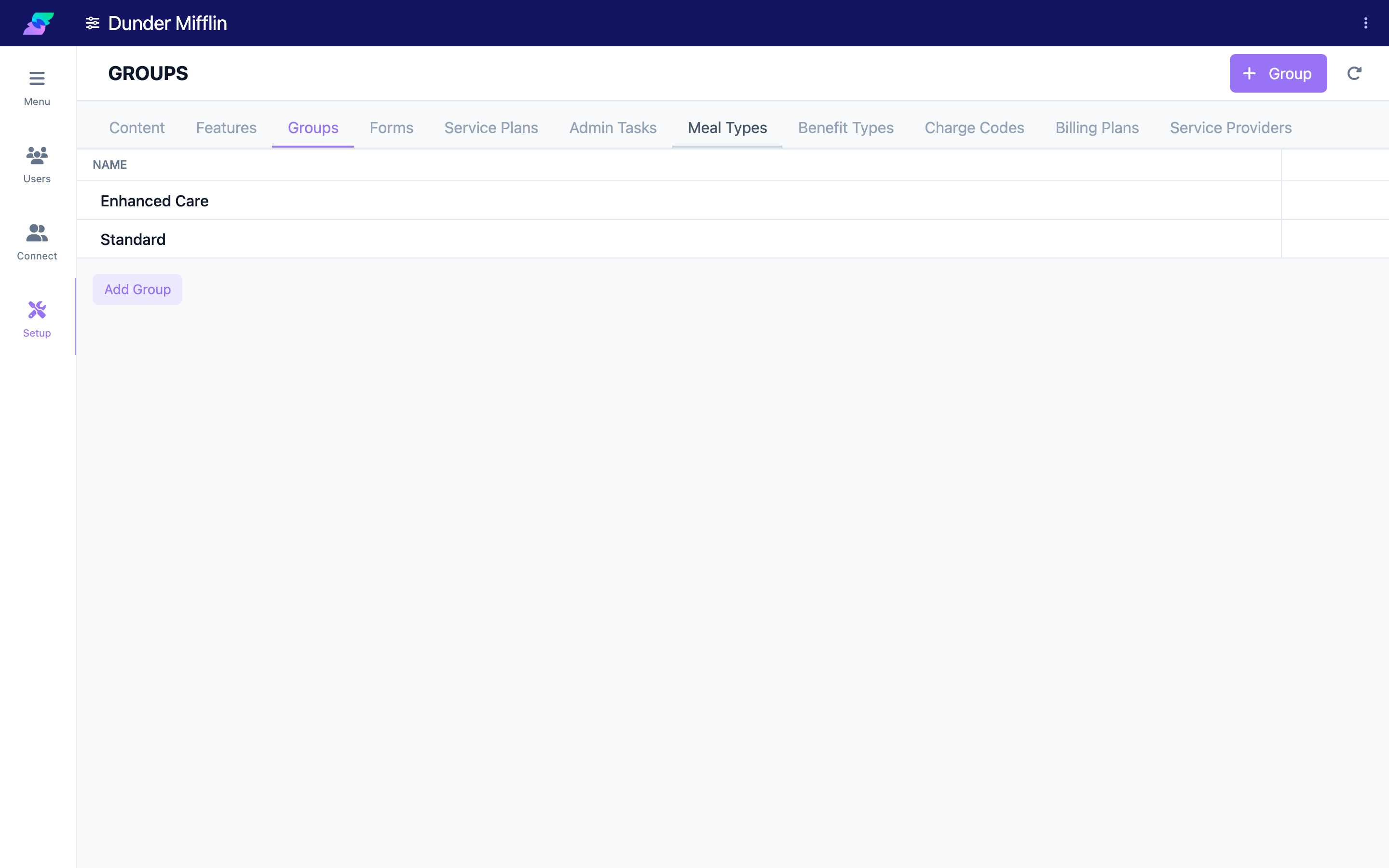
| Groups | Member groups for filtering (see Managing Groups) |
| Forms | Assessment and form templates |
| Service Plans | Service plan templates, goals, and services |
| Admin Tasks | Center administrative task definitions |
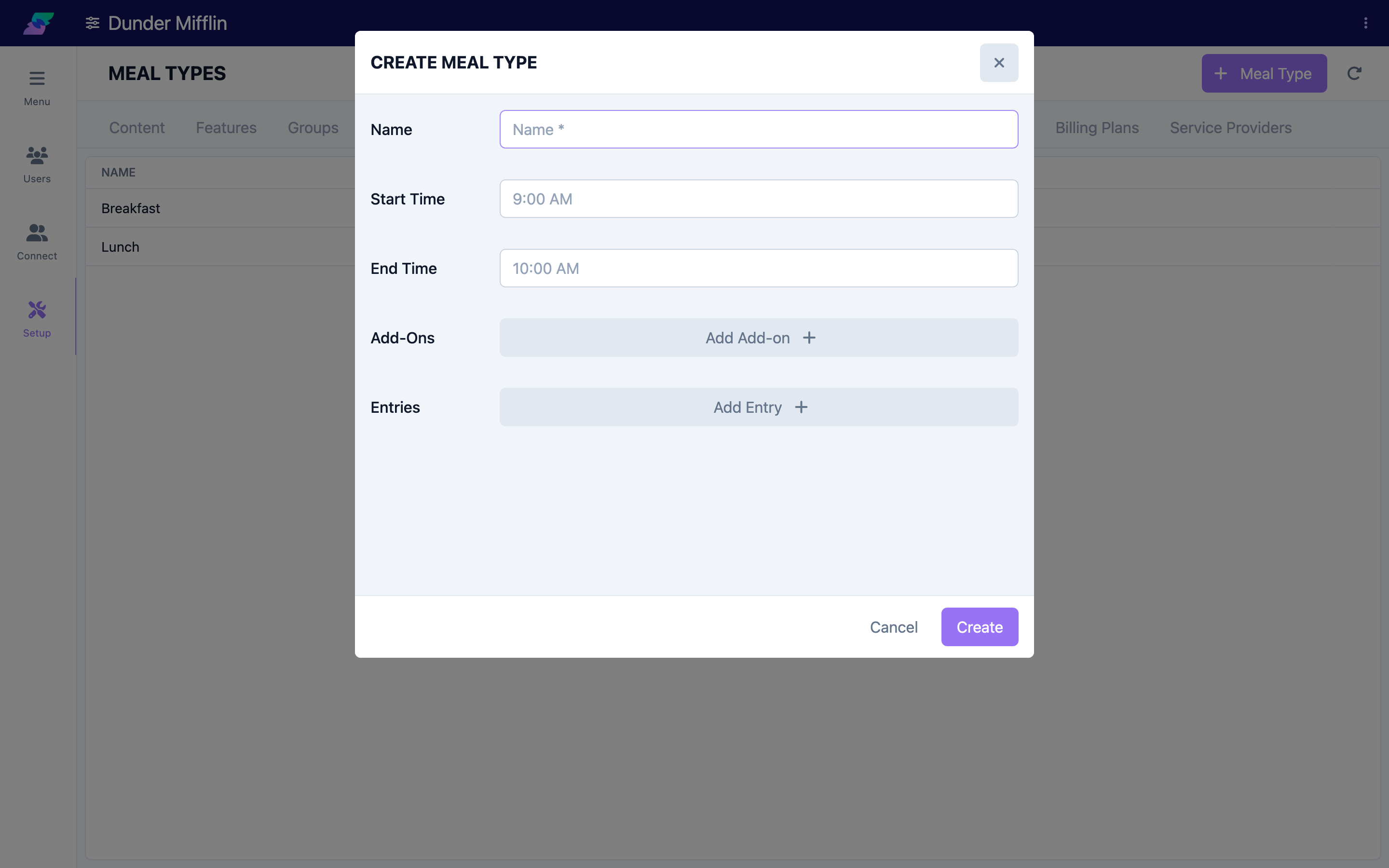
| Meal Types | The meals your center serves and tracks |
| Benefit Types | Funding sources and programs for attendance and billing |
| Charge Codes | Billing charge codes |
| Billing Plans | Billing plan definitions |
| Service Providers | Service providers used in billing and care |
Some tabs (such as Features) also require full center access (Super Access) to change their contents, even when you can see the tab.
Before You Begin
- You need the Center:Setup:View scope to open the Setup page.
- Some areas need additional permissions (for example, editing Content needs the content-edit scope, and Features needs full center access).
- Note your current configuration before making changes so you can revert if needed.
Steps
Step 1: Open Center > Setup
Select Center from the navigation, then Setup. The page opens on the first tab you have access to.
Step 2: Switch between tabs
Select a tab along the top of the Setup page to move between configuration areas. Only the tabs you have permission to use are shown.
Step 3: Make a change on a tab
Open the tab you need and make your change. Table-based tabs (such as Meal Types, Benefit Types, Charge Codes, Billing Plans, and Service Providers) include an Add button and let you edit existing rows. Follow the linked article for detailed steps on a specific area.
Tips
- Use the linked articles for detail. Each Setup area — Content, Features, Groups, and the billing tabs — has its own guidance; this page is your map to them.
- Watch for permission gaps. If a tab is missing, you likely need an additional scope; if a tab is visible but read-only, you may need full center access.
- Document before you change. Capture the current values before editing so you can restore them if a change does not work out.
Troubleshooting
| Problem | Solution |
|---|---|
| You do not see Setup in the Center menu | You need the Center:Setup:View scope. Ask an administrator to grant it. |
| A tab you expect is missing | Setup tabs are filtered by permission. Request the scope for that area, or ask an administrator to make the change. |
| A tab opens but you cannot change anything | Some tabs (such as Features) require full center access (Super Access) to edit. |
| A change does not appear right away | Save the change, then refresh the page or ask affected staff to sign out and back in. |