
Overview
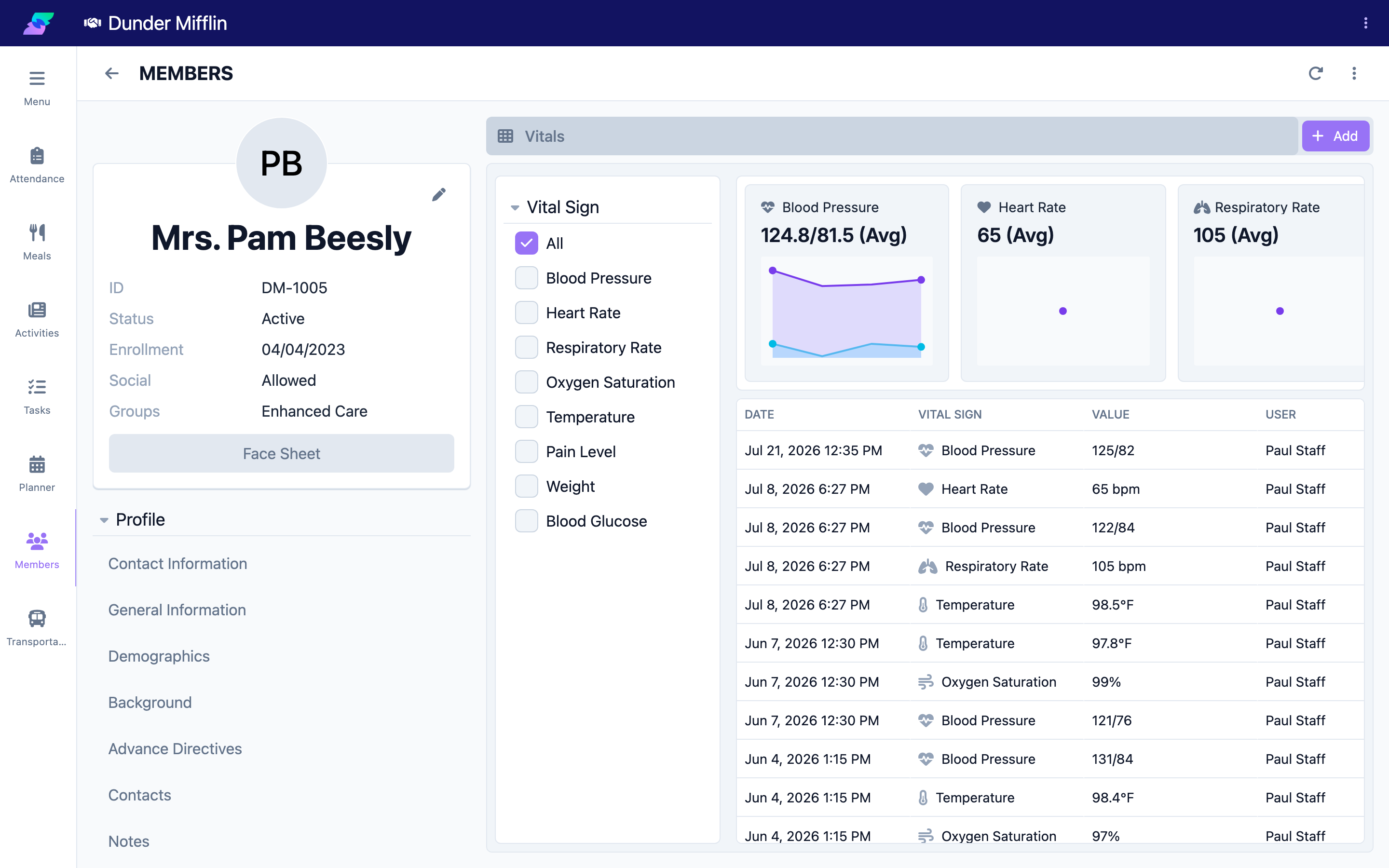
The Vitals tab records a member's vital signs. Each reading captures one vital type and its value, along with the date and time and the staff member who recorded it. Seniorverse supports Blood Pressure, Heart Rate, Respiratory Rate, Oxygen Saturation, Temperature, Pain Level, Weight, and Blood Glucose. Readings are listed in a table and, on the web app, plotted in trend charts so you can spot changes over time.
Before You Begin
- You must be logged into Seniorverse with access to the Care module and clinical permissions
- The member must already exist in the system
- Have the measurement ready to enter
Steps
Step 1: Open the Vitals Tab
From the main navigation, select Care, then Members, and choose the member. In the member profile, open the Care tab group and select the Vitals tab. On the web app you will see trend charts above a table of recorded readings, with a filter to show all vital signs or a specific type.
Step 2: Start a New Vitals Entry
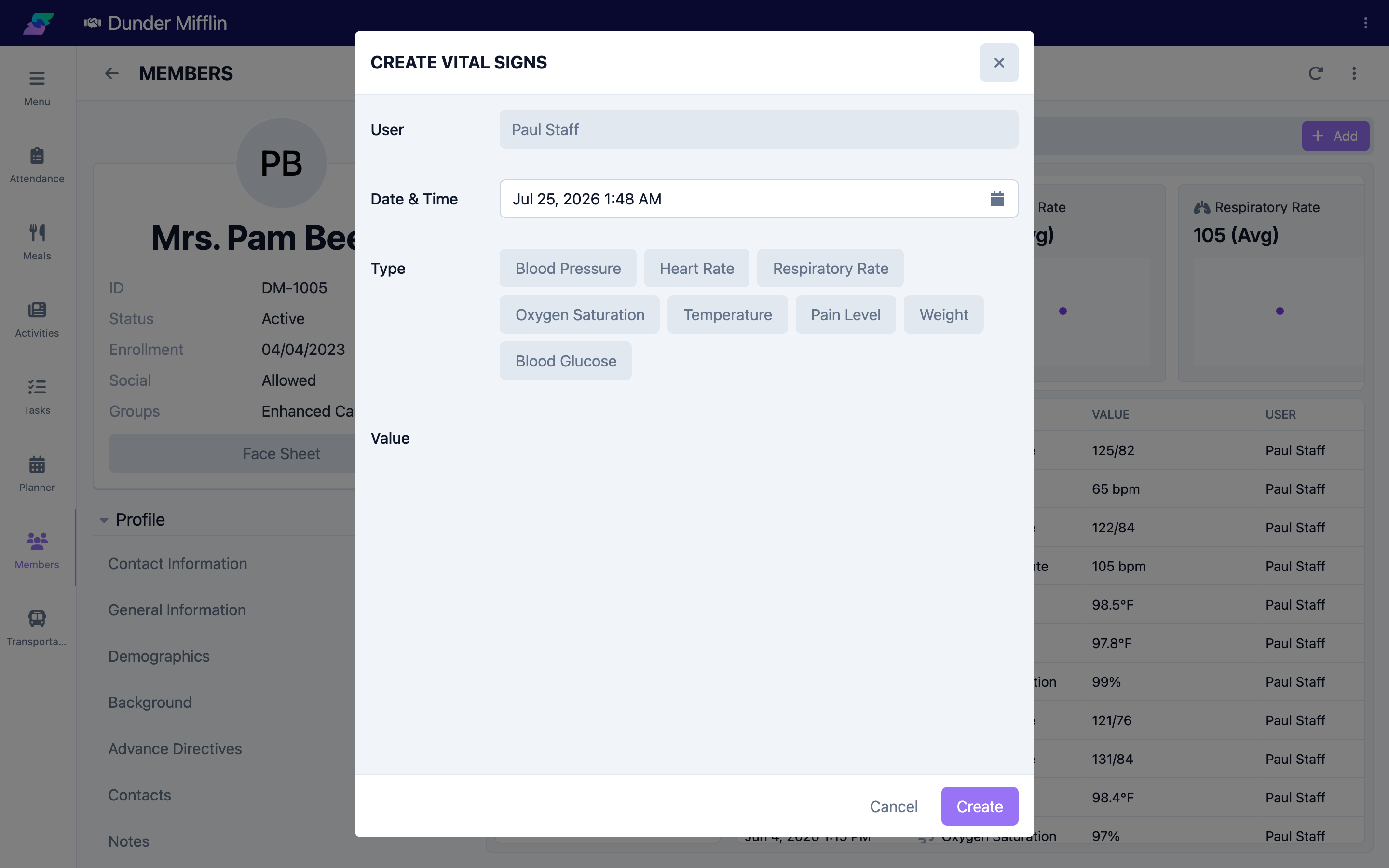
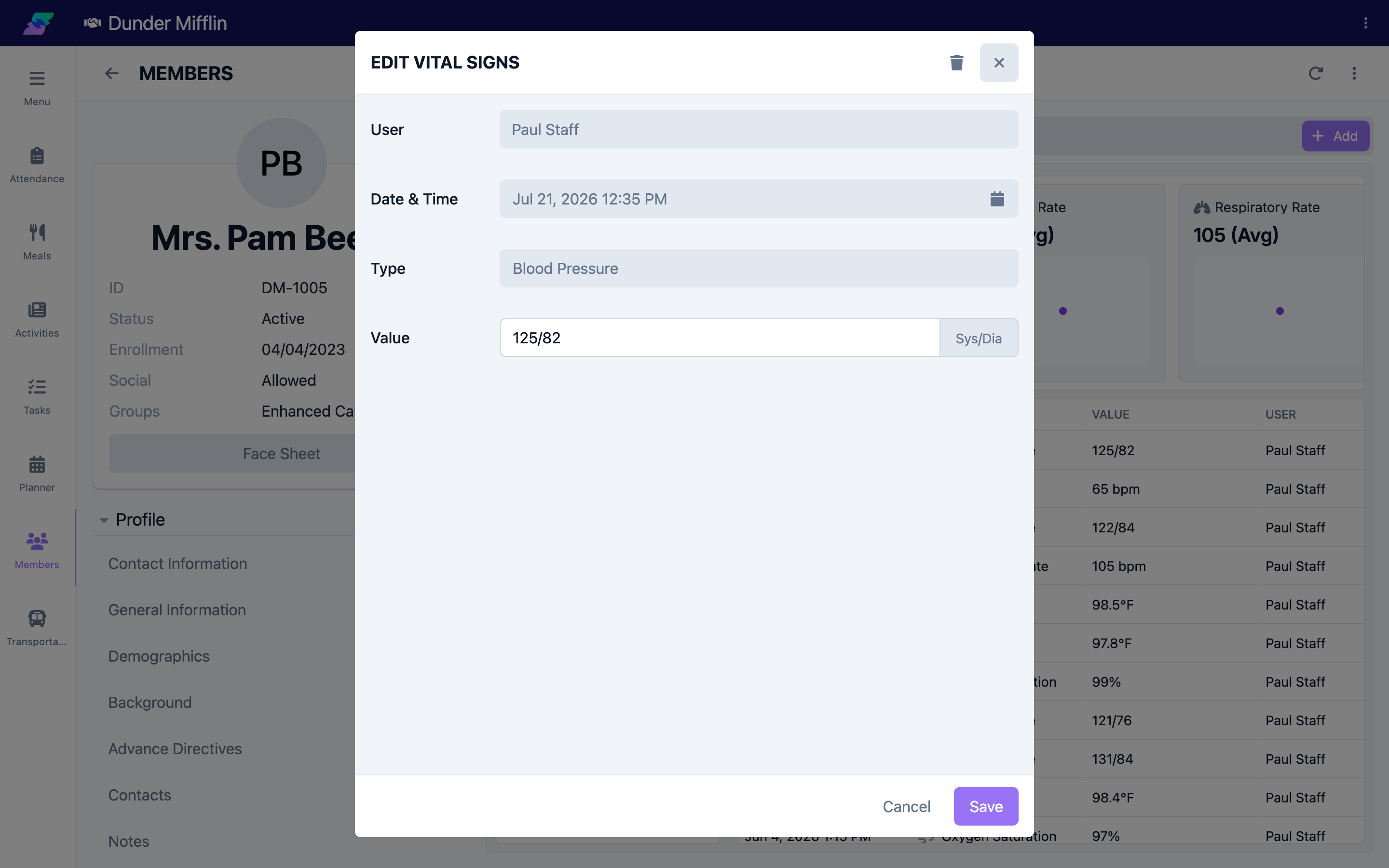
Select the Add button. The Vital Signs form opens. Your name is recorded automatically in the User field, and Date & Time defaults to the current moment — adjust it if you are entering an earlier reading.
Step 3: Select the Vital Type and Enter the Value
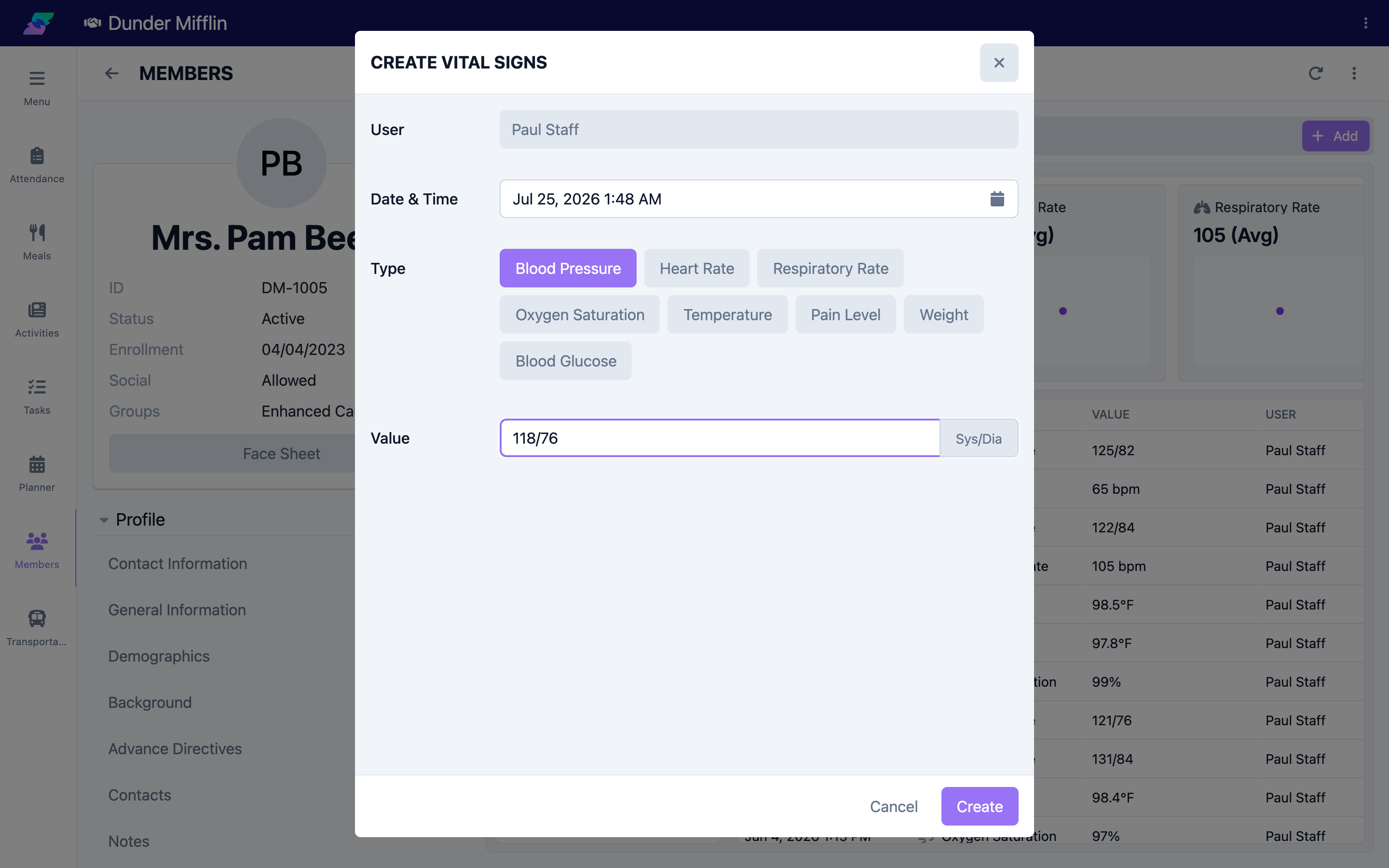
Choose the Type, then enter the value. The value field and its unit adapt to the type you select:
- Blood Pressure — Systolic/Diastolic (Sys/Dia)
- Heart Rate — bpm
- Respiratory Rate — bpm
- Oxygen Saturation — %
- Temperature — °F
- Pain Level — select 0 through 10
- Weight — lbs
- Blood Glucose — mg/dL (also accepts HI or LO — see the glucose article)
Step 4: Save the Reading
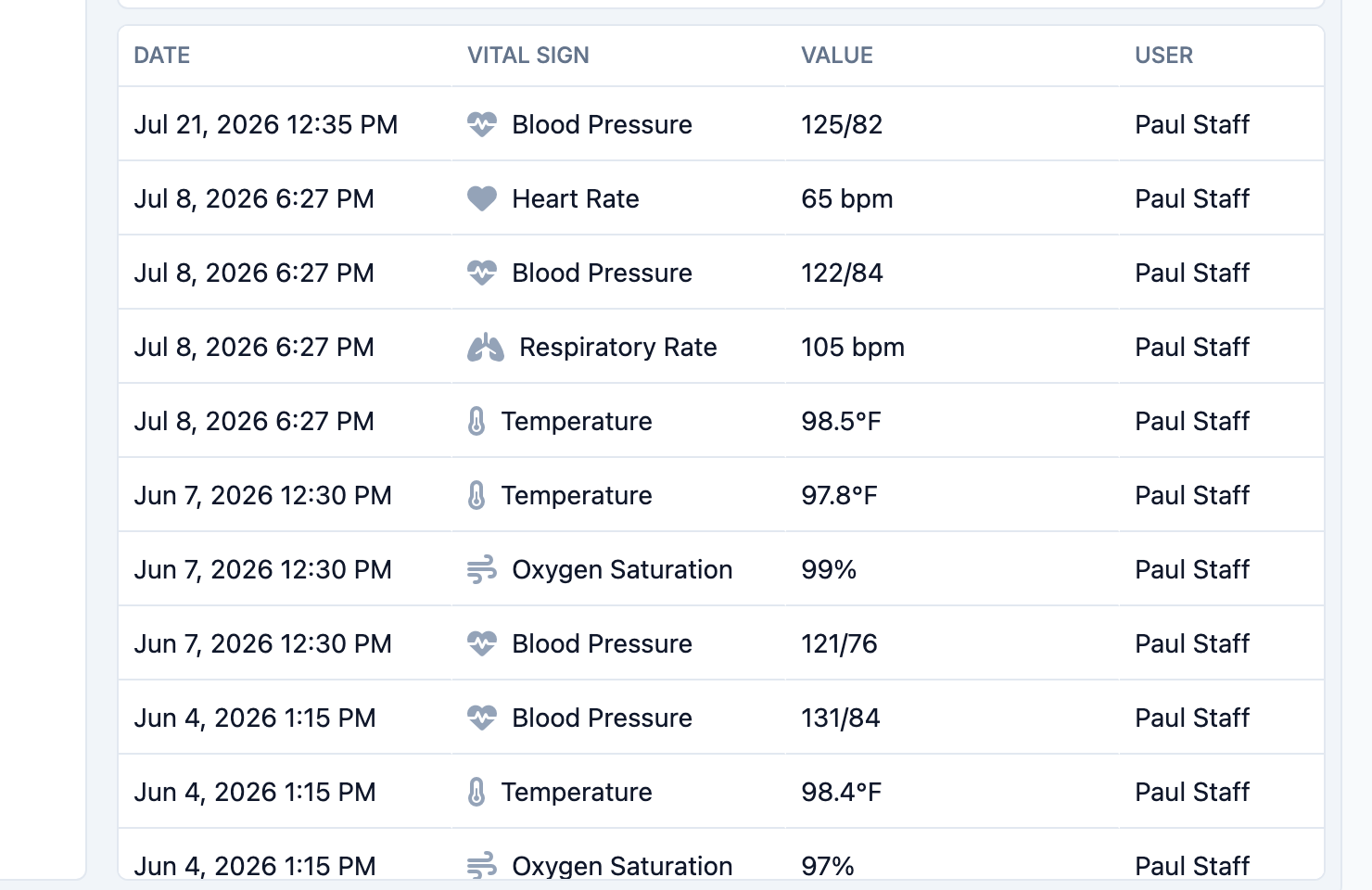
Select Save. The reading appears at the top of the readings table. Each entry records one vital type, so to log several vitals at the same visit, add each one in turn.
Step 5: Edit a Reading
To correct a reading, select its row in the table to reopen the form, update the value, and select Save. Use the View More control at the bottom of the table to load older readings.
Tips
- Record vitals at consistent times to make trends easier to interpret
- Enter each vital type separately — there is one value per reading
- Use the vital type filter to focus the table and charts on a single measurement, such as Blood Pressure
- For blood glucose readings the meter reports as HI or LO, type HI or LO in the value field (see the glucose article)
Troubleshooting
| Problem | Solution |
|---|---|
| Vitals tab is not visible | The tab is in the Care tab group of the member profile. Confirm you have Care module access and clinical permissions. |
| Cannot save the reading | Select a Type and enter a Value in the format the field expects. Numeric fields do not accept letters (except Blood Glucose, which accepts HI or LO). |
| Trend charts do not appear | Trend charts render on the web app. On mobile you will see the readings table only. |
| I need to record a reading from earlier | Adjust the Date & Time field on the form to the time the reading was actually taken. |