
Overview
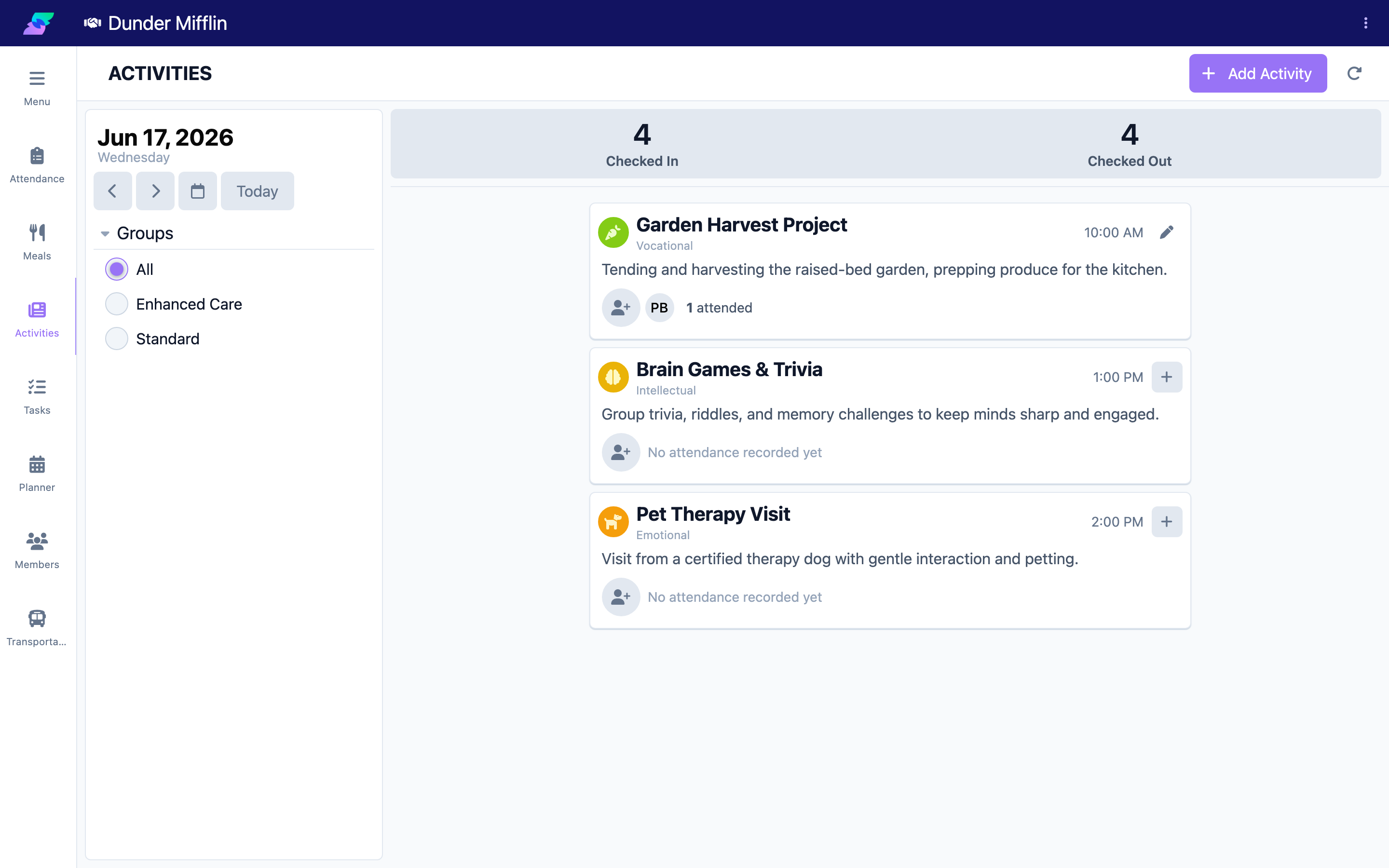
The Activities page shows what happened at your center on a given day. It displays the activities you have logged alongside the day's approved schedule events, in a card list ordered by time. Use it to document programming, add photos, and review the day at a glance.
Before You Begin
- You must be logged into Seniorverse with Care module access.
- You need the Care:Activities permission (or Care:FullAccess).
Steps
Step 1: Open the Activities page
Select Care, then Activities. The page opens on today's date.
Step 2: Set the date and group filter
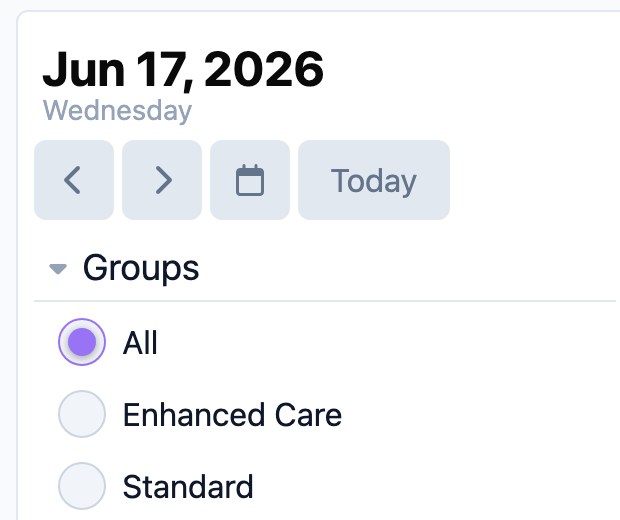
Use the date selector to choose the day. If your center uses groups, use the Groups filter to show only activities tied to the selected group(s).
Step 3: Read the statistics
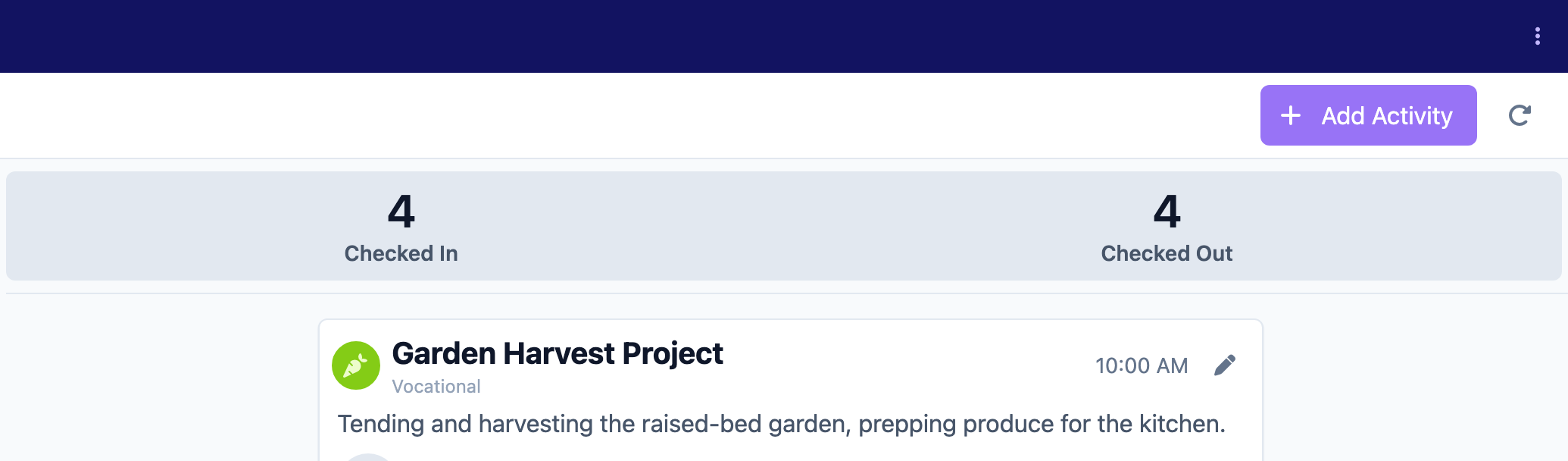
Two counts summarize the day: Checked In (active members currently present) and Checked Out (active members who have left).
Step 4: Review the activity cards
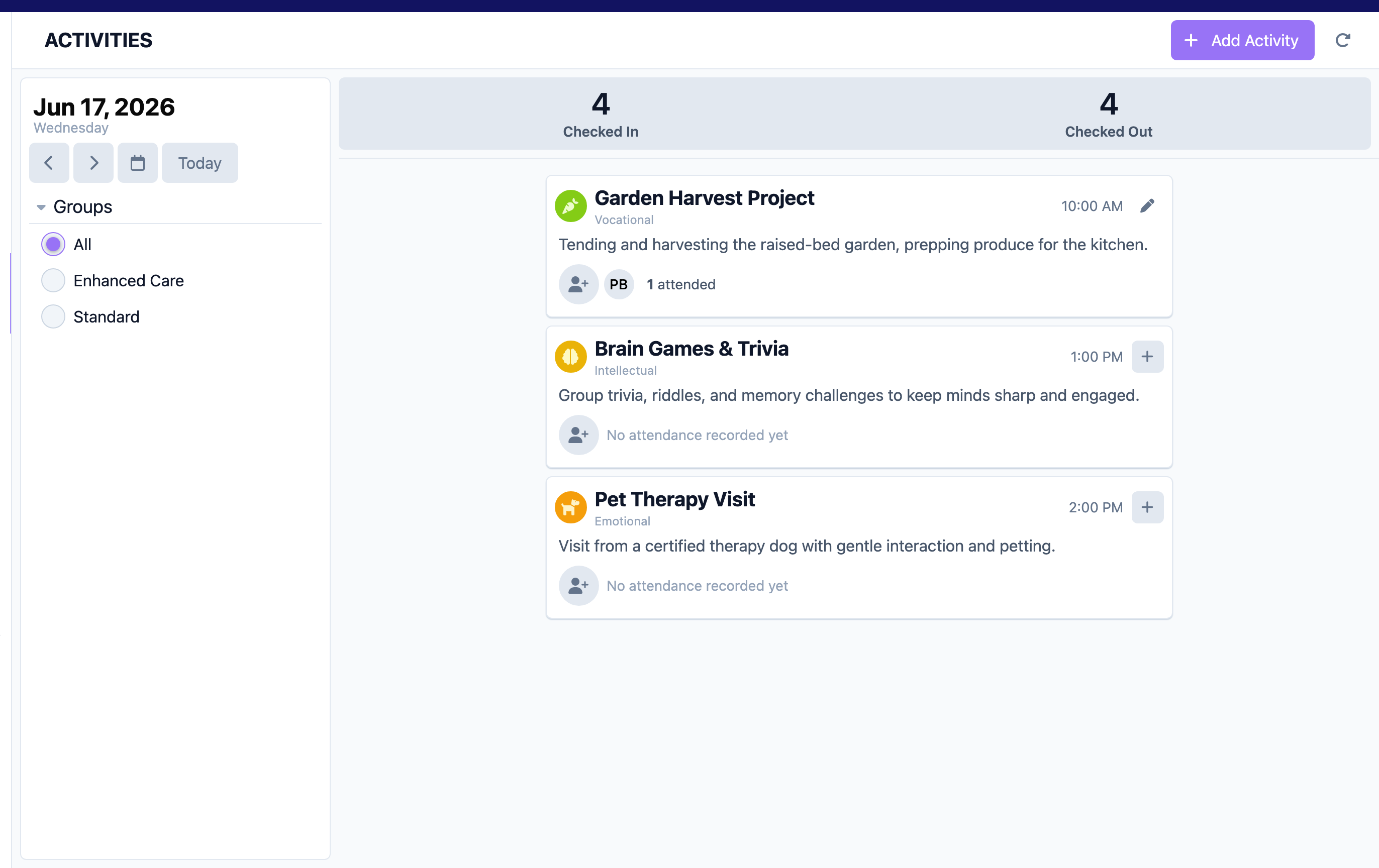
Each card shows the activity's name, time, and details. The list combines the activities you have logged with the day's approved schedule events, sorted by time. Select Add Activity at the top to log a new one, and open a card to edit or delete an activity.
Tips
- Scheduled events that have not yet been logged as an activity appear here too, so you can turn a planned event into a recorded activity.
- Use the Groups filter to focus on a specific program or population.
- Review the page at the start of a shift to see what is planned and what has been documented.
Troubleshooting
| Problem | Solution |
|---|---|
| The page is empty | Confirm the date. If nothing was logged and no approved events fall on that day, the list is empty. |
| Activities for a group are missing | Only activities tied to a selected group appear when the Groups filter is set. Clear the filter to see all. |
| I cannot add or edit activities | You may lack the Care:Activities permission. Ask your administrator. |
Related Articles
- creating-and-recording-activities — Creating and Recording Activities
- viewing-activity-history — Viewing Activity History