
Overview
The member profile is your central hub for viewing and managing everything about an individual enrolled at your center. It has two parts: the member card at the top of the left column, followed below it by a tab list organized into four collapsible groups — Profile, Services, Care, and Reports. Selecting a tab shows that section's fields in the content area on the right.
The profile can show up to 29 tabs, but the exact tabs you see depend on which features your center has enabled and your permissions. This article explains the member card and every tab group so you can find what you need quickly.
Before You Begin
- You must be logged in to Seniorverse.
- You need permission to view member profiles (the individual tabs are each gated by a
Care:MemberEdit:<Tab>:Viewpermission). - Some tabs appear only when the related feature is turned on for your center (noted for each group below).
Steps
Step 1: Open a member profile
- Select Care from the main navigation.
- Select Members from the sidebar.
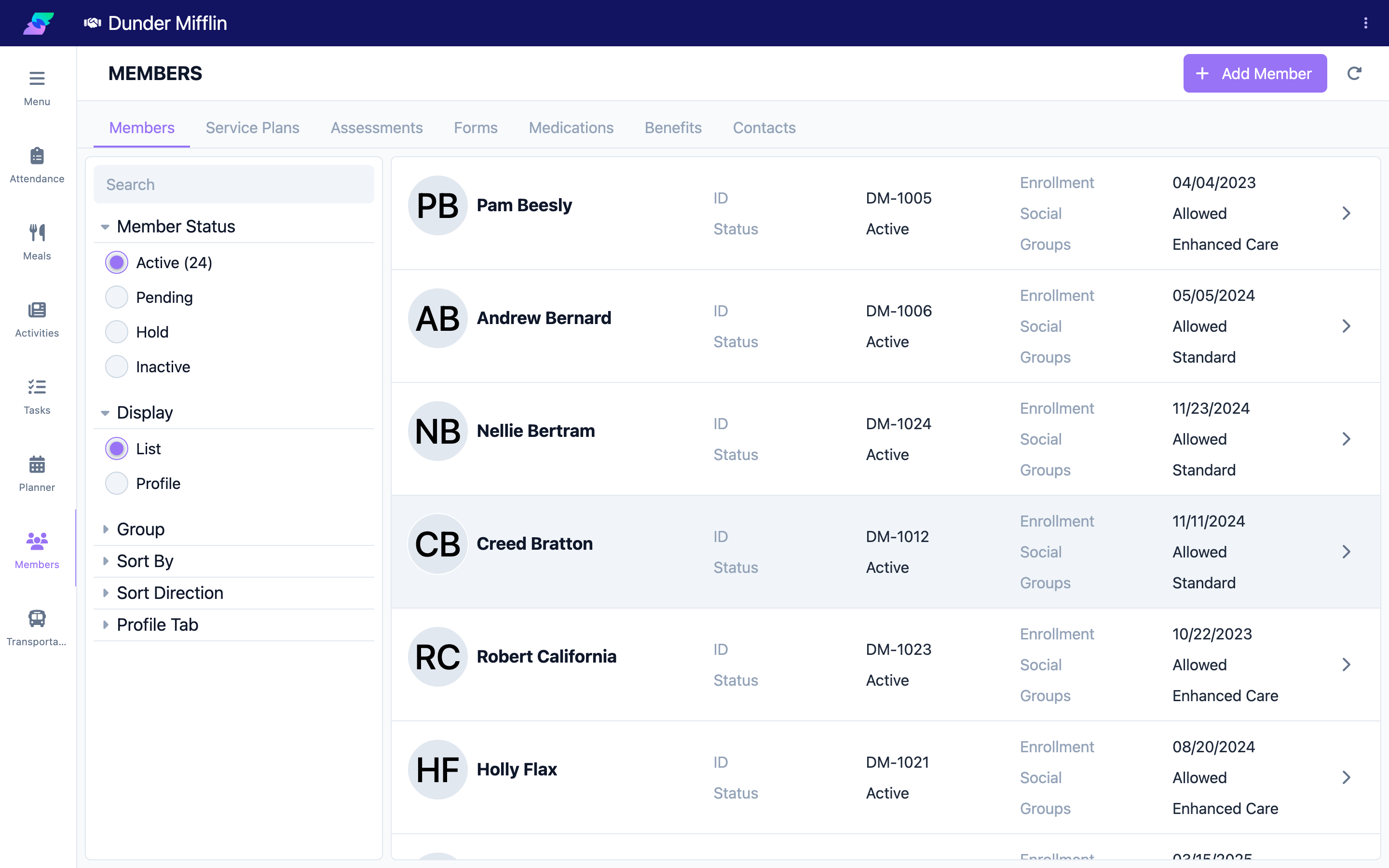
- Find the member using search or the status tabs, then select their name or card.
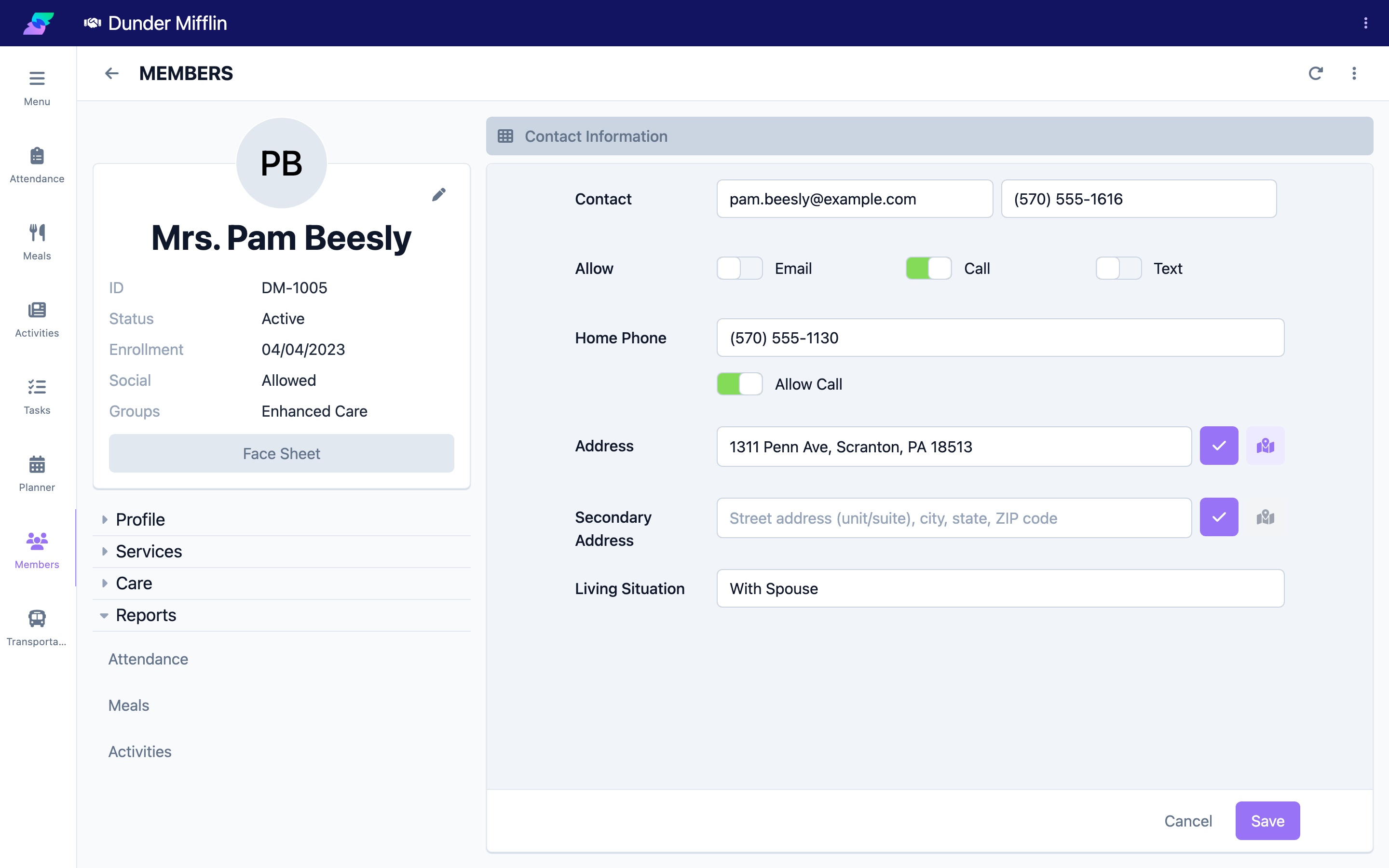
Step 2: Read the member card
The member card sits on the left of the profile and gives you at-a-glance information plus the main actions.
| Element | Description |
|---|---|
| Profile Photo | The member's photo. Select it to view the image full size. |
| Name | The member's full name. |
| ID | The member's custom ID. |
| Status | Enrollment status: Active, Pending, Inactive, or Hold. |
| Enrollment | The member's enrollment start and end dates. |
| Age | Calculated from the member's birthdate. |
| Groups | Any groups the member belongs to (if your center uses groups). |
| Social | Whether Social Security display is Allowed or Declined. |
The card also includes an Edit Member action (pencil) that opens the member edit form, a Face Sheet button that generates a printable summary, and an overflow menu that contains Delete Member (Admin only, and hidden if the member has attendance on record).
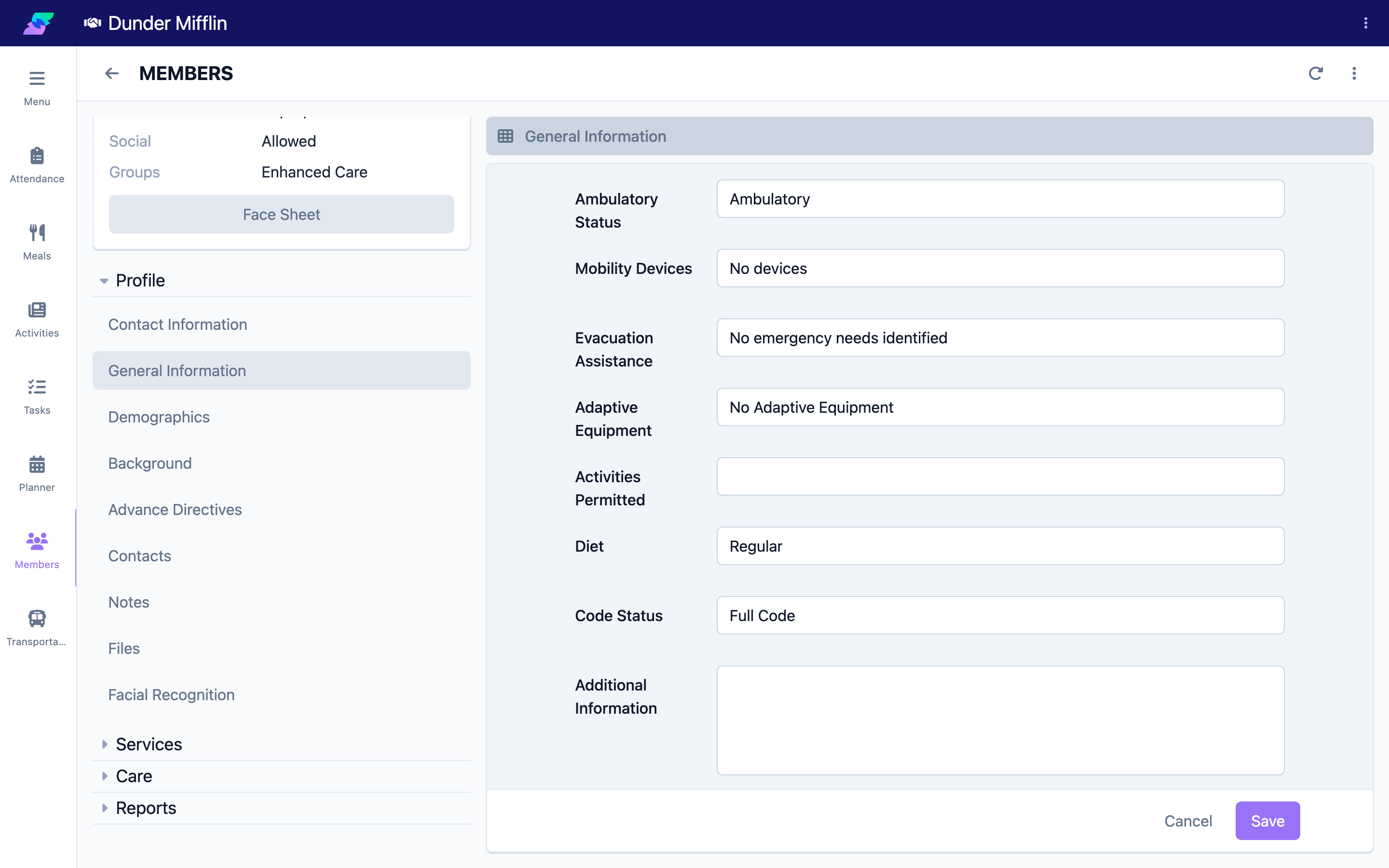
Step 3: Explore the Profile tab group
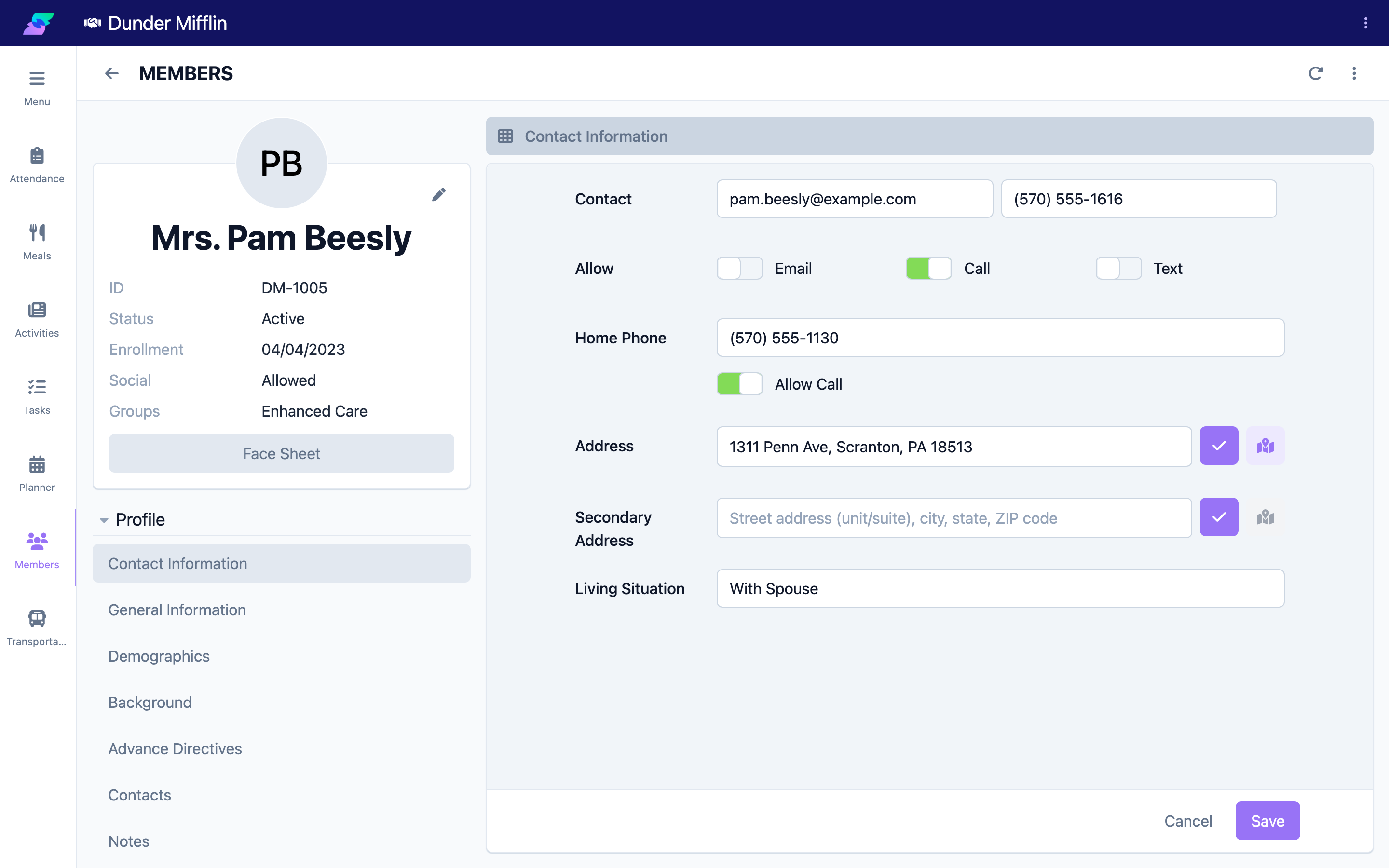
The Profile group holds personal information and documentation.
| Tab | Purpose |
|---|---|
| Contact Information | Phone, email, address, and contact preferences for the member. |
| General Information | Living situation and other general details. |
| Demographics | Birthdate, gender, pronouns, race, ethnicity, languages, marital status, and physical descriptors. |
| Wellness | Wellness anchor tracking. Appears only when your center has configured wellness anchors. |
| Background | Religion, education, former occupation, and hobbies. |
| Custom Fields | Center-specific fields. Appears only when your center has configured custom fields. |
| Advance Directives | Directives such as Living Will and POLST. |
| Contacts | Emergency contacts, family, physicians, and payors. |
| Notes | Free-form, timestamped notes about the member. |
| Files | Uploaded documents such as IDs, insurance cards, and forms. |
| Facial Recognition | Enrolled face images used for kiosk check-in. Appears only when the Reception feature is enabled. |
Step 4: Explore the Services tab group
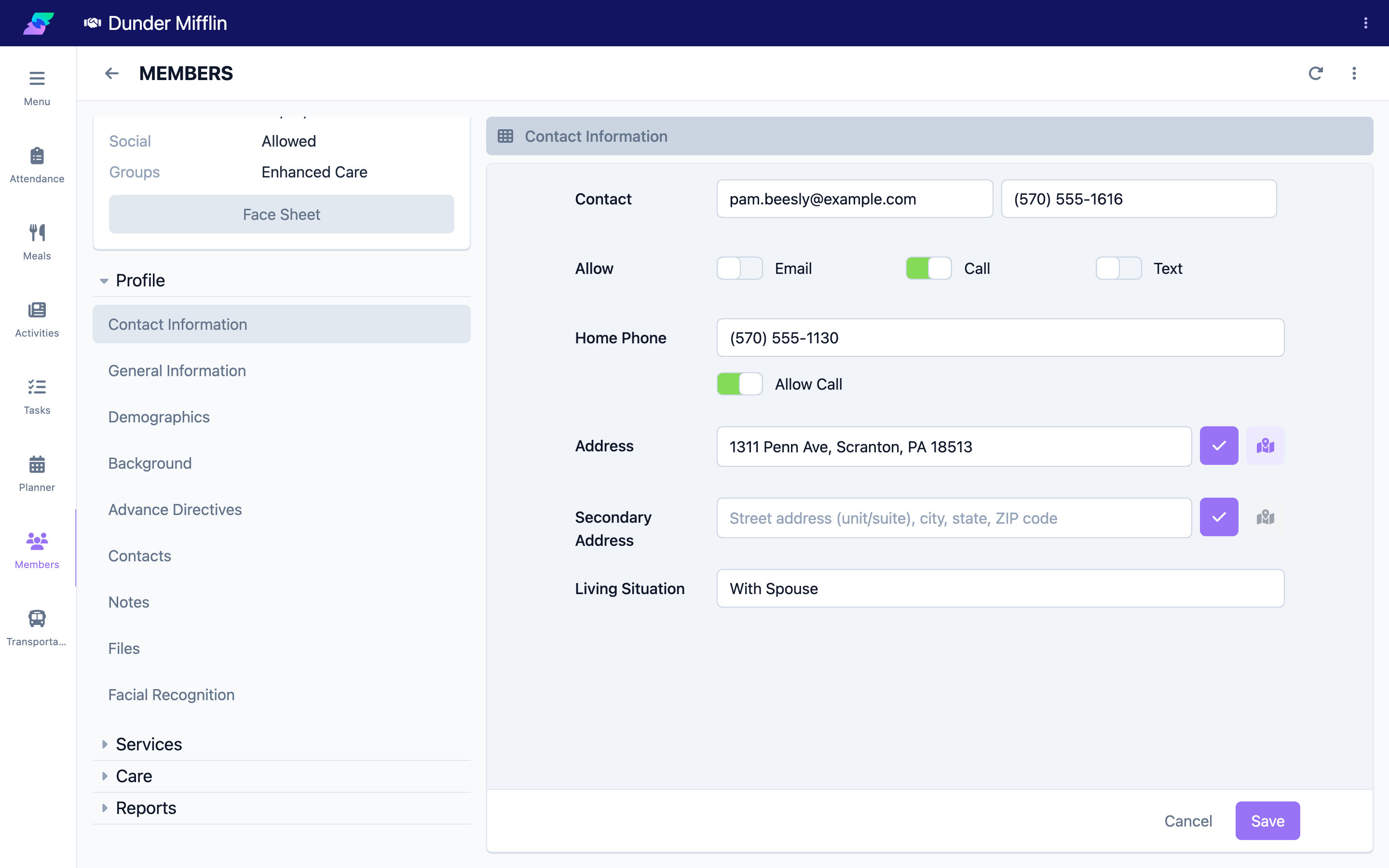
The Services group tracks funding, insurance, and transportation.
| Tab | Purpose |
|---|---|
| Benefits | Funding sources (benefit types), schedules, limits, and claim/authorization details including ICD-10. |
| Health Insurance | Insurance carrier records, policy and group numbers, and coverage dates. |
| Transportation | Arrival and departure transportation arrangements. |
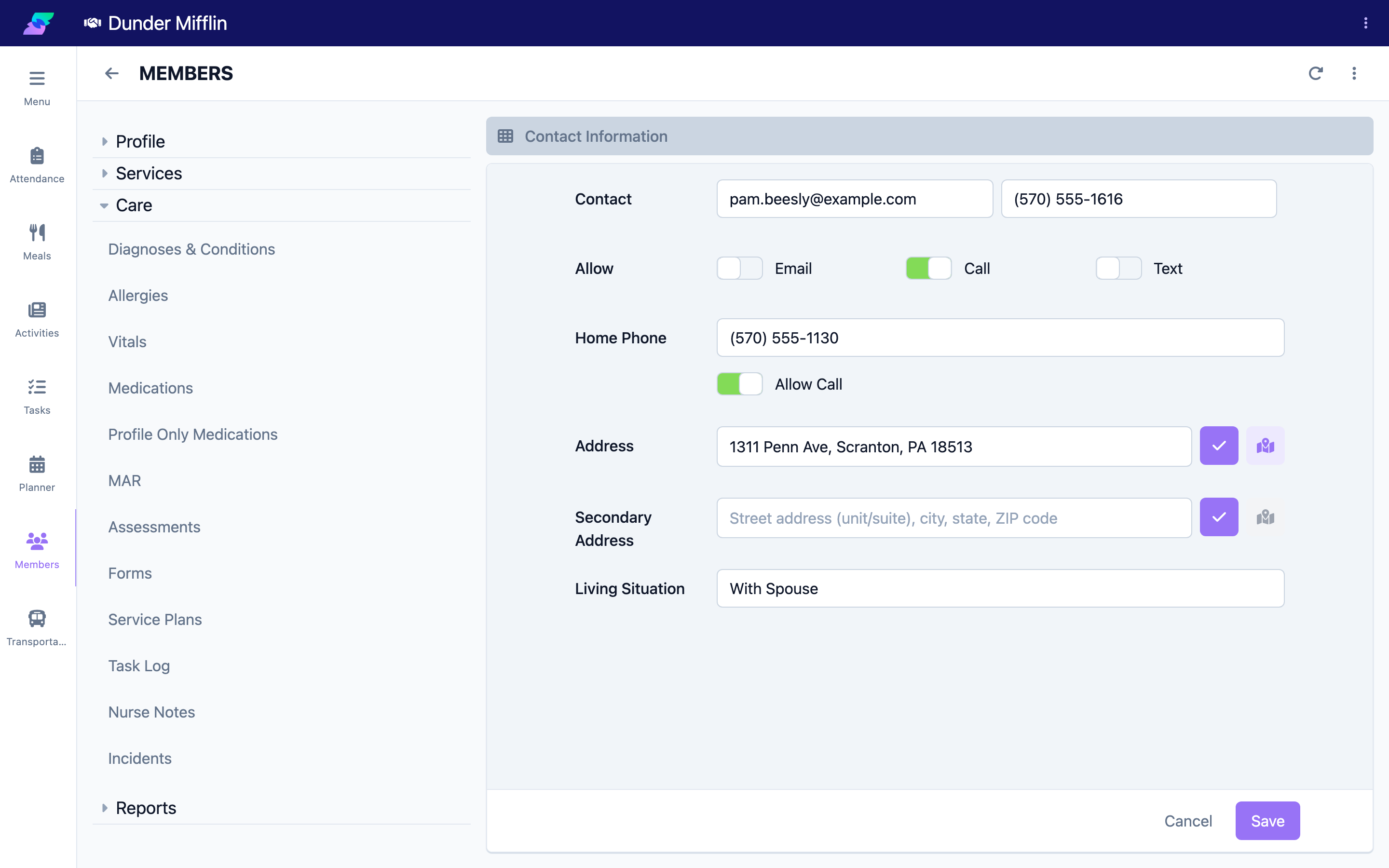
Step 5: Explore the Care tab group
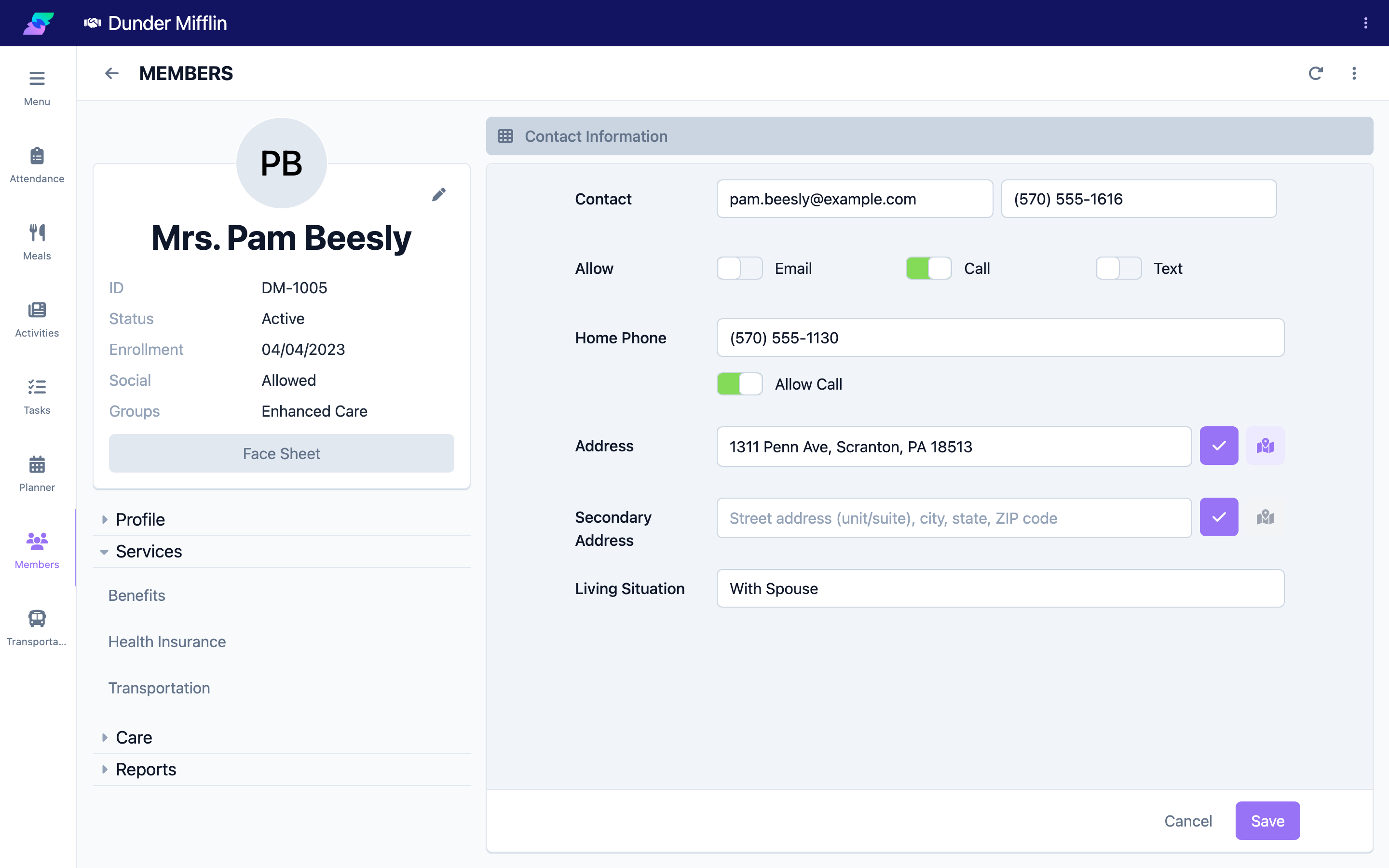
The Care group contains clinical and care information — the group used most in daily operations.
| Tab | Purpose |
|---|---|
| Diagnoses & Conditions | Medical diagnoses and chronic conditions. |
| Allergies | Known allergies and sensitivities. |
| Vitals | Recorded vital signs. Requires the Care Medications feature. |
| Medications | Center-administered medications. Requires the Care Medications feature. |
| Profile Only Medications | Medications recorded for reference but not administered at the center. Requires the Care Medications feature. |
| MAR | Medication Administration Record. Requires the Care Medications feature. |
| Assessments | Completed assessments. Requires the Care Plans feature. |
| Forms | Completed forms. Requires the Care Plans feature. |
| Service Plans | Individualized service plans. Requires the Care Plans feature. |
| Task Log | History of completed care tasks. |
| Nurse Notes | Clinical notes documented by nursing staff. |
| Incidents | Documented incidents such as falls or behavioral events. |
Step 6: Explore the Reports tab group
The Reports group provides member-specific historical data.
| Tab | Purpose |
|---|---|
| Attendance | Attendance history, including check-in and check-out records. |
| Meals | Meal service records. |
| Activities | Activity participation, including tagged activity photos. |
Step 7: Switch between tabs
- Locate the tab list below the member card, on the left.
- Select a group header (Profile, Services, Care, Reports) to expand or collapse its tabs — all four groups are expanded by default.
- Select a tab to view that information on the right. The active tab is highlighted.
Tips
- "Face Sheet" and "Facial Recognition" are different things. The Face Sheet button on the member card produces a printable summary document for appointments and transfers. The Facial Recognition tab stores enrolled face images used for kiosk check-in.
- Missing a tab you expected? Tabs such as Facial Recognition, the medication tabs, and the plan tabs appear only when the matching feature (Reception, Care Medications, or Care Plans) is enabled for your center. Wellness and Custom Fields appear only after your center configures them.
- Care staff live in the Care group. Diagnoses, allergies, vitals, medications, and nurse notes are all here.
- Check Contacts first in an emergency. The Contacts tab lists emergency contacts and their phone numbers.
- Status is color-coded on the member card so you can tell Active, Pending, Inactive, and Hold members apart at a glance.
Troubleshooting
| Problem | Solution |
|---|---|
| I cannot find a specific tab | Select the tab group header (Profile, Services, Care, Reports) to reveal its tabs. If the tab still is not listed, the related feature may be disabled for your center, or your role may lack the tab's view permission. |
| The Edit Member action is missing | Your role may be view-only. Contact your Center Administrator to review your permissions. |
| The Delete Member option is missing | Delete requires Admin (Member Admin) permission, and it is hidden entirely for any member who has attendance on record. |
| The Face Sheet is missing information | The Face Sheet pulls from several tabs. Fill in Contact Information, Demographics, Diagnoses & Conditions, Allergies, and Medications, then regenerate it. |
| The profile photo is not showing | No photo has been uploaded, or it is still loading. Add one from the member edit form's Image field, or refresh the page. |