
Overview
A billing plan is a recurring schedule that ties one benefit type to a payor and proposes invoices on a weekly or monthly cadence. Plans generate invoice previews that you review and convert into Draft invoices — they never post invoices silently.
Before You Begin
- You need Billing access for your center.
- Create the benefit type (with rates) and at least one payor first.
- For a Grouped plan, the payor must have its Grouping set to Grouped.
Steps
Step 1: Open the Billing Plans tab
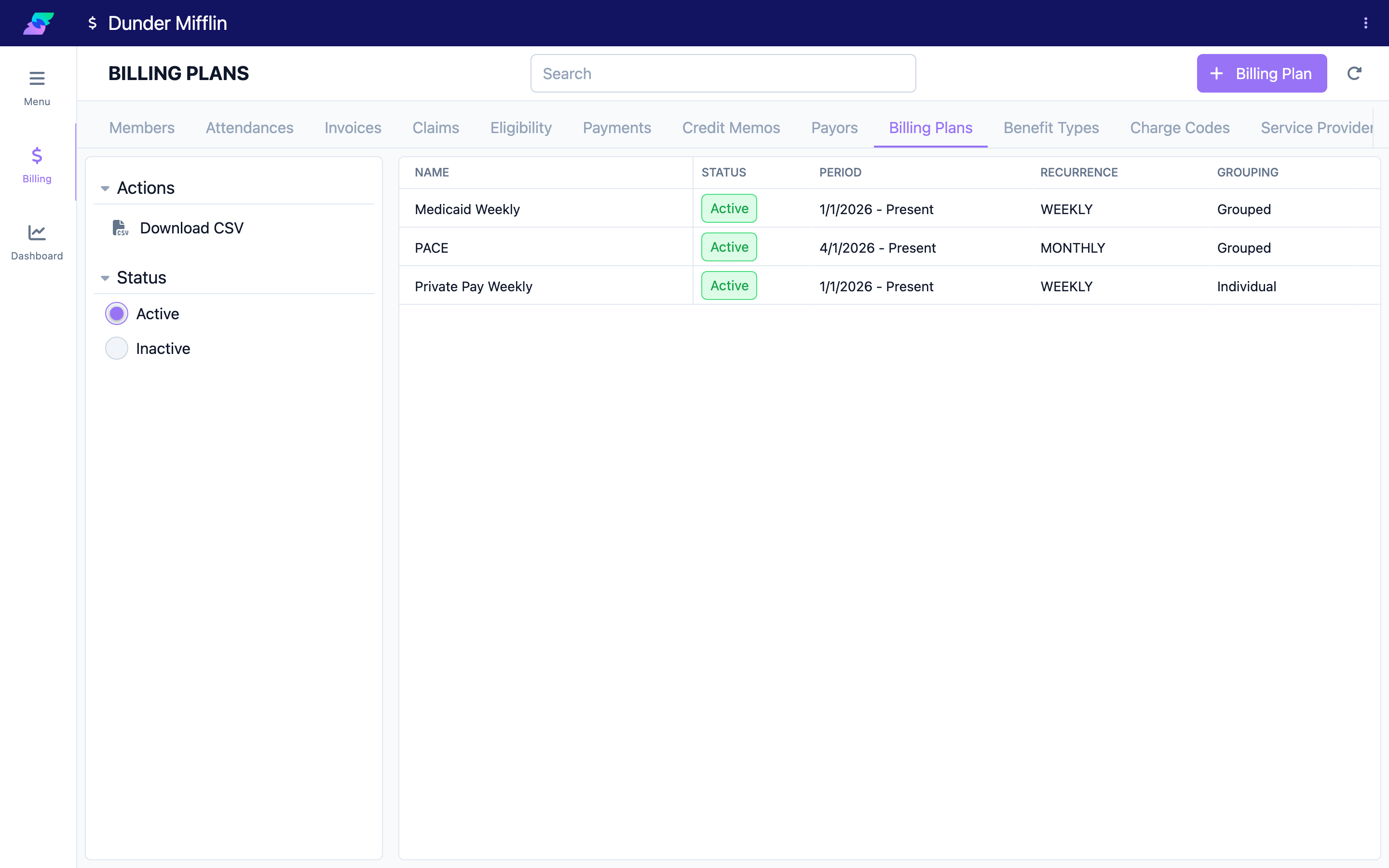
On the Billing page, select the Billing Plans tab, then select the Billing Plan button. Enter a Name for the plan.
Step 2: Choose the benefit type, grouping, and payor
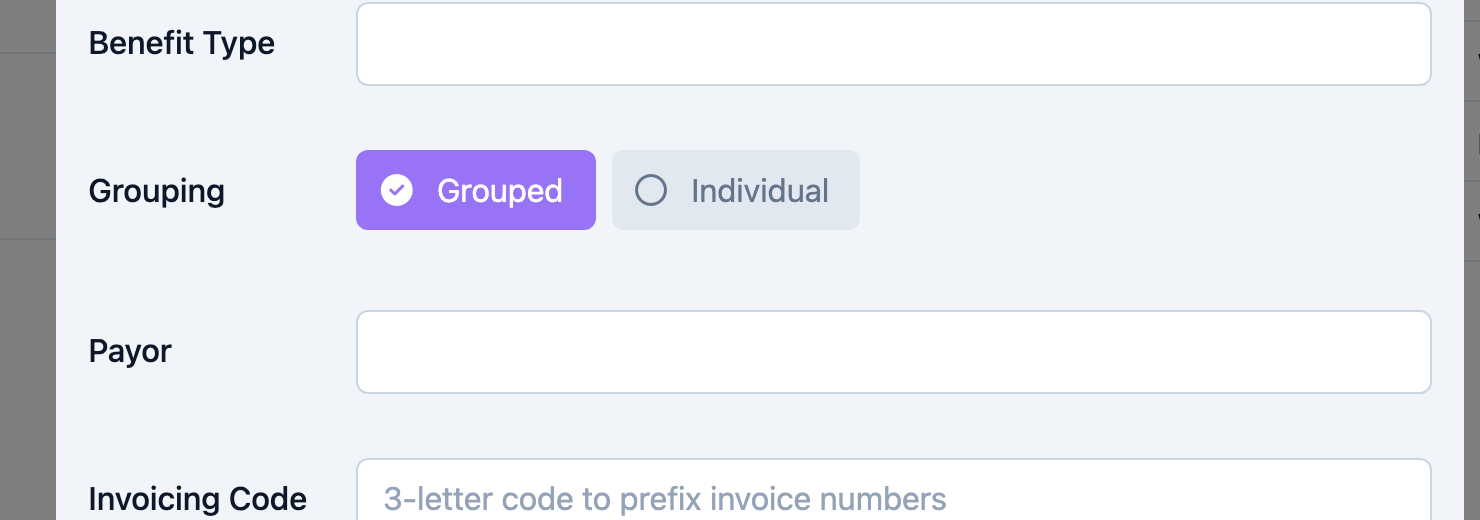
Select the Benefit Type (one per plan; only Active benefit types are listed).
Set the Grouping:
- Grouped — one invoice covers the group. A Payor field appears and is required; only Grouped payors are selectable.
- Individual — each eligible member gets their own invoice, and the payor is resolved from the member. The Payor field is cleared.
Step 3: Set the invoicing code and status
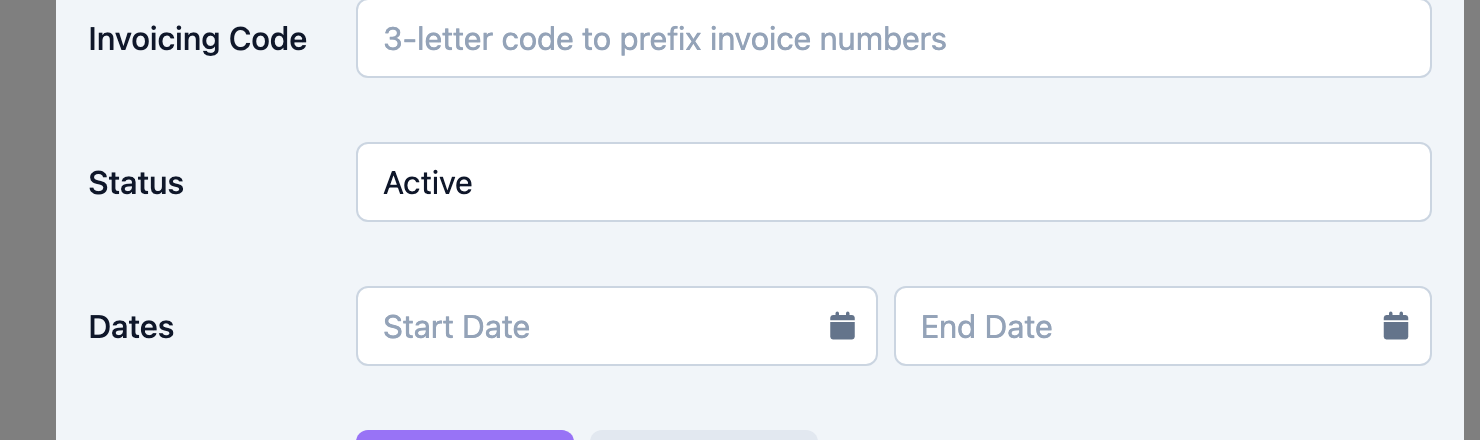
Enter the Invoicing Code — a 3-letter code that is prefixed to invoice numbers from this plan. The field accepts letters only, forces uppercase, and must be exactly three characters.
Set the Status (Active or Inactive; new plans default to Active). Only Active plans produce invoice previews.
Step 4: Set the recurrence schedule
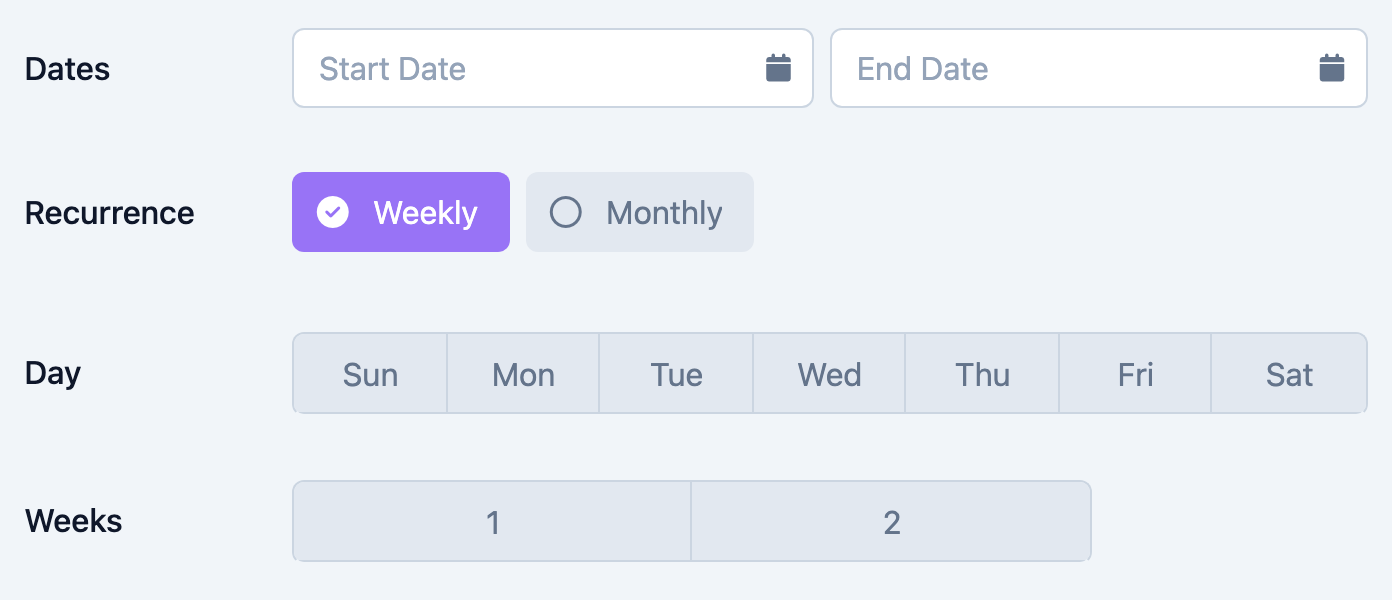
Pick a Start Date (required) and an optional End Date, then choose the Recurrence:
- Weekly — also choose the Day the period starts and the number of Weeks per period (1 or 2). For bi-weekly billing, use Weekly with Weeks set to 2.
- Monthly — add the billing Dates of the month. You can add up to two dates, each between 1 and 28. For semi-monthly billing, add two dates such as 1 and 15.
Step 5: Set the due date and timing, then save
Set Due In — the number of days after the period ends that payment is due. Choose the Timing:
- Advance — bill before the service period.
- Arrears — bill after the service period.
Currency is USD and cannot be changed. Select Save (or Create).
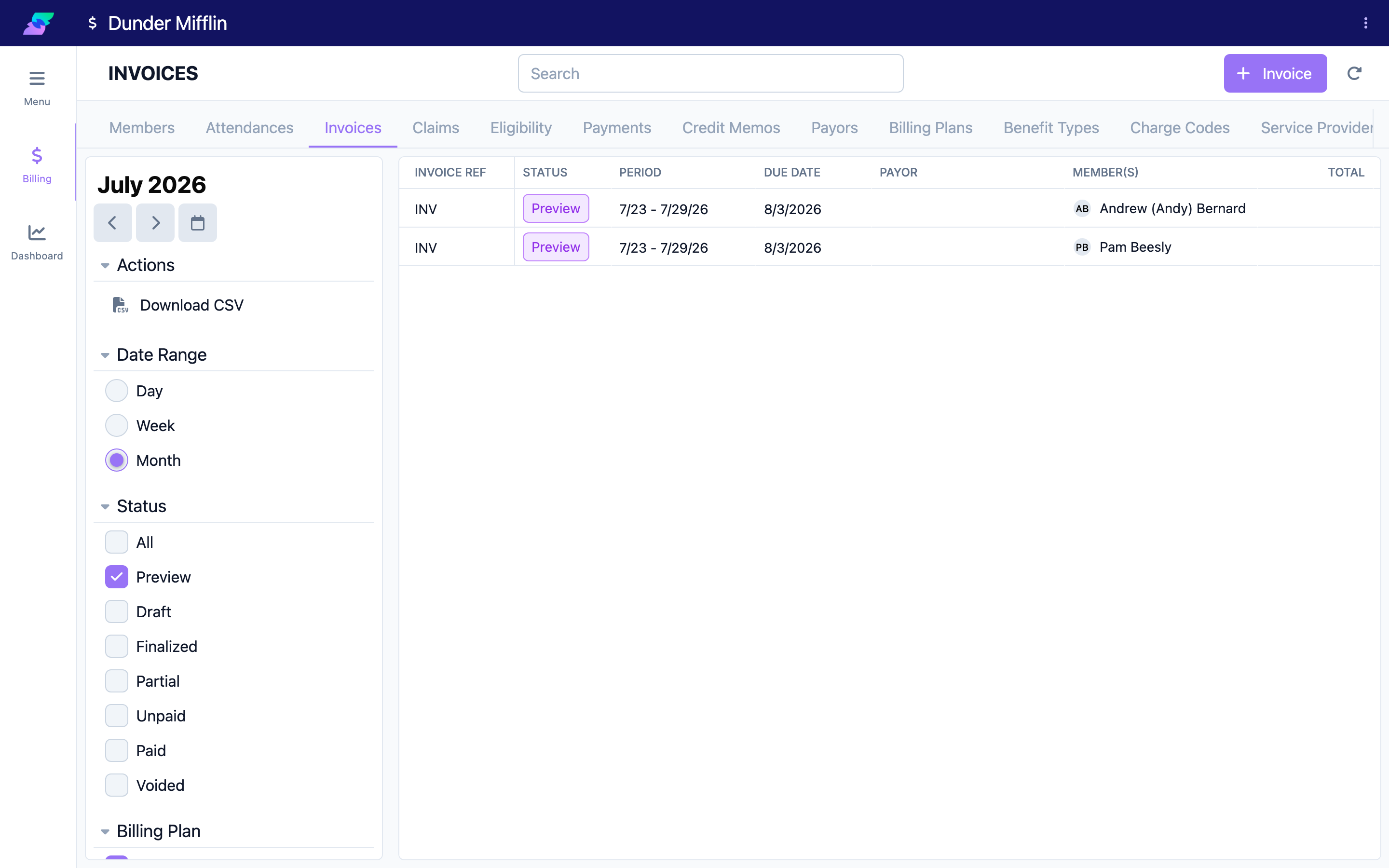
An active plan then produces invoice previews for the upcoming period. Review each preview and convert it into a Draft invoice — nothing is invoiced until you do.
Tips
- There is no separate "Bi-Weekly", "Semi-Monthly", or "Quarterly" option — recurrence is only Weekly or Monthly. Combine Weekly + Weeks, or Monthly + two dates, to get those cadences.
- Claims, claim groups, and charge-code usage are not set on the plan — they come from the benefit type. Configure them there.
- Keep a plan Inactive while you finish setup so it does not start proposing previews before you are ready.
- Use a distinct 3-letter Invoicing Code per plan so invoice numbers are easy to trace back to the plan.
Troubleshooting
| Problem | Solution |
|---|---|
| The form will not save | Name, Benefit Type, Start Date, and a valid 3-letter Invoicing Code are required. Grouped plans also require a Payor; Weekly plans require Day and Weeks; Monthly plans require at least one date. |
| The payor is not in the list | Only Grouped payors can be attached to a plan. Set the payor's Grouping to Grouped, or use Individual grouping. |
| No previews appear | Confirm the plan Status is Active, the schedule covers the current period, and eligible members with the benefit type have attendance. |
| A monthly date above 28 is not accepted | Monthly billing dates are limited to 1–28. |
Related Articles
- configuring-benefit-types — Configuring Benefit Types
- setting-up-payors — Setting Up Payors
- understanding-the-billing-module — Understanding the Billing Module
- managing-charge-codes — Managing Charge Codes