
Overview
Reception is a self-service kiosk that lets members check themselves in and out using facial recognition. You run it on a dedicated station — a tablet or computer placed at your entrance — so members can arrive, look at the camera, sign, and be on their way. Each check-in and check-out writes the member's photo and signature to their attendance record, and staff are notified of their presence.
Reception runs as its own app, separate from the main Care app, so the station only ever shows the kiosk. This article covers setting up the station and walking a member through the check-in and check-out flow.
Note: Reception matches members whose faces are already enrolled. Enrolling a member's face is done separately in the member's record (facial recognition), covered by the Members documentation. This article covers only the kiosk experience.
Before You Begin
- The Reception feature must be enabled for your center, and your account needs the Reception:View permission. Without both, the kiosk shows a restricted screen.
- Members you expect to use the kiosk must already have their faces enrolled.
- Use a dedicated device with a working camera, positioned at eye level near the entrance.
Steps
Step 1: Open Reception on the station
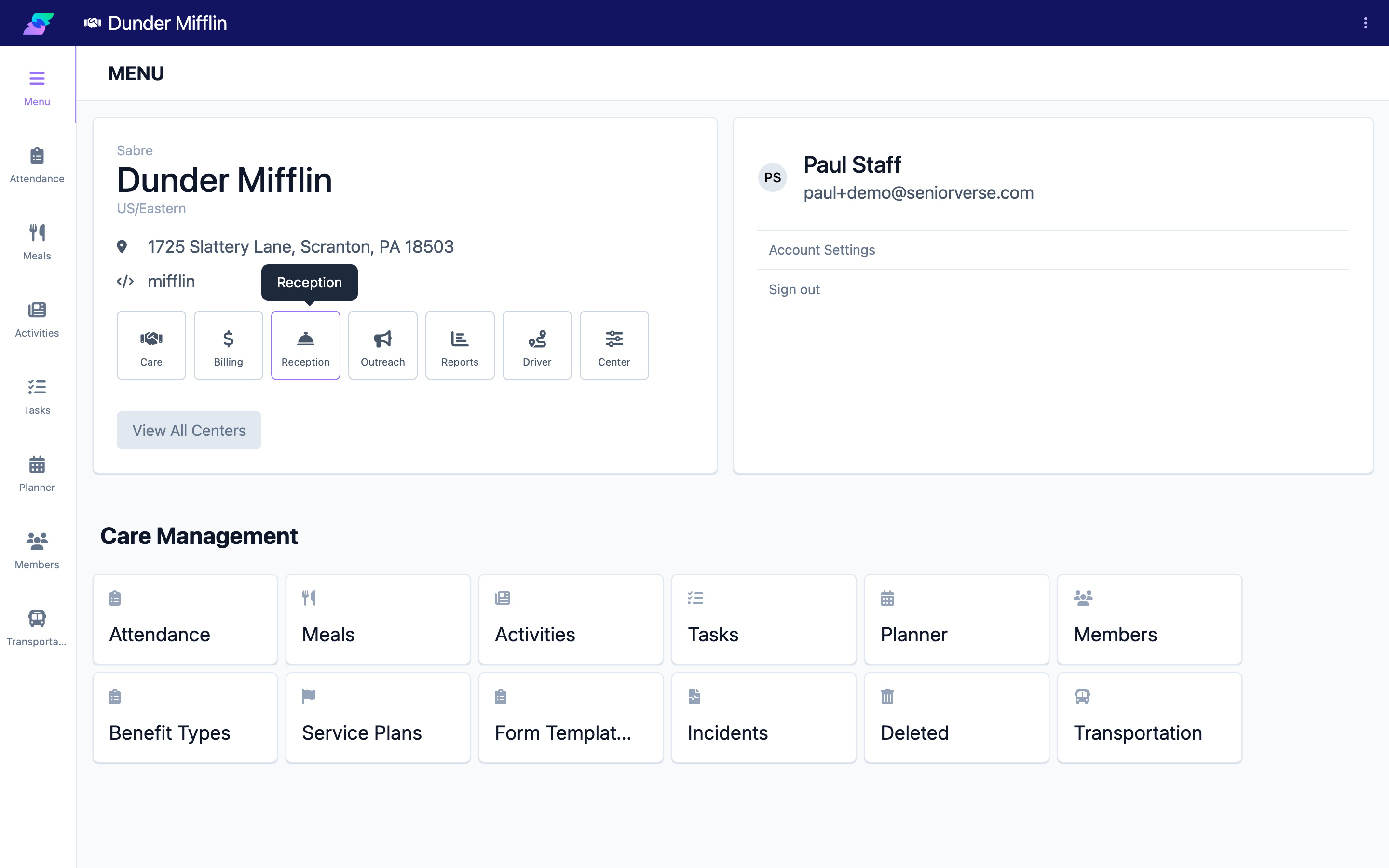
Sign in on the station device, open the app switcher (the center name near the top of the screen), and choose Reception. The kiosk opens on the Welcome screen and is ready for members to use.
Step 2: The member starts from the Welcome screen
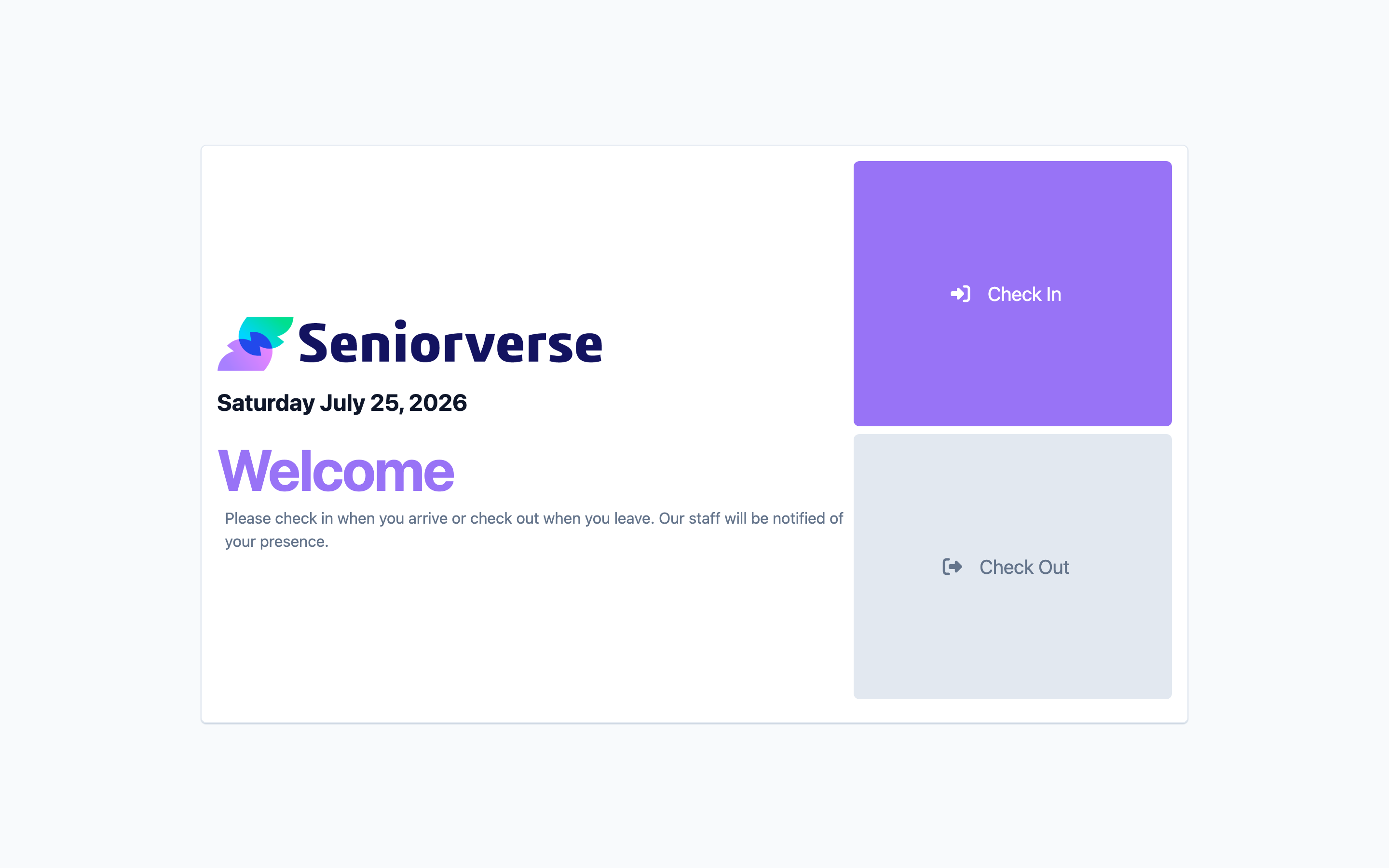
The Welcome screen shows the center logo, today's date, and the message "Please check in when you arrive or check out when you leave. Our staff will be notified of your presence." The member taps Check In on arrival or Check Out when leaving.
Step 3: The member takes a photo
The camera screen appears with the heading Check In or Checkout and the prompt to look at the camera and take a photo. The member taps Take Photo. If the photo needs retaking, Retake Photo is available. Reception then matches the photo to an enrolled member.
Screenshot coming soon — Reception camera screen with the Take Photo button
Step 4: The member confirms and signs
On a successful match, the Confirm Check In (or Confirm Checkout) screen shows the member's photo and name with the prompt "Verify the identity before proceeding." The member signs in the signature box. Signing completes the action: a check-in saves the photo and signature to the day's attendance record (as the checked-in image and signature); a check-out saves the checked-out image and signature.
Screenshot coming soon — Reception confirmation screen with member identity and signature pad
Step 5: The kiosk shows Success and resets
The Checked In (or Checked Out) screen confirms the action with "You have successfully checked in/checked out! Thank you for using our system," the member's photo with a green check, and a Done button that counts down from 5. When the countdown ends, the kiosk resets to the Welcome screen for the next member. The member can tap Done to reset immediately.
Screenshot coming soon — Reception success screen with the Done countdown button
Handling Special Cases
The kiosk checks the member's attendance for today and shows a clear message when an action does not apply:
- Already Checked In! — appears if the member taps Check In but is already checked in. The member taps Done.
- Not Checked In — appears if the member taps Check Out without checking in first: "You need to check in before you can check out. Please use contact staff for assistance." The member taps Restart.
- Already Checked Out! — appears if the member taps Check Out but is already checked out. The member taps Done.
Screenshot coming soon — Reception Not Checked In and Already Checked In messages
Tips
- The check-in and check-out photos and signatures appear on the member's attendance record, so staff can verify each visit.
- A discreet menu button (the bars icon) in the top corner returns to the Reception menu — keep it out of members' way on a wall-mounted station.
- The back arrow on the camera and confirmation screens returns to the previous step if a member needs to start over.
Troubleshooting
| Problem | Solution |
|---|---|
| The kiosk shows a restricted screen | Reception must be enabled for your center and your account needs the Reception:View permission. Ask an administrator. |
| A member's face is not recognized | The member may not be enrolled, or lighting/angle is poor. Have them retake the photo, and enroll their face from their member record if needed (see the Members facial recognition article). |
| "Facial Recognition failed to process" appears | Have the member try again. If it keeps failing, check the camera and network, or contact support. |
| Check Out shows "Not Checked In" | The member has no check-in for today. They must check in first; staff can also record it from the Attendance page. |
| The kiosk did not reset | It resets automatically after the 5-second countdown on the success screen; the member can also tap Done to reset immediately. |
Related Articles
- checking-a-member-in — Checking a Member In
- checking-a-member-out — Checking a Member Out
- understanding-the-attendance-page — Understanding the Attendance Page