
Overview
When a member leaves for the day, you check them out from the Attendance page. Checking out records the departure time and calculates the total time the member spent at the center, which appears in the Time column.
Before You Begin
- You must be logged into Seniorverse with Care module access.
- You need the Care:Attendance permission (or Care:FullAccess).
- The member must already be checked in for the day.
Steps
Step 1: Open the Attendance page and confirm the date
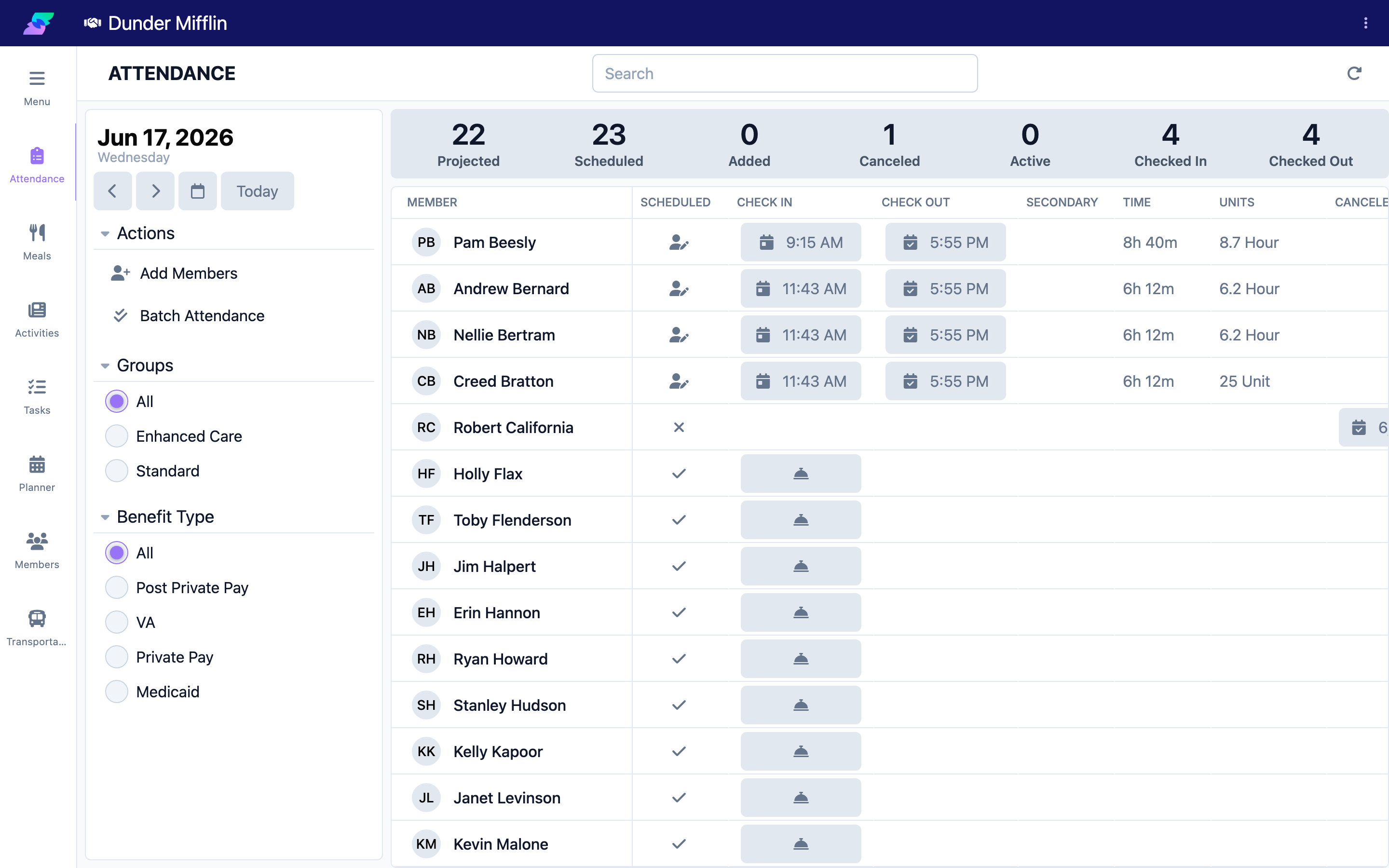
Select Care, then Attendance, and confirm the date selector shows the correct day.
Step 2: Find the checked-in member
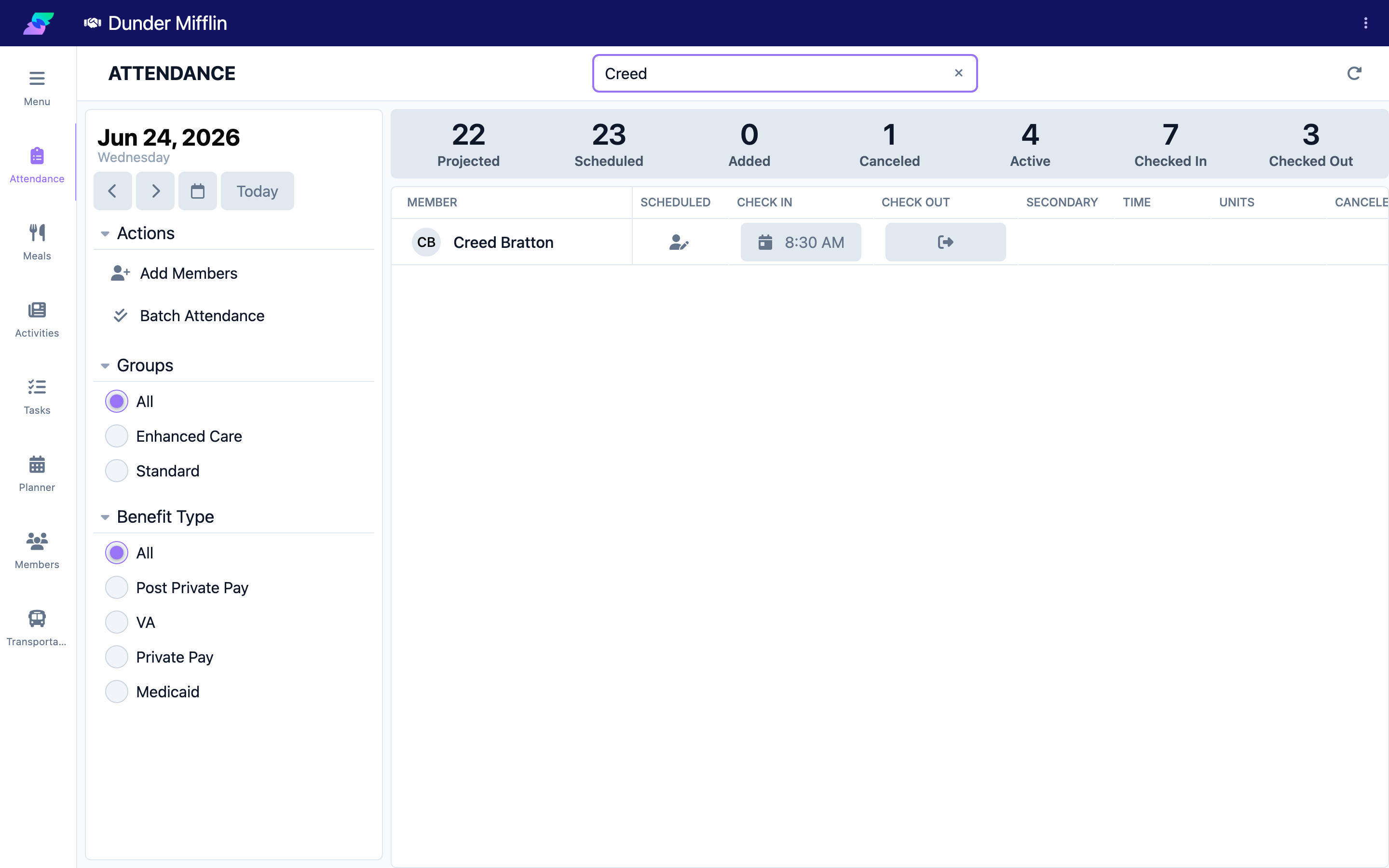
Look for a member with a time in the Check In column but nothing in Check Out. Use the search box or filters to find them quickly.
Step 3: Check the member out
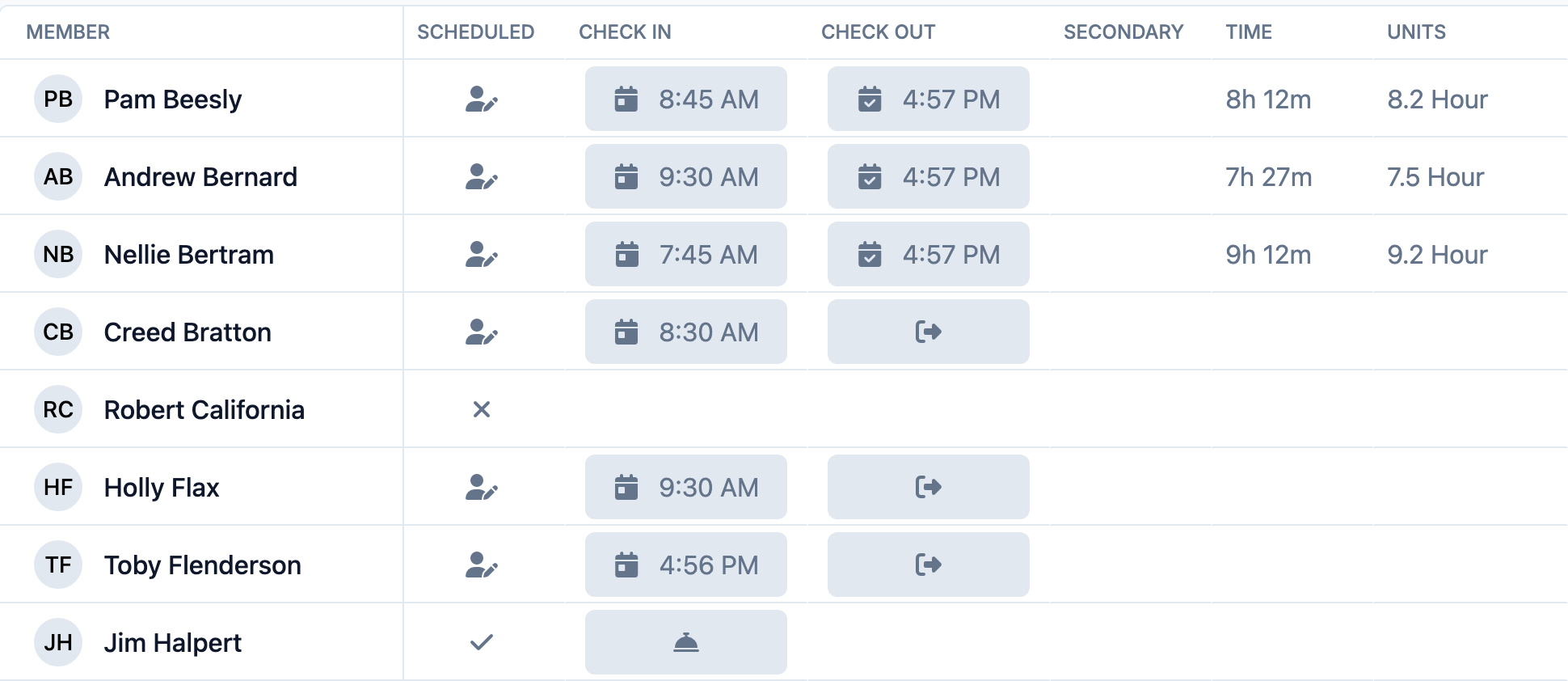
In the Check Out column, select the check-out button (the sign-out icon). The departure time is recorded at the current time.
Step 4: Confirm early check-out if prompted
If the member has not yet met the hours required by their benefit, a confirmation appears: "The member has not completed the required hours. Are you sure you want to checkout?" Select to confirm, or cancel and check out later.
Screenshot coming soon — Confirmation prompt for checking out before required hours
Step 5: Confirm the check-out and time
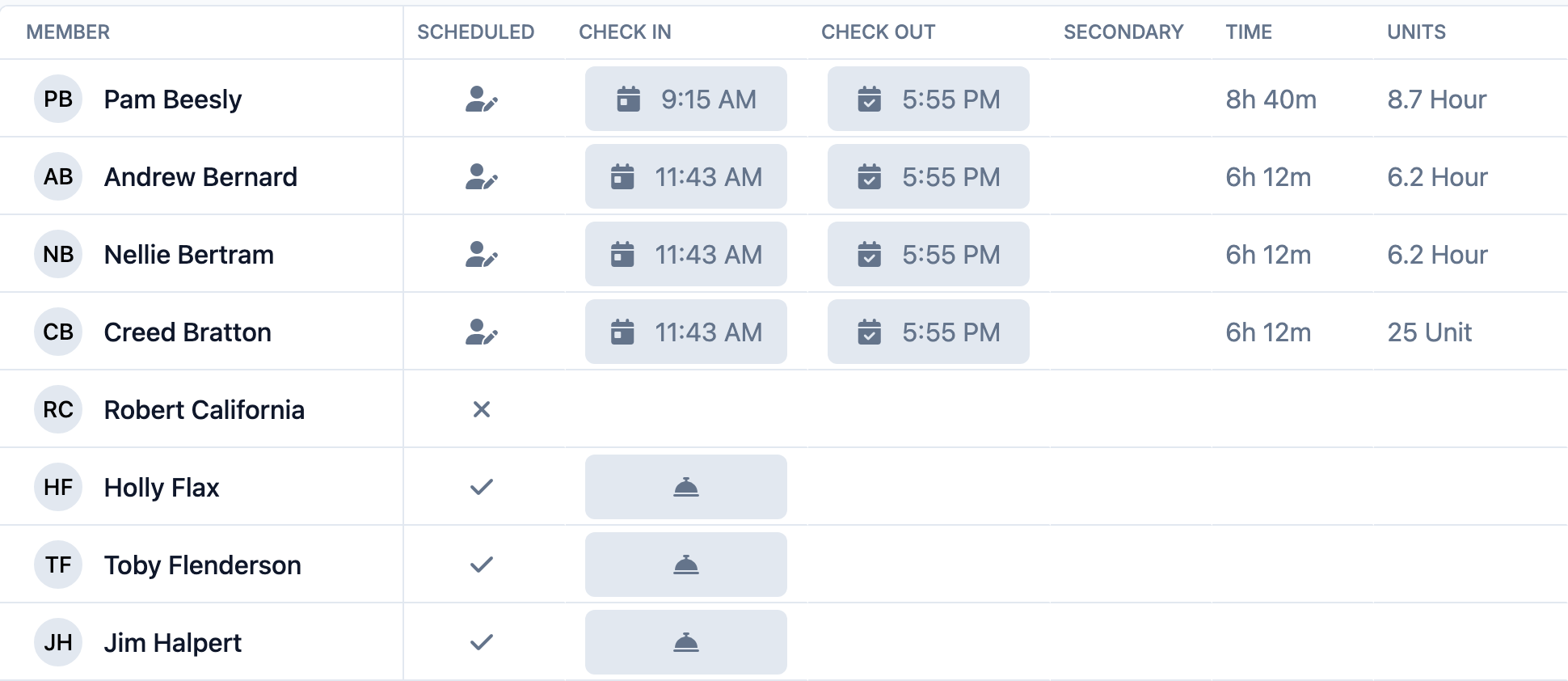
The Check Out column shows the departure time, the Time column shows the total time present as hours and minutes (for example, "4h 30m"), and the Active count drops while Checked Out rises. To adjust the time, select it to reopen the Select Time picker.
Tips
- The Time column is calculated from check-in to check-out; it stays blank until the member is checked out.
- To check out several members at once, use Batch Attendance from the action bar.
- Adjust the check-out time in the Select Time picker if the member left earlier than when you recorded it.
Troubleshooting
| Problem | Solution |
|---|---|
| There is no check-out button | The member must be checked in first. Record a check-in time, then check them out. |
| A confirmation about required hours appears | This means the visit is under the hours required by the member's benefit. Confirm to check out anyway, or wait until the required time is met. |
| The wrong check-out time was recorded | Select the time to reopen the Select Time picker and adjust it. |
| The Time column looks wrong | Check that both the check-in and check-out times are correct; the Time value recalculates when either changes. |
Related Articles
- understanding-the-attendance-page — Understanding the Attendance Page
- checking-a-member-in — Checking a Member In
- recording-a-cancellation — Recording a Cancellation
- changing-the-payor-benefit-type — Changing the Payor / Benefit Type