
Overview
When a member arrives, you check them in from the Attendance page. Checking in records the arrival time on the member's attendance record for the day and starts tracking their time at the center for billing.
Before You Begin
- You must be logged into Seniorverse with Care module access.
- You need the Care:Attendance permission (or Care:FullAccess) to record check-ins.
- The member must be scheduled for the day or already added to attendance. To add someone who is not scheduled, use Add Members first.
Steps
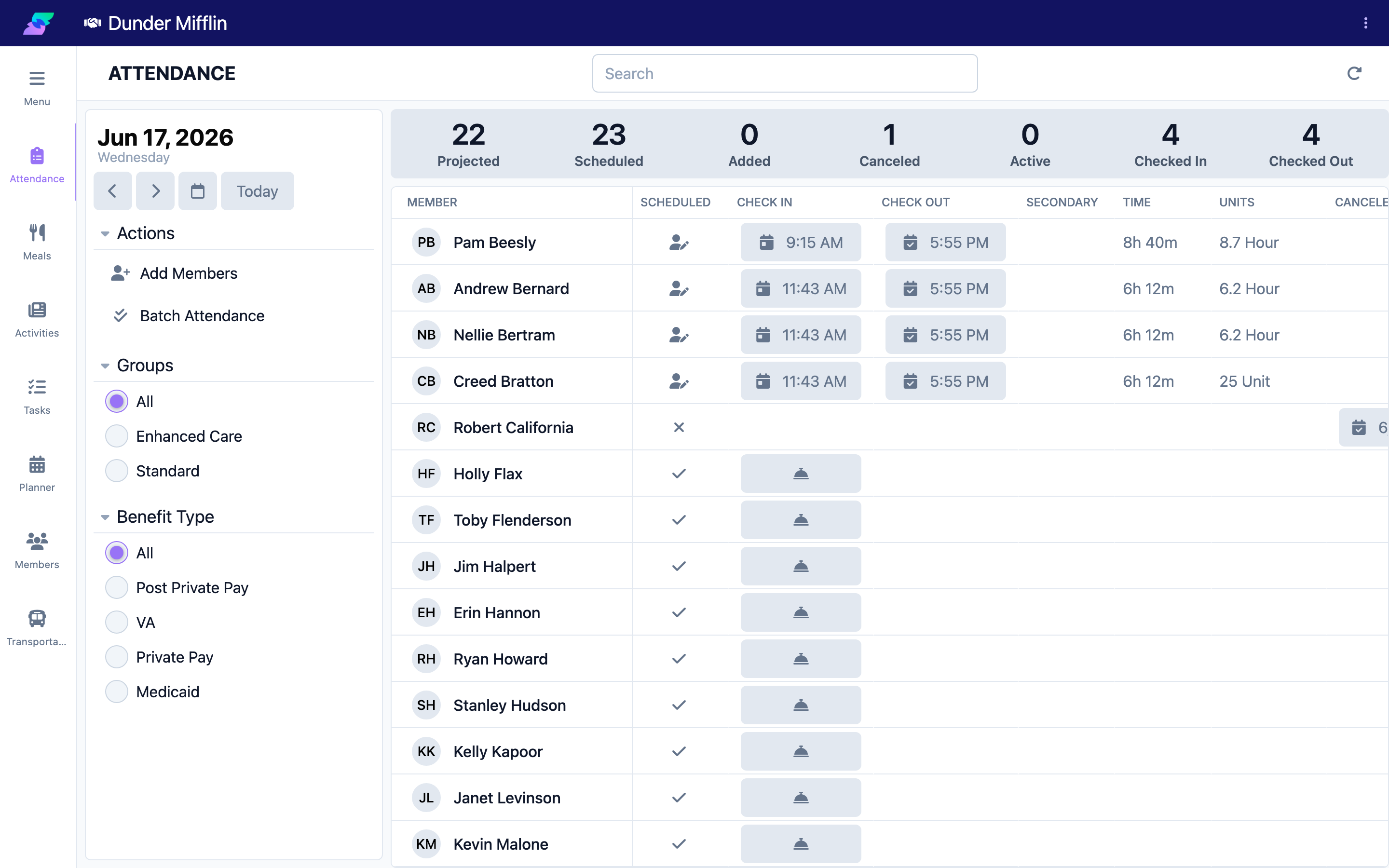
Step 1: Open the Attendance page and confirm the date
Select Care, then Attendance. Check that the date selector shows the correct day.
Step 2: Find the member
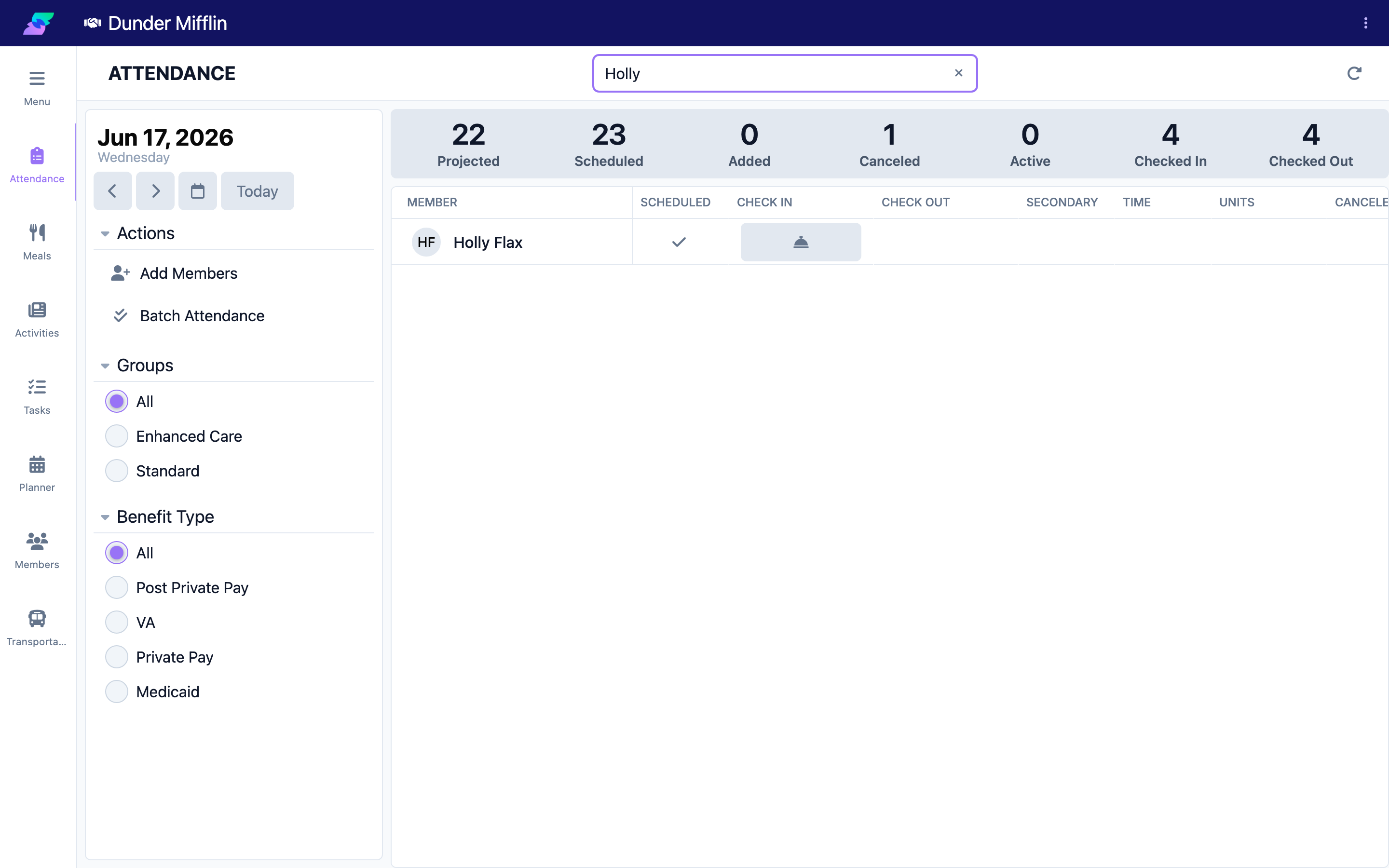
Scroll the list, type the member's name in the search box, or use the Groups or Benefit Type filters to narrow the list.
Step 3: Check the member in
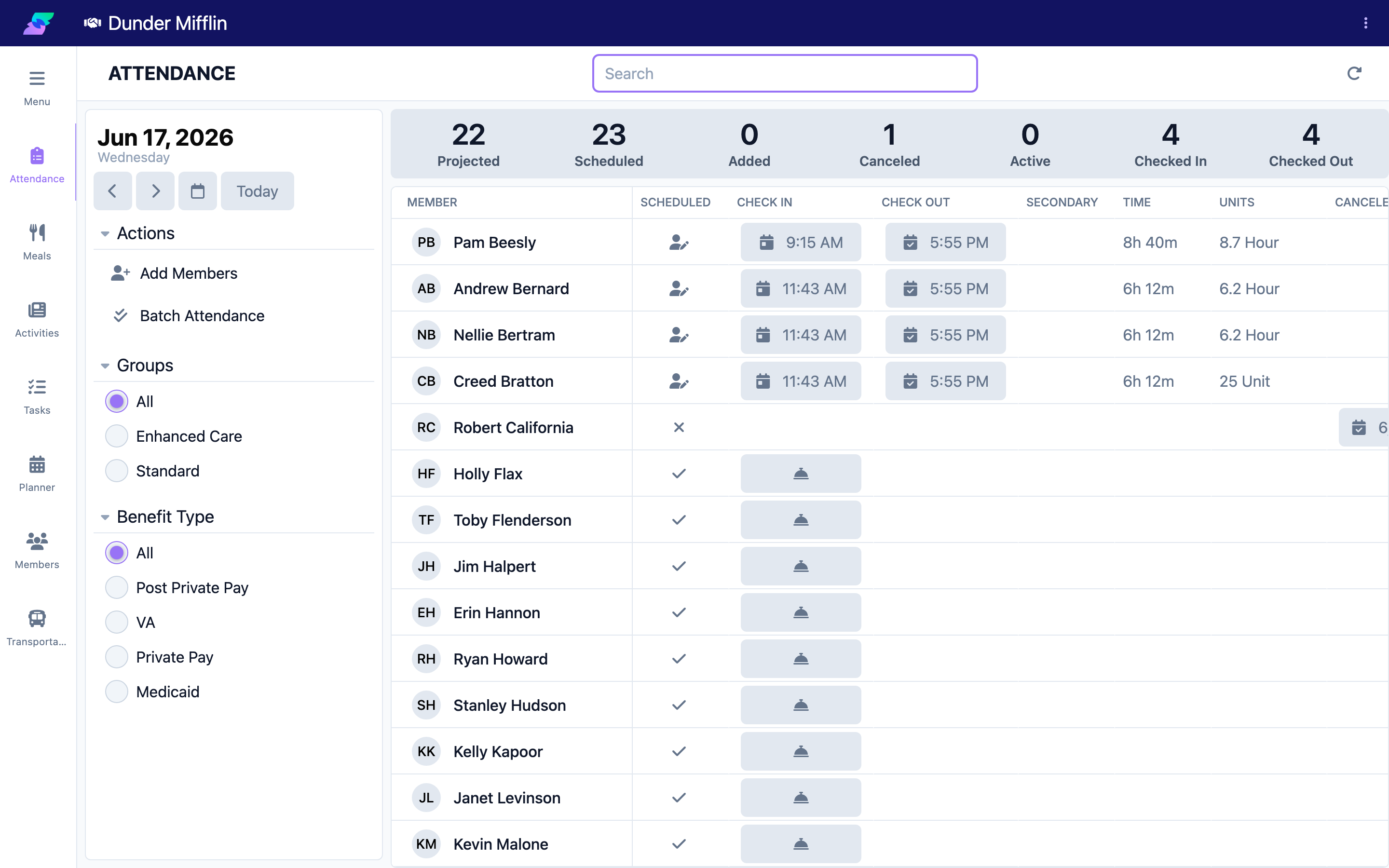
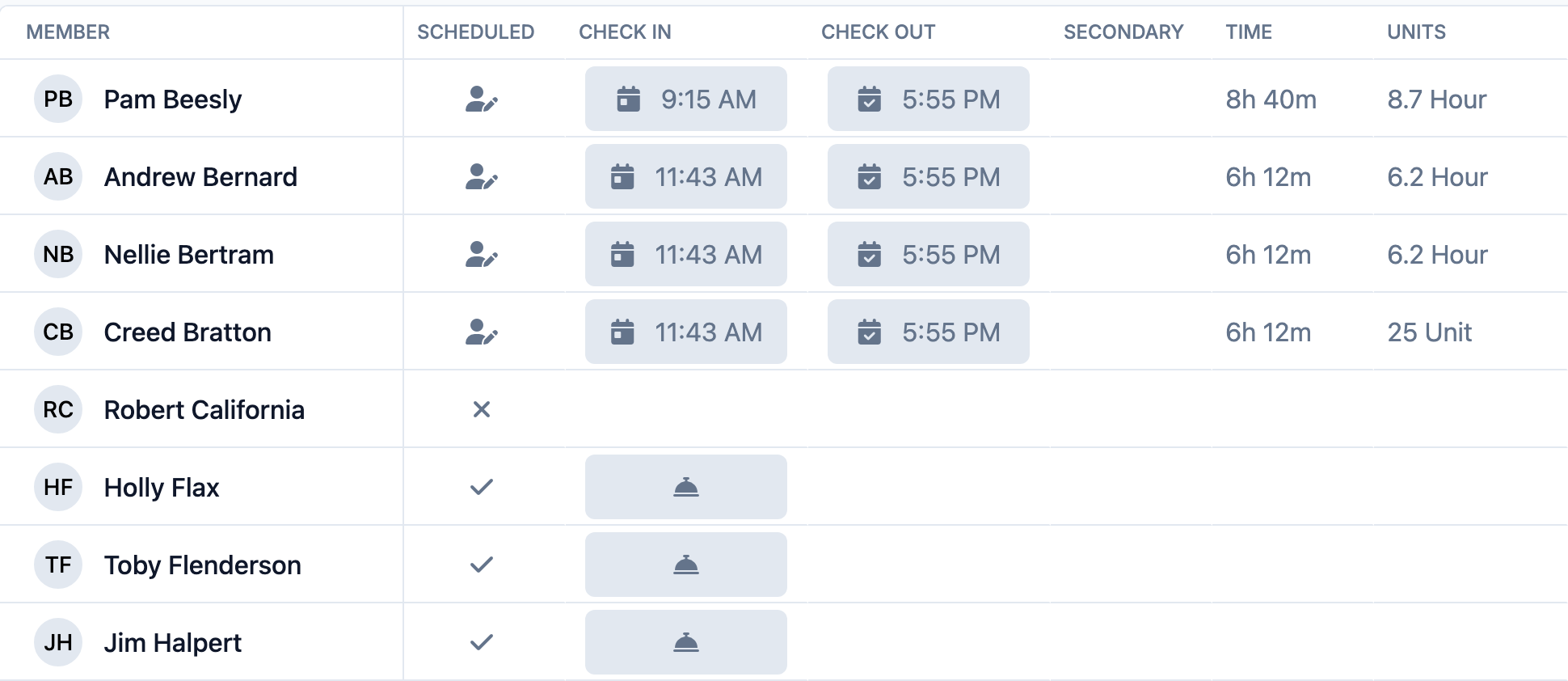
In the Check In column, select the check-in button (the bell icon). This records the check-in at the current time and marks the member present.
Step 4: Adjust the time if needed
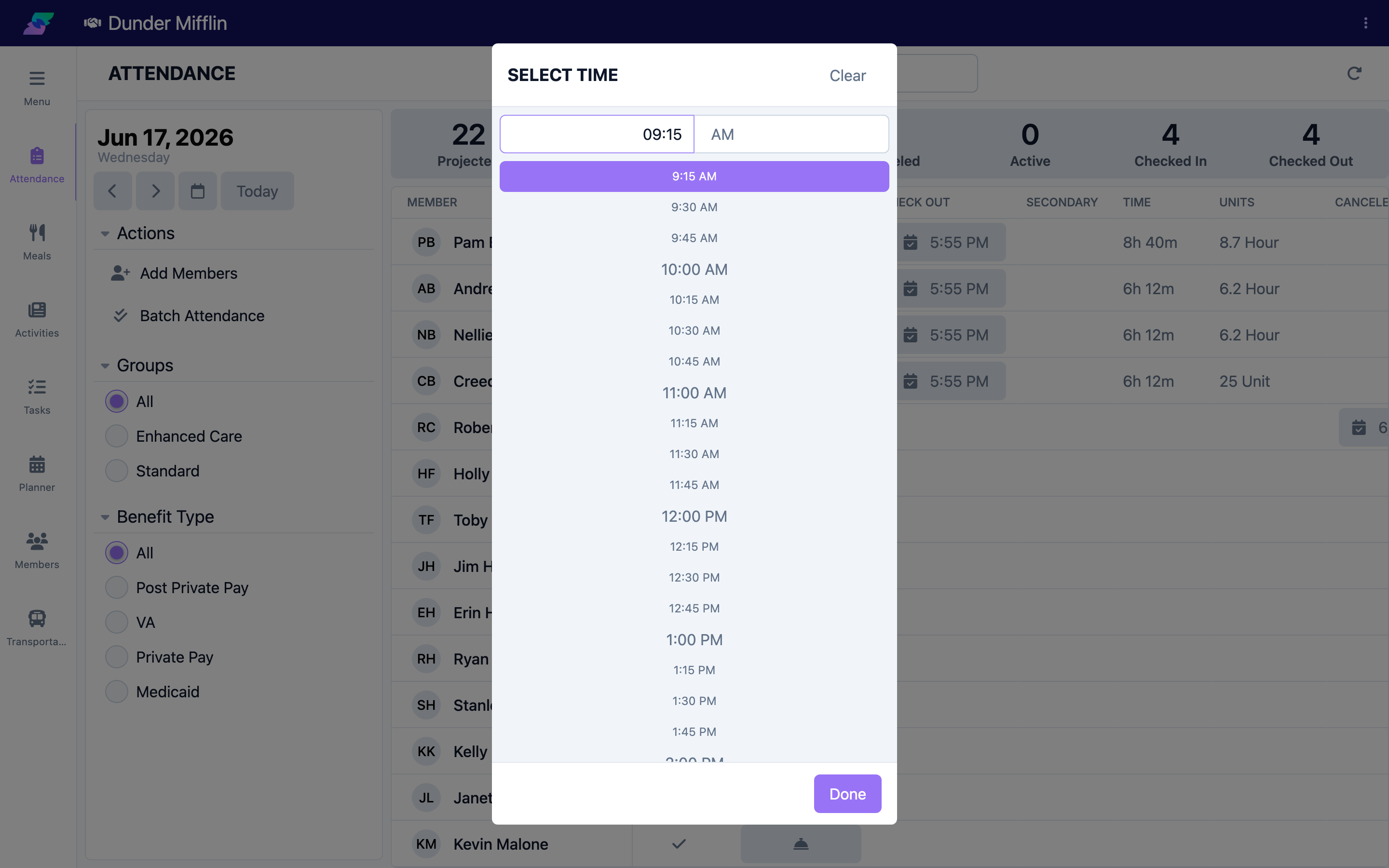
If the member arrived earlier, select the recorded time to open the Select Time picker, choose the correct time, and it saves automatically. To undo a check-in, clear the time in the picker.
Step 5: Confirm the check-in
The Check In column now shows the recorded time, and the Active and Checked In counts in the statistics bar increase.
Tips
- Checking a member in also clears any cancellation that was recorded for that day.
- To check in several members at once (for example, everyone arriving on one van), use Batch Attendance from the action bar.
- The Active count shows how many members are currently checked in but not yet checked out.
Troubleshooting
| Problem | Solution |
|---|---|
| The member is not in the list | Confirm the date. If the member is not scheduled, select Add Members to add them for the day, then check them in. |
| I do not see a check-in button | You may have view-only access. Ask your administrator for the Care:Attendance permission. |
| The wrong time was recorded | Select the time to reopen the Select Time picker and adjust it. Changes save automatically. |
| The Benefit column shows "Invalid" | The visit has no valid payor for the date. Select the Benefit field to choose one. |
Related Articles
- understanding-the-attendance-page — Understanding the Attendance Page
- checking-a-member-out — Checking a Member Out
- recording-a-cancellation — Recording a Cancellation
- adding-attendance-events — Adding Attendance Events