
Overview
Applying a credit memo distributes its amount across specific invoice lines, reducing each line's outstanding balance. You do this on the memo's Lines tab, either line by line or with Auto Apply. A memo must be fully applied before it can be posted, and posting locks it. Until you post, credit lines are fully editable — you can change or remove them freely. This article covers applying credit to lines, using Auto Apply, and posting to lock.
Before You Begin
- The credit memo must already exist. See Creating Credit Memos.
- The invoices attached to the memo must have lines with an outstanding balance.
- You need Billing access to the center.
Steps
Step 1: Open the memo's Lines tab
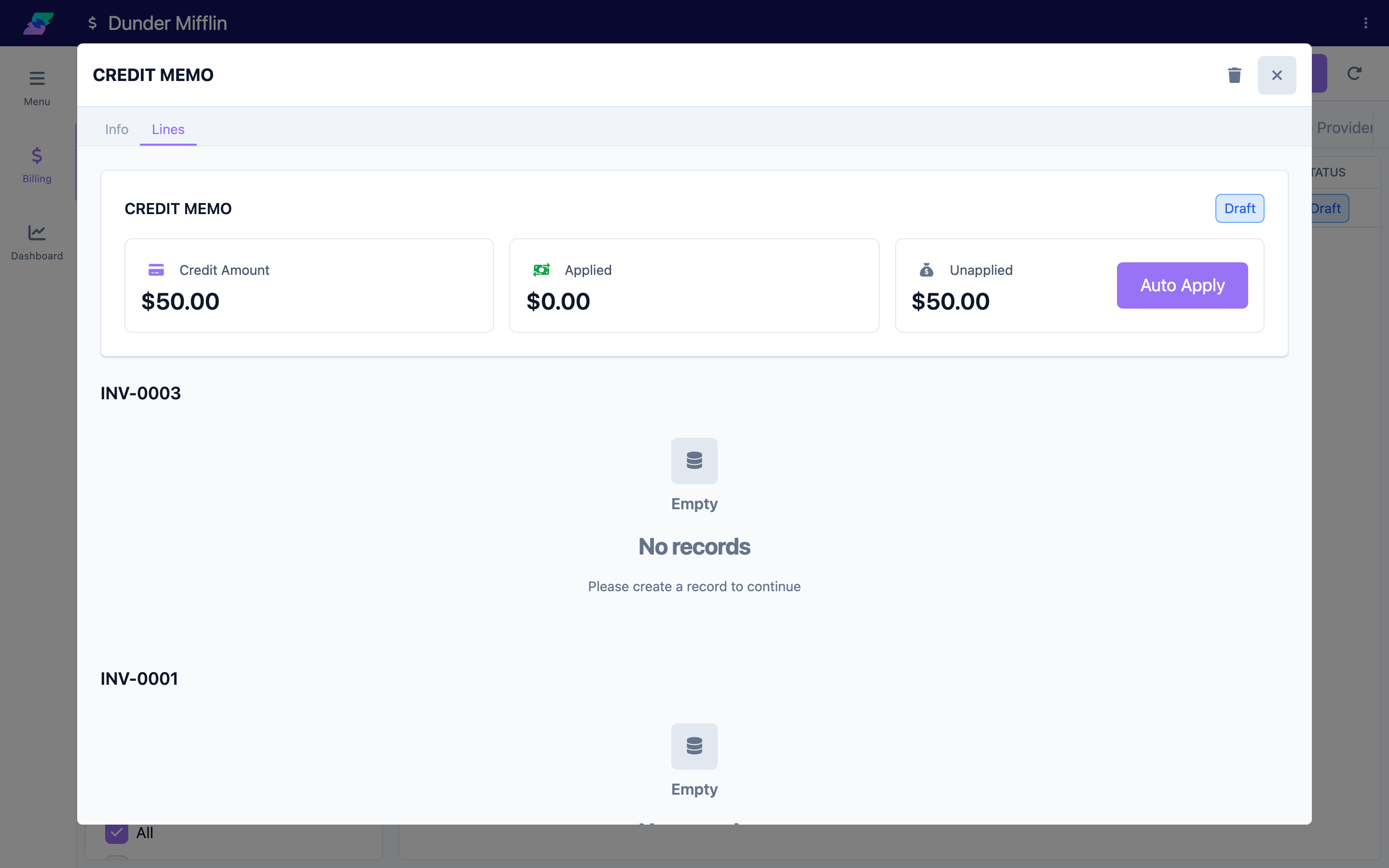
From the Billing module, open the Credit Memos tab and select the memo. In the memo window, choose the Lines tab. Each invoice attached to the memo is listed with its own line-item table.
Step 2: Review the credit summary
At the top of the Lines tab, the CREDIT MEMO card shows a status pill plus three figures:
- Credit Amount — the total memo amount.
- Applied — how much is currently applied to lines.
- Unapplied — the amount still available to apply.

Step 3: Apply credit to invoice lines
In each invoice's line table, enter the credit amount for the lines you want to reduce. The amount you apply to a line is capped at that line's outstanding balance and at the memo's unapplied amount. As you apply credit, the Applied and Unapplied figures update automatically.
Screenshot coming soon — Invoice line table with a credit amount applied to a line
Step 4: Use Auto Apply (optional)
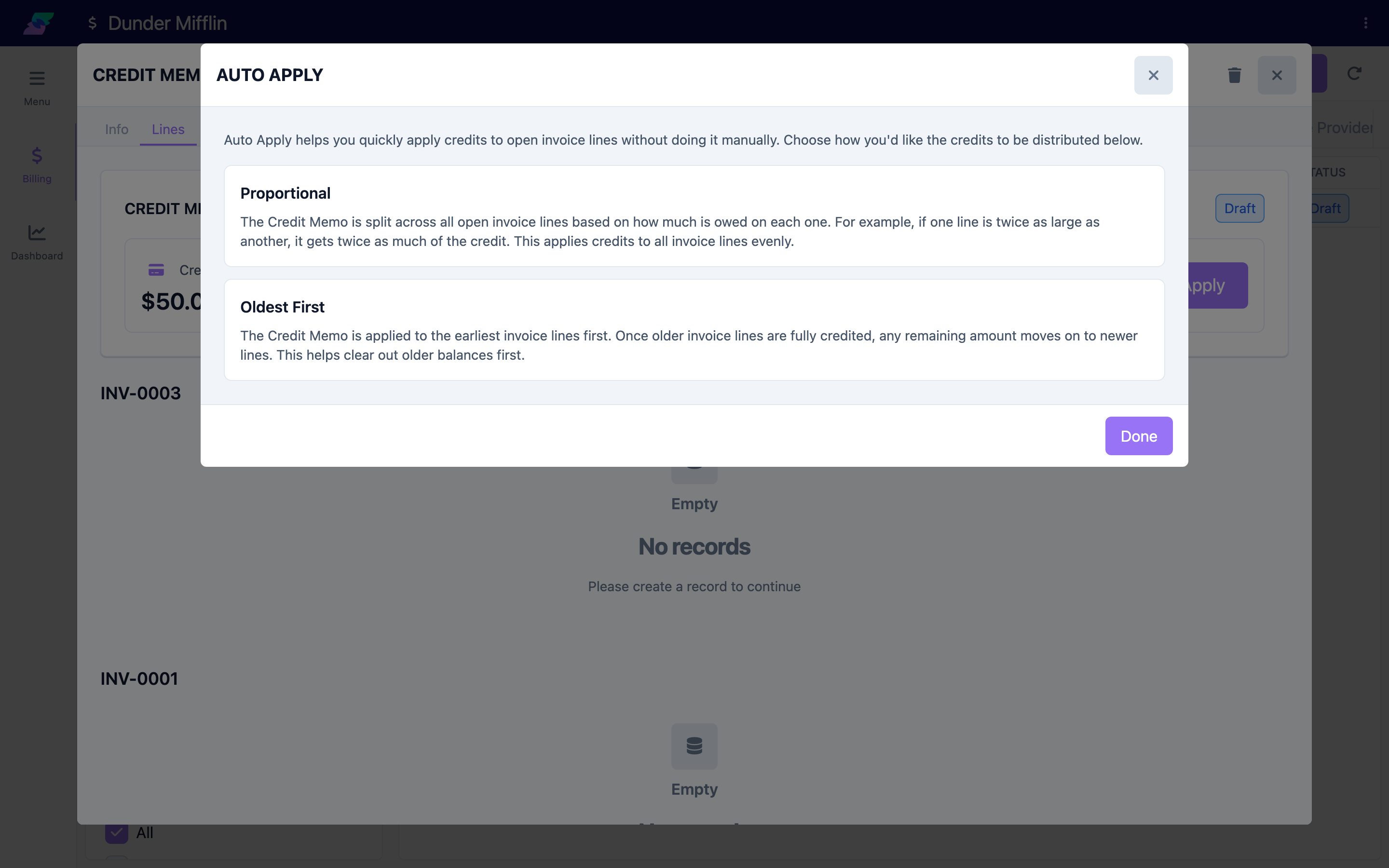
While the memo is unposted and not fully applied, an Auto Apply button appears on the Unapplied figure. Click it to open the Auto Apply window, then choose a method:
- Proportional — splits the credit across all open lines based on how much each one owes, reducing every line evenly.
- Oldest First — applies the credit to the earliest invoice lines first, then moves to newer lines once older ones are fully credited.
Auto Apply clears any existing credit lines first and then distributes the credit using the method you pick.
Step 5: Post the memo to lock it
Once the credit is fully applied, the memo's status becomes Applied. If you used Auto Apply and it fully applied the credit, you are prompted right away: "The credit memo is now fully allocated. Would you like to post this credit memo?" Otherwise, use the Post Credit Memo button. Confirm the post — "Once posted, you won't be able to make any changes." — and the memo becomes Posted and locks.
Screenshot coming soon — Post Credit Memo confirmation after full application
Step 6: Adjust credit lines before posting
Credit lines are not permanent until you post. While the memo is Draft or Applied (unposted), you can change a line's amount or remove it entirely, or run Auto Apply again to redistribute everything. There is no separate "reverse" step for credit lines — you simply edit or remove them. Only after the memo is Posted are the lines locked.
Screenshot coming soon — Editing or removing a credit line on an unposted memo
Tips
- Applying credit works at the line level, so you can reduce one line and leave another untouched on the same invoice.
- A memo cannot be posted until it is fully applied. If an invoice needs to be finalized, its related credit memos must be Posted first.
- If the applied total exceeds what a line or the memo allows, an error appears: "One or more credits exceed the allowed amount. Please review and adjust each line to stay within the available balance." Lower the amount to clear it.
Troubleshooting
| Problem | Solution |
|---|---|
| The Lines tab shows "No invoice lines to credit" | The memo's invoices have no creditable lines, or no invoices are attached. Confirm the invoices and their outstanding balances on the Info tab. |
| The Auto Apply button doesn't appear | It only shows while the memo is unposted, not fully applied, and not voided. |
| My credit amount snaps to a smaller number | Entries are capped to the line's outstanding balance and the memo's unapplied amount. You cannot over-apply. |
| I applied credit to the wrong line | While the memo is unposted, change the line's amount or remove it, or run Auto Apply again. No reversal step is needed. |
| I need to change a posted memo | Posted memos are locked. Void the memo and create a new one to correct it. |
Related Articles
- creating-credit-memos — Creating Credit Memos
- recording-a-payment — Recording a Payment
- allocating-payments-to-invoices — Allocating Payments to Invoices
- finalizing-an-invoice — Finalizing an Invoice
- viewing-and-editing-invoices — Viewing and Editing Invoices