
Overview
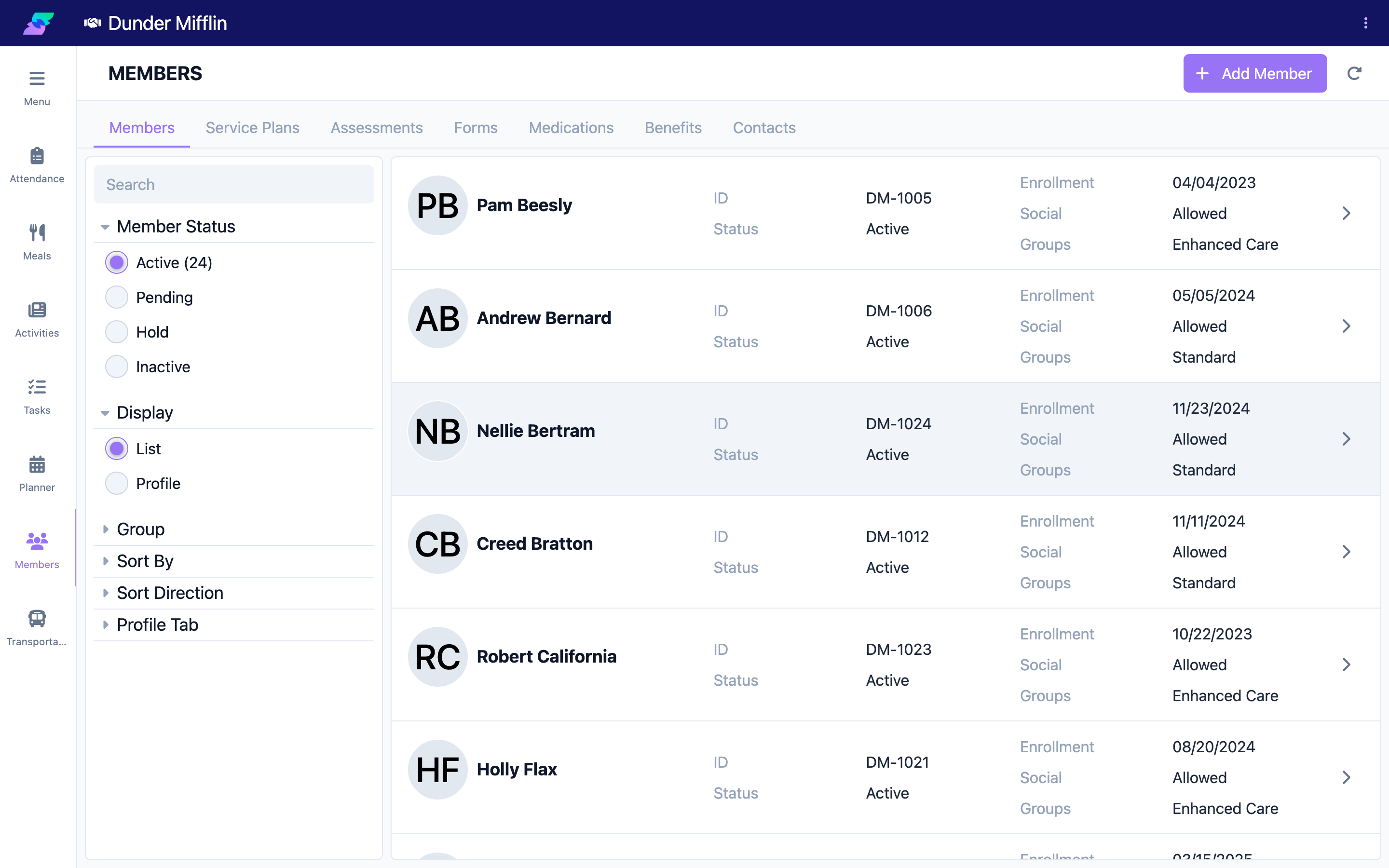
The Members page lists everyone enrolled at your center. You can search by name, filter by status or group, sort the list, and open any member's profile. This article shows you how to find a member quickly.
Before You Begin
- You must be logged in with access to the Care module.
- You need permission to view member records.
Steps
Step 1: Open the Members page
- Select Care from the main navigation.
- Select Members from the sidebar. The page lists your center's members.
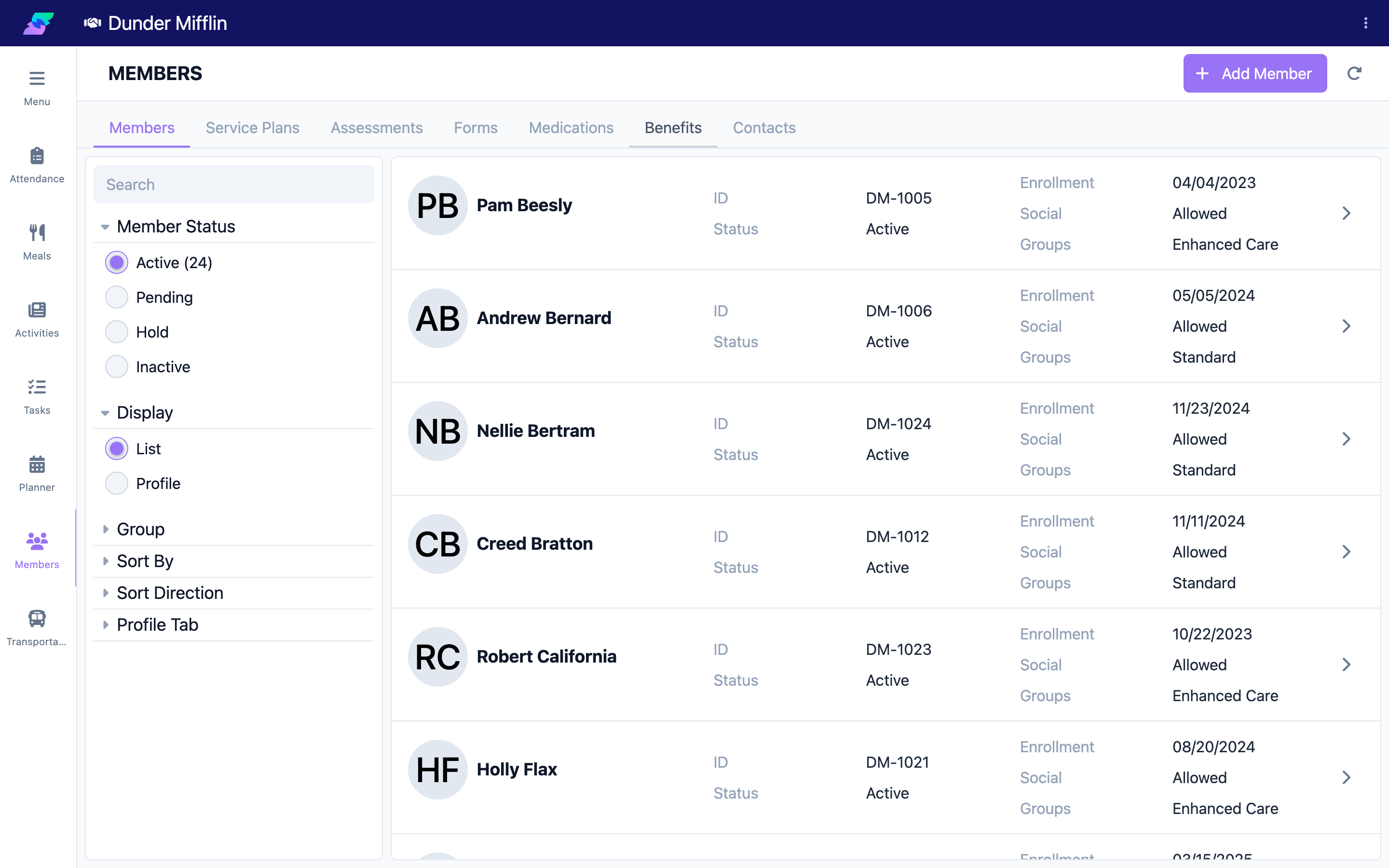
Step 2: Search by name
- Type a first name, last name, or partial name in the search box.
- The list filters as you type. Select the × in the search box to clear it.
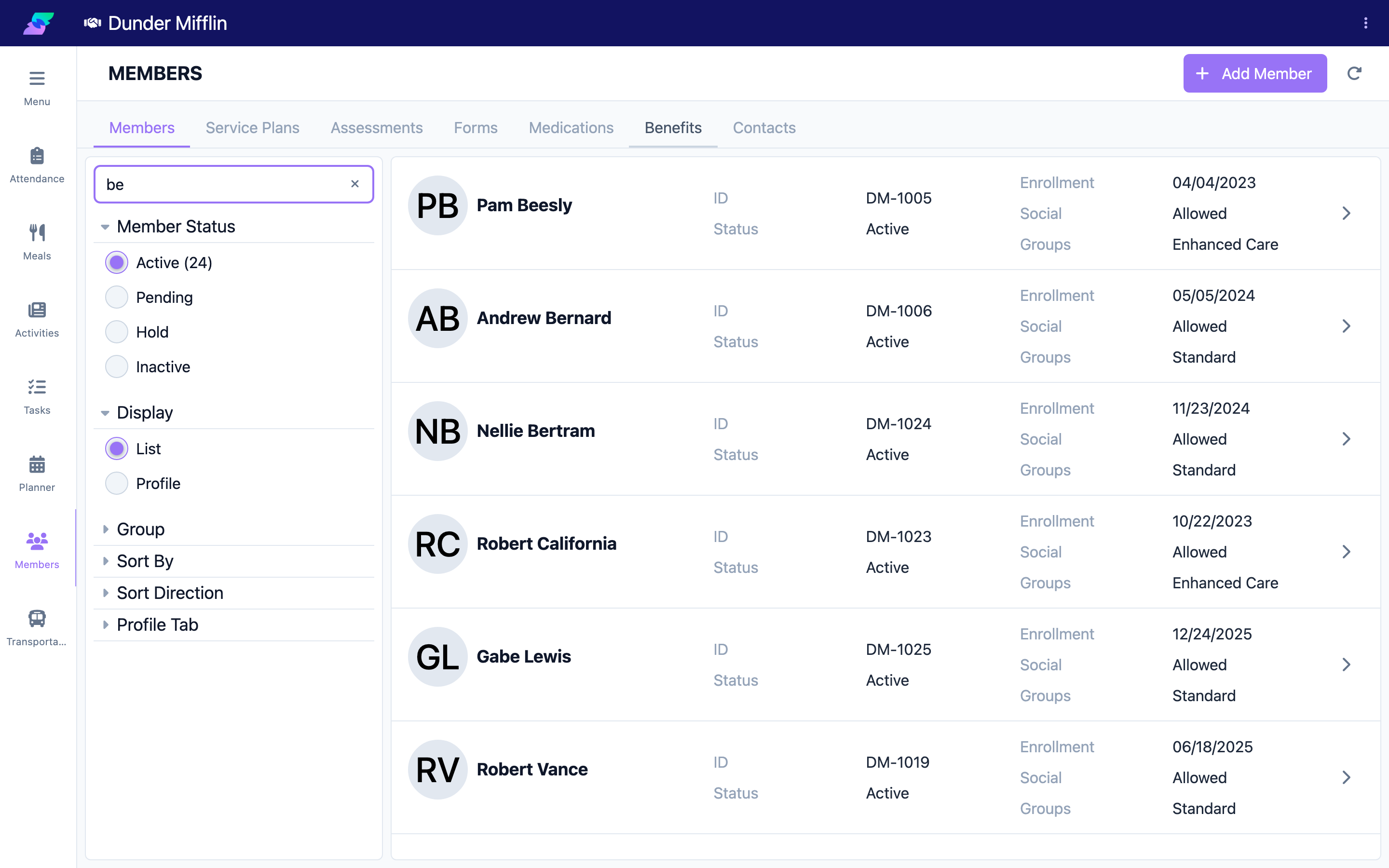
Step 3: Filter by status
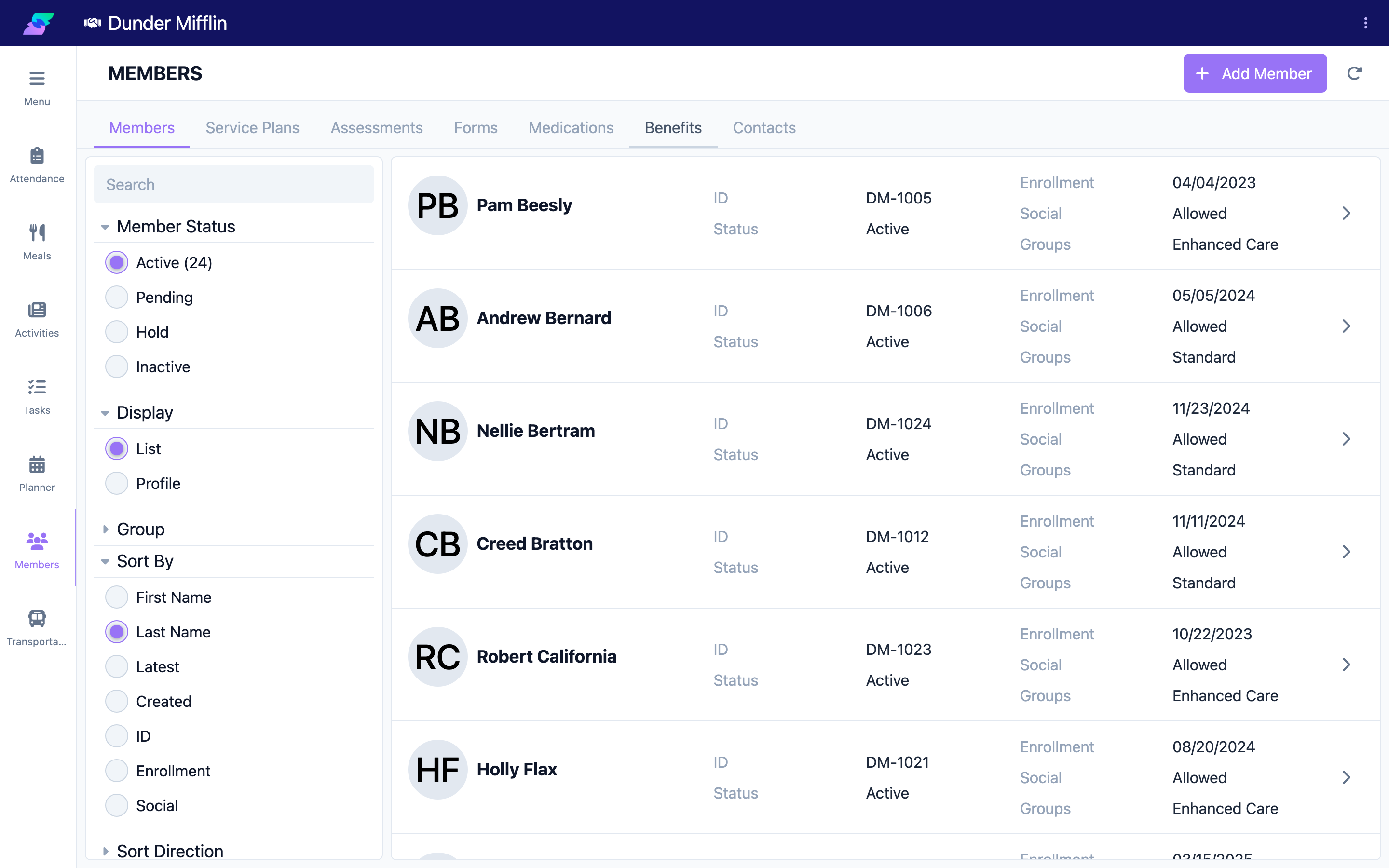
In the left panel, use the Member Status options to narrow the list to one status at a time: Active, Pending, Hold, or Inactive. There is no combined "All" option — pick the status you want to see.
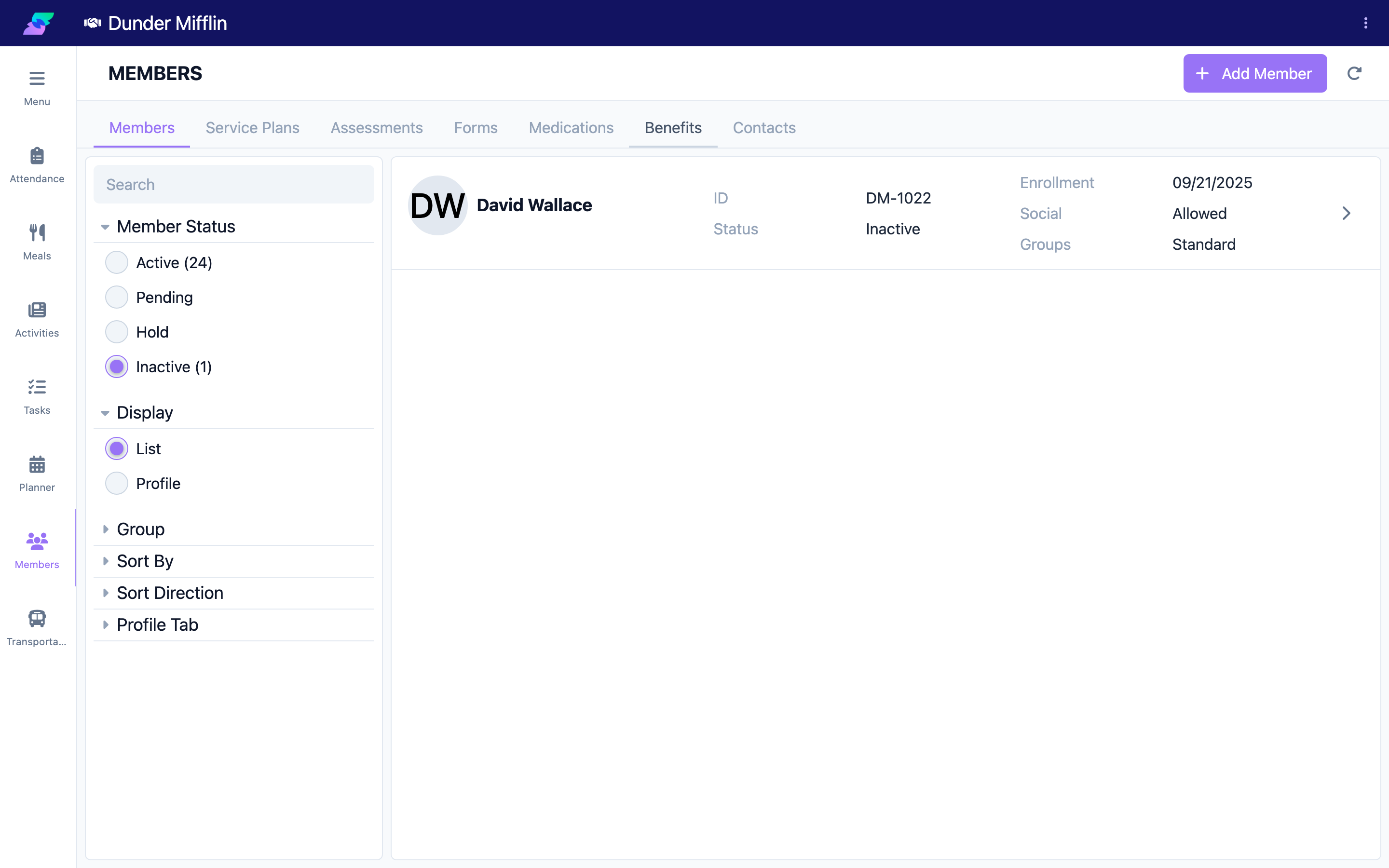
Step 4: Filter by group
If your center uses groups, expand Group in the left panel and select All or a single group to narrow the list.
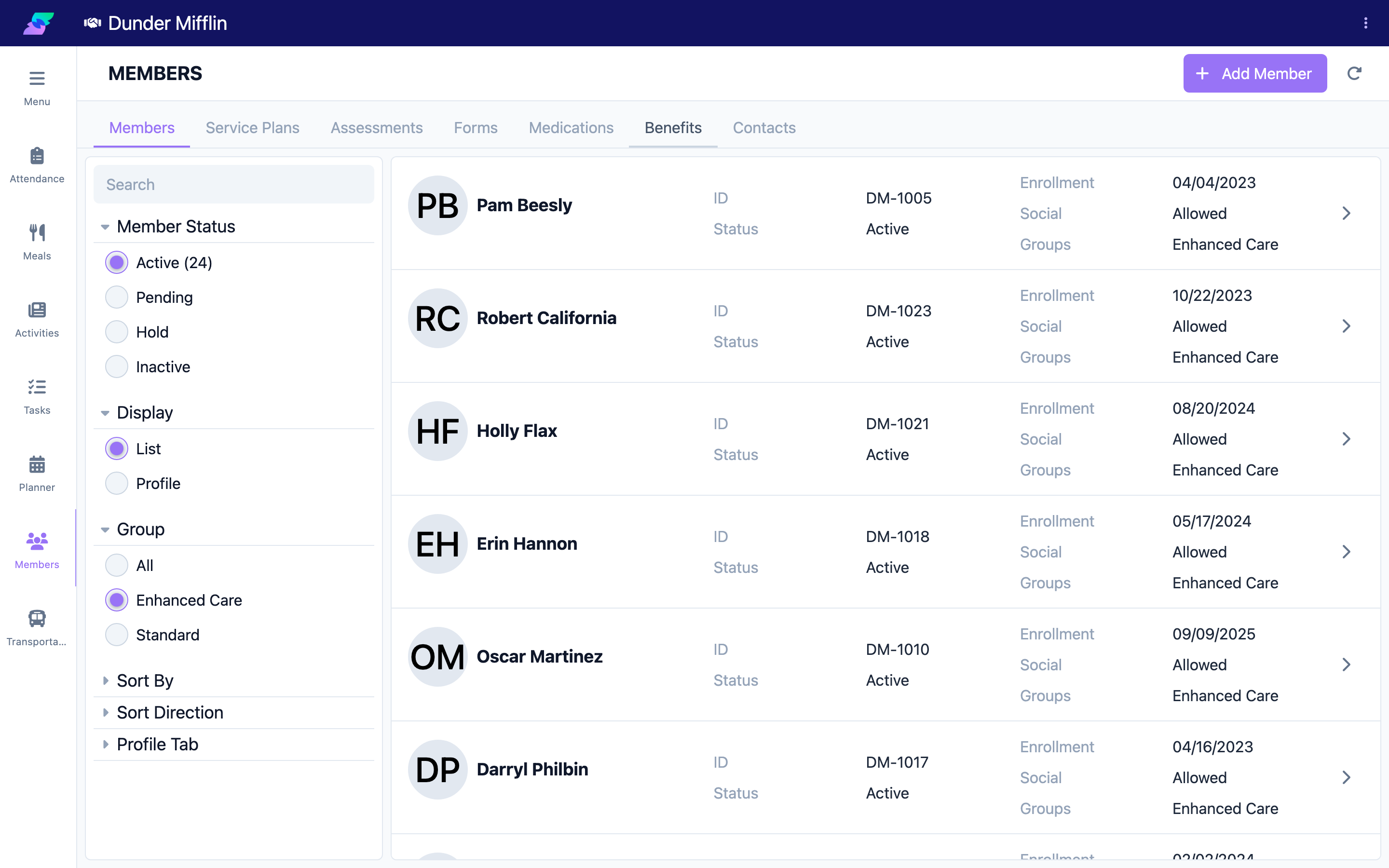
Step 5: Sort the list
Expand Sort By and choose an option: First Name, Last Name, Latest, Created, ID, Enrollment, or Social. Expand Sort Direction to switch between Ascending and Descending.
Step 6: Open a member's profile
Select a member's name or card to open their profile.
Tips
- Combine search with filters to cut down large lists fast.
- A member you cannot find may be filtered out. Since Member Status is one-at-a-time with no "All", try each status (Active, Pending, Hold, Inactive) in turn.
- Search accepts partial names — the first few letters are enough to start filtering.
- Sort by Enrollment when you are reviewing who is currently active.
Troubleshooting
| Problem | Solution |
|---|---|
| A member I know is enrolled does not appear | Try each Member Status option in turn — the member may not be Active. Also check the Group filter is set to All. |
| Search returns no results | Clear the search box, then try just the first or last name. If the member was just added, refresh the page. |
| I cannot see the filters | On small screens, filters may collapse into a menu — look for a filter or sort control. |
| The order looks wrong | Open Sort By and pick a different option; the list re-sorts immediately. |