
Overview
The Notes tab lets you record observations and important information about a member. Each note is timestamped and attributed to the staff member who wrote it, creating a running history the whole team can rely on. Notes are for general observations — clinical documentation belongs in Nurse Notes.
Before You Begin
- You must be logged in with permission to view and edit member notes.
- You can always edit your own notes. Editing notes written by other users requires the Notes Admin permission.
Steps
Step 1: Open the Notes tab
- Open the member and select the Profile group.
- Select the Notes tab. Existing notes appear here with their timestamps.
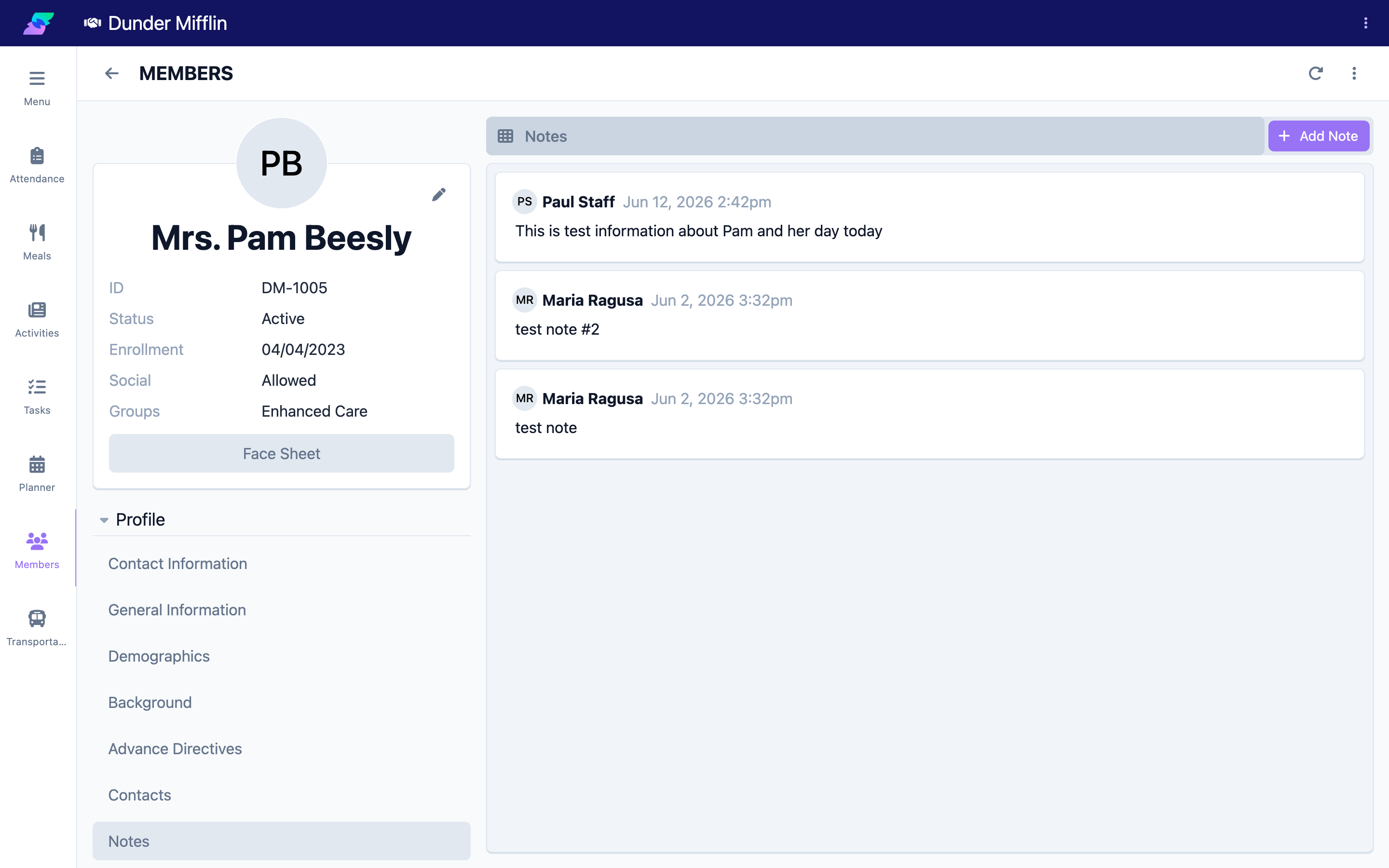
Step 2: Add a note
Select Add Note to open the note form.
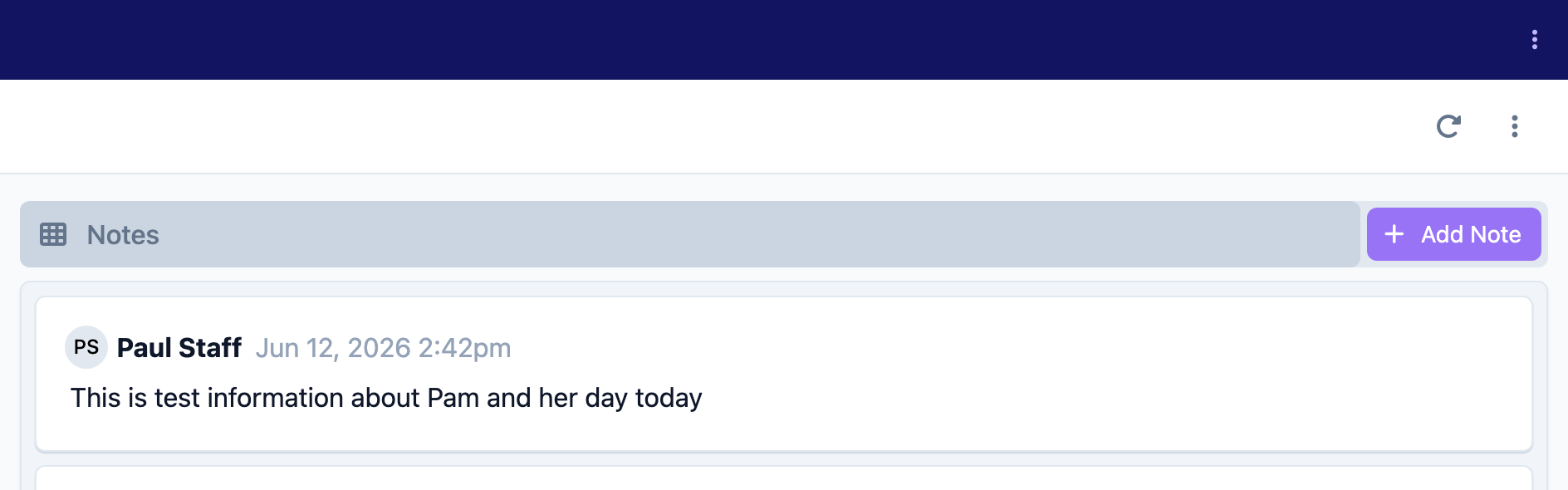
Step 3: Enter the note and date & time
Type your observation in the content field. Adjust the Date & Time if the note should be dated to when the event actually happened.
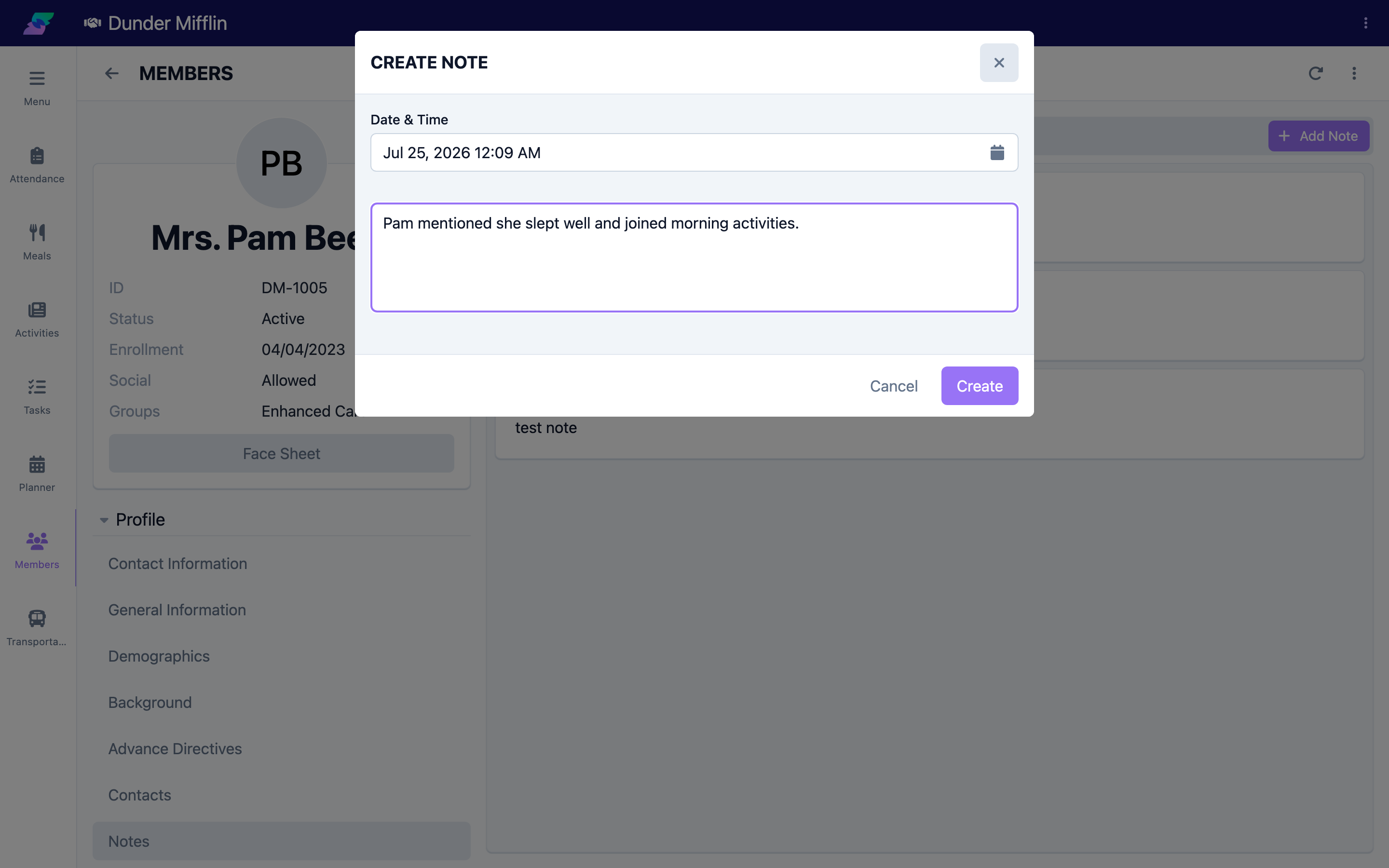
Step 4: Save the note
Select Create. The note appears in the list with your name and its timestamp.
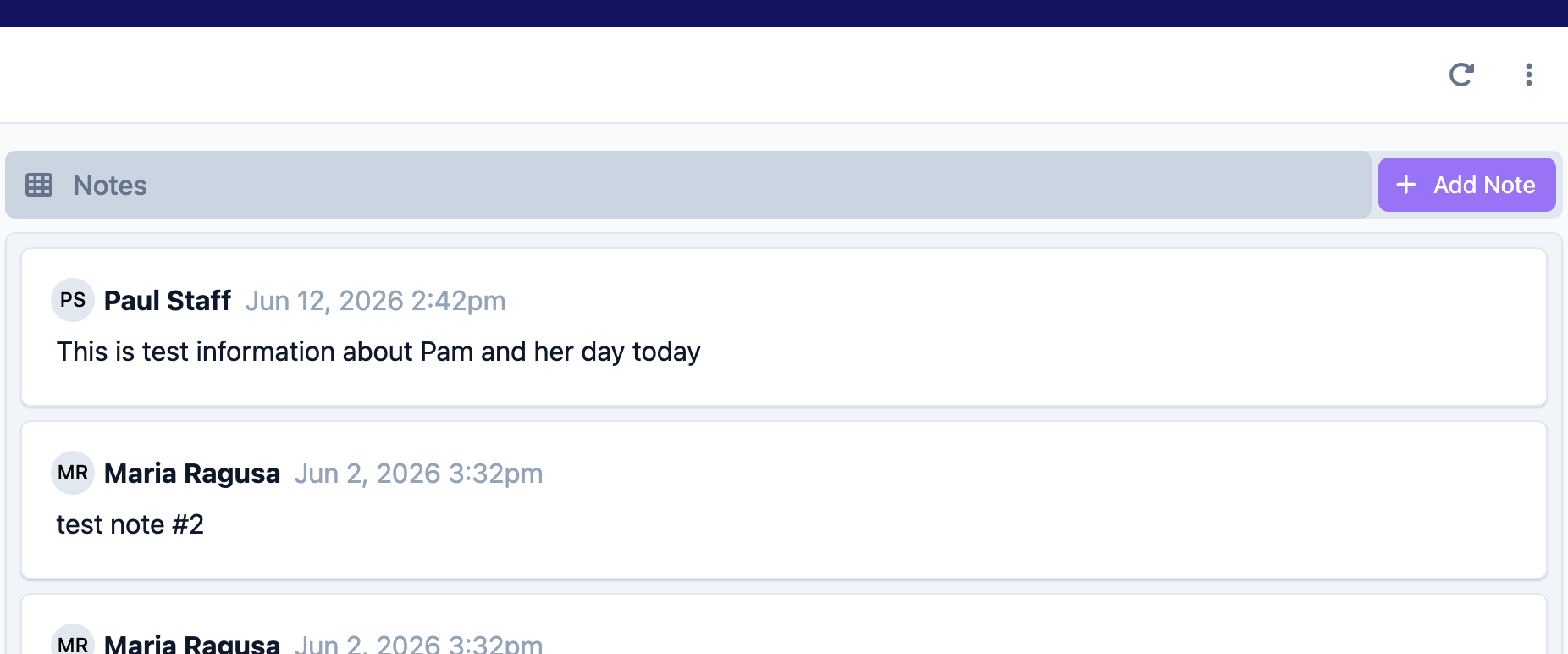
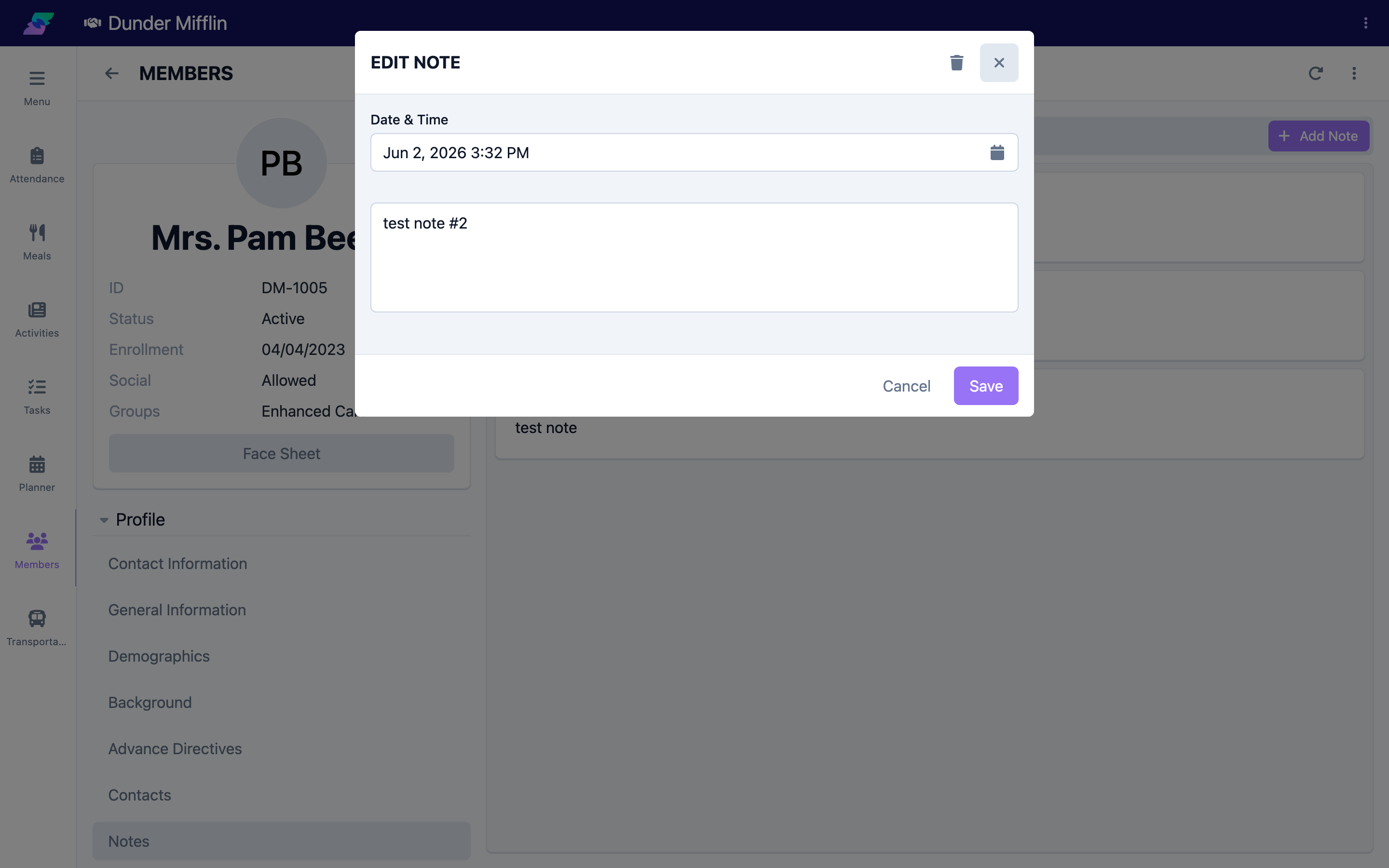
Step 5: Edit a note
Reopen your note to update it. Editing a note created by another user requires the Notes Admin permission; you can always edit your own.
Tips
- Write for the next reader. Include enough detail that a colleague understands the situation without asking.
- Set the Date & Time to the event. This keeps the note history meaningful even if you enter it later.
- Use Nurse Notes for clinical documentation. Keep the Notes tab for general, non-clinical observations.
- Review recent notes before adding a new one to avoid duplicates.
Troubleshooting
| Problem | Solution |
|---|---|
| The Add Note button is missing | Confirm your role has permission to edit member notes. |
| The note did not save | Check your connection and try again; copy your text first so you do not lose it. |
| I cannot edit someone else's note | Editing others' notes requires the Notes Admin permission. You can always edit your own. |