
Overview
Seniorverse is organized into separate modules, one for each area of your center's work. This article shows you how to move around: how to open a module, use the sidebar to reach its pages, switch between modules, and get to your account menu. Once you know the layout, you can find any feature in a few clicks.
The modules and pages you can see depend on your permissions, so your screens may show fewer options than the examples here.
Before You Begin
- You must be signed in to Seniorverse.
- The modules and menu items you see are controlled by the permissions your administrator has given you.
Steps
Step 1: Open the center Menu (your home base)
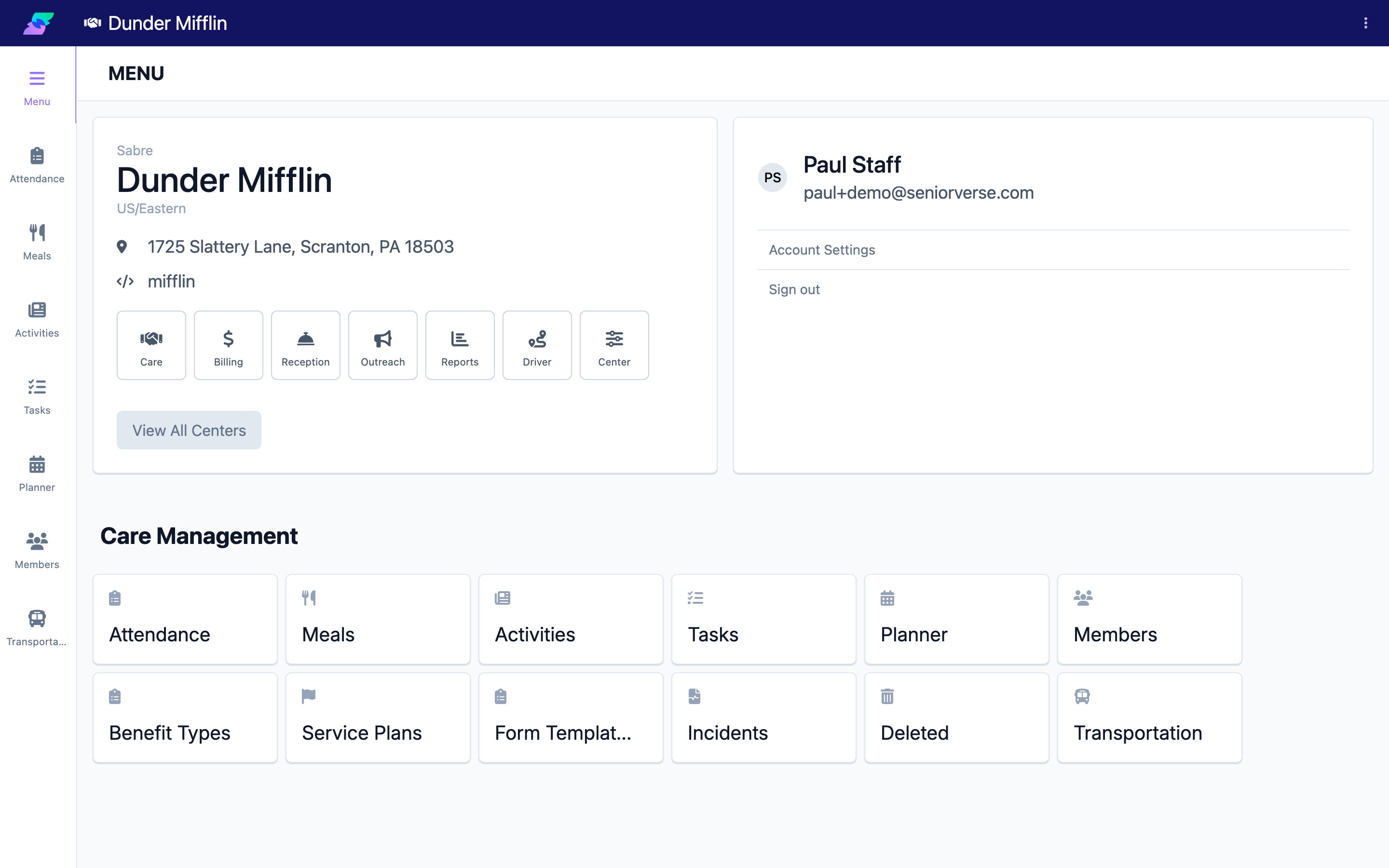
After you sign in and select a center, the center Menu page is your starting point. It shows two things: a card with the modules you have access to, and your profile card (your name, with Account Settings and Sign out options).
You can return to this page at any time by selecting Menu at the top of any module's sidebar.
Step 2: Open (or switch) a module
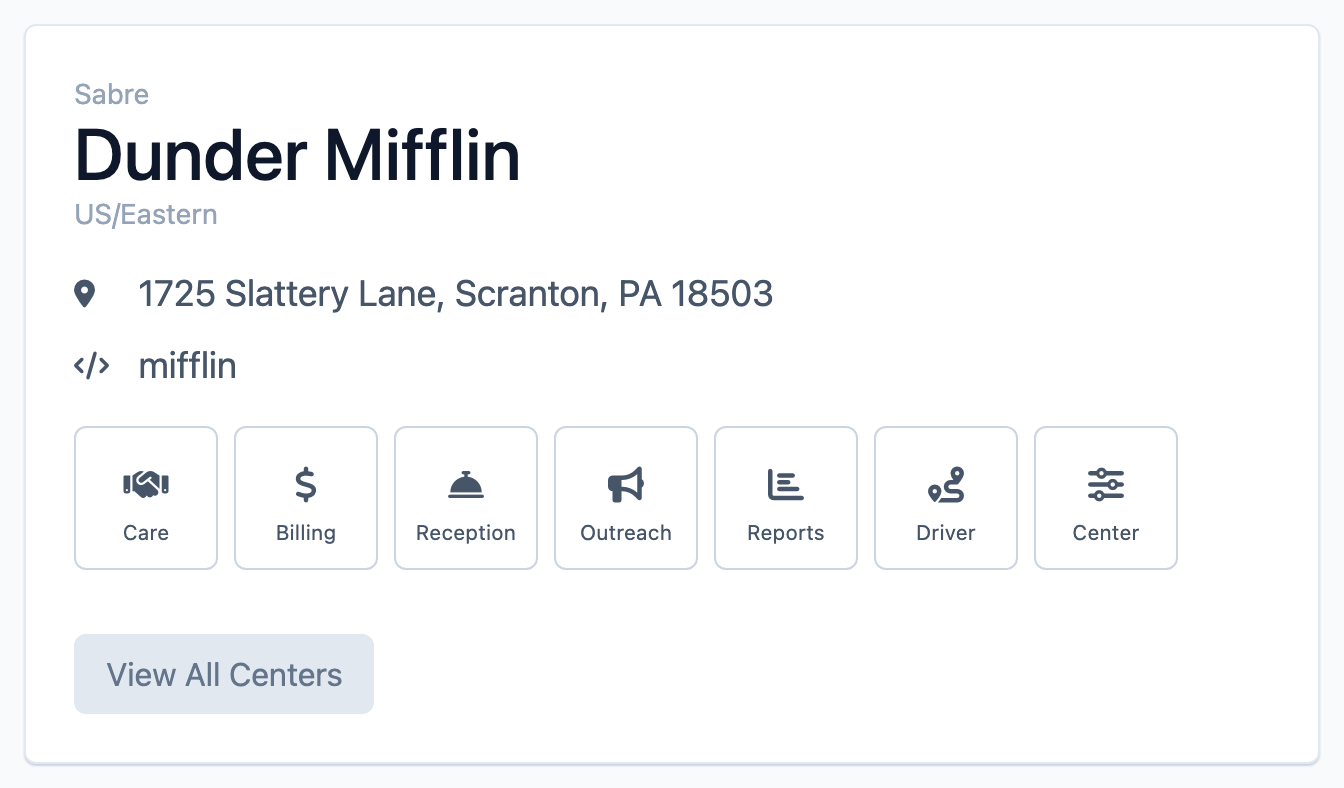
From the module card, select the module you want to work in. To switch modules later, come back to this card and choose another. Depending on your access and your center's setup, you may see:
| Module | Icon | What it is for |
|---|---|---|
| Care | Handshake | Daily care: attendance, meals, activities, tasks, members |
| Billing | Dollar sign | Invoices, payments, payors, and billing setup |
| Reception | Concierge bell | Fast, focused member check-in and check-out |
| Reports | Bar chart | Reports and data exports |
| Driver | Route pin | Transportation routes and driver assignments |
| Center | Sliders | Center settings: users and configuration |
Only the modules you have permission to use appear on the card. Reception and Billing also depend on whether your center has those features turned on.
Step 3: Use the sidebar to reach pages
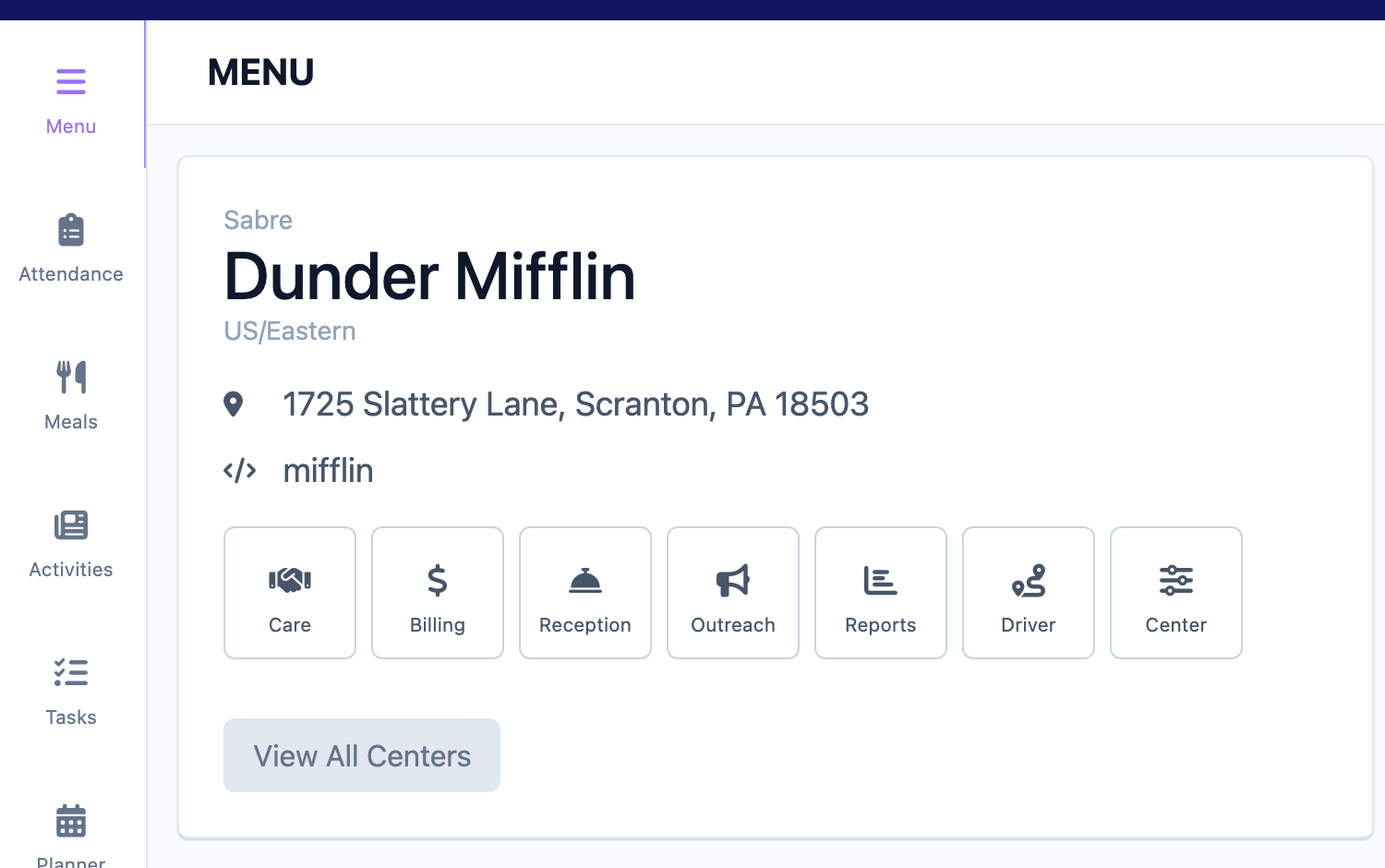
Once you are inside a module, the sidebar lists the pages within that module. Select any item to open that page. The first item, Menu, takes you back to the center Menu page.
For example, the Care sidebar shows these pages (items you lack permission for are hidden):
- Menu
- Attendance
- Meals
- Activities
- Tasks
- Planner
- Members
- Transportation
Some Care pages are not on the sidebar — Benefit Types, Service Plans, Form Templates, Incidents, and Deleted. Open those from the Care Management grid on the Menu page (see Step 4).
The Center sidebar shows: Menu, Users, Connect Users, and Setup.
Step 4: Reach every page from the Care Management grid
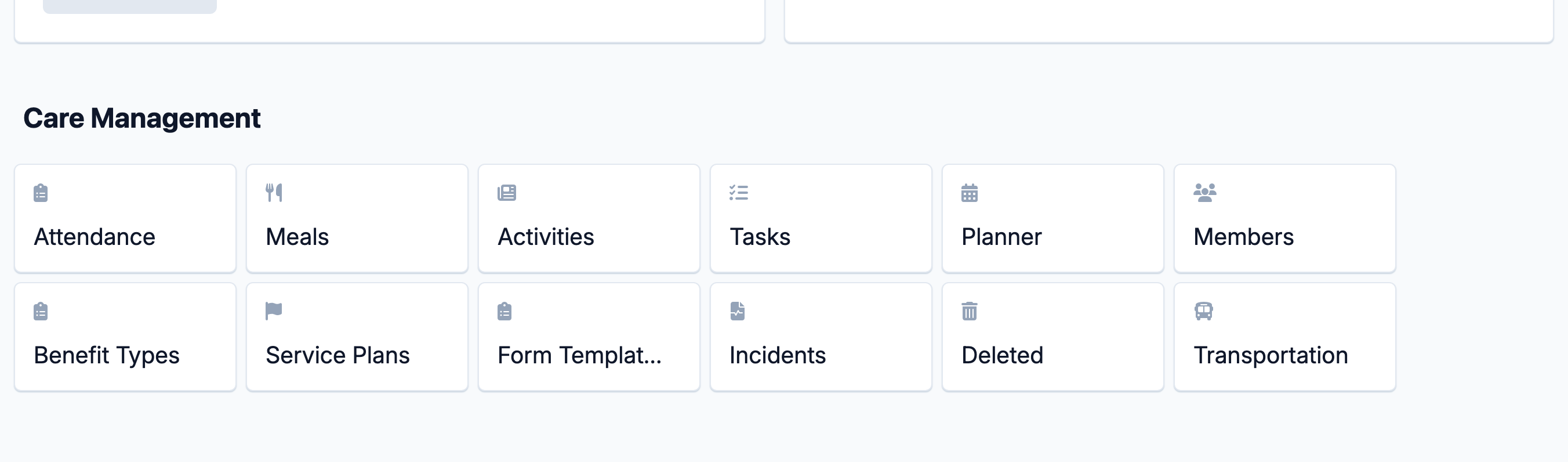
The Menu page also has a Care Management grid with a tile for every Care page — including the ones that are not on the sidebar (Benefit Types, Service Plans, Form Templates, Incidents, and Deleted). Select a tile to open that page.
Step 5: Reach your account menu
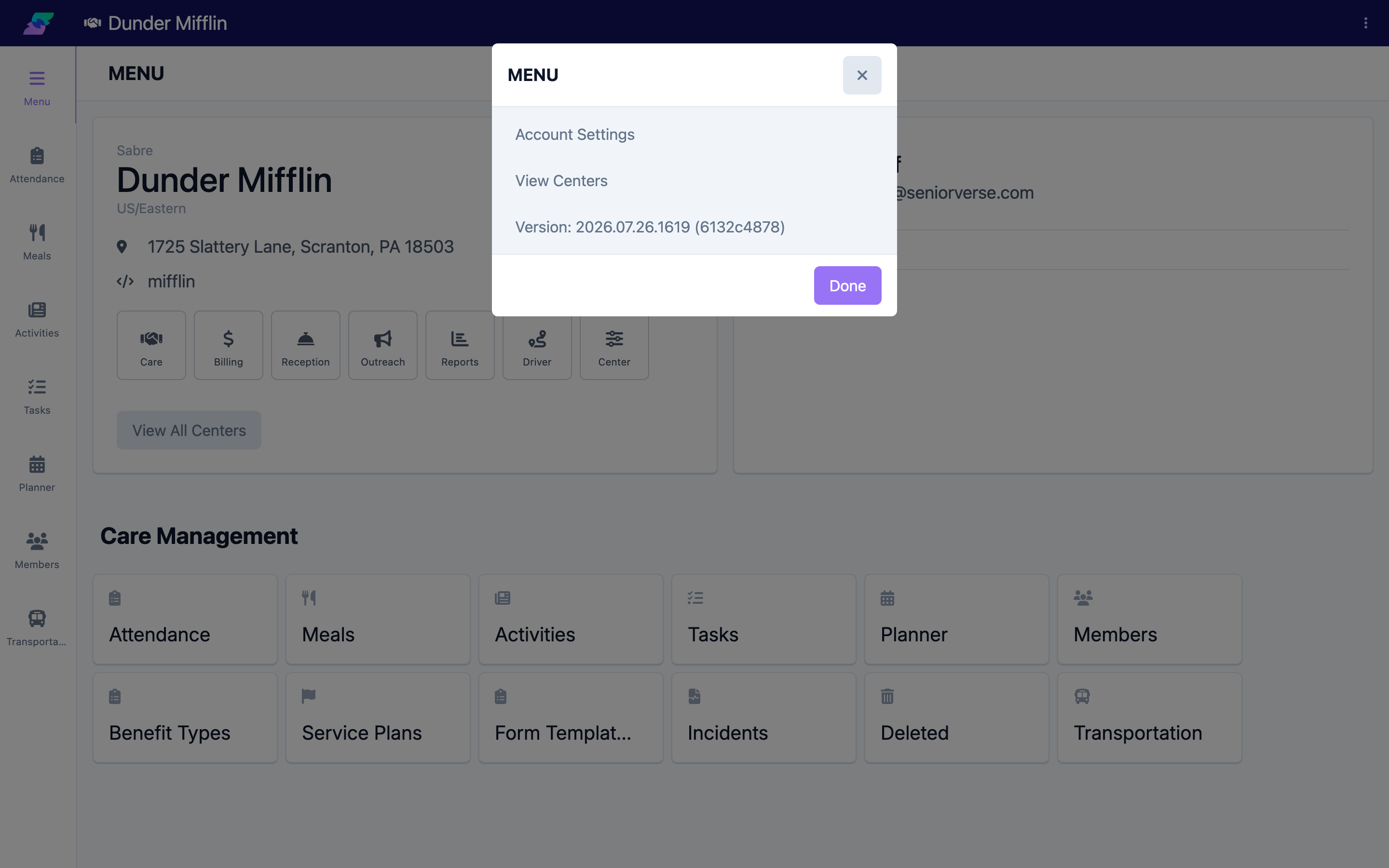
At the top-right of the screen, select the Menu button (the vertical three-dots, or ellipsis, icon) to open the options menu. From here you can open Account Settings, select View Centers to switch to a different center, and see the app Version.
Tips
- The Menu page is your hub. Whenever you are unsure where you are, select Menu at the top of the sidebar to return to the center Menu, where you can switch modules or reach your profile.
- Missing a module or page? The module card and sidebars only show what your permissions allow. If you expect to see something that is not there, ask your administrator to review your permissions.
- Members live in Care. To open a member's profile, go to the Care module and select Members.
- Switch centers from the account menu. If you work across more than one center, use View Centers in the three-dots menu to move between them.
Troubleshooting
| Problem | Solution |
|---|---|
| A module is missing from the module card | The card only shows modules you have permission to use, and Reception and Billing must also be enabled for your center. Ask your administrator to confirm your access. |
| A page is missing from the sidebar | Sidebar items are hidden when you lack the required permission (or the related feature is turned off for your center). Ask your administrator to review your permissions. |
| I cannot get back to the module list | Select Menu at the top of the sidebar to return to the center Menu page, which shows all the modules you can open. |
| I need to work in a different center | Open the three-dots Menu at the top-right and select View Centers. |