
Overview
This article explains how to sign in to Seniorverse. You can sign in two ways: with a one-time sign-in code emailed to you (the default, no password required), or with a password. It also covers resetting a password you have forgotten.
Before You Begin
- Your administrator has created your account.
- You know your email address or username for Seniorverse.
- You can receive email at that address (needed for the sign-in code and for password resets).
Steps
Step 1: Go to the sign-in page
Open your web browser and go to your Seniorverse address (apps.seniorverse.io), or open the Seniorverse app on your device. If your center uses a different web address, use the one your administrator gave you.
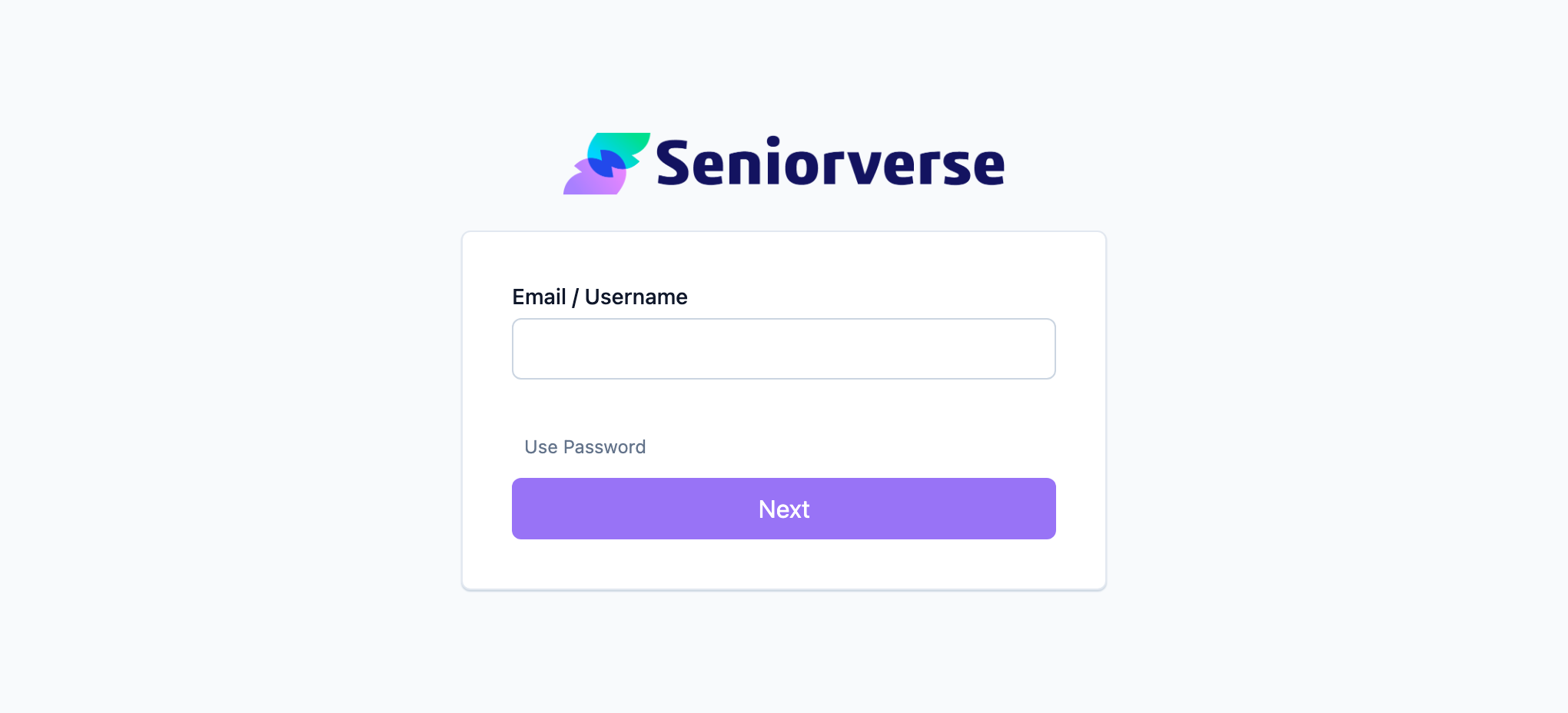
Step 2: Enter your email or username
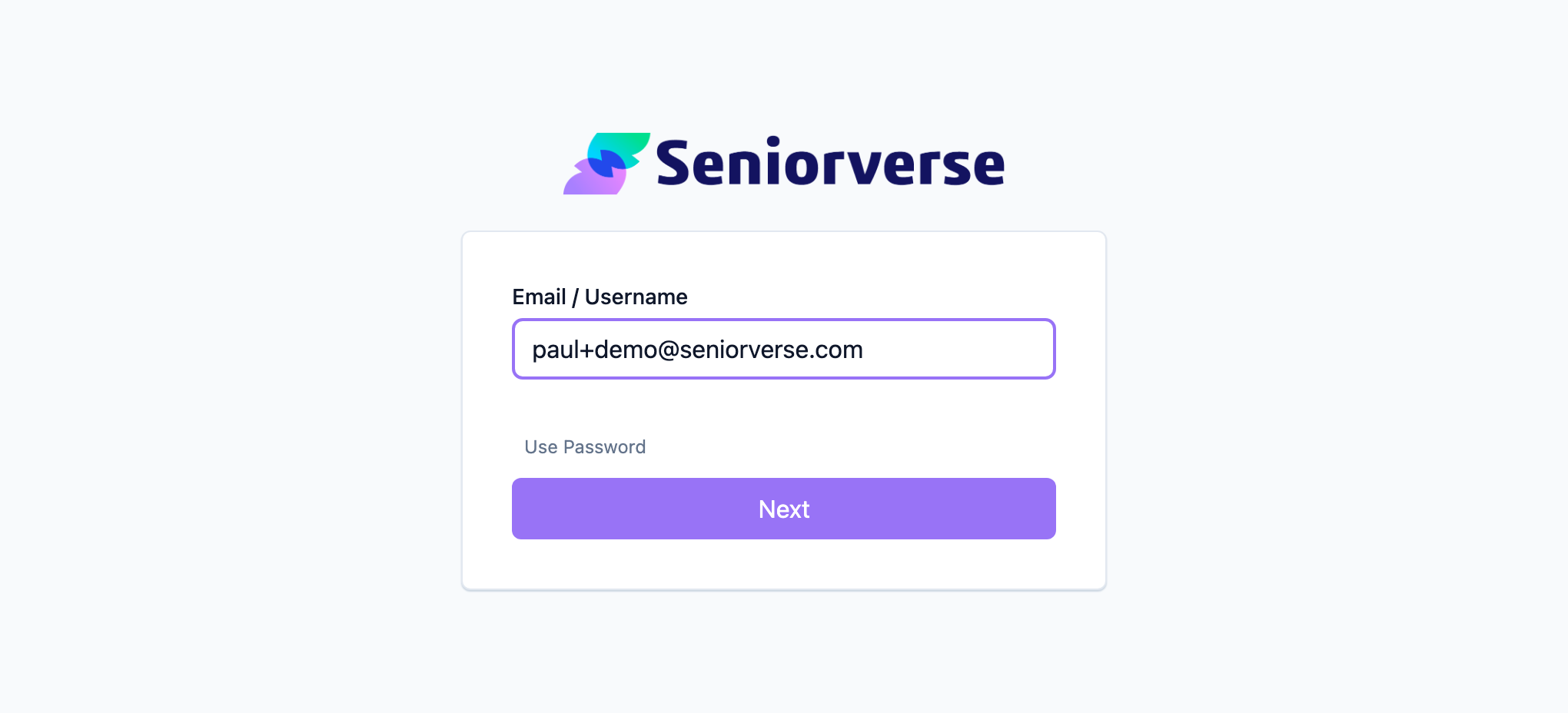
In the Email / Username field, enter your email address (or your username), then select Next.
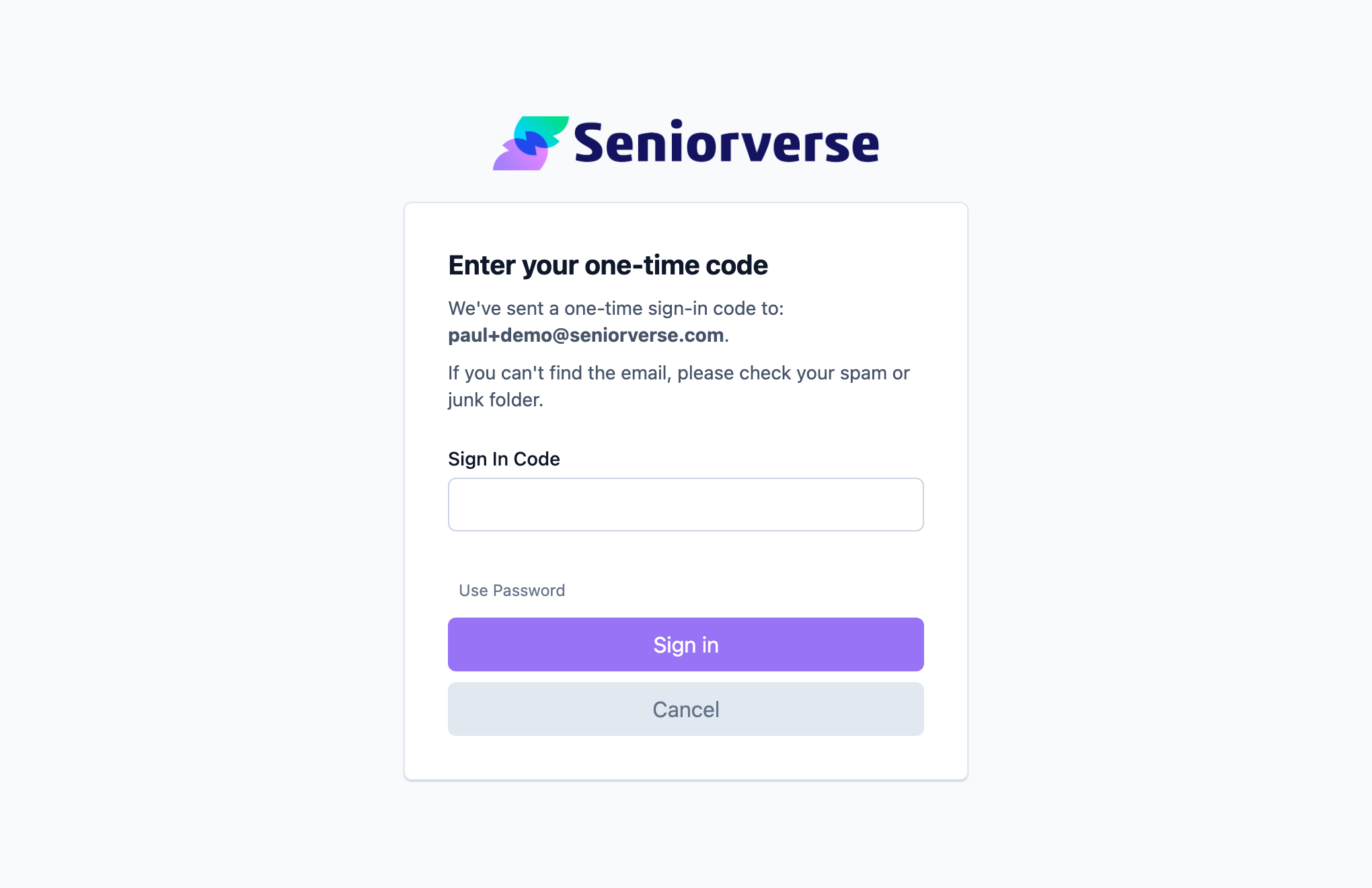
Step 3: Sign in with an emailed code (default)
Seniorverse emails you a one-time Sign in Code. Open your email, copy the code, enter it in the Sign in Code field, and select Sign in. You are now signed in — no password needed.
If you do not see the email within a minute or two, check your spam or junk folder.
Step 4: Sign in with a password instead (optional)
If you prefer to use a password, select Use Password on the sign-in screen, enter your Email / Username and password, and select Sign in. To switch back to the emailed-code method, select Passwordless.
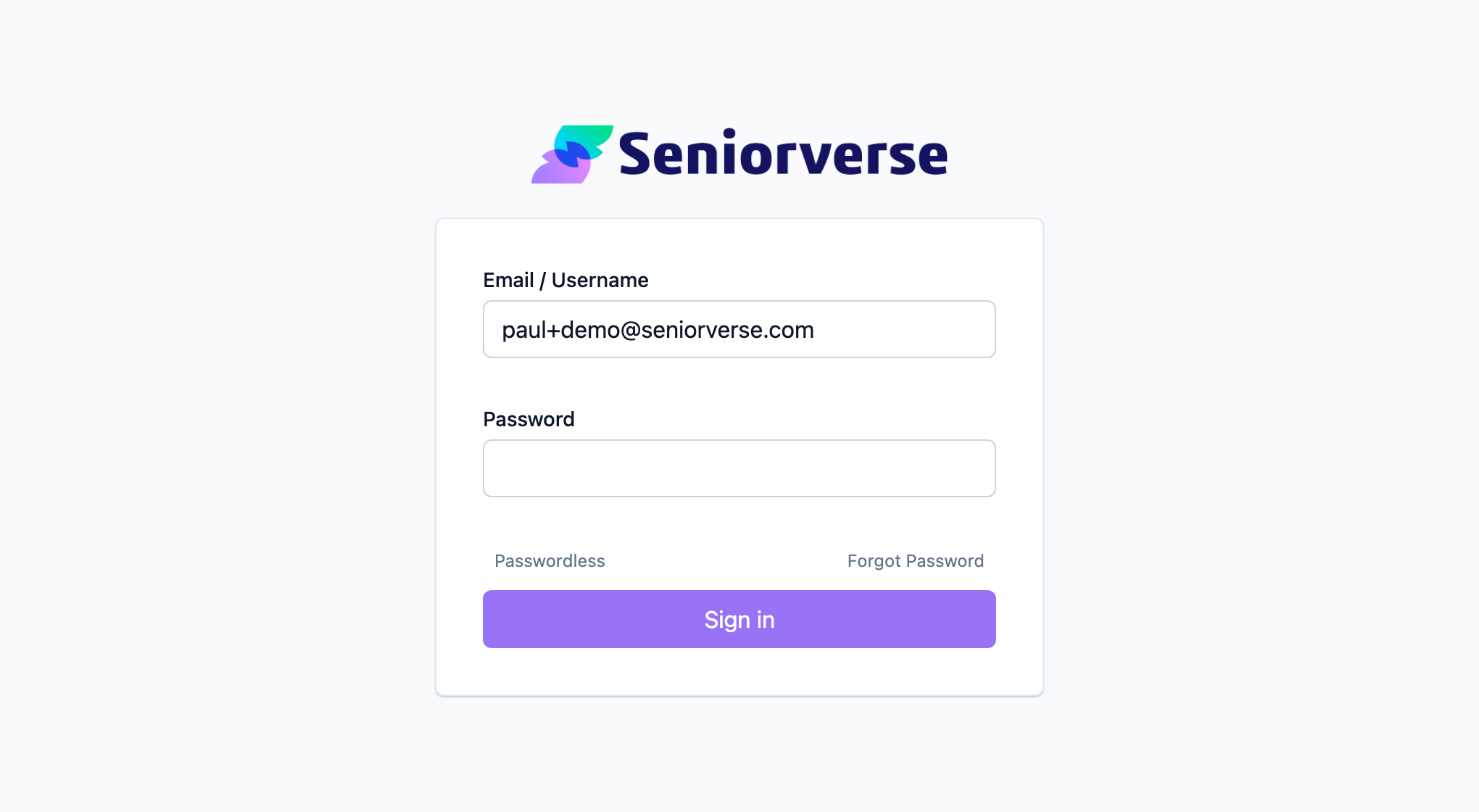
Step 5: Reset a forgotten password
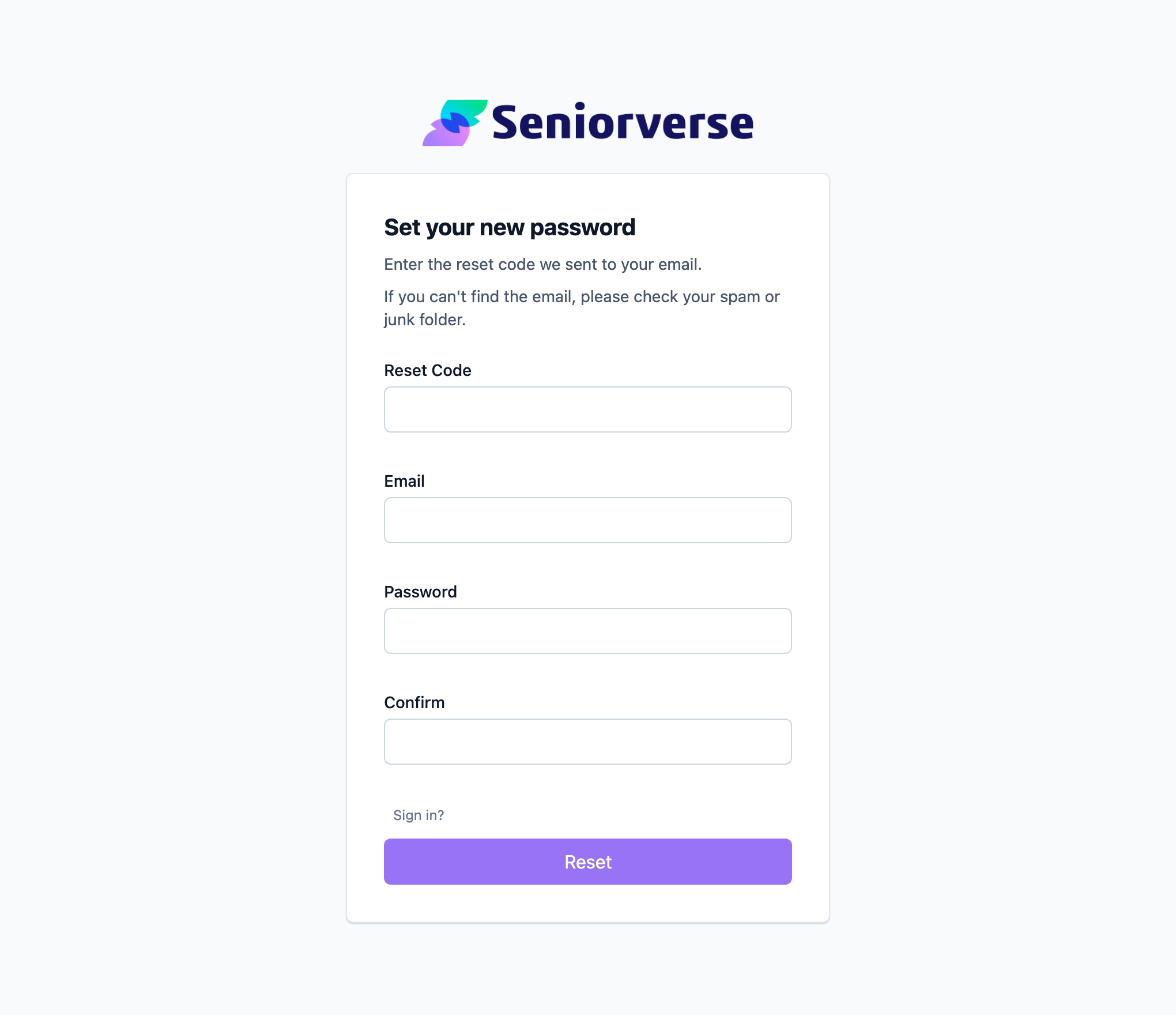
If you use a password and have forgotten it, select Forgot Password on the password screen. Enter your email to receive a Reset Code, then enter the code along with a new password and select Reset. You can then sign in with your new password.
Tips
- You do not need a password. The emailed sign-in code lets you sign in without remembering a password. This is the default and the fastest option for most staff.
- Bookmark the sign-in page. Save your Seniorverse address in your browser for quick access each day.
- Check spam for codes and reset emails. If a sign-in code or reset email does not arrive, look in your spam or junk folder before trying again.
- Sign out on shared computers. On a shared or public device, always sign out when you finish. See Managing Your User Profile.
Troubleshooting
| Problem | Solution |
|---|---|
| "Invalid Credentials. Please try again." | Check that your email or username is spelled correctly. If you are using a password, remember that passwords are case-sensitive. |
| The sign-in code email did not arrive | Wait a moment and check your spam or junk folder. Confirm you entered the correct email address, then request the code again. |
| I forgot my password | On the password screen, select Forgot Password and follow Step 5 to set a new one. Or use the emailed sign-in code instead (Step 3), which needs no password. |
| I do not know my email or username | Contact your administrator, who set up your account. |
| I was signed out unexpectedly | Sign back in to continue. For security, sessions do not stay active indefinitely. |