
Overview
You record each dose from the MAR. Selecting a scheduled cell opens the administration form for that dose, where you complete any prerequisite tasks (such as a vital check), mark the dose as administered, or record another outcome such as held or refused. Completing a dose records your name and the time automatically. To open the MAR itself, see Using the MAR.
Before You Begin
- You must be logged into Seniorverse with access to the Care module and medication permissions
- The member must have a scheduled, center-administered medication in the MAR
- Take any required readings (such as blood pressure) before recording
Steps
Step 1: Open the Administration Form
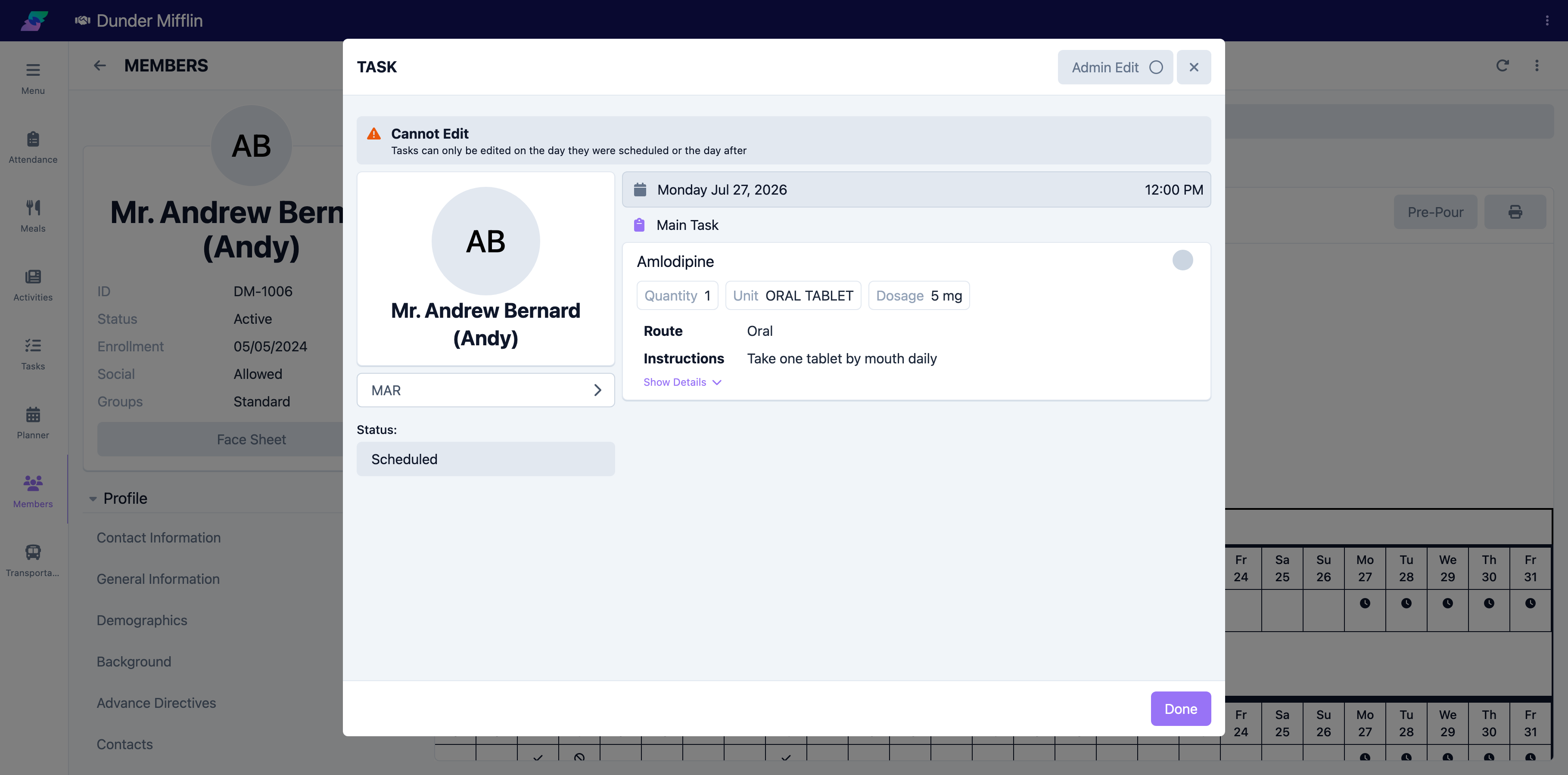
On the member's MAR tab, select the scheduled cell for the dose you are giving. The administration form opens, showing the member (with allergies), the medication's dosage, route, and instructions, and the scheduled date and time. Use Show Details to see the prescriber, pharmacy, and other fields.
Step 2: Complete Prerequisite Tasks and Variable Input
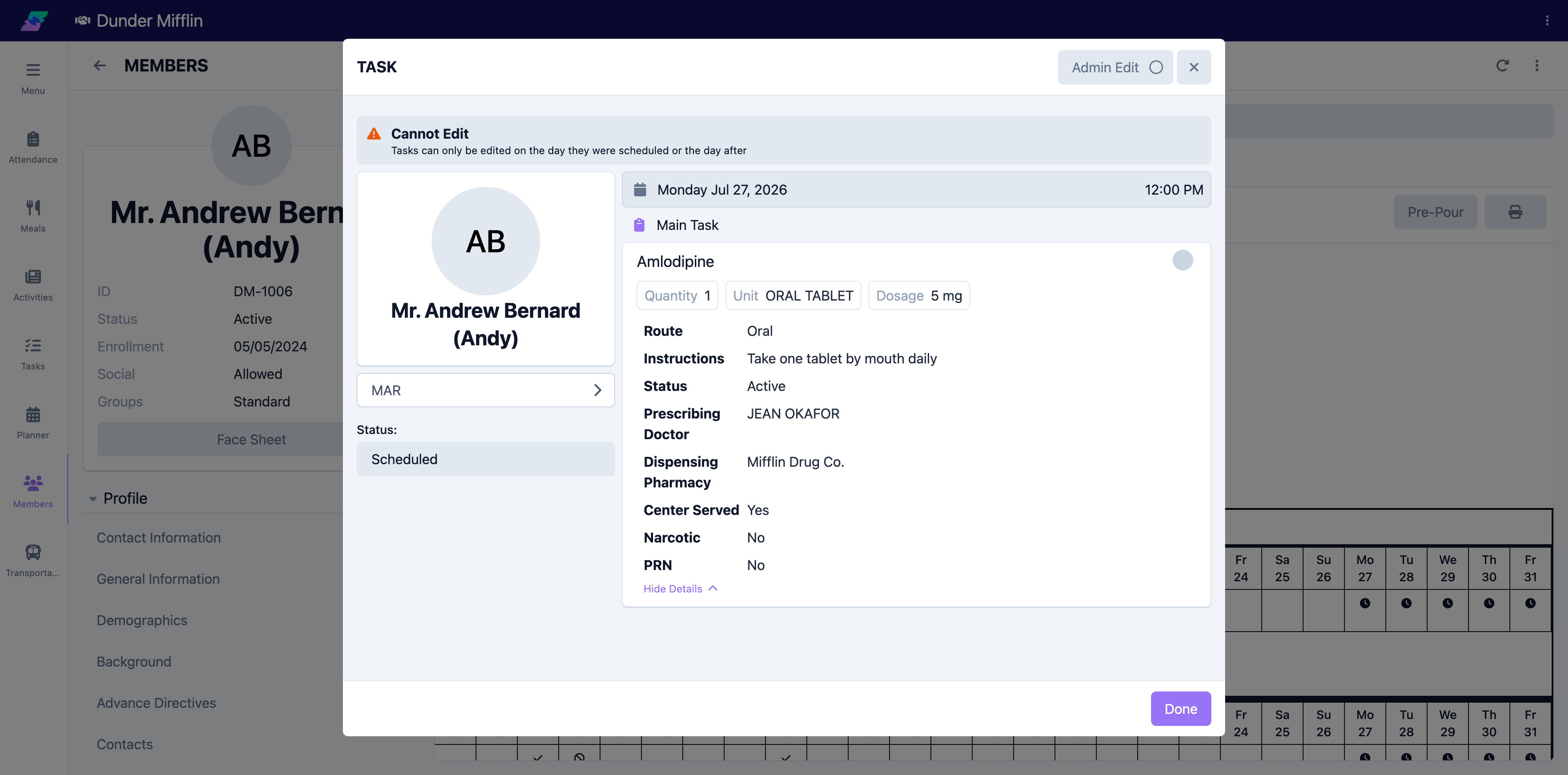
If the medication has Prerequisite Tasks, complete each one — for example, record the required vital directly in the task, which marks it complete. If the medication requires Variable Input (such as a sliding-scale amount), enter the value when prompted. Select Show Details to see the prescriber, pharmacy, and other fields for the dose.
No medication in this demo center currently has a Prerequisite Task or Variable Input configured, so the screenshot below shows Show Details instead — the closest available real example on this form.
Step 3: Mark the Dose as Administered
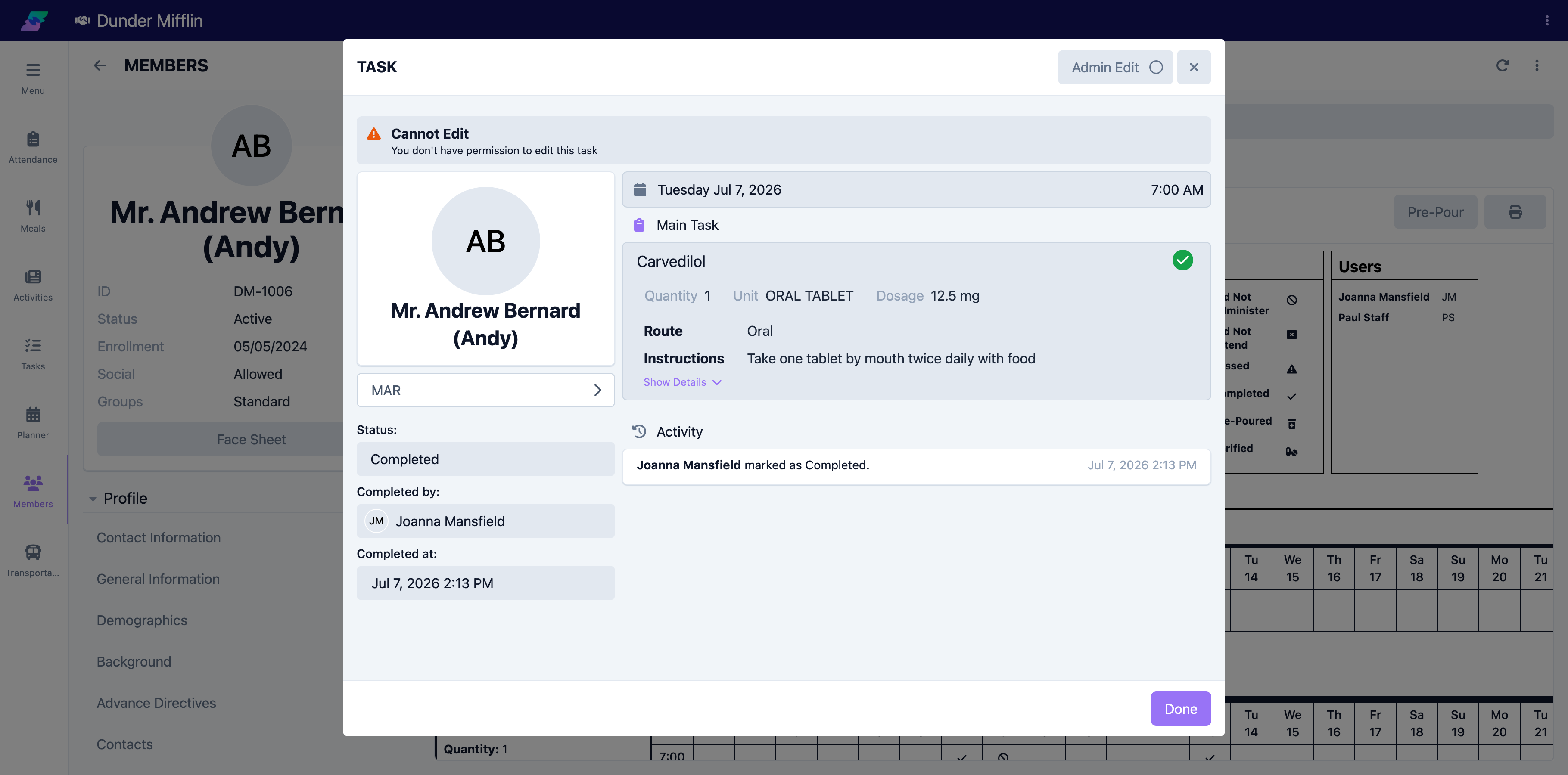
Select the check control on the Main Task to mark the dose Completed. Your name is recorded under Completed by and the time under Completed at. You can adjust the completed time if needed.
Step 4: Record a Held, Refused, or Other Outcome
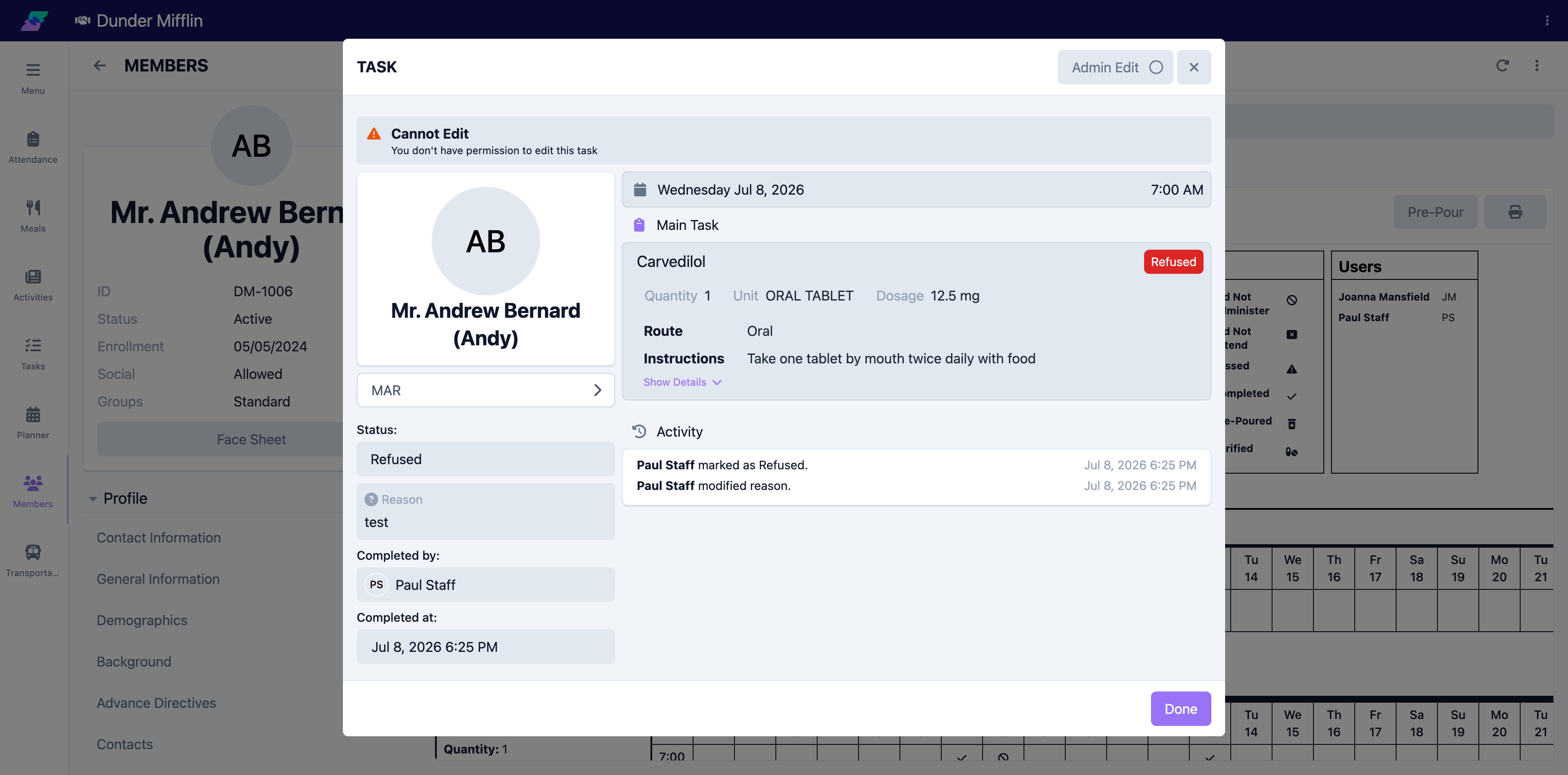
If the dose was not given, select the Status button and choose the appropriate outcome, such as Held, Refused, or Did Not Administer (the available options depend on your center's configuration). When you choose one of these, you are prompted to enter the reason, which is saved with the record.
Step 5: Add Notes
Use Add Notes to capture any additional context — the member's response, an observed side effect, or a timing note. The activity log on the record tracks changes for continuity of care.
Screenshot not available: every dose in this demo is currently either an already-recorded historical dose (locked, no edit permission) or a future dose outside its editable window (locked, "Cannot Edit"), so the live Add Notes control could not be reached without submitting a real administration, which capture rules do not allow.
Tips
- Record each dose right after giving it so the time and administering staff are accurate
- Complete prerequisite vital checks first — they are captured with the administration
- Choose a specific status (Held, Refused, Did Not Administer) rather than leaving a dose unrecorded, and enter a clear reason when prompted
- Notify the supervising nurse promptly when a critical medication is refused
Troubleshooting
| Problem | Solution |
|---|---|
| I cannot open a dose from the MAR | Confirm the cell is a scheduled dose and that you have medication permissions. Past days for which the member did not attend may show a different icon. |
| I cannot mark the dose complete | Complete any required Prerequisite Tasks and Variable Input first. Doses on locked or finalized records cannot be changed. |
| The status change did not save a reason | Held, Refused, and similar statuses prompt for a reason. Enter it when the reason prompt appears. |
| The wrong staff or time is shown | An administrator can adjust Completed by and Completed at on the record. |