
Overview
The Medications tab holds a member's complete medication list. Each medication records its name (from the formulary or a custom entry), quantity, unit, dosage, route, schedule, prescriber, pharmacy, and status. You also mark whether a medication is administered at the center or is Profile Only (for reference), and whether it is as-needed (PRN), a narcotic, or requires special handling. Center-administered medications flow into the member's Medication Administration Record (MAR).
Before You Begin
- You must be logged into Seniorverse with access to the Care module and medication permissions
- The member must already exist in the system
- Have the prescription details ready: drug, dosage, route, schedule, prescriber, and pharmacy
Steps
Step 1: Open the Medications Tab
From the main navigation, select Care, then Members, and choose the member. Open the Care tab group and select the Medications tab. Use the status filter to switch between Active and Inactive medications.
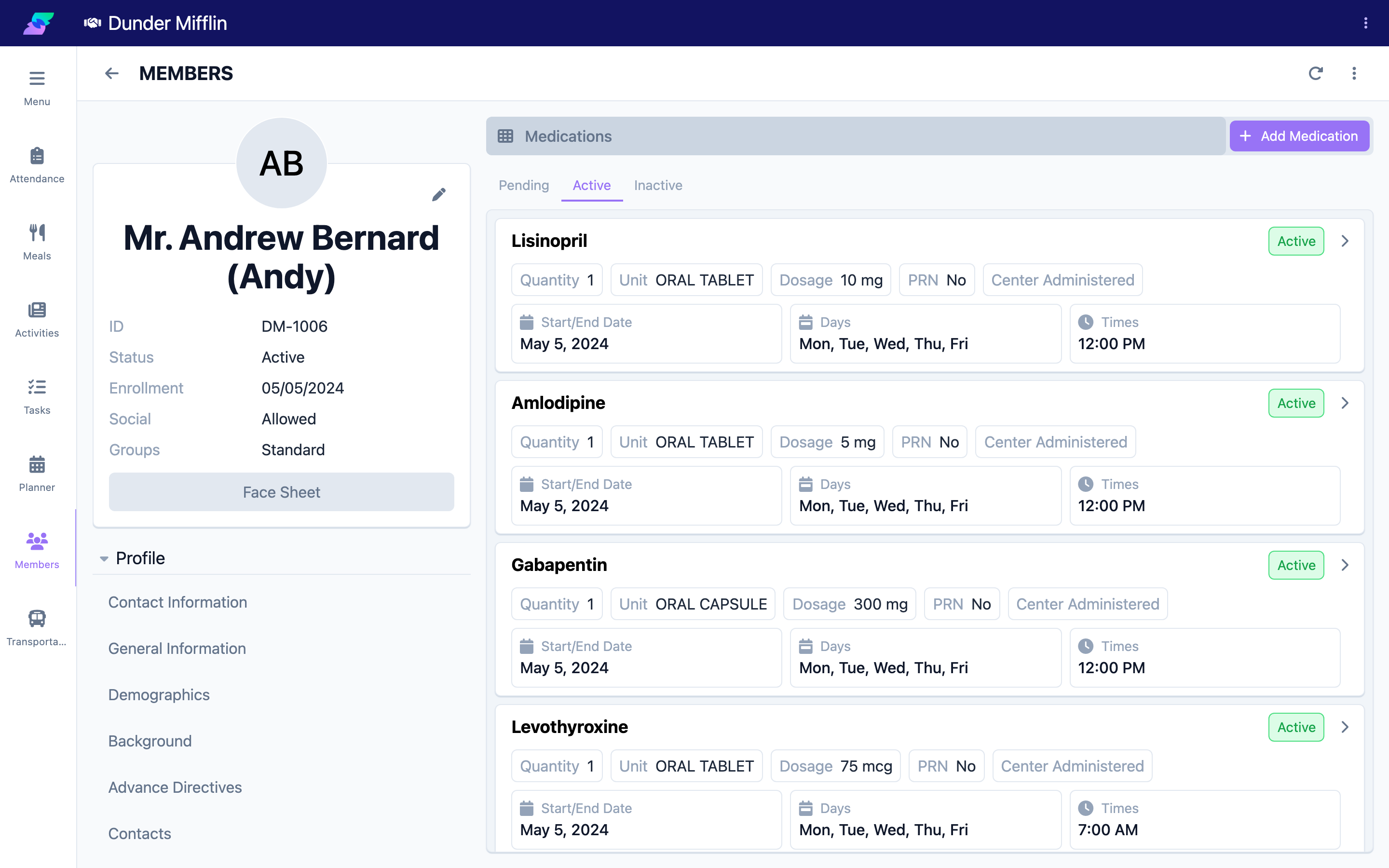
Step 2: Add a Medication and Choose the Name
Select Add Medication. In the Name field, search the formulary database and select the medication. If the drug is not in the formulary, turn on Custom and enter the name manually.
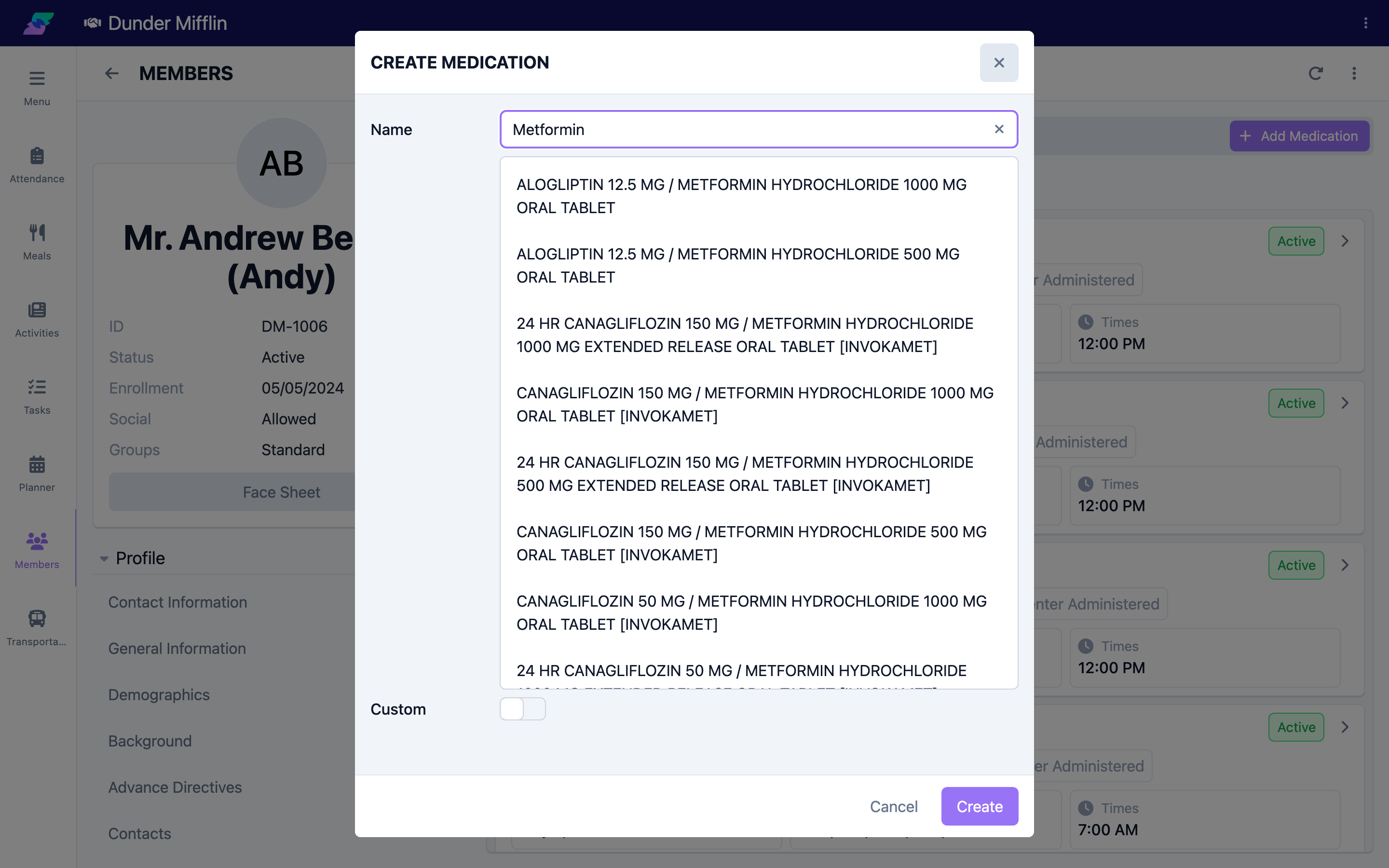
Step 3: Enter the Details and Options
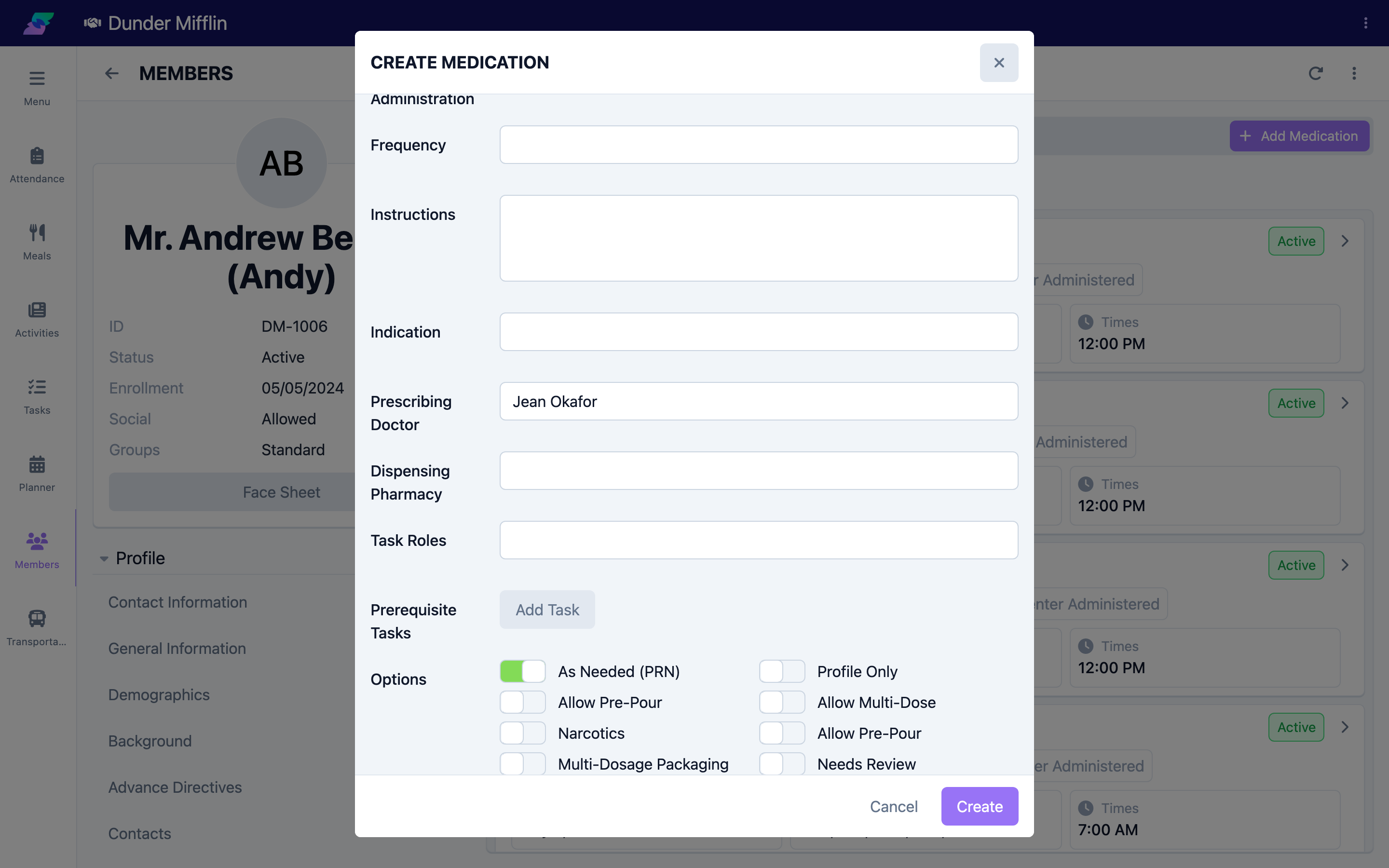
Complete the medication details:
- Quantity, Unit, and Dosage — the amount given (Unit is editable for custom medications)
- Route of Administration, Frequency, and Instructions
- Indication, Prescribing Doctor, and Dispensing Pharmacy
- Options toggles — As Needed (PRN), Profile Only (recorded for reference rather than administered at the center), Narcotics, and, where enabled, pre-pour and multi-dose handling
- Task Roles and Prerequisite Tasks — for example, a required vital check before administration
Step 4: Set the Schedule and Save
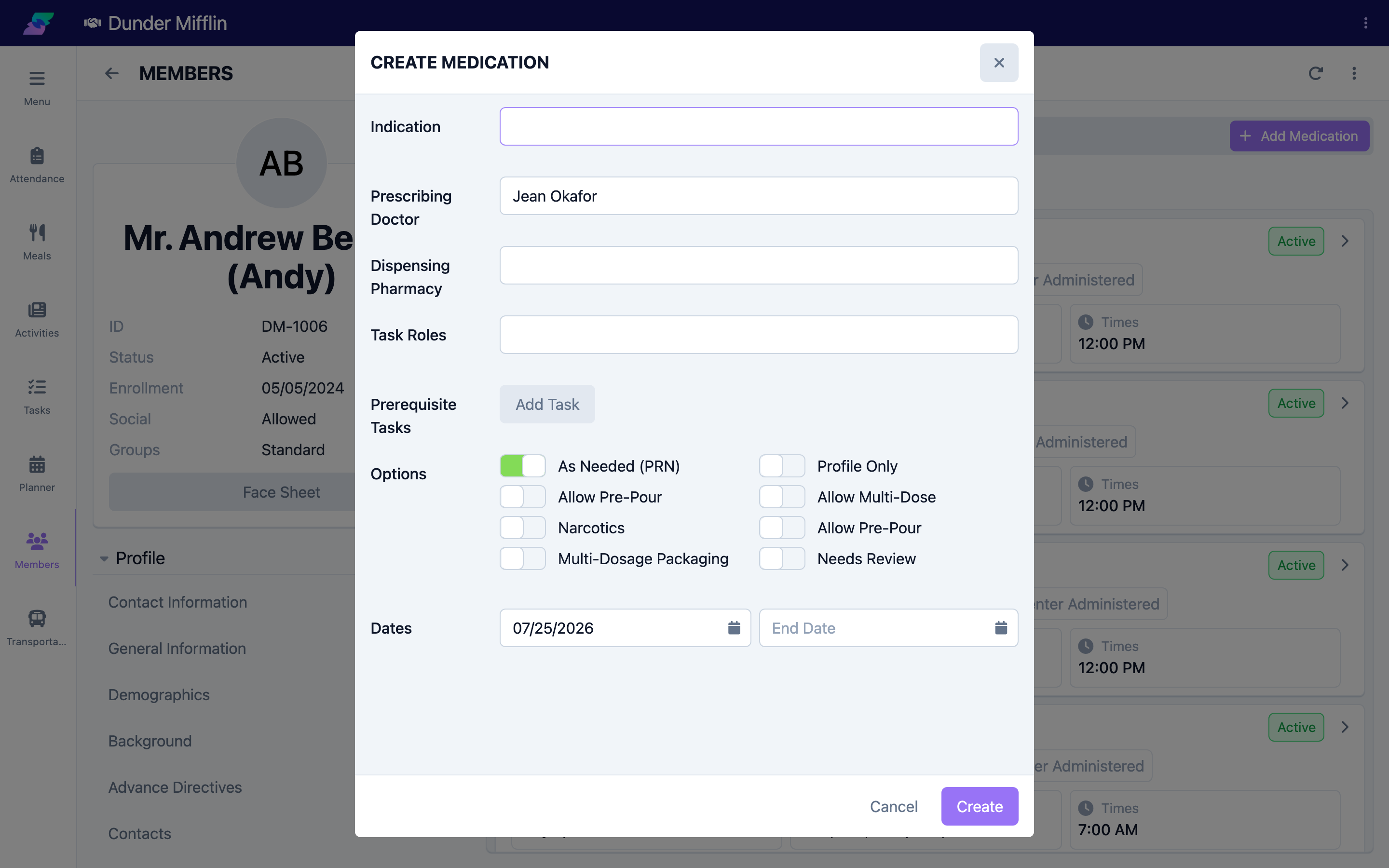
Set the Start Date and End Date. For scheduled (non-PRN) medications, select the Days of the week and add the Times the medication is due. Select Save to add the medication.
Step 5: Edit or Deactivate a Medication
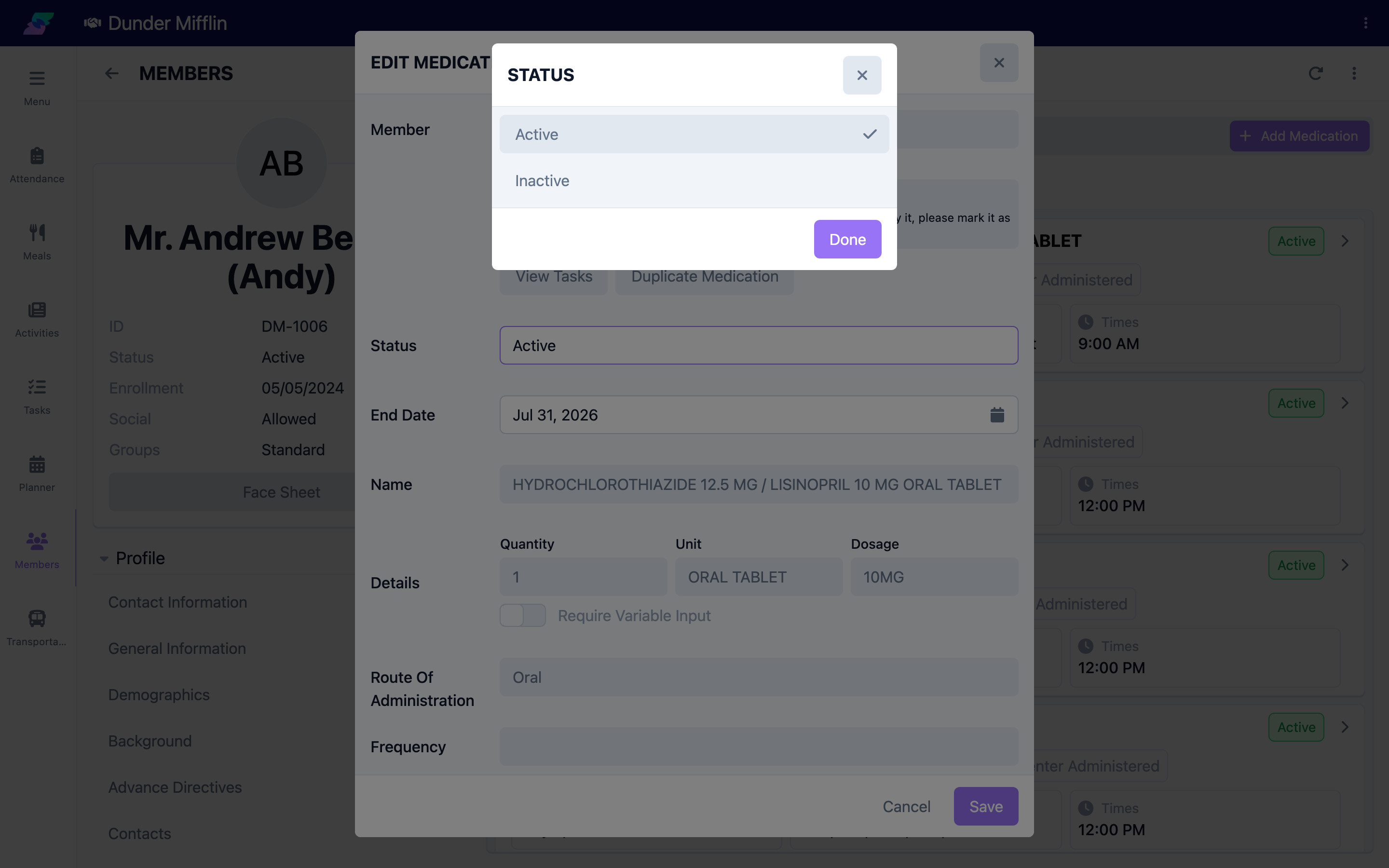
To change a medication, open it from the list, edit the fields, and select Save. When a member stops a medication, set its Status to Inactive — this automatically sets the End Date to today and moves it to the Inactive list. If a medication already has care tasks recorded against it, the form shows a "Cannot Edit" notice; in that case mark it Inactive and create a Duplicate with your changes.
Tips
- Prefer the formulary over a custom name so dosage units and details stay consistent
- Use Profile Only for medications the member manages themselves; only center-administered medications appear in the MAR
- Deactivate rather than delete a discontinued medication so the history and MAR remain intact
- Add a Prerequisite Task with a vital check when a reading (such as blood pressure) must be taken before administering
Troubleshooting
| Problem | Solution |
|---|---|
| Medications tab is not visible | The tab is in the Care tab group. Confirm you have Care module access and medication permissions. |
| The form will not save | Member and Name are required. For center-administered medications, Quantity, Unit, Dosage, Route, Start Date, and End Date are required; scheduled medications also need Days and Times. |
| I cannot edit a medication | If it has recorded care tasks, it shows a "Cannot Edit" notice. Mark it Inactive and create a Duplicate with your changes. |
| A medication is not in the MAR | Only center-administered (not Profile Only), Active medications with a schedule appear in the MAR. |