
Overview
The Nurse Notes tab is where you document clinical observations, interventions, and member responses. Each note records the author, optional type and tags, the note content, and any file attachments. Notes are threaded, so you can reply to an existing note to add follow-up. A Clean with AI helper can polish your wording without changing the facts you entered.
Before You Begin
- You must be logged into Seniorverse with access to the Care module and nursing permissions
- The member must already exist in the system
- Have your clinical observations ready to document
Steps
Step 1: Open the Nurse Notes Tab
From the main navigation, select Care, then Members, and choose the member. Open the Care tab group and select the Nurse Notes tab. Existing notes are listed with the author and date; review recent entries for context.
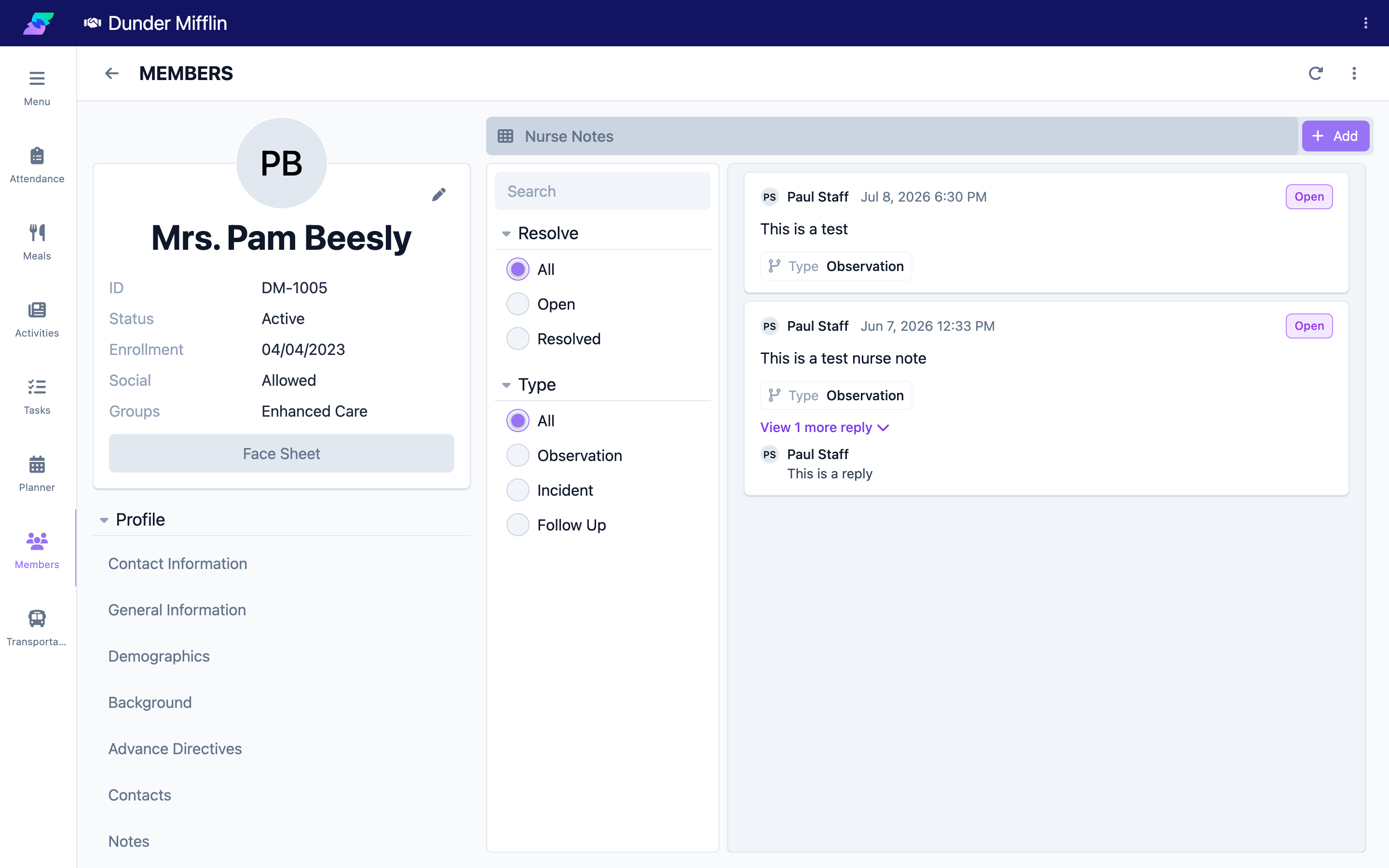
Step 2: Add a Note
Select Add Note to open the Nurse Note form. Your name is recorded automatically as the author.
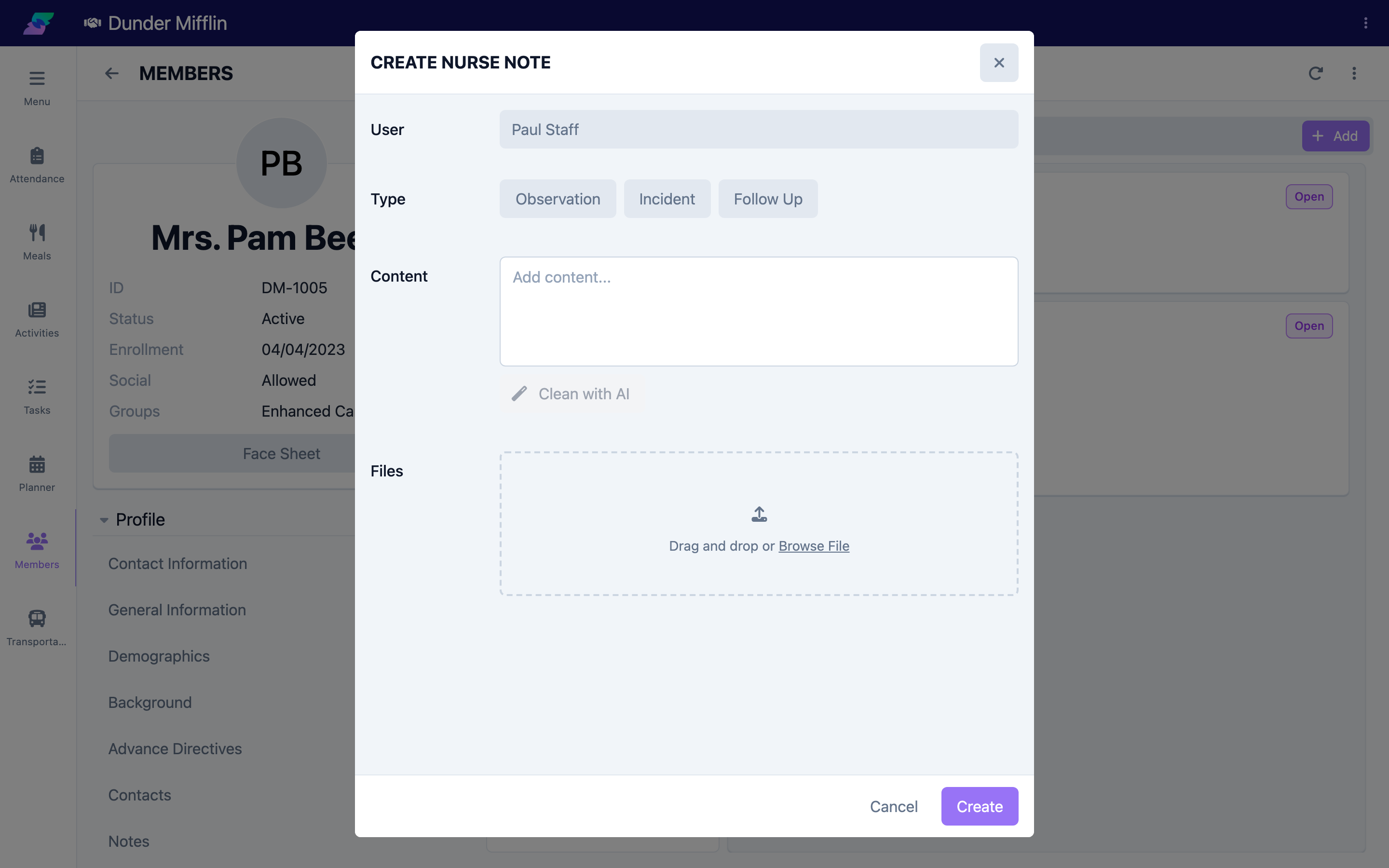
Step 3: Select the Type and Tags
If your center has configured note types, select one — for example, Observation, Incident, or Follow Up. If tags are configured, apply any that fit, or choose None. Type and tag options are set by your center, so what you see may differ.
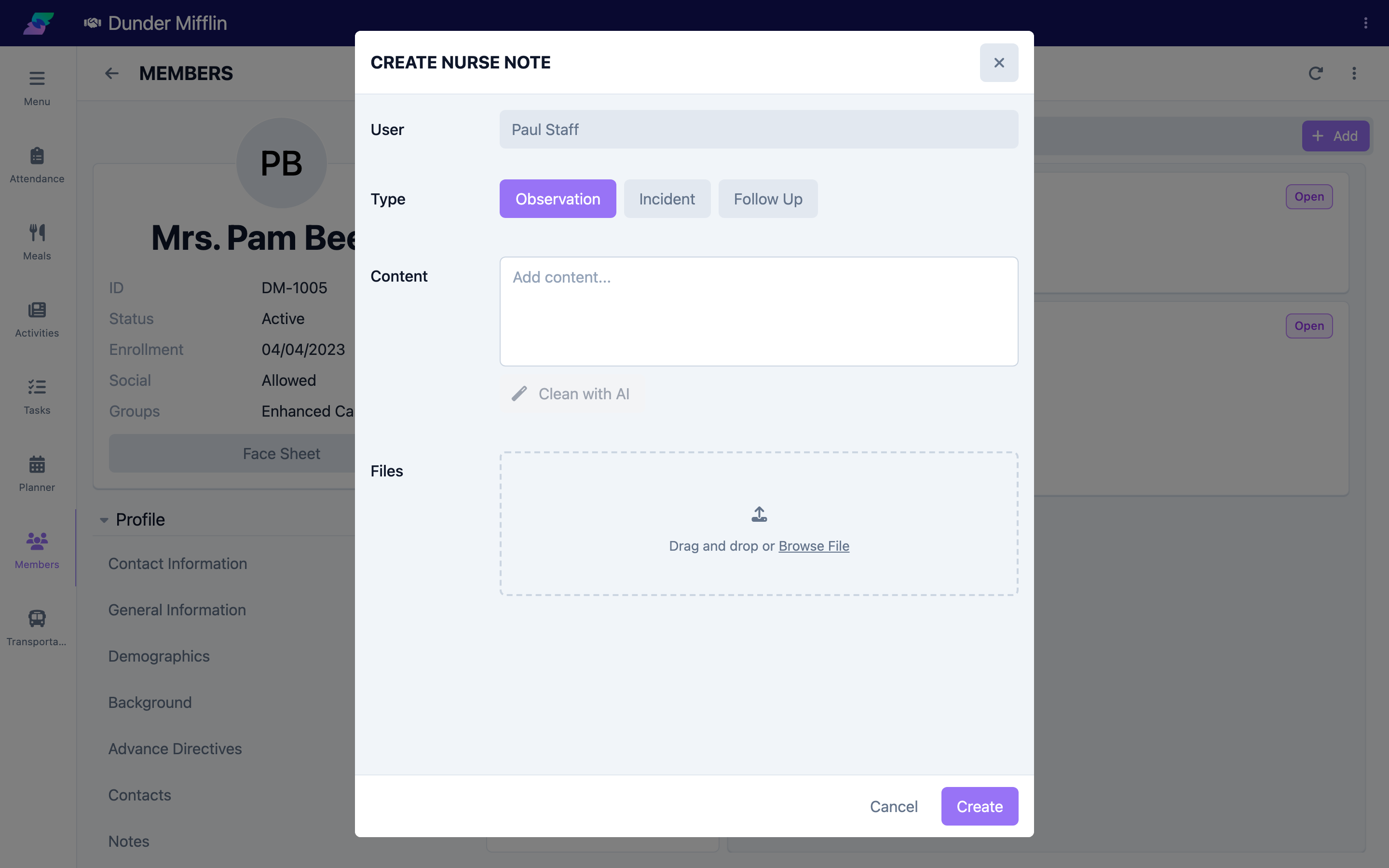
Step 4: Write the Content and Save
Enter your documentation in the Content field (required). Use Clean with AI to tighten grammar and clarity; Reset Original restores your original text. Attach supporting Files if needed, then select Save. The note appears at the top of the list with your name and timestamp.
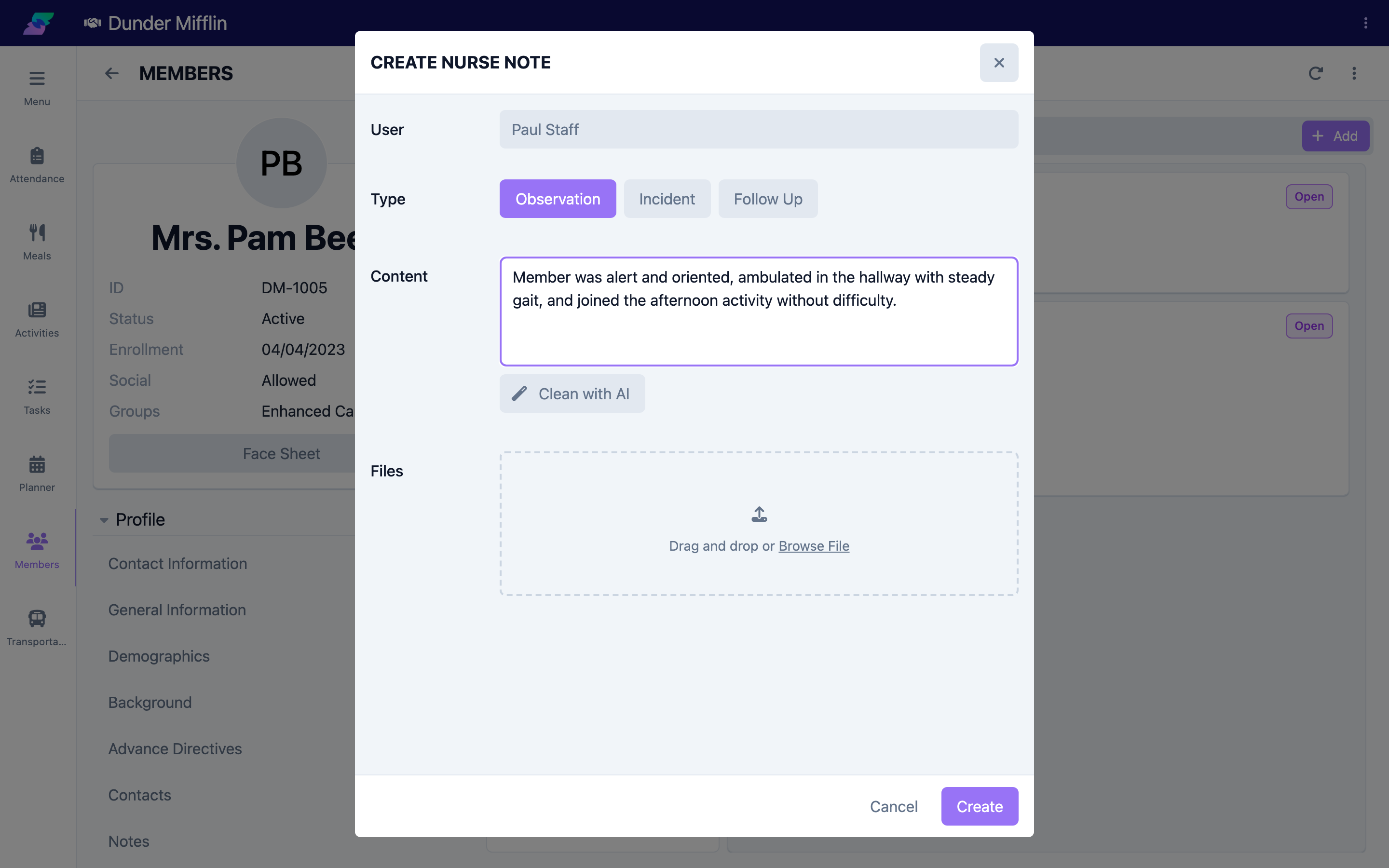
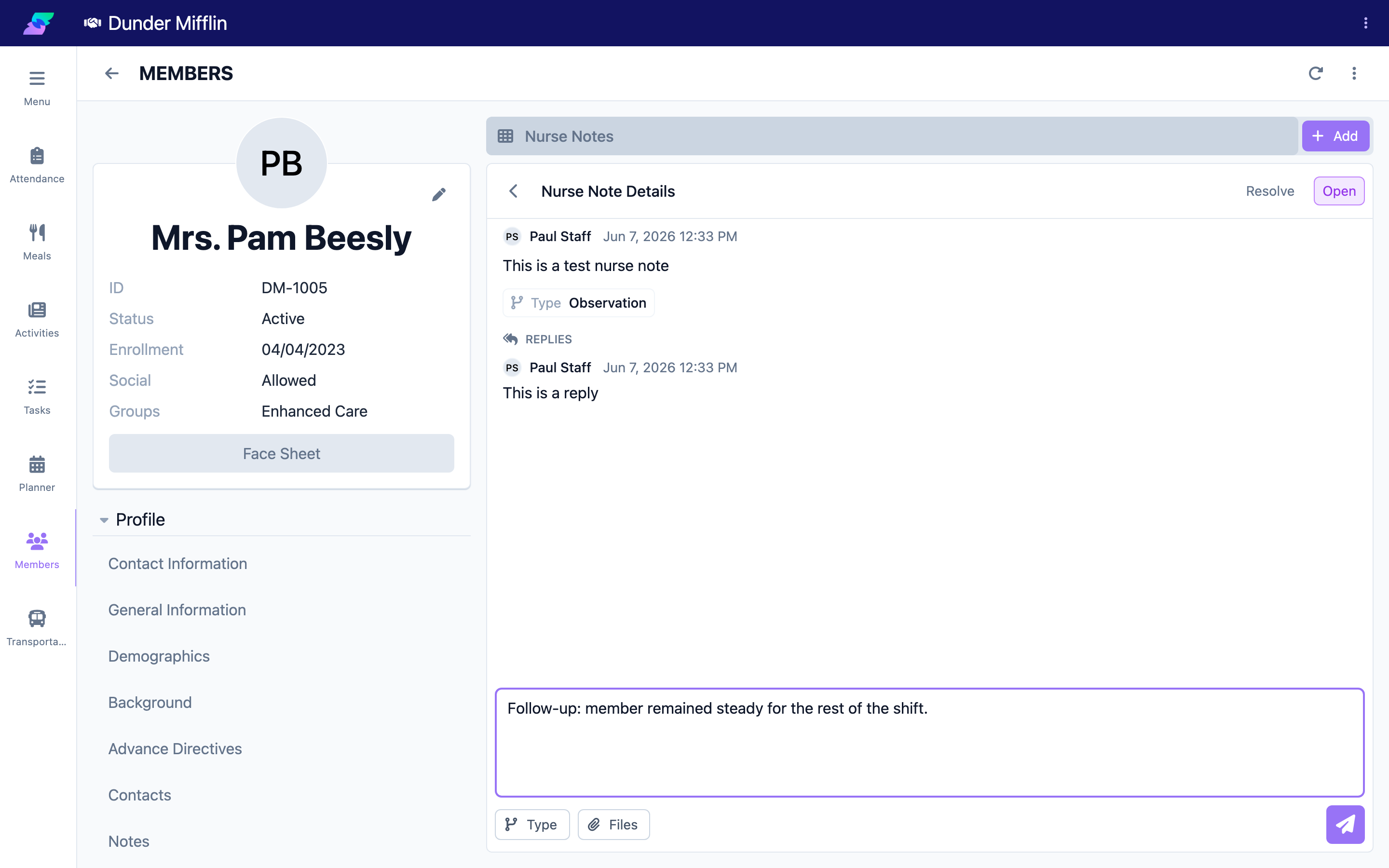
Step 5: Reply to a Note
To add follow-up to an existing note, open it and reply. The reply shows the original note under Replying To and is kept together with it as a thread.
Tips
- Document as close to the time of the observation as possible
- Use objective, factual language and avoid assumptions
- Clean with AI improves wording only — it will not add information you did not write
- Use replies to keep follow-up connected to the original note instead of starting a separate entry
Troubleshooting
| Problem | Solution |
|---|---|
| Nurse Notes tab is not visible | The tab is in the Care tab group. Confirm you have Care module access and nursing permissions. |
| Cannot save the note | Content is required, and if your center configured note types, a Type is also required. |
| I do not see Type or Tags options | Types and tags are configured per center. If none are configured, those fields do not appear. |
| The note shows the wrong author | Notes are attributed to the signed-in user. Confirm you are logged in to your own account. |