
Overview
Incident reports capture events involving members, such as falls, injuries, behavioral incidents, and medication errors. This article covers creating a new incident report and submitting it for review. A new report starts in Pending status, where you enter what happened and the immediate response. After you submit it for review, a reviewer finalizes it and, when required, handles state reporting — see Reviewing, Finalizing, and State Reporting Incidents.
Before You Begin
- You must be logged into Seniorverse with access to the Care module
- Know which member (or members) and staff were involved
- Gather the key details while they are fresh: what happened, where, the immediate response, and any vitals taken
Steps
Step 1: Open the Incident Report Form
You can start an incident report from either location:
- Care → Incidents, then select Add Incident
- The member profile: open the Care tab group, select the Incidents tab, then select Add Incident
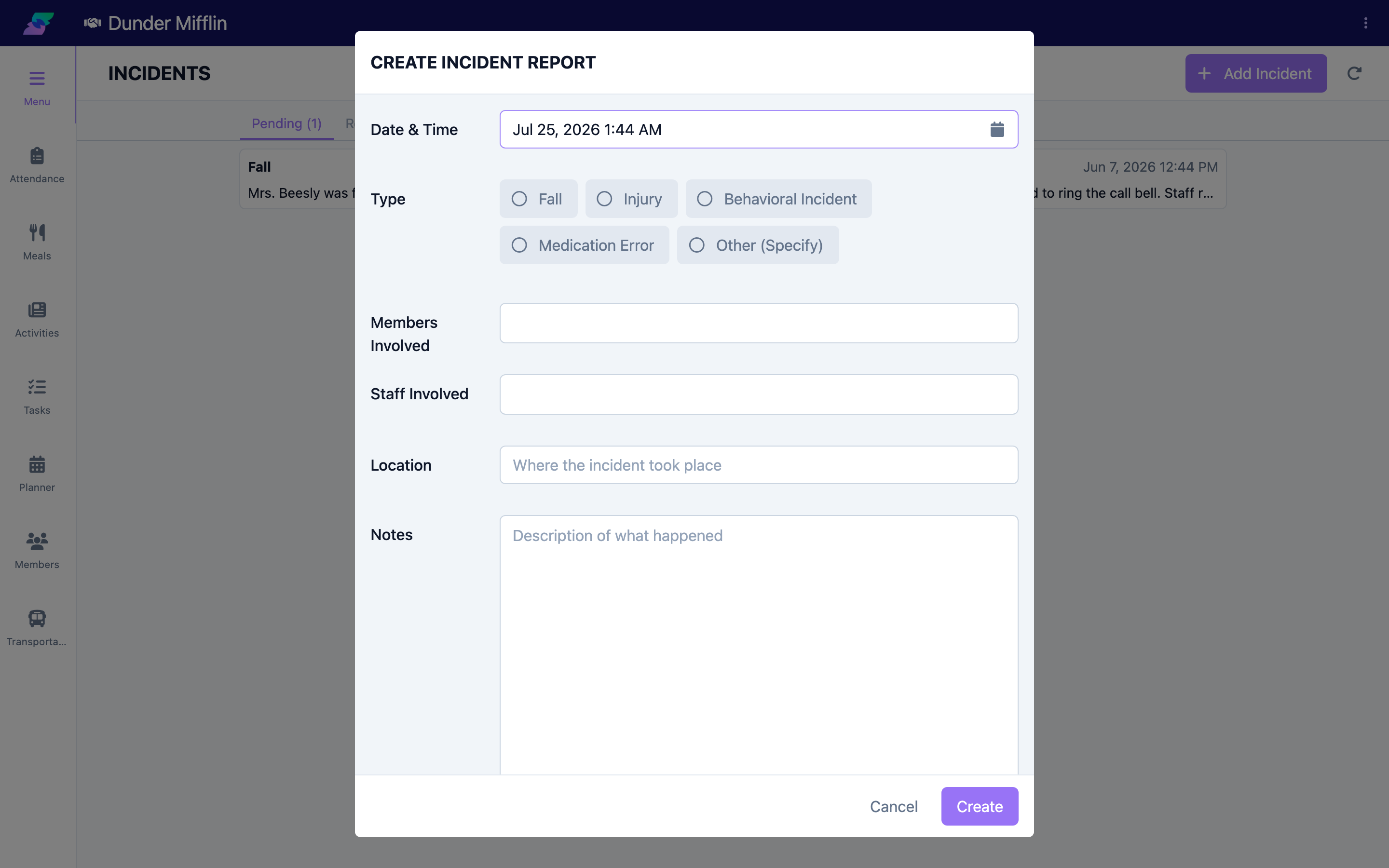
The Incident Report form opens with the Date & Time set to now.
Step 2: Set the Type and Who Was Involved
Complete the top of the form:
- Date & Time — When the incident occurred (defaults to the current time)
- Type — Select Fall, Injury, Behavioral Incident, Medication Error, or Other (Specify). If you choose Other (Specify), a Specify Type field appears and is required.
- Members Involved — Select the member or members involved (required)
- Staff Involved — Select any staff involved
- Location — Where the incident took place
Step 3: Describe What Happened and the Response
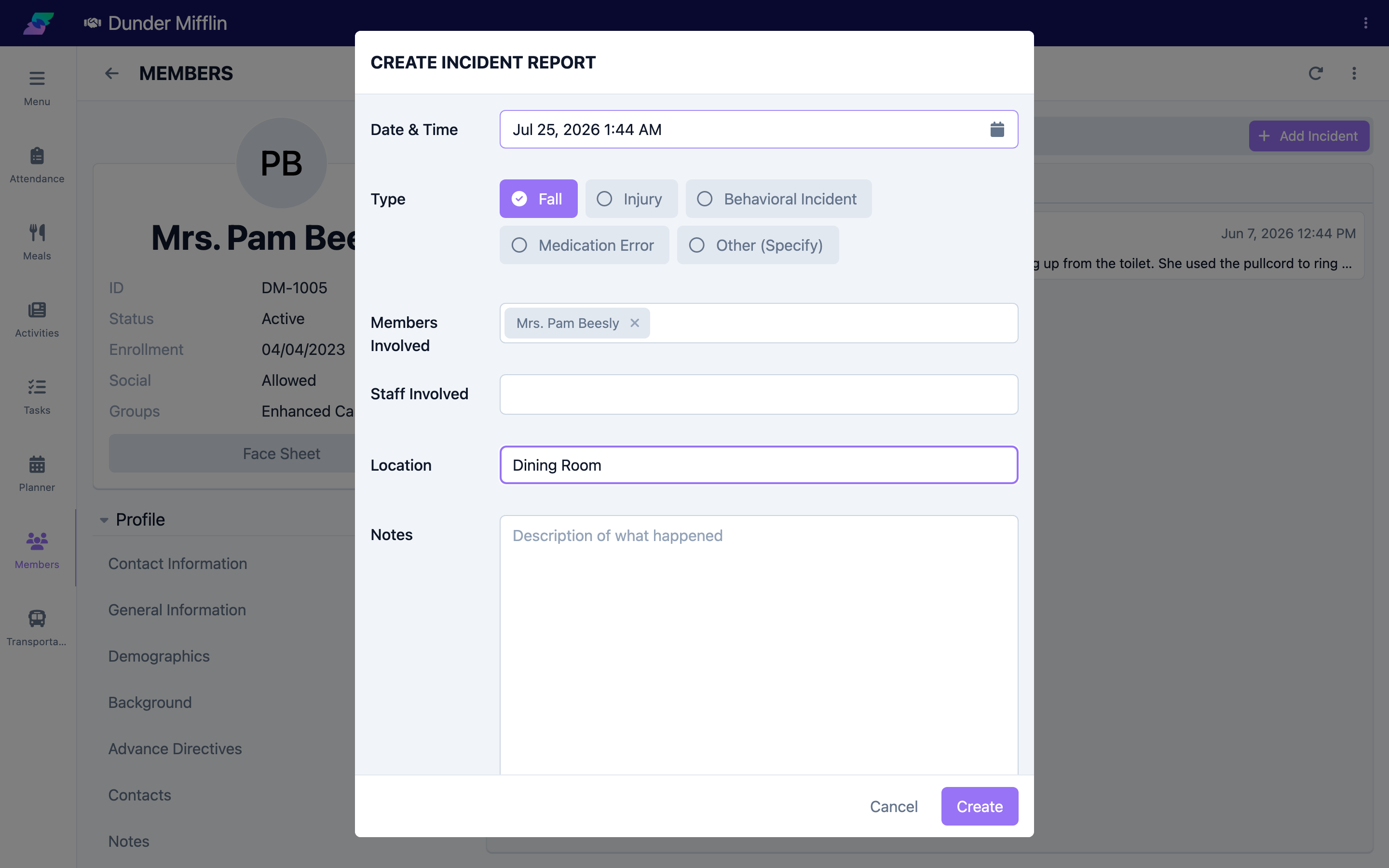
- In Notes, write a factual, objective description of what happened (required). Use Clean with AI to polish the wording; Reset Original restores your original text.
- In Immediate Response Actions, document what staff did at the time. This field also supports Clean with AI.
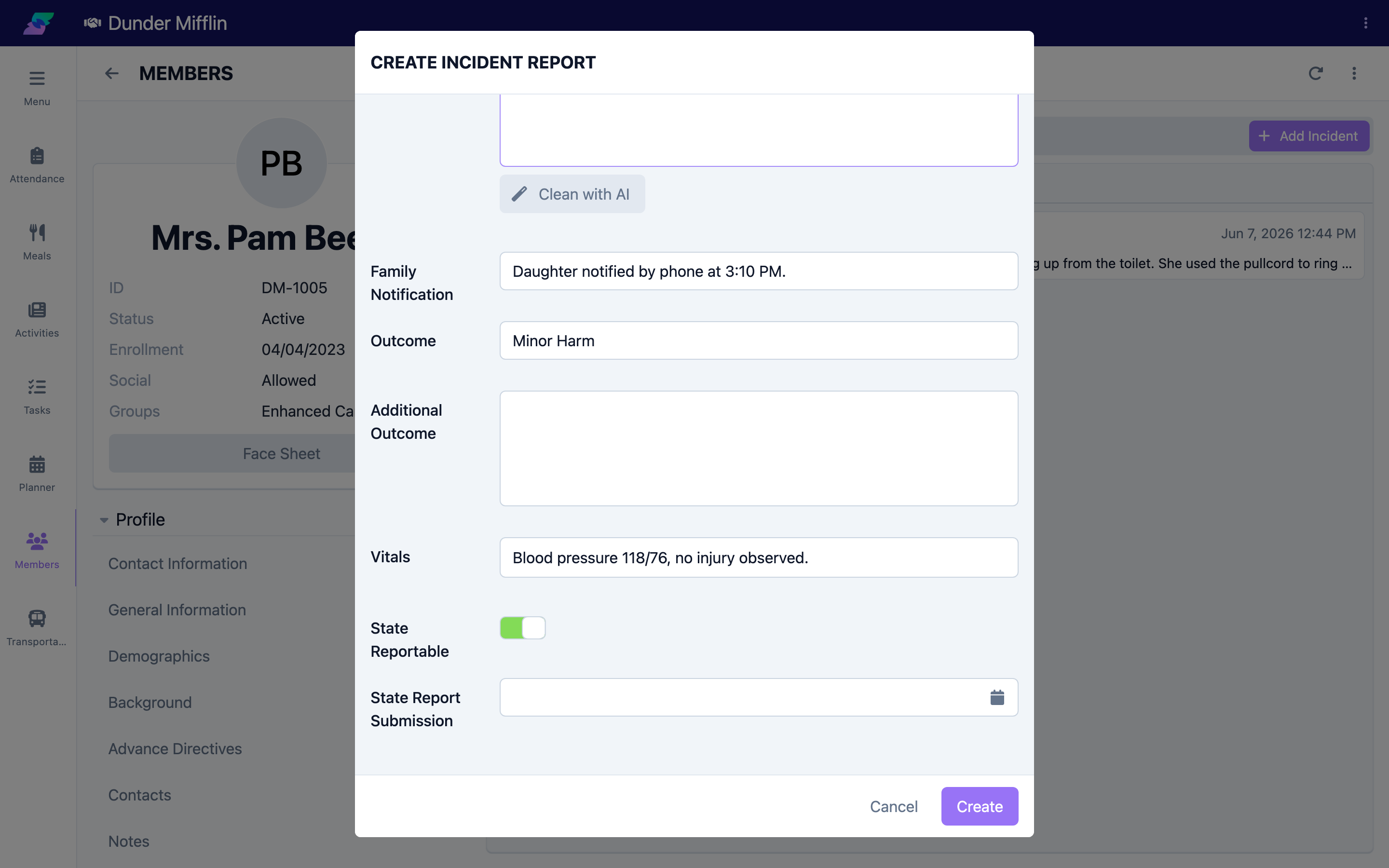
Step 4: Record Family Notification, Outcome, and Vitals
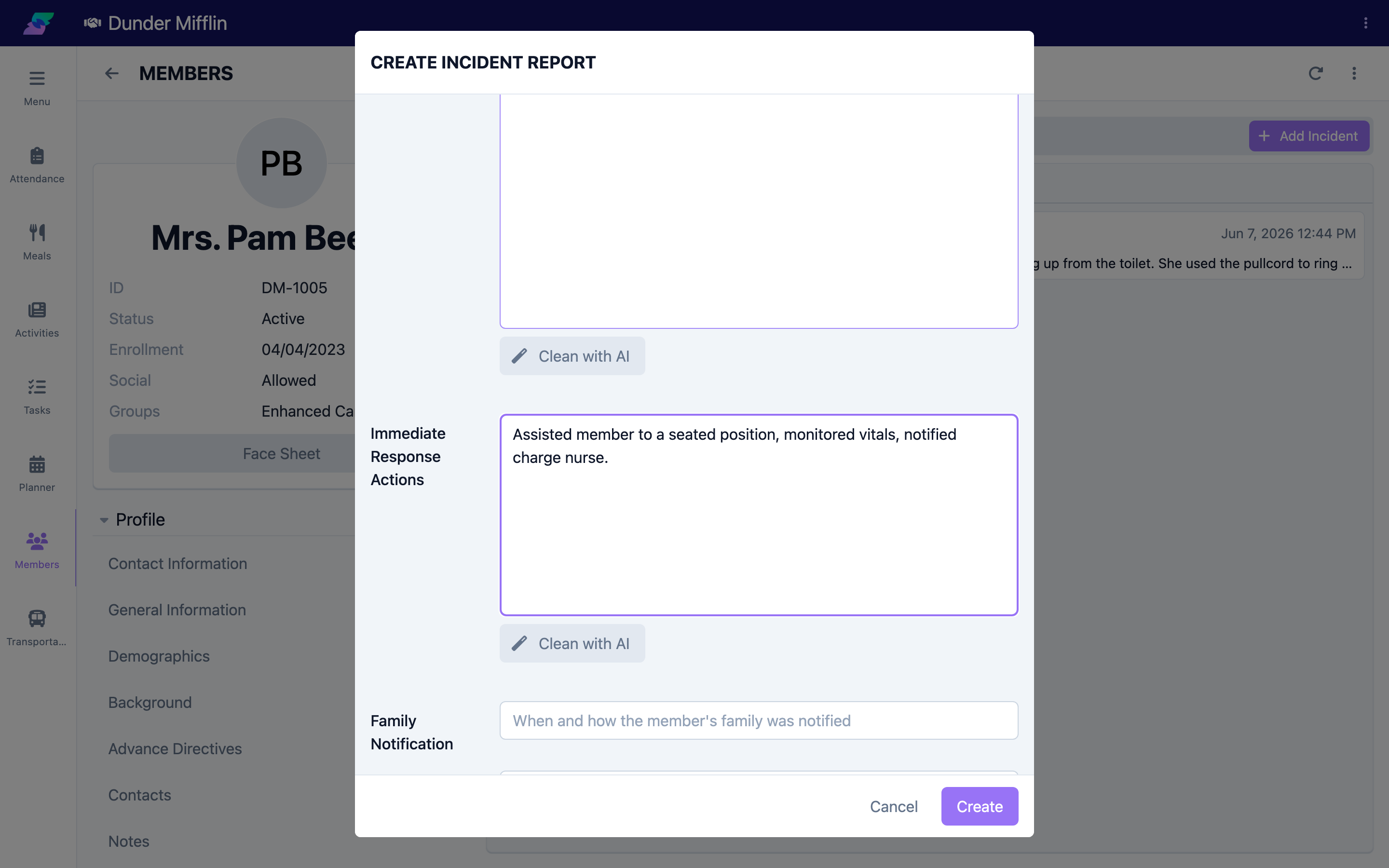
- Family Notification — When and how the member's family was notified
- Outcome — Select the severity: No Harm / Near Miss, Minor Harm, Moderate Harm, Major Harm, or Fatality. Each option shows a short description to guide your choice.
- Additional Outcome — Any further detail about the outcome
- Vitals — Vitals recorded at the time of the incident
Step 5: Flag a State-Reportable Incident
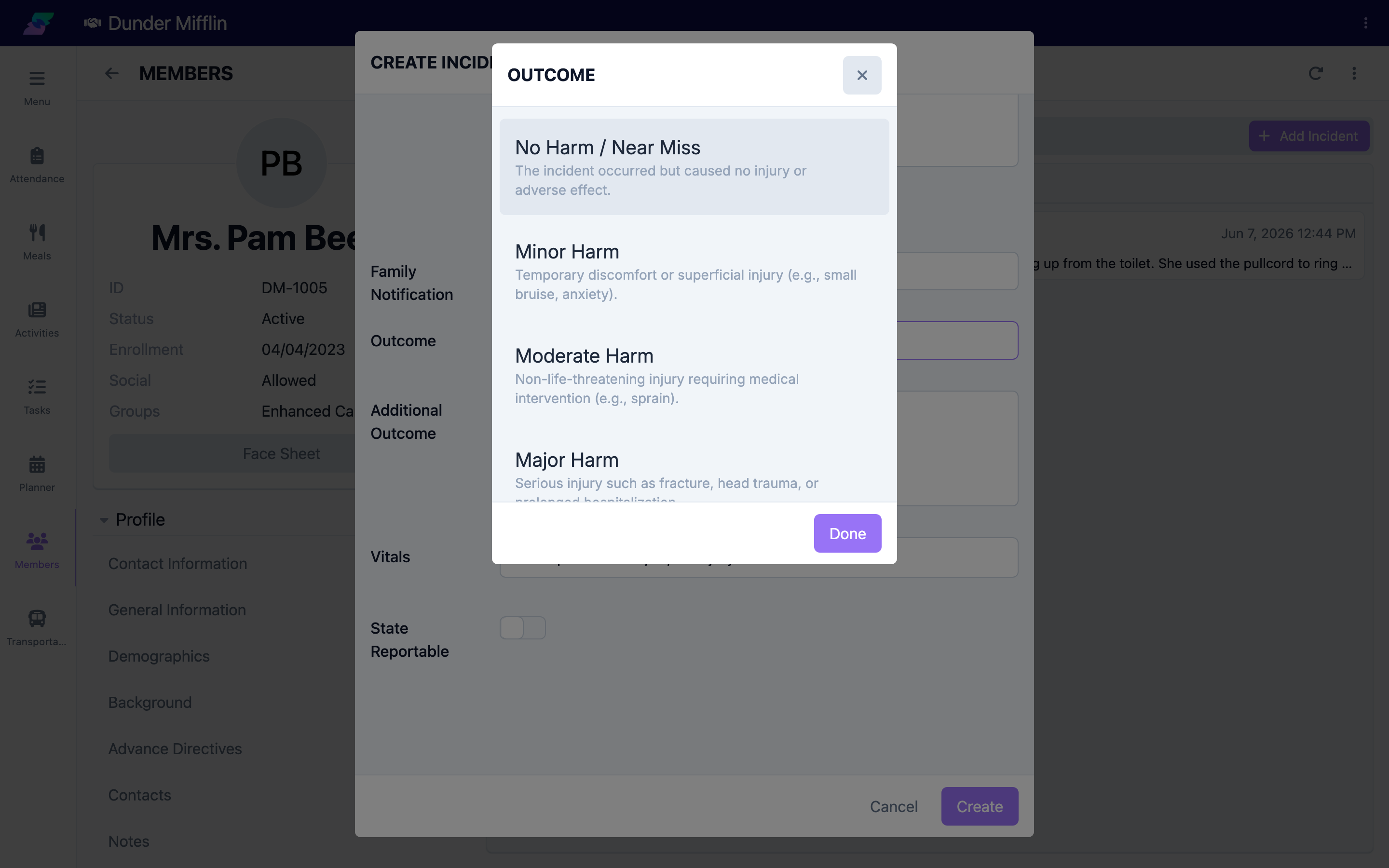
If the incident must be reported to a state agency, turn on the State Reportable toggle. A State Report Submission date field appears so you can record when the state report is submitted. You can set this now or leave it for the reviewer.
Step 6: Save and Submit for Review
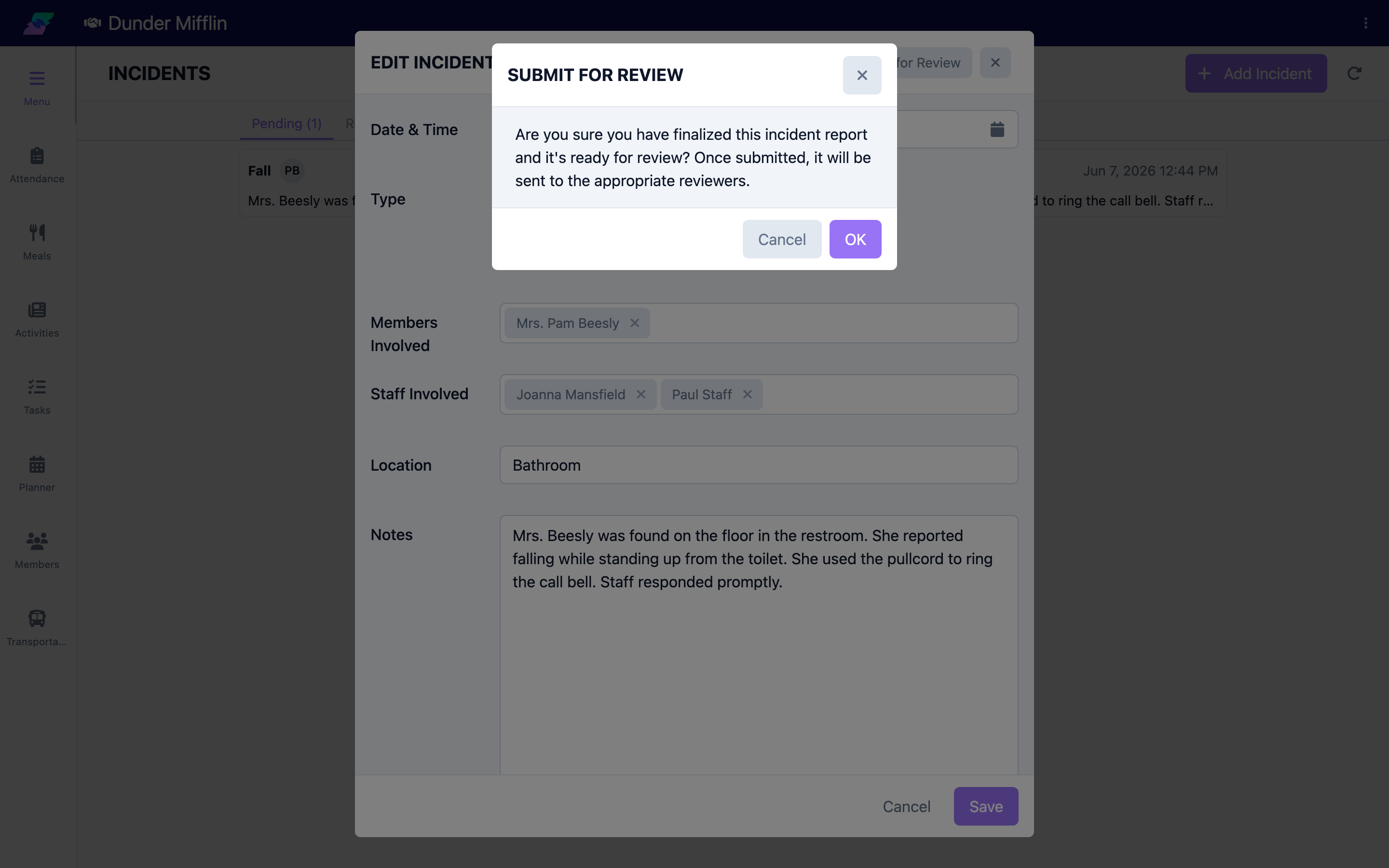
Select Save to create the report. It is saved in Pending status, and you can reopen it to keep editing. When the report is complete, open it and select Submit for Review, then confirm. This moves the report to Review status and sends it to the appropriate reviewers. If you need to void a report before it is finalized, use the Cancel action to mark it Canceled.
Tips
- Document promptly, ideally within the same shift, while details are fresh
- Be objective and factual — record what you observed, not assumptions
- Use Clean with AI to tighten grammar and clarity in the Notes and Immediate Response Actions; it will not add information you did not write
- A Pending report stays editable, so save early and refine before submitting for review
Troubleshooting
| Problem | Solution |
|---|---|
| I cannot find the Add Incident button | Confirm you have Care module access. You can add incidents from Care → Incidents or the member's Incidents tab in the Care tab group. |
| The form will not save | Members Involved and Notes are required. If Type is Other (Specify), the Specify Type field is also required. |
| The State Report Submission date field is missing | The date field only appears after you turn on the State Reportable toggle. |
| I can no longer edit a report | Once a report is submitted for review it moves to Review status and is no longer freely editable. Reviewers handle it from there — see the review and finalizing article. |