
Overview
The Diagnoses & Conditions tab lets you record and maintain a member's medical conditions and diagnoses. Each condition captures the condition name, the physician associated with it, an Active or Inactive status, free-text notes, and any supporting file attachments. Keeping this list current supports care coordination, clinical documentation, and the member's Face Sheet.
Before You Begin
- You must be logged into Seniorverse with access to the Care module and permission to edit clinical records
- The member must already exist in the system
- Have the member's diagnosis details ready, including the responsible physician and any documents you want to attach
Steps
Step 1: Open the Diagnoses & Conditions Tab
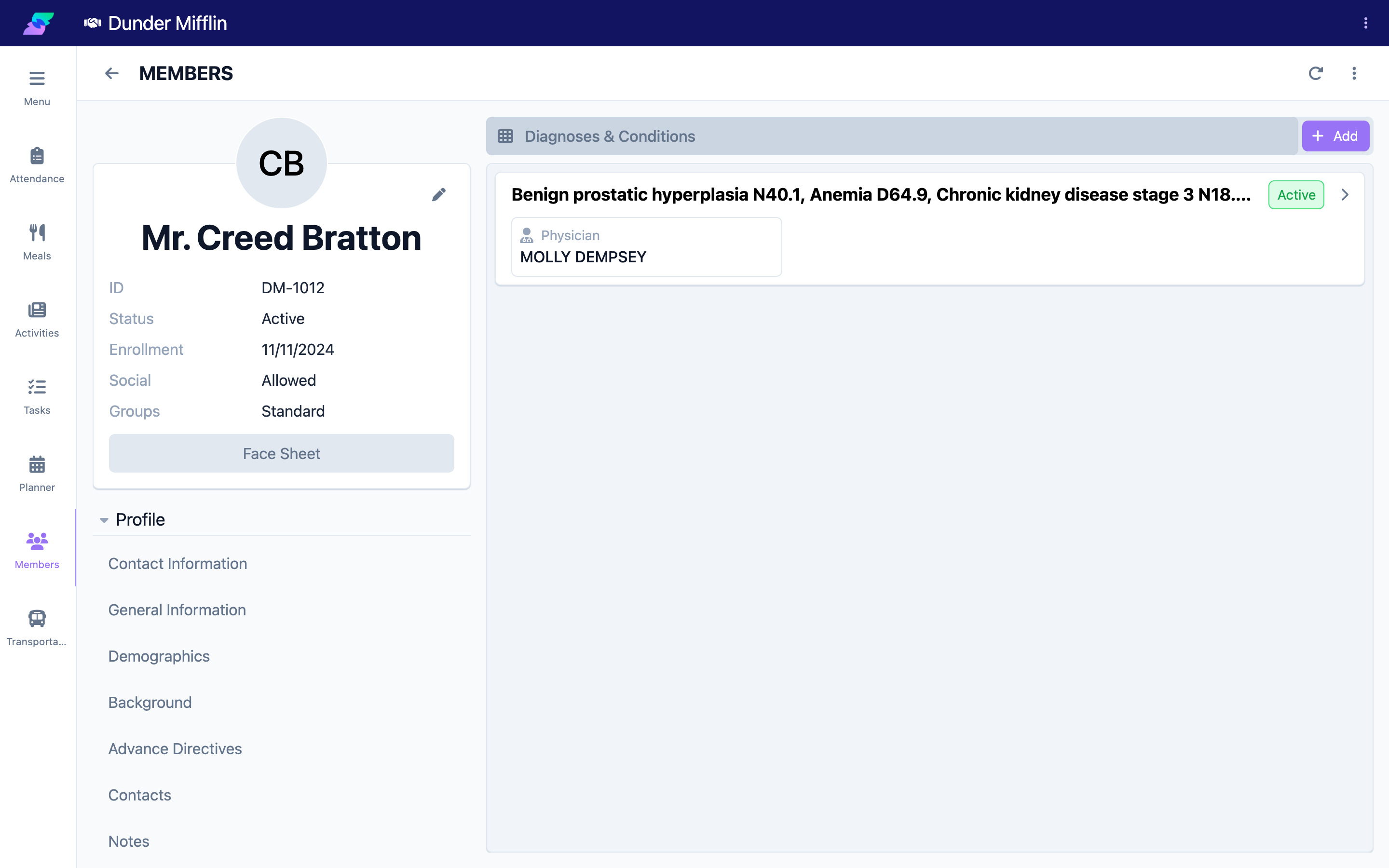
From the main navigation, select Care, then select Members and choose the member you want to update. In the member profile, open the Care tab group and select the Diagnoses & Conditions tab. The tab lists the member's existing conditions.
Step 2: Add a New Condition
Select the Add button. The Diagnosis & Condition form opens.
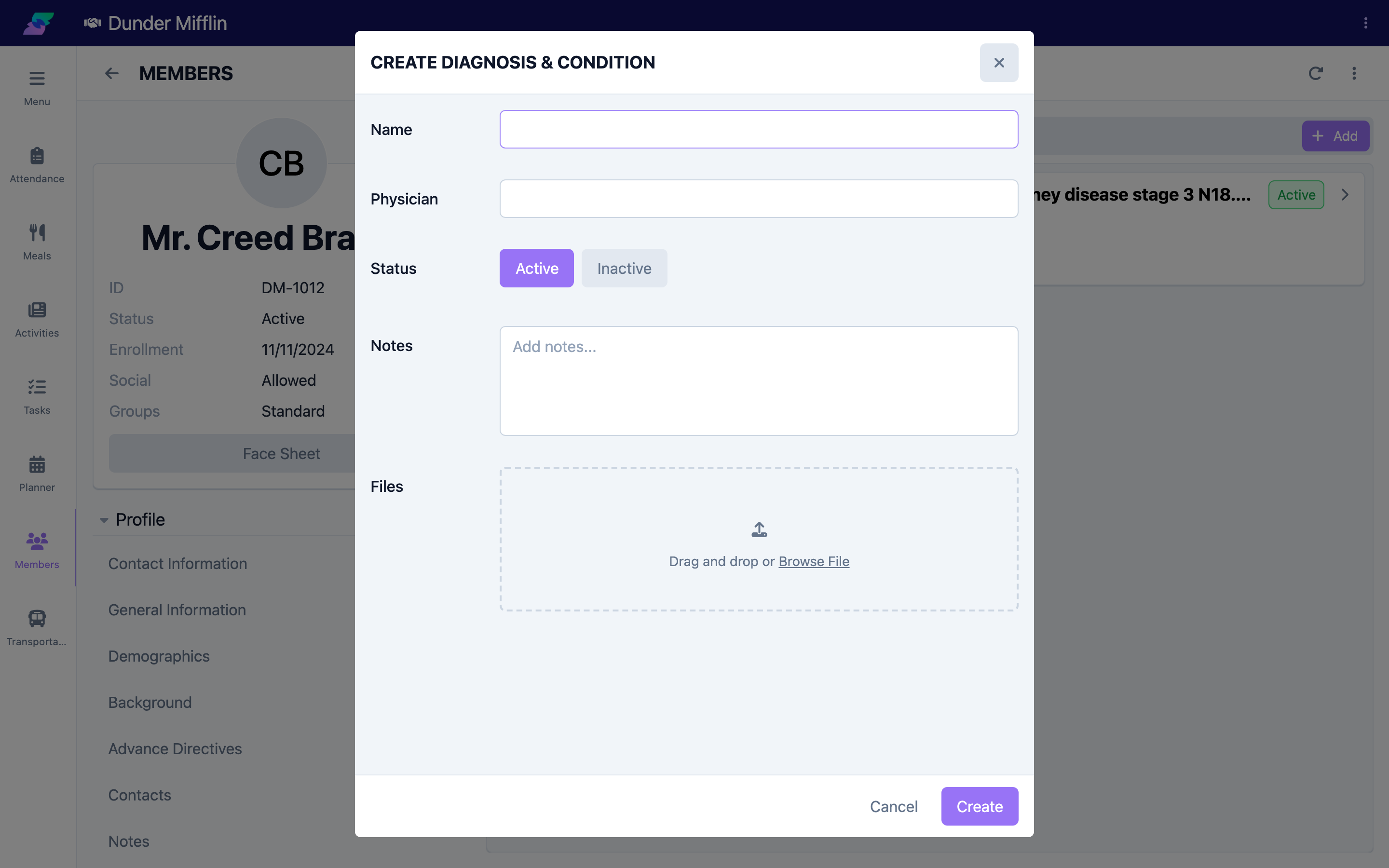
Step 3: Enter the Condition Details
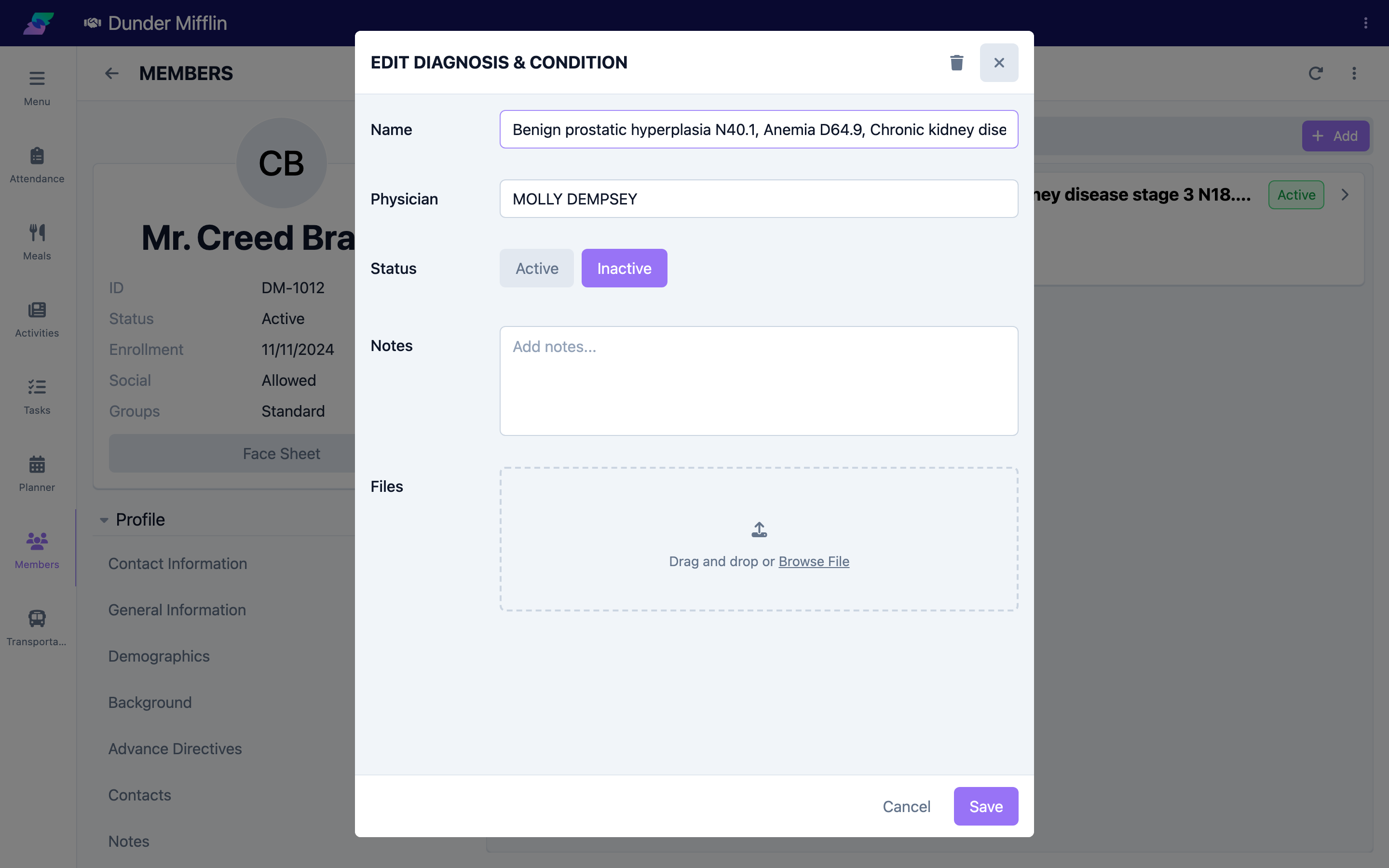
Complete the form fields:
- Name — The condition or diagnosis (required)
- Physician — The physician associated with the condition
- Status — Select Active or Inactive. New conditions default to Active.
- Notes — Optional free-text notes with additional care detail
- Files — Attach supporting documents such as physician notes or lab results
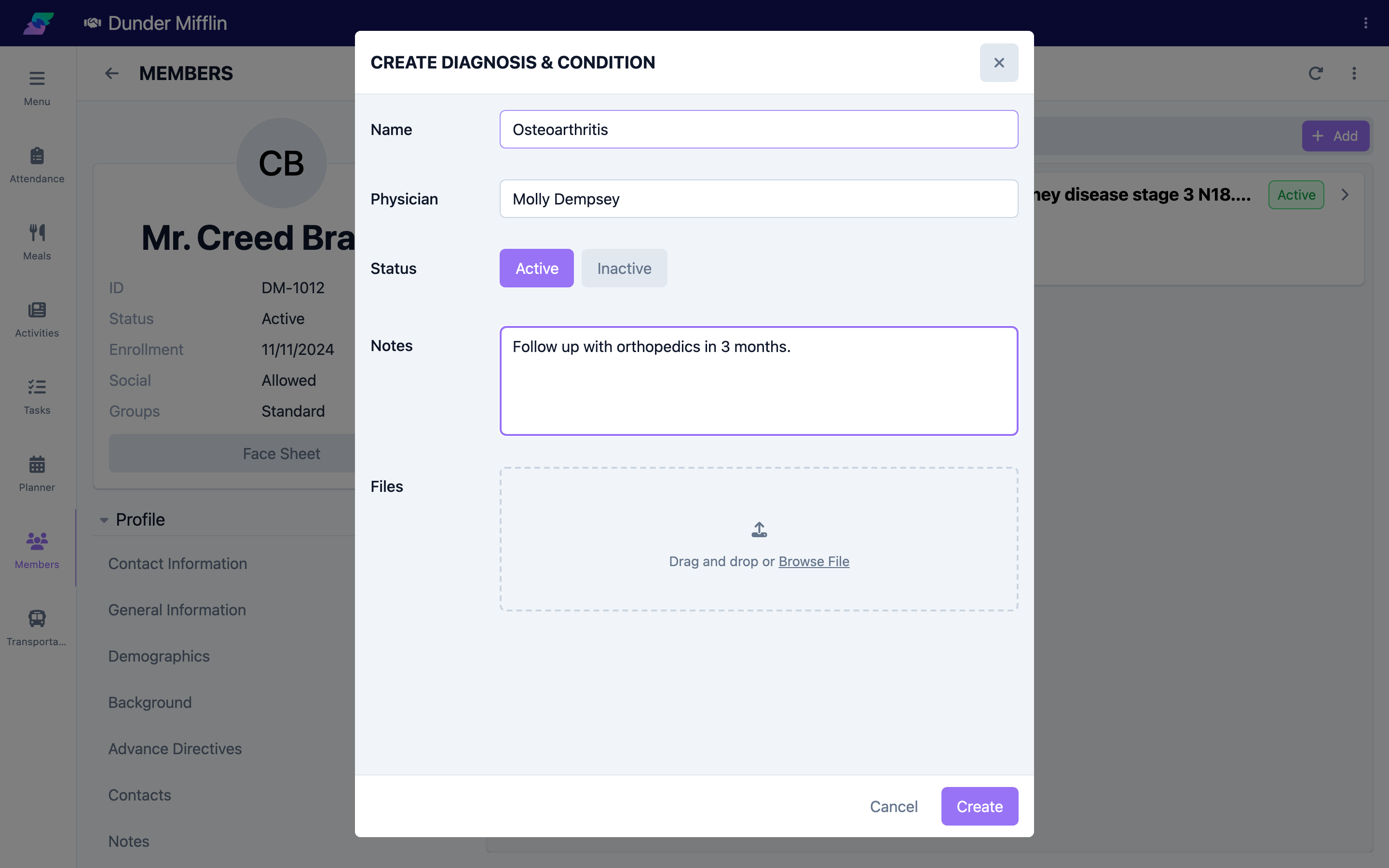
Step 4: Save the Condition
Select Save. The condition appears in the Diagnoses & Conditions list for the member.
Step 5: Edit or Remove a Condition
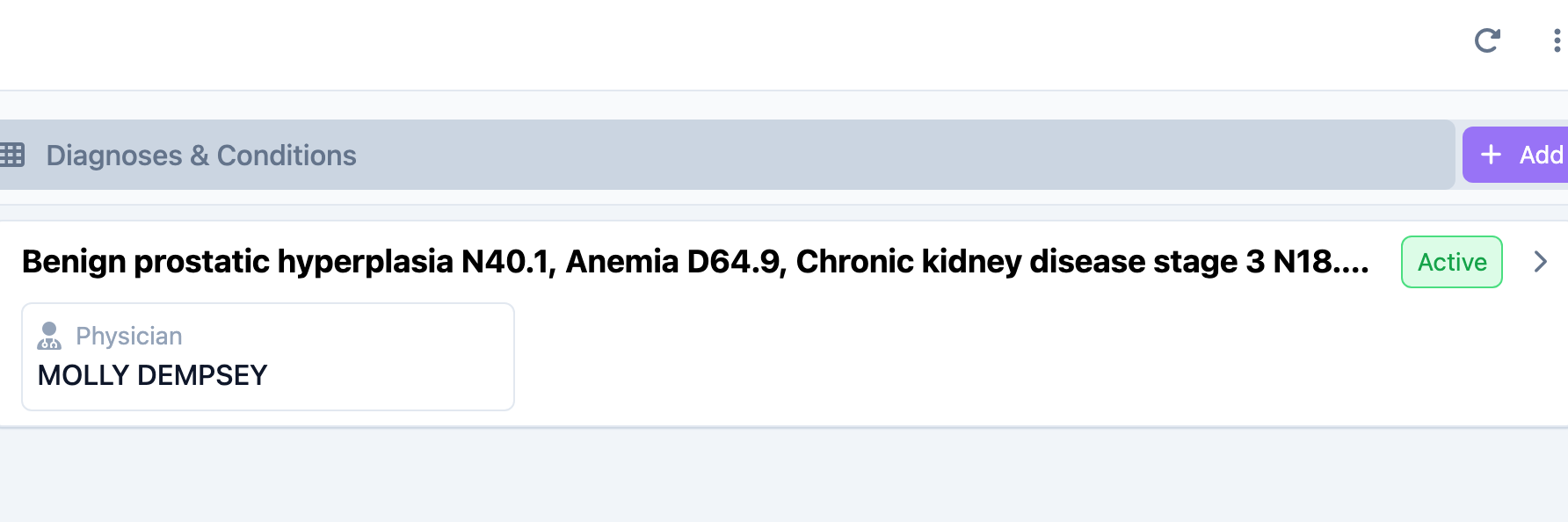
To update a condition, select it in the list to reopen the form, make your changes, and select Save. When a condition is no longer active, change its Status to Inactive to preserve the history rather than deleting the record. To remove a record entered in error, use the Delete option in the form.
Tips
- Set a condition's status to Inactive instead of deleting it so the member's clinical history stays intact
- Record the responsible Physician on each condition so staff know who to contact about a diagnosis
- Attach physician documentation or lab results in the Files field to keep supporting evidence with the record
- Review the condition list after appointments or hospitalizations to keep it current
Troubleshooting
| Problem | Solution |
|---|---|
| Diagnoses & Conditions tab is not visible | The tab is in the Care tab group of the member profile. If you cannot see it, verify you have Care module access and clinical edit permissions with your administrator. |
| Cannot save the condition | Name is required. Make sure it is filled in before selecting Save. |
| A condition no longer applies | Open the condition and set its Status to Inactive rather than deleting it, so the history is preserved. |
| A file will not attach | Confirm the file is a supported type and finished uploading before you select Save. Re-add the file if the upload was interrupted. |