
Overview
The Allergies tab records a member's medication, food, and environmental allergies. Each allergy captures a type, name, description, severity, and the intervention and reaction, plus any file attachments. Accurate allergy records help staff avoid dangerous exposures during medication administration and meal service. This article covers adding, editing, and removing allergies. To confirm a member has no allergies of a given type, see Recording "No Known Allergies".
Before You Begin
- You must be logged into Seniorverse with access to the Care module and permission to edit clinical records
- The member must already exist in the system
- If an allergy type has been marked No Known Allergies, remove that designation before you can add an allergy of that type
Steps
Step 1: Open the Allergies Tab
From the main navigation, select Care, then Members, and choose the member. In the member profile, open the Care tab group and select the Allergies tab. Existing allergies are grouped by type: Medication, Food, and Environmental.
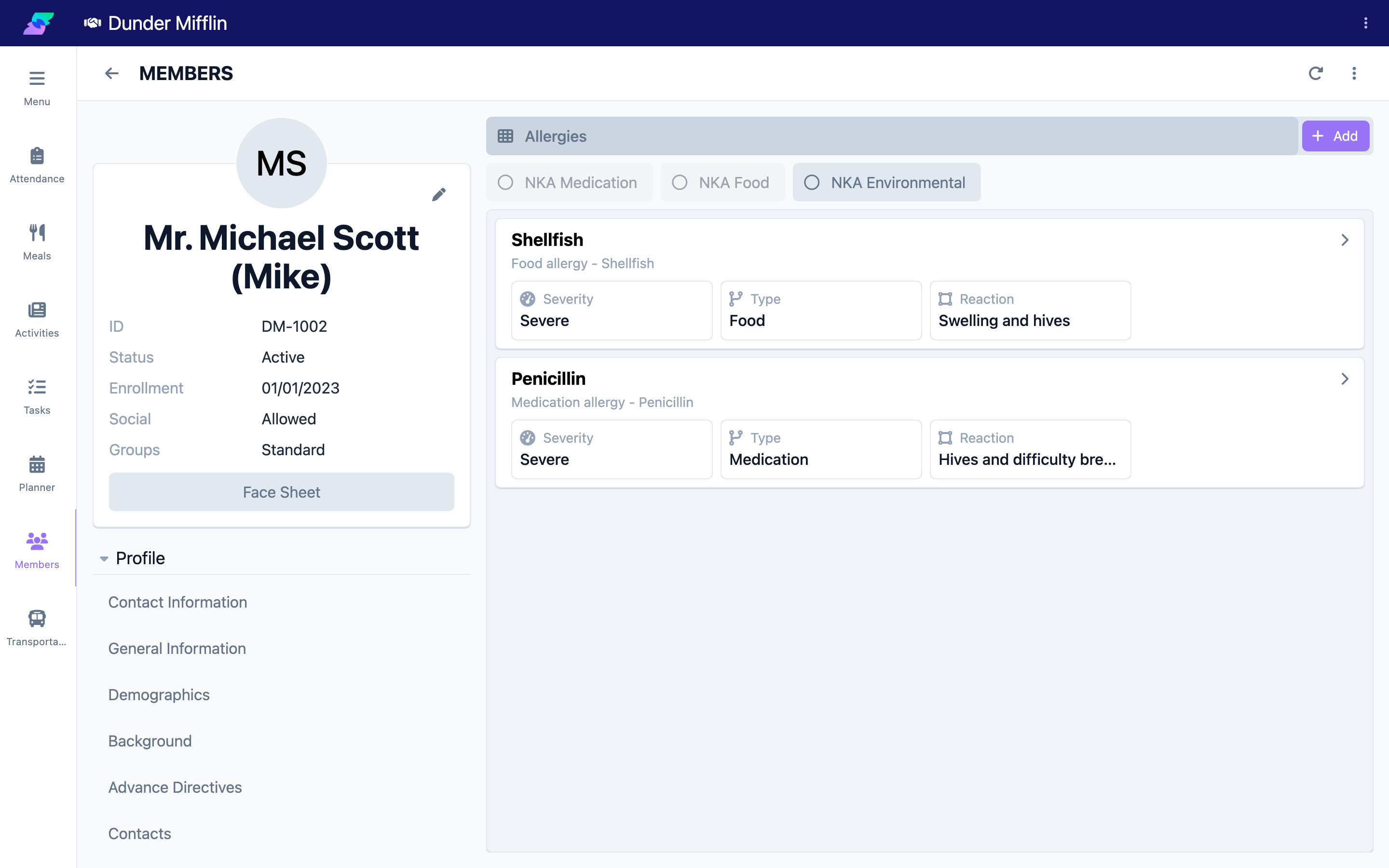
Step 2: Add an Allergy
Select the Add button to open the Allergy form.
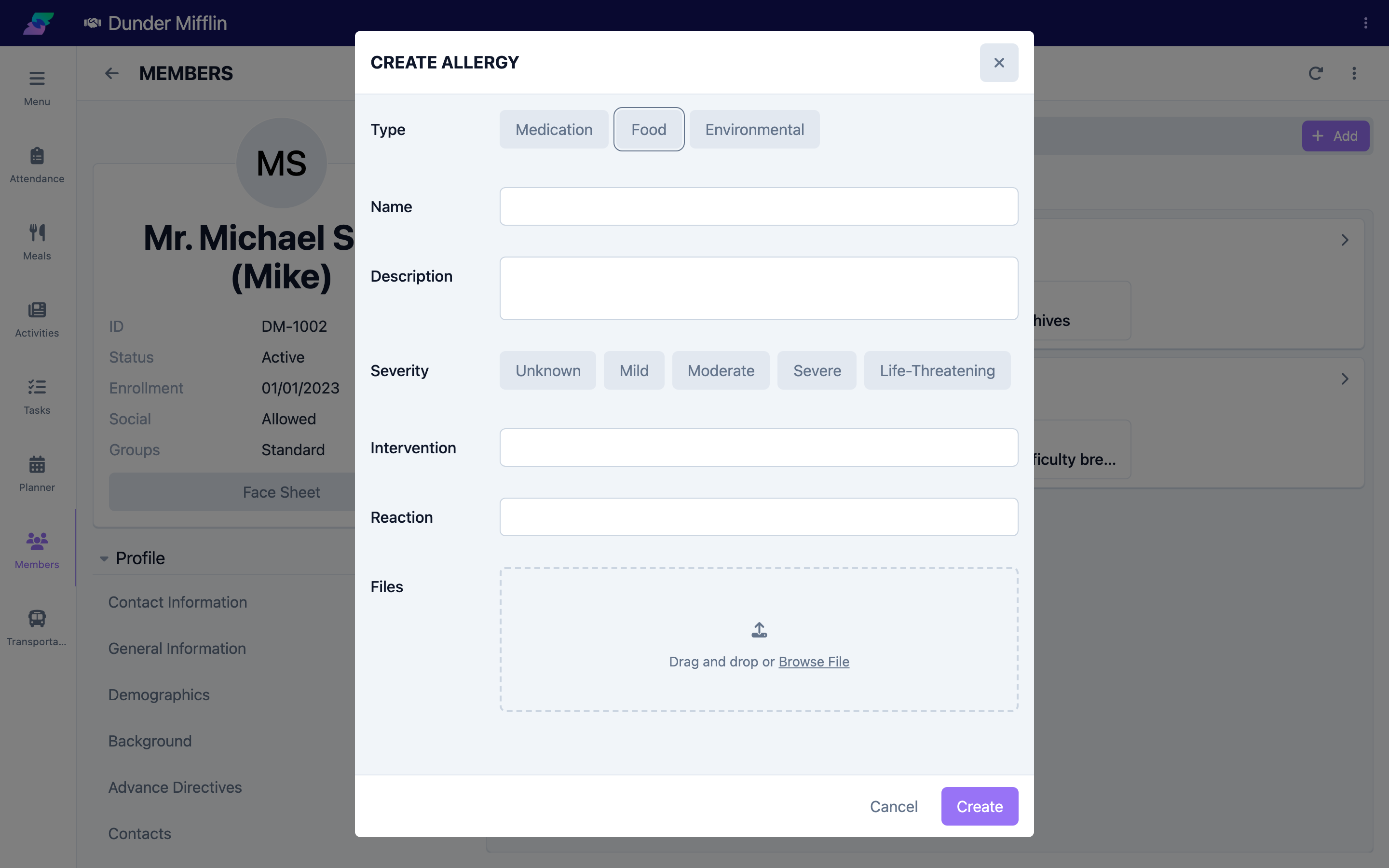
Step 3: Enter the Allergy Details
Complete the form:
- Type — Select Medication, Food, or Environmental (required)
- Name — The specific allergen, such as Penicillin, Peanuts, or Latex (required)
- Description — Optional additional detail
- Severity — Select Unknown, Mild, Moderate, Severe, or Life-Threatening (required)
- Intervention — What to do if the member is exposed
- Reaction — The symptoms the member experiences
- Files — Attach any supporting documents
Select Save to add the allergy to the member's record.
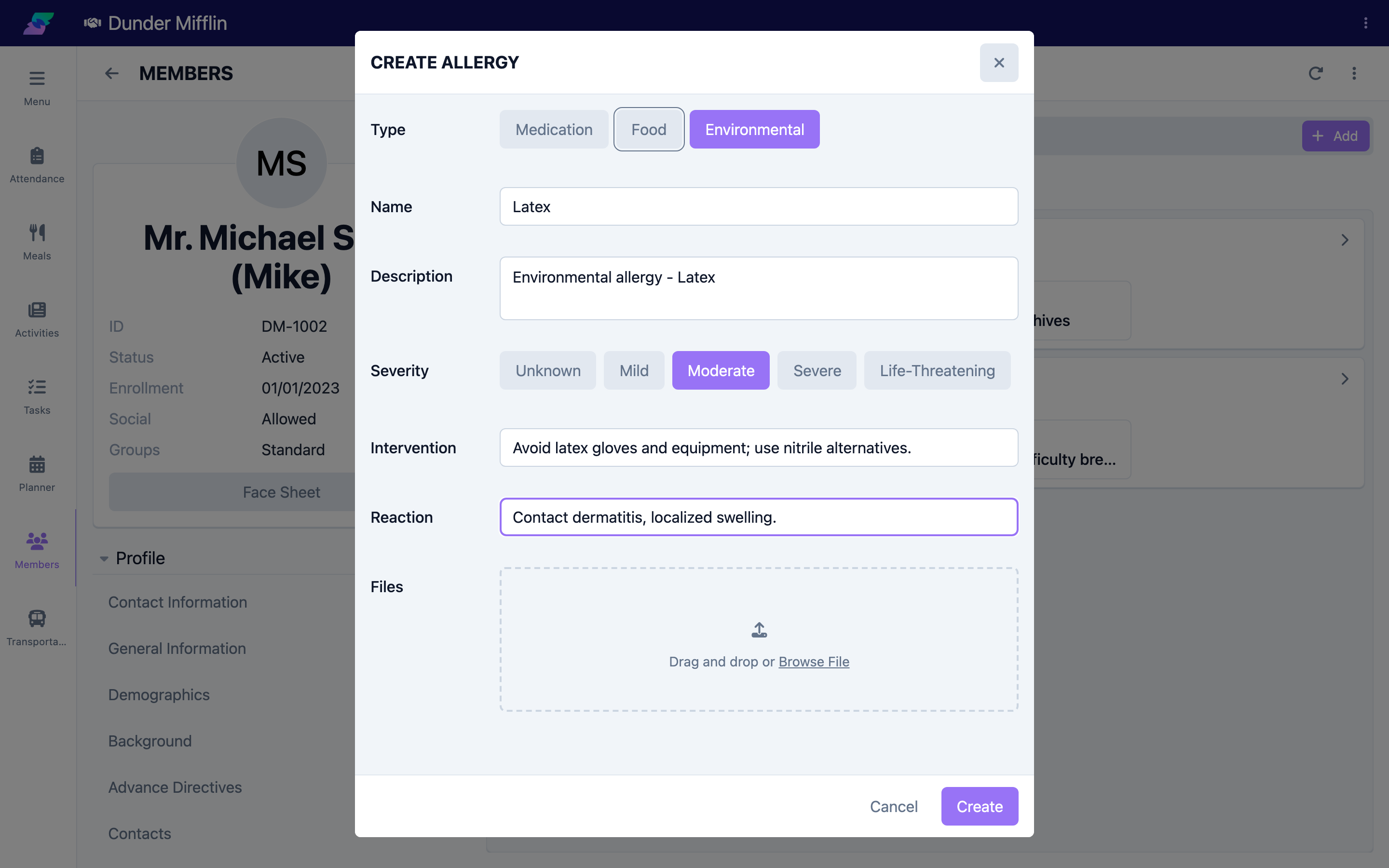
Step 4: Edit or Remove an Allergy
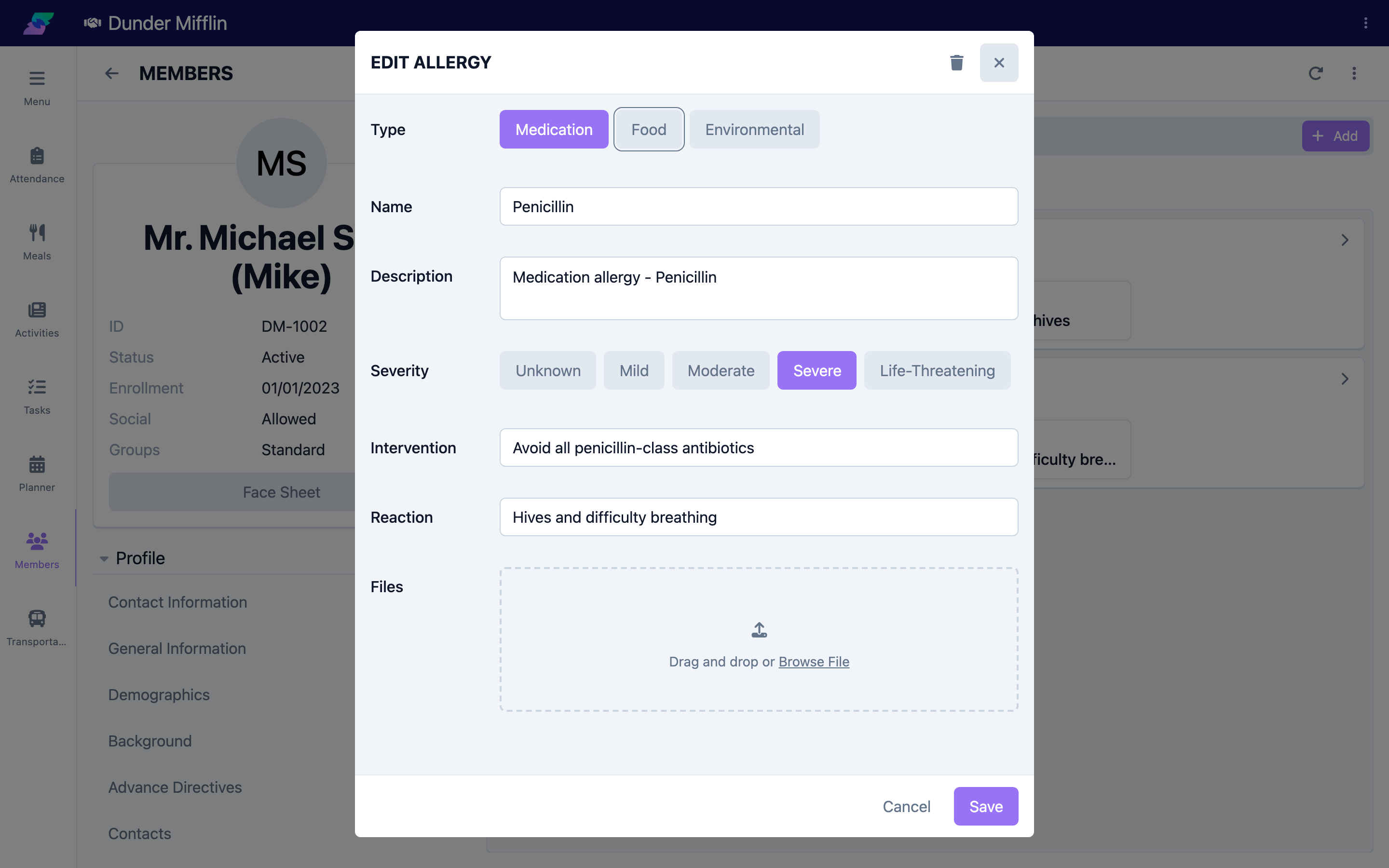
To change an allergy, select it in the list to reopen the Allergy form, update the fields — for example, adjust the Severity after a medical evaluation — and select Save. To remove an allergy entered in error, use the Delete option in the form.
Tips
- Verify allergies against the member, family, and medical records before adding them
- Use the Intervention and Reaction fields to give staff clear, actionable guidance for severe and life-threatening allergies
- Review medication allergies whenever the member's medication list changes
- Only delete an allergy if it was entered in error; otherwise keep the record for history
Troubleshooting
| Problem | Solution |
|---|---|
| Allergies tab is not visible | The tab is in the Care tab group of the member profile. Confirm you have Care module access and clinical edit permissions. |
| A type is missing from the Type options, or the form says to remove NKA | That allergy type has been marked No Known Allergies. Remove the NKA designation for that type first — see the No Known Allergies article. |
| The form will not save | Type, Name, and Severity are required. Complete all three before saving. |
| A file will not attach | Confirm the file is a supported type and finished uploading before you save. |