
Overview
Care goals describe what a member's care is working toward, and each goal is supported by one or more services. Goals exist in two places in Seniorverse:
- Your center's Goals library — reusable goals you define once under Care > Service Plans, so they can be reused across members and plan templates.
- Goals on a member's service plan — goals added to an individual plan, where you also track dates and outcomes.
This article covers both: building the reusable library and working with goals inside a member's plan.
Before You Begin
- You need Care planning access.
- To edit outcomes and dates, the goal must be on a member's service plan (see Building Service Plans).
- Consider defining your services first, since goals can link to the services that support them.
Steps
Step 1: Open the Goals library
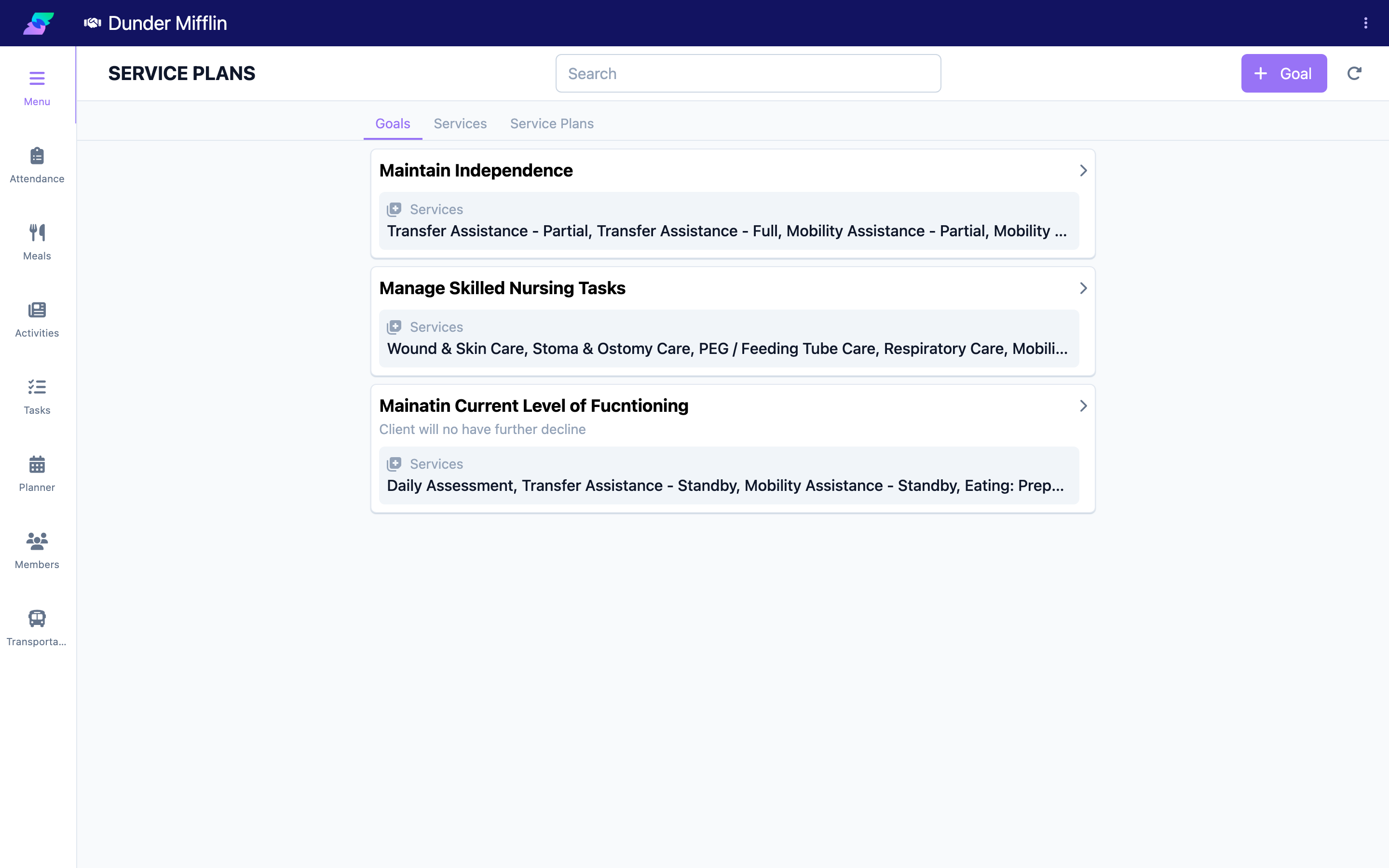
From the Care sidebar, select Service Plans to open the care planning library. It has three tabs — Goals, Services, and Service Plans. Select the Goals tab to see your center's reusable goals.
Step 2: Add a reusable goal
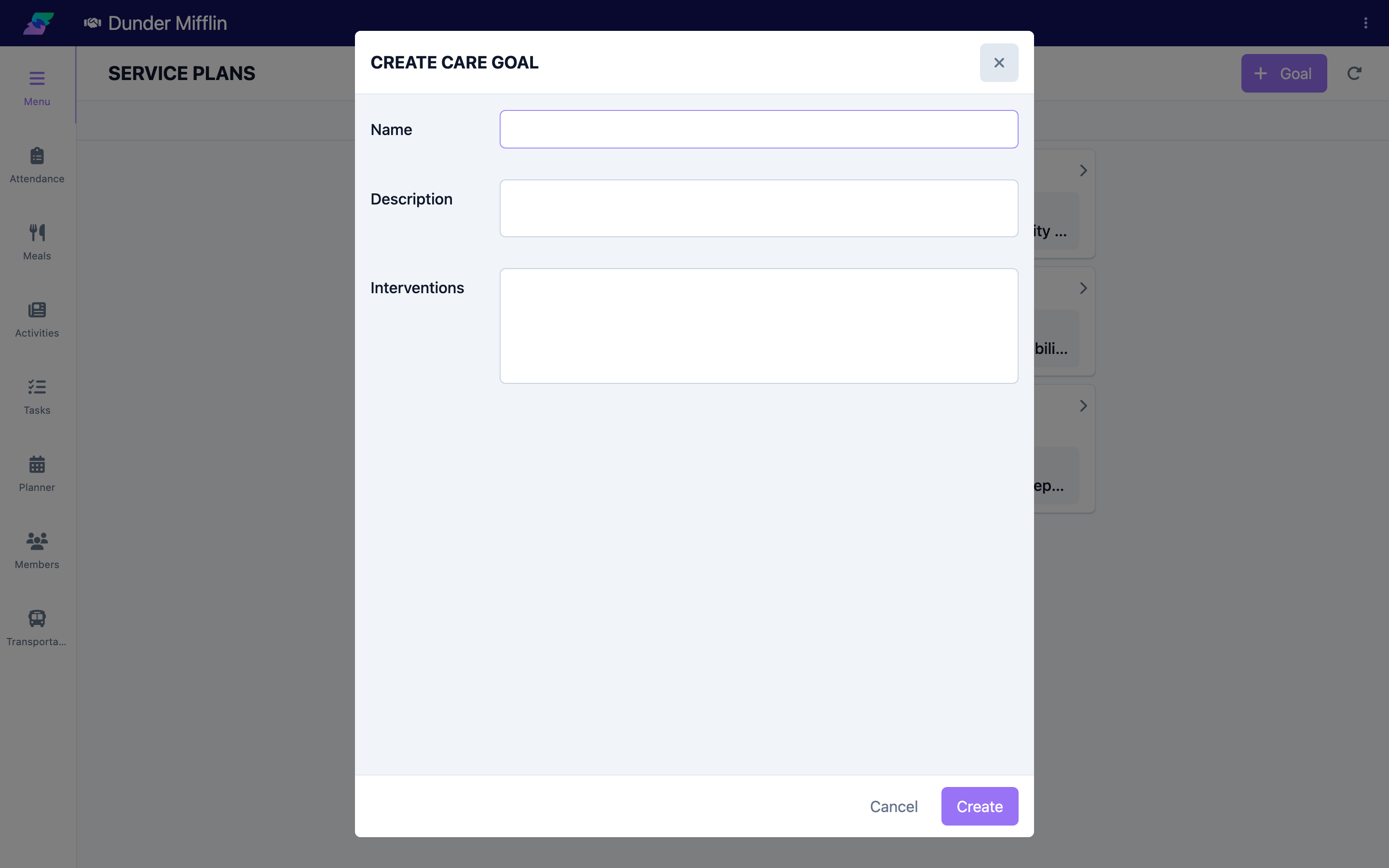
Select Goal to open the Care Goal form and enter:
- Name — a clear, concise goal title
- Description — what the goal aims to achieve
- Interventions — the approaches staff will use to work toward it
Save to add it to the library. Services are linked afterward — reopen the saved goal to add the Services that support it.
Step 3: Edit or reuse a library goal
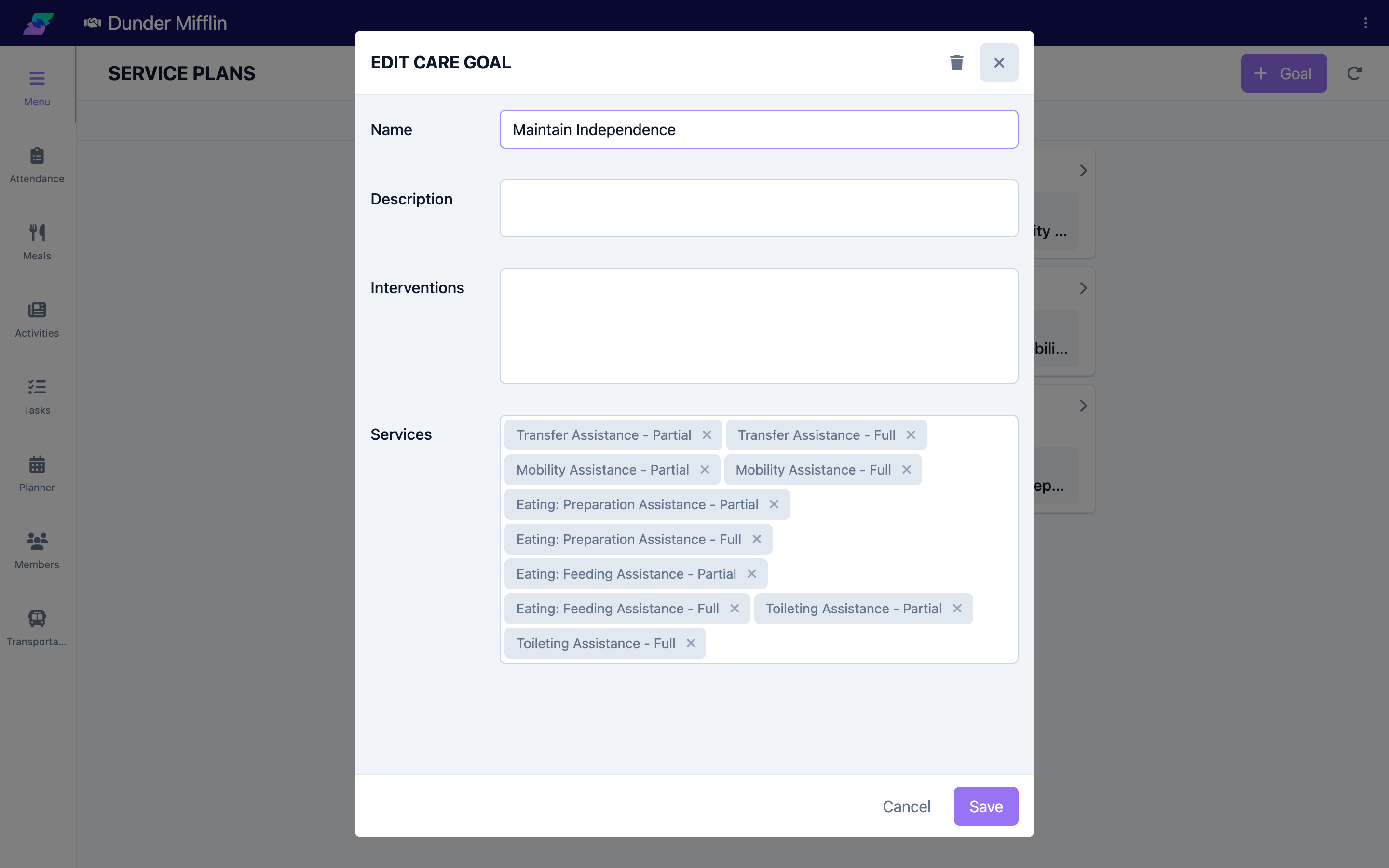
Select any goal in the Goals tab to edit its details or link the Services that support it. Changes here update the reusable goal; goals already copied onto a member's plan keep the values they were given on that plan.
Step 4: Add a goal to a member's plan
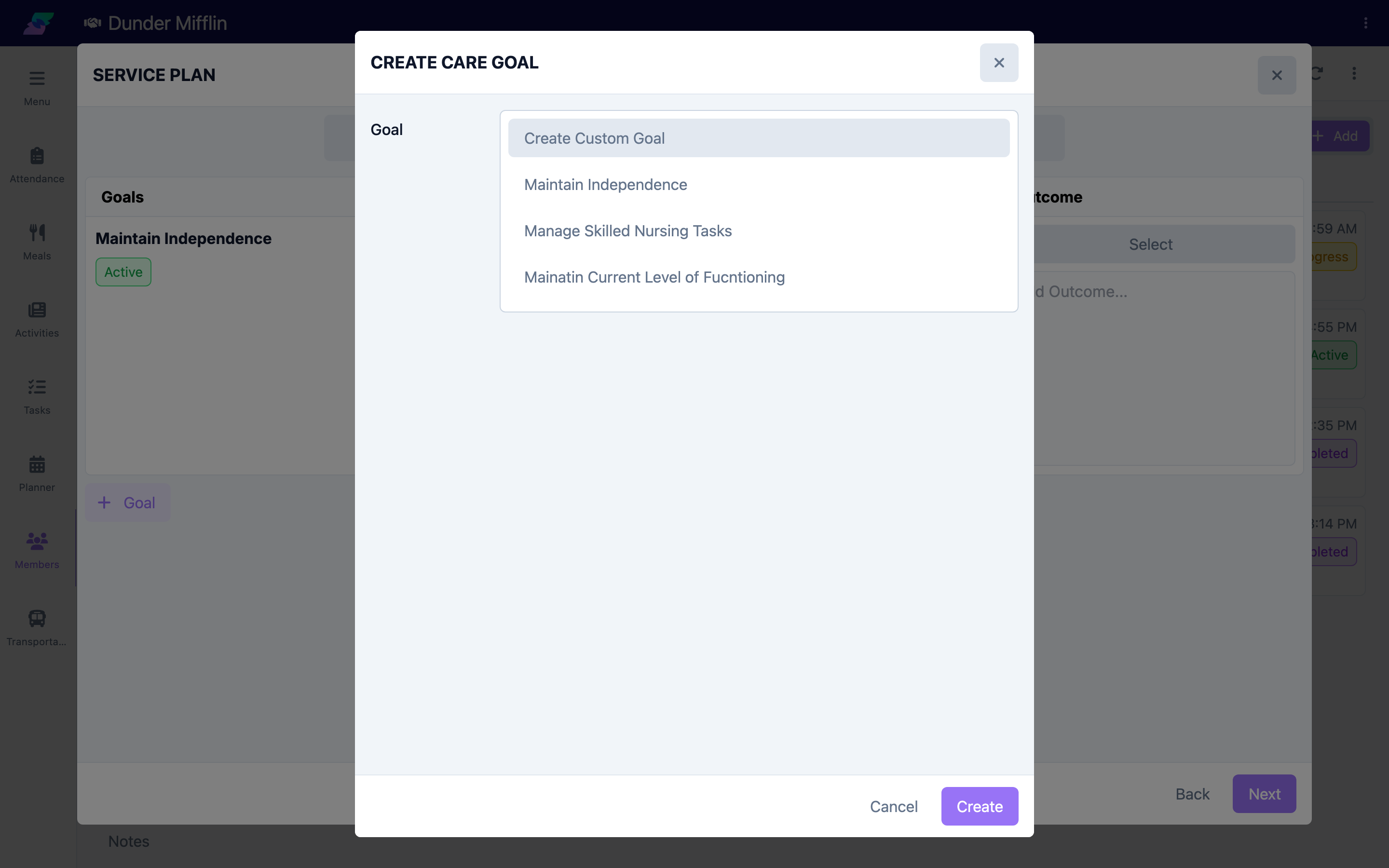
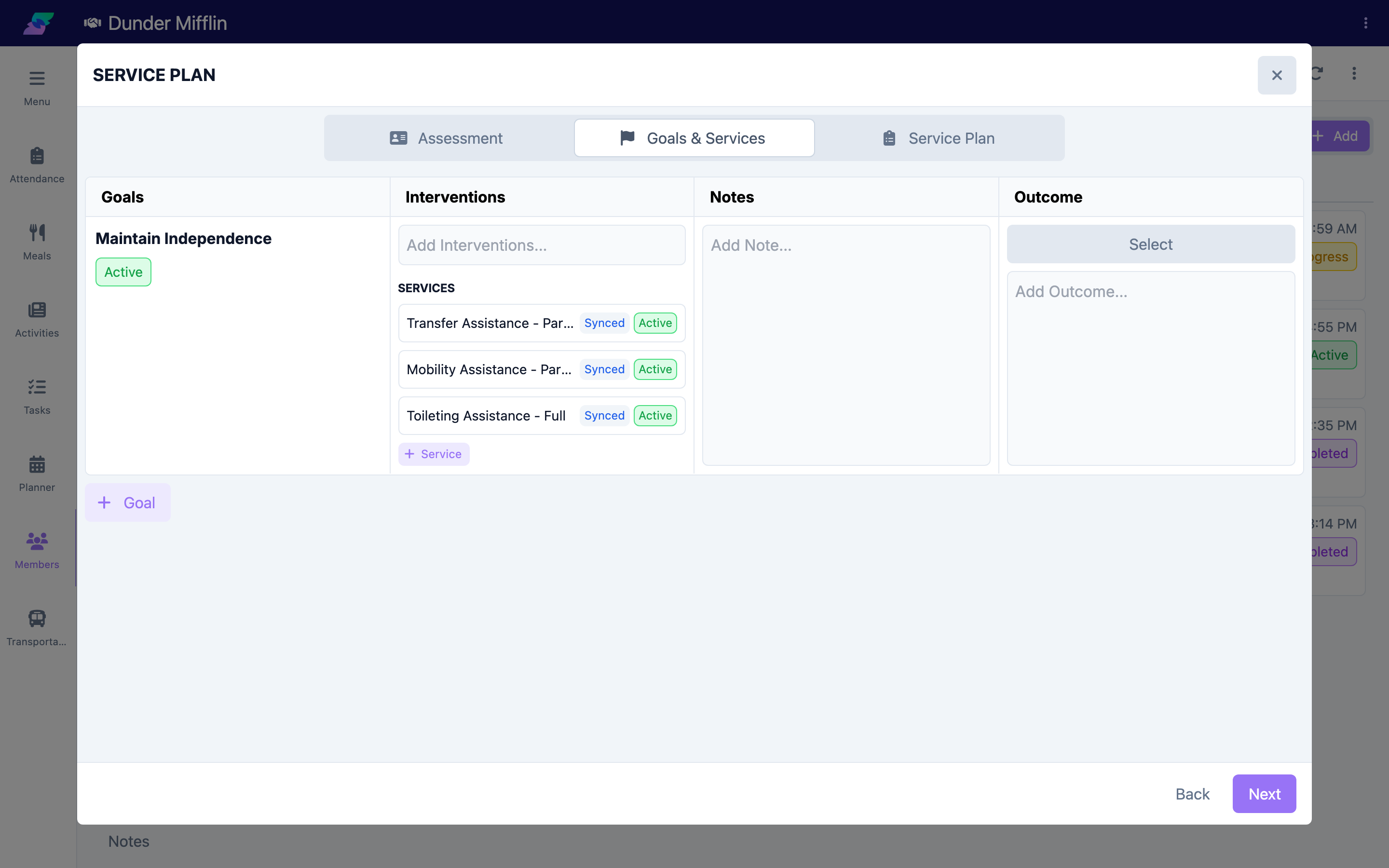
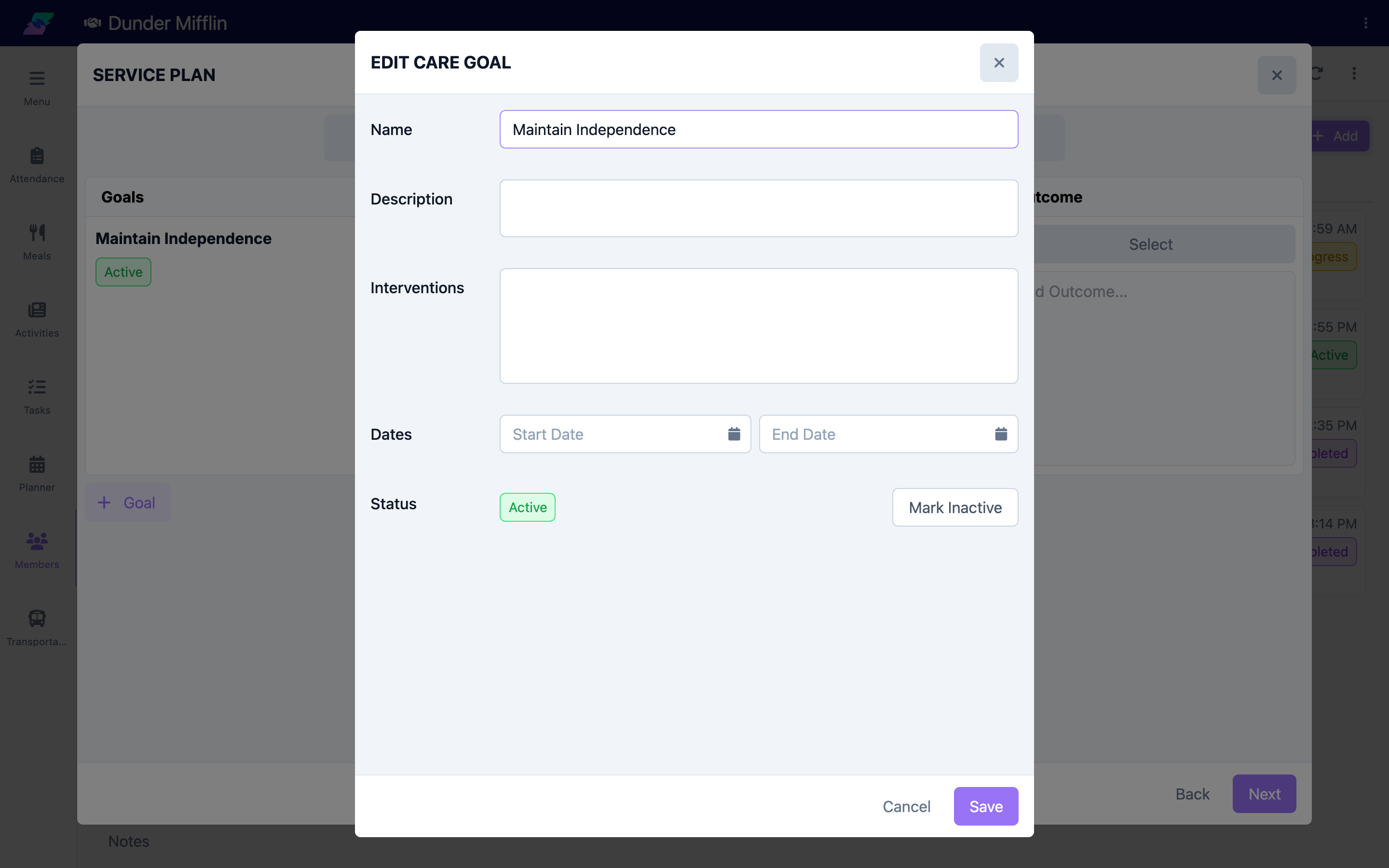
Open a member's service plan and go to the Goals & Services tab, then select Add Goal. Choose an existing goal from the library or create a custom one. On a plan, a goal also has Start and End dates in addition to its name, description, and interventions.
Step 5: Track interventions, notes, and outcomes
Within the plan's Goals & Services tab, each goal shows its Interventions, Notes, and an Outcome. Set the outcome as the goal progresses:
- Needs Met
- Not Met
- Ongoing
- None
An outcome must be recorded for every goal before the plan can be marked completed.
Step 6: Mark a plan goal inactive
If a goal on a plan no longer applies, open it and select Mark Inactive. This keeps the goal in the plan's history rather than removing it. Marking a goal inactive cannot be undone.
Tips
- Build a solid Goals library first — reusable goals make service plans faster to build and more consistent across members.
- Write goals so progress is observable, and record the supporting approach in Interventions rather than in the goal title.
- Keep outcomes current; every goal needs an outcome before its plan can be completed.
- Prefer Mark Inactive over trying to erase a goal — it preserves the care history.
Troubleshooting
| Problem | Solution |
|---|---|
| The Service Plans item is missing from the Care sidebar | This page is permission-gated (Care goals access). Ask an administrator to grant your role access. |
| I cannot add a goal to a member's plan | Open the plan's Goals & Services tab and use Add Goal. The plan must be created first, and completed plans are read-only. |
| I cannot set dates or an outcome on a library goal | Dates and outcomes apply only to goals on a member's plan, not to the reusable Goals library. |
| The plan will not mark completed | Every goal needs an outcome (Needs Met, Not Met, Ongoing, or None). Set the missing outcomes and try again. |
| I need to remove a goal from a plan | Use Mark Inactive to retire it while keeping the history. Note this cannot be undone. |