
Overview
In Seniorverse, an assessment is completed from a template your center builds in Care > Form Templates — there is no fixed built-in list of assessment types and no automatic scoring. When you start an assessment, you pick one of your center's active templates, and Seniorverse copies that template's pages, sections, and questions into a new assessment for the member.
Templates come in two kinds, controlled by the template's Type:
- Assessment — a clinical evaluation completed by staff. Assessments can be flagged to feed a member's care plan.
- Form — a shareable document that can be sent to a family member through Connect to review, complete, and sign.
This article covers starting and completing an assessment. To build the templates themselves, see Building Form and Assessment Templates.
Before You Begin
- You need Care planning access (the Assessments, Forms, and Service Plans tabs must be visible on the member profile).
- The member must already exist in Seniorverse.
- At least one Active template must exist in Care > Form Templates. Templates left as In Progress or Inactive do not appear when you create an assessment.
Steps
Step 1: Open the member and the Assessments tab
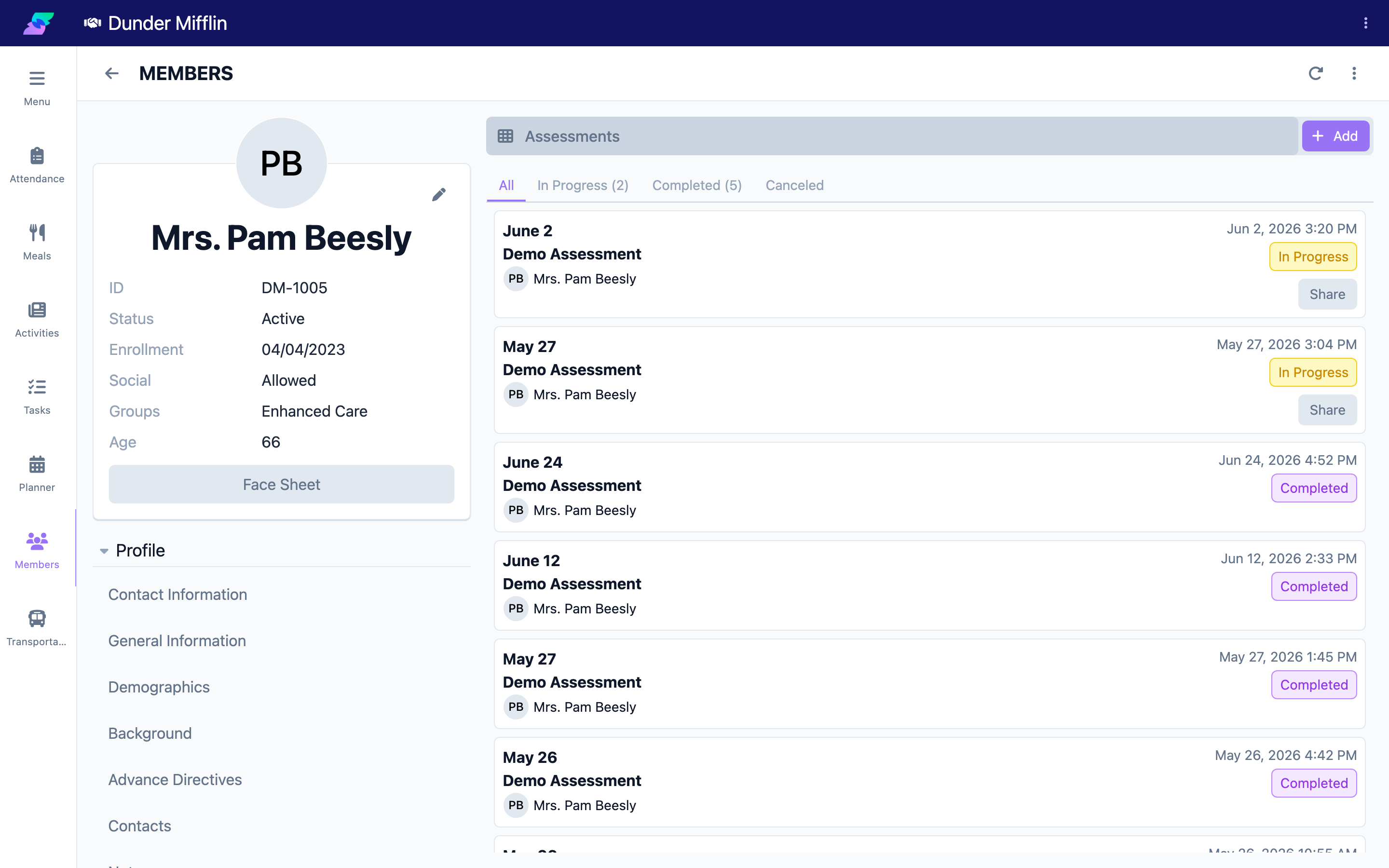
From the main navigation select Care, then Members, and open the member. On the member profile, expand the Care tab group and select the Assessments tab. (Forms shared with families live on the separate Forms tab; both are backed by the same template system.)
Step 2: Add a new assessment
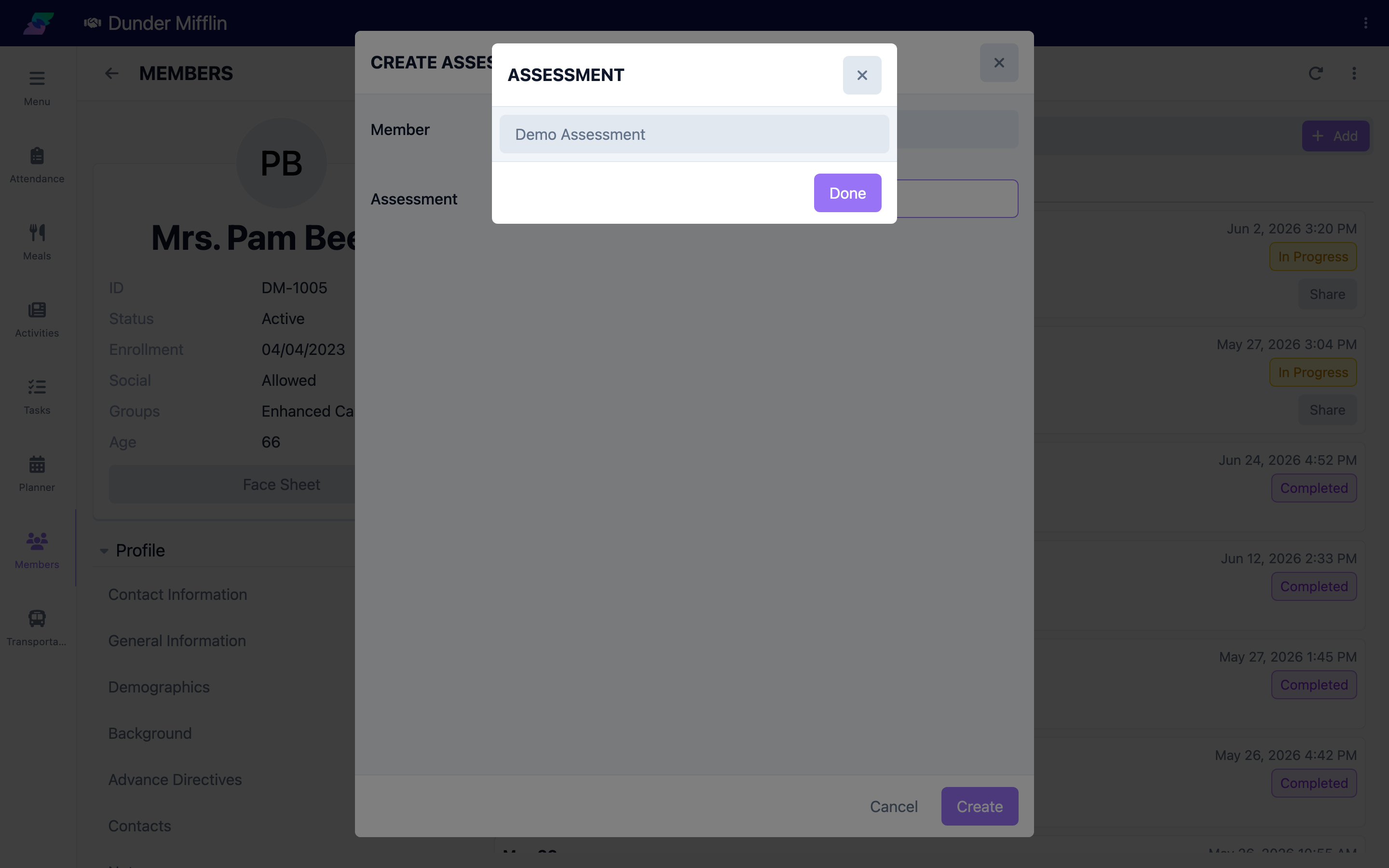
Select Add to open the assessment creation dialog. Choose the member (if not already set) and then select the Assessment template you want to use from the list of your center's active templates. Only templates whose Type is Assessment appear here — Form templates are created from the Forms tab.
Step 3: Confirm if one is already in progress
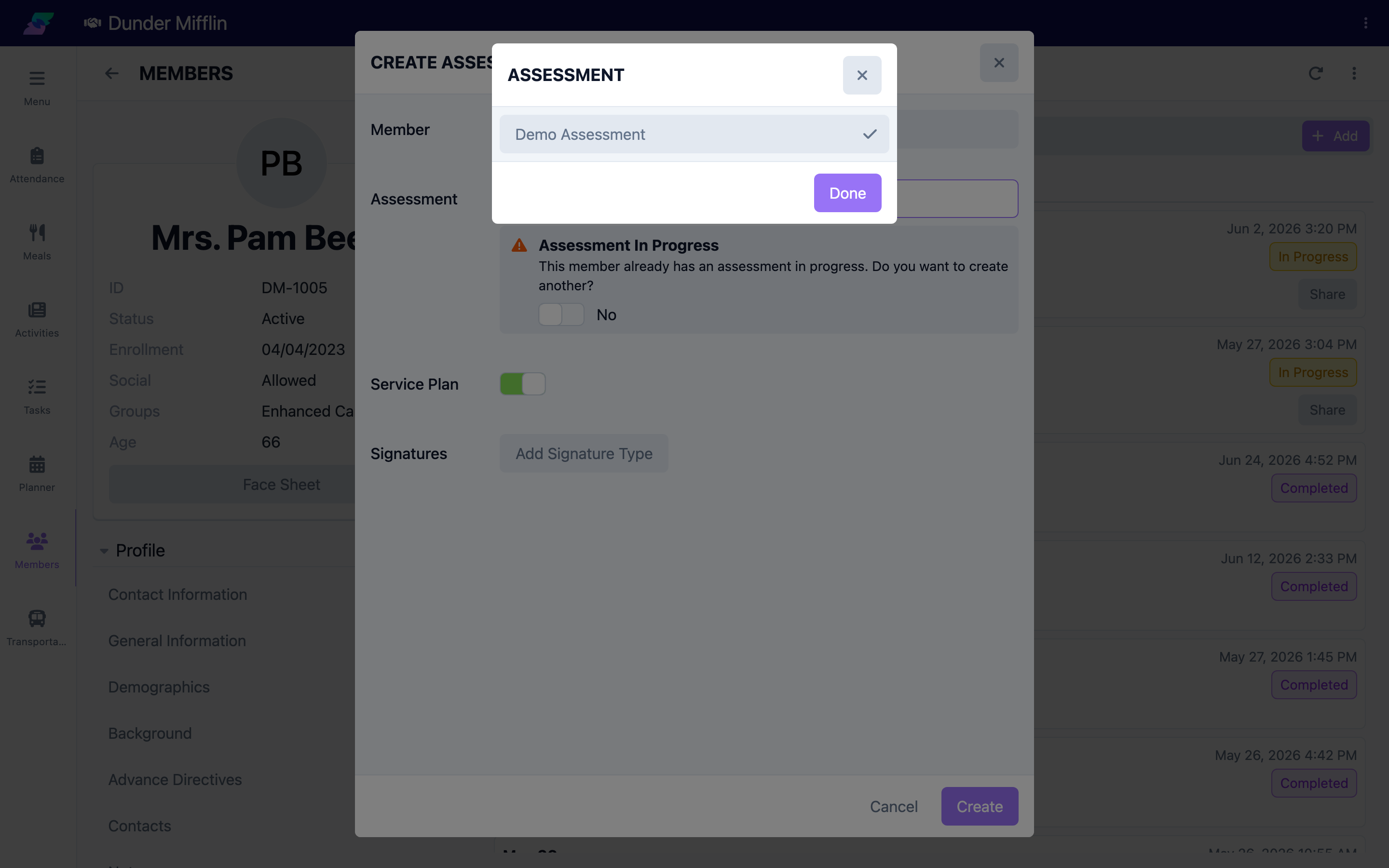
If the member already has an assessment of the same template in progress, Seniorverse warns you ("This member already has an assessment in progress. Do you want to create another?"). Choose Yes to create an additional one or No to cancel and open the existing one instead. Creating the assessment sets its status to In Progress.
Step 4: Work through the questions
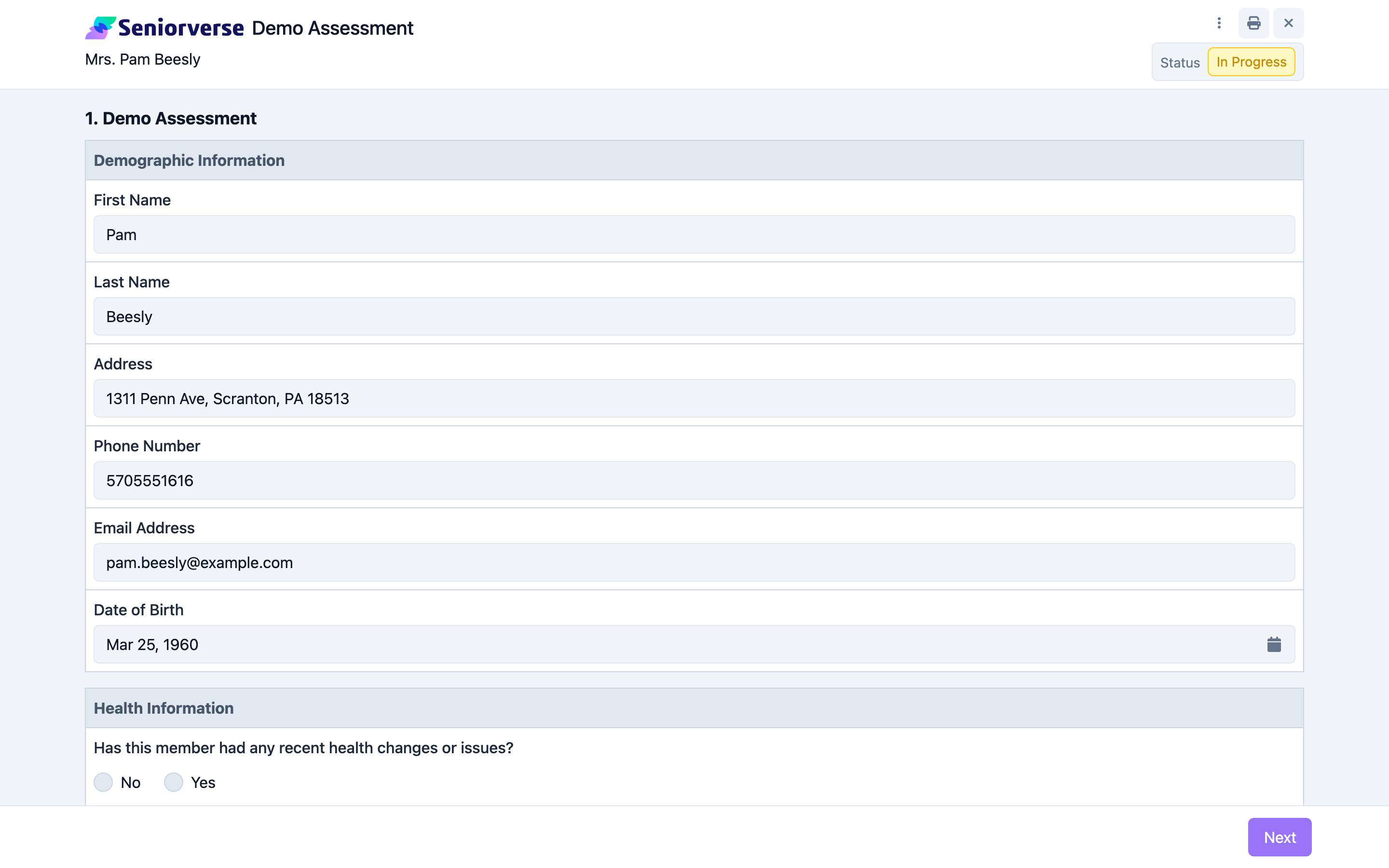
The assessment opens to its first page. Work through each page and section, answering the questions. Depending on how the template was built, questions can be:
- Short text and Long text — free-text answers
- Number, Currency, and Date — typed values
- Select one and Select multiple — choose from defined options
- Content — read-only instructions or headings (no answer)
- Table — a grid of rows and columns
- Member-sourced questions (Contacts, Medications, Conditions, Allergies, Vitals, Directives) that pull existing member data
Required questions are marked with an asterisk. If a template includes multiple pages, use Next to advance; you can jump between pages and the Review step using the Pages menu.
Step 5: Review answers and accept them into the care plan
On the Review step, every answer is shown with an Edit control next to it so you can jump back and change it. For questions the template was configured to sync to the member's record (a "Sync" target was set on the question), you also get Accept or Reject for each answer, or Accept All — these only appear when at least one question on the template has a Sync target configured. Accepting an answer writes that value back to the member's record; rejecting leaves the member's record unchanged. You must resolve every syncable question (accept or reject) before the assessment can be marked complete.
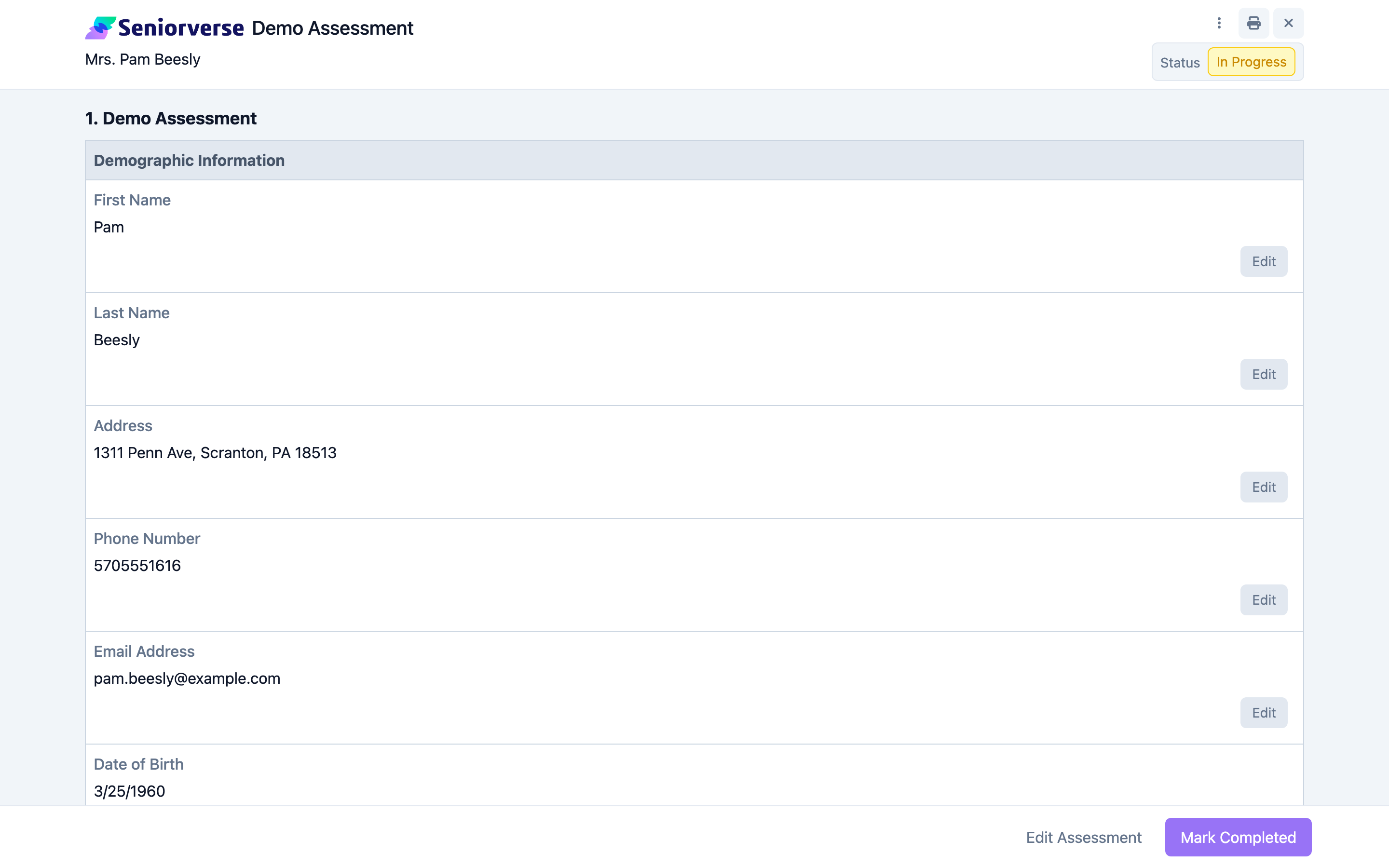
Step 6: Capture required signatures
If the template needs signature lines, add them from the assessment's menu (Edit Assessment), which opens a dialog with a Signatures section and an Add Signature Type action. Each signature can be signed electronically (drawn on the signature pad) or recorded as a manual signature, and Seniorverse stamps who signed, the method, and a timestamp. You cannot mark the assessment complete until all required electronic signatures are captured. For details, see Capturing Electronic Signatures.
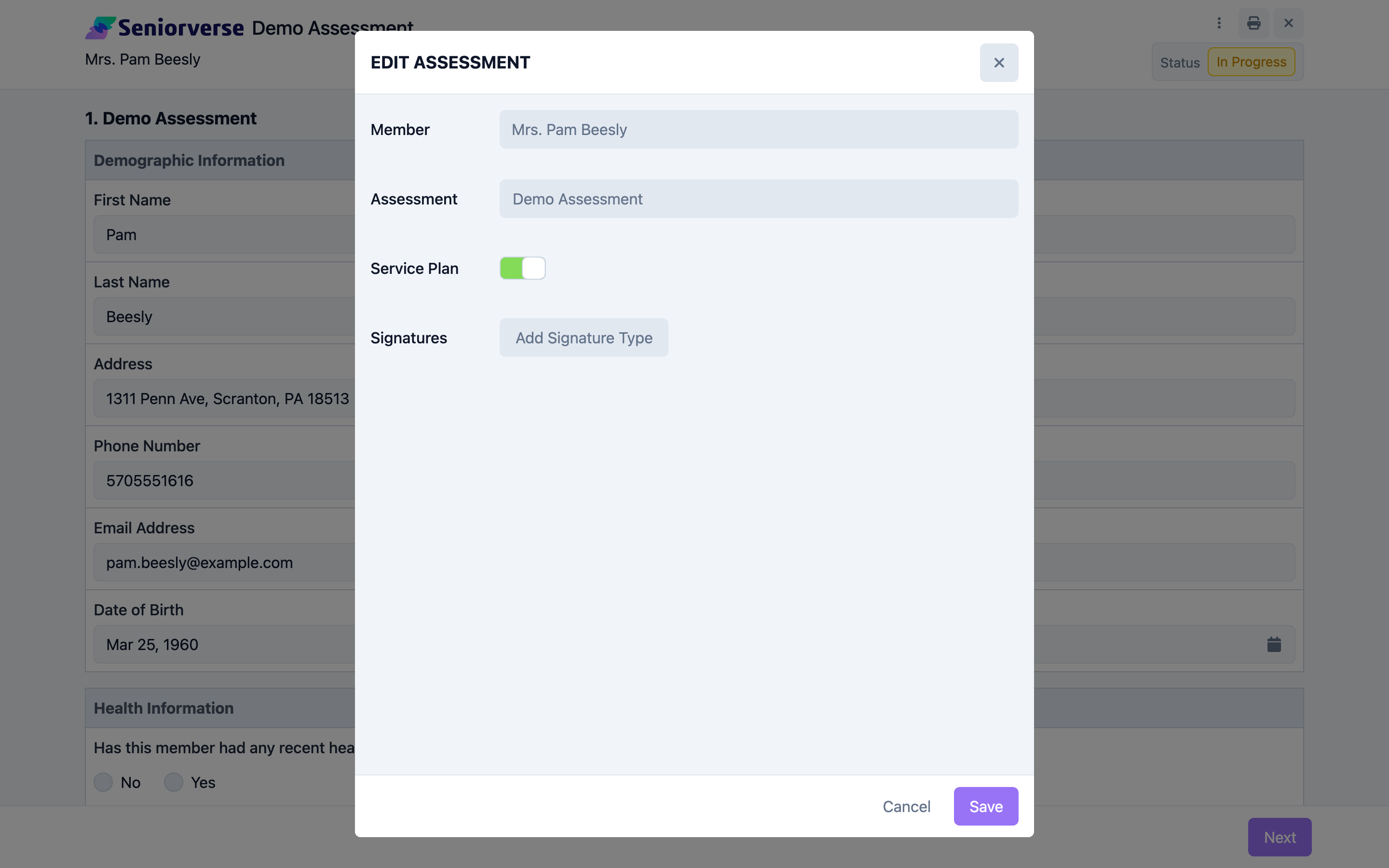
Step 7: Mark completed (and create a plan if applicable)
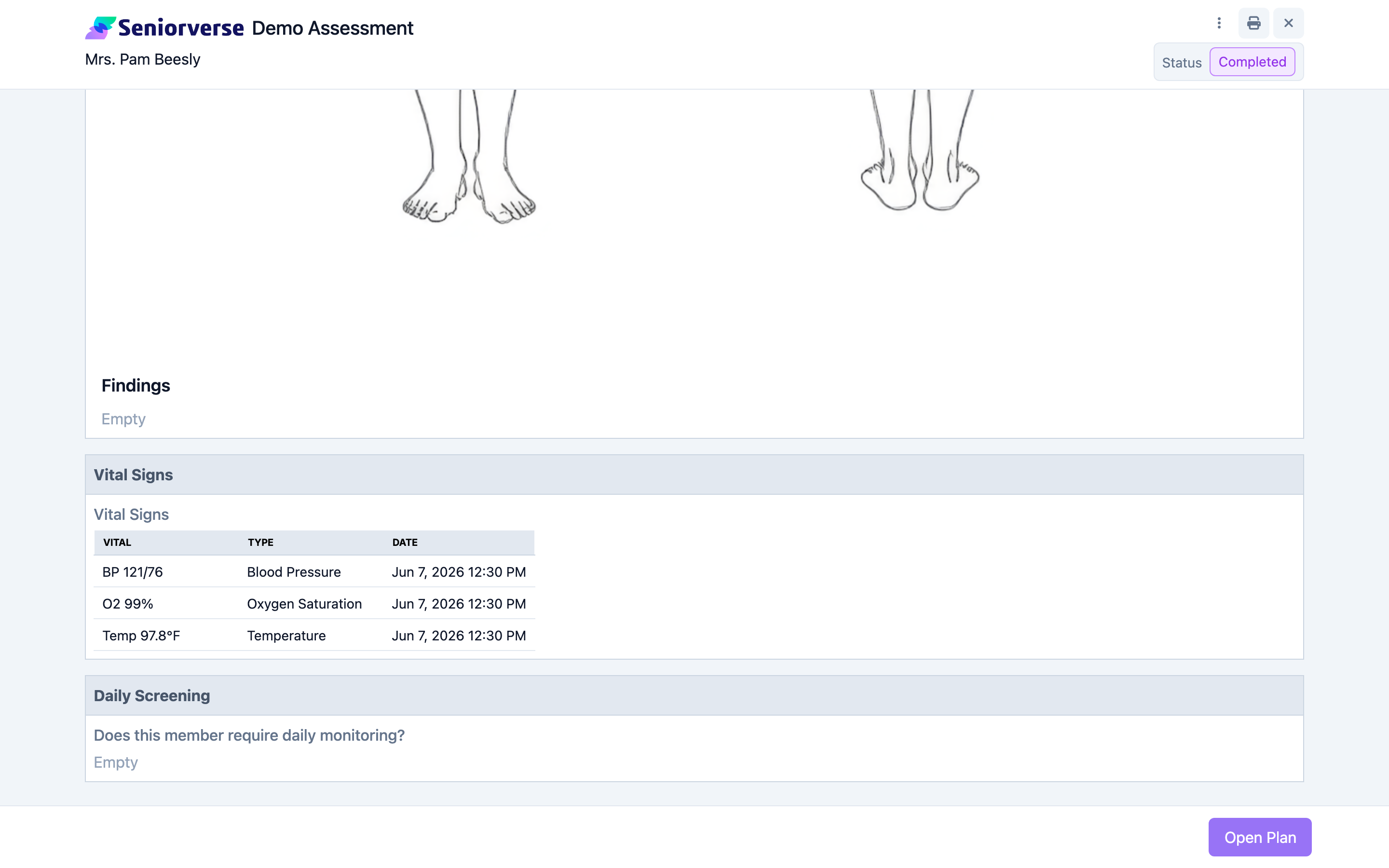
When all required questions and signatures are done and all syncable answers are accepted or rejected, select Mark Completed and confirm. Once completed, no further changes can be made. If the template was flagged as a Service Plan assessment, a Create Plan button appears after completion so you can start a care plan seeded from this assessment; if a plan already exists, you'll see Open Plan instead.
Tips
- Only Active templates can be used to create assessments. If the one you need is missing, ask an administrator to activate it in Care > Form Templates.
- Use the Forms tab (not Assessments) when the document is meant to be sent to a family member for completion. Form templates automatically skip the care-plan behavior.
- To build a care plan directly from an assessment, make sure the template has Service Plan enabled before you complete the assessment.
- An administrator with full access can revert a completed assessment back to In Progress if a correction is needed.
Troubleshooting
| Problem | Solution |
|---|---|
| The Assessments tab is not visible | Care planning must be enabled for the member's center and your role must have Care access. If Assessments, Forms, and Service Plans are all hidden, contact your administrator. |
| No templates appear when I add an assessment | Only Active templates of Type Assessment are listed. Ask an administrator to publish (activate) the template in Care > Form Templates. |
| The Mark Completed button is disabled | Complete all required questions, capture all required electronic signatures, and accept or reject every syncable answer on the Review step. |
| There is no Create Plan button after completing | Create Plan only appears when the template has Service Plan enabled. Enable it on the template, then create a new assessment. |
| I picked the wrong template | Cancel or delete the assessment from its menu and start a new one — the template's structure is copied at creation and cannot be swapped afterward. |