
Overview
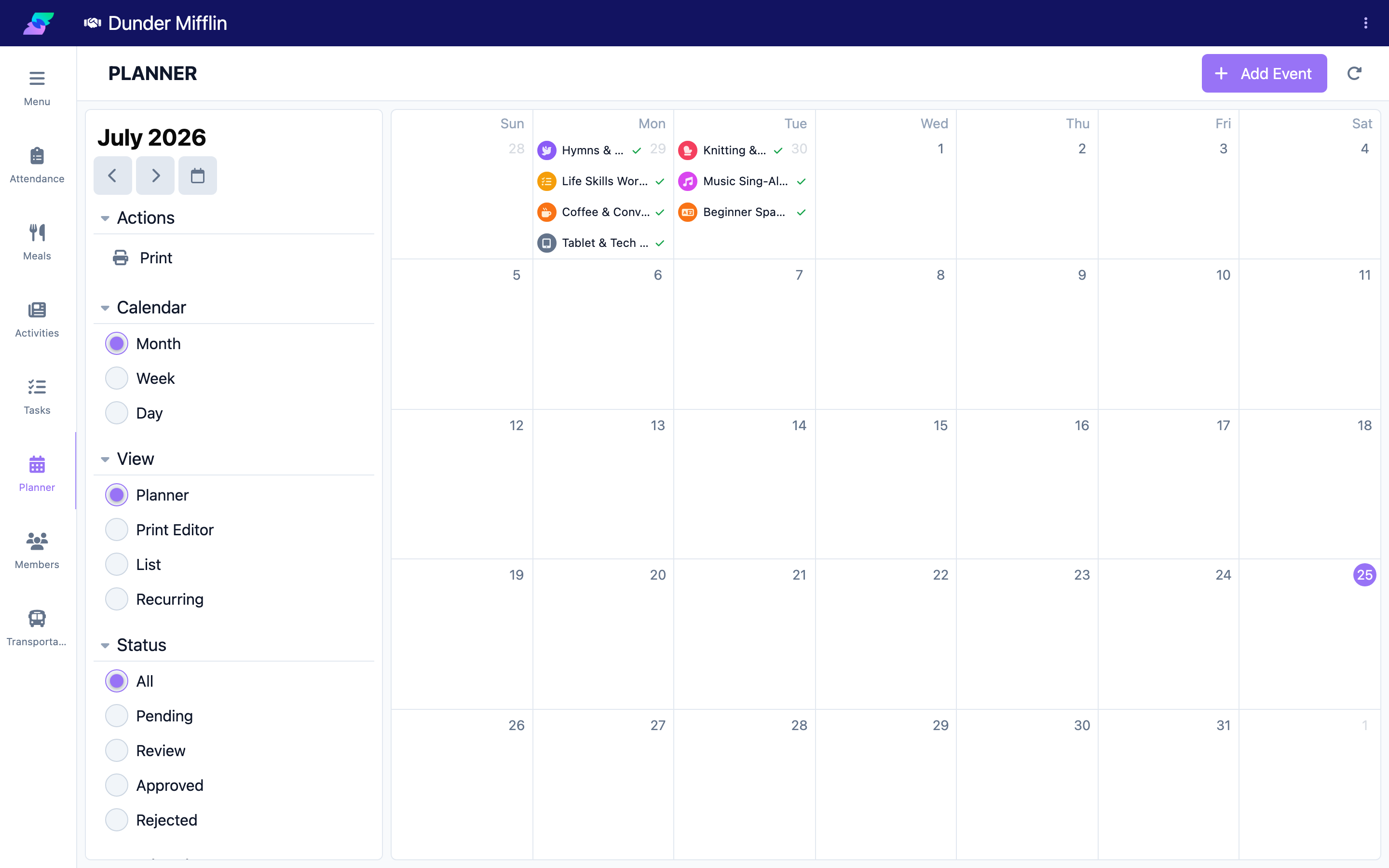
The Planner is your scheduling hub for center events. It offers a calendar in Month, Week, or Day format and several view modes for different jobs. From here you add events, filter by status or group, approve or reject pending events, add comments, and print the schedule.
This article explains the Planner layout: the action bar, the Calendar and View selectors, the filters, and the event cards.
Before You Begin
- You must be logged into Seniorverse with Care module access.
- You need the Care:Planner permission (or Care:FullAccess).
Steps
Step 1: Open the Planner
Select Care, then Planner. It opens on the current period.
Step 2: Use the action bar
The action bar has an Add Event button and a Print action (under Actions) for generating a PDF of the schedule.

Step 3: Choose the Calendar and View
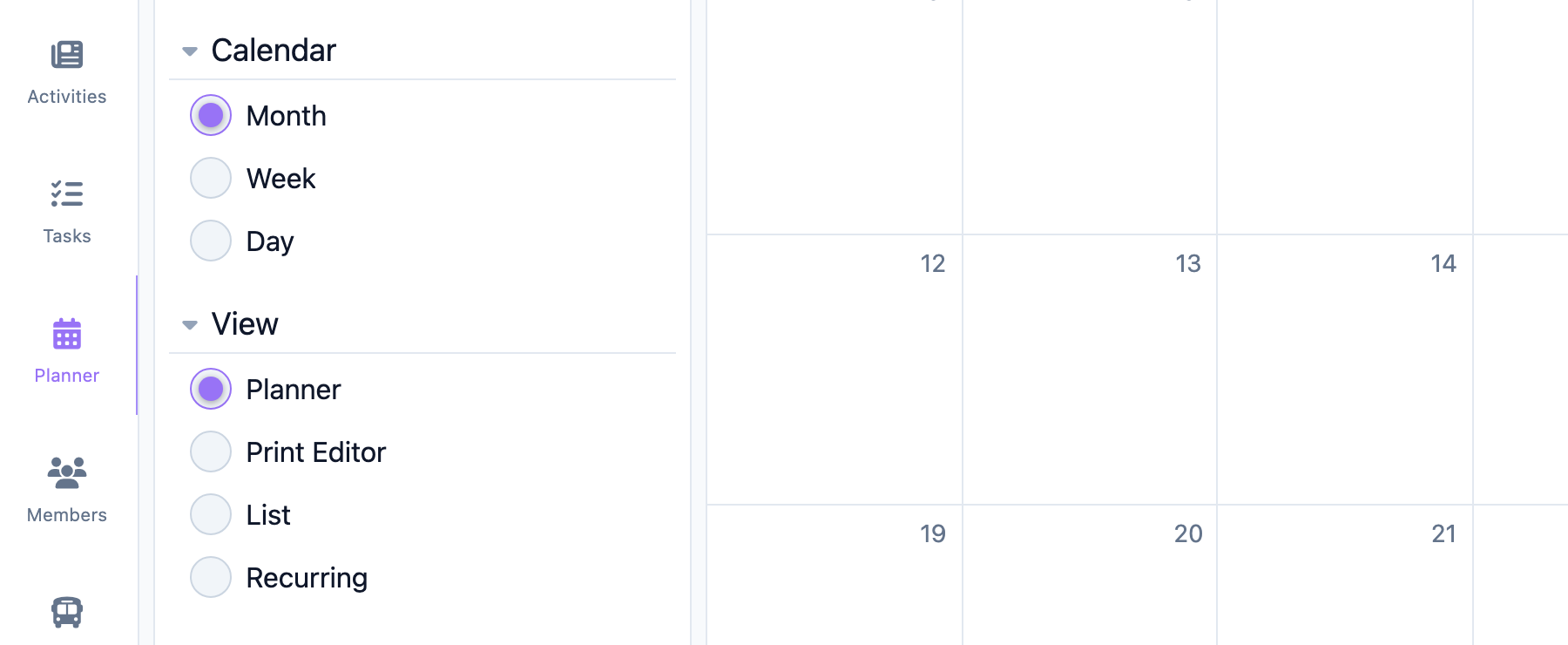
Two separate selectors control the display:
- Calendar — Month, Week, or Day.
- View — Planner (the standard calendar), Print Editor (a print layout preview), List (a flat list with quick approve/reject), and Recurring (recurring events).
Step 4: Apply filters
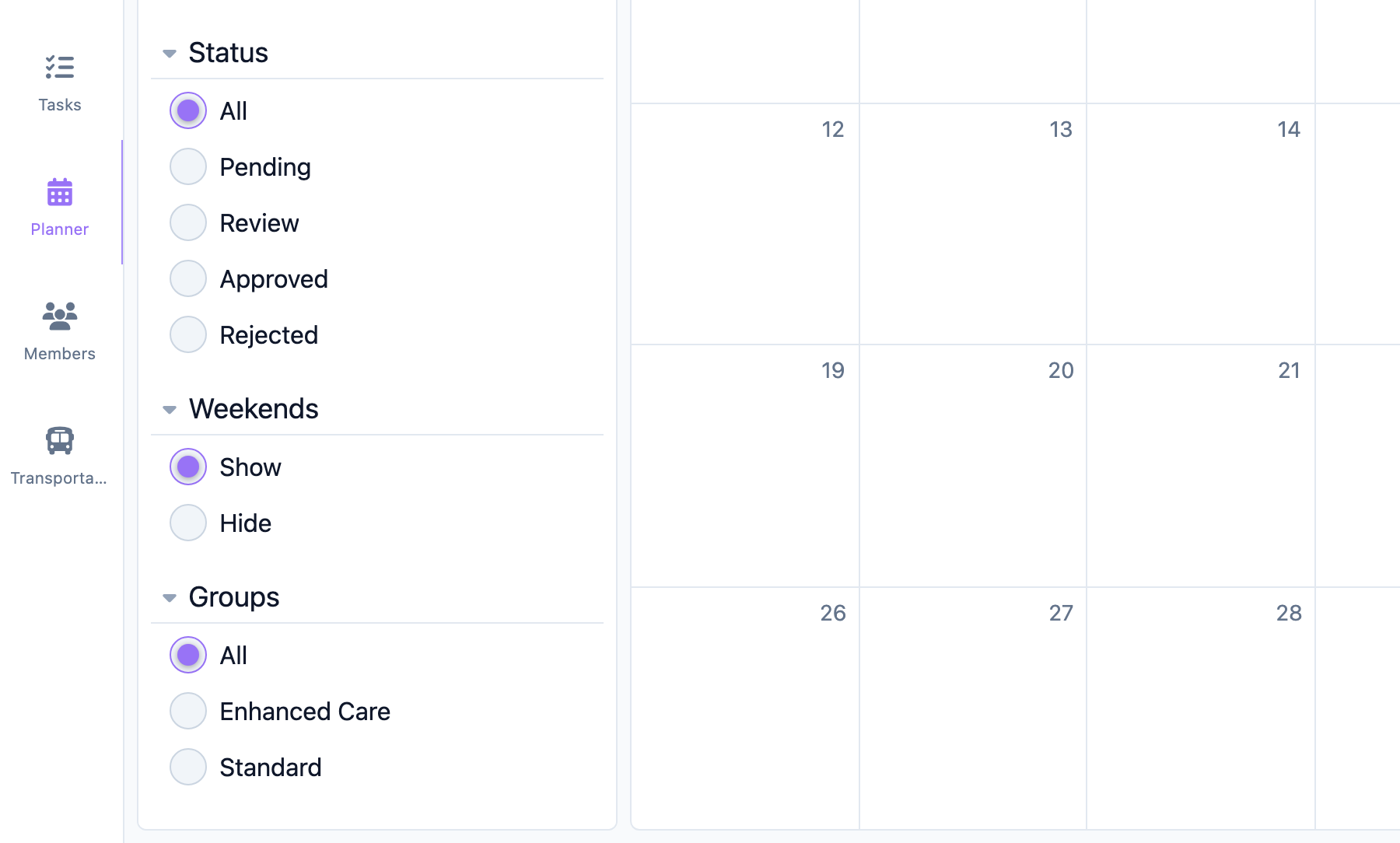
Use the filters to focus the view:
- Status — All, Pending, Review, Approved, or Rejected.
- Weekends — show or hide weekend days.
- Groups — limit to a member group (when your center uses groups).
Step 5: Read an event card
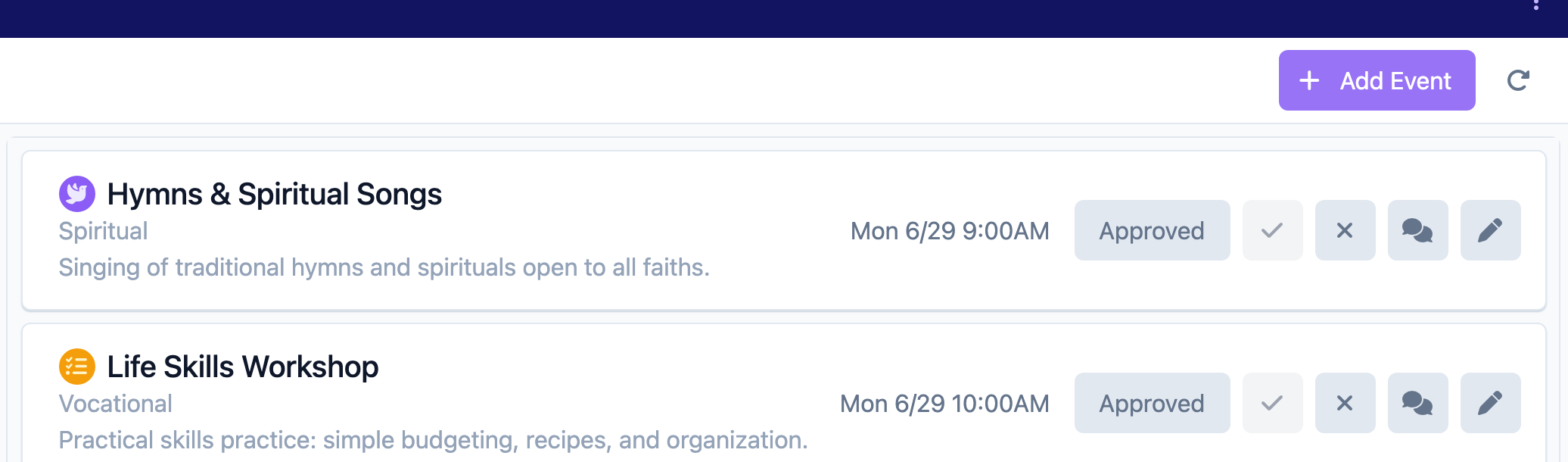
Each event shows a color and icon (from its type), its start time, its name, and a comments indicator when comments exist. In List view, quick Approve and Reject buttons appear on each card. Select a card to open the event.
Understanding Event Status
Events move through a status workflow:
| Status | Meaning |
|---|---|
| Pending | Created and awaiting review. |
| Review | Flagged for a closer look before deciding. |
| Approved | Confirmed on the schedule. |
| Rejected | Declined; kept for the record. |
Tips
- The Calendar (Month/Week/Day) and the View (Planner/Print Editor/List/Recurring) are independent — set both.
- Use List view to approve or reject several events quickly.
- Filter by Pending to focus on events that need a decision.
Troubleshooting
| Problem | Solution |
|---|---|
| An event is missing | Check the Calendar period and date, and confirm the Status filter is not hiding it (set it to All). |
| Quick approve/reject buttons are missing | They appear in List view. Switch the View selector to List. |
| I cannot approve or reject | You need the Care:Planner permission. Ask your administrator. |
| Weekends are not showing | Set the Weekends filter to show. |
Related Articles
- using-week-month-and-day-views — Using Week, Month, and Day Views
- creating-and-editing-events — Creating and Editing Events
- approving-and-rejecting-events — Approving and Rejecting Events
- printing-and-exporting-schedules — Printing and Exporting Schedules