
Overview
Recording meal service captures each member's meal status for the selected meal, plus any add-on items or fluid entries your center tracks. You do this from the Meals page, one meal type at a time.
Before You Begin
- You must be logged into Seniorverse with Care module access.
- You need the Care:Meals permission (or Care:FullAccess).
- Meal statuses, add-ons, and entries are configured by your center, so your options may differ.
Steps
Step 1: Open the Meals page and select the meal
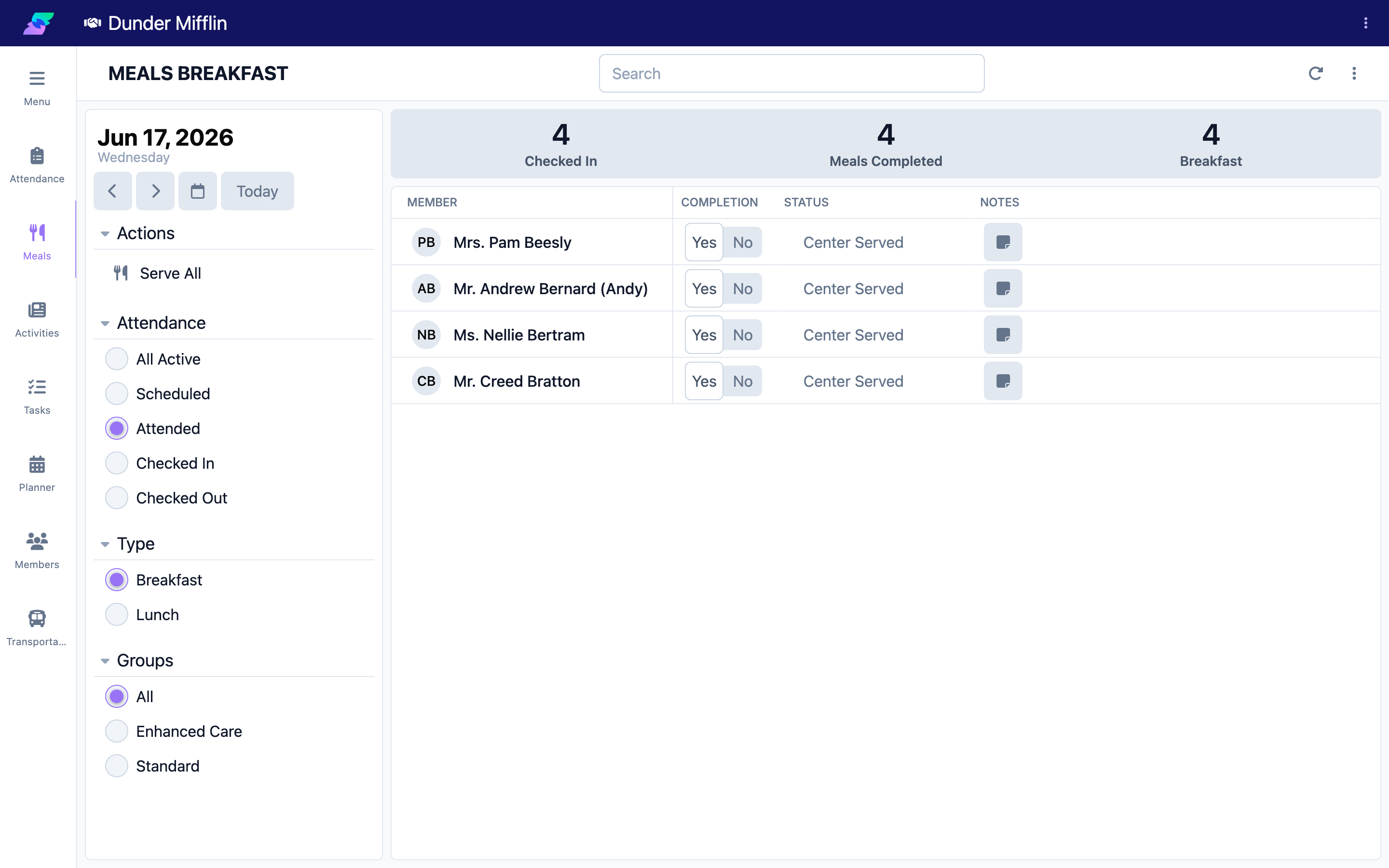
Select Care, then Meals. Confirm the date and choose the meal in the Type selector.
Step 2: Find the member
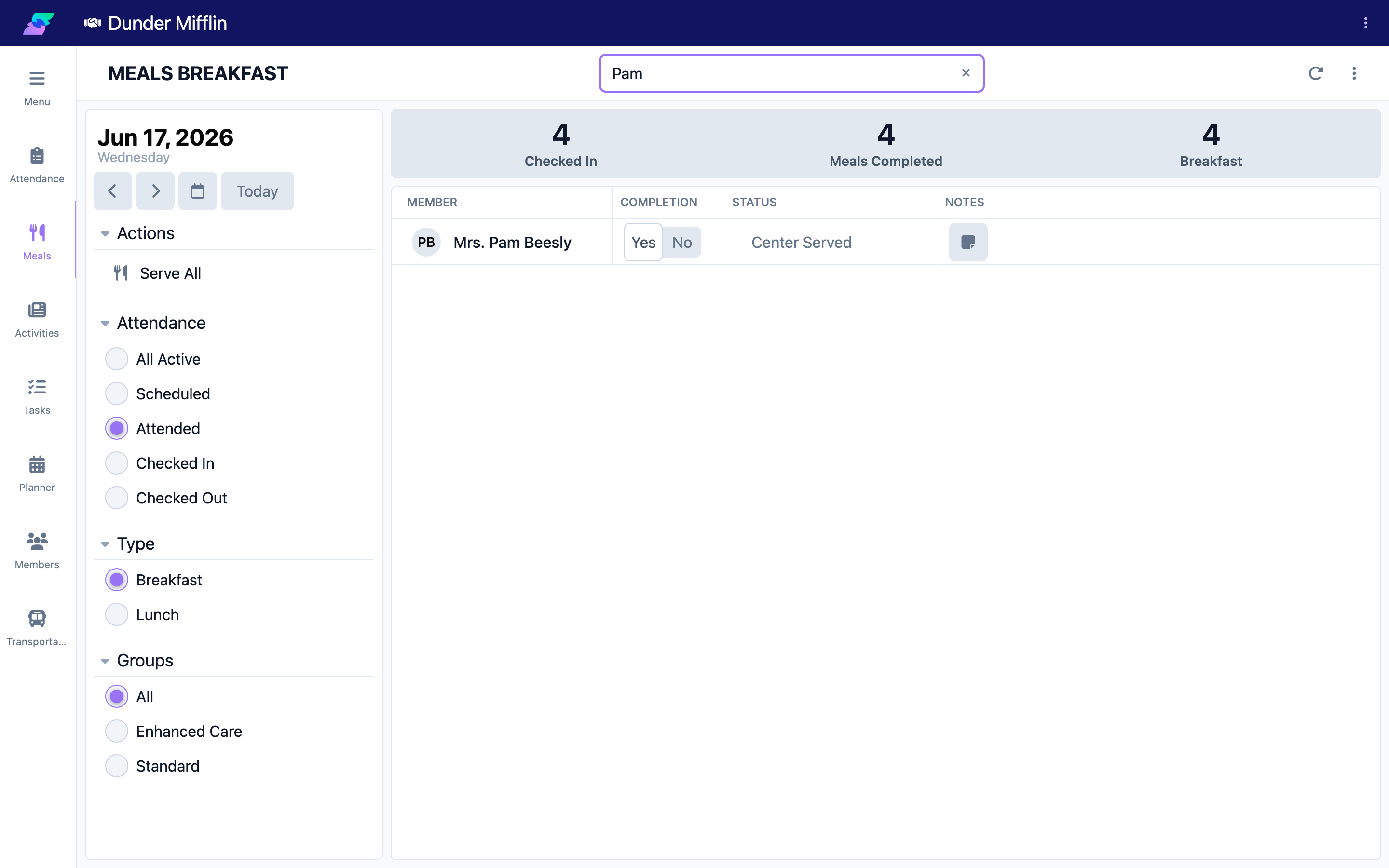
Scroll the list, use the search box, or use the Attendance and Groups filters. Filter by Checked In to focus on members who are present.
Step 3: Set the meal status
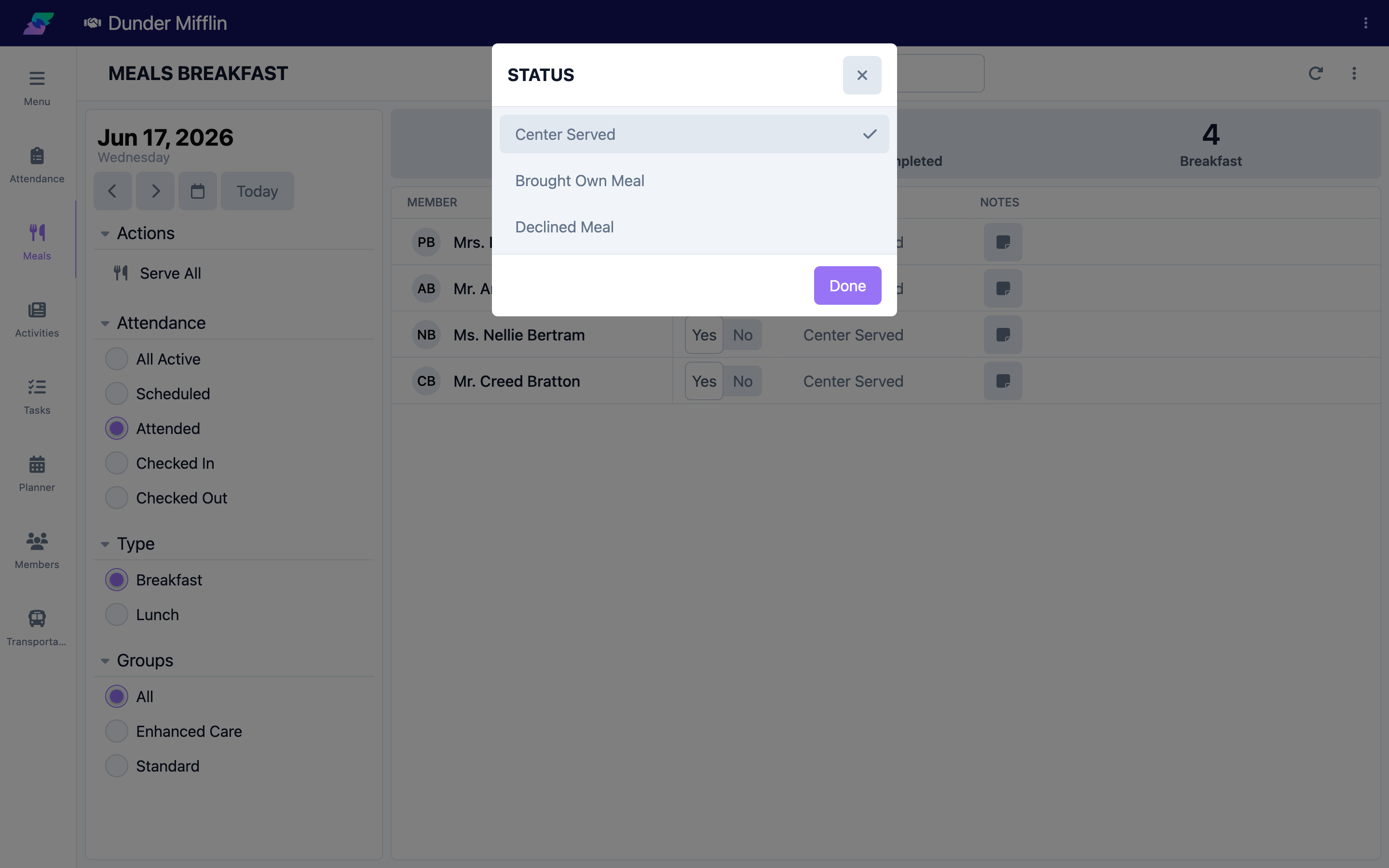
In the Status column, select the current value to open the Status list, then choose the appropriate status. The statuses come from your center's configuration.
Step 4: Record add-ons and entries
If the meal type has add-on options, toggle the matching columns on for the member. If it has entry fields (such as fluids), type the amount in the box; the unit is shown next to it. These save as you go.
Screenshot coming soon — Add-on toggles and entry fields on a member row
Step 5: Work through the list
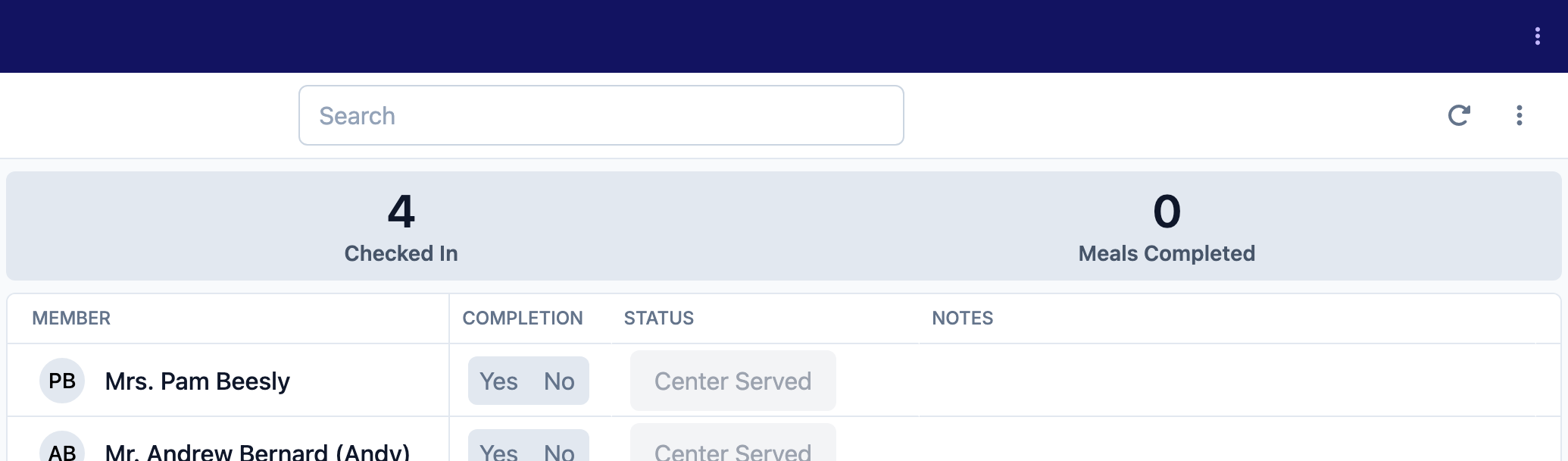
Repeat for each member. The Meals Completed count in the statistics bar rises as you record meals for the selected meal type.
Serving Everyone at Once (Simplified View)
If your center uses the simplified meals view and the option is enabled, a Serve All action appears in the filters. Selecting it marks every member in the current list as served for the selected meal, skipping anyone already recorded.
Tips
- Setting a completion percentage also marks the meal as served, so you can record status and amount in one step.
- Record meals as you serve them for the most accurate data.
- Add-ons and entries are defined per meal type — different meals may show different columns.
Troubleshooting
| Problem | Solution |
|---|---|
| A member is not in the list | Check the date, meal Type, and Attendance filter. Switch the filter to All Active or Scheduled to widen the list. |
| The status list is empty or limited | Meal statuses are configured by your center. Ask an administrator to review them. |
| Add-on or entry columns are missing | They are set per meal type. Confirm you have selected the correct meal, or ask an administrator. |
| I cannot change a status | You may lack the Care:Meals permission. Ask your administrator. |
Related Articles
- understanding-the-meals-page — Understanding the Meals Page
- recording-meal-completion — Recording Meal Completion
- adding-meal-notes-and-dietary-info — Adding Meal Notes and Dietary Info
- configuring-meal-types-and-options — Configuring Meal Types and Options