
Overview
Logging an activity records what took place, when, who took part, and (optionally) photos. Activities you log appear on the Activities page and on each participant's record. This article covers creating an activity, adding participants, and attaching images.
Before You Begin
- You must be logged into Seniorverse with Care module access.
- You need the Care:Activities permission (or Care:FullAccess).
- Members you add as participants must have an attendance record for the activity's date.
Steps
Step 1: Open the activity form
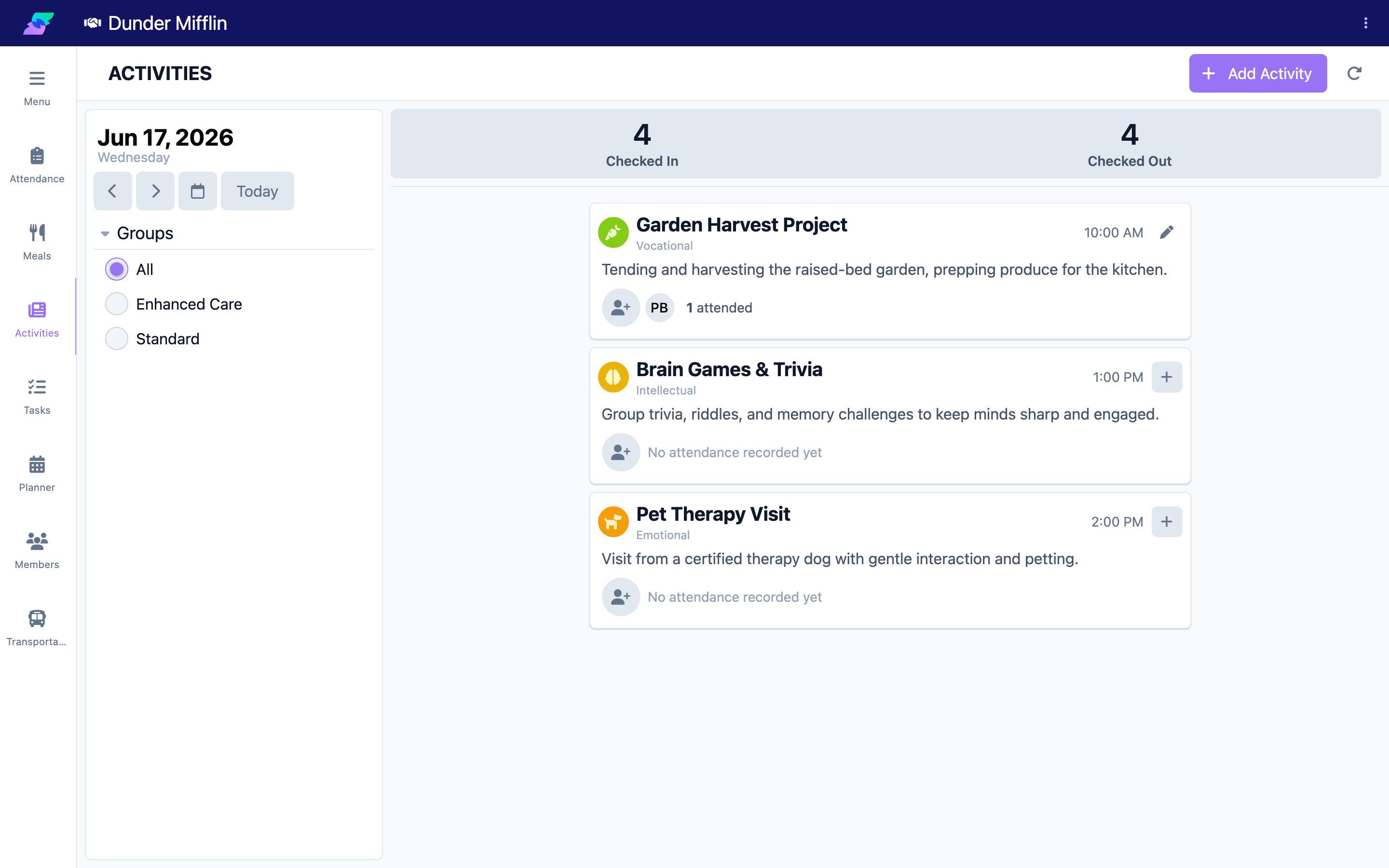
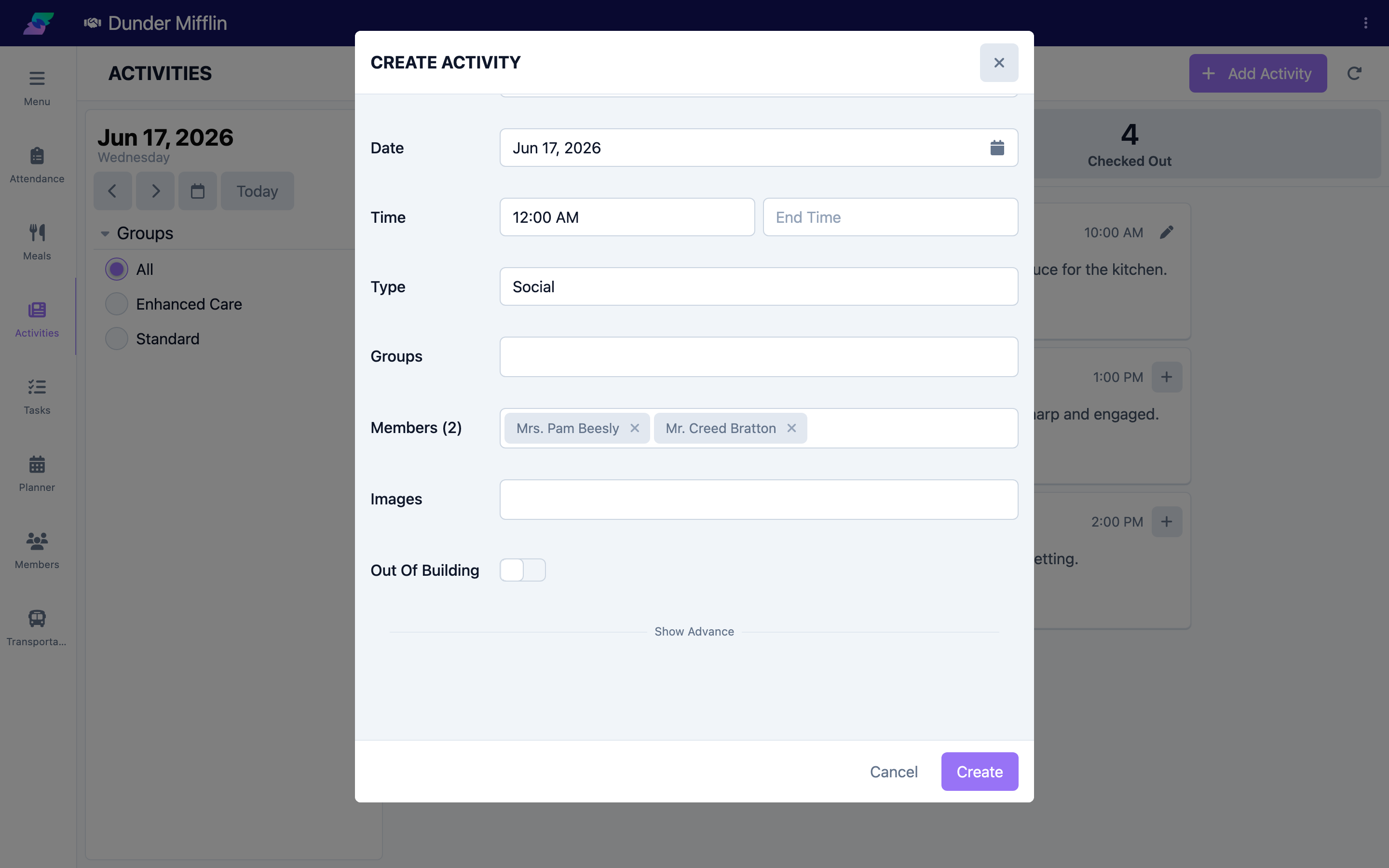
On the Activities page, confirm the date, then select Add Activity. The Activity form opens.
Step 2: Enter the name, date, and time
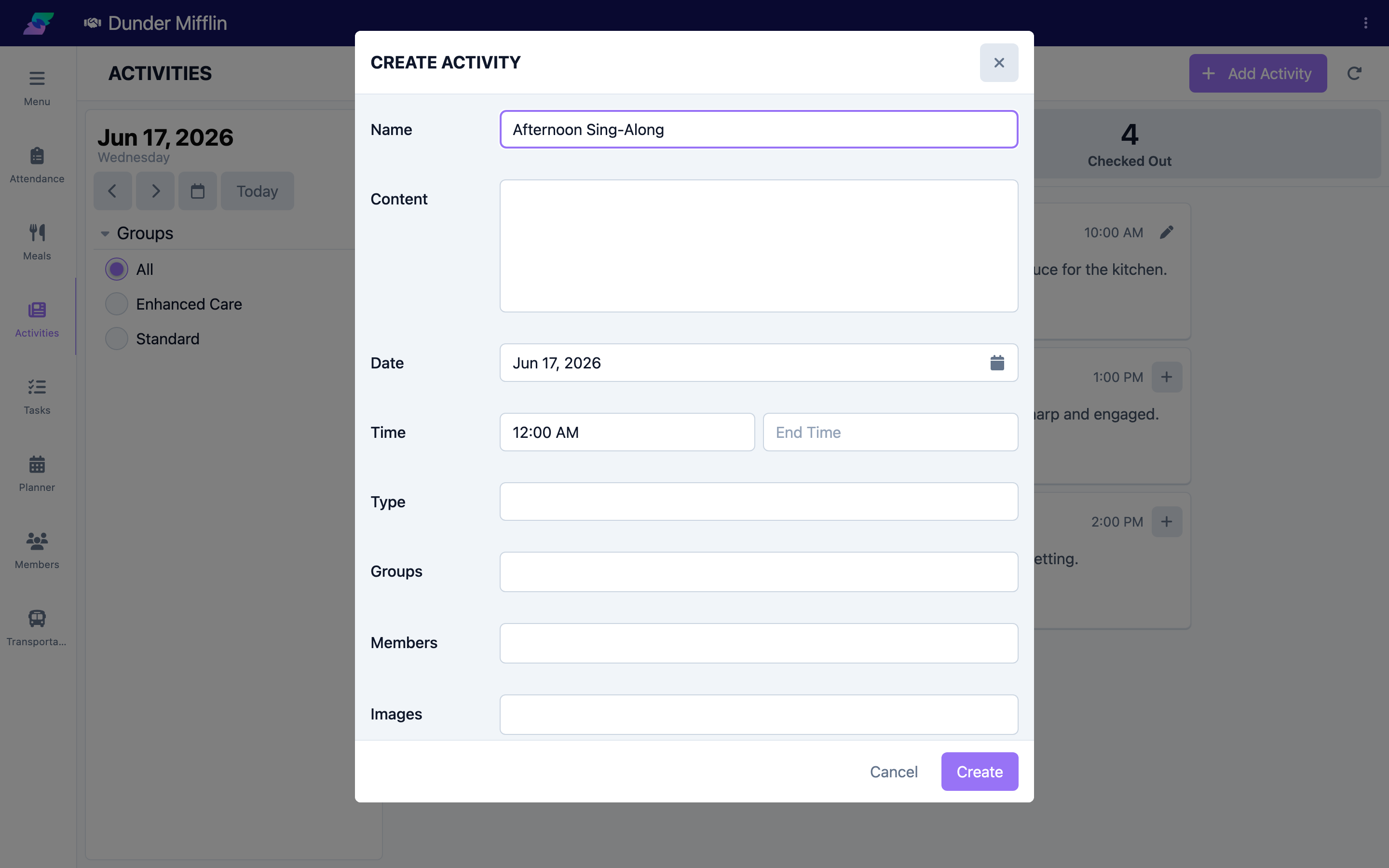
Enter a Name (required). Confirm the Date, then set the Start Time (required) and, if relevant, the End Time. Add a description in the content field.
Step 3: Choose a type
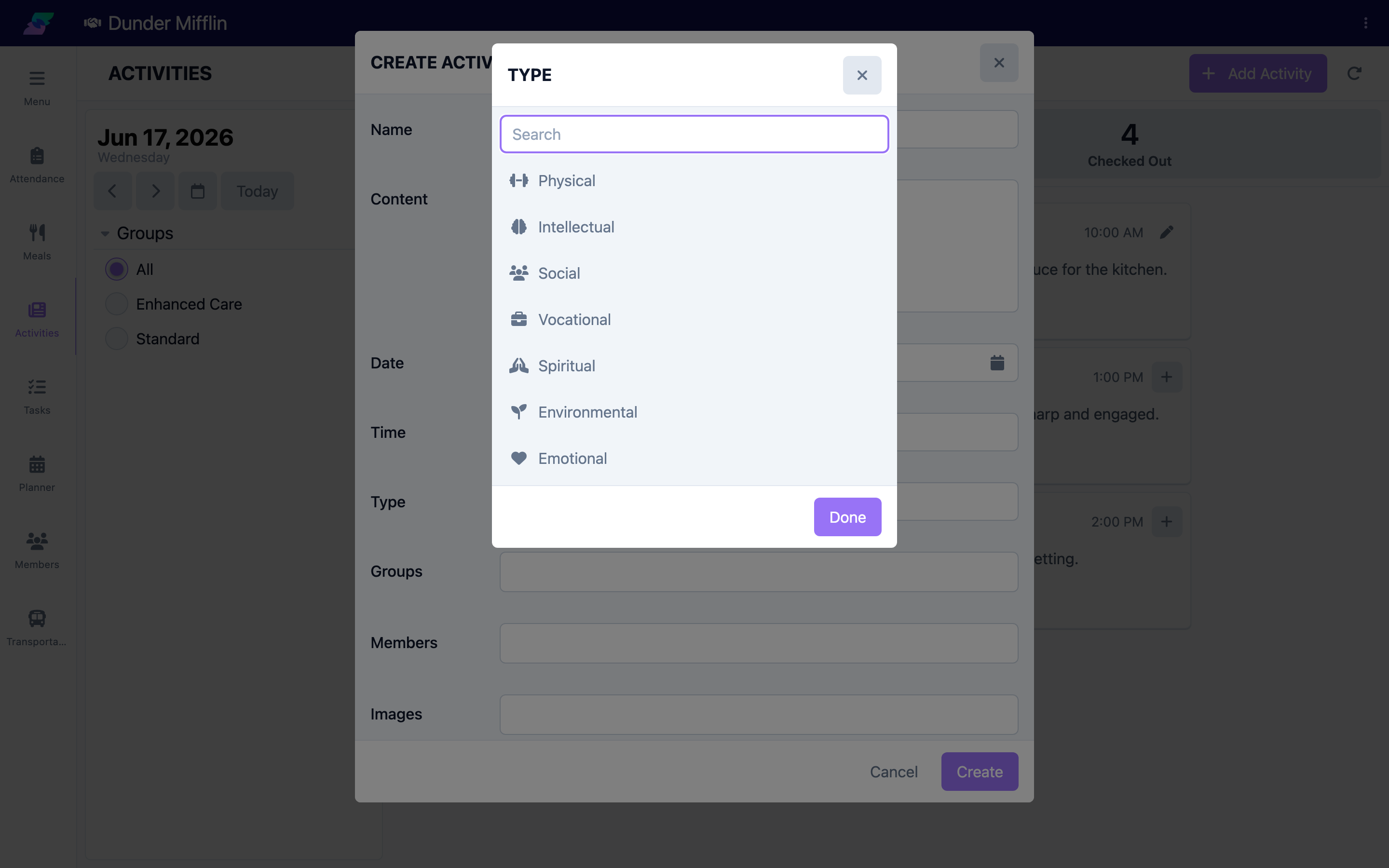
Select one or more Type values (from your center's configured activity/event types). Choosing a type can set the activity's icon and color automatically.
Step 4: Add participants
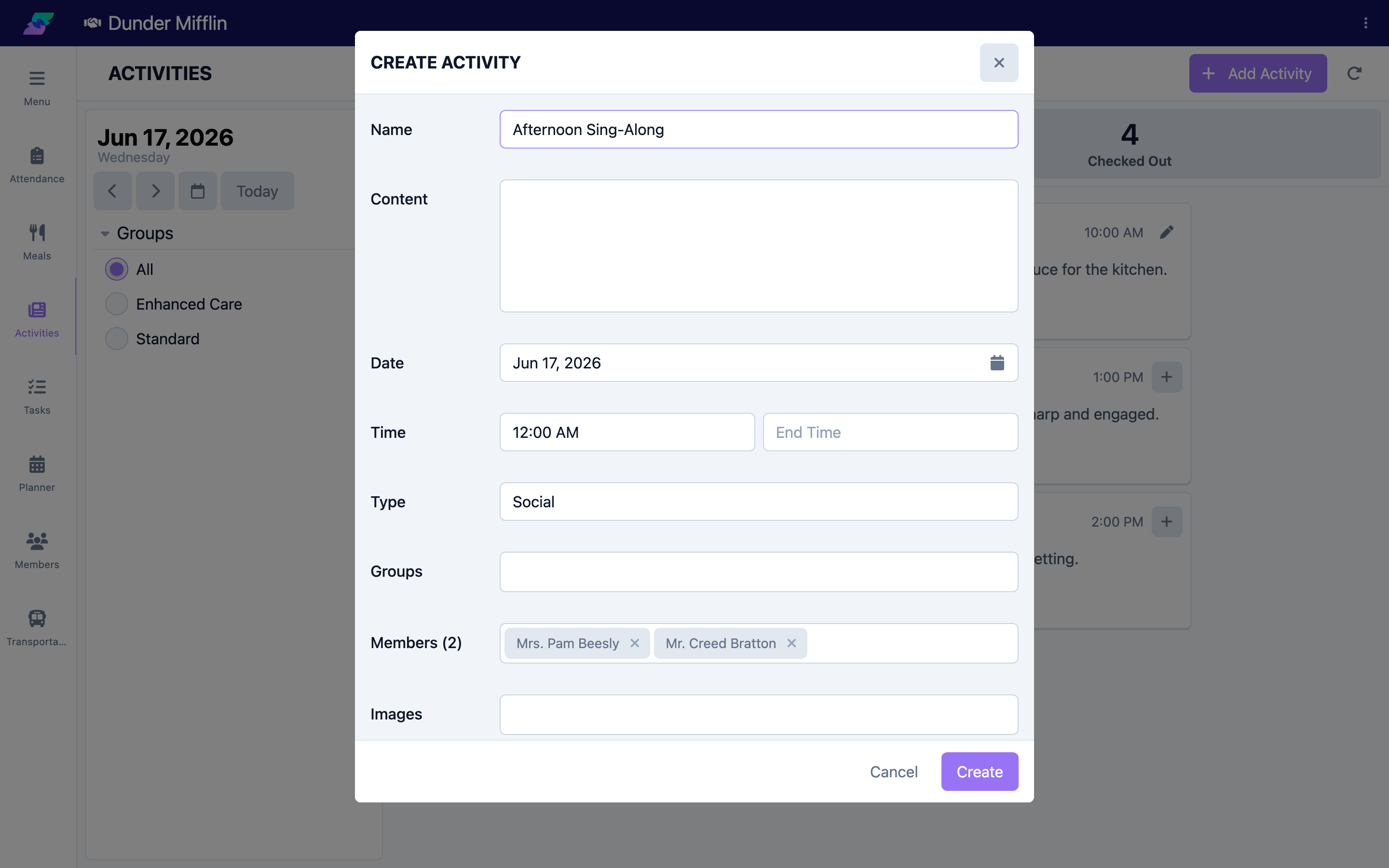
Under Members, select the members who took part. Only members with an attendance record for the date are available. If your center uses groups, you can also assign the activity to Groups.
Step 5: Attach images and save
Under Images, upload one or more photos of the activity. Turn on Out of Building if the activity happened off-site. Use Show Advance to set a custom icon and colors if needed, then save.
Tips
- Use consistent names so activities are easy to find and report on later.
- Add participants at the time of the activity so records stay accurate.
- Only members with attendance that day appear in the participant list — check attendance first if someone is missing.
Troubleshooting
| Problem | Solution |
|---|---|
| A member is not in the participant list | Participants must have an attendance record for the activity's date. Add or check the member in on the Attendance page first. |
| The Add Activity button is missing | You may lack the Care:Activities permission. Ask your administrator. |
| The activity did not appear after saving | Confirm you saved and that you are viewing the same date. Refresh if needed. |
| An image will not upload | Check your connection and try again; large images may take a moment. |
Related Articles
- understanding-the-activities-page — Understanding the Activities Page
- viewing-activity-history — Viewing Activity History