
Overview
A payor is whoever pays an invoice — a member, a contact, or an external system. Setting up payors correctly controls how invoices are grouped and how incoming electronic remittances (ERAs) are matched back to the right payer.
Before You Begin
- You need Billing access for your center.
- Decide whether this payor pays through an integration (Stripe or Stedi) or is billed manually.
Steps
Step 1: Open the Payors tab
On the Billing page, select the Payors tab, then select the Payor button at the top right to open the new-payor form.
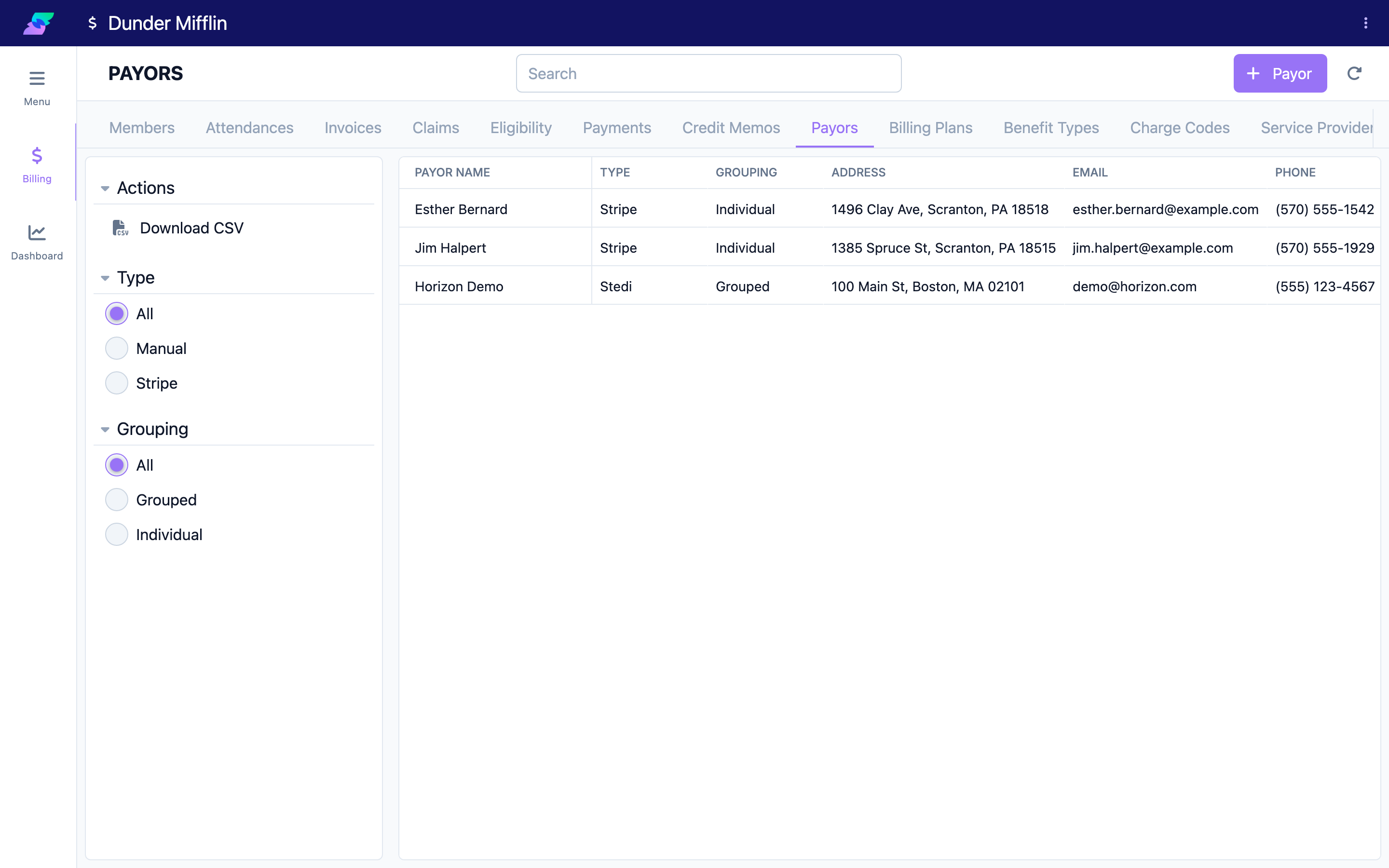
Step 2: Set Status and Type
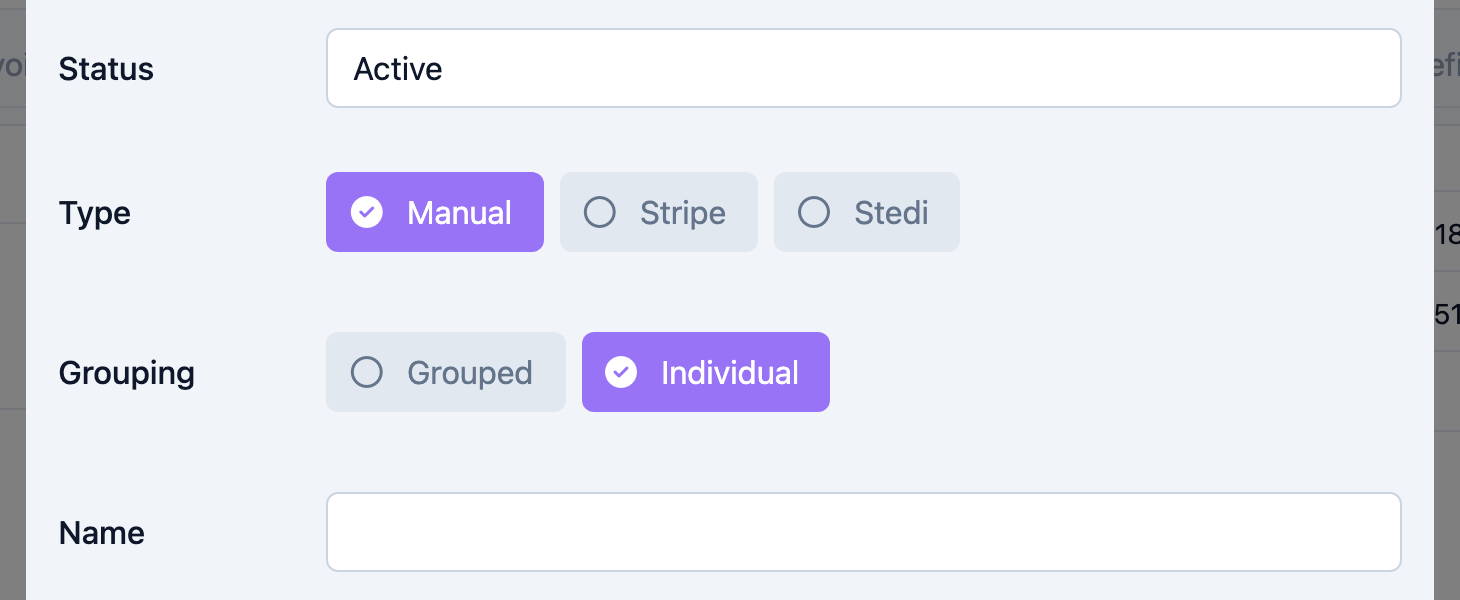
Set the Status (Active or Inactive — new payors default to Active).
Choose the Type, which is the integration this payor uses:
- Manual — no integration; you record payments by hand.
- Stripe — card and bank payments processed through Stripe.
- Stedi — electronic claims and remittances through the Stedi clearinghouse.
Type is required. If you choose Stripe, an email address is required so the payor can be billed; for Manual and Stedi, email is optional.
Step 3: Choose the Grouping
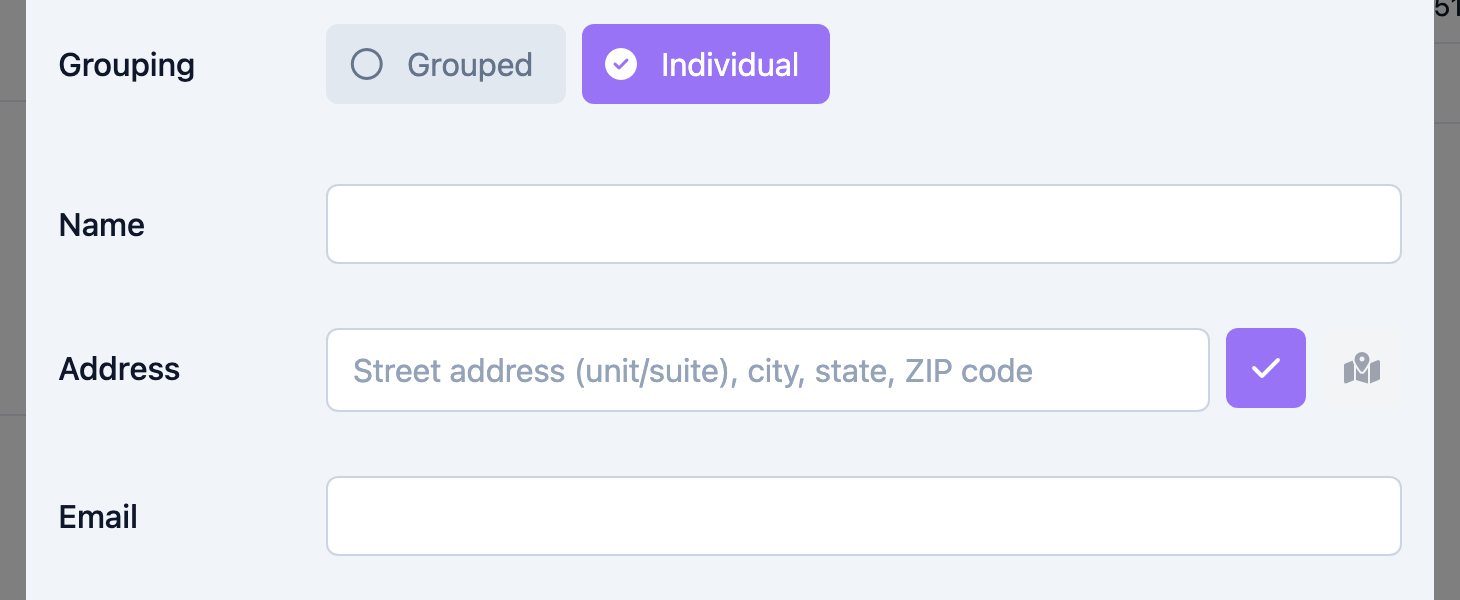
Set the Grouping, which controls how this payor's invoices are combined:
- Grouped — one invoice can cover multiple members billed to this payor. Only Grouped payors can be attached to a billing plan.
- Individual — each member is invoiced separately, and the payor is resolved from the member.
Grouping is required and defaults to Individual.
Step 4: Enter the details and save
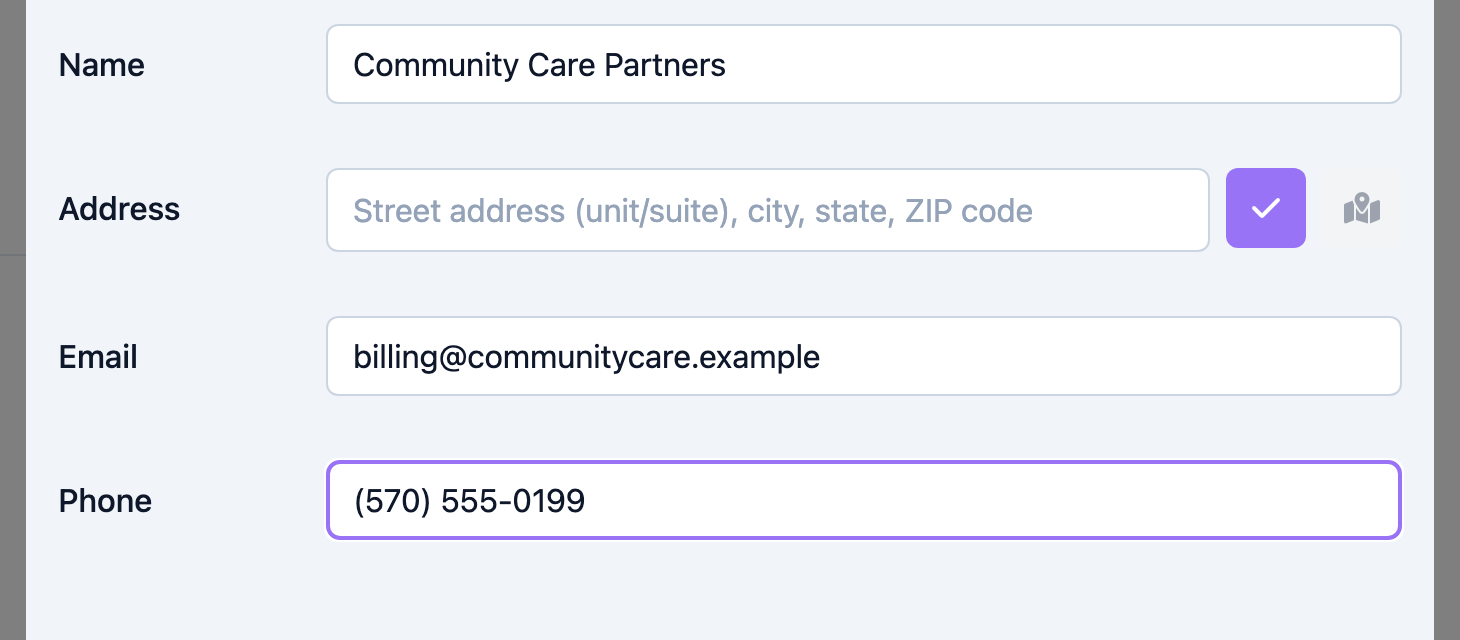
Enter the Name (required), then the Address, Email, and Phone. Select Save (or Create) to add the payor.
If a payor is linked to a contact, its Name, Address, Email, and Phone sync automatically from that contact and are read-only here — edit the contact record to change them.
Tips
- A payor can be linked to a member or a contact. A contact link keeps name and contact details in sync automatically.
- For Stedi payors, the platform stores a namespaced external payer ID (for example
stedi;;12345) that matches inbound ERA remittances to this payor. It is populated through the integration, not typed into this form, so make sure the payor's identifiers on the payer side are correct. - Use Grouped for insurance or program payers that receive one combined invoice; use Individual for private-pay families billed per member.
- Deactivate a payor (set Status to Inactive) instead of deleting it to preserve billing history.
Troubleshooting
| Problem | Solution |
|---|---|
| The form will not save | Name, Type, and Grouping are all required. For a Stripe payor, Email is also required. |
| The payor does not appear when building a billing plan | Billing plans only list Grouped payors. Change the payor's Grouping to Grouped, or bill the member individually. |
| Name, address, email, or phone fields are locked | The payor is linked to a contact. Edit the linked contact to update these details. |
| An incoming remittance was not matched to a payor | The ERA's payer identifier did not match the payor's external payer ID. Confirm the payer identifiers with your Stedi setup. |
Related Articles
- understanding-the-billing-module — Understanding the Billing Module
- creating-billing-plans — Creating Billing Plans
- configuring-benefit-types — Configuring Benefit Types
- setting-up-service-providers — Setting Up Service Providers