
Overview
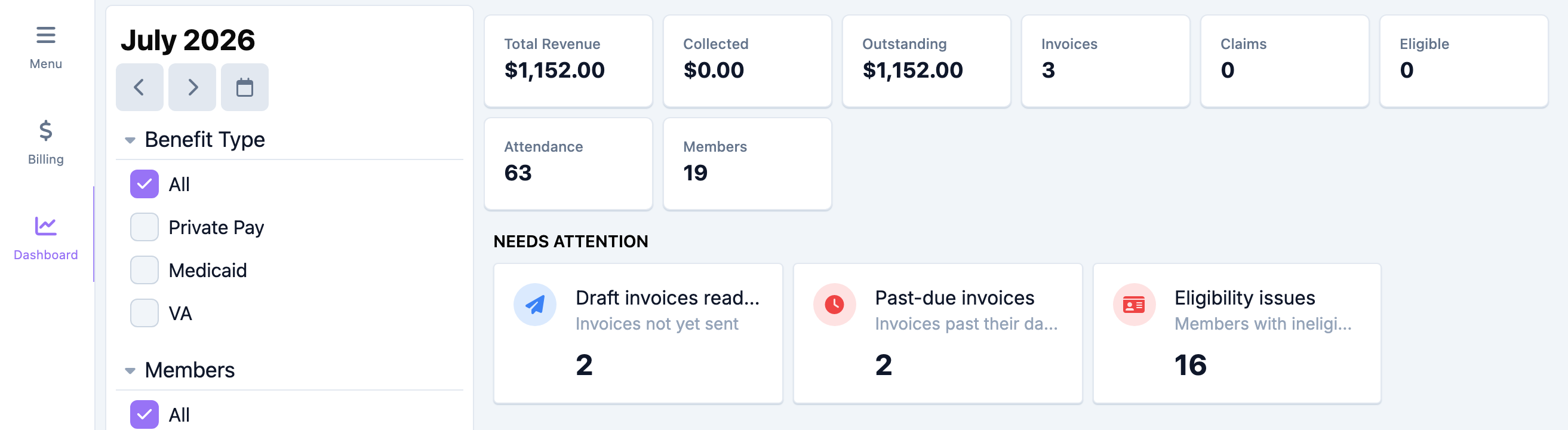
The Billing Dashboard is your monthly at-a-glance view of revenue, collections, and the work that needs attention. It rolls up one month of billing into headline totals, a Needs Attention list of items to act on, and a benefit-type breakdown showing how each program is billing and getting paid. Every number links straight into the matching Billing tab so you can go from summary to detail in one click.
This article explains how to open the dashboard, choose a month, read each section, and filter the view.
Before You Begin
- You need the Billing Dashboard view permission (
Billing:Dashboard:View). Without it, the dashboard shows a restricted view — ask your administrator for access. - The dashboard reports on one month at a time, based on the month you select.
- Figures come from the invoices, claims, attendances, and eligibility checks in the selected month, so the dashboard is most useful once you have been billing for that period.
Steps
Step 1: Open the dashboard and pick a month
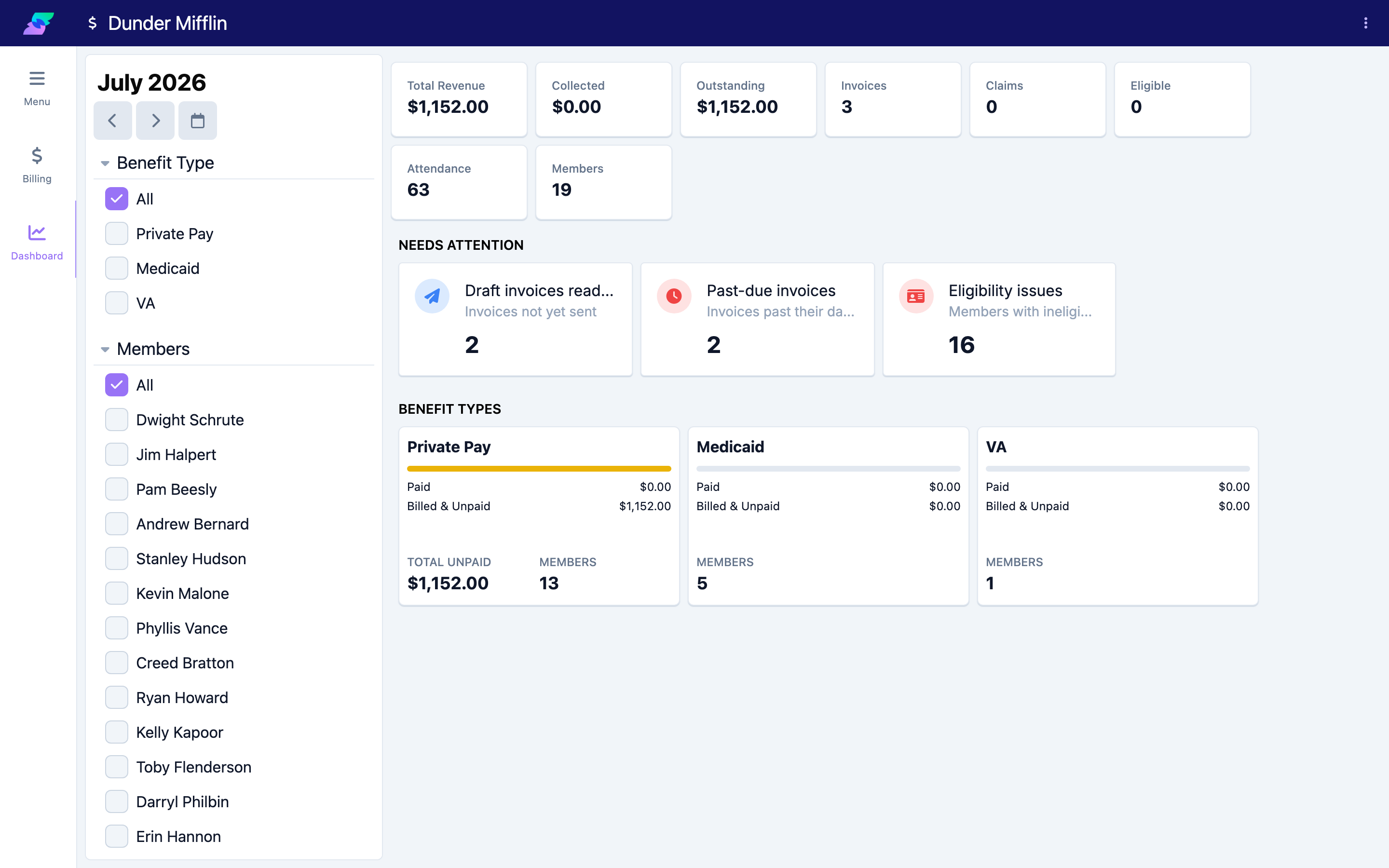
Open the Billing Dashboard. It loads the current month by default. Use the month selector to move to a different period — every total, alert, and breakdown recalculates for the month you choose.
Step 2: Read the totals
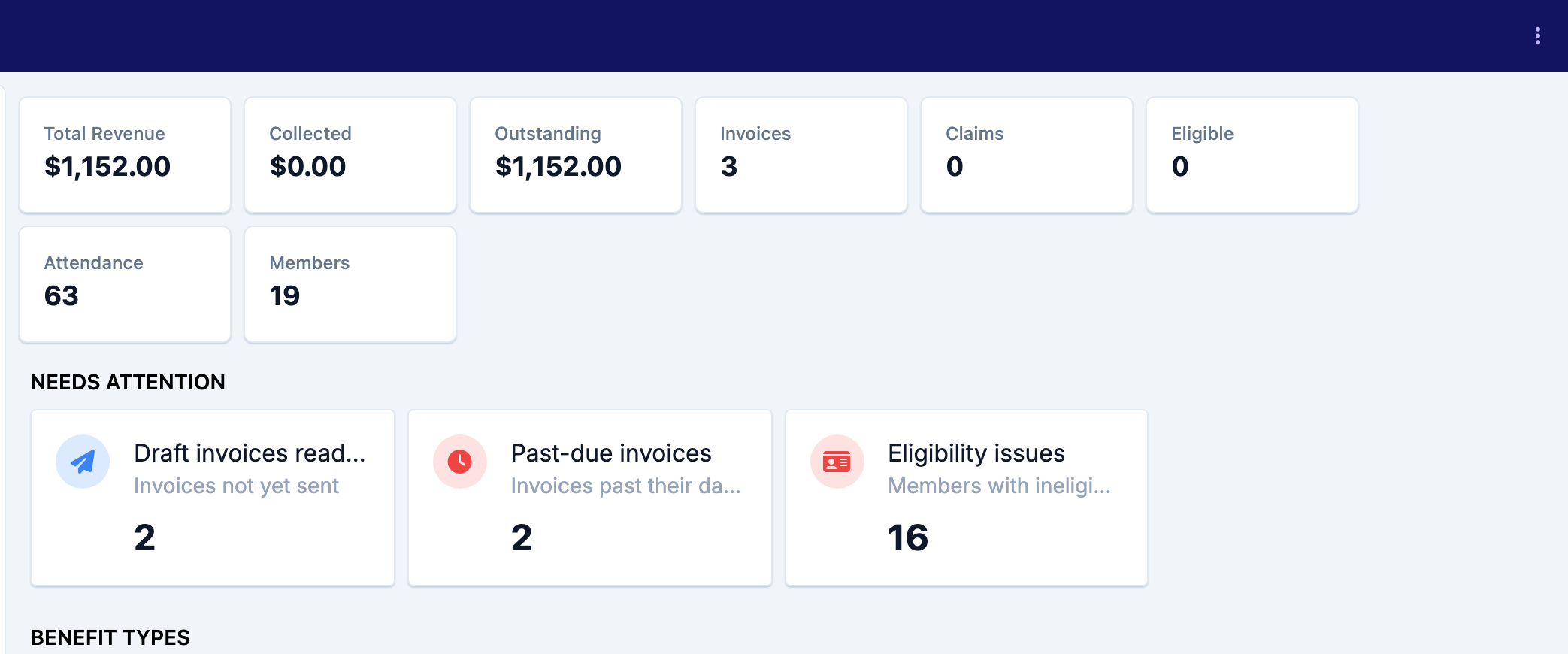
The top of the dashboard shows headline tiles for the selected month:
| Tile | What it shows |
|---|---|
| Total Revenue | The total billed across the month's invoices. |
| Collected | How much has been paid. |
| Outstanding | The remaining balance still owed. |
| Invoices | The number of invoices in the period. |
| Claims | The number of claims in the period. |
| Eligible | The number of member benefits confirmed eligible for the month. |
| Attendance | The number of attendance records in the period. |
| Members | The number of distinct members with attendance in the period. |
Read Total Revenue, Collected, and Outstanding together to see how much of what you billed has actually come in.
Step 3: Act on the Needs Attention alerts
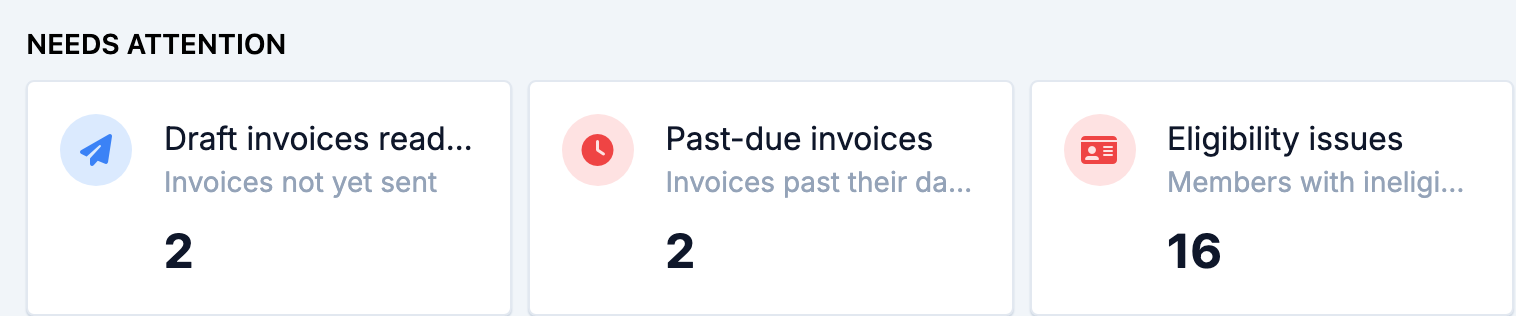
The Needs Attention section lists action items. Each card appears only when it has at least one item, and selecting a card jumps to the matching Billing tab already filtered:
- Draft invoices ready to send — invoices not yet sent. Opens the Invoices tab filtered to Draft.
- Past-due invoices — draft invoices past their date, across all benefit types. Opens the Invoices tab filtered to Draft.
- Rejected claims — claims that are Rejected, Failed, or Denied. Opens the Claims tab filtered to those statuses.
- Eligibility issues — members with ineligible or failed checks. Opens the Eligibility tab filtered to Ineligible and Failed.
If the section is empty, there is nothing outstanding for the month.
Step 4: Review the benefit-type breakdown
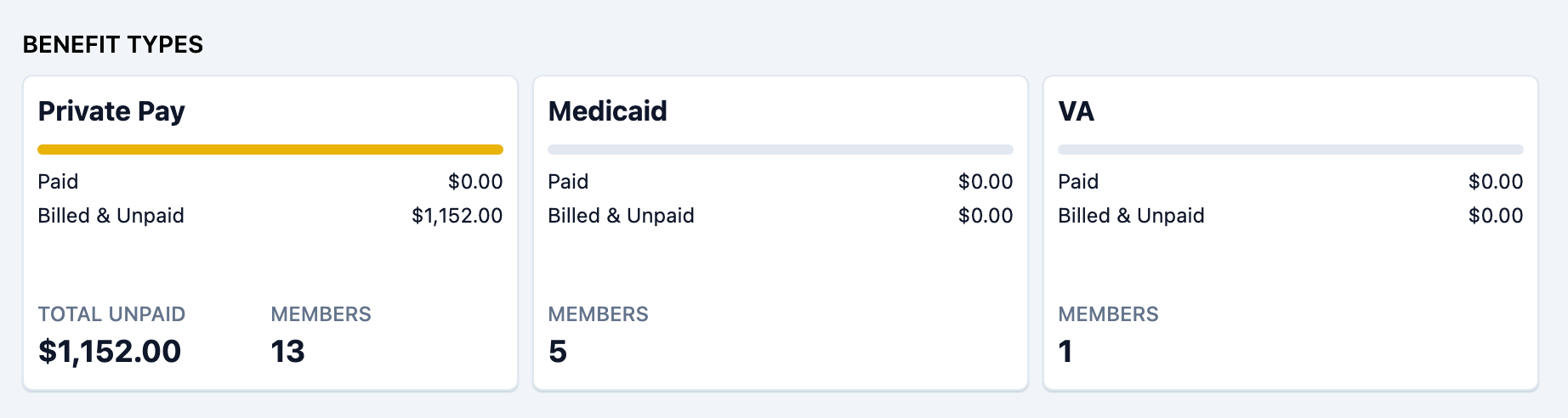
The Benefit Types section breaks the month down by program. Each benefit type shows its attendance and member counts and a progress bar split into three segments:
- Paid (green) — amount collected.
- Billed & Unpaid (yellow) — amount invoiced but not yet paid.
- Not Yet Billed (neutral) — the estimated value of attendance in the period that has not been put on an invoice yet.
Each row also shows Total Unpaid for the benefit type, and — for benefit types that use claims — a Claims count in the form paid / total (for example 8/12 claims paid).
Use this to spot a program that is generating attendance but has not been invoiced ("Not Yet Billed"), or one where claims are lagging behind.
Step 5: Filter by benefit type or member
Use the Benefit Type and Members filters to focus the dashboard. The totals, benefit-type breakdown, and claims recalculate for your selection. When you follow an alert card or a link into a Billing tab, your Benefit Type and Members selections carry over so the detail view stays in the same context.
Tips
- The dashboard is month-scoped. If a total looks low, check that you are on the right month.
- A large Not Yet Billed figure for a benefit type is a prompt to generate that program's invoices for the month.
- Alert cards are the fastest way to work your queue — each one drops you into the exact filtered list you need.
- Eligible and the Eligibility issues alert are drawn from the same eligibility checks you run on the Eligibility tab, so working the alert clears the count.
Troubleshooting
| Problem | Solution |
|---|---|
| The dashboard shows a restricted view | You need the Billing Dashboard view permission. Ask your administrator to grant it. |
| Numbers look wrong or empty | Confirm the selected month and clear the Benefit Type / Members filters, which narrow every figure. |
| Not Yet Billed stays high | That benefit type has attendance that is not on an invoice yet — generate the invoices for the period. |
| An alert card is missing | Cards only appear when they have items. An absent card means there is nothing outstanding in that category for the month. |
| A total does not match a Billing tab | The dashboard is scoped to one month and to your current filters; a tab may be showing a different range or filter set. |
Related Articles
- enabling-and-understanding-claims — Enabling and Understanding Claims
- submitting-and-tracking-claims — Submitting and Tracking Claims
- running-eligibility-checks — Running Eligibility Checks
- the-invoice-lifecycle — The Invoice Lifecycle
- understanding-available-reports — Understanding Available Reports