
Overview
Voiding cancels a finalized invoice. Because a finalized invoice is locked, voiding is how you retire one that was sent in error or is no longer valid. Voiding is only permitted when the invoice carries no allocated payments and no allocated credits — so you must clear those first. Voiding does not automatically release payments; you void each payment and credit memo yourself, then void the invoice.
Draft invoices are never voided — they're deleted instead.
Before You Begin
- The invoice must be finalized (Void isn't offered on Drafts).
- All payments and credit memos on the invoice must be voided first.
- Voiding is permanent — the invoice becomes read-only with no further actions.
Steps
Step 1: Void every payment on the invoice
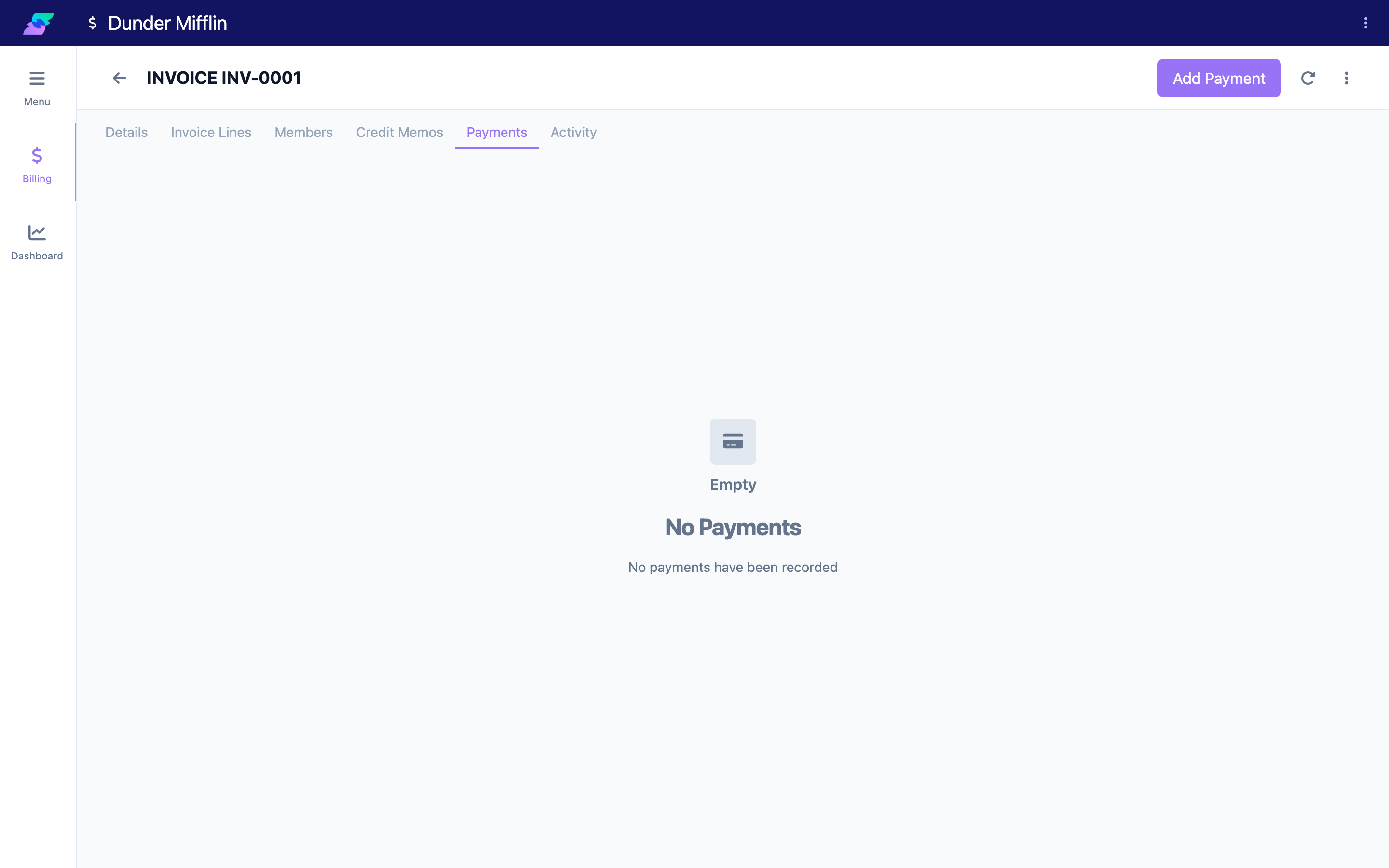
Open the invoice and go to the Payments tab. Void each payment listed there. Voiding a payment does not happen automatically as part of voiding the invoice — you must do it explicitly, one payment at a time. (No invoice in the demo center currently has recorded payments, so the tab below shows its empty state — with payments, each row would list a Void action.)
Step 2: Void every credit memo on the invoice
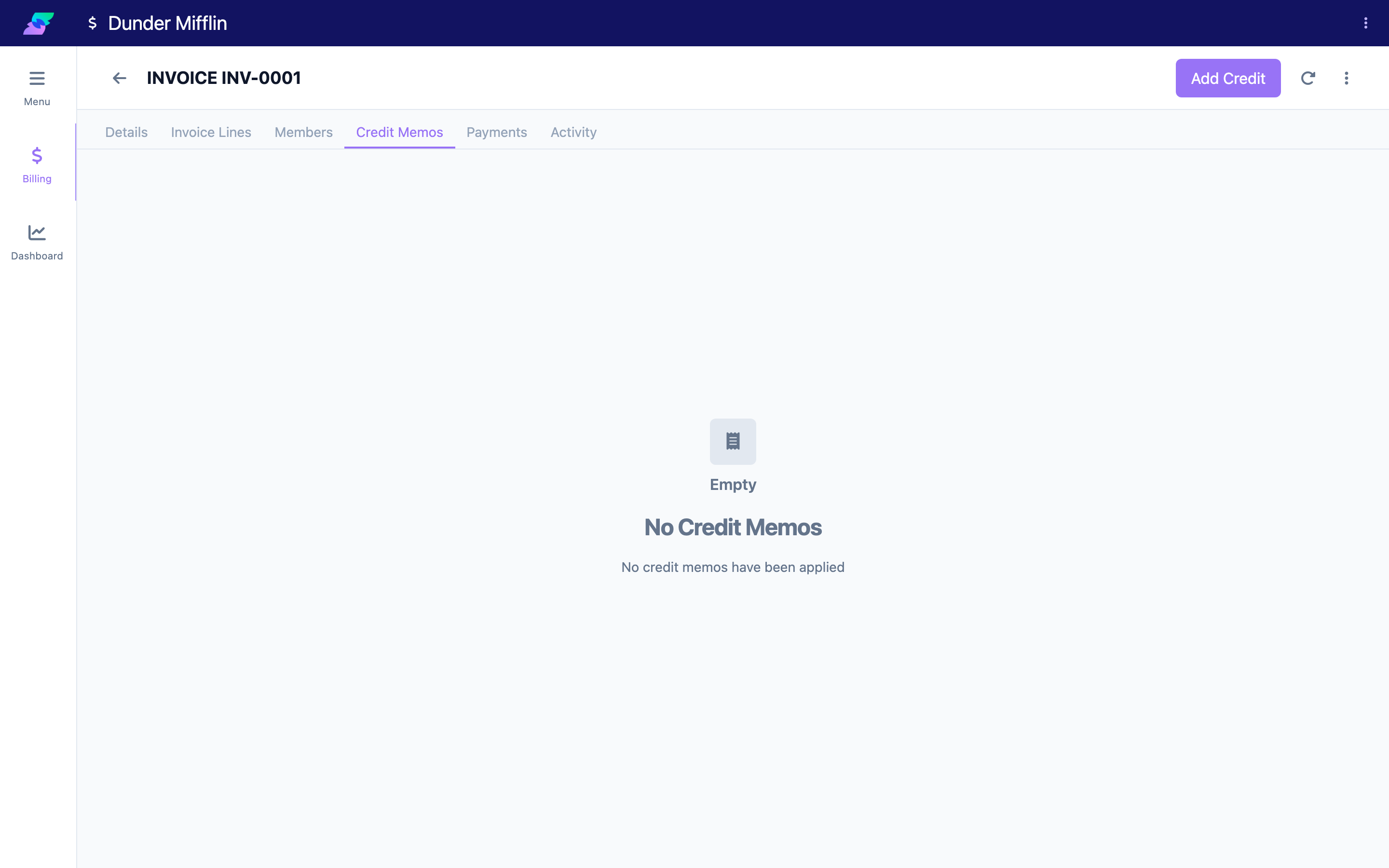
Go to the Credit Memos tab and void each credit memo applied to the invoice. As with payments, these must be cleared before the invoice can be voided. (This demo invoice has none, so the tab shows its empty state.)
Step 3: Choose Void
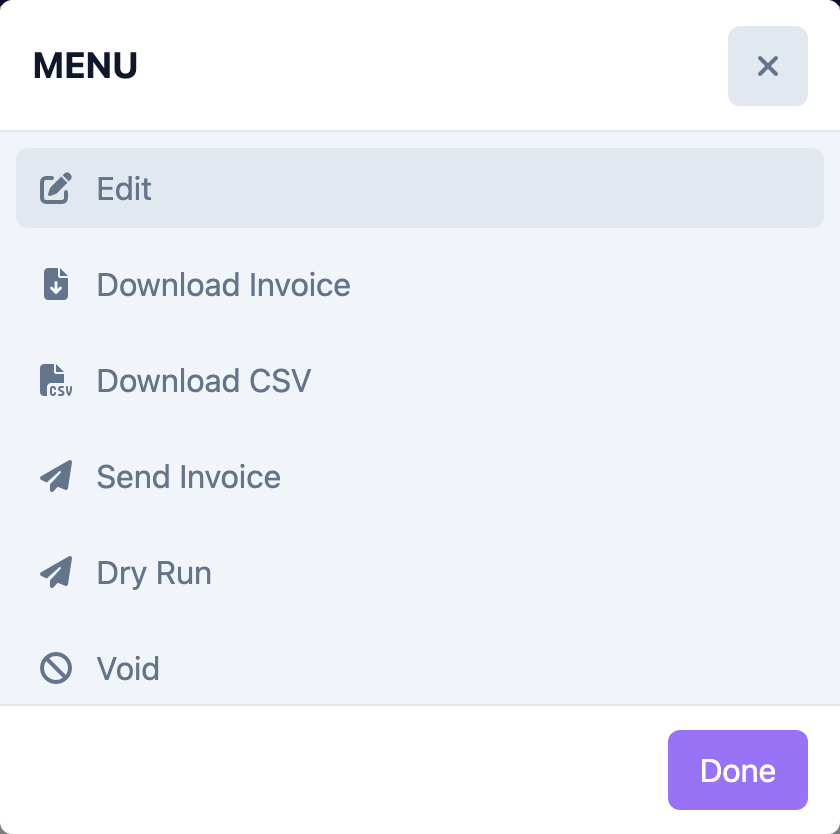
With no payments and no credits remaining, open the actions menu and choose Void.
Step 4: Confirm the void
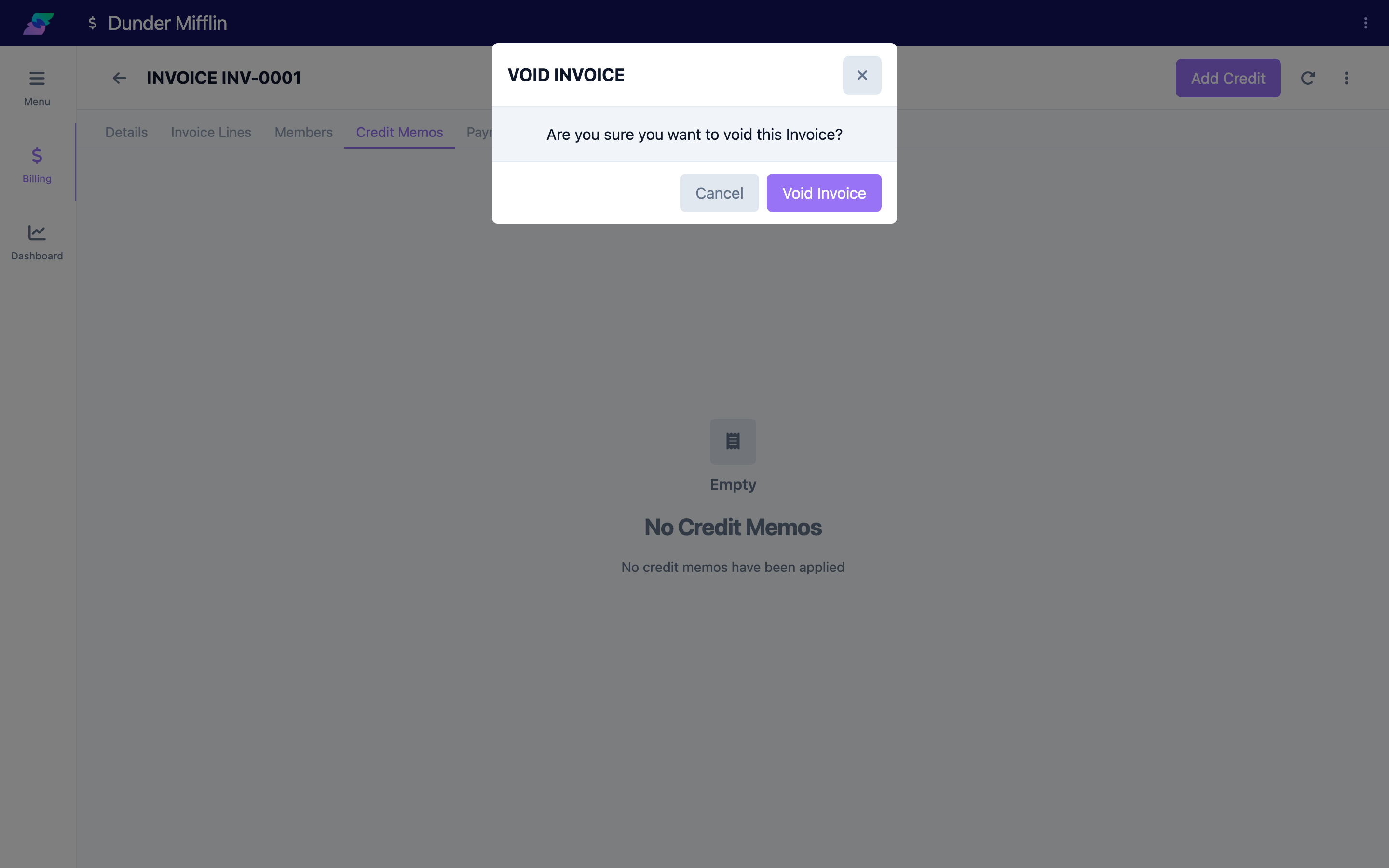
Confirm in the Void Invoice dialog: "Are you sure you want to void this Invoice?" Click Void Invoice. There is no reason field — voiding is a single confirmation.
Step 5: If payments or credits remain
If any payment or credit is still allocated, choosing Void shows the Cannot Void Invoice message: "You must void all credit memos and payments associated with this invoice before you can void it. Please void each credit memo and payment individually first." Clear them and try again.
(Screenshot not available: no invoice in the demo center currently has an allocated payment or credit memo, so this block can't be triggered to capture.)
Tips
- After voiding, the invoice status becomes Voided and its actions menu is hidden — there's nothing left to do to it.
- To remove a Draft you no longer want, use Delete in the invoice's Edit form rather than looking for Void.
- Voiding leaves the underlying attendance and transportation records intact, so those charges can be billed on a new invoice if needed.
Troubleshooting
| Problem | Solution |
|---|---|
| Void isn't in the menu | The invoice is a Draft (delete it instead) or already voided. Void only appears on finalized invoices. |
| "Cannot Void Invoice" appears | The invoice still has allocated payments or credits. Void each one on the Payments and Credit Memos tabs, then void the invoice. |
| I expected the payments to be released automatically | They aren't. Voiding the invoice does not release payments — void them yourself first. |
| I wanted to record why it was voided | There's no reason field on void. Note the reason elsewhere (for example, on a replacement invoice or in a credit memo). |
Related Articles
- the-invoice-lifecycle — The Invoice Lifecycle
- finalizing-an-invoice — Finalizing & Sending an Invoice
- viewing-and-editing-invoices — Viewing & Editing Invoices