
Overview
Finalizing and sending are the last two steps of the invoice lifecycle. Finalize validates the invoice, generates its PDF, and locks it. Send then delivers it — emailing the payor for a standard invoice, or submitting claims for a claims invoice. On a Draft, the single Send Invoice button runs the remaining steps in order (Prepare → Finalize → Send), or you can run each step from the actions menu.
Before You Begin
- The invoice should be a prepared Draft with its line items resolved (no items needing attention).
- The invoice needs a Payor. A non-claims invoice also needs a payor email address; a claims invoice does not (it submits claims instead of emailing).
- Only finalize when you're ready — finalizing locks the invoice.
Steps
Step 1: Finalize the invoice
Click Send Invoice (which will run Finalize as part of the pipeline) or choose Finalize Invoice from the actions menu. Confirm in the dialog: "Are you sure you want to finalize this invoice? It will no longer be editable." Finalizing:
- Validates the invoice (not voided, has a payor, has line items, no unposted credit memos, not already paid).
- Generates the invoice PDF on the server and stores it with the invoice.
- Sets the finalized date, changes the status to Unpaid, and locks the invoice.
(Screenshot not available: reaching this dialog requires an invoice that has already been through Prepare — every Draft in the demo center still has unprepared preview lines, and running Prepare for real would persist data in the shared demo, so this step was left uncaptured.)
Step 2: Watch the finalize progress
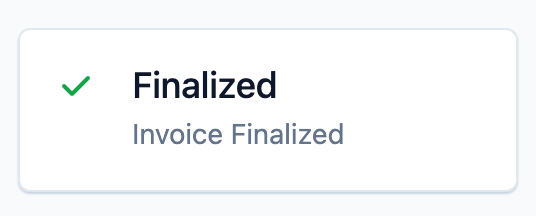
The Activity tab shows progress cards while finalization runs — Finalizing ("Generating the invoice pdf") followed by Finalized ("Invoice Finalized"). The screenshot below is a finalized invoice, so the card already reads as done.
Step 3: Send the invoice
Once finalized, click Send Invoice. What happens depends on the invoice type:
- Non-claims invoice: Seniorverse emails the Payor the PDF (with a payment link when Stripe is enabled) and marks the invoice as sent.
- Claims invoice: Seniorverse queues the draft claims for submission (in batches of 5) and marks the invoice as sent. No email is sent.
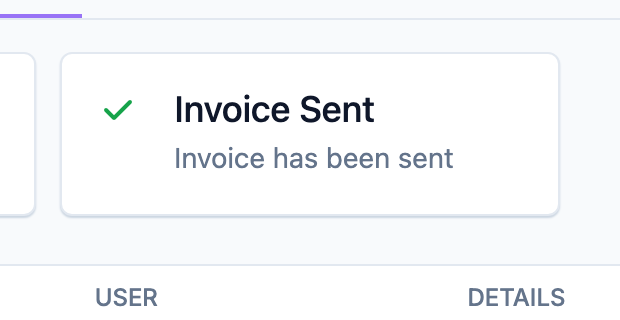
The Activity tab shows a Sending invoice card, then Invoice Sent.
Step 4: Resend if needed
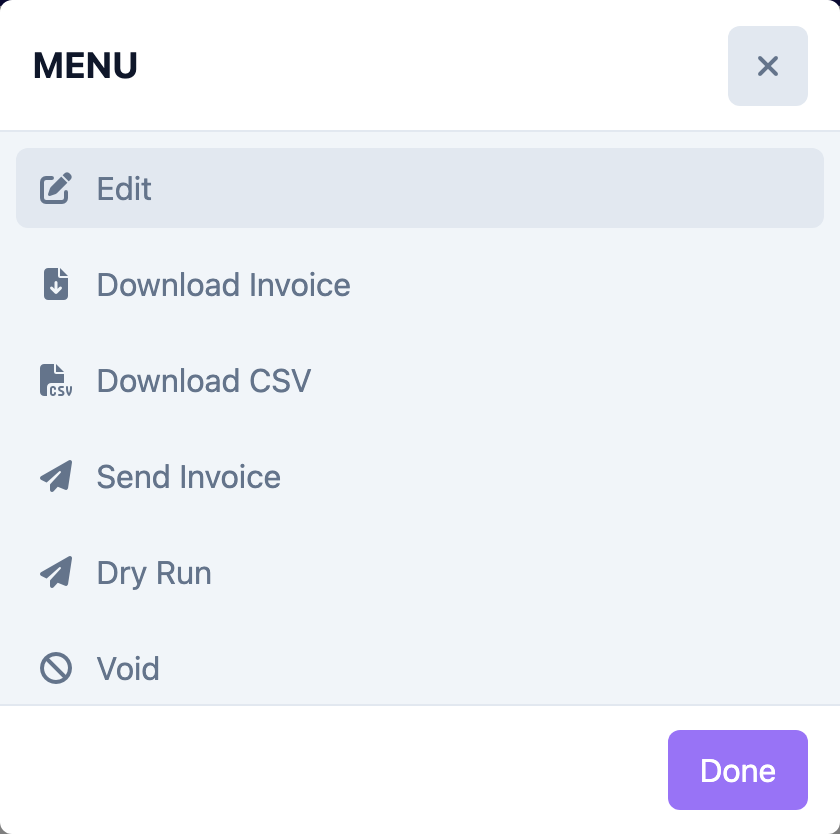
After an invoice has been sent, the actions menu offers Send Invoice again to resend. On a resend, a non-claims invoice skips the email (it was already delivered once) while claims recovery still runs. Use this to re-trigger claim submission or confirm delivery.
Step 5: Use Dry Run to preview claims
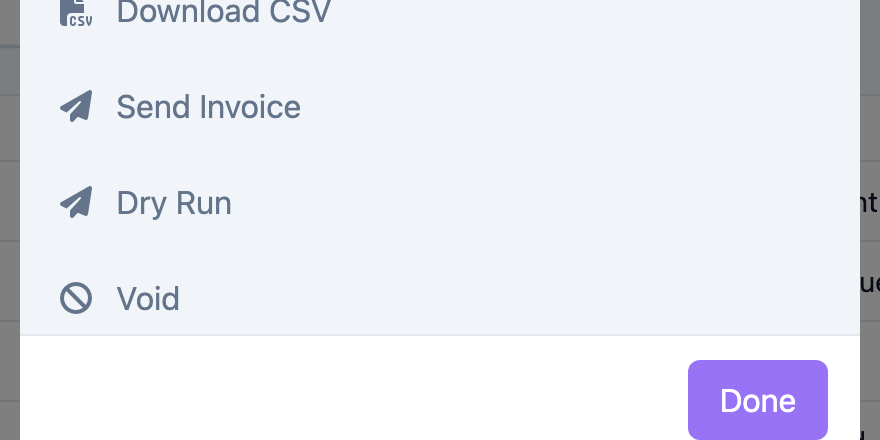
For a claims invoice, choose Dry Run from the actions menu (available once finalized). It builds and logs the Stedi 837 claim payloads to the Activity log without submitting them, so you can inspect exactly what will be sent. The invoice must be prepared and not voided to run a dry run.
Tips
- The one-click Send Invoice button on a Draft runs Prepare → Finalize → Send and skips any step already done.
- Re-finalizing is a safe no-op; the invoice is only locked once.
- Sending is asynchronous — the sent status lands after the background job finishes, so watch the Activity cards rather than expecting an instant change.
- For a claims invoice, run Dry Run before the real send to catch payload problems early.
Troubleshooting
| Problem | Solution |
|---|---|
| Finalize is blocked | The invoice may be voided, missing a payor, have no line items, have unposted credit memos, or already be paid. Resolve the flagged issue and try again. |
| "Payor does not have an email address" | A non-claims invoice needs a payor email. Add one to the payor, or confirm the invoice is a claims invoice (which doesn't email). |
| "Invoice PDF is not generated" on Send | Finalization didn't produce a PDF. Re-run Finalize before sending. |
| Send seems to do nothing | Sending runs in the background. Watch the Activity tab for the Sending invoice → Invoice Sent cards. |
| Dry Run says the invoice isn't prepared | Run Prepare Invoice first, then try the dry run. |
Related Articles
- the-invoice-lifecycle — The Invoice Lifecycle
- adding-invoice-line-items — Adding & Editing Invoice Line Items
- voiding-an-invoice — Voiding an Invoice
- printing-and-downloading-invoices — Printing & Downloading Invoices