
Overview
An invoice bills a Payor for one or more members over an Invoice Period. You can create an invoice two ways:
- Manual — you pick the Benefit Type and members yourself.
- Billing Plan — the invoice is tied to a recurring plan, and members and payor are derived automatically.
Either way, the invoice is saved as a Draft. From there you prepare, finalize, and send it (see "The Invoice Lifecycle").
Before You Begin
- You need access to the Billing module.
- Confirm the Benefit Type (or Billing Plan), member benefits, and Payor you'll bill are already set up.
- Know the Invoice Period (start and end dates) and the Due Date.
Steps
Step 1: Open the new invoice form
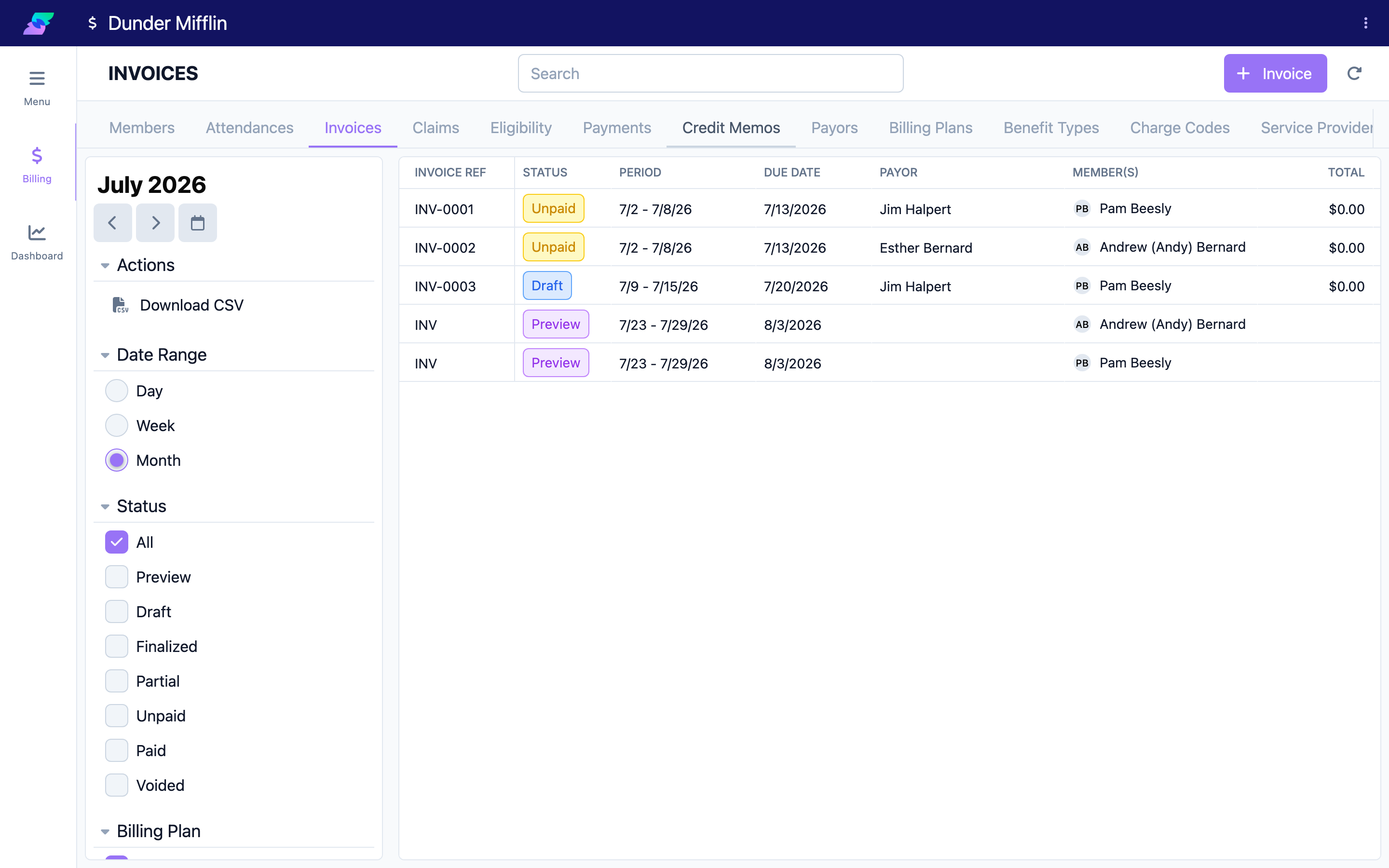
Go to the Billing module and select the Invoices tab. Click the Invoice button in the top right (or Create Invoice from the empty state) to open the new invoice form.
Step 2: Choose the Invoice Type
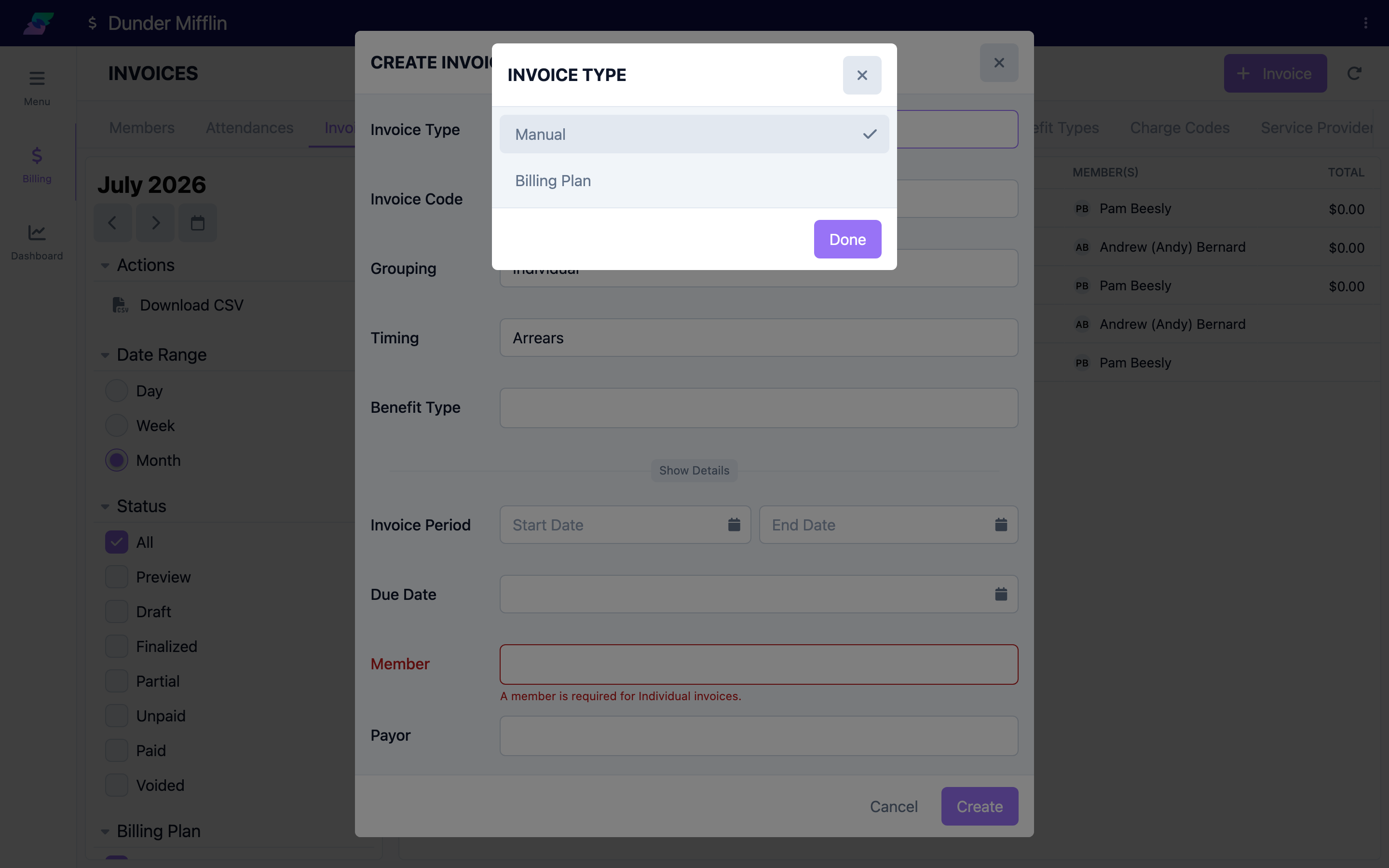
Set Invoice Type to Manual or Billing Plan.
- Billing Plan: a Billing Plan selector appears. Choosing a plan auto-fills the Invoice Code, Payor, Due Date (period end plus the plan's due-in days), members, Timing, Benefit Type, Grouping, and the claim configuration from the plan's benefit type.
- Manual: the Invoice Code, Grouping (Grouped or Individual), and Timing (Advance or Arrears) fields are shown directly.
Step 3: Select the Benefit Type
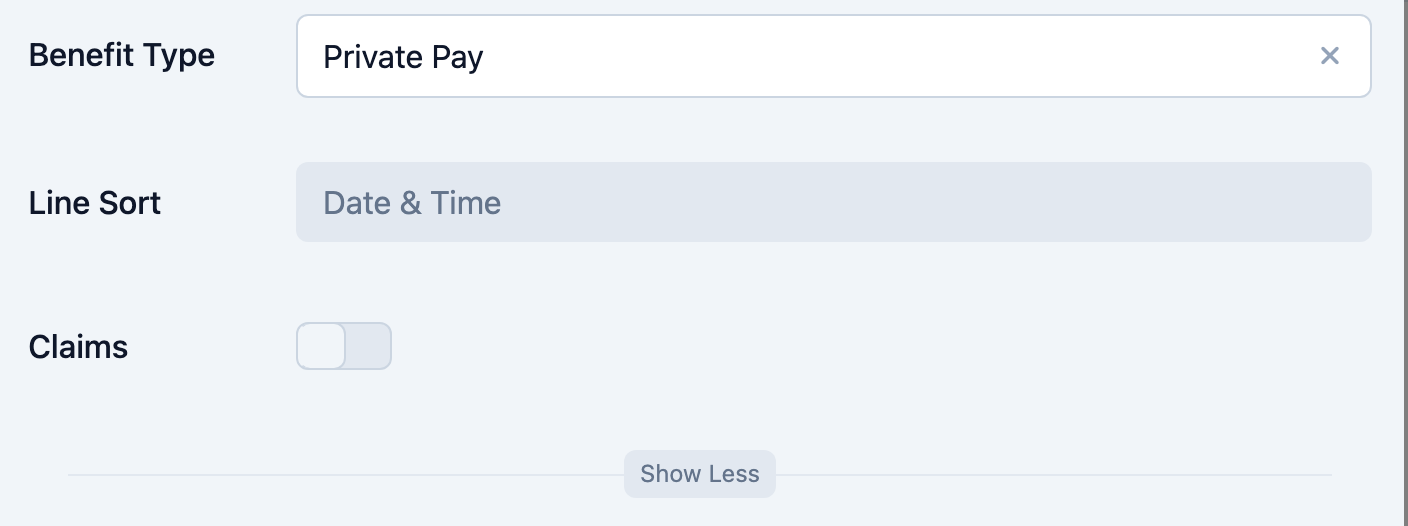
For a Manual invoice, choose the Benefit Type. This drives the charge codes, and it copies the benefit type's Claims setting, Claim Groups, Charge Code Usage, and Invoice Line Sort By onto the invoice. (For a Billing Plan invoice, the Benefit Type is set from the plan and is read-only.) Expand Show Details to review these copied settings.
Step 4: Set the Invoice Period and Due Date
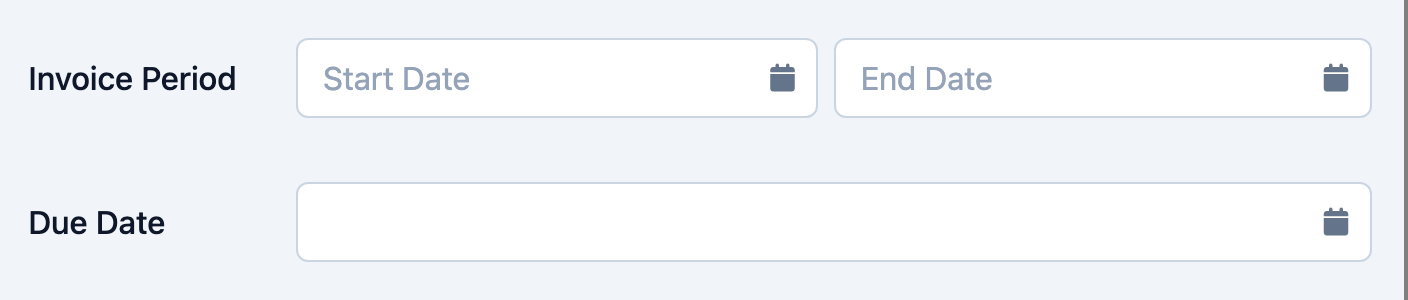
Under Invoice Period, pick a Start Date and End Date. Then set the Due Date. All three are required.
Step 5: Choose the member(s)
- Individual grouping shows a single Member selector (a member is required).
- Grouped grouping shows a multi-select Members field.
The member list is limited to members who have a member benefit of the selected benefit type within the invoice period. For a Billing Plan invoice, members are derived from the plan's active member benefits in the period.

Step 6: Set the Payor
Choose the Payor. For an Individual invoice, the list is scoped to the selected member's active payors, and selecting a member auto-fills the payor. For a Grouped Billing Plan invoice, the payor comes from the plan and is read-only. A payor is required for Manual invoices and for Individual billing-plan invoices.

Step 7: Set the Service Provider
Under Service Provider, choose Select to pick an existing service provider, or Manual to type one in. Fill in Name, Email, Phone, Address, and (optionally) Website. These details are snapshotted onto the invoice and appear on the PDF. A default provider may pre-fill based on the benefit type.
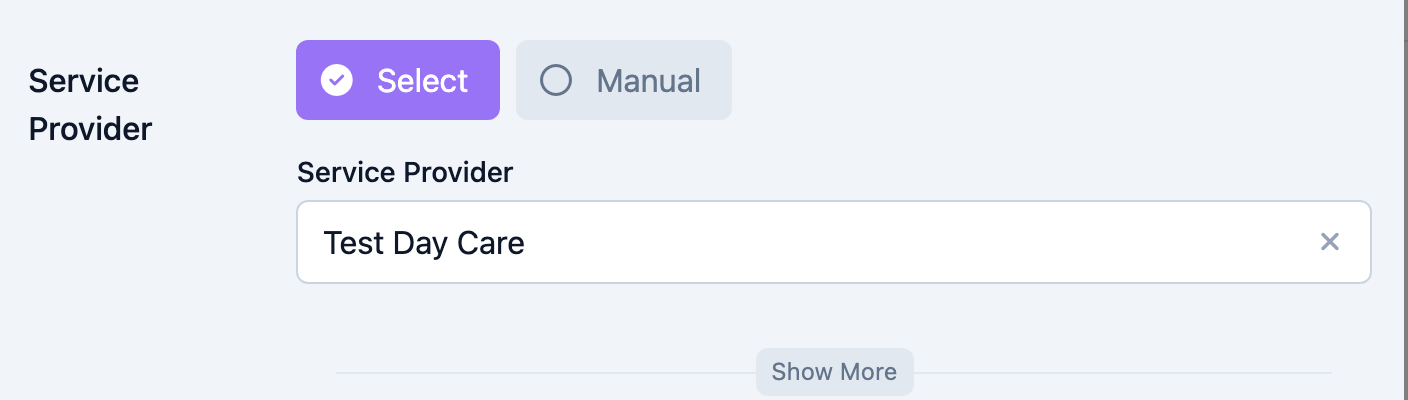
Step 8: Add notes and save as Draft
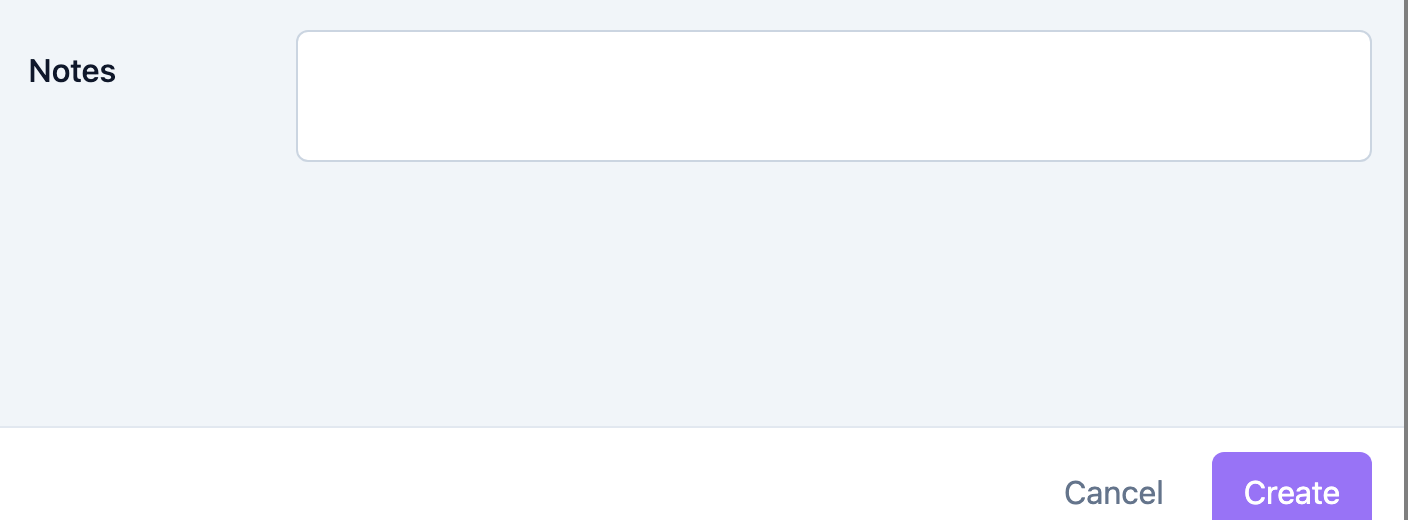
Add any Notes for the invoice, then save. The invoice is created with status Draft, and you're taken to the invoice detail where you can review line items and run the lifecycle.
Tips
- On a Billing Plan invoice, most fields (plan, benefit type, members, grouping, timing) are locked because they come from the plan — this keeps the invoice consistent with the plan.
- The Invoice Ref, totals, currency, and status fields only appear when you edit an existing invoice; they're read-only and maintained by the system.
- Currency is USD.
- To create invoices straight from a plan's schedule, see "Generating Invoices from Billing Plans."
Troubleshooting
| Problem | Solution |
|---|---|
| The member list is empty | No member has a member benefit of the selected benefit type in the chosen period. Check the member benefits and the Invoice Period dates. |
| "The Payor field is required" | Manual invoices and Individual billing-plan invoices need a payor. Select the member first (its payor auto-fills) or choose one directly. |
| "The Invoice Code field is required" | Manual invoices need an Invoice Code. Billing Plan invoices take it from the plan automatically. |
| Service Provider fields are required | Enter the provider's Name, Email, Phone, and Address, or complete the benefit type's billing provider so it can be used. |
Related Articles
- the-invoice-lifecycle — The Invoice Lifecycle
- generating-invoices-from-billing-plans — Generating Invoices from Billing Plans
- adding-invoice-line-items — Adding & Editing Invoice Line Items
- finalizing-an-invoice — Finalizing & Sending an Invoice