
Overview
Seniorverse can bill transportation separately from attendance. When a member's attendance records an arrival and/or departure transport method, the system generates transportation charges on the invoice, priced by Transportation charge codes. On the invoice these show as their own line sources — Attendance Arrival, Attendance Departure, and Transportation — and the invoice's Members tab breaks out each member's transportation totals alongside their attendance. A separate Transportation Summary report gives you counts of trips (or members) by benefit type and transport method.
Before You Begin
- You need access to the Billing module.
- Set up charge codes with the type Transportation so transport can be priced.
- Attendance records must capture the arrival and/or departure transport method for charges to generate.
Steps
Step 1: Set up Transportation charge codes
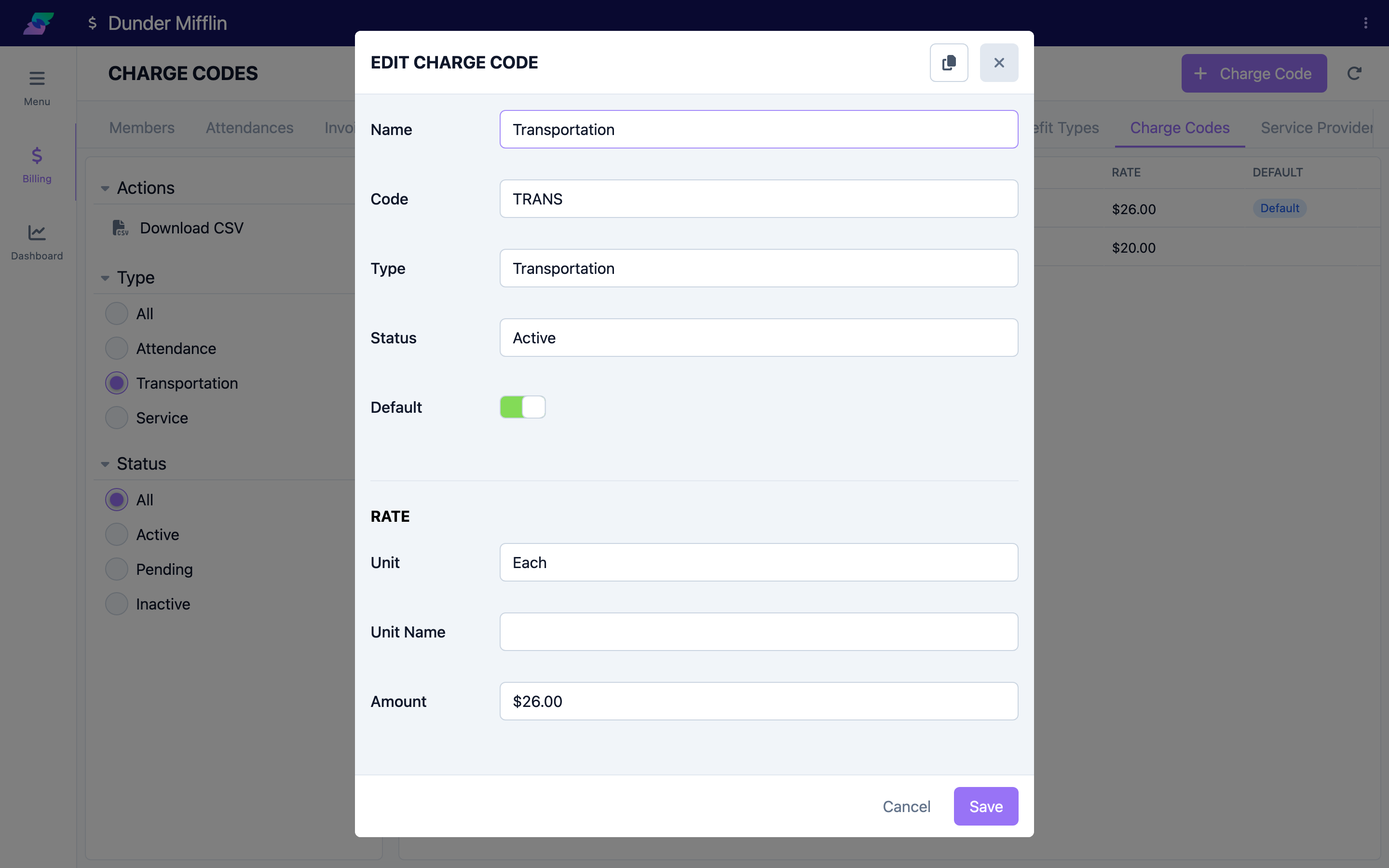
In the Billing module's Charge Codes area, create a charge code with Type set to Transportation (the other types are Attendance and Service). Transportation charge codes price the arrival and departure legs. Tie them to the relevant benefit type so they apply on invoices. The screenshot below shows the demo center's existing Transportation charge code as an example of the fields involved.
Step 2: See transportation lines on the invoice
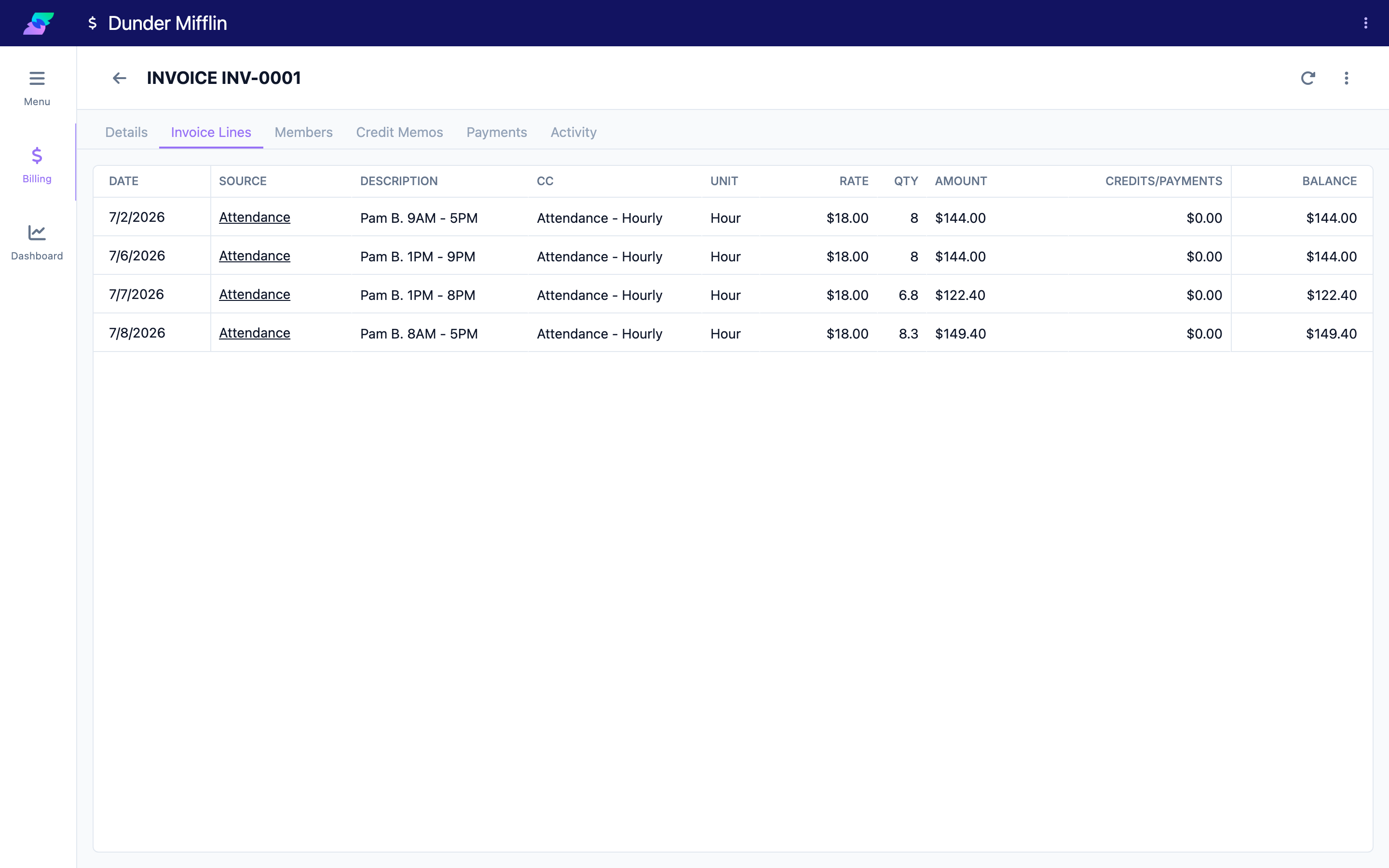
Open a Draft invoice and go to the Invoice Lines tab. Transportation charges appear as preview lines with the sources Attendance Arrival and Attendance Departure (and Transportation), separate from the plain Attendance lines. They carry their own date, unit, quantity, rate, and amount, and become permanent line records during the Prepare step. (The demo invoice below only has plain Attendance lines — its attendance records don't yet have a linked Transportation charge code for the period, so no Arrival/Departure lines have generated. See the Troubleshooting table if you expect lines that aren't appearing.)
Step 3: Review per-member transport totals on the Members tab
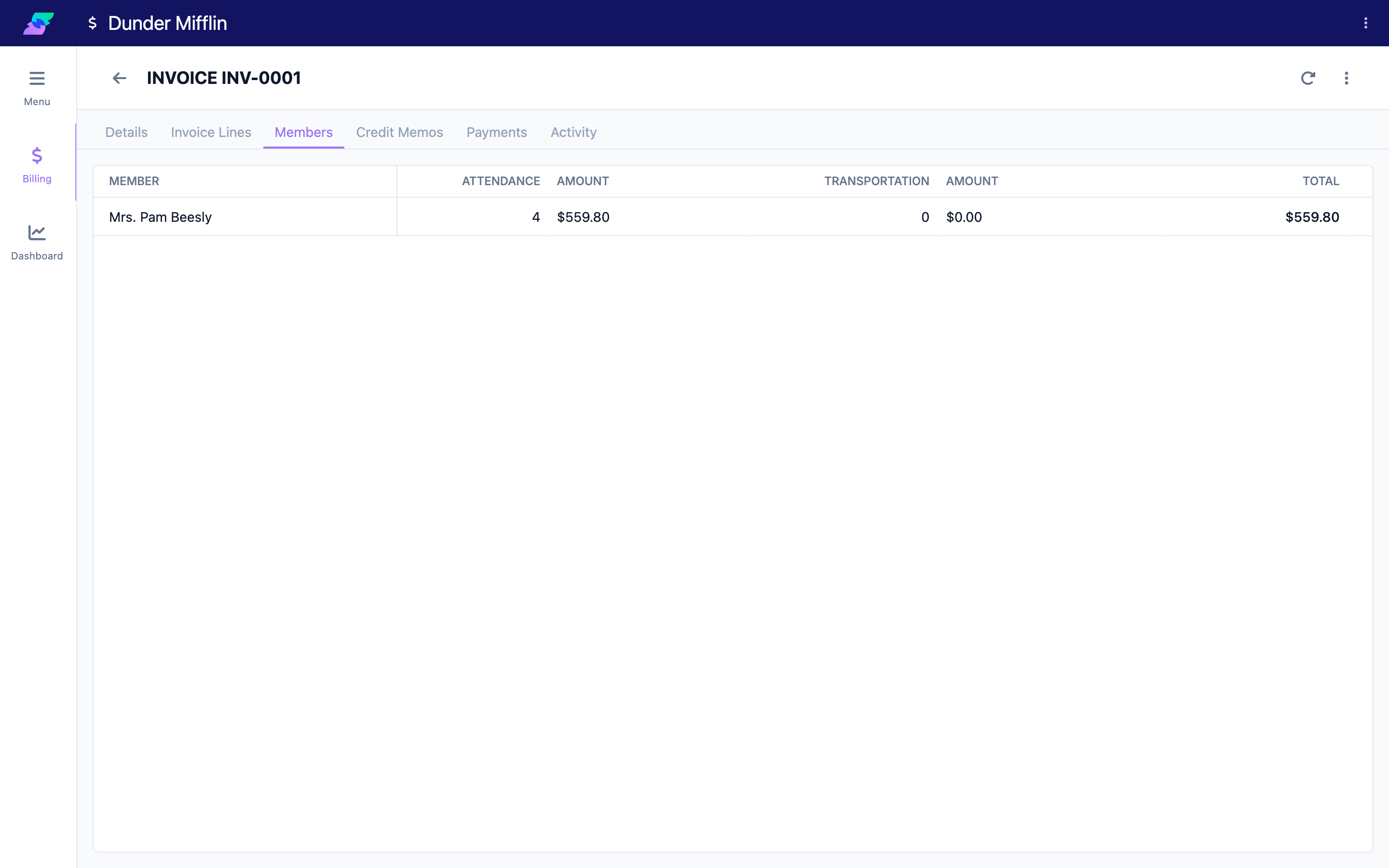
Open the invoice's Members tab. Each member row shows their Attendance count and amount, their Transportation count and amount, and a combined Total. This is where you confirm transportation is billing correctly per member. (The demo invoice below shows Transportation at 0 for the same reason noted in Step 2.)
Step 4: Open the Transportation Summary report
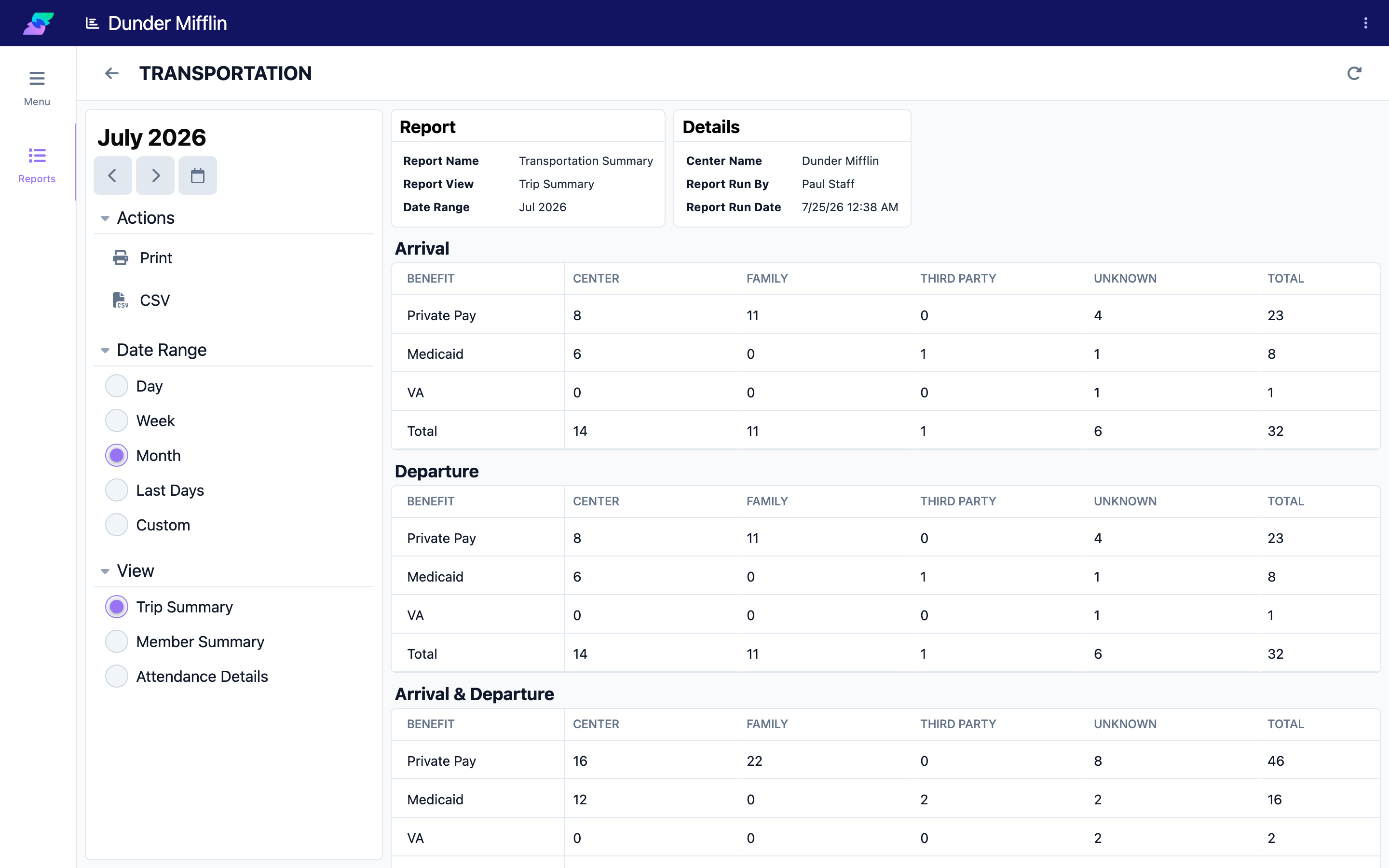
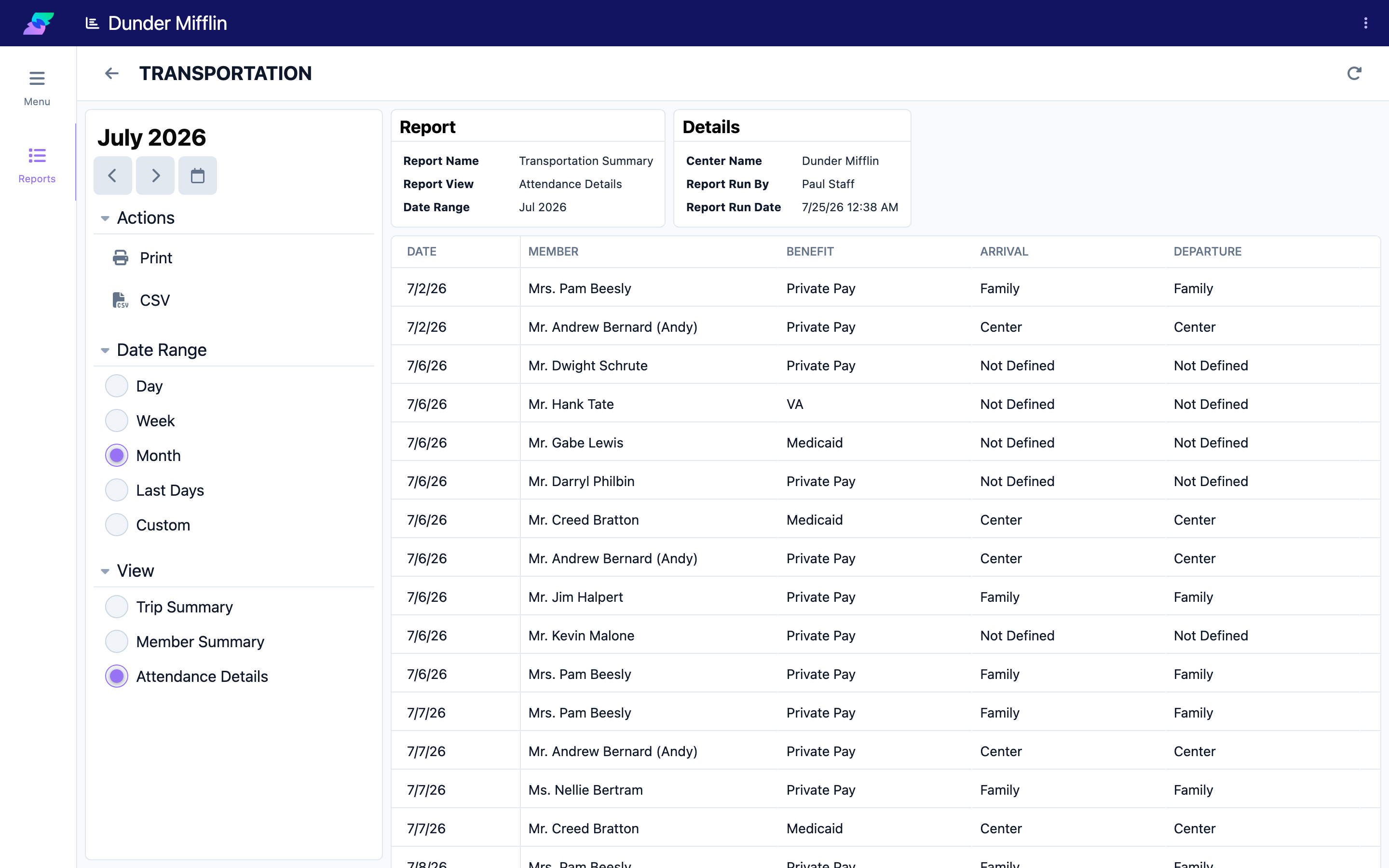
Use the Transportation Summary report to see transportation across members. It offers three views — Trip Summary, Member Summary, and Attendance Details — and always shows all three direction breakdowns together: Arrival, Departure, and Arrival & Departure totals, stacked on one page (there's no toggle to show just one).
Step 5: Read the summary columns
In Trip Summary and Member Summary, rows are grouped by Benefit type, with a column for each transport method your center defines (for example Center, Family, Third Party), an Unknown column for trips with no method recorded, and a Total column. Trip Summary counts attendance trips; Member Summary counts unique members. Attendance Details lists each attendance with its date, member, benefit, arrival method, and departure method — shown below, since it displays real per-member arrival/departure methods more clearly than the count tables.
Tips
- Arrival and departure are billed independently, so a round trip can produce two charges — one Attendance Arrival line and one Attendance Departure line.
- The invoice's Invoice Line Sort By setting can group transportation with its attendance day, keeping each service date's charges together.
- Trips with no transport method recorded fall under Unknown in the Transportation Summary — use that column to catch attendances that need a method added.
Troubleshooting
| Problem | Solution |
|---|---|
| No transportation lines appear on the invoice | The attendance records have no arrival/departure method, or there's no Transportation charge code for the benefit type in the period. |
| A transportation line is flagged or shows $0 | The charge code is missing or unsupported for the benefit type on that date. Add or correct the Transportation charge code. |
| Transportation totals look off on the Members tab | Confirm each attendance has the correct arrival/departure method and the right Transportation charge code, then re-prepare the draft. |
| A trip shows under "Unknown" in the report | That attendance has no transport method recorded. Edit the attendance to set arrival/departure. |
Related Articles
- adding-invoice-line-items — Adding & Editing Invoice Line Items
- creating-an-invoice — Creating an Invoice
- the-invoice-lifecycle — The Invoice Lifecycle
- viewing-and-editing-invoices — Viewing & Editing Invoices