
Overview
Before you bill an insurer, you want to confirm the member is actually covered. Seniorverse runs real-time eligibility checks against the payer using EDI: a 270 request asks "is this member eligible?" and the payer answers with a 271 response. Seniorverse records the result on each member benefit and, where the benefit type requires it, uses it to block finalizing a claims invoice for a member who is not eligible.
This article covers the Eligibility tab, running a check for one member benefit or for many at once with Run All and Retry Failed, reading the statuses and the Eligible/Ineligible result, viewing the raw 270/271 request and response, and how an ineligible result stops a claim from finalizing.
Before You Begin
- You need access to the Billing module (eligibility is a billing feature).
- The member benefit's benefit type must have Claims enabled — only claims-enabled benefit types are eligible to check.
- The member benefit must have the identifiers the payer needs (such as the insurance member ID) and be within its active date range for the date you are checking.
- Jargon check: 270 = the eligibility inquiry Seniorverse sends. 271 = the payer's eligibility response.
Steps
Step 1: Open the Eligibility tab
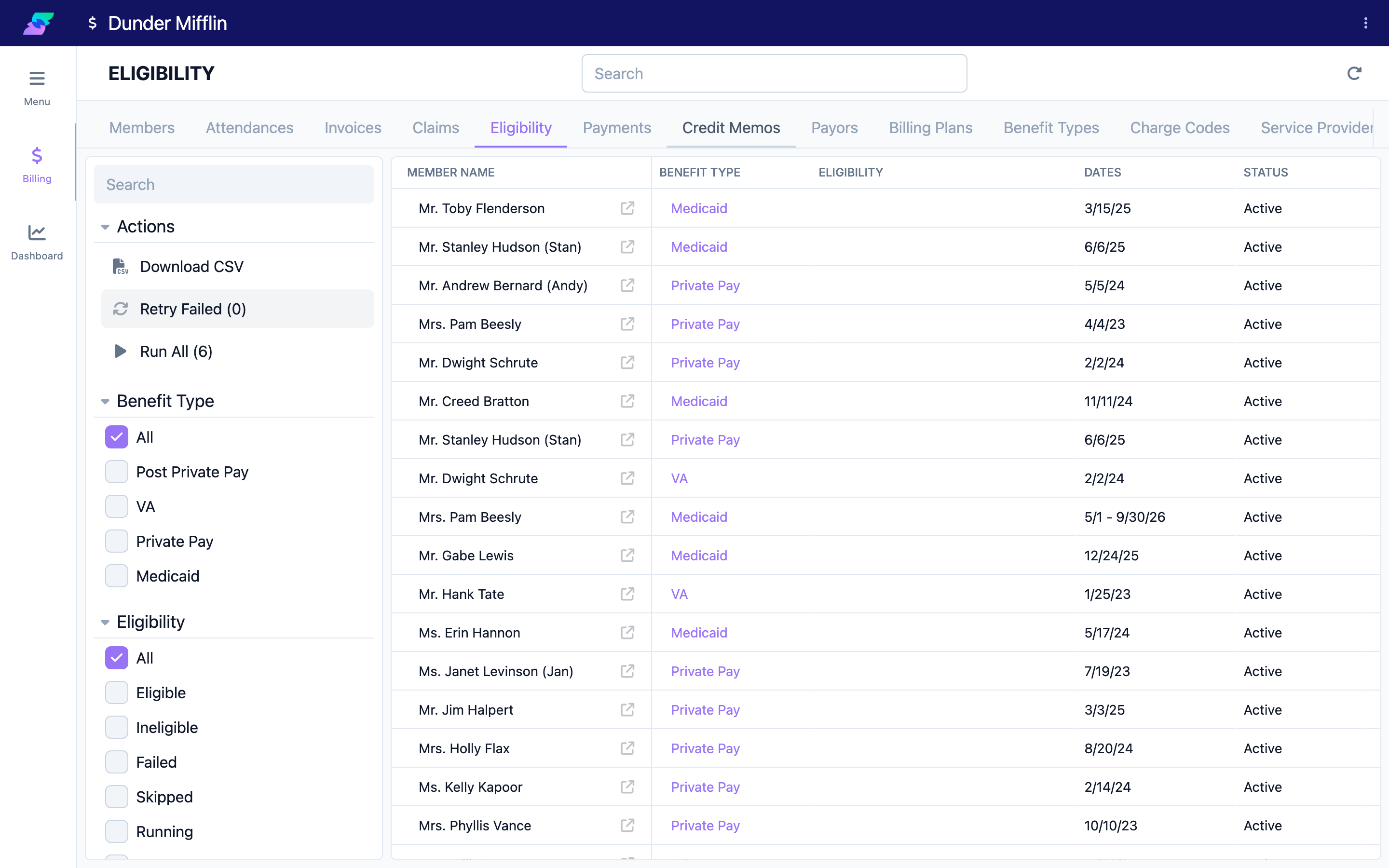
Open Billing and select the Eligibility tab. This lists each member benefit with columns for Member Name, Benefit Type, Eligibility (the latest result and when it was checked), Dates, and Status. Use the filters to narrow by Benefit Type, Members, and Eligibility, and use Actions > Download CSV to export the list.
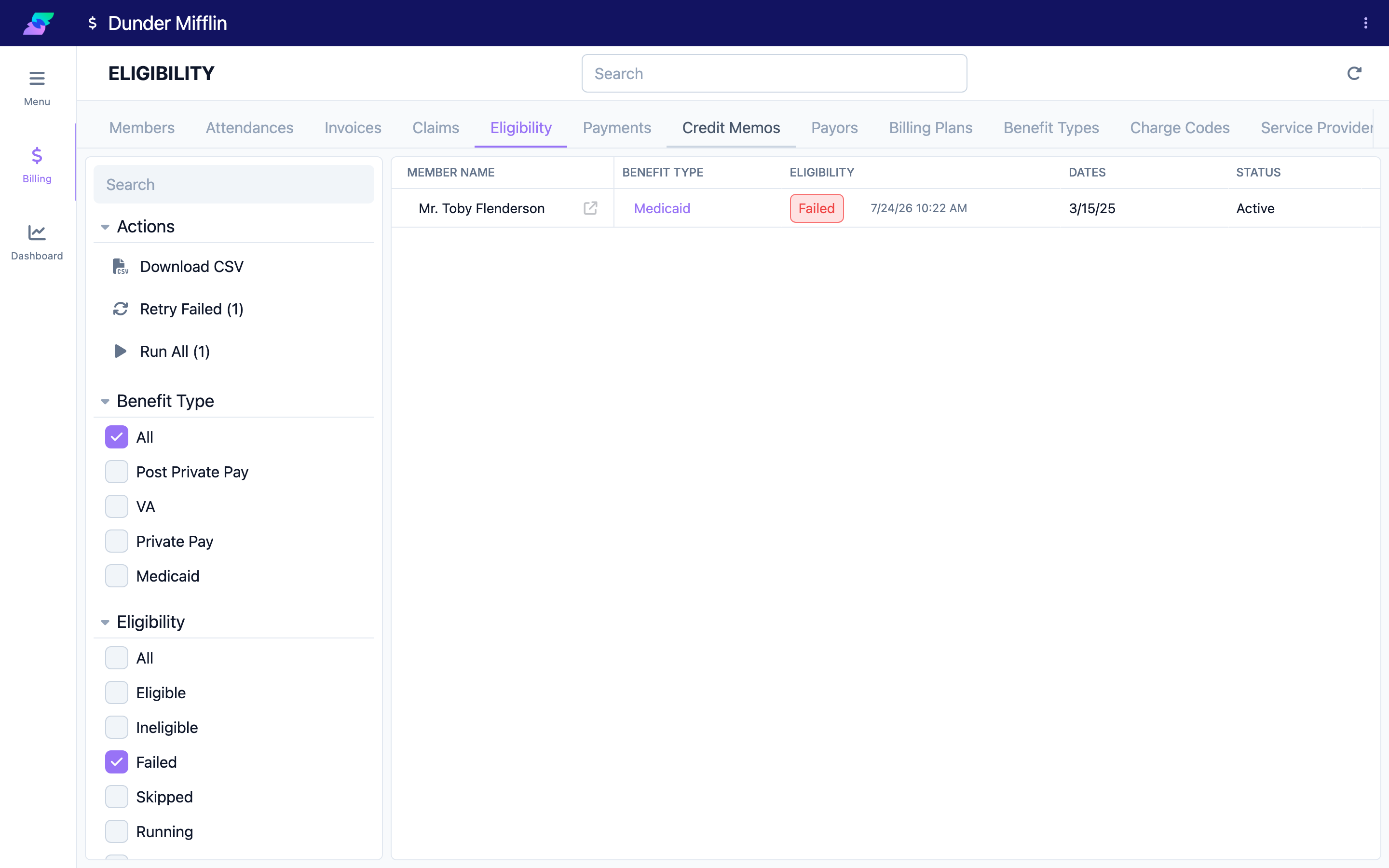
The Eligibility filter offers: All, Eligible, Ineligible, Failed, Skipped, Running, and Not Checked.
Step 2: Check eligibility for one member benefit
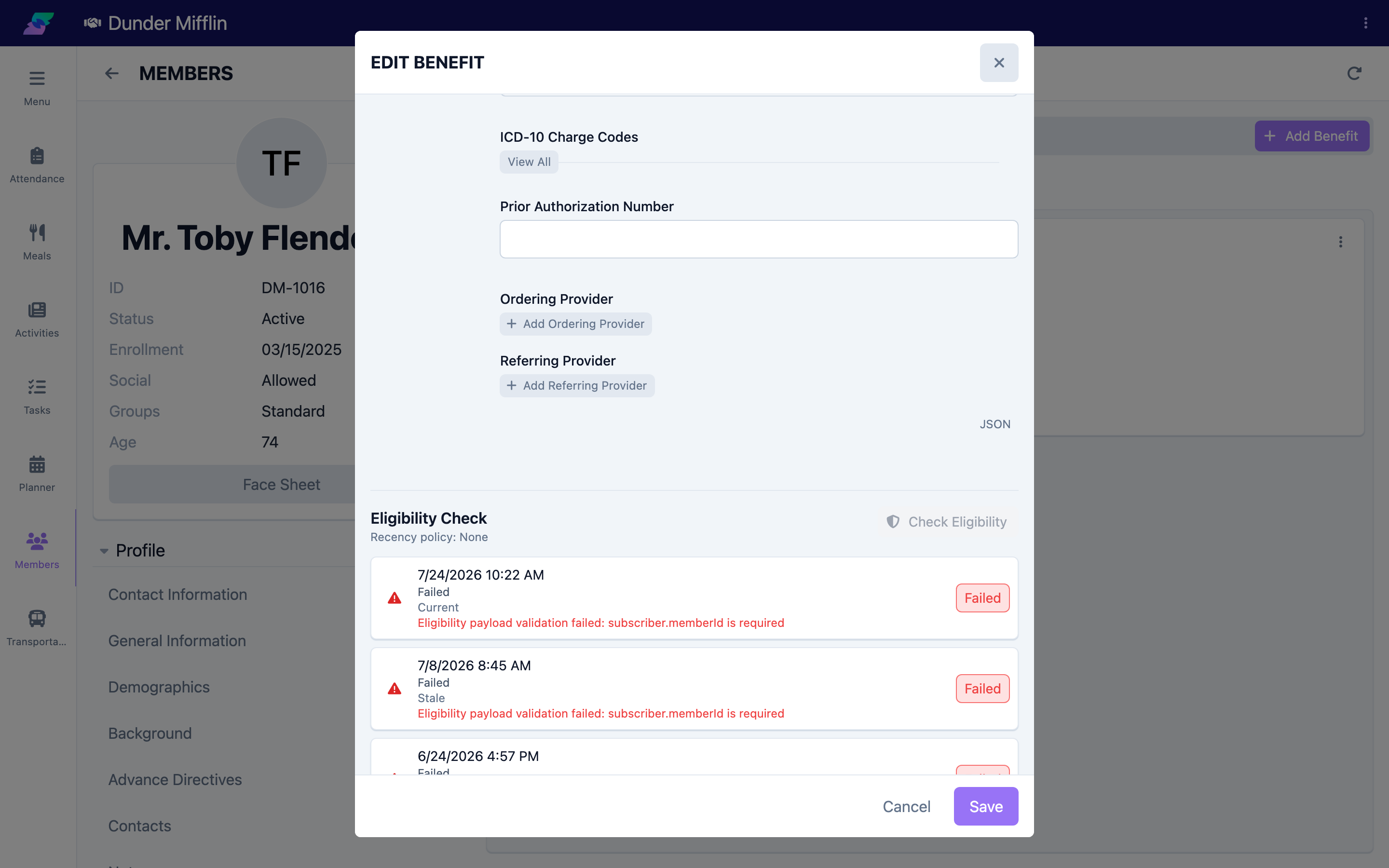
To check a single member benefit, open it (select the Benefit Type in its row, or open the member's Benefits) and use the Check Eligibility button in the eligibility section of the member benefit form. The form shows the benefit's recency policy, a Running eligibility check indicator while it works, and a list of past checks with their result and freshness.
Step 3: Run many checks at once
On the Eligibility tab, open the Actions menu to run checks in bulk:
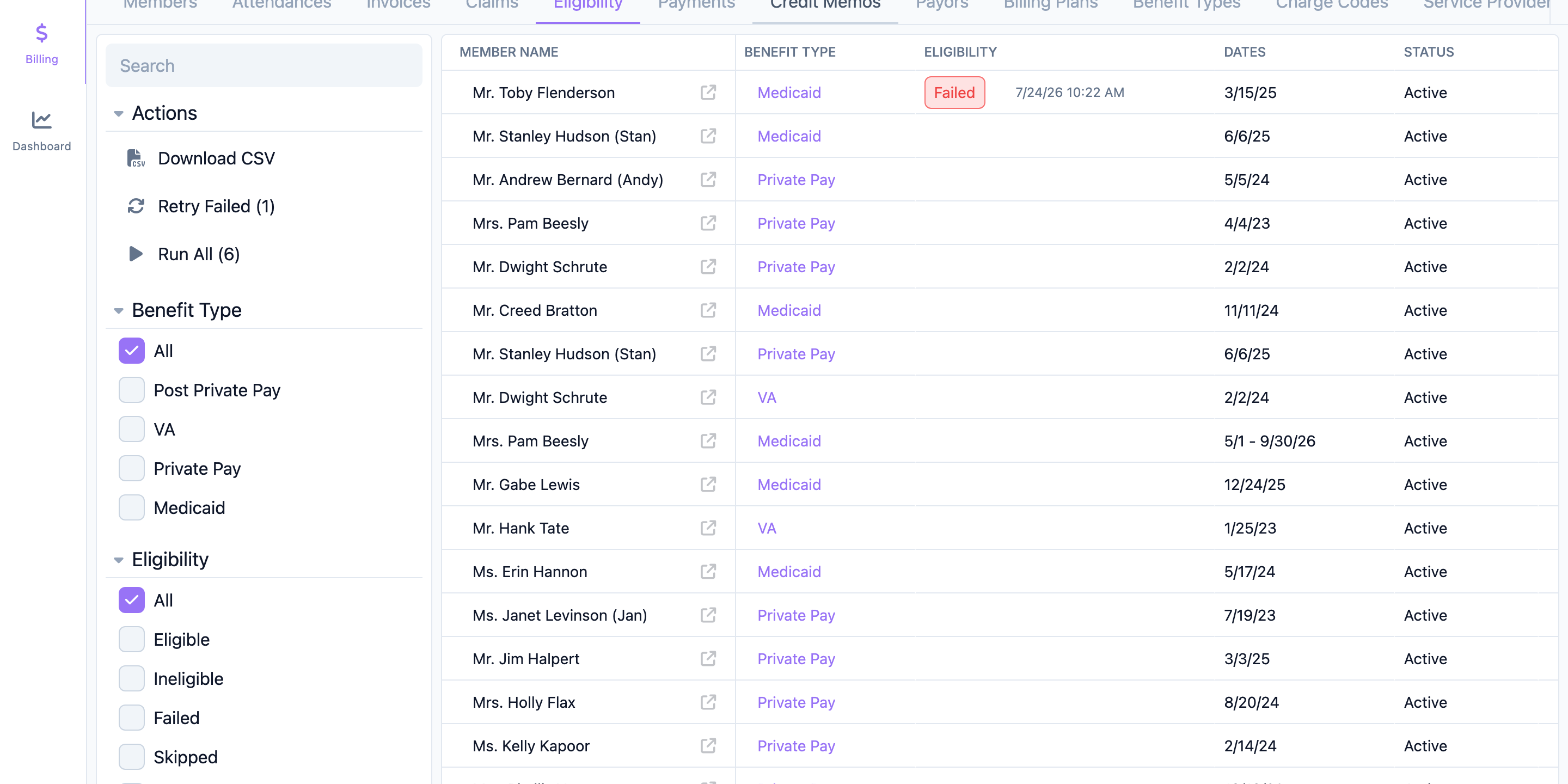
- Run All (N) — runs eligibility for all member benefits currently eligible to check (claims-enabled benefit type, in date range). The number in parentheses is the count that will run.
- Retry Failed (N) — re-runs only the member benefits whose latest check failed or came back ineligible.
Each option asks you to confirm before it runs. While checks are in progress, the affected rows show a spinner and a Running status.
Step 4: Read the statuses and results
Each check reports two things — how the check itself went, and the coverage result:
| Shown status | Meaning |
|---|---|
| Running | The check is queued or in progress. |
| Eligible | The check completed and the member is covered for the date. |
| Ineligible | The check completed and the member is not covered. |
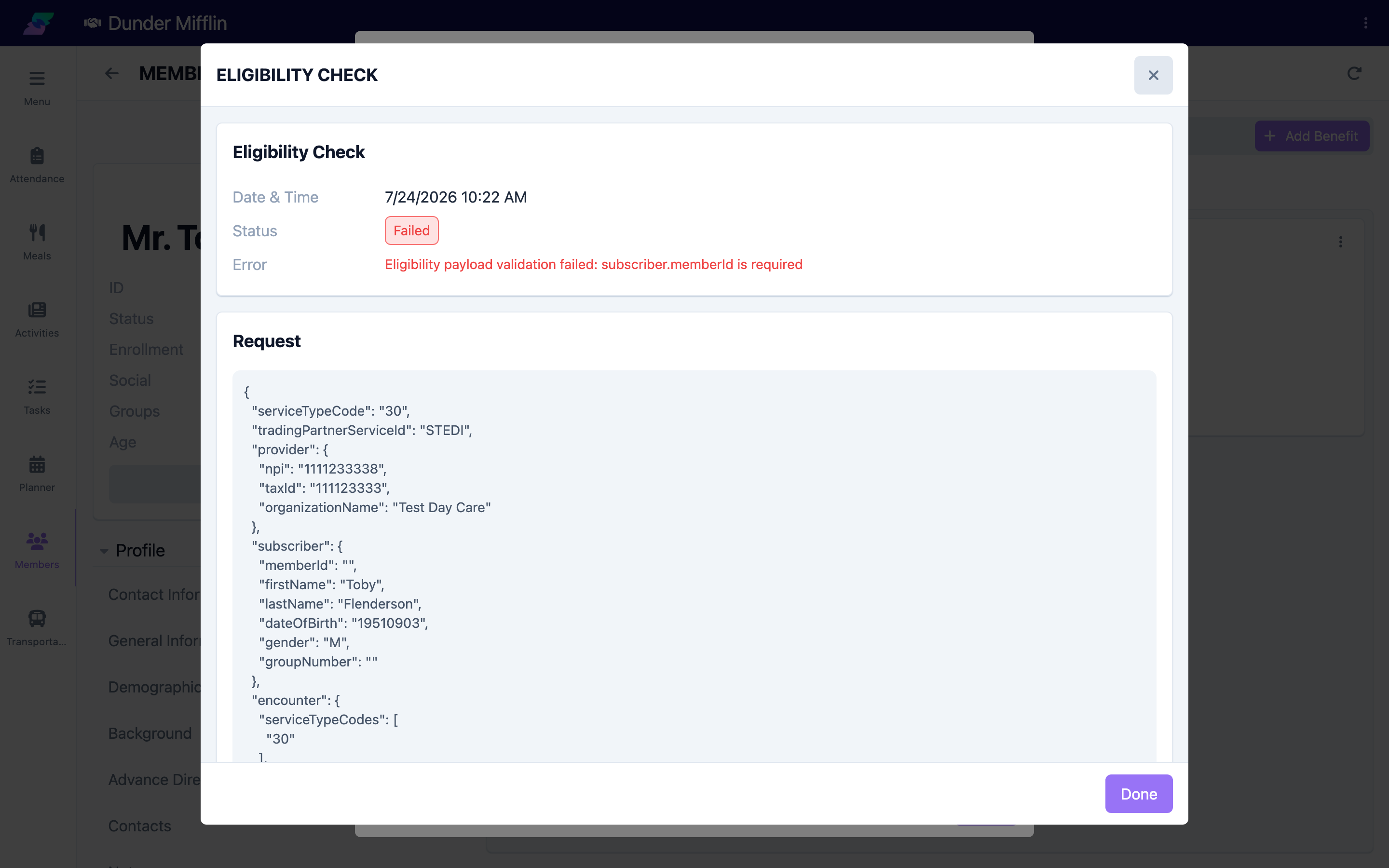
| Failed | The check could not complete (for example bad or missing member data, or a payer error). The detail shows the error message. |
| Skipped | The check was intentionally not run (for example a recent successful check already covers this date). |
| Not Checked | No eligibility check has been run for this member benefit yet. |
The underlying result Seniorverse stores is simply Eligible or Ineligible; the other states describe the check process. The tab also shows the date and time of the most recent check next to the status.
Step 5: View the request and response
Open a specific check to see its detail. It shows the status, the Eligible/Ineligible result, the checked-at timestamp, any error message, and the full request (the 270 Seniorverse sent) and response (the 271 the payer returned) as formatted data. This is where you confirm exactly what the payer reported — useful when a result is surprising or a check fails.
Step 6: Understand how ineligibility blocks finalization
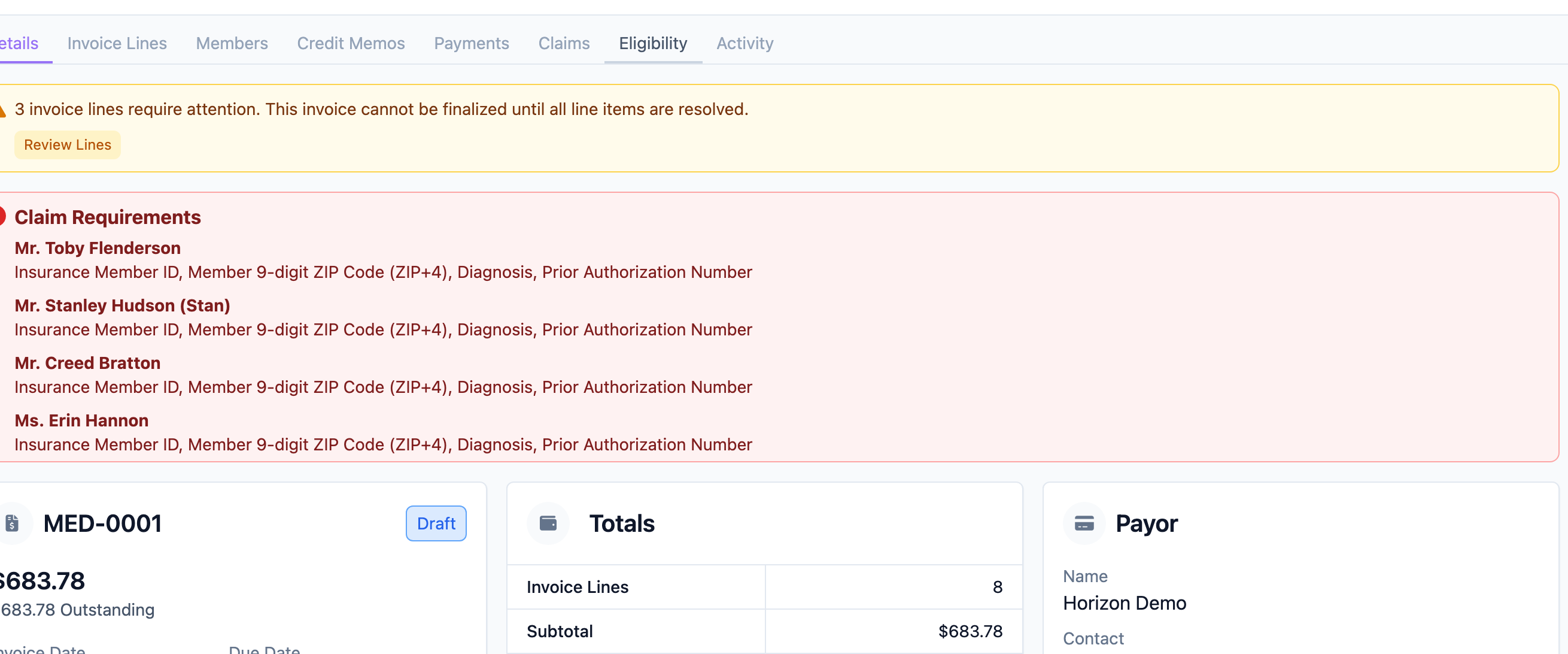
When a benefit type is set to require eligibility, Seniorverse enforces it at claim time. On a claims invoice, the Claim Requirements check (shown on the claim's Details tab and when finalizing) flags a member benefit that:
- has no eligibility check yet — flagged "Needs eligibility check", or
- has a completed check that came back not eligible — flagged "Ineligible".
The same panel also flags any other missing claim data a member benefit needs (insurance member ID, ZIP+4, diagnosis, prior authorization, and so on) — the screenshot below shows this data-completeness variant, since the benefit type's eligibility recency policy in this example is "None" (not required). Either way, these are blocking issues: you cannot finalize the invoice for that member until every flagged requirement is resolved. Run (or re-run) the eligibility check where it applies, confirm the member is Eligible, and the requirement clears.
Tips
- Run Retry Failed after fixing member data — it targets exactly the member benefits that failed or came back ineligible, without re-running everyone.
- A Skipped result is not an error. It usually means a recent successful check already covers the service date, per the benefit type's recency policy.
- Eligibility issues also surface on the Billing Dashboard under Needs Attention, so you can catch them before you try to bill.
- Only claims-enabled benefit types and in-range member benefits are eligible to check — that is why some rows are not included in Run All.
Troubleshooting
| Problem | Solution |
|---|---|
| A member benefit is missing from Run All | Run All only includes claims-enabled benefit types whose member benefit is within its active date range for the selected date. Confirm the benefit type has Claims enabled and the dates are correct. |
| A check keeps coming back Failed | Open the check detail for the error message and review the request/response. Usually the member benefit is missing an identifier the payer requires (such as the insurance member ID). Fix it and use Retry Failed. |
| The invoice will not finalize for a member | Open the claim's Claim Requirements — a "Needs eligibility check" or "Ineligible" flag blocks finalization. Run the check and confirm the member is Eligible. |
| The member is really covered but shows Ineligible | Open the check detail and read the 271 response to see what the payer reported. Correct the member's insurance details if needed and re-run the check. |
| Nothing happens when I run a check | Eligibility is a Billing feature. Confirm Billing is enabled for your center and that you have Billing access. |
Related Articles
- enabling-and-understanding-claims — Enabling and Understanding Claims
- submitting-and-tracking-claims — Submitting and Tracking Claims
- receiving-remittance-and-the-files-tab — Receiving Remittance and the Files Tab
- setting-up-member-benefits — Setting Up Member Benefits
- using-the-billing-dashboard — Using the Billing Dashboard