
Overview
After a payer processes your claims, it sends back an electronic remittance. The 835 transaction — commonly called an ERA (Electronic Remittance Advice) — is the payer's statement of what it paid, adjusted, or denied. Seniorverse receives ERAs automatically, posts the payment against the matching claim and its invoice lines, records the document on the Files tab, and logs any remark codes so you can see why an amount changed.
This article explains what the ERA does when it arrives, how Seniorverse matches it to the right payor and provider, how to find and download inbound documents on the Files tab, how to reconcile files that could not be matched, and how to read remark codes.
Before You Begin
- You need access to the Billing module.
- Claims must have been submitted so there is something for the payer to remit against. See "Submitting and Tracking Claims."
- For remittances to match automatically, your payors need their external payer ID set, and your service providers need their NPI set (and mapped by your Seniorverse administrator). More on this below.
- Jargon check: 835 / ERA = the payer's electronic remittance (payment) advice. 277CA = the payer's earlier claim acknowledgment. NPI = National Provider Identifier. CARC = Claim Adjustment Reason Code. RARC = Remittance Advice Remark Code.
Steps
Step 1: Understand what happens when an ERA arrives
When a payer sends an 835 (ERA), Seniorverse processes it automatically — you do not import it by hand. For each claim in the remittance, Seniorverse:
- Finds the matching submission by its control number.
- Creates a payment (with the method ERA) and splits it into allocations against the invoice lines, matching each service line back to its invoice line.
- Updates the claim's status and paid amount (for example to Paid or Partial), and notifies the relevant users.
- Skips any remittance it has already recorded, so a re-sent ERA does not double-pay.
The result is that a paid claim shows its payment on the Details tab and its remittance in the Activity tab without any manual posting.
Screenshot coming soon — Claim detail showing an ERA-created payment and paid amount
Step 2: Find remittances on the Files tab
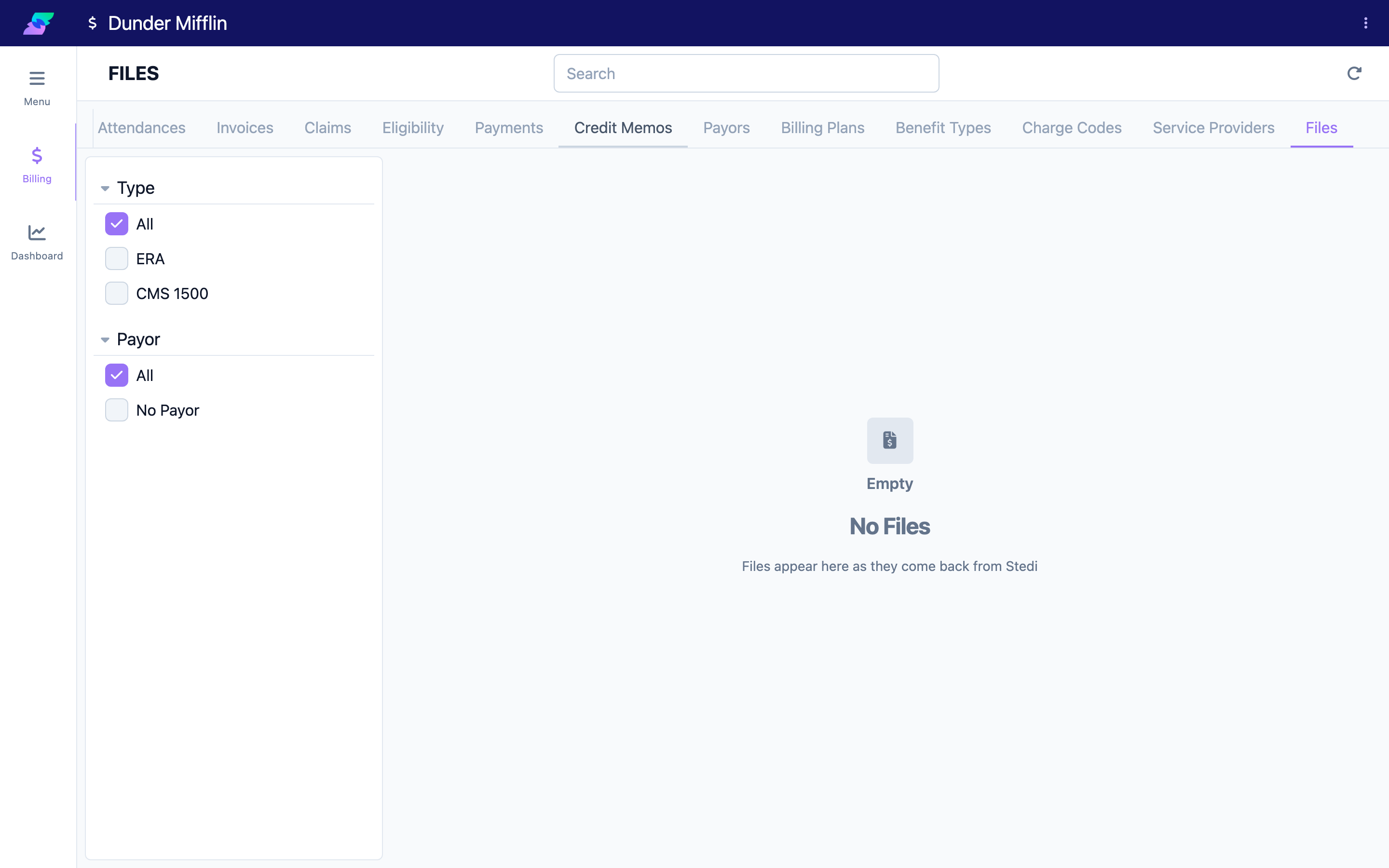
Open Billing and select the Files tab. This lists the inbound documents Seniorverse has received, with columns for Name, Payor, Service Provider, Amount, Date Received, and Date Paid. An ERA is named in the form "ERA 835 — [payer name] — [date]".
Step 3: Filter by type and payor
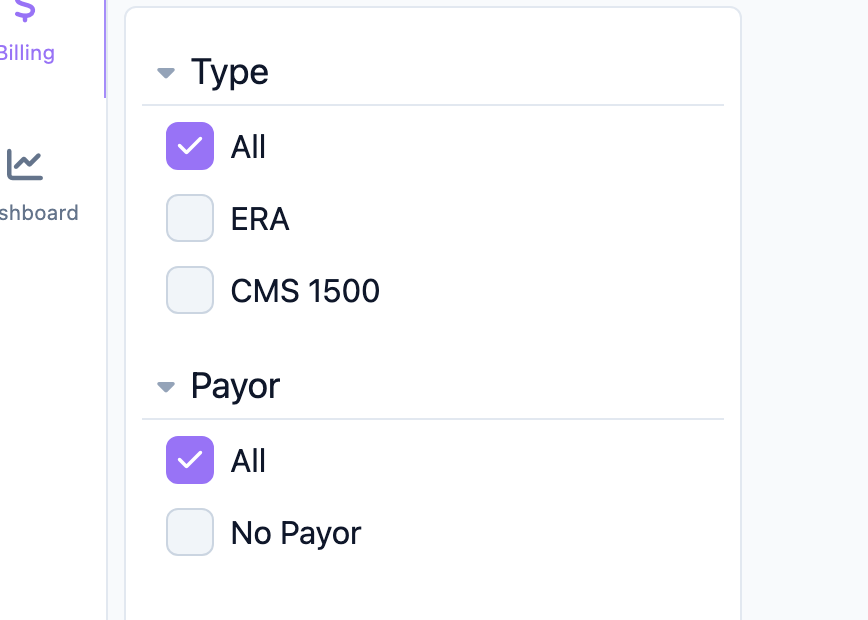
Use the two filters at the top of the Files tab to find a specific document:
- Type — All, ERA, or CMS 1500.
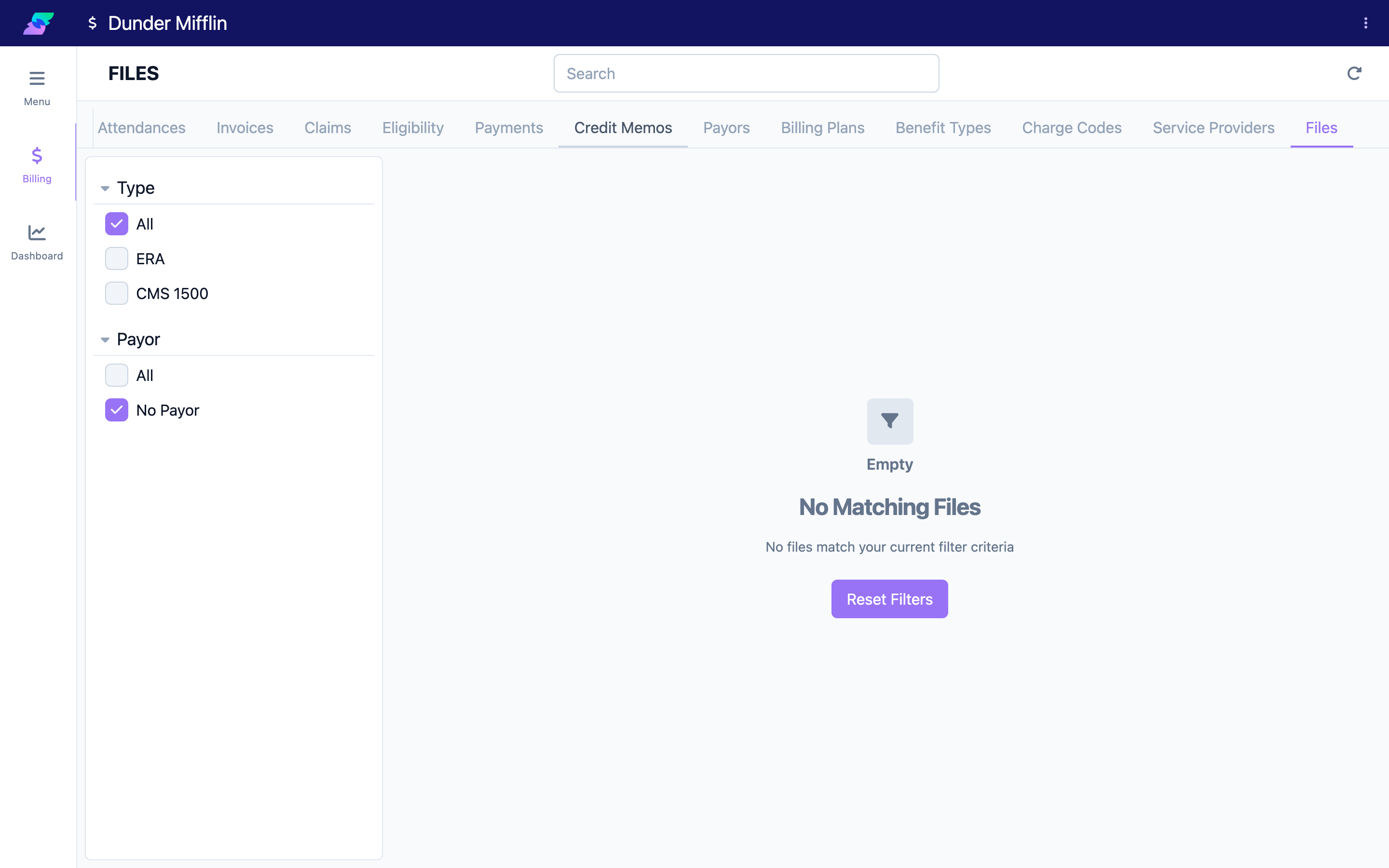
- Payor — All, No Payor (files that did not match a payor), or any specific payor.
Combine them — for example Type: ERA and a single Payor — to pull up one payer's remittances.
Step 4: Download a document
Select the document's Name (or its download button) to download it. Seniorverse prepares the file and opens it for you. Use this to keep a copy for your records or to review the full remittance outside the app.
Screenshot coming soon — Files tab row with the download control on the document name
Step 5: Reconcile an unassigned file
Every ERA is recorded even when Seniorverse cannot tie it to a payor or provider, so nothing is ever lost. Matching works like this:
- Payor is matched by the payer's external ID — the payer's Stedi ID must match the payor's stored external payer ID. Seniorverse never matches on payer name, because payer names are unreliable. A file with no match shows a blank payor and appears under the No Payor filter; the raw payer name is still stored on the file.
- Service provider is matched by NPI — the remittance's payee NPI must match a service provider's NPI. The center itself is resolved from the NPI through an administrator-controlled mapping, which is what makes the ERA safe to route automatically.
To reconcile an unassigned file, set the missing external payer ID on the payor (and confirm the service provider's NPI). Once the identifiers match, future remittances from that payer attach automatically. The file keeps the payee NPI and payer ID it arrived with, so your administrator can use them to reconcile.
Step 6: Read remark codes
Payers explain adjustments with standardized codes, and Seniorverse translates them for you in the claim's Activity tab:
- RARC (Remittance Advice Remark Codes) — explanatory notes (codes like M1, MA130, or N130). Seniorverse looks these up in its remark-code dictionary and shows the plain-language message, for example "ERA remark codes: N130 (…)".
- CARC (Claim Adjustment Reason Codes) — the reason an amount was adjusted or not paid. These appear as service-line adjustment entries on the same Activity log.
Read these to understand exactly why a claim was paid at less than the billed amount, or denied.
Screenshot coming soon — Claim Activity tab showing ERA remark codes and service-line adjustments
Tips
- Payment posting from an ERA is automatic — you do not record these payments by hand. If a claim shows Paid or Partial, open its Activity tab to see the remittance behind it.
- The single most common reason a remittance does not attach to a payor is a missing or mismatched external payer ID. Set it once and future ERAs from that payer match on their own.
- Use Type: ERA plus a payor filter to quickly gather one payer's remittances for a reporting period.
- A re-sent ERA is detected as a duplicate and skipped, so you will not see double payments.
Troubleshooting
| Problem | Solution |
|---|---|
| A remittance shows under No Payor | The payer's external ID did not match any payor. Set the payor's external payer ID to the payer's Stedi ID; the raw payer name on the file tells you which payer it is. |
| The Service Provider column is blank | The remittance's payee NPI did not match a service provider. Confirm the service provider's NPI is set correctly. |
| A paid claim has no payment recorded | Open the claim's Activity tab. If the ERA could not match the claim's control number, it is logged there; contact your administrator to reconcile. |
| I do not see any ERAs at all | ERAs route to a center through an administrator-controlled NPI mapping. If none appear, your provider NPI may not be mapped yet — contact your Seniorverse administrator. |
| I need the full remittance document | Download it from the Files tab using the document name. |
Related Articles
- submitting-and-tracking-claims — Submitting and Tracking Claims
- enabling-and-understanding-claims — Enabling and Understanding Claims
- setting-up-payors — Setting Up Payors
- setting-up-service-providers — Setting Up Service Providers
- managing-unallocated-payments — Managing Unallocated Payments