
Overview
Seniorverse can turn a finalized invoice into one or more electronic insurance claims and submit them to payers on your behalf. Under the hood this uses EDI (Electronic Data Interchange) — the standardized file format the healthcare industry uses to exchange claims and payment data. The outbound claim file is an 837 transaction (an 837P for professional claims or an 837I for institutional claims).
You do not build these files by hand. When a benefit type is set up for claims, Seniorverse automatically generates and splits claims from the invoice as part of the Prepare step, and you review and track them on the Claims tab.
This article explains the one-time setup that turns claims on, how claims are generated and split from an invoice, where to find them, and what each claim status means. It is conceptual and setup-focused. The companion articles cover submitting, eligibility, and remittance.
Before You Begin
- You need access to the Billing module.
- Configuring benefit types is an administrative task — you need permission to edit Benefit Types (Billing > Benefit Types).
- Have your billing details ready: the claim format each benefit type uses (837P professional or 837I institutional), and how you want charges grouped into claims.
- Members must have a member benefit with the insurance details claims require (for example insurance member ID, group number, ICD-10 diagnosis, and provider information). See "Setting Up Member Benefits."
Steps
Step 1: Turn on claims for the benefit type
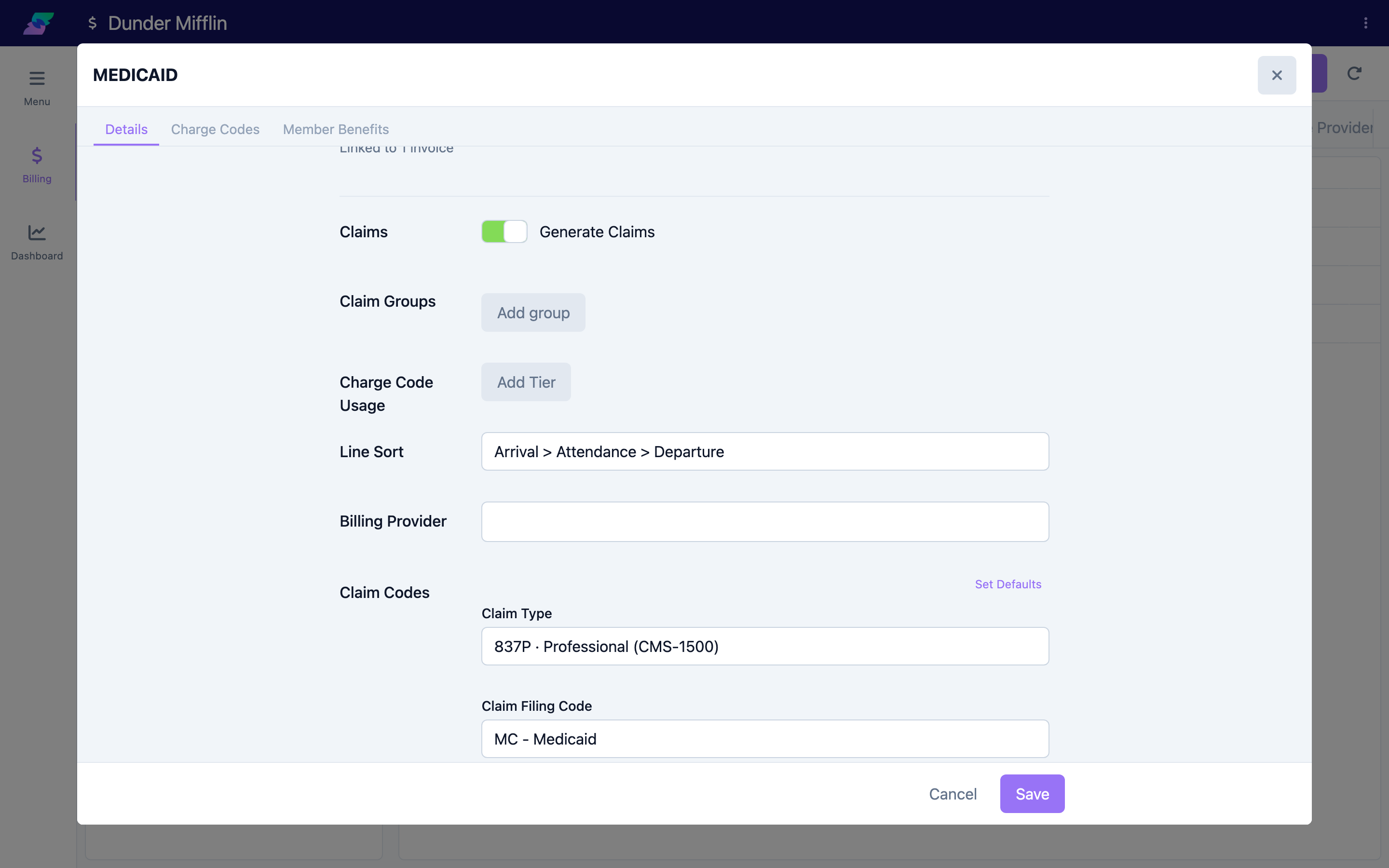
Claims are controlled per benefit type. Open Billing > Benefit Types, open the benefit type, and enable Claims. This is the claims flag on the benefit type — it determines whether invoices created from that benefit type generate claims at all. Benefit types with claims turned off bill normally (invoices emailed to a payor) and never create claims.
On the same benefit type, set the claim format. Seniorverse defaults to 837P (professional). Choose 837I (institutional) only if that payer requires institutional claims — the format decides which EDI transaction Seniorverse builds and which Stedi endpoint it submits to.
Step 2: Set up claim groups
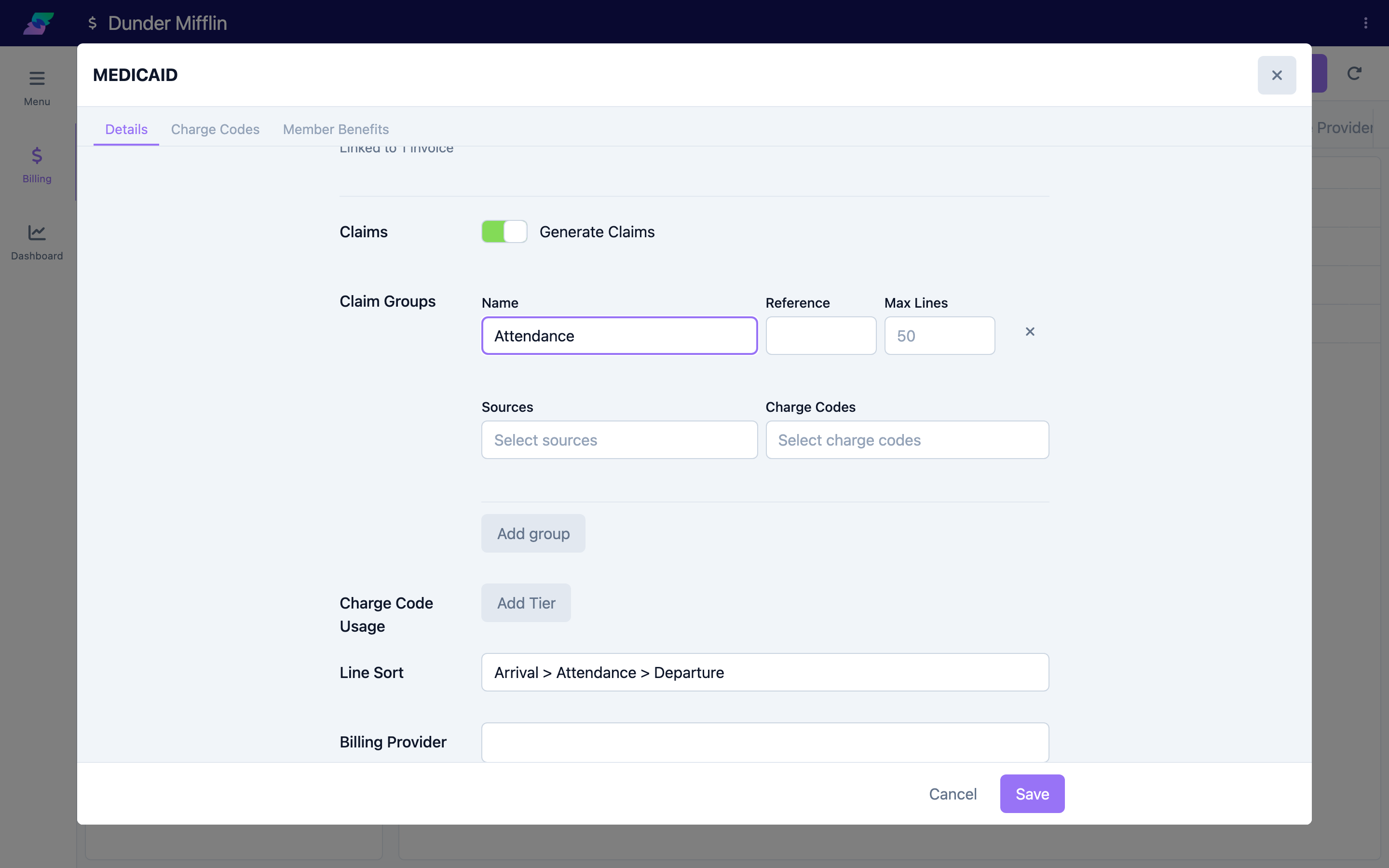
A single invoice line often should not sit on the same claim as another. Claim groups tell Seniorverse how to divide a member's lines into separate claims. Each claim group entry on the benefit type defines:
- Name — the label shown on the resulting claim (for example "Attendance" or "Transportation").
- Source types and charge codes — which lines belong to this group. A line matches a group when it matches the group's source types and its charge codes (a group leaves either list empty to mean "any").
- Max lines — the largest number of invoice lines allowed on one claim in this group. If a group does not set a limit, Seniorverse uses the default of 50 lines per member.
- Institutional codes — admission type, admission source, patient status, and place-of-service codes used on 837I claims.
Any line that does not match a claim group falls into a built-in Default group.
Snapshot behavior: the benefit type's claims setting, claim format, and claim groups are copied onto the invoice when the invoice is created. Changing a benefit type later does not rewrite invoices that already exist — it only affects new invoices.
Step 3: Generate claims from an invoice
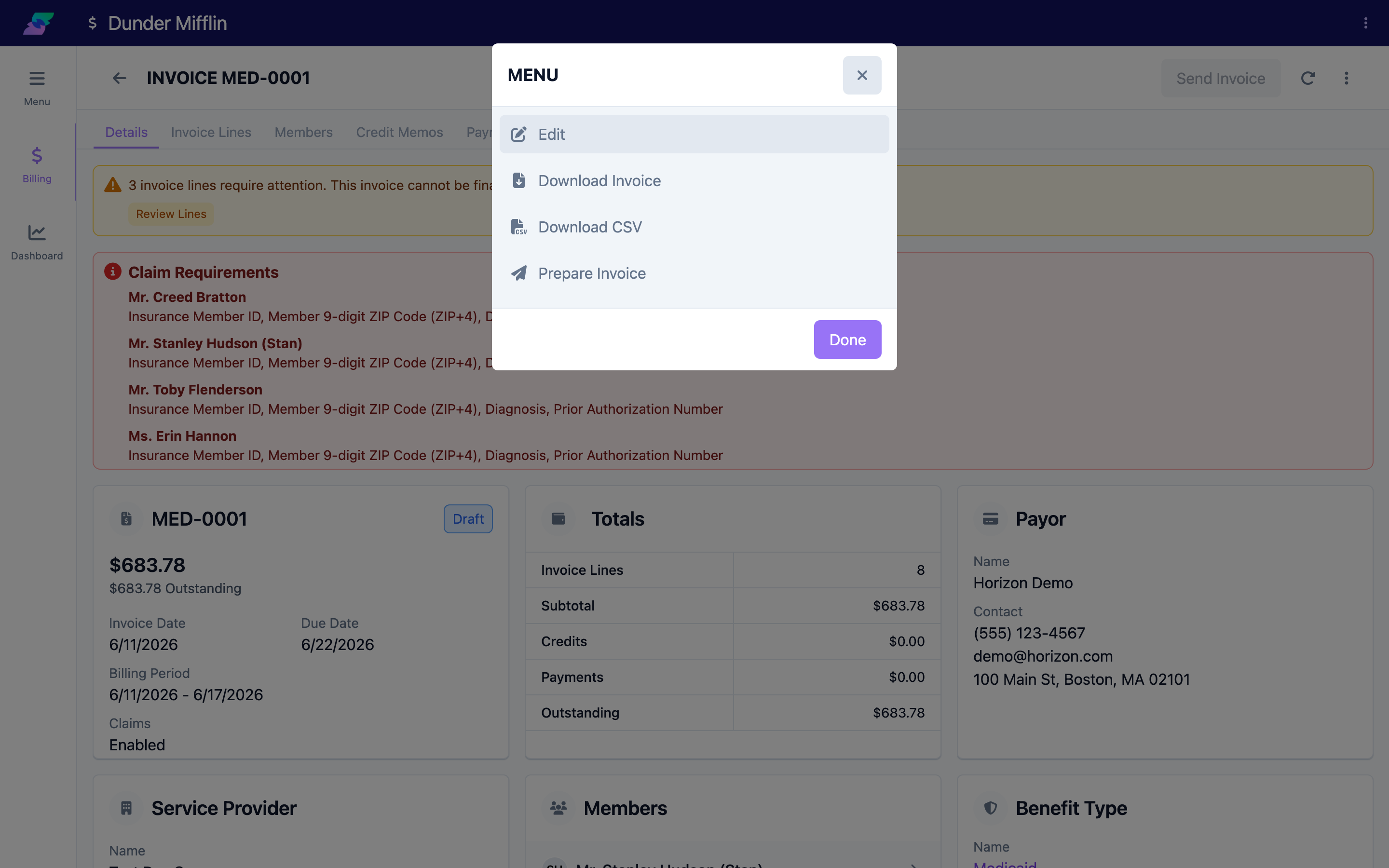
Claims are created automatically during the invoice Prepare step. On a claims-enabled invoice you do not create claims manually — you run Prepare Invoice (or press Send Invoice, which runs Prepare, Finalize, and Send in sequence). Prepare turns the invoice's preview lines into real invoice lines and then splits them into claims.
The split happens in this order:
- By member — each member's lines are handled separately.
- By member benefit — every claim covers exactly one benefit; a line without a valid, invoice-matching member benefit is flagged for attention and left off, never guessed.
- By claim group — each benefit's lines are sorted into the matching claim groups (first match wins), with leftovers in Default.
- By day and line limit — within a group, whole service days are packed together up to the max-line limit. A claim never splits a single day across two claims; if one day's lines exceed the limit, that day gets its own claim and is flagged as an overflow.
Each resulting claim is labeled with its group and position, such as Attendance 1/2 and Attendance 2/2.
Step 4: Find claims on the Claims tab
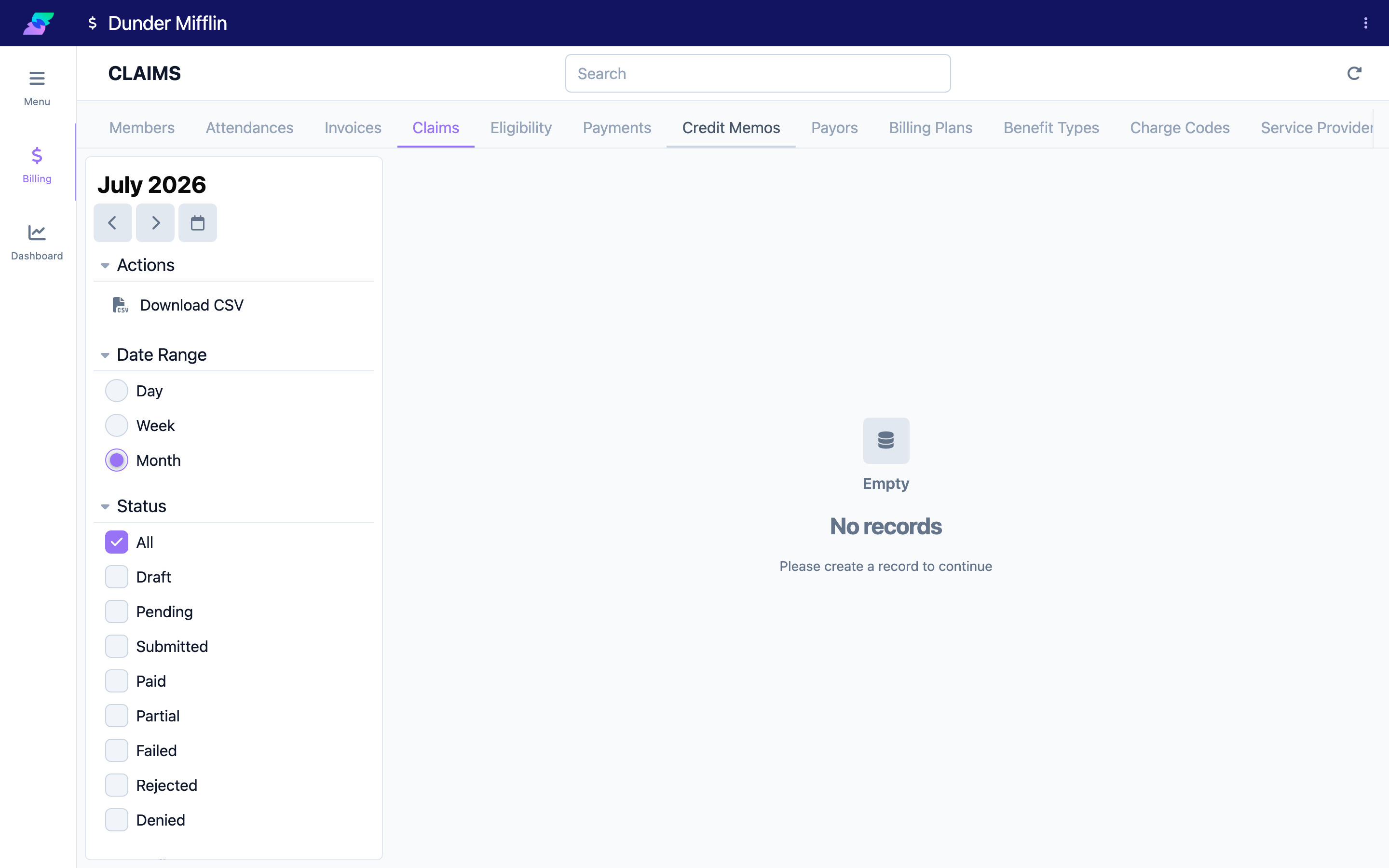
Open Billing and select the Claims tab to see every claim across your center. The table shows the member, benefit type, amount, Paid, and Status. Use the filters at the top to narrow by Status, Benefit Type, Members, or Invoices, and use Actions > Download CSV to export the list.
Select any claim to open its detail, which has four tabs: Details, Invoice Lines, Submissions, and Activity.
Step 5: Understand claim statuses
A claim's status tells you where it is in its life. The statuses you will see are:
| Status | Meaning |
|---|---|
| Preview | A draft-invoice preview claim. It is calculated live and not yet saved — it becomes a real claim when the invoice is prepared. |
| Draft | A saved claim that has not been submitted yet. |
| Queued | The claim has been handed to the submission queue during Send and is waiting for its turn. |
| Submitted | The 837 was accepted by Stedi and sent to the payer; you are now waiting for an acknowledgment and remittance. |
| Pending | The claim is with the payer and awaiting a decision. |
| Paid | The payer has paid the claim in full (a payment and allocations were recorded from the remittance). |
| Partial | The payer paid part of the claim. |
| Rejected | The claim was rejected (for example at acknowledgment) and needs to be corrected and resubmitted. |
| Denied | The payer processed the claim and denied payment. |
| Failed / Error | Submission or processing failed before the payer could respond. The Details tab shows the reason. |
Rejected, Denied, Failed, and Error all count as "failed" claims that need your attention — they surface on the Billing Dashboard and can be filtered on the Claims tab.
Screenshot coming soon — Claim detail showing the status badge and the Details, Invoice Lines, Submissions, and Activity tabs
Tips
- Claims and non-claims billing can coexist. Only benefit types with Claims enabled generate claims; everything else bills as a normal emailed invoice.
- Because claim groups and the claim format are snapshotted onto the invoice at creation, finish your benefit-type setup before you generate the invoices you plan to submit.
- The 50-line limit is per member, per claim group. Long attendance periods for one member naturally split into several sequentially numbered claims — this is expected.
- A claims invoice does not email the payer, so it does not require a payor email address. Non-claims invoices do.
Troubleshooting
| Problem | Solution |
|---|---|
| No claims appeared after Prepare | Confirm the invoice's benefit type has Claims enabled. Because the setting is snapshotted at creation, an invoice created before you turned claims on will not generate claims — recreate it. |
| A member's lines were left off the claims | Lines without a valid, invoice-matching member benefit are flagged for attention rather than guessed. Fix the line's member benefit (or remove the line) and prepare again. |
| One member has more claims than expected | Claims split by claim group and by the 50-line (or group) limit, keeping whole days together. Several sequentially numbered claims (1/3, 2/3, 3/3) for a busy member is normal. |
| Lines landed in a "Default" claim | Those lines did not match any claim group's source types and charge codes. Adjust the claim group definitions on the benefit type, then recreate the invoice. |
| The claim format is wrong (837P vs 837I) | The format comes from the benefit type. Update the claim format there and generate a new invoice. |
Related Articles
- submitting-and-tracking-claims — Submitting and Tracking Claims
- running-eligibility-checks — Running Eligibility Checks
- receiving-remittance-and-the-files-tab — Receiving Remittance and the Files Tab
- configuring-benefit-types — Configuring Benefit Types
- the-invoice-lifecycle — The Invoice Lifecycle