
Overview
Add staff to Seniorverse from Center > Users. When you add a user you choose an account Type, enter their details, and set their access. Seniorverse offers two account types:
- Self — you invite the person by email. They receive an invitation and manage their own login and password.
- Center — you create a center-managed login by setting a name, username, and password yourself. No email is sent; you share the credentials with the user.
Before You Begin
- You need permission to invite users (the Center:User:Invite scope, or full center access).
- For a Self account, have the person's email address ready.
- For a Center account, decide on a username and a password that meets the requirements (at least 8 characters with an uppercase letter, a lowercase letter, a number, a symbol, and no spaces).
- Know what Position, permissions, and Task Roles the person needs.
Steps
Step 1: Open Center > Users
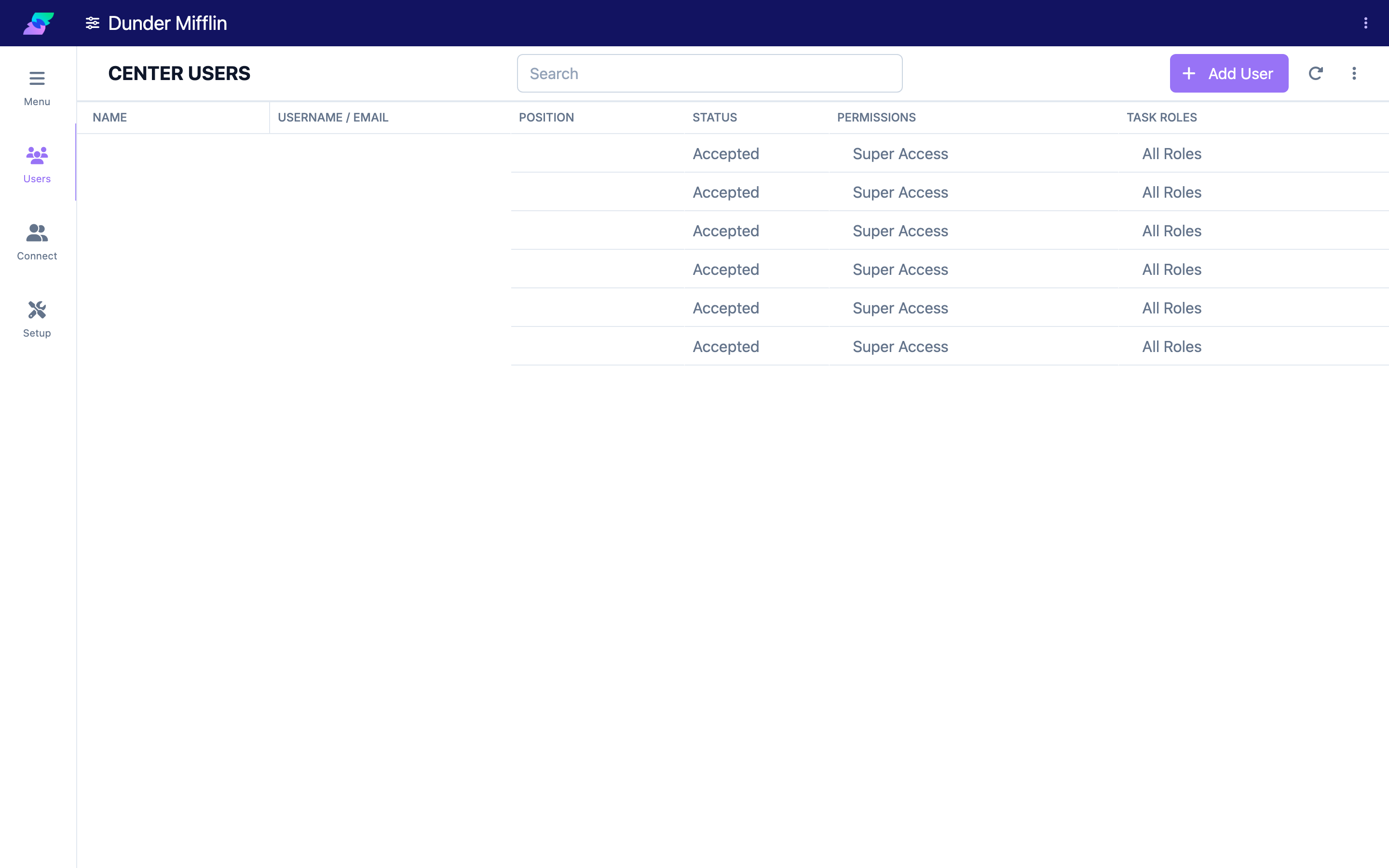
Select Center from the navigation, then Users. The Users table lists everyone with access to your center.
Step 2: Select Add User
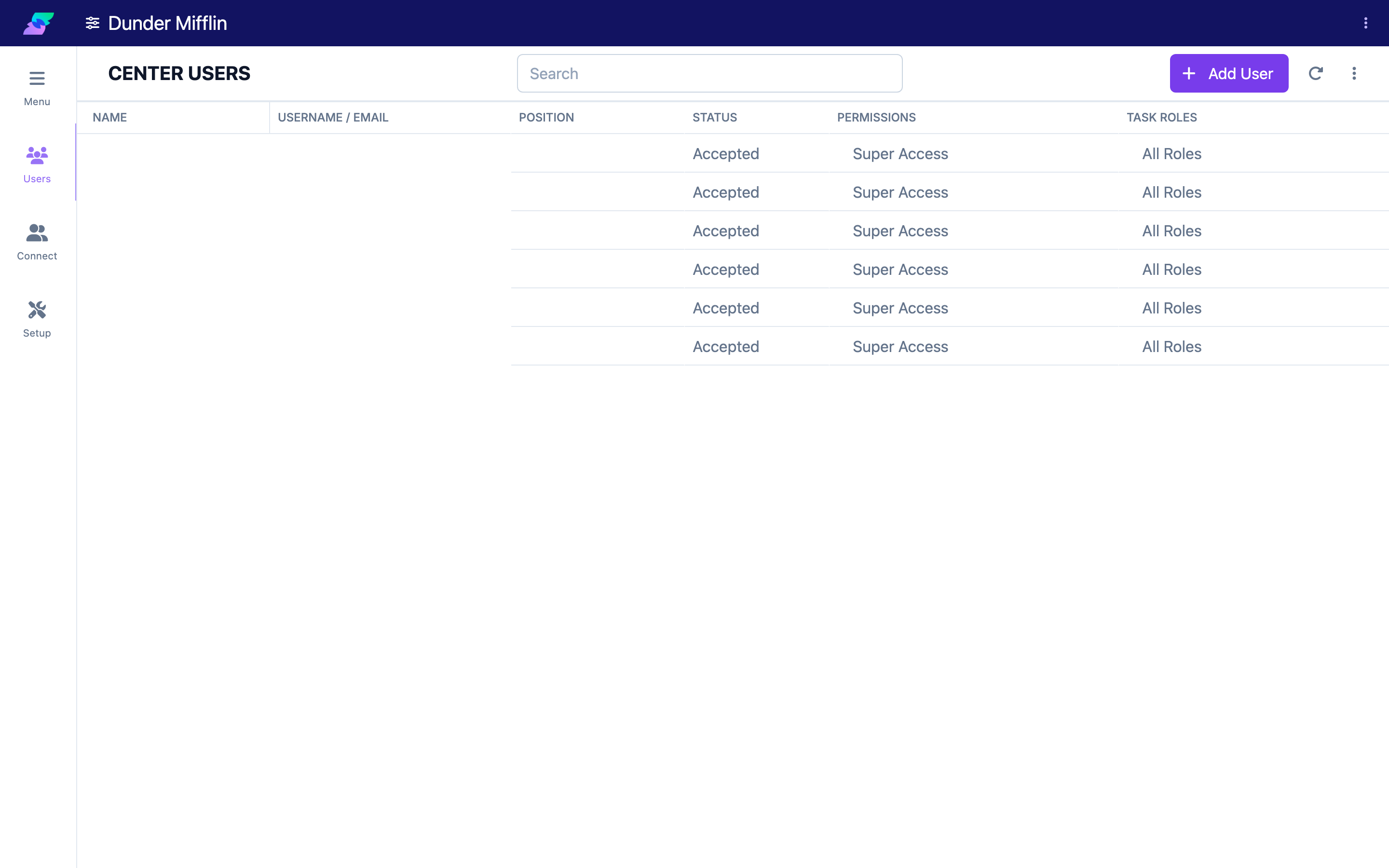
Choose Add User to open the invite panel.
Step 3: Choose the account Type
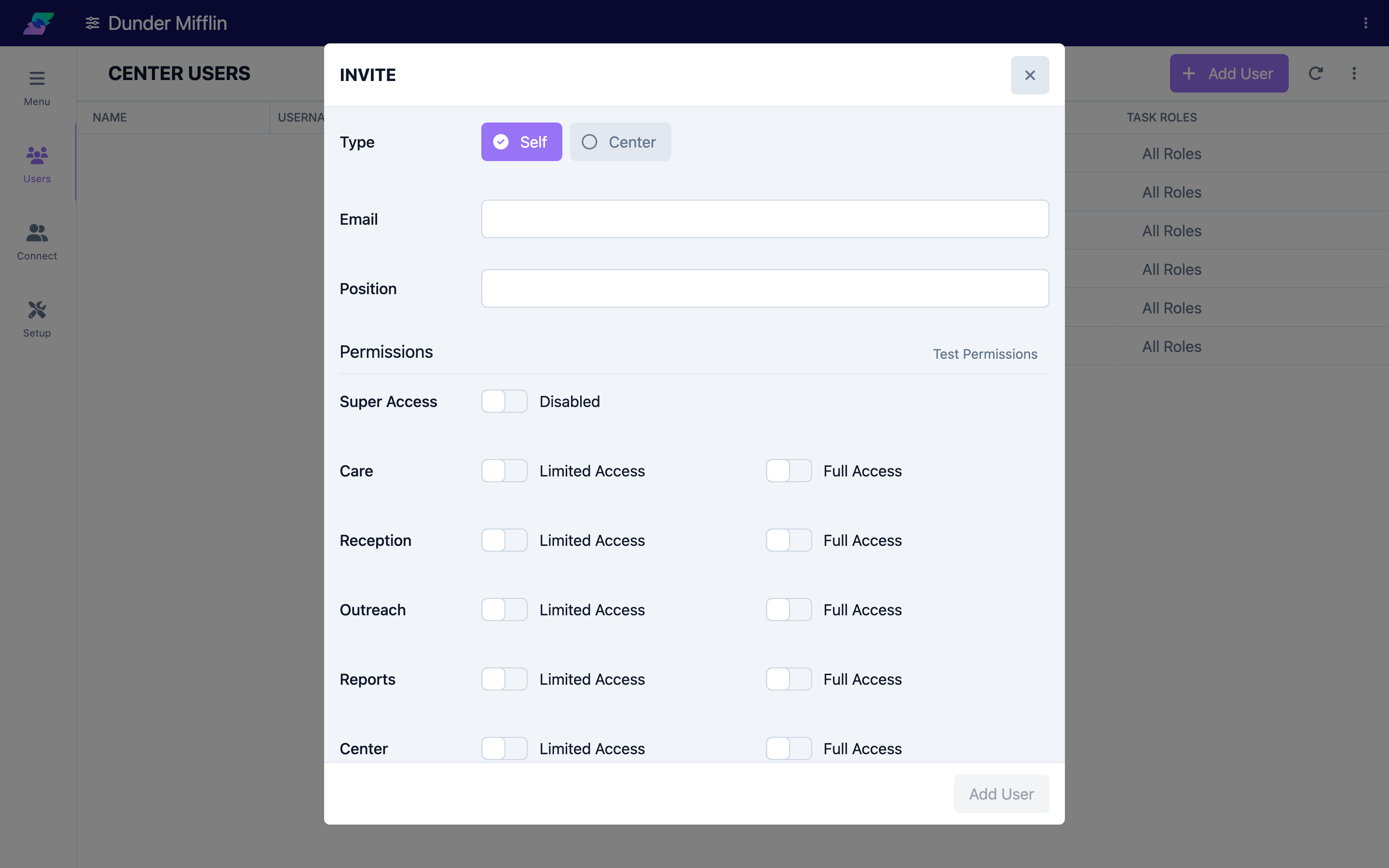
Under Type, select Self or Center:
- Choose Self if the person will manage their own login and can receive an email invitation.
- Choose Center to create a center-managed login yourself.
Step 4: Enter the user's details
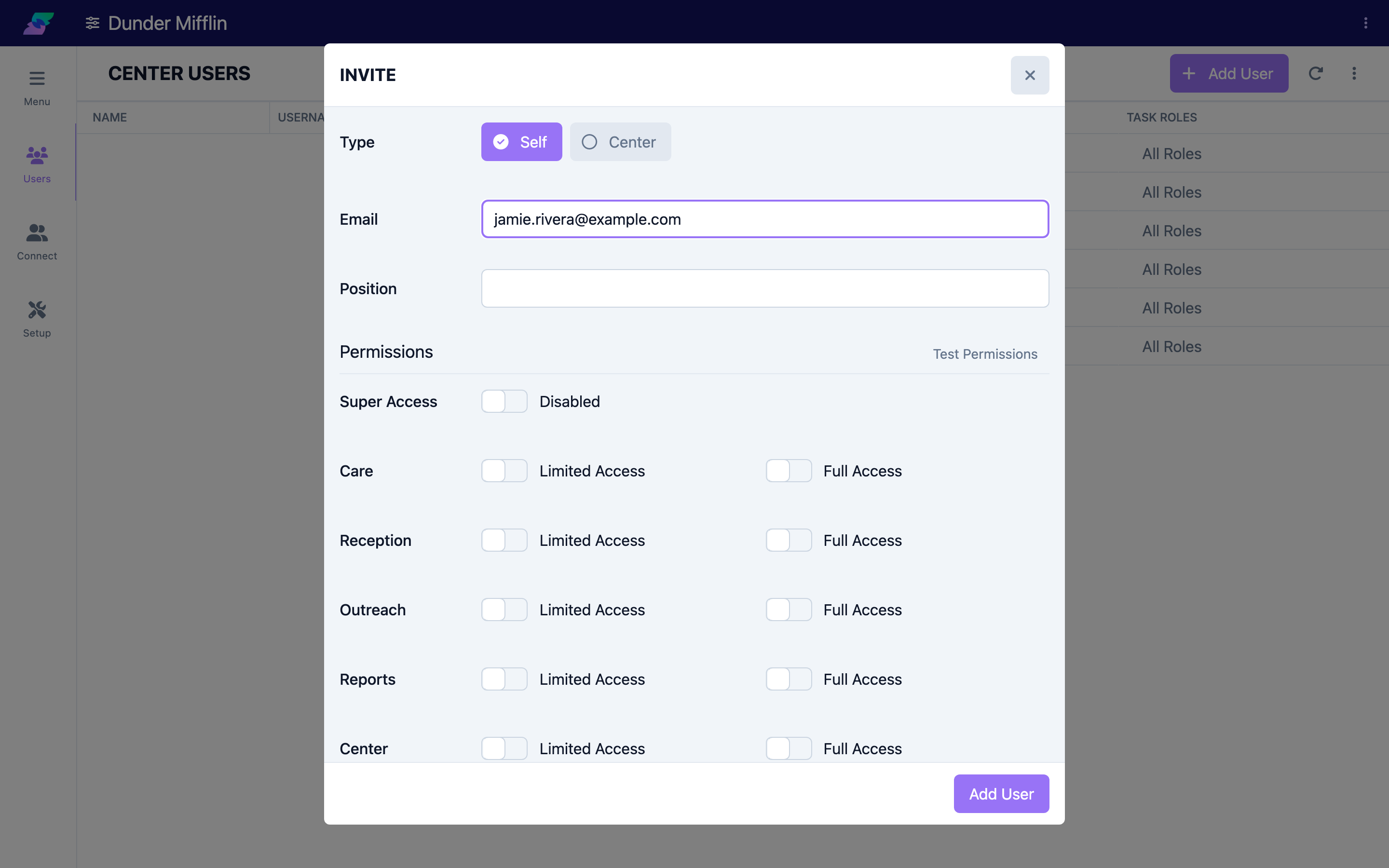
- For a Self account, enter the person's Email.
- For a Center account, enter the Name, Username, and Password.
Then choose a Position from your center's list. Position is a job-title label; it is optional unless your center requires it.
Step 5: Set permissions and Task Roles
In the Permissions section, set the user's access — either Super Access or per-app Full Access / Limited Access with specific scopes. In the Task Roles section, choose which care tasks they can work on. For detail, see Setting User Permissions and Managing User Roles.
Note: The Super Access toggle appears only for Self accounts and only when you have Super Access yourself.
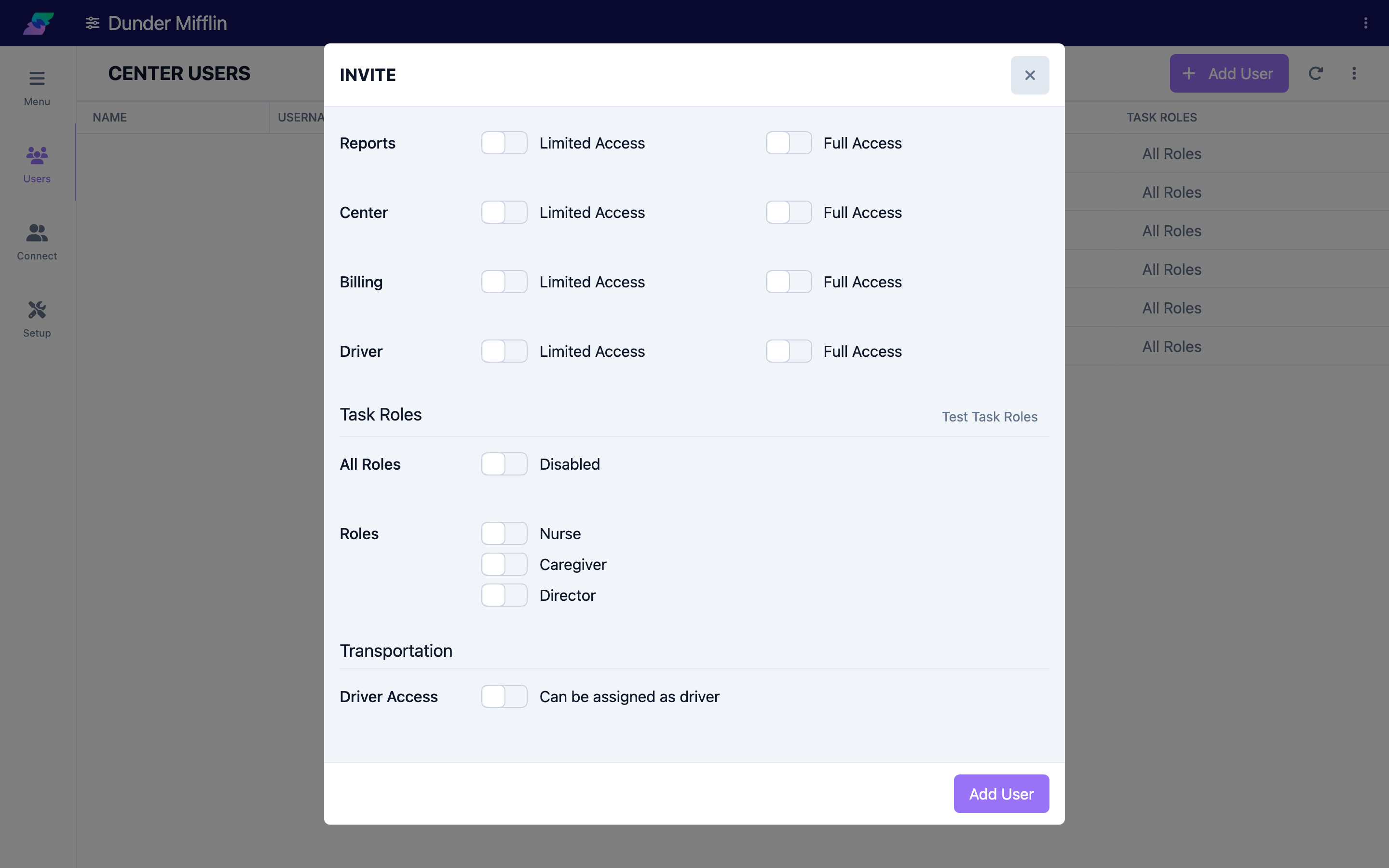
Step 6: Add the user
Select Add User to finish:
- Self accounts receive an email — "You've been invited to [your center] on Seniorverse!" — with a link to sign in or set up their account.
- Center accounts are ready immediately; share the username and password securely with the user.
The new person then appears in the Users table.
Screenshot coming soon — New user shown in the Users table
Tips
- Prefer Self accounts when you can. The person manages and resets their own password, which reduces your admin work.
- Store Center credentials safely. For center-managed accounts, keep the username and password somewhere secure in case the user needs them again.
- Grant the least access needed. Start with Limited Access scopes and add more later rather than defaulting to Super Access.
- Set Position, permissions, and Task Roles together. They are separate settings — a Position label alone does not grant any access.
Troubleshooting
| Problem | Solution |
|---|---|
| The Add User button is missing | You need the Center:User:Invite scope (or full center access). Ask an administrator to grant it. |
| The Add User button stays disabled | Complete the required fields: an email for a Self account, or a name, username, and password for a Center account (plus a Position if your center requires one). |
| A Self invite email did not arrive | Check the spam or junk folder and confirm the email address has no typos. |
| A Center account password is rejected | Passwords must be at least 8 characters and include an uppercase letter, a lowercase letter, a number, and a symbol, with no spaces. |
| The email address is already in use | That person already has access to this center. Edit their existing entry instead of inviting again. |