
Overview
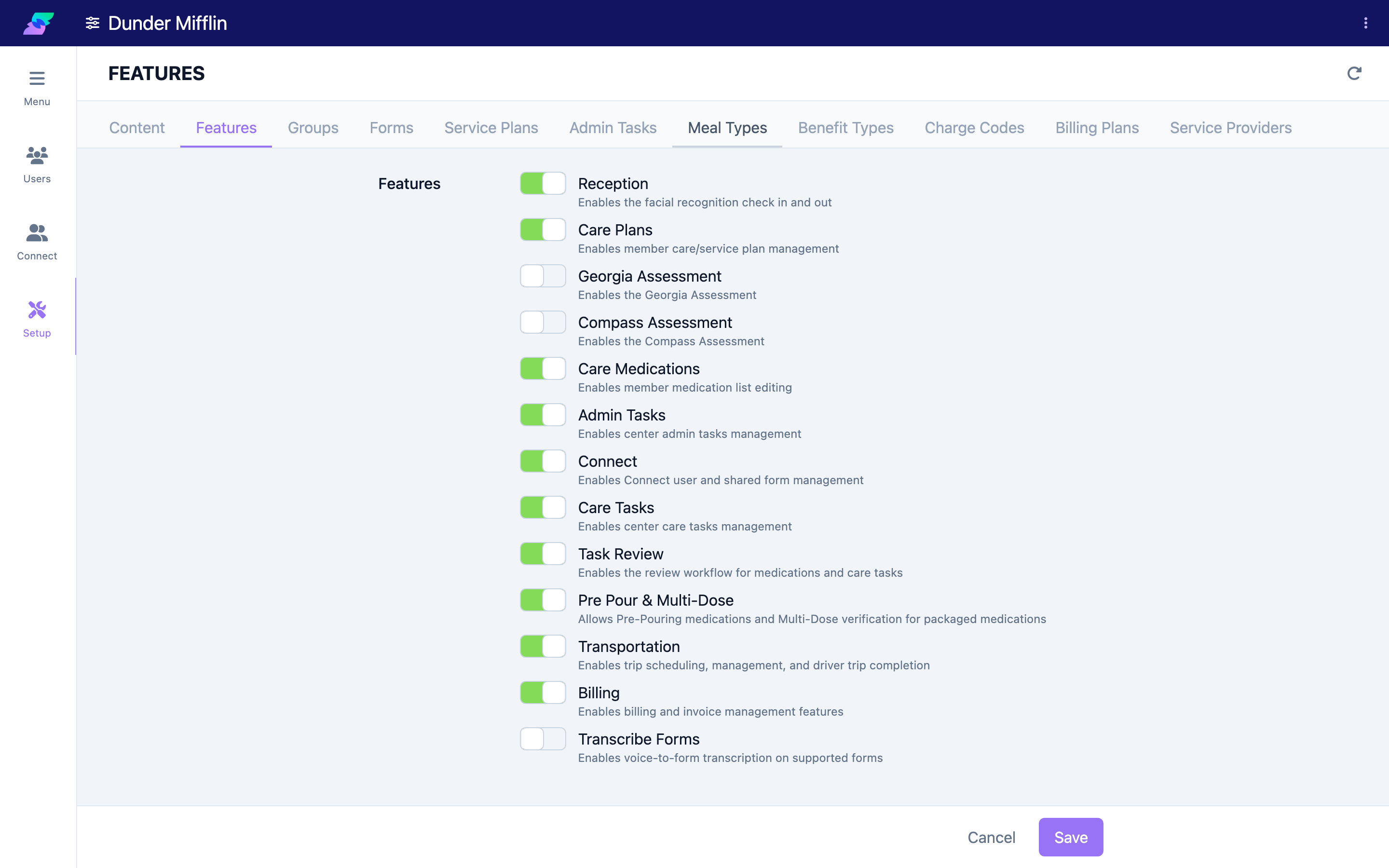
Seniorverse includes optional features that can be turned on or off for your center. Features are managed on the Features tab of the Center > Setup page. There is no separate "Features" item in the Center menu, and there is no "Roles" page — feature availability is controlled entirely from this tab.
Changing feature toggles requires full center access (Super Access). If you open the Features tab without it, you will see a restricted view; ask an administrator who has full access, or contact Seniorverse support, to make the change for you.
Available features
| Feature | What it enables |
|---|---|
| Reception | The facial-recognition check-in and check-out experience |
| Care Plans | Member care / service plan management |
| Georgia Assessment | The Georgia Assessment |
| Compass Assessment | The Compass Assessment |
| Care Medications | Editing member medication lists |
| Admin Tasks | Center admin task management |
| Connect | Connect user and shared-form management |
| Care Tasks | Center care task management |
| Task Review | The review workflow for medications and care tasks |
| Pre Pour & Multi-Dose | Pre-pouring medications and multi-dose verification for packaged medications |
| Transportation | Trip scheduling, management, and driver trip completion |
| Billing | Billing and invoice management features |
| Transcribe Forms | Voice-to-form transcription on supported forms |
Turning a feature off hides its screens and actions across the platform; it does not delete existing records. Turning the feature back on restores access to that data.
Before You Begin
- You need full center access (Super Access) to change feature toggles.
- You need the Center:Setup:View scope to open the Setup page.
- Some features work together (for example, Task Review and Pre Pour & Multi-Dose build on medications and care tasks). Enable the supporting features first.
Steps
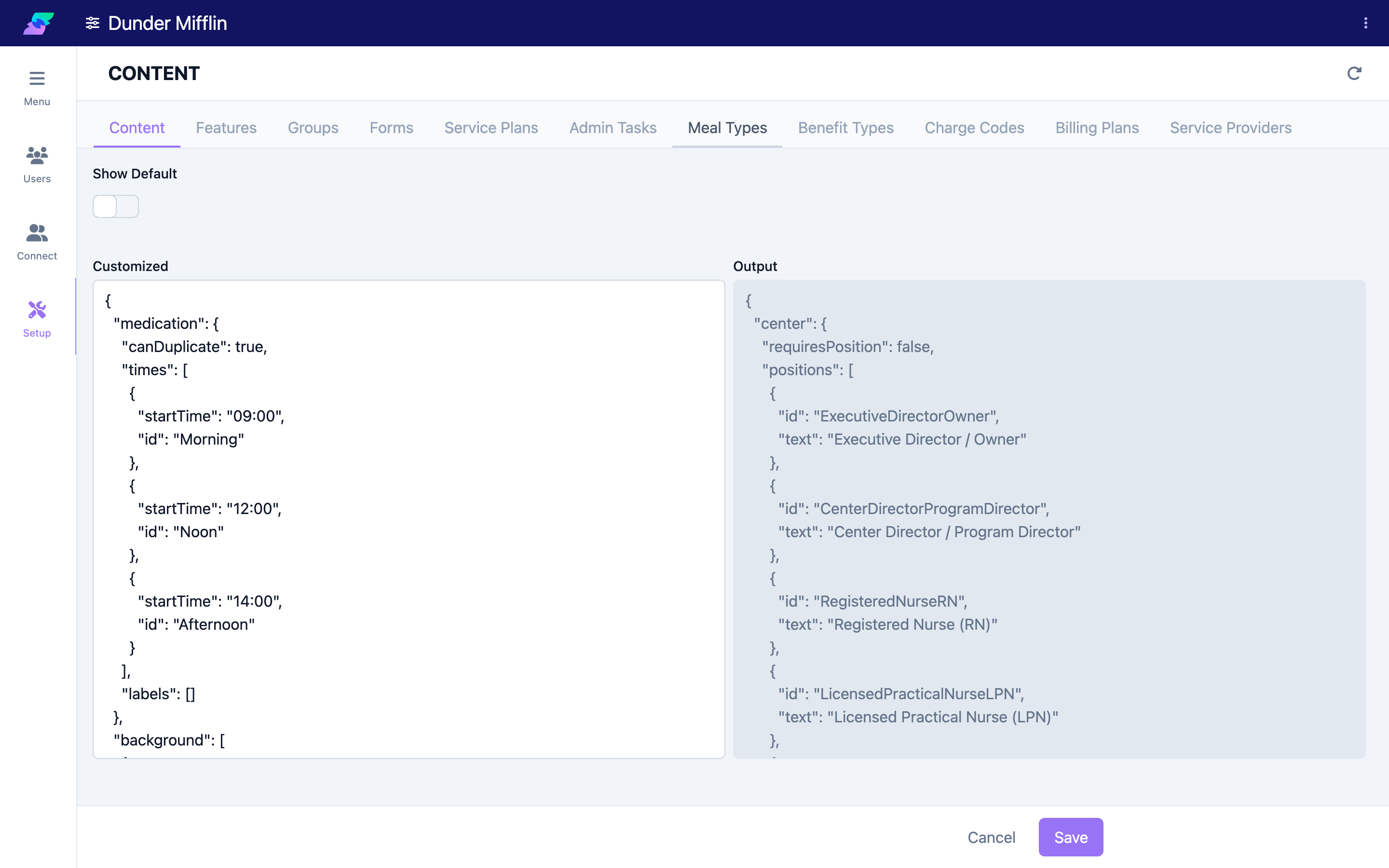
Step 1: Open Center > Setup
Select Center from the navigation, then select Setup.
Step 2: Open the Features tab
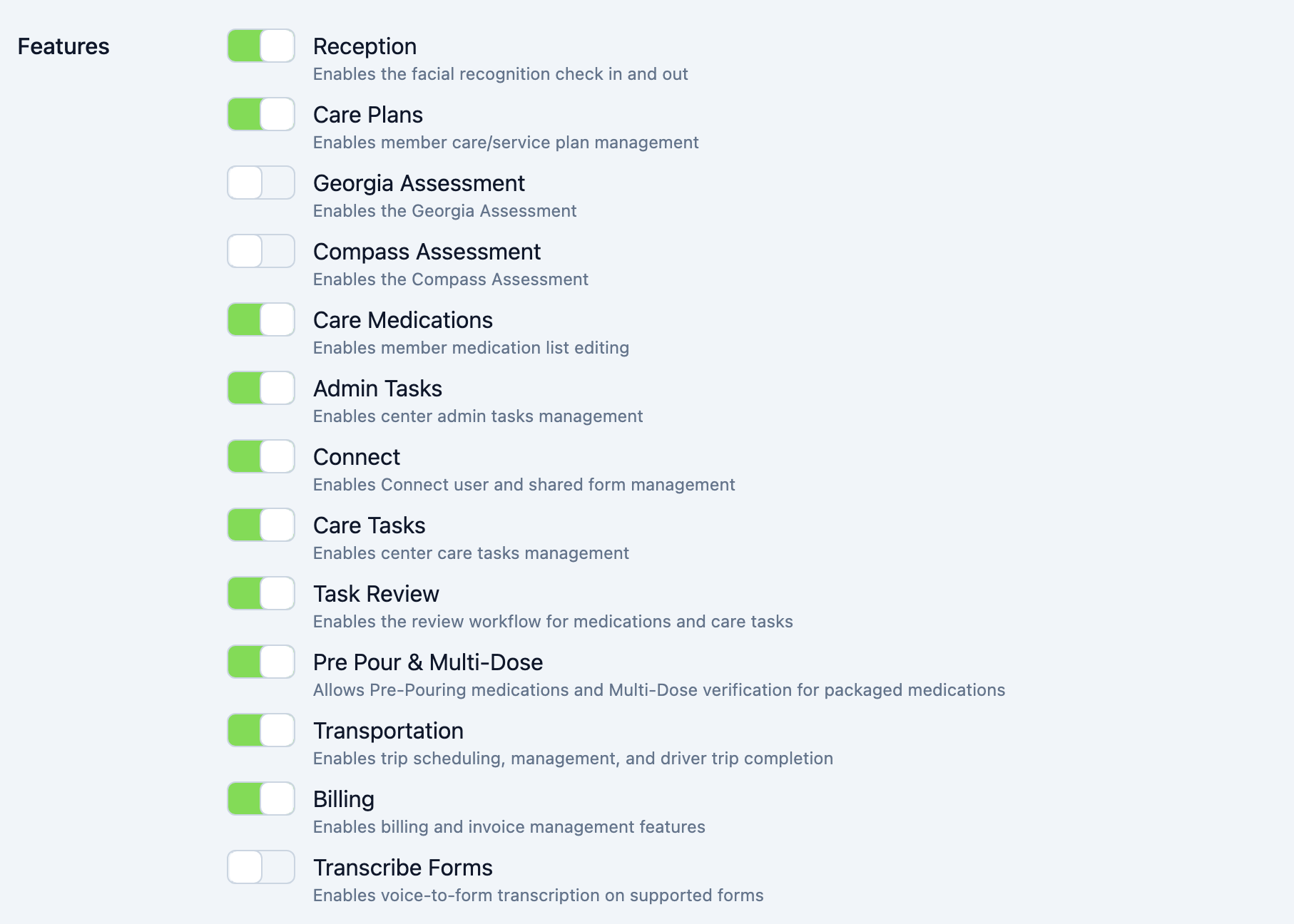
On the Setup page, select the Features tab. Each available feature is listed with a short description and an on/off toggle.
Step 3: Turn a feature on or off
Select a feature's toggle to enable or disable it, then save. The change applies to the whole center. Ask staff to refresh or sign out and back in if they do not see it immediately.
Tips
- Enable only what you use. A shorter feature set keeps the interface simple and speeds up training.
- Announce changes. Before turning off a feature staff rely on, let them know so nothing disappears unexpectedly.
- Turning off does not delete data. Disabling a feature hides it; the underlying records remain and return when you re-enable it.
- Ask support if a feature is missing. If a feature you expect is not listed, contact Seniorverse support — some capabilities are provisioned for your account.
Troubleshooting
| Problem | Solution |
|---|---|
| The Features tab shows a restricted message | Changing features requires full center access (Super Access). Ask an administrator who has it, or contact Seniorverse support. |
| You cannot find the Features tab | Features live on the Features tab of Center > Setup, not as a menu item. Confirm you have the Center:Setup:View scope. |
| A feature toggle does not seem to take effect | Save your change, then have affected staff refresh the page or sign out and back in. |
| A feature you need is not in the list | The feature may not be provisioned for your account. Contact Seniorverse support. |